Storefront Settings
Managing Microsites, Multi-Currency & Geo Pricing
Enable multiple region-specific microsites with localized currencies and pricing based on customer geography to deliver personalized shopping experiences.
Micro Websites
BetterCommerce Microsites are specialized, focused web pages designed for specific marketing campaigns, product launches, or targeted customer segments. They provide a streamlined way to create dedicated landing pages within your e-commerce ecosystem.
Accessing Microsites Management
Navigation Path
| Step | Action |
|---|---|
| 1 | Navigate to the Microsites section from the Main Menu |
| 2 | Use the direct URL: https://commerce.bettercommerce.io/microsites |
Microsites Interface Overview
Main Features
-
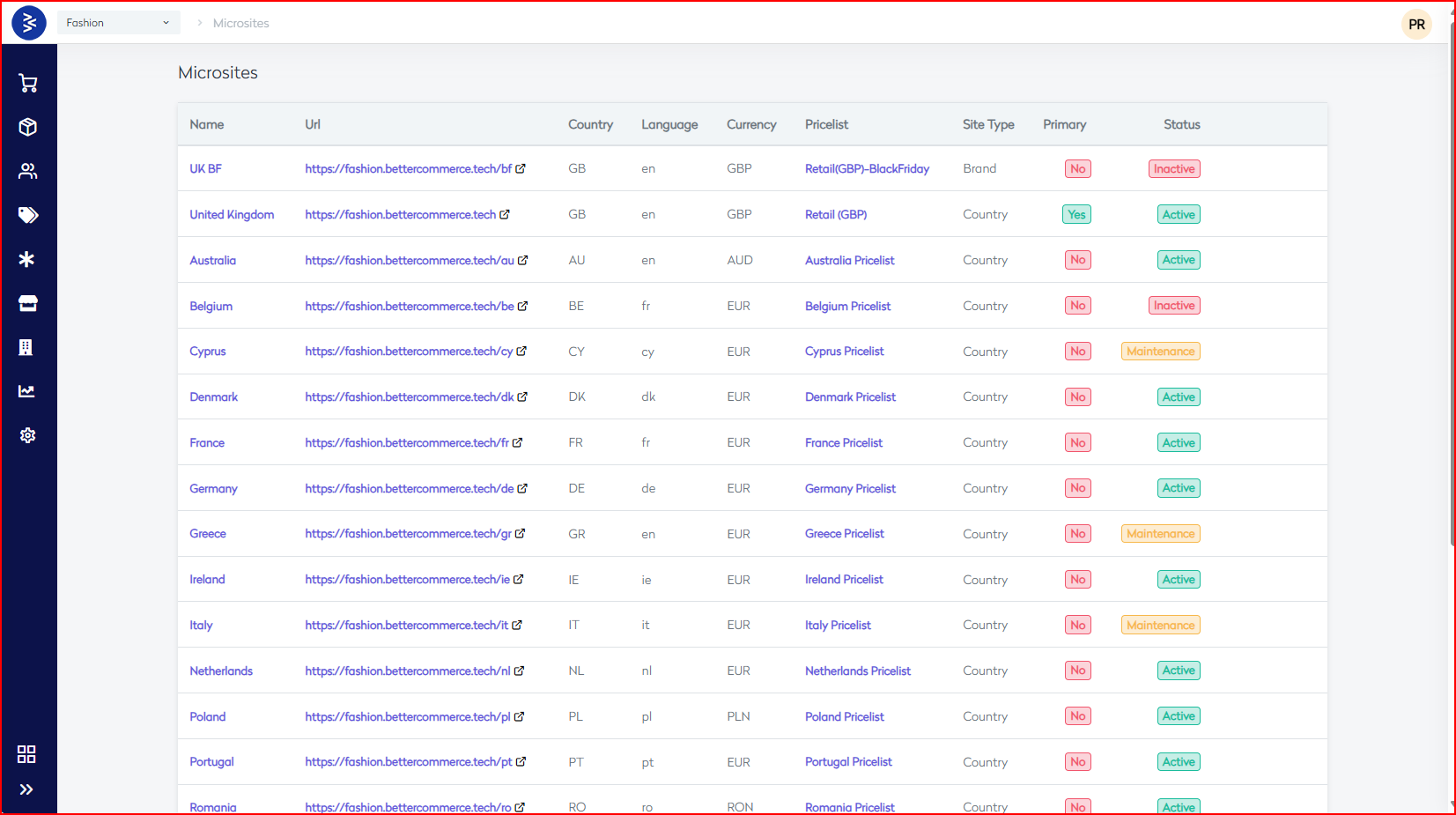
Microsite Listing
View all existing microsites in a tabular layout with key details. -
Search & Filter
Quickly locate specific microsites using keywords or filters. -
Status Management
Enable or disable visibility and control activation status of each microsite.
📌 Microsites are essential tools for marketers and merchandisers looking to deliver tailored experiences to specific customer groups or campaigns.
Edit Microsite: Guide on how to edit microsite settings including information, navigation, and content blocks in BetterCommerce.
Important Note: To activate any microsite, it currently needs to be done through the script. However, once created, it can be edited from this interface.
Edit Microsite - BetterCommerce
Overview
This guide provides detailed instructions for editing a microsite within the BetterCommerce platform. A microsite is a dedicated site variant tailored for specific campaigns, regions, or customer segments. The editing interface includes configurable fields like name, URL, language, picklist, navigation menus, and mapped content blocks.
Accessing the Microsite Editor
Navigation Path
| Step | Action |
|---|---|
| 1 | Go to CMS → Microsites |
| 2 | Select the desired microsite (e.g., UK BF) from the list |
| 3 | Click on the Edit icon next to the microsite name |
Information Section
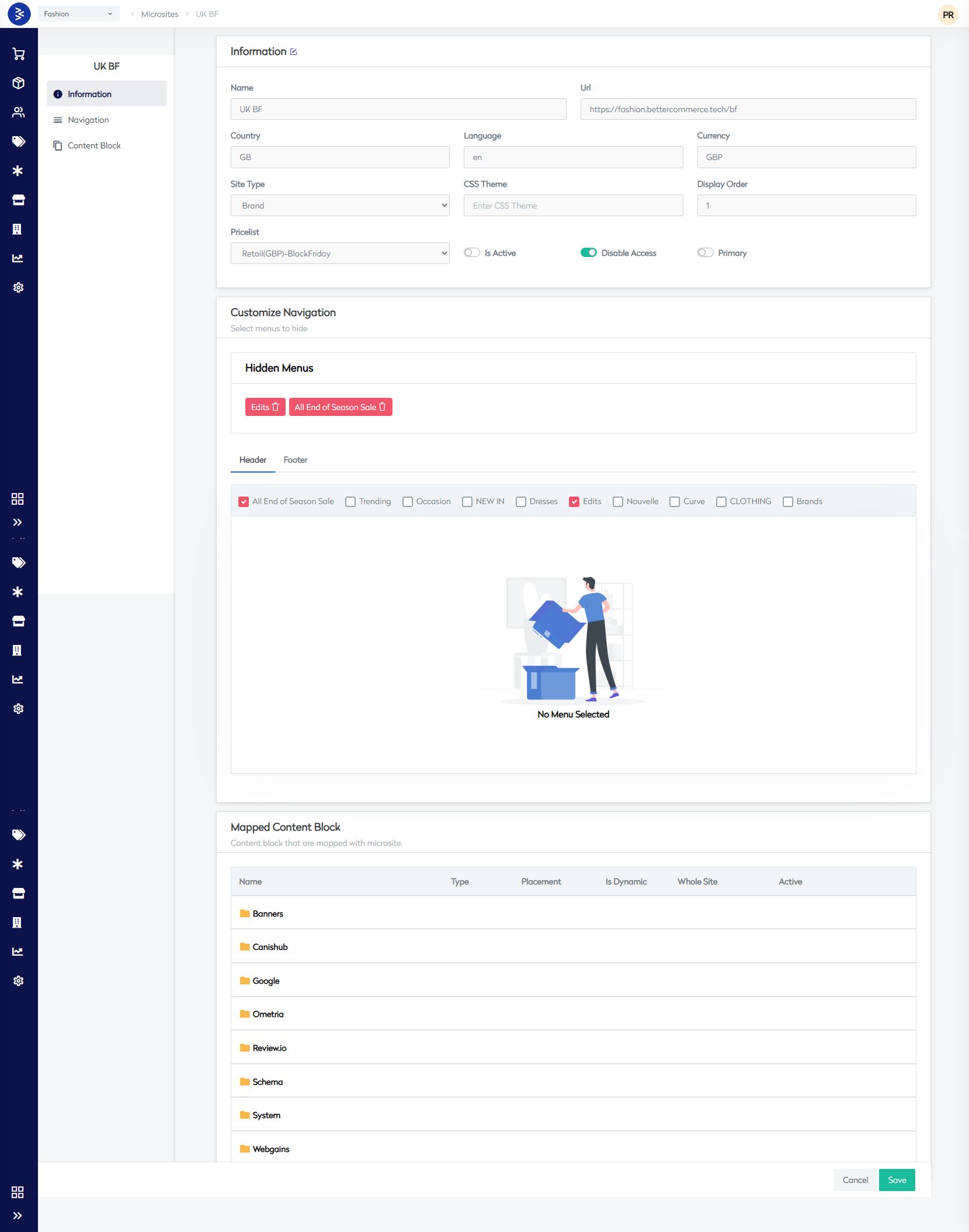
This section allows you to configure the core metadata and setup of the microsite.
| Field | Description |
|---|---|
| Name | Internal name of the microsite (e.g., UK BF) |
| URL | Display and navigation URL of the microsite |
| Country | Country code where the microsite operates (e.g., GB) |
| Language | Language code (e.g., en for English) |
| Currency | Currency used on the microsite (e.g., GBP) |
| Site Type | Classification (e.g., Brand) |
| CSS Theme | Optional CSS theme name for custom styling |
| Display Order | Determines the ordering of microsites in the UI |
| Picklist | Pre-configured theme like RetailGBP-Black-Friday |
| Is Active | Toggle to enable or disable the microsite |
| Disable Access | Optionally restrict access without deletion |
| Primary | Mark the microsite as primary for that region or theme |
Customize Navigation
Hidden Menus
This feature allows you to hide specific navigation menus for this microsite:
- Displayed Hidden Items:
- Edits
- All End of Season Sale
Use the red delete icon to remove a hidden menu tag.
Header/Footer Preview
The UI previews available menus that can be included in the Header and Footer. Select from standard options like:
- All End of Season Sale
- Trending
- Occasion
- NEW IN
- Dresses
- Edits
- Nouvelle
- Curve
- CLOTHING
- Brands
📌 If no menu is selected, the preview will display a placeholder message.
Mapped Content Block
This section shows the list of Content Blocks associated with the microsite. Each folder may include dynamic or static content pieces used across the website.
| Column | Description |
|---|---|
| Name | Folder containing mapped content blocks |
| Type | Type of content (e.g., HTML, JavaScript snippet) |
| Placement | Location where the block is rendered (e.g., header, footer) |
| Is Dynamic | Indicates if the content block is dynamic |
| Whole Site | Whether it applies to the entire site |
| Active | Current status of the content block |
Examples of folders:
- Banners
- Canishub
- Ometria
- Reviews.io
- Schema
- System
- Webgains
Save or Cancel Changes
At the bottom-right of the page:
- Click Save to apply all changes.
- Click Cancel to discard your edits.
Best Practices
- Always verify URL and country settings for SEO and localization accuracy.
- Use content block folders logically (e.g., Google for analytics tags).
- Avoid disabling access unless necessary for maintenance.
- Review hidden menus to ensure users only see relevant navigation links.
Related Features
- Content Blocks: For injecting custom code/content into microsites
- Navigation Builder: Central place to create menus
- Themes and CSS: Control branding through design configurations
- Organization Context: Microsite visibility depends on active organization
Mega Menu
Overview
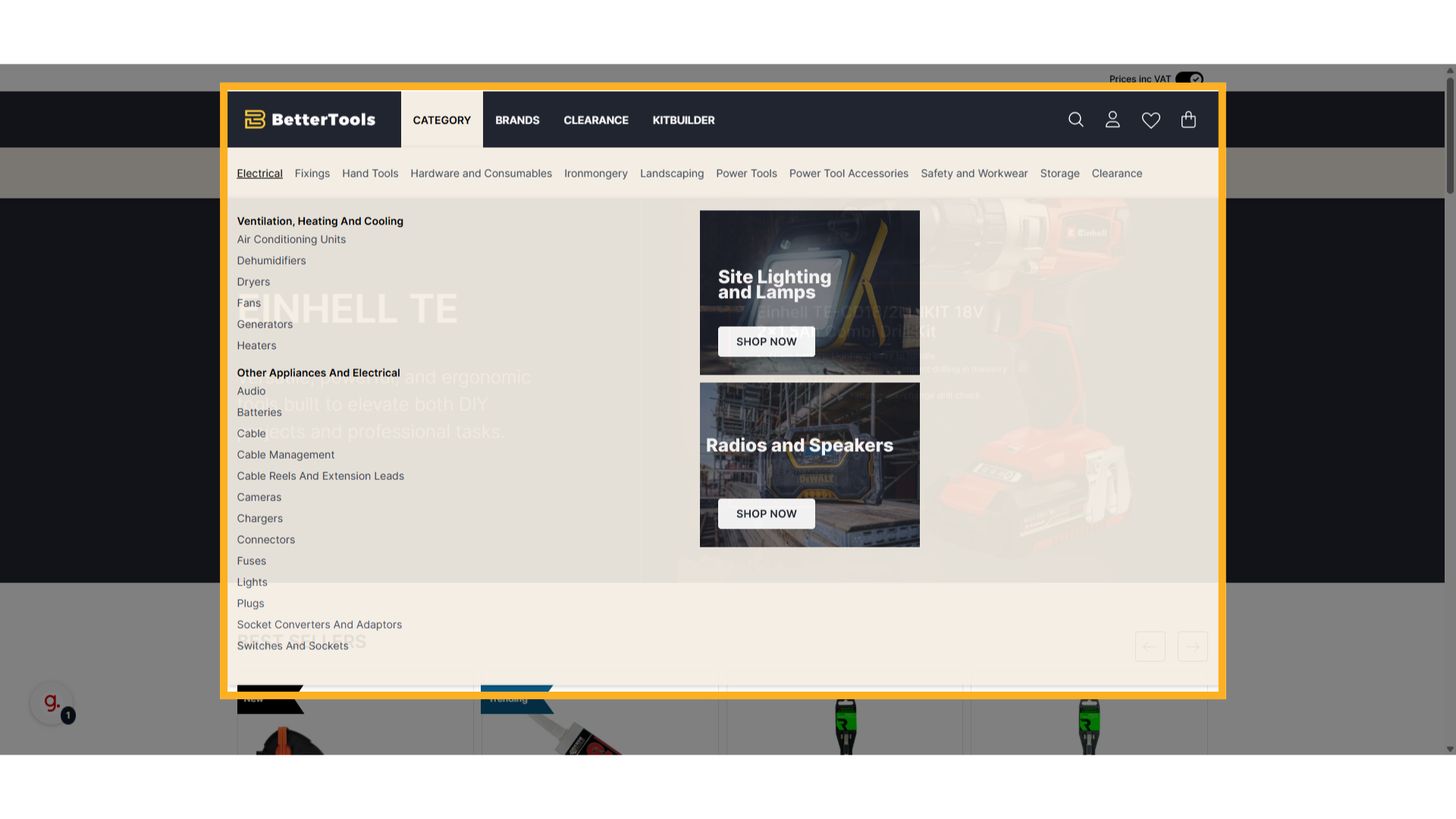
Mega menus provide a streamlined navigation experience on a website, allowing users to explore all categories and content at a glance. They offer rich interactivity and visual flexibility, enhancing how customers interact with the website.
In BetterCommerce these menus can be setup with multiple options like links, categories, products, and images ideal for ecommerce storefront headers or footers.
What Can You Do with Mega Menu?
The Mega Menu feature in BetterCommerce offers flexible and powerful navigation options for your storefront. It helps enhance the user experience by organizing content in a structured and visually engaging format.
Key Capabilities:
- Create Multi-Level Navigation
- Build structured menus for both the Header and Footer with multiple levels of navigation for better accessibility.
Organize Menus into Columns and Blocks
- Arrange your menu items using customizable columns and blocks to manage space and grouping efficiently.
Add Diverse Content Types
- Include not just simple links, but also categories, product listings, images, and custom HTML within your menu.
Showcase Brands and Dynamic Collections
- Easily highlight brand logos or link dynamic product collections directly within the Mega Menu for improved merchandising.
Managing Mega Menu
In this section we will understand what Mega Menus are and explore their key components for setting up effective navigation structures.
Mega Menu Components and their descriptions
Menu
Menu defines the primary navigation element that appears on the website, such as in the header or footer. It serves as a container for navigation blocks and helps structure how categories, links, and promotions are presented to users for easy access across the site.
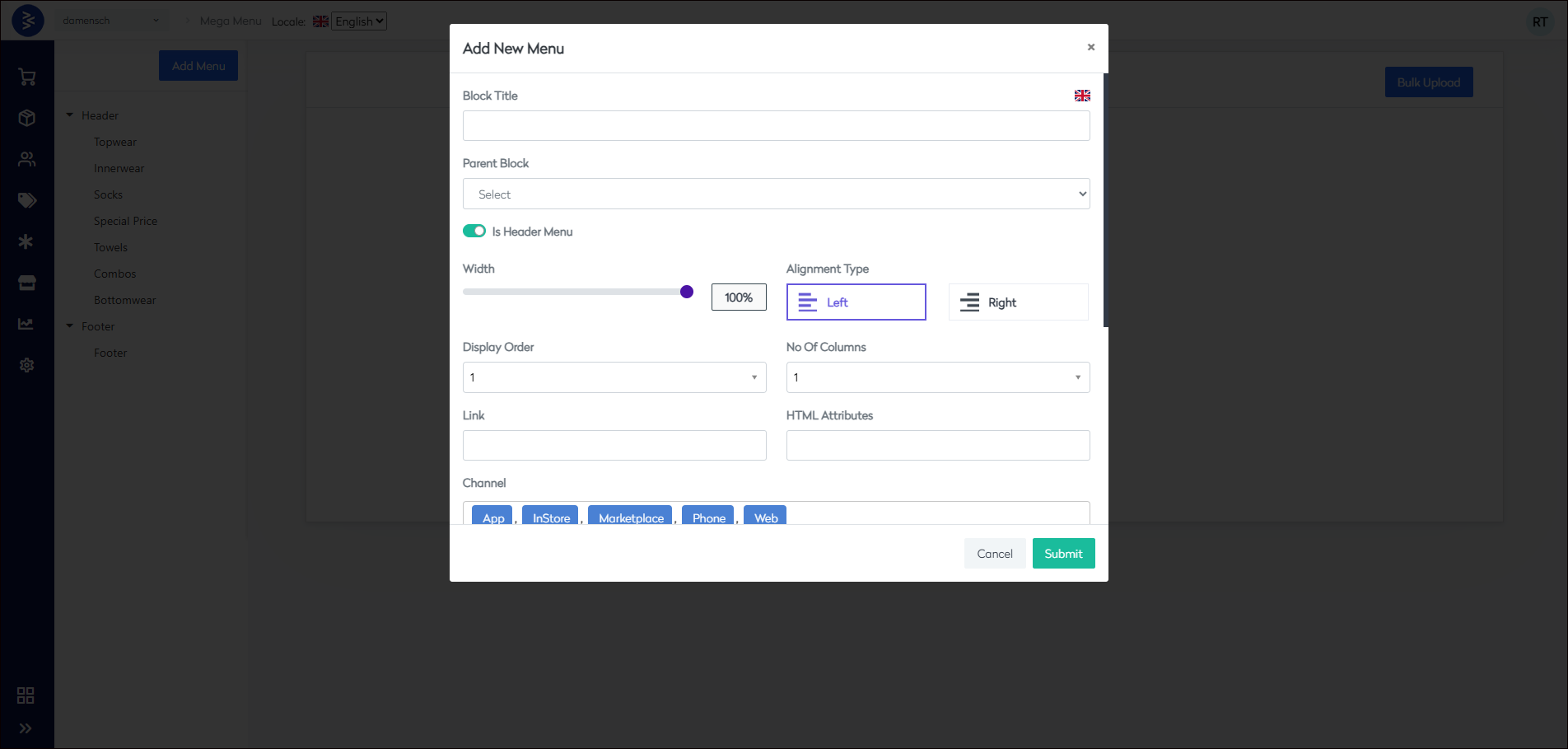
| Field | Description |
|---|---|
| Block Title | The title or name of the menu block displayed on the website. |
| Is Header Menu | Determines whether the menu appears in the header section. |
| Width % | The horizontal space (as a percentage) the menu block occupies across various devices. |
| Alignment Type | Sets the alignment of the menu (left or right). |
| Display Order | Defines the sequence in which the menu appears relative to others. |
| No. of Columns | Specifies how many columns the menu layout should have. |
| Link | Default URL users are redirected to if no specific item is selected. |
| HTML Attribute | Optional HTML attributes that can be applied to the menu block. |
| Channel | Indicates the platform channel (e.g., Web, App) where the menu is shown. |
| Header Content | Custom content to display at the top of the menu block. |
| Footer Content | Custom content to display at the bottom of the menu block. |
How to create a new Menu in CommerceHub
Follow these steps to create a new menu in the CommerceHub module:
-
Navigate to
Storefront > Mega Menuto access the section where the Mega menus is managed.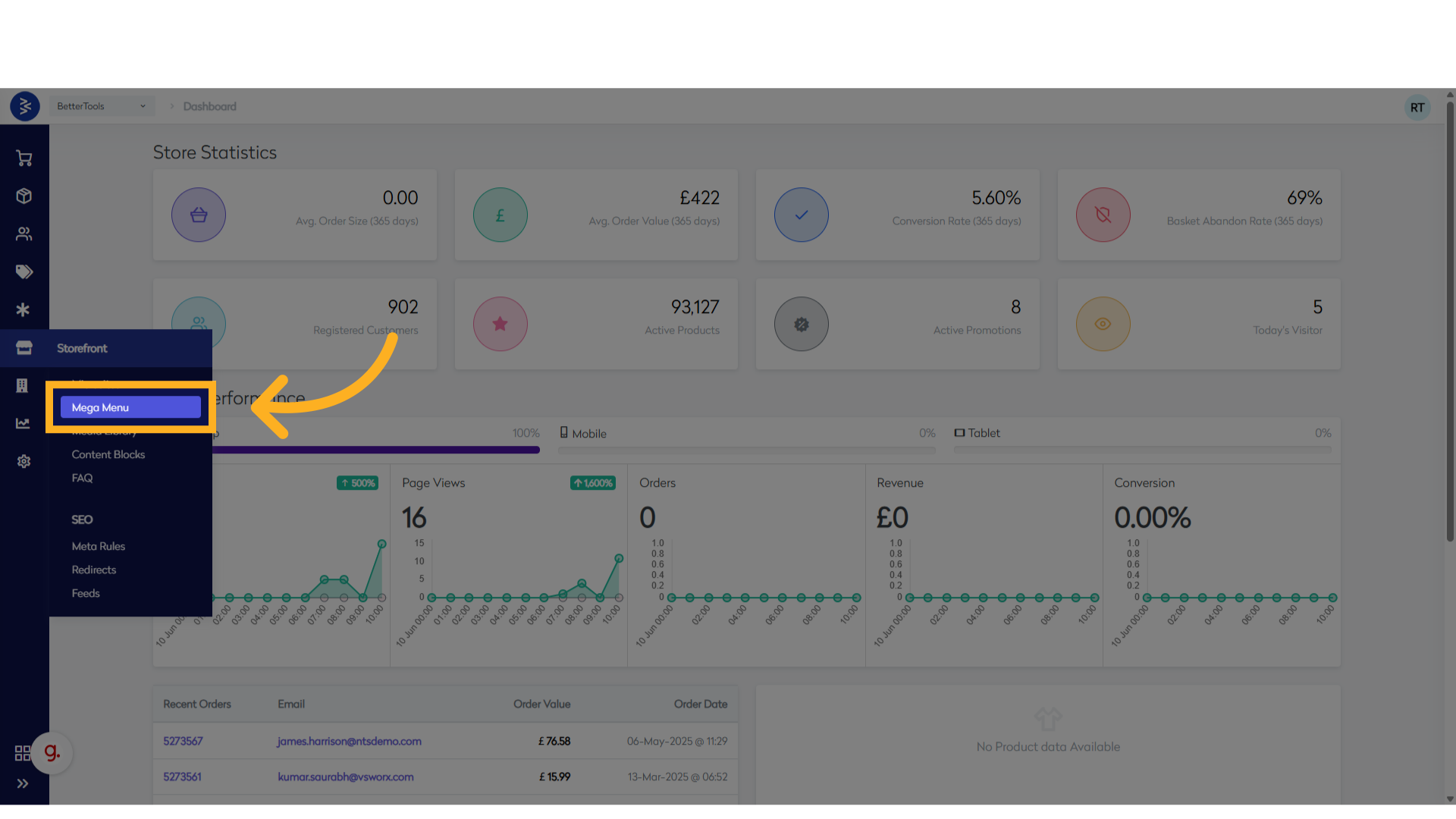
-
Click Add Menu to start process of creating a new menu by selecting this option.
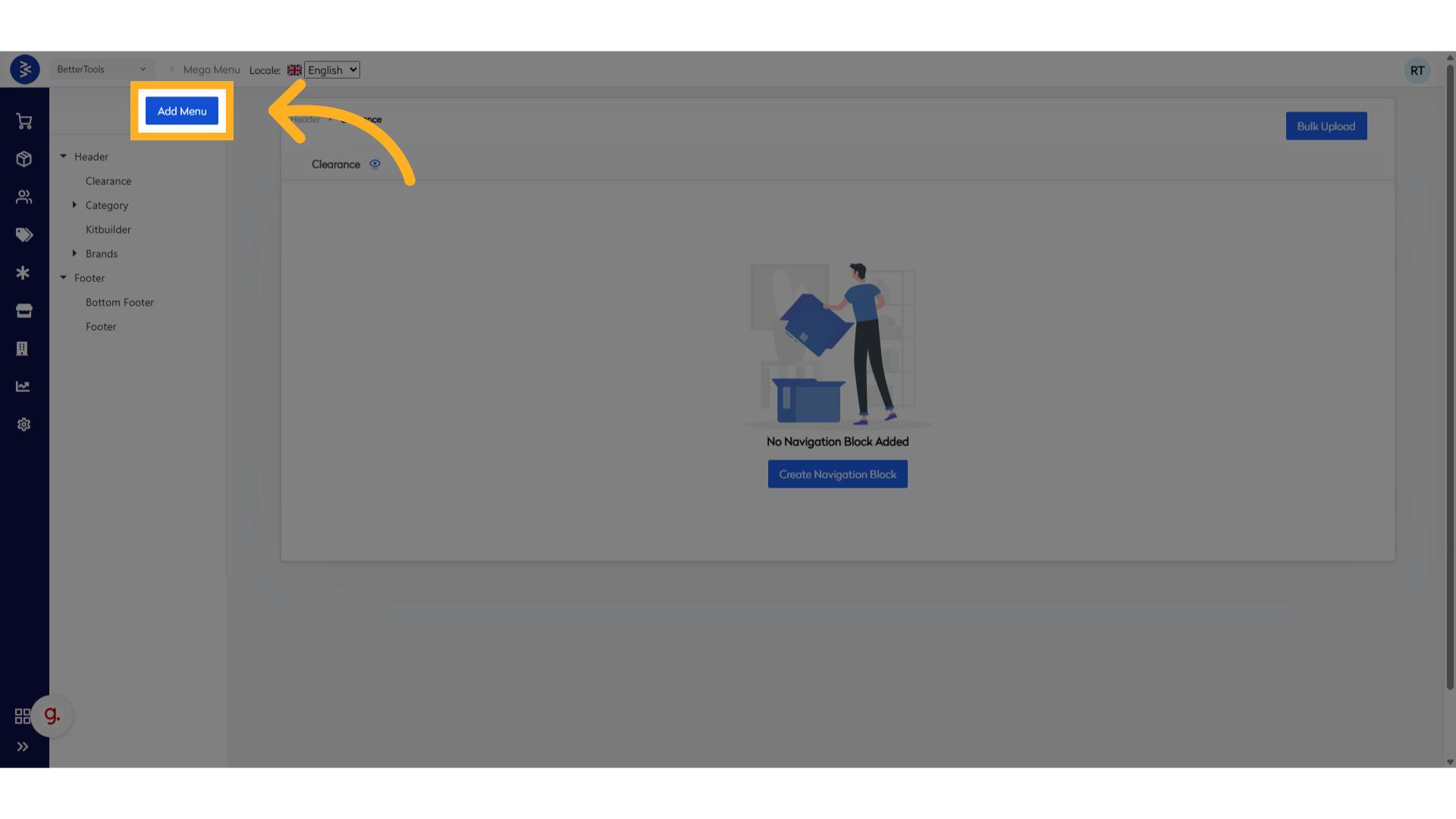
-
Update the Block Title. This title will be displayed on the website.
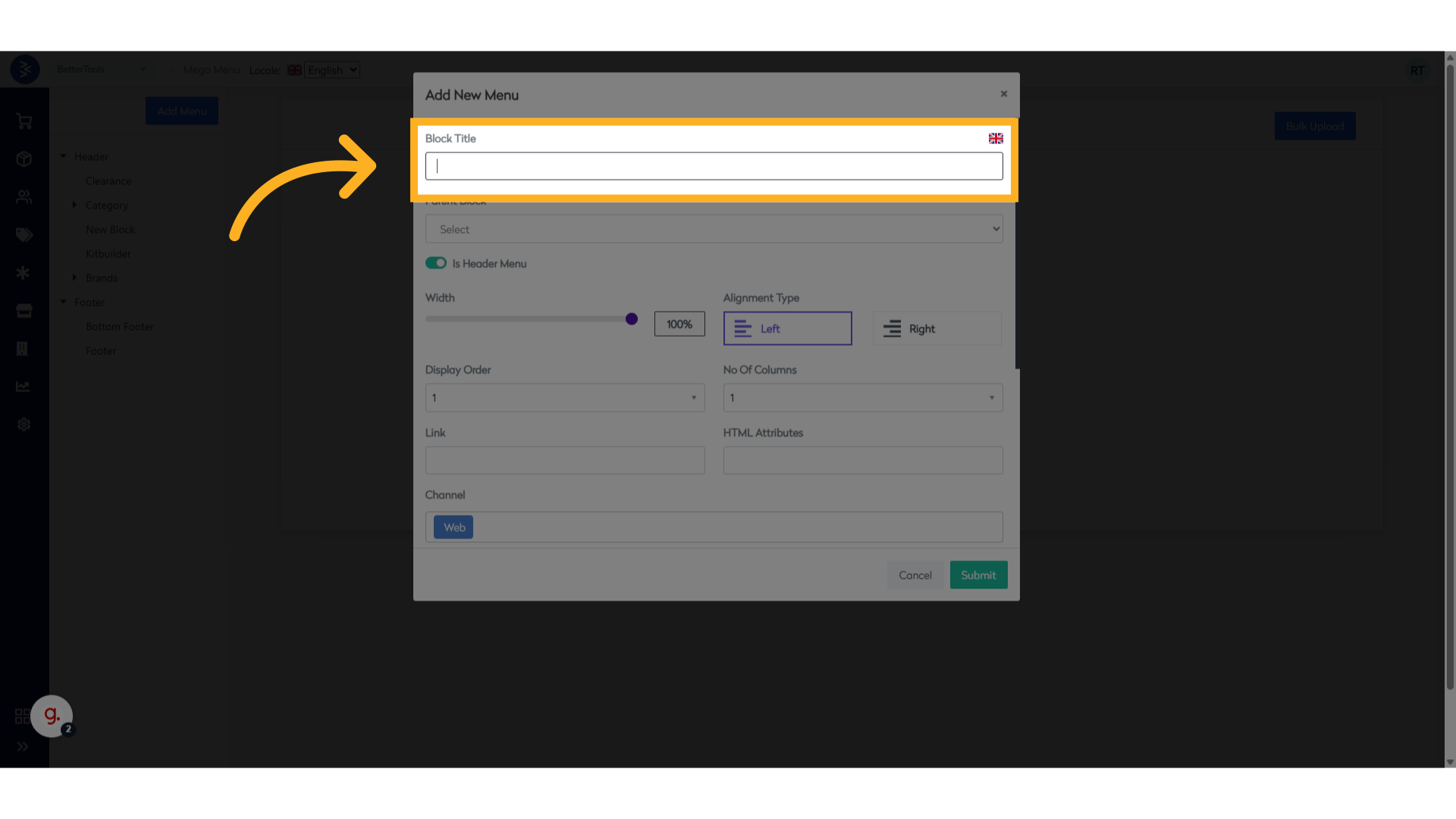
-
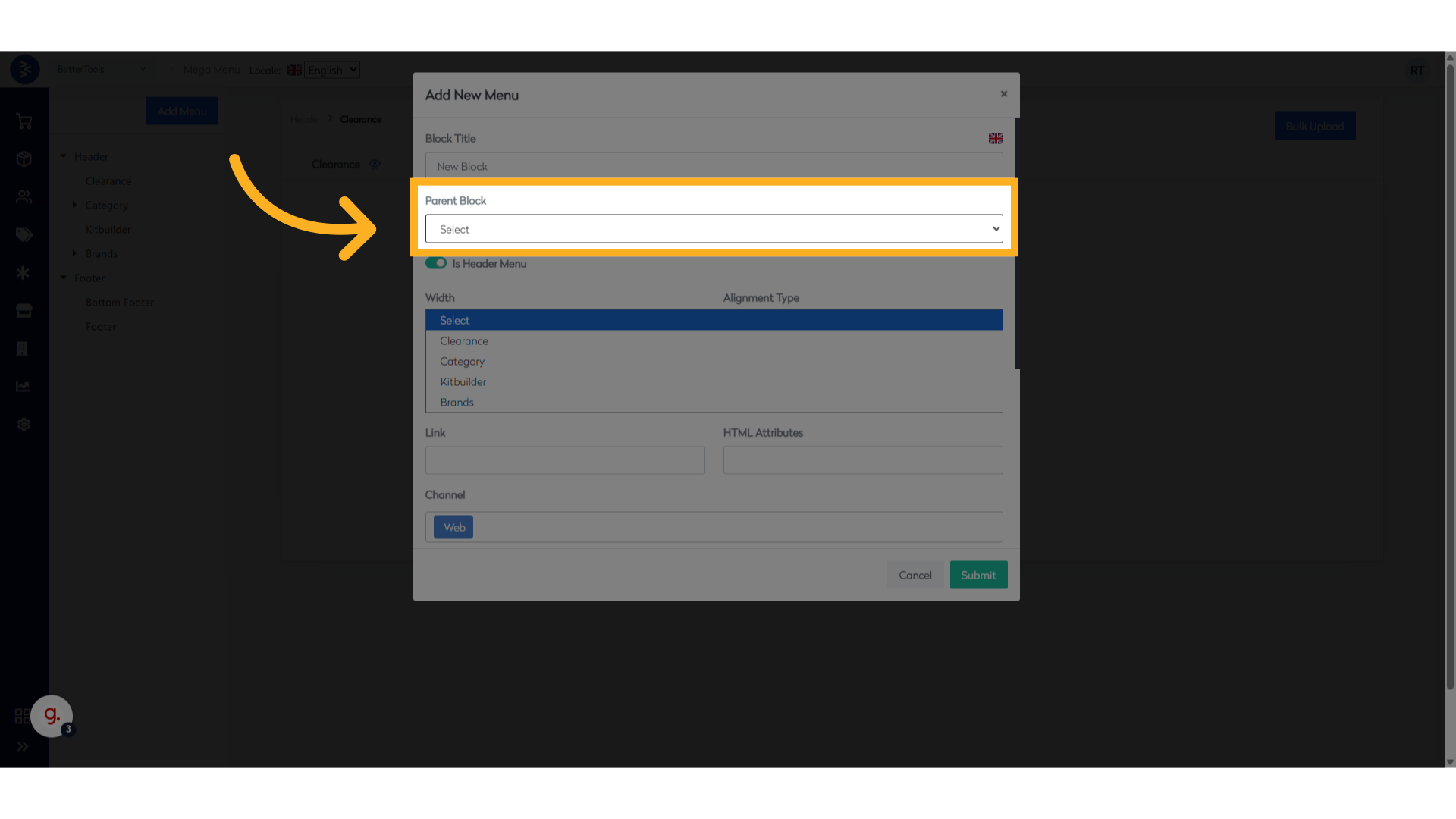
Select a Parent Category
- If the menu item is part of an existing menu, choose the relevant parent category. Leave this blank if creating a new standalone menu.
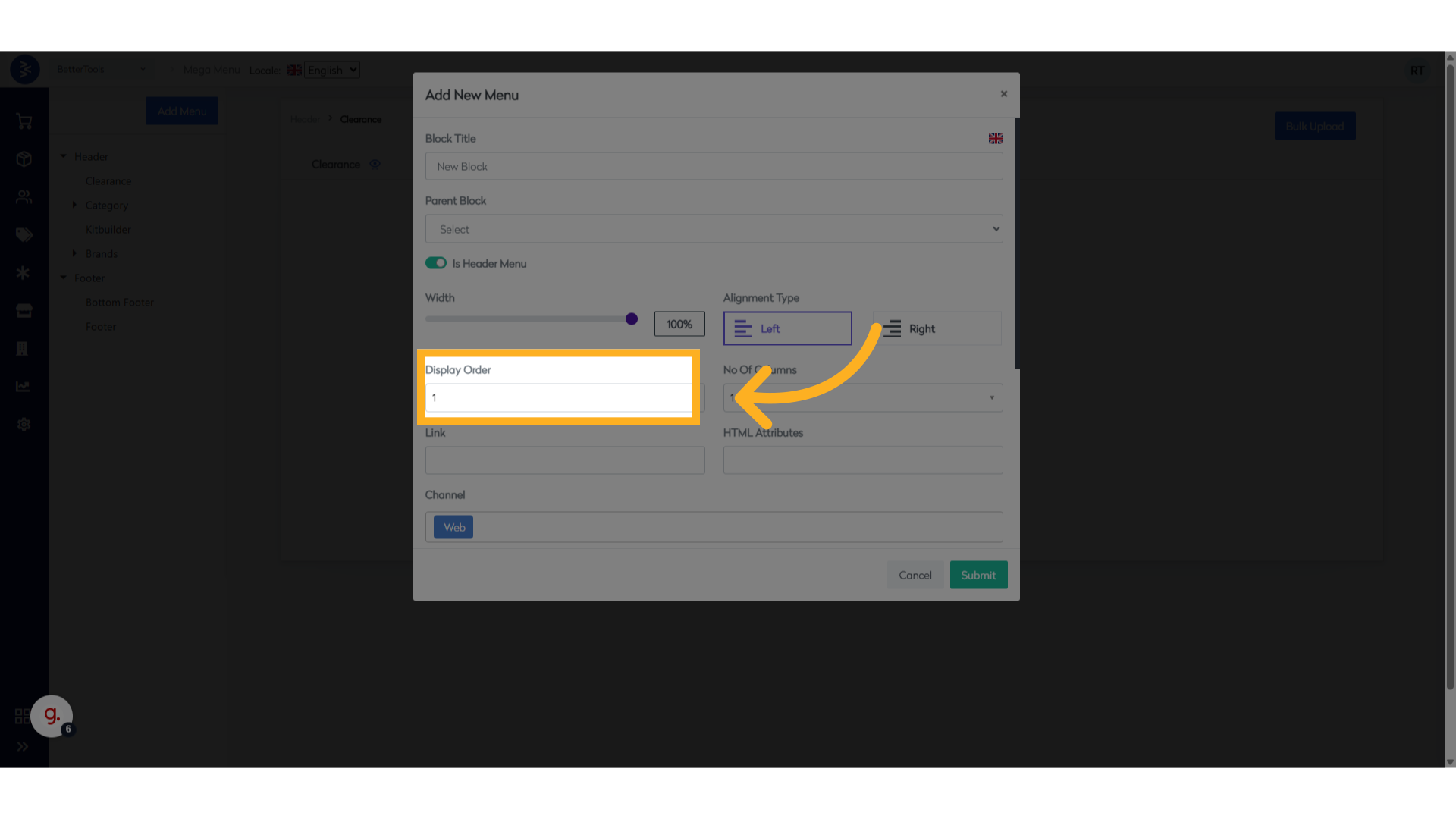
- Update the Display Order
- For example, selecting 5 places this menu as the fifth item in the list.
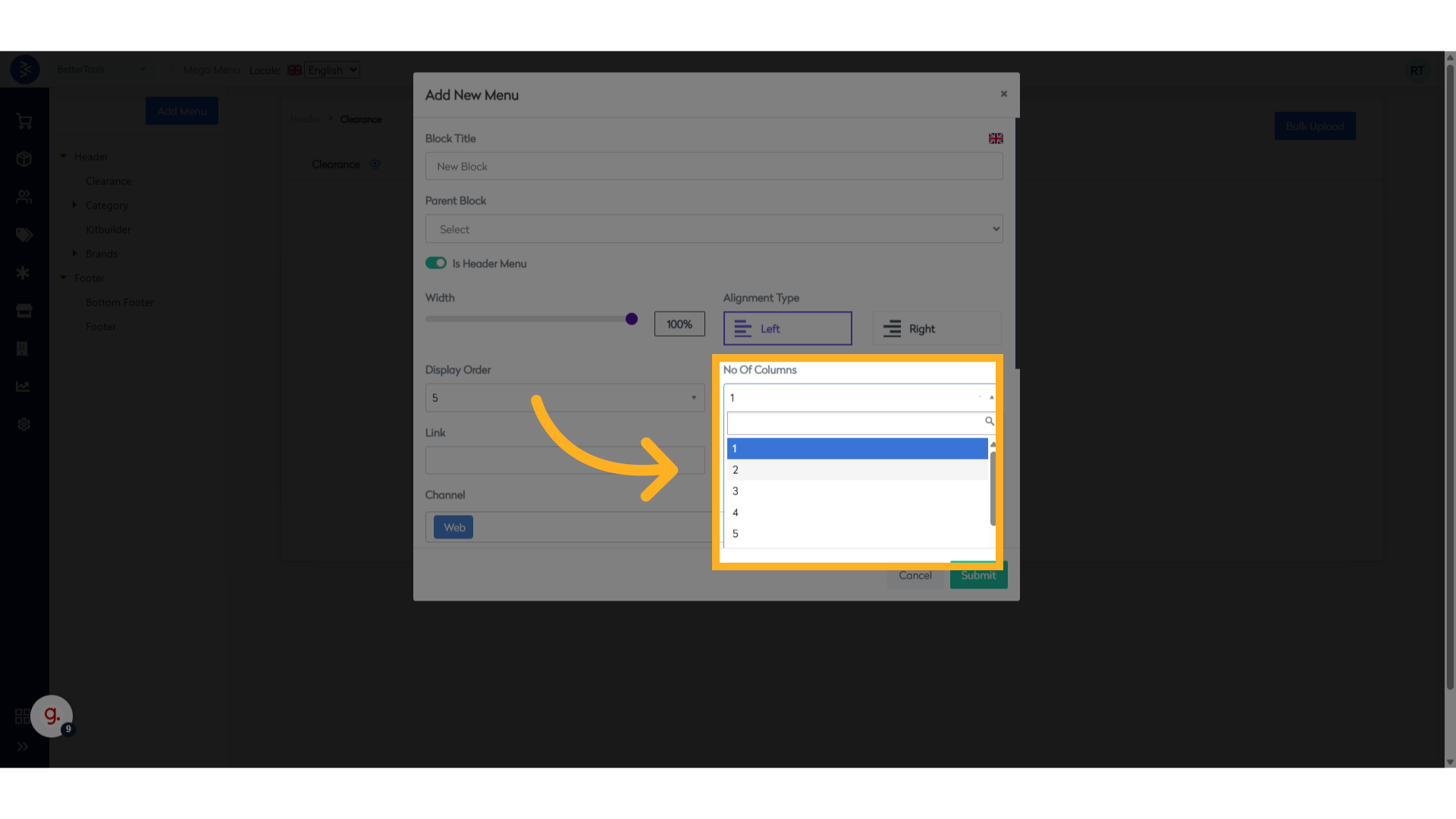
-
Choose the Number of Columns
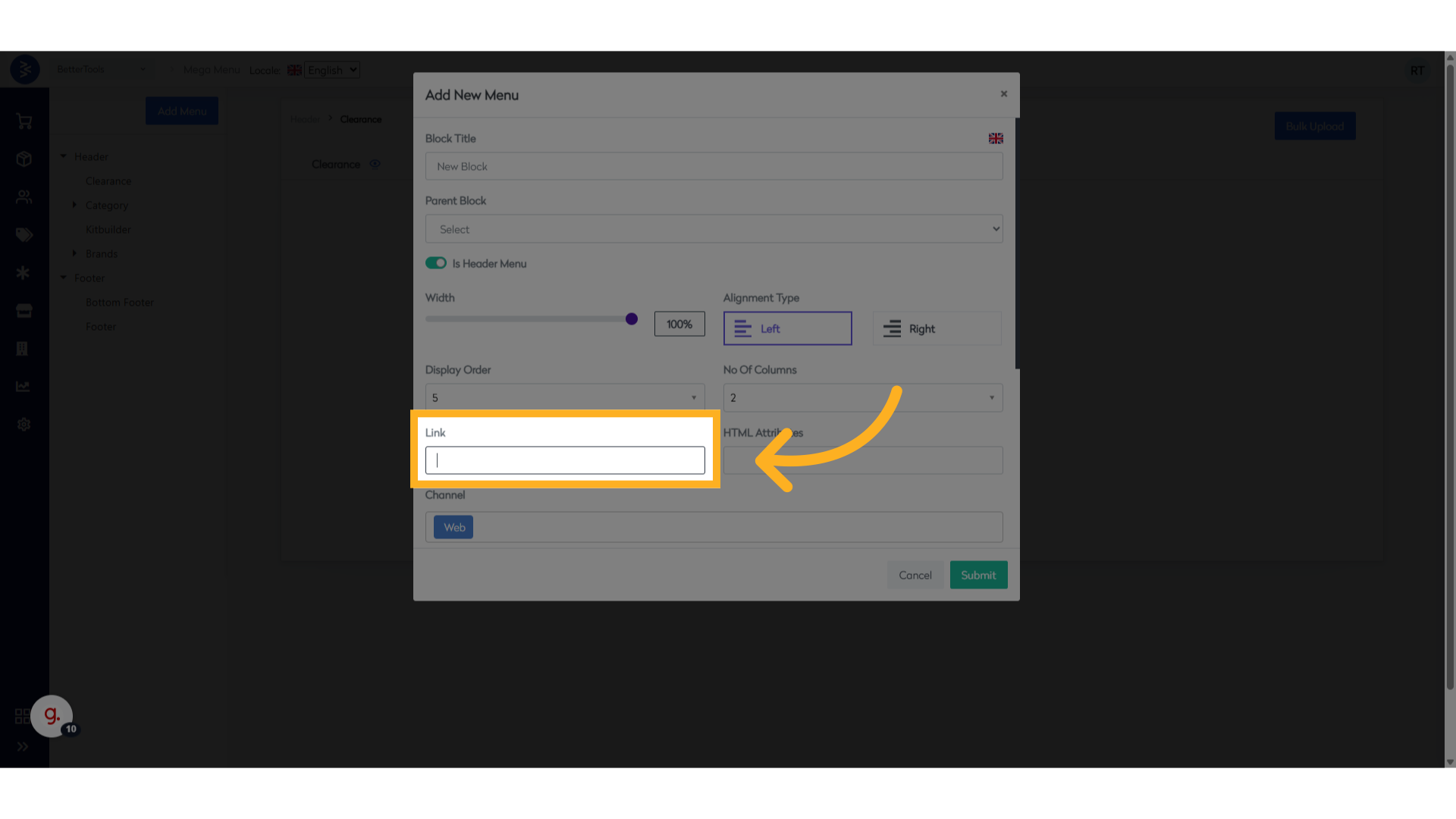
-
Update a Link (Optional)
- Provide a URL if clicking the menu should direct users to a specific page. Leave this blank if no redirection is needed.
-
Click Submit to save your changes to create the menu.
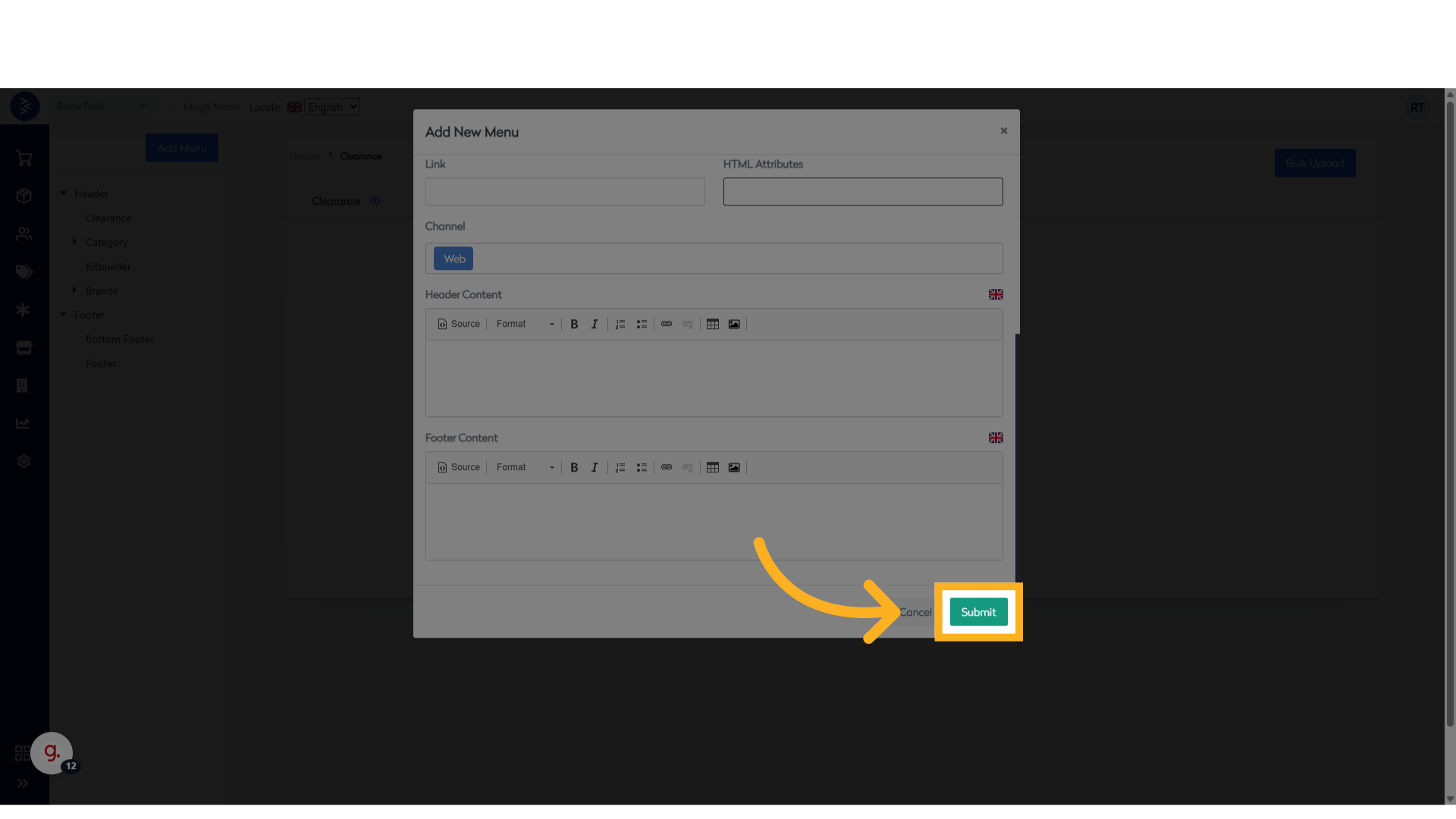
-
Verify the Menu, the new menu will appear under the Header section of the Mega Menu.
- The same steps can be used to create a menu in the Footer section.
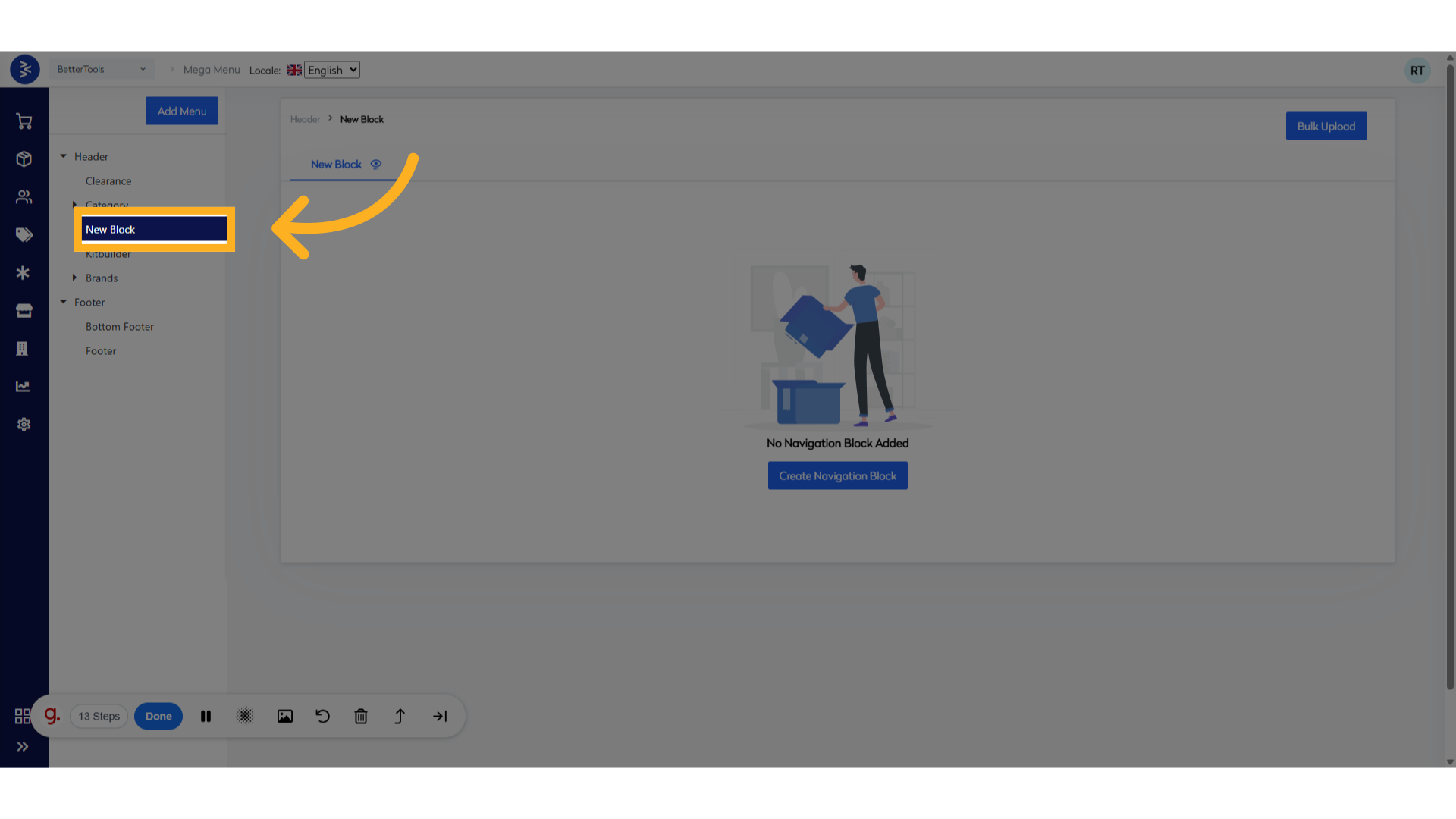
- View the Menu on the Website.
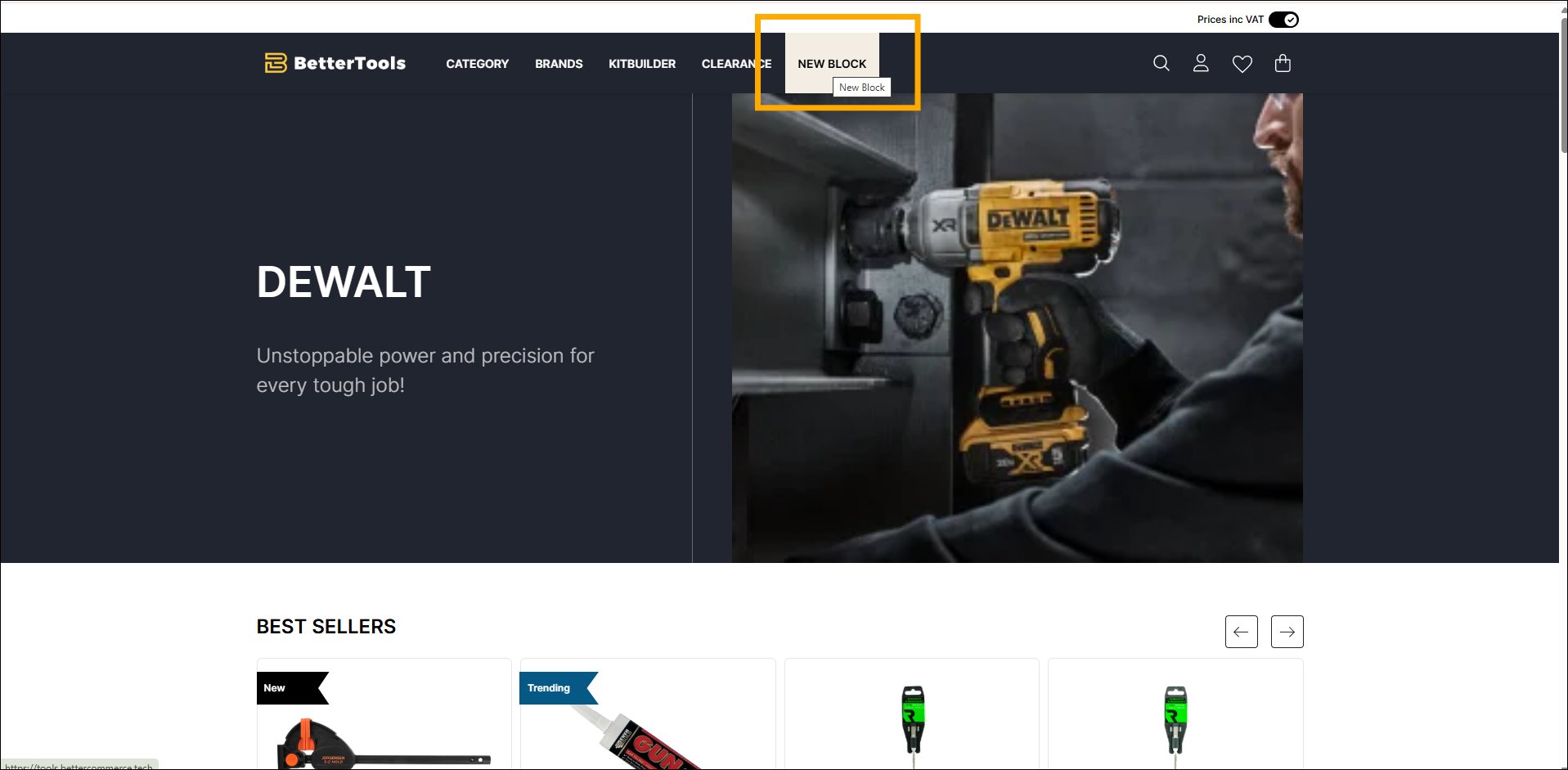
Navigation Block Types
Each menu created above can include multiple navigation blocks that offer different forms of navigation and these blocks appear inside your main menu. Each block type serves a specific purpose. The types of blocks include:
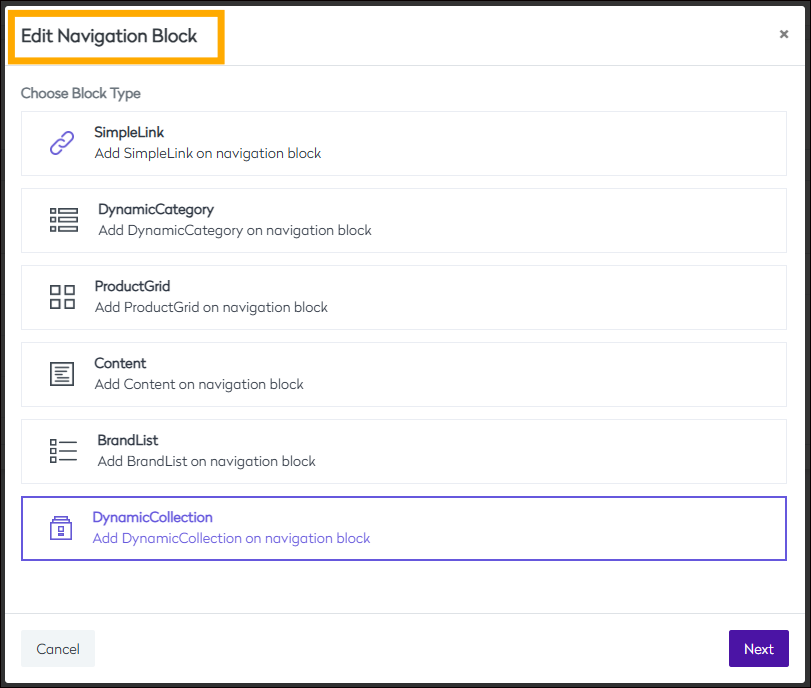
Navigation Block Types and how to create:
Navigation Block Fields
Navigation block fields define the structure and behavior of each block within a mega menu. These fields determine what content appears (e.g., categories, brands, products). Below are the details for each field while creating navigation blocks:
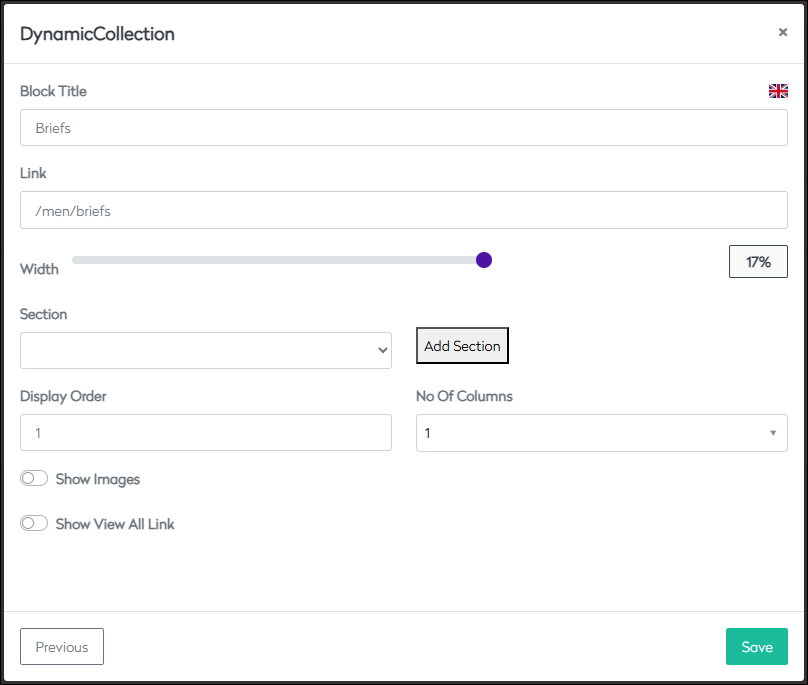
| Field | Description |
|---|---|
| Block Title | Name of the navigation block shown within the menu. |
| Link | Slug of the page where it will land |
| Width % | Defines the width of the block on the page, ensure that the block width adds up to 100% across all columns to maintain layout consistency. |
| Section | Section within the main menu to include Navigation Blocks |
| Display Order | Controls the horizontal order of display. |
| No. of Columns | Determines internal column structure within the block. |
| Category | Used when the block is based on dynamic categories. |
| Brands | Applicable when the block type is Brand List. |
| Stock Codes | Used in Product Grid to specify individual products. |
| Content Body | Used in content blocks to insert textual or HTML content. |
Steps to Create Navigation Block in Menu:
Simple Link
Directs users to a specific product, collection, or page via a basic link.
Steps to Create a Simple Link Navigation Block
-
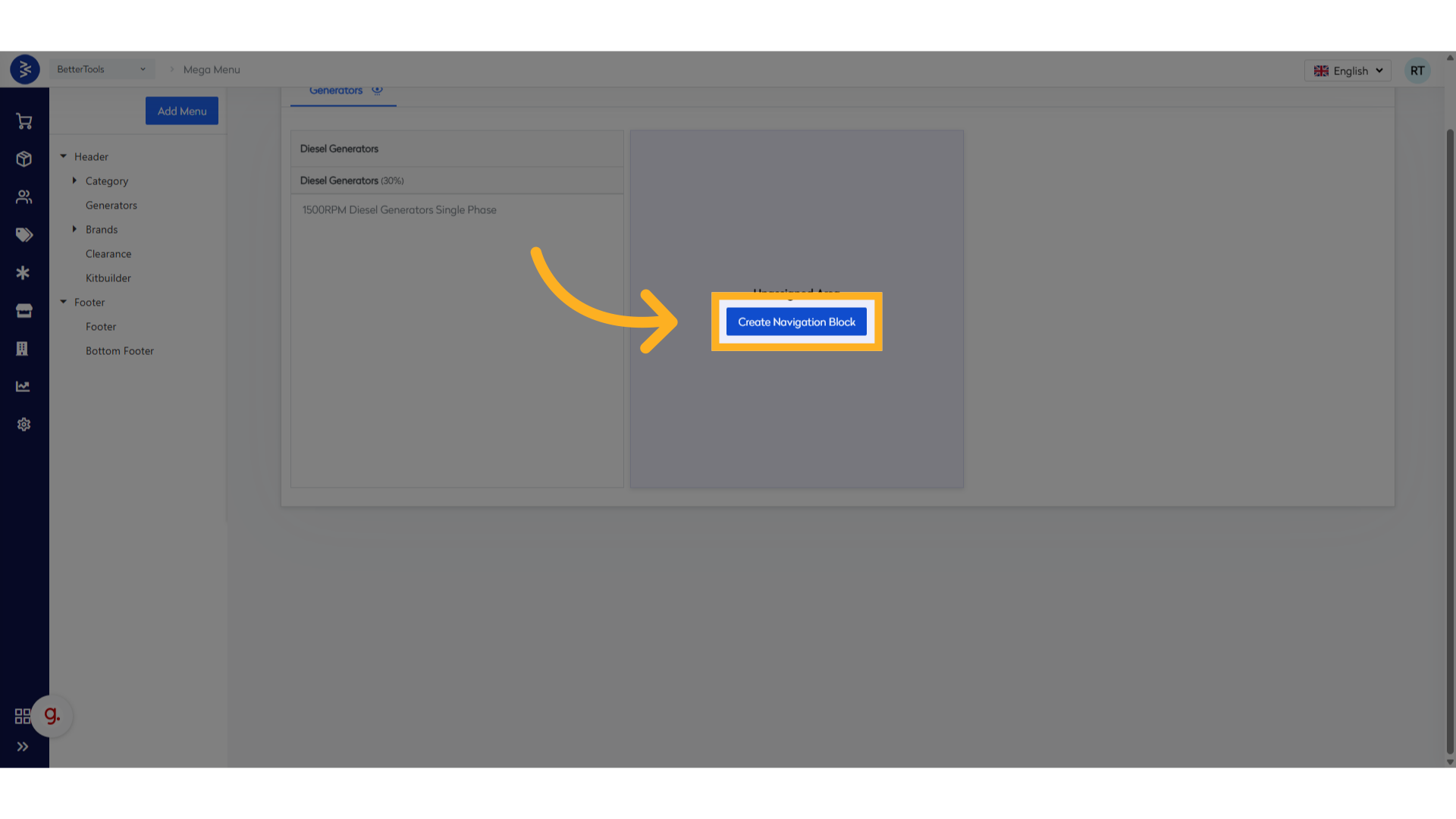
Click on "Create Navigation Block"
-
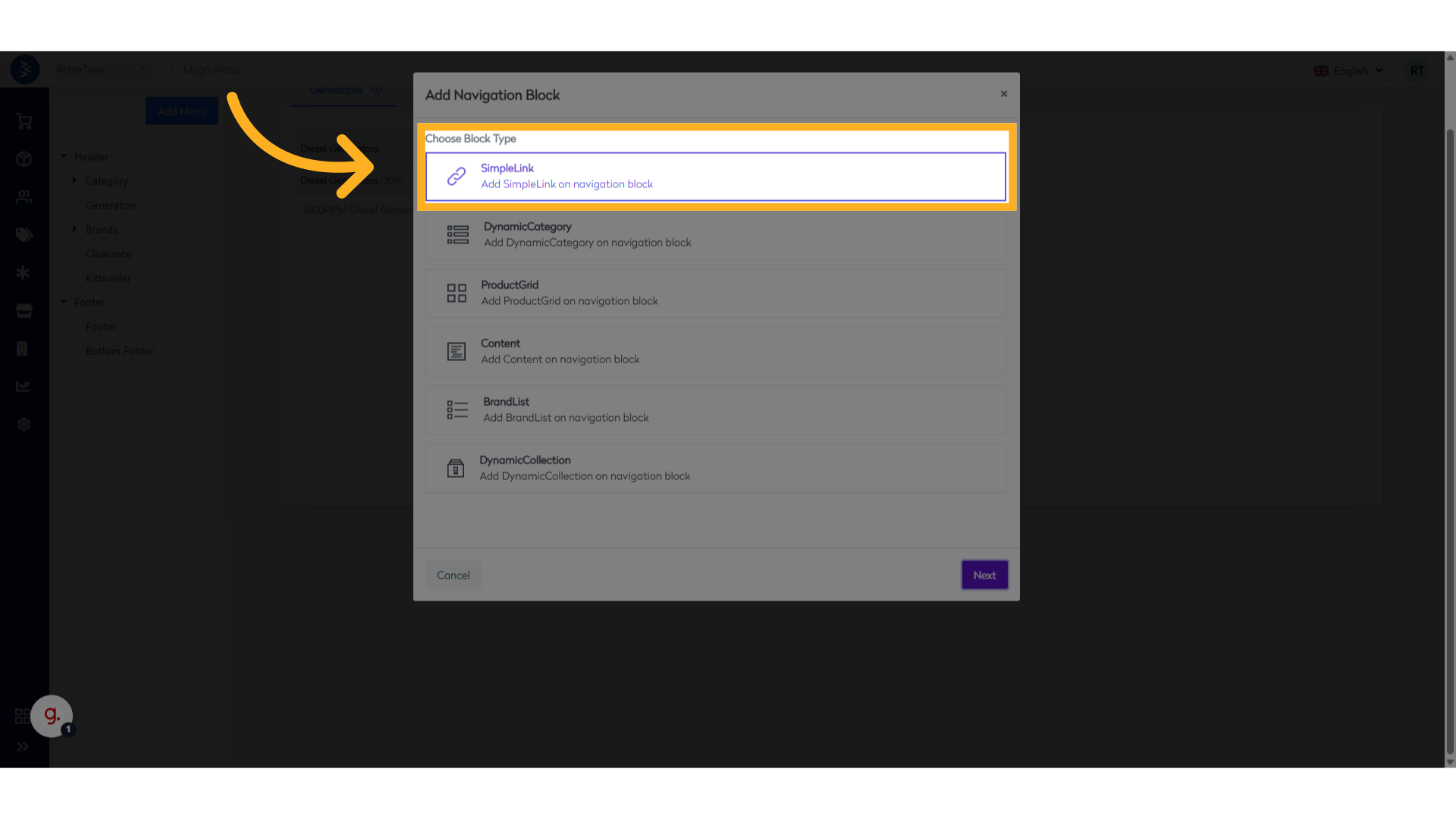
Choose "Simple Link" as the block type.
-
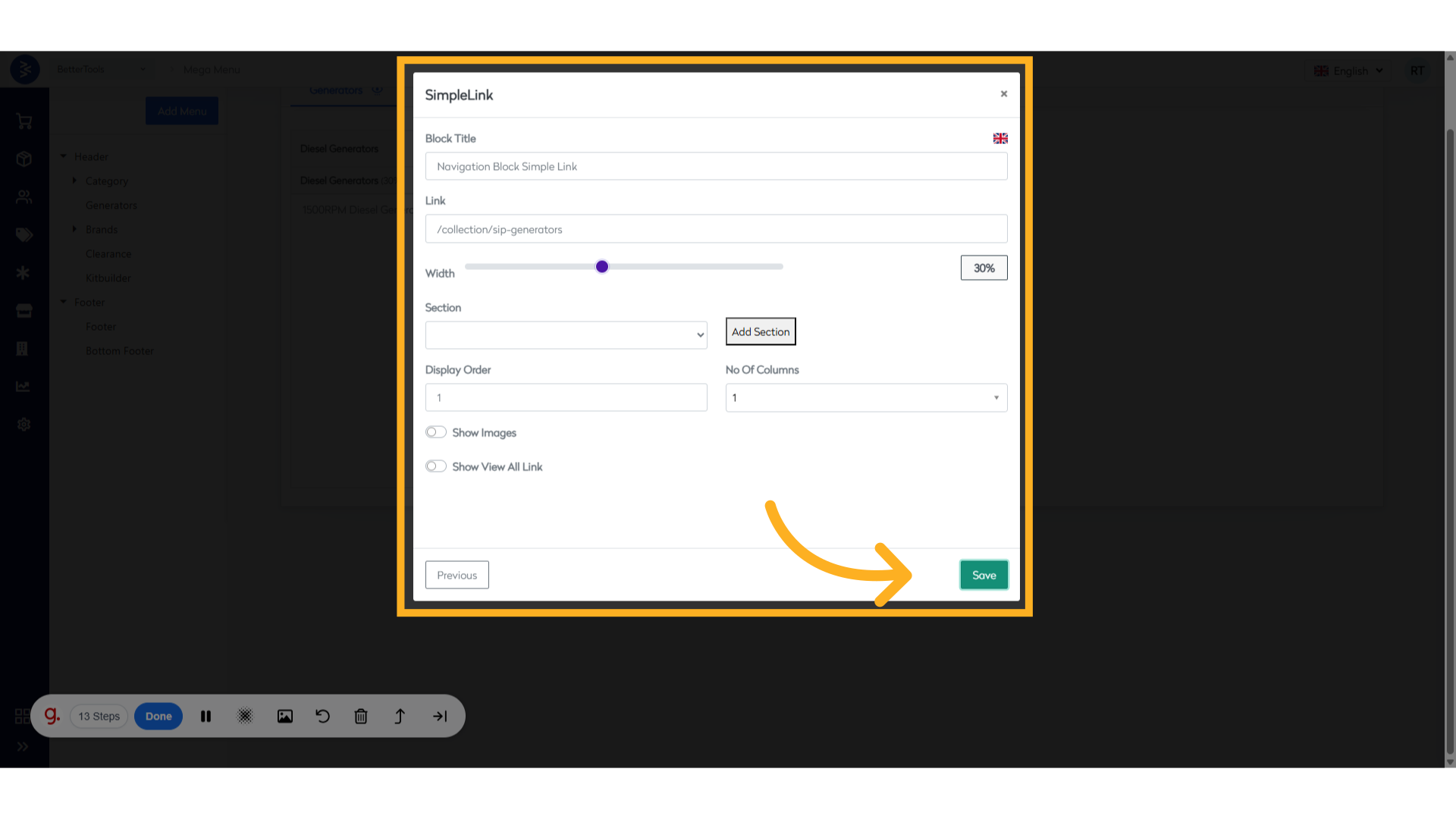
Enter the following details:
- Block Title: Navigation Block Simple Link
- Link URL:
/collection/sip-generators(or any desired page URL) - Width:
30%(suitable for a 3-column layout) - Display Order:
1 - Click Save to create the new navigation block.
Dynamic Category
Displays a dynamic list of existing product categories.
Steps to Create a Dynamic Category Navigation Block
- Click on "Create Navigation Block"
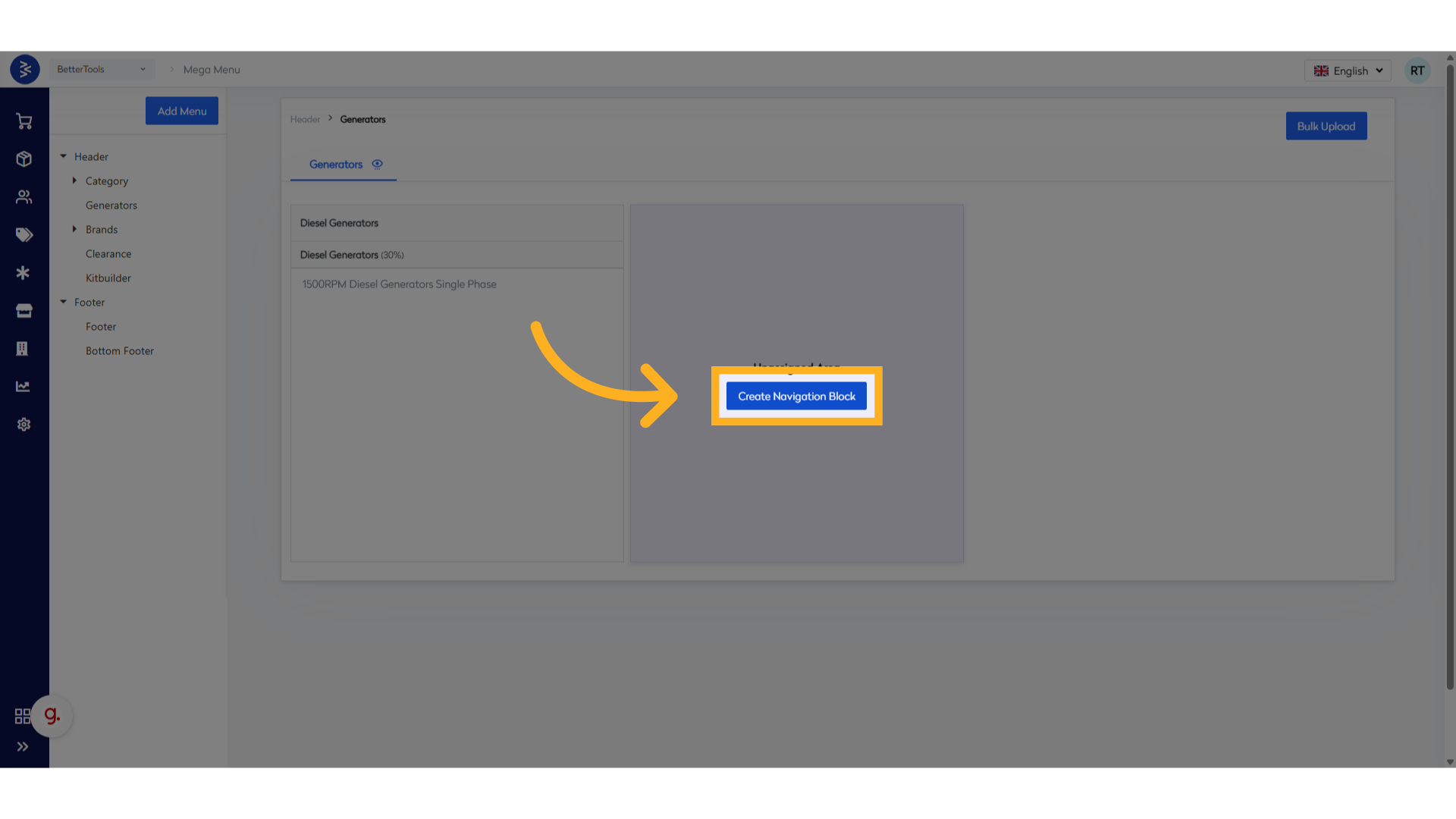
- Select "Dynamic Category" as the block type.
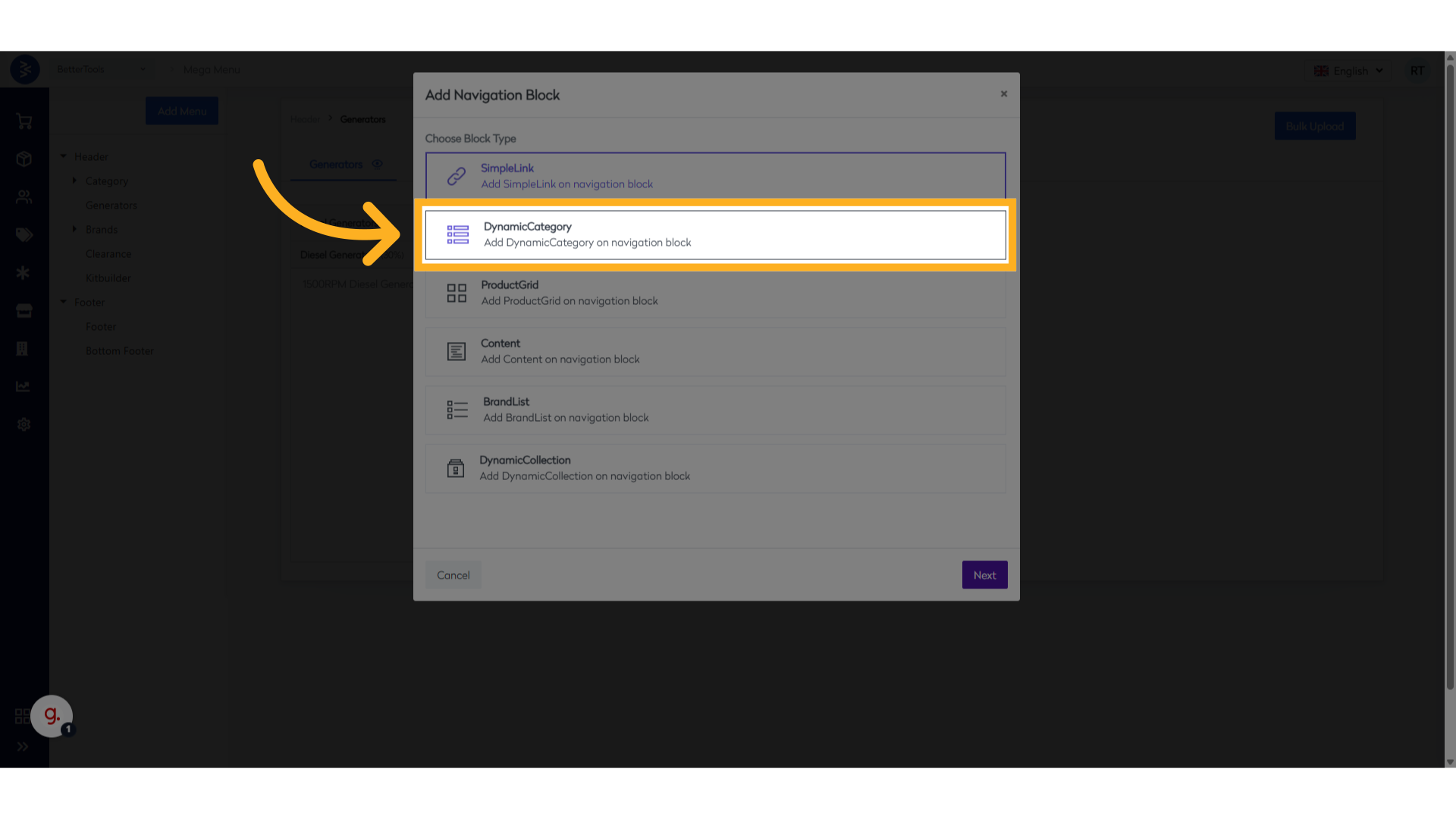
- Enter the following details:
- Block Title:
Navigation Block Dynamic Category - Link:
/generator/dieselgenerator(Optional – add only if you want the title to be clickable) - Width:
30% - Display Order:
2 - Expand the category tree and select the desired parent or subcategories.
- Click Save to create the navigation block.
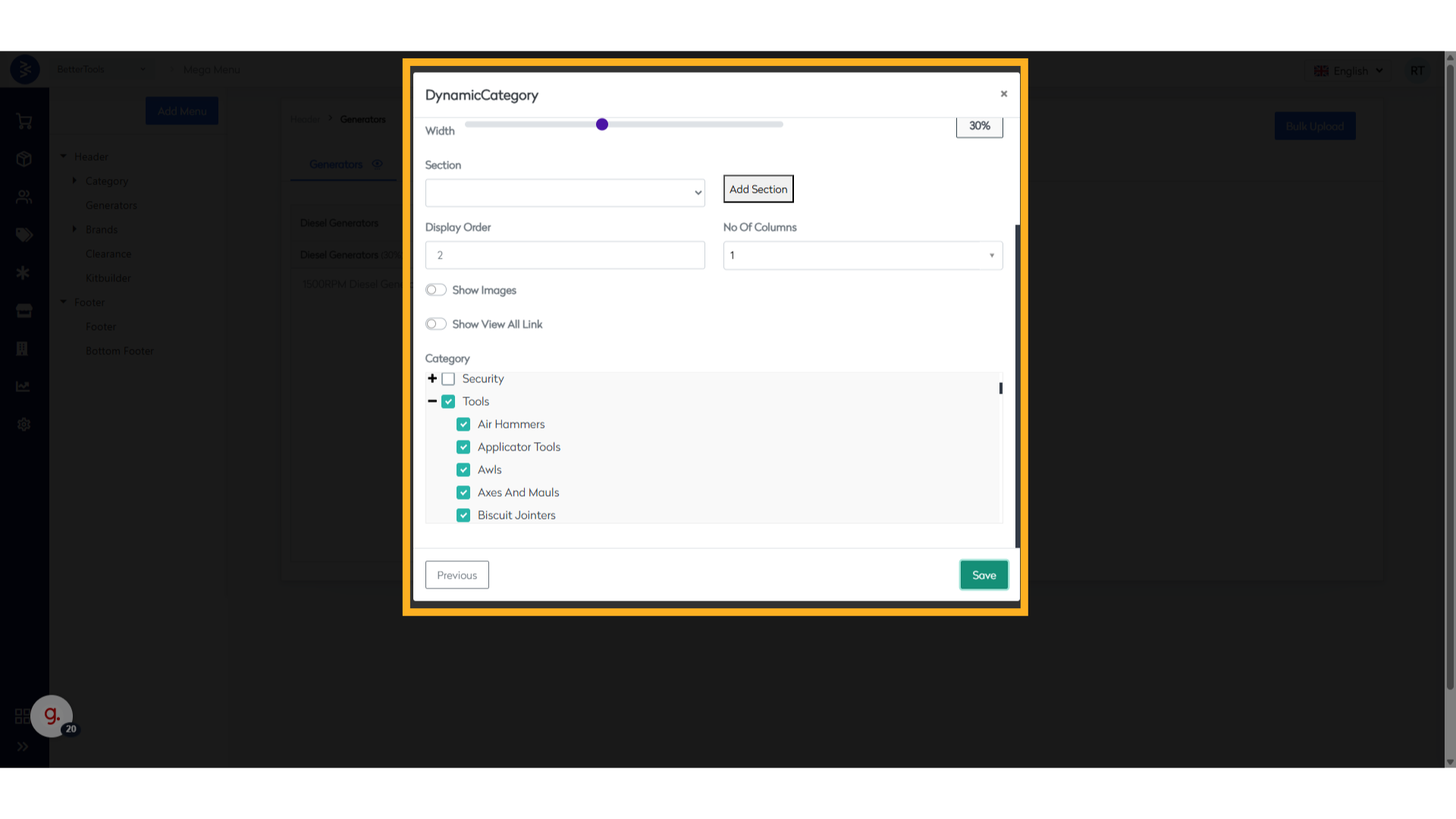
- Block Title:
Product Grid
Showcases individual stock codes regardless of their category or collection.
Steps to Create a Product Grid Navigation Block
-
Click on "Create Navigation Block"
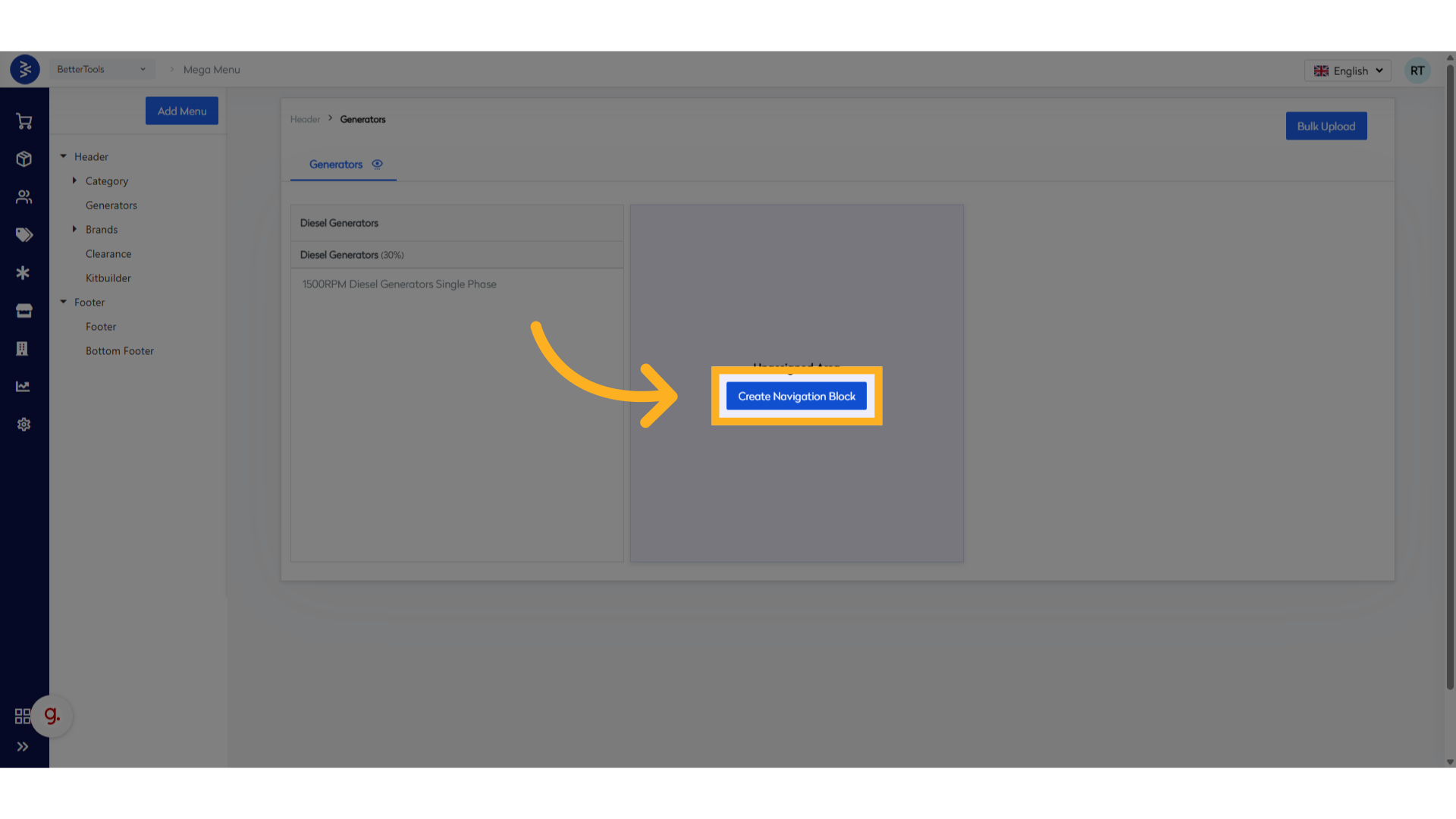
-
Select "Product Grid" as the block type.

-
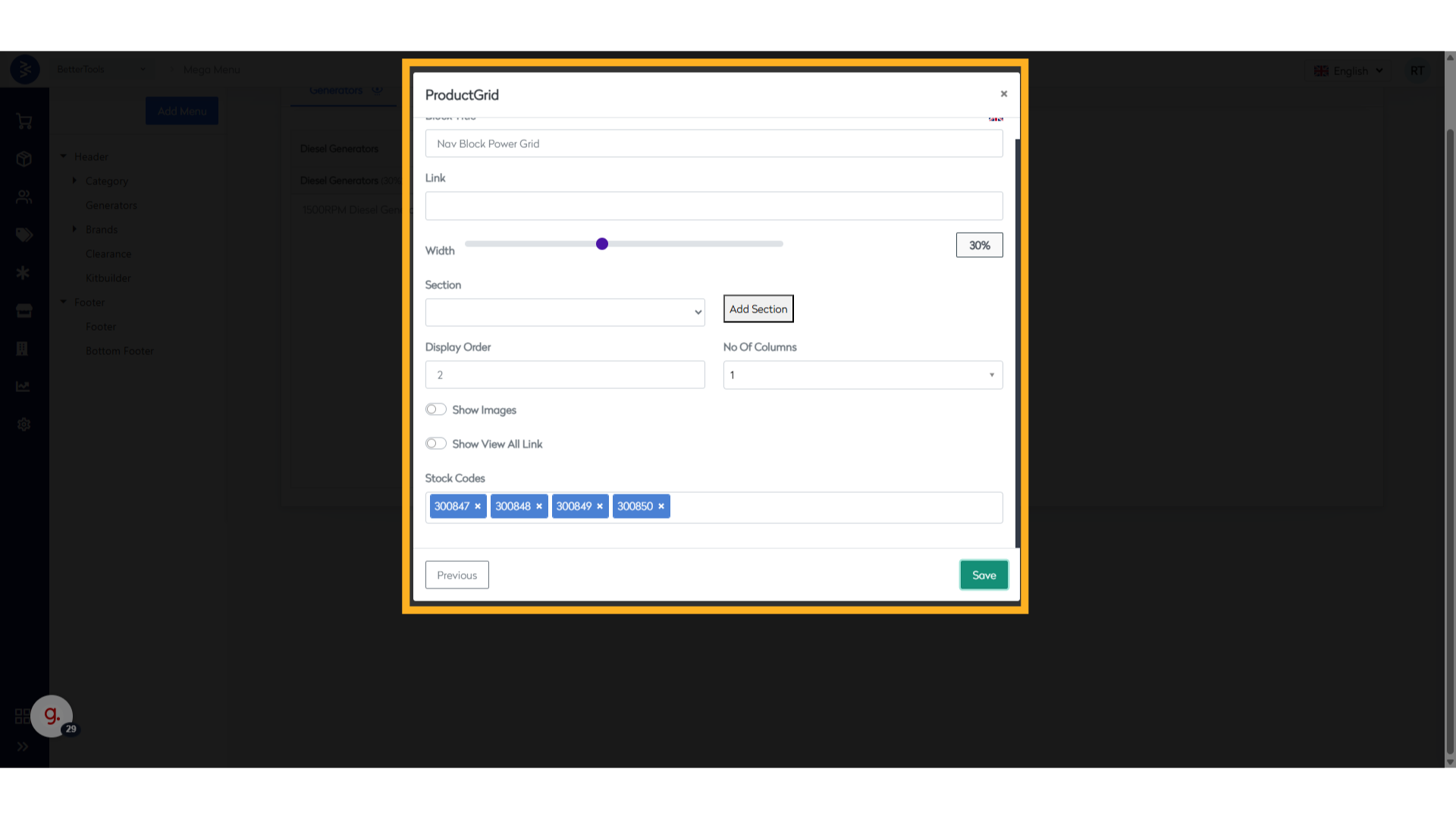
Fill in the following details:
- Block Title:
Nav Block Power Grid - Width:
30% - Display Order:
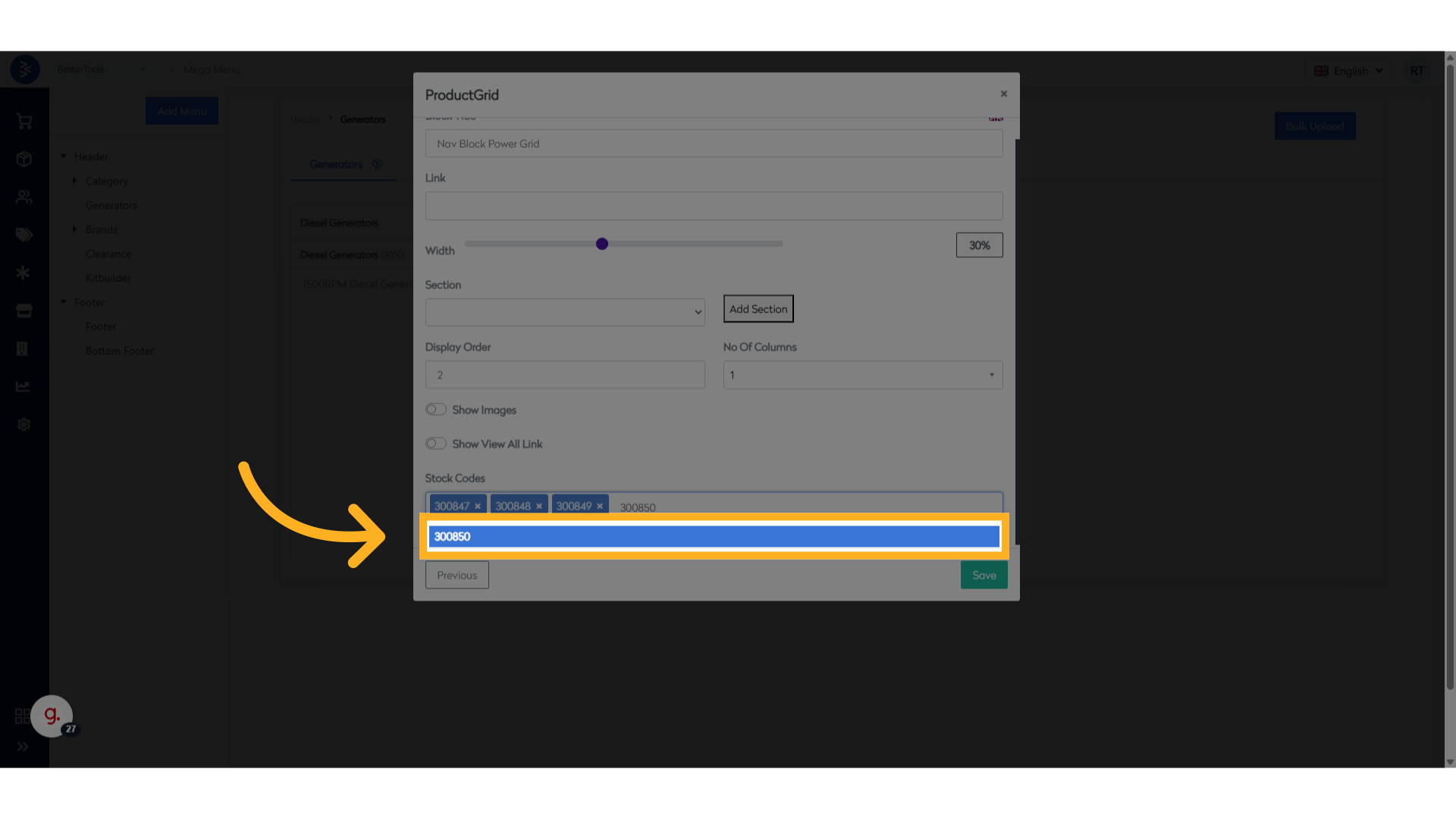
3 - Select SKUs: Use the stock code search to select 3–5 products based on your layout preference.
- Block Title:
-
Click "Save" to create the Product Grid block.
Content
Allows insertion of static or dynamic content to guide or inform users.
Steps to Create a Content Navigation Block
-
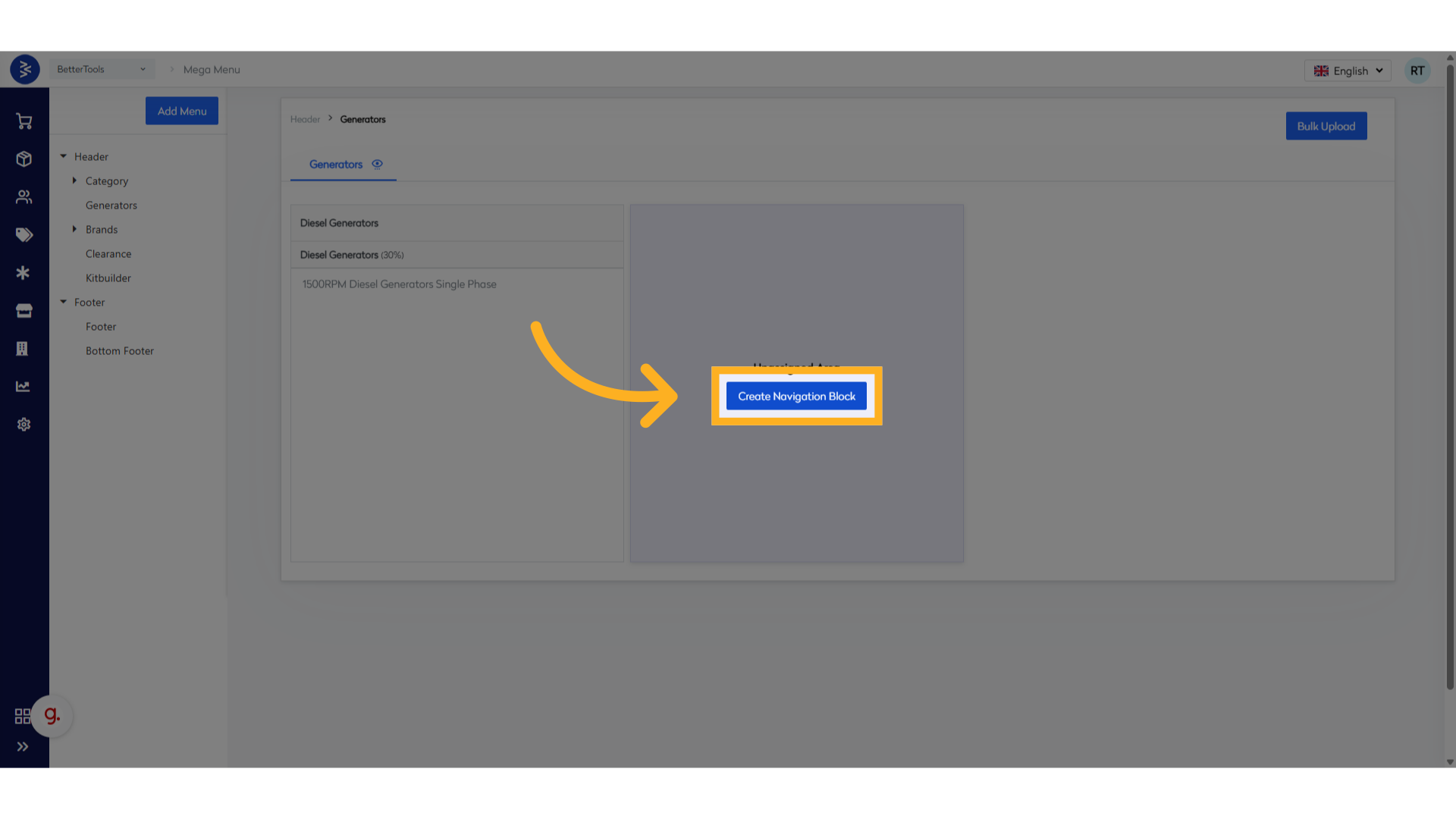
Click on "Create Navigation Block"
-
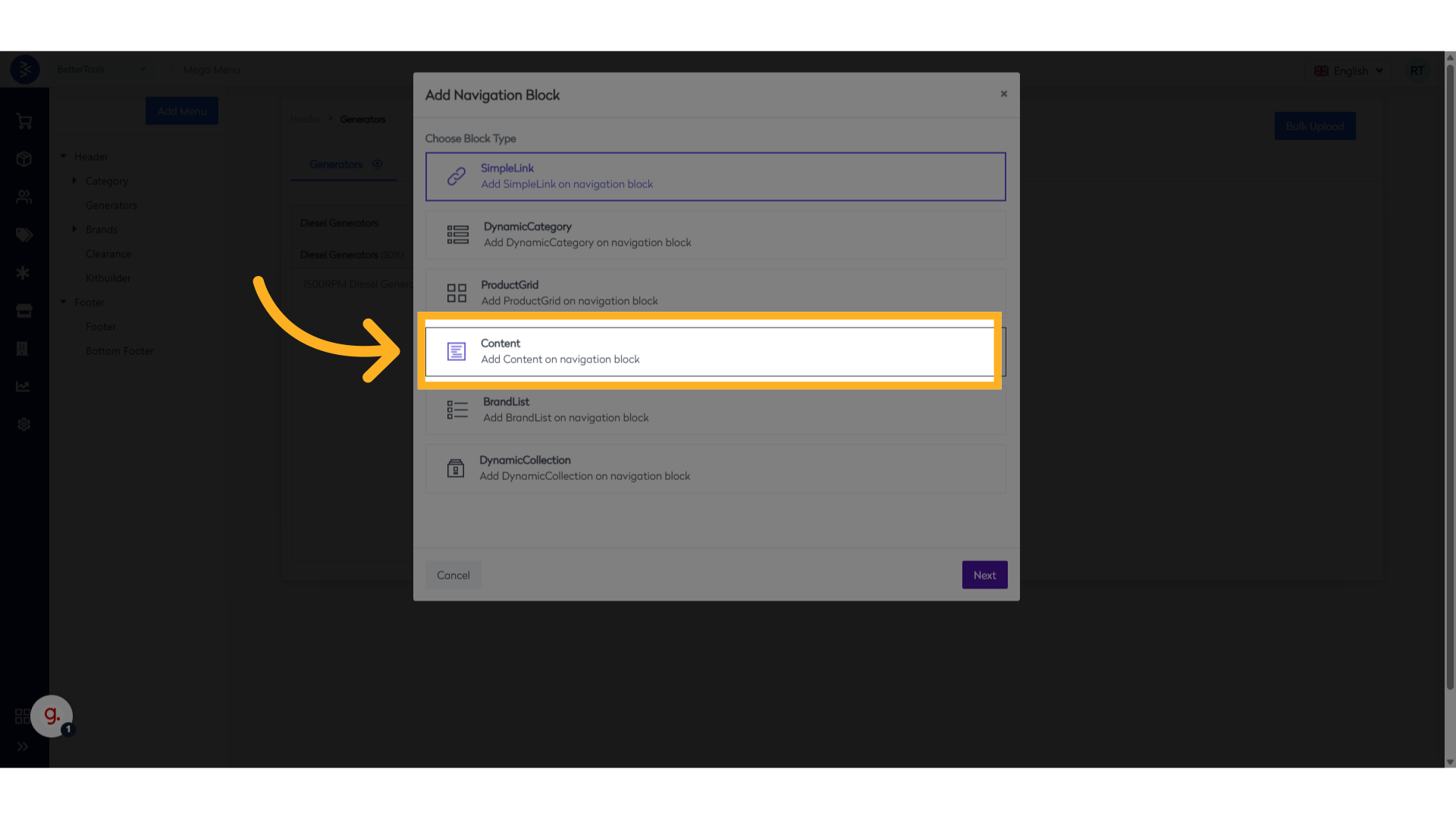
Select "Content" as the block type.
-
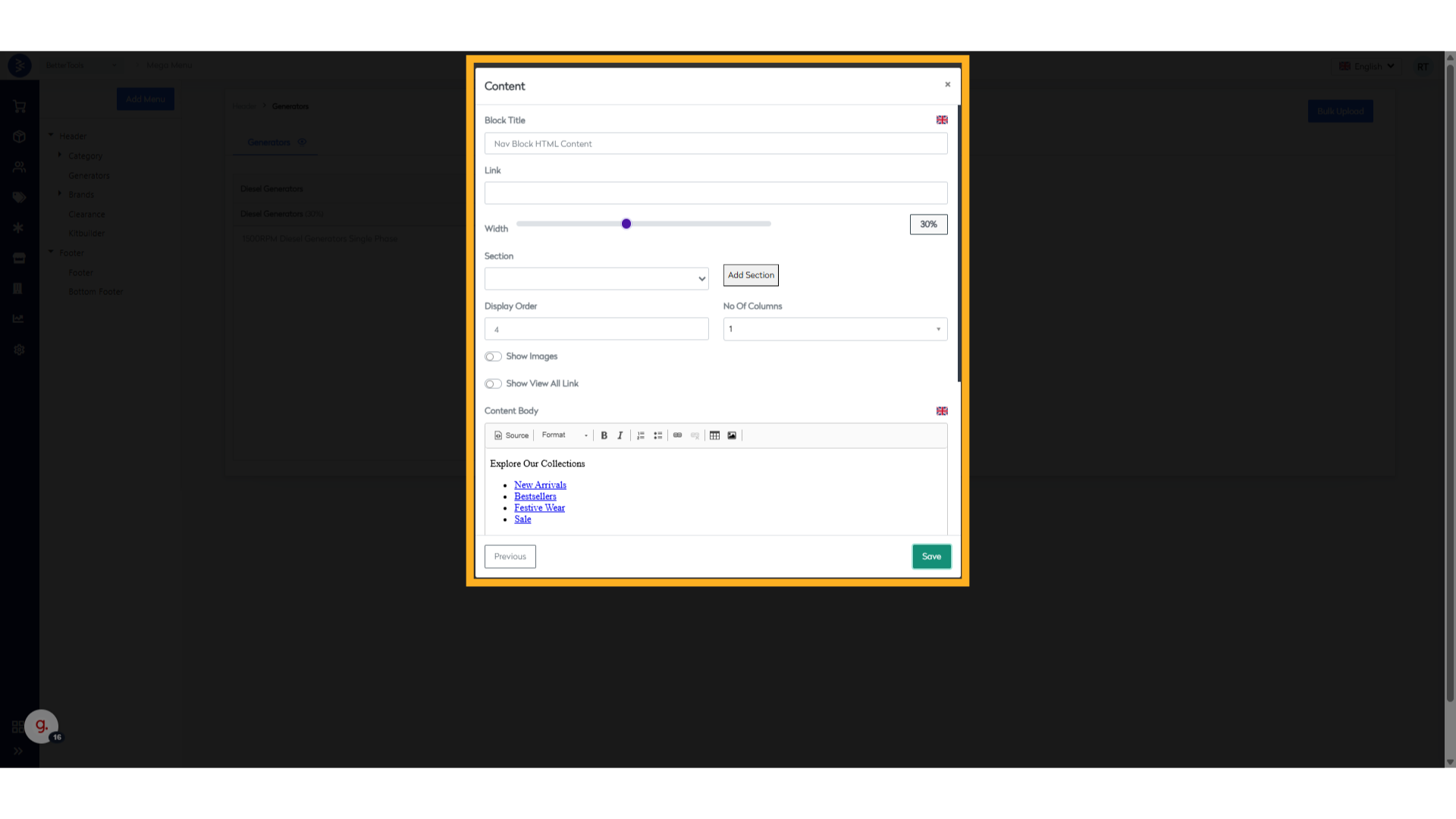
Fill in the following details:
- Block Title:
Nav Block HTML Content - Width:
30% - Display Order:
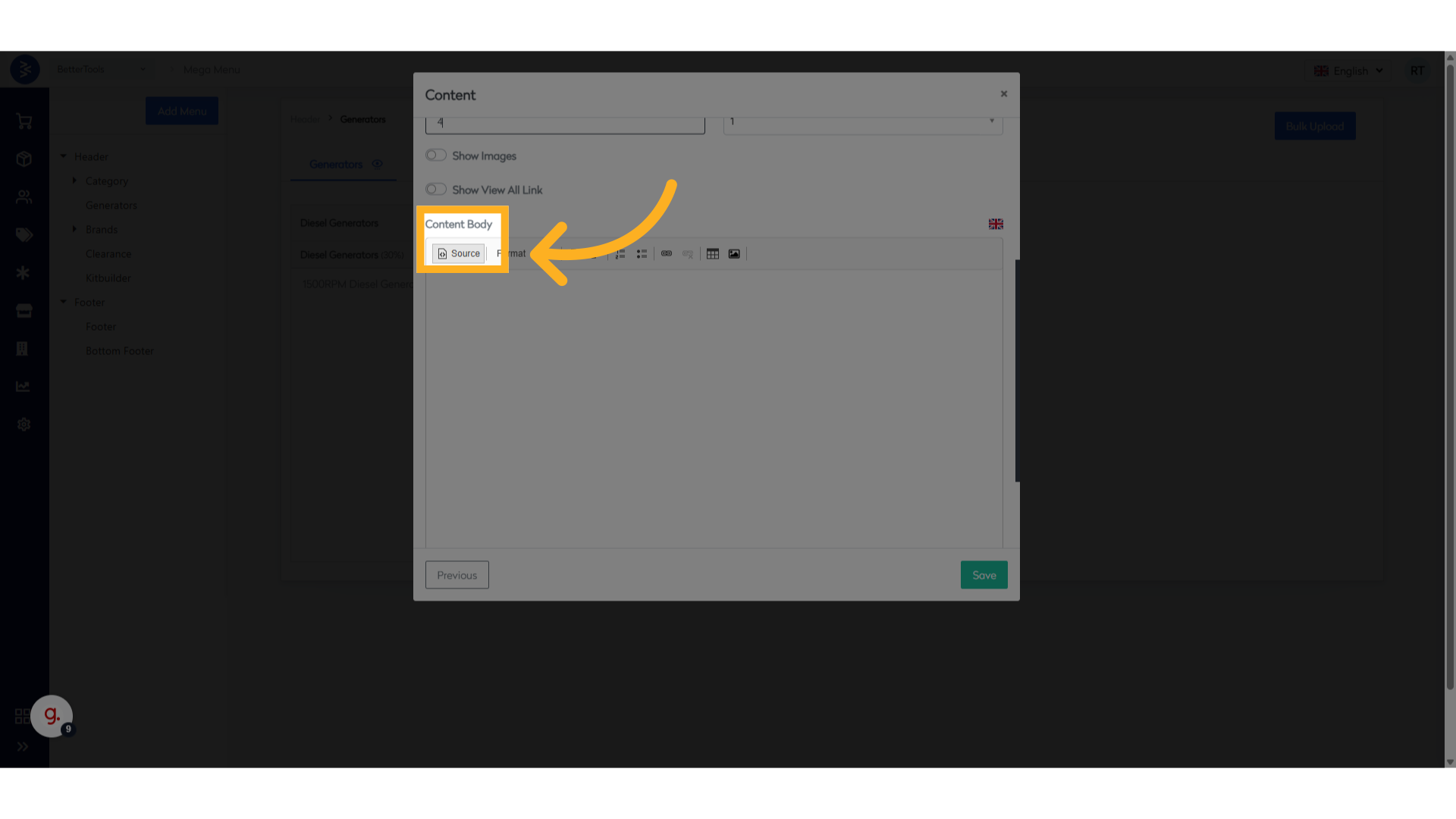
4 - Open the source section in the editor.
- Block Title:
-
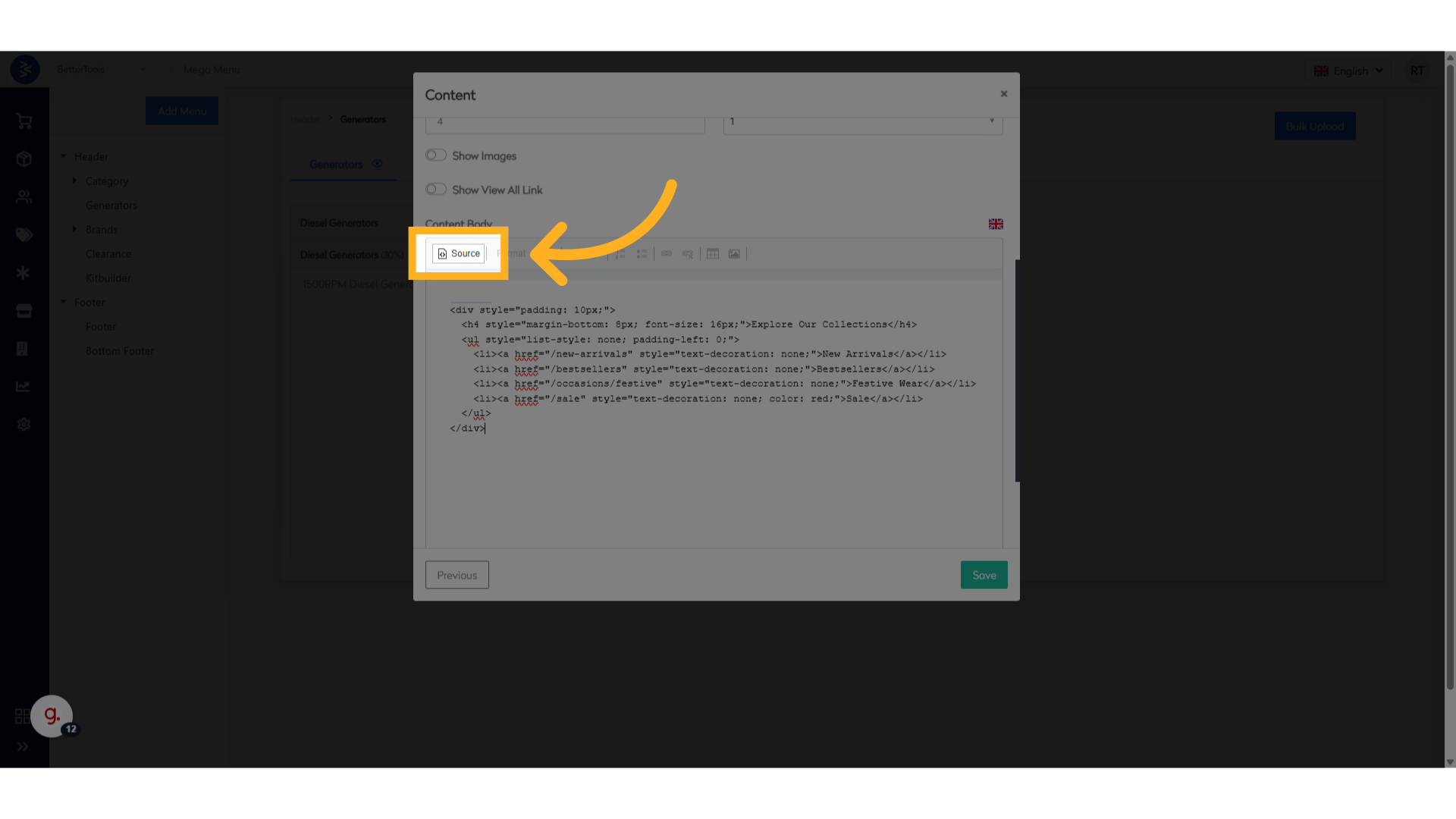
In the content editor, click "Source", paste your HTML content, then click "Source" again to preview.
-
Click "Save" to create the block.
Brand List
Displays a curated list of brands available on the platform.
Steps to Create a Brand List Navigation Block
-
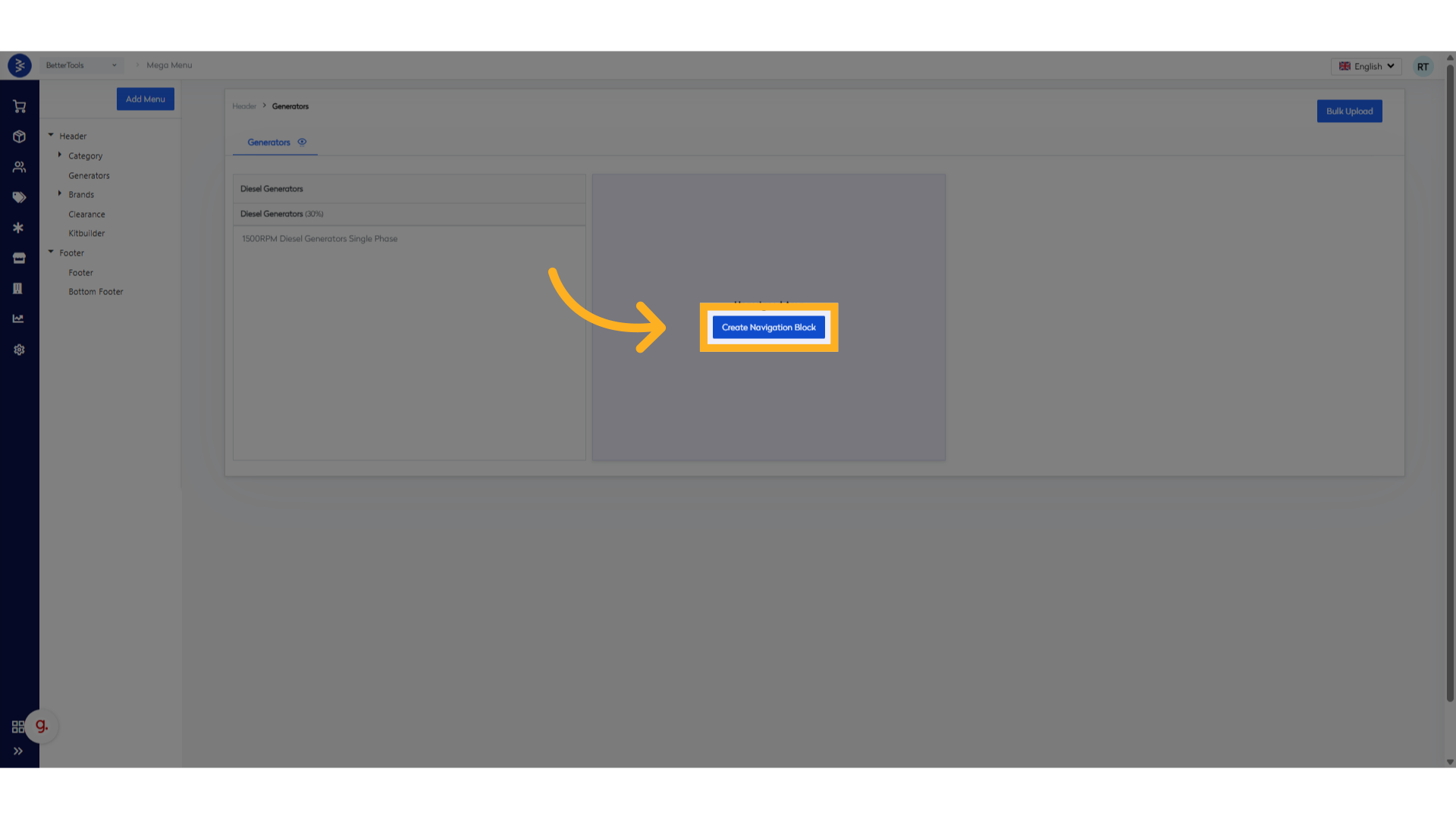
Click on "Create Navigation Block"
-
Select "Brand List" as the block type.
-
Fill in the following details and save:
- Block Title:
Brand List - Width:
30% - Display Order:
5 - Search and select the brands you want to showcase
- Click "Save" to finalize the block.
- Block Title:
Dynamic Collection
Shows pre-defined product collections, updated dynamically.
Steps to Create a Dynamic Collection Navigation Block
-
Click on "Create Navigation Block"
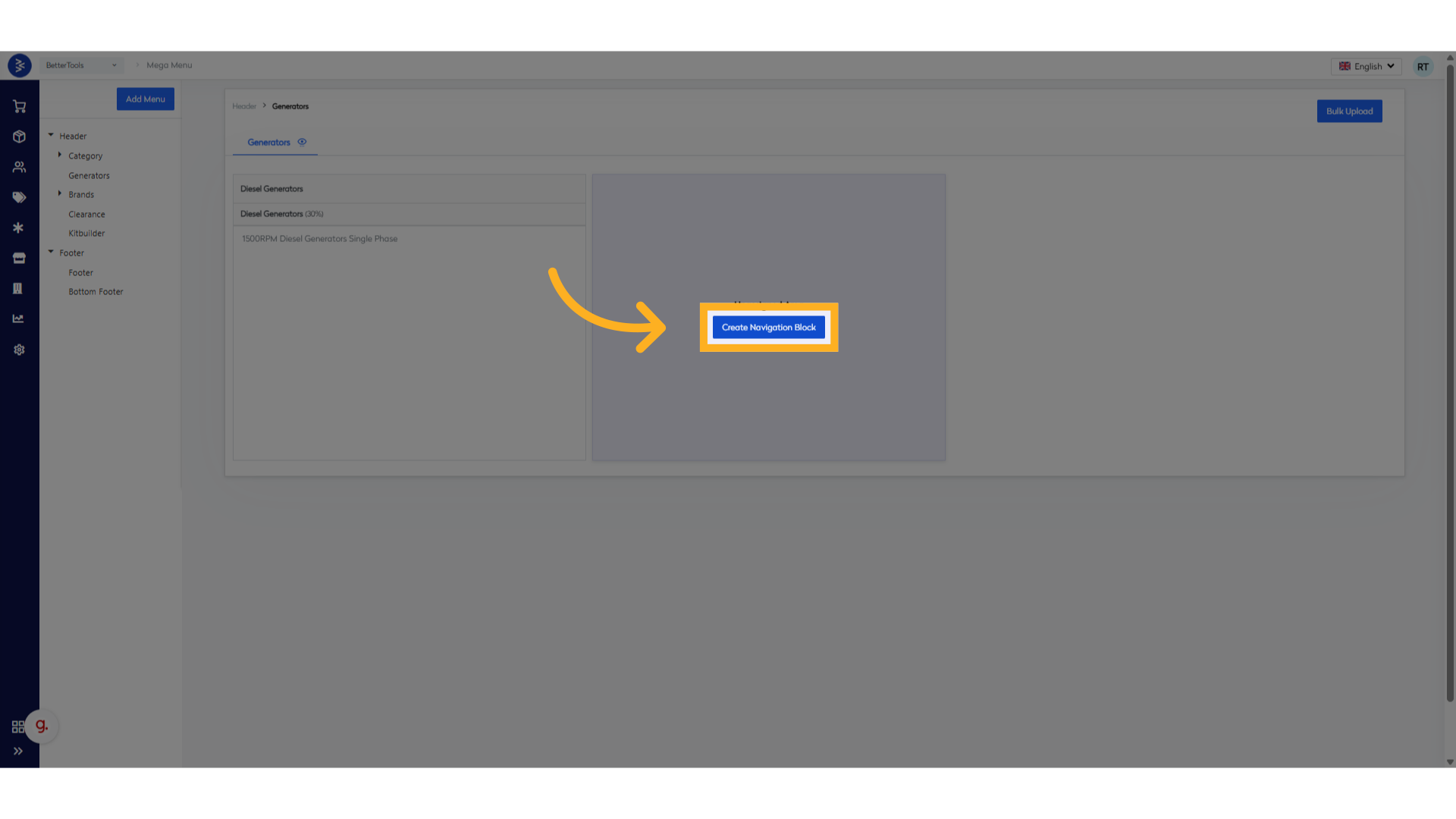
-
Select "DynamicCollection" as the block type.
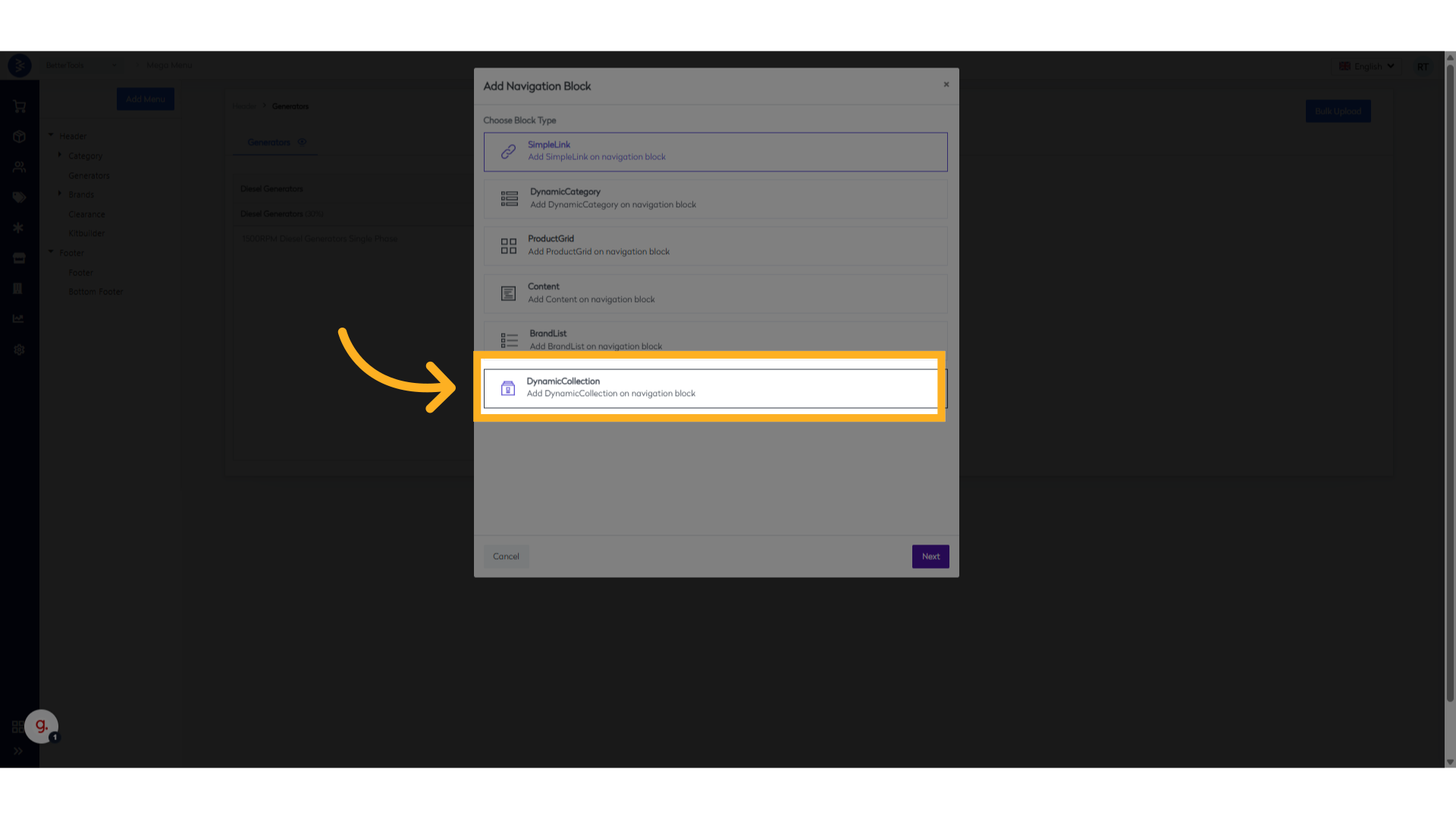
-
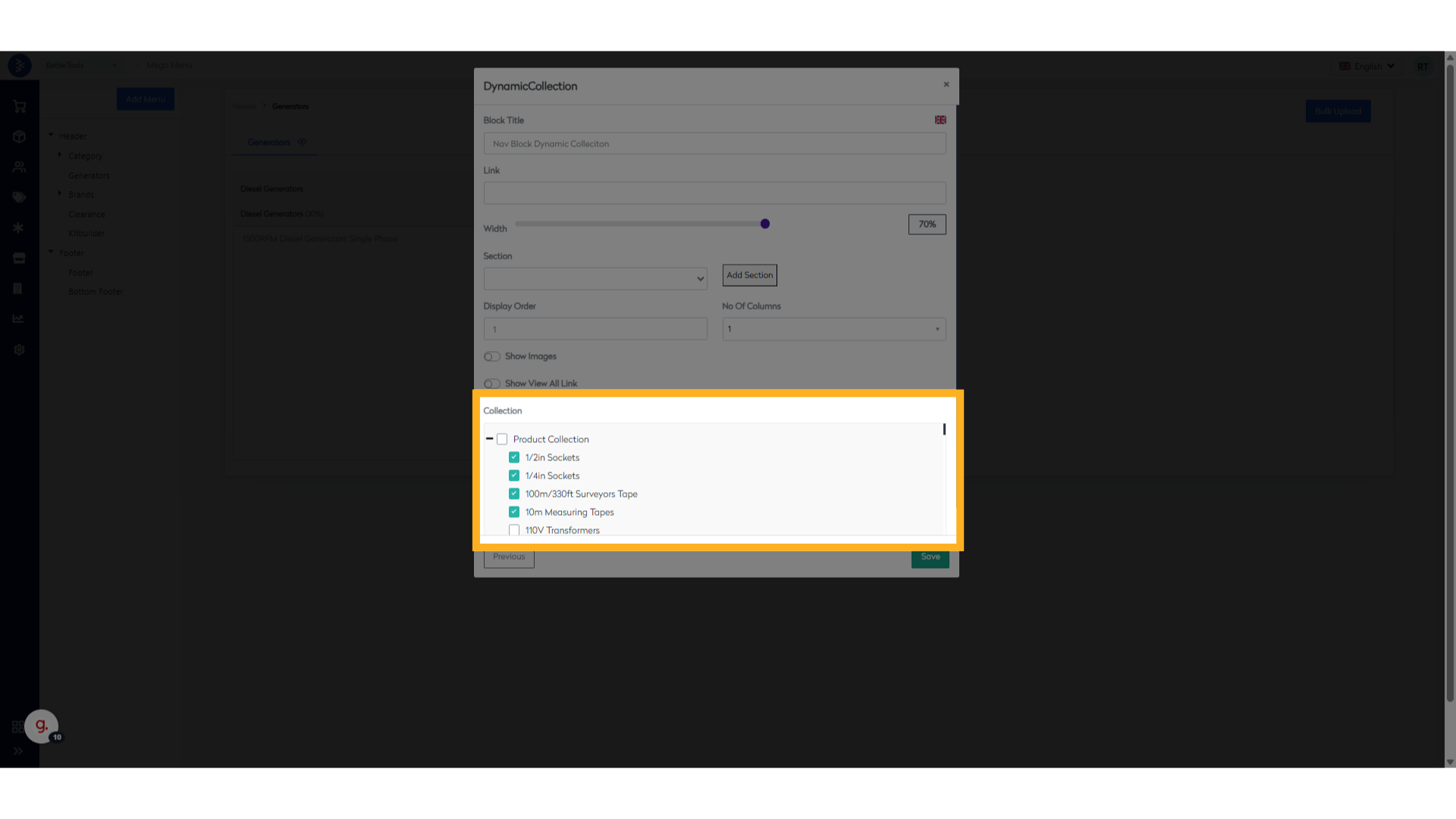
Fill in the following details and save:
- Block Title:
Dynamic Collection - Width:
30% - Display Order:
6 - Expand and select from available product, category, or brand collections.
Note: Predefined collections must already exist in the system.
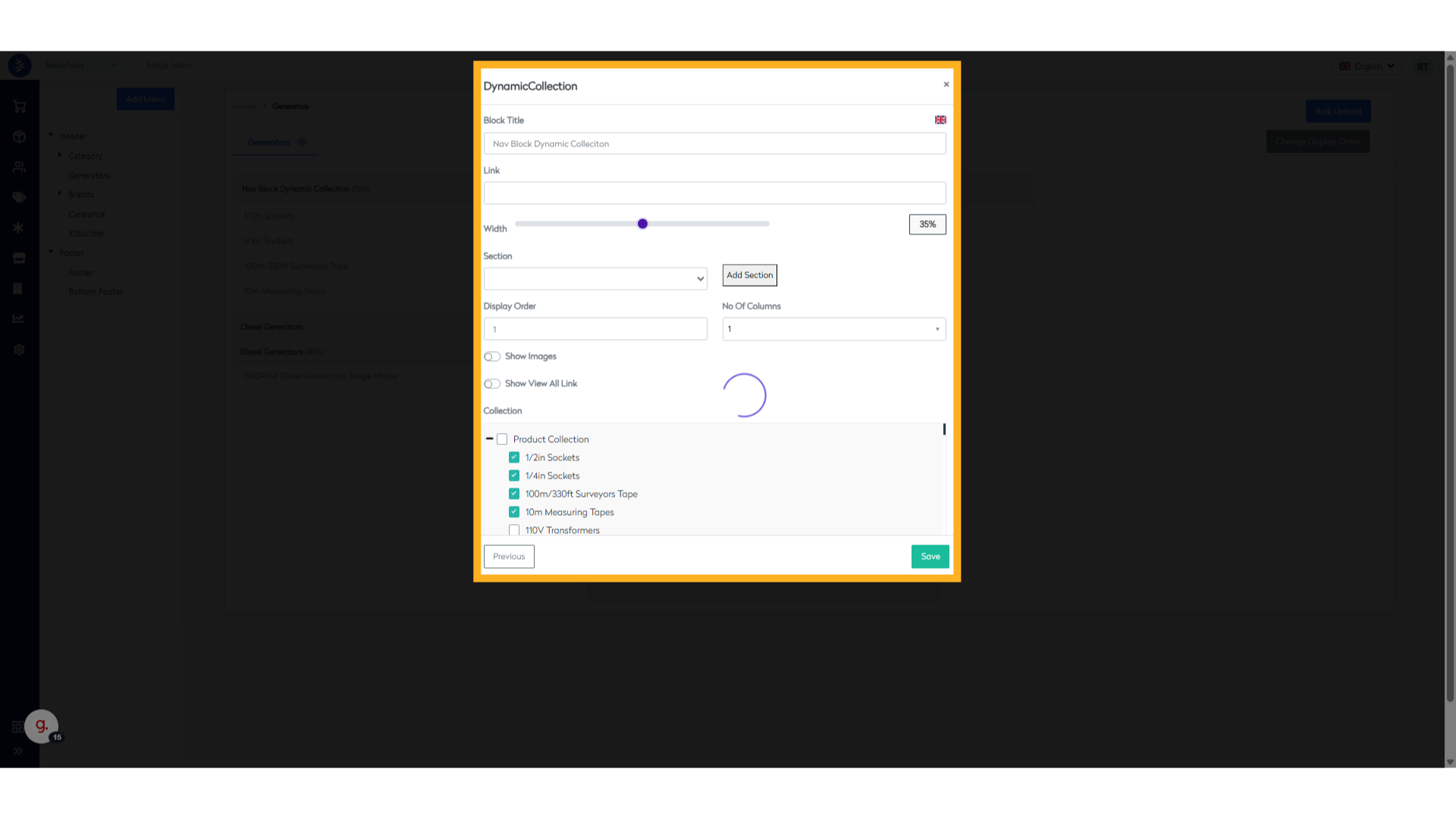
- Click "Save" to complete the setup.
- Block Title:
Complete Steps to Create a Navigation Block in CommerceHub
- Navigate to StoreFront > Mega Menu
- Select the Menu under which the navigation item is to be created.
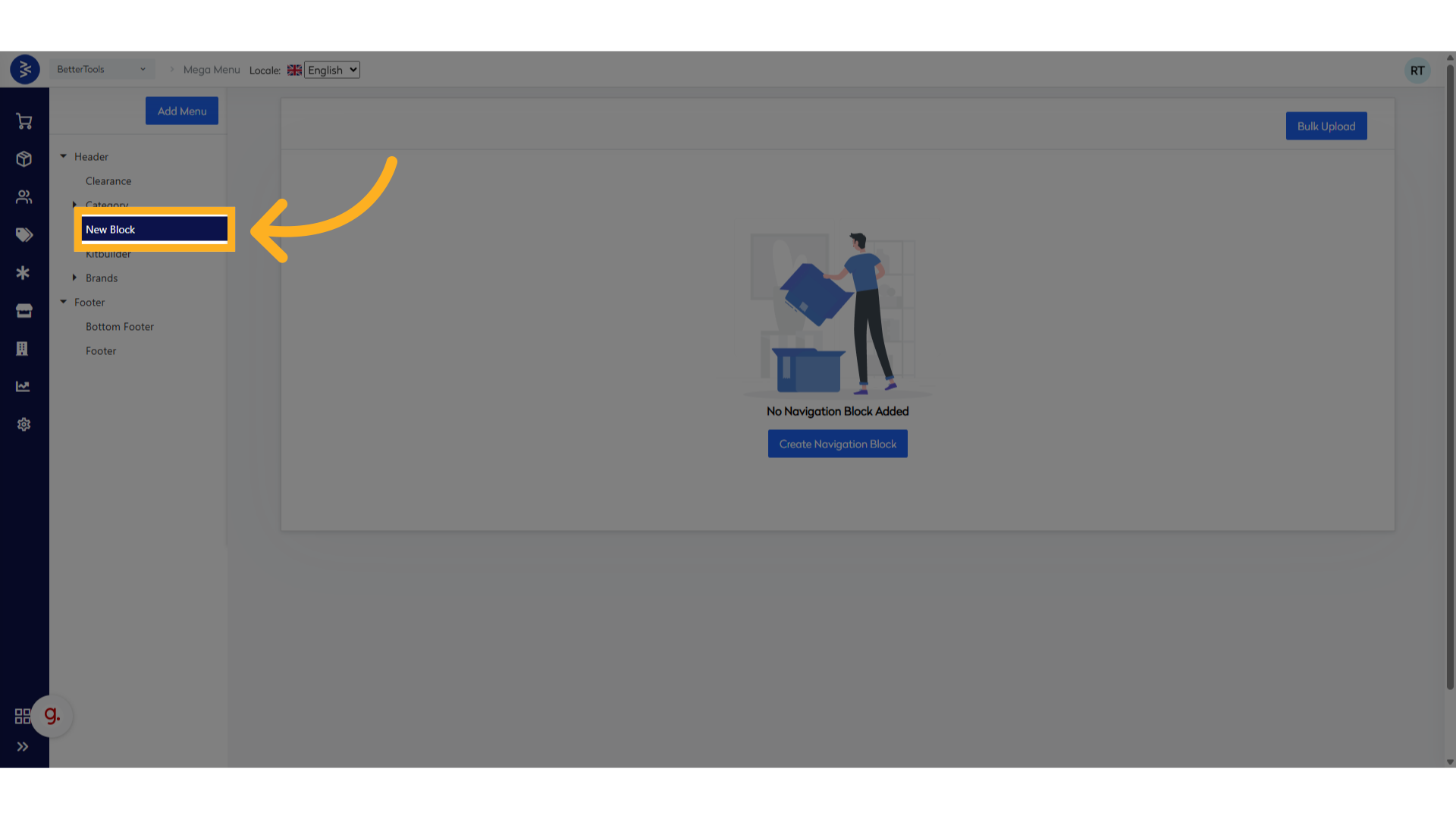
-
Click on Create Navigation Block
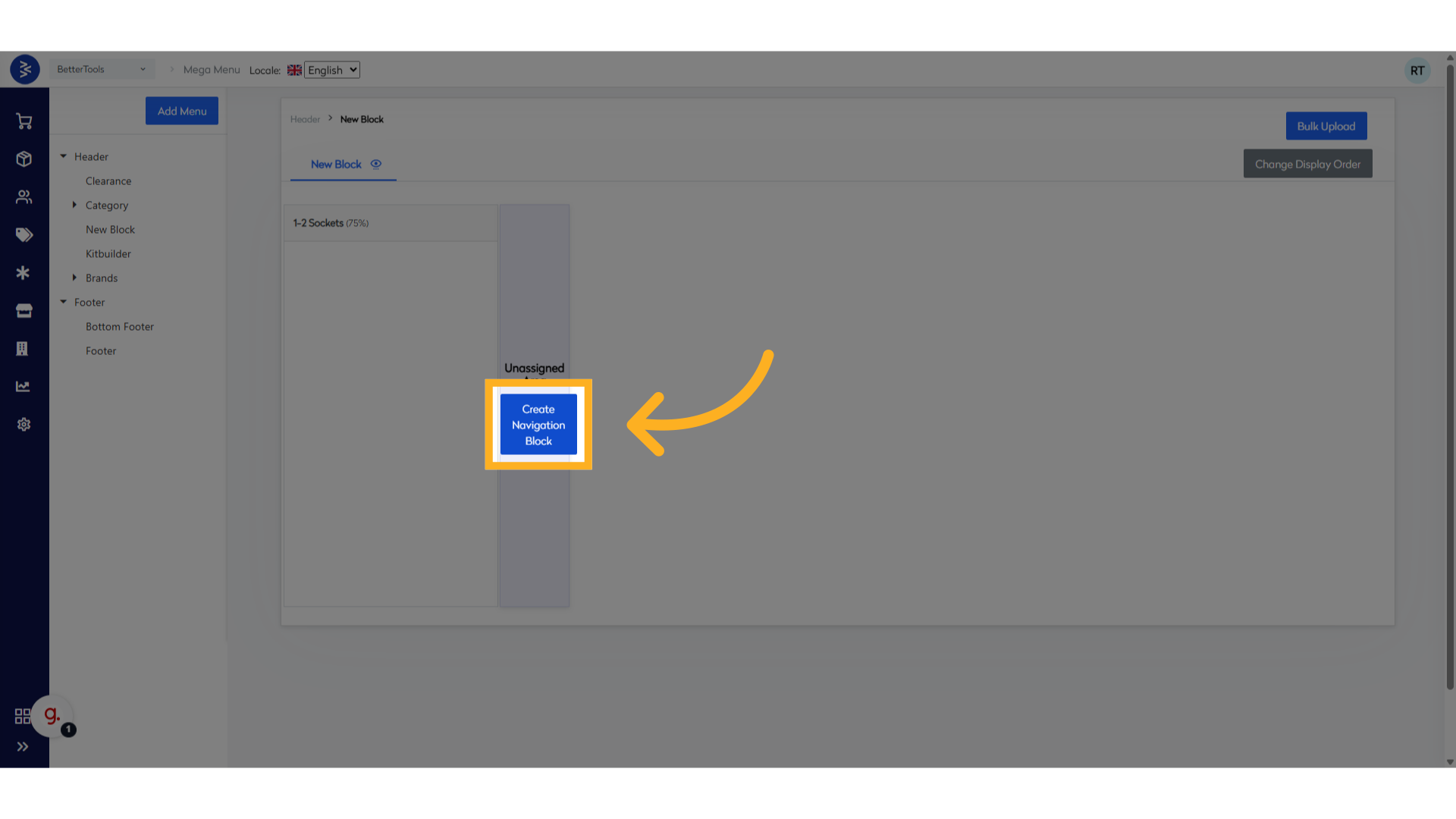
-
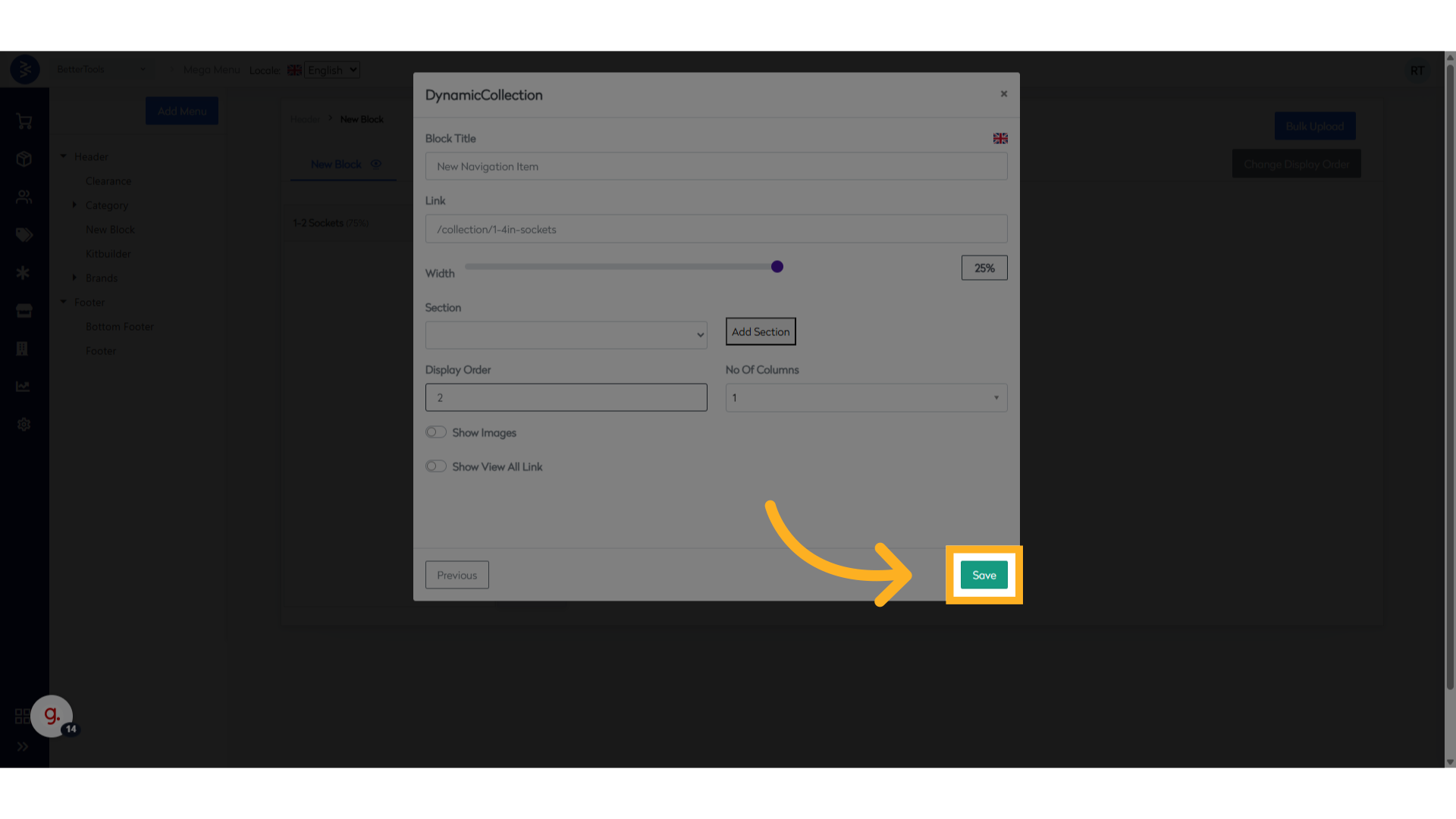
Choose an Option for the Navigation Block, select the required option based on your needs. For example, "DynamicCollection" is selected here.
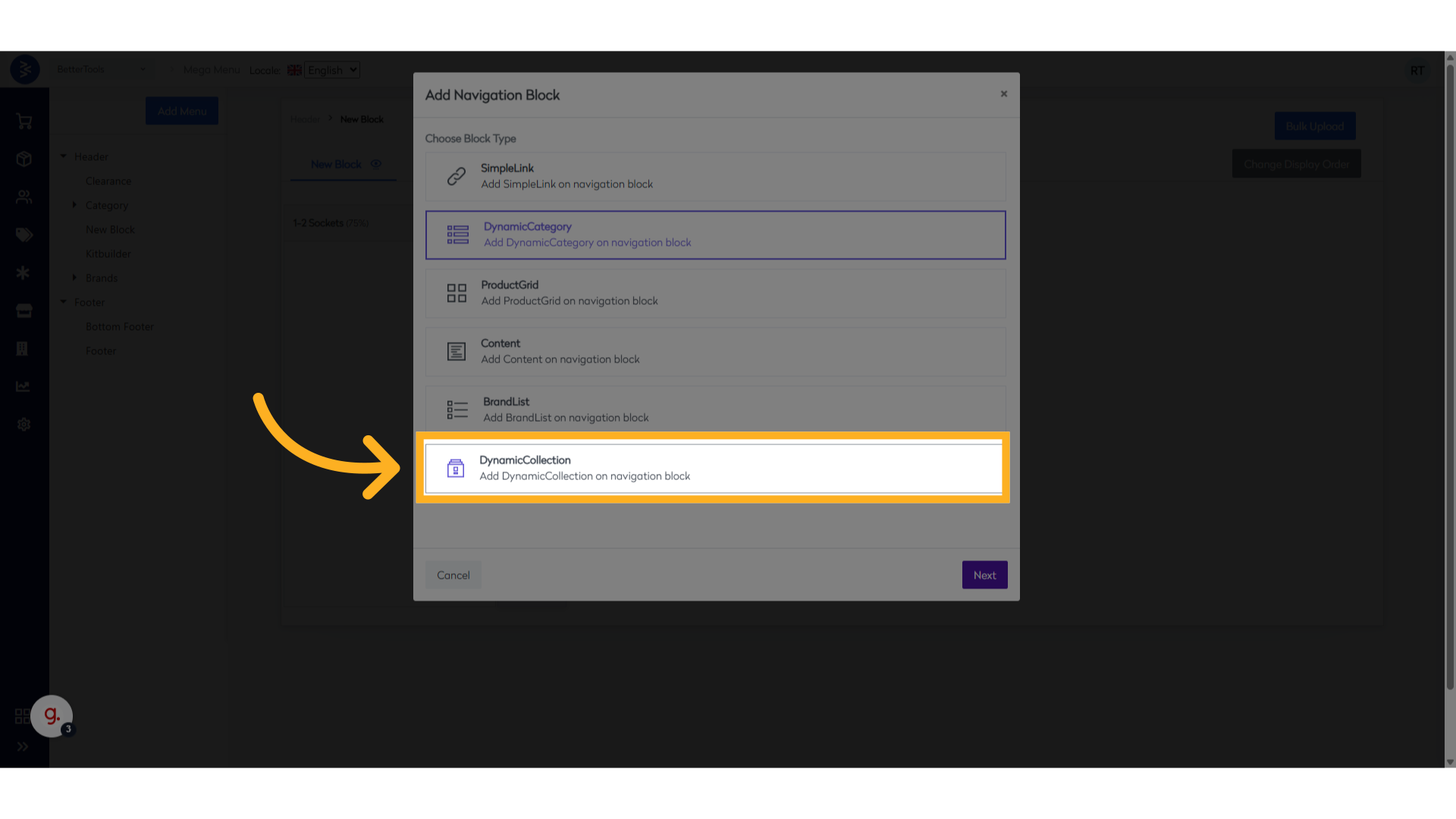
-
Click Next and proceed to the next step in the process.
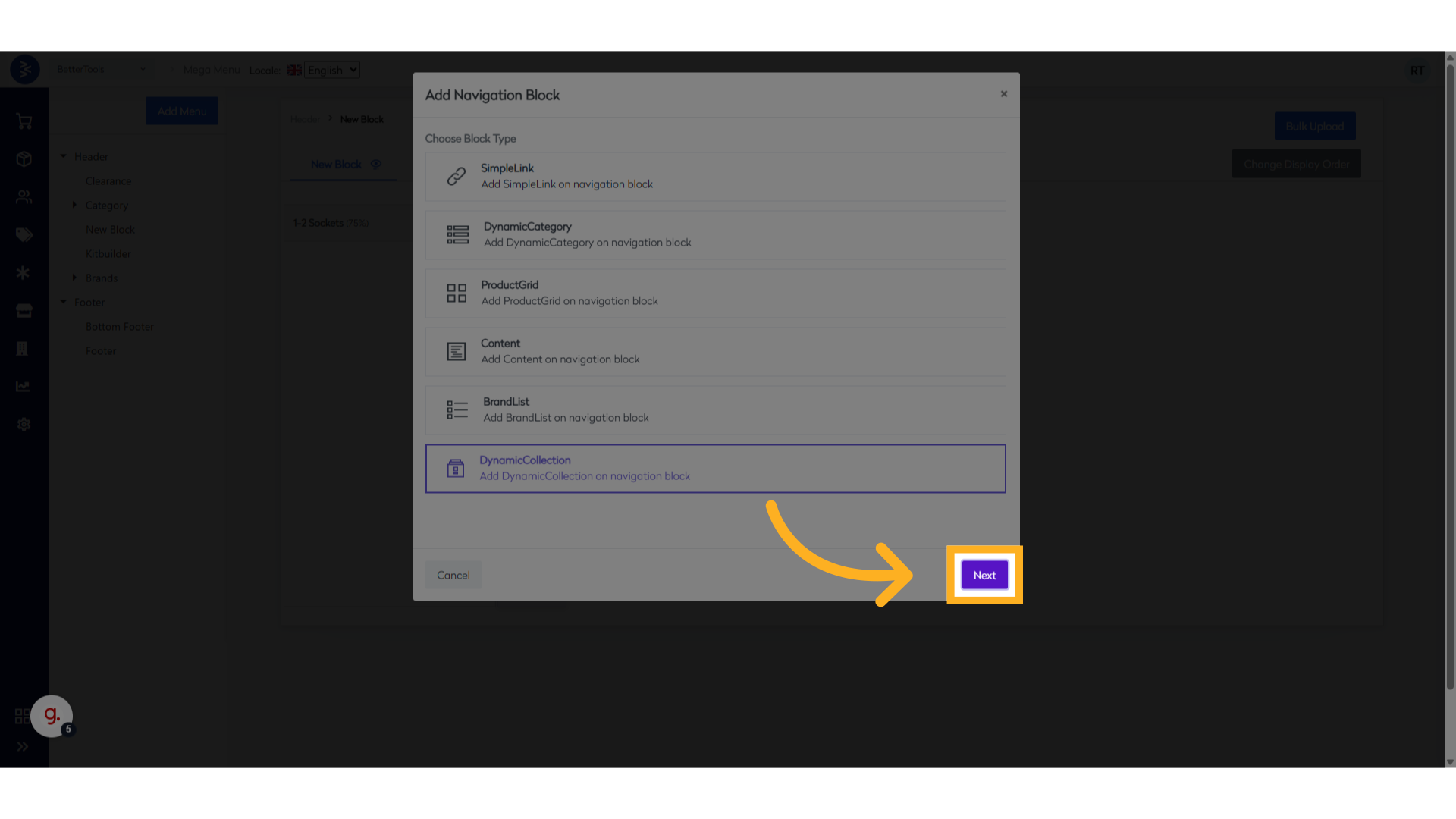
-
Update the Block Title enter the title of the block. This title will appear under the menu on the website.
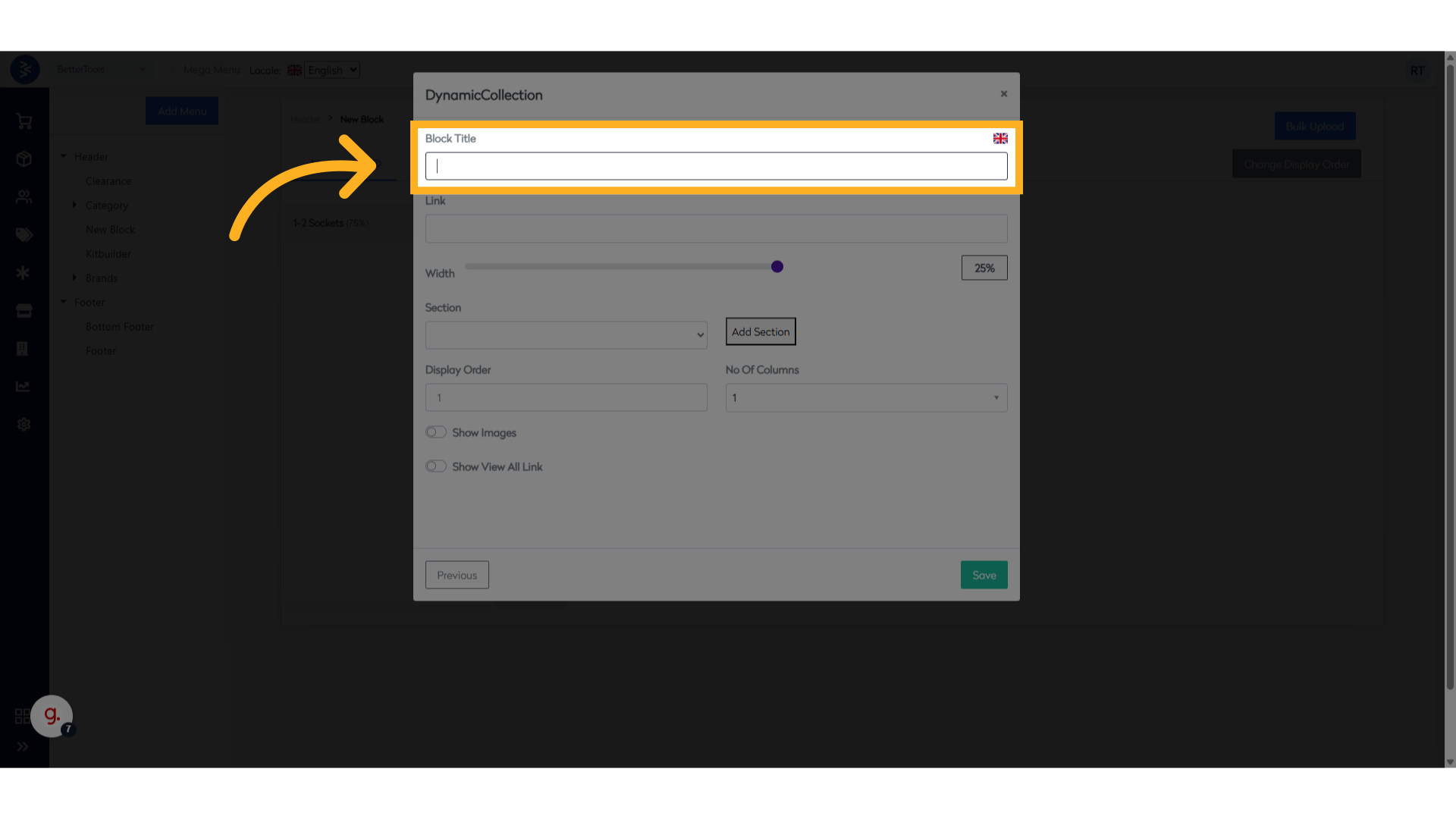
-
Update the Link
- Provide the URL where the user will land upon clicking the navigation item under the menu.
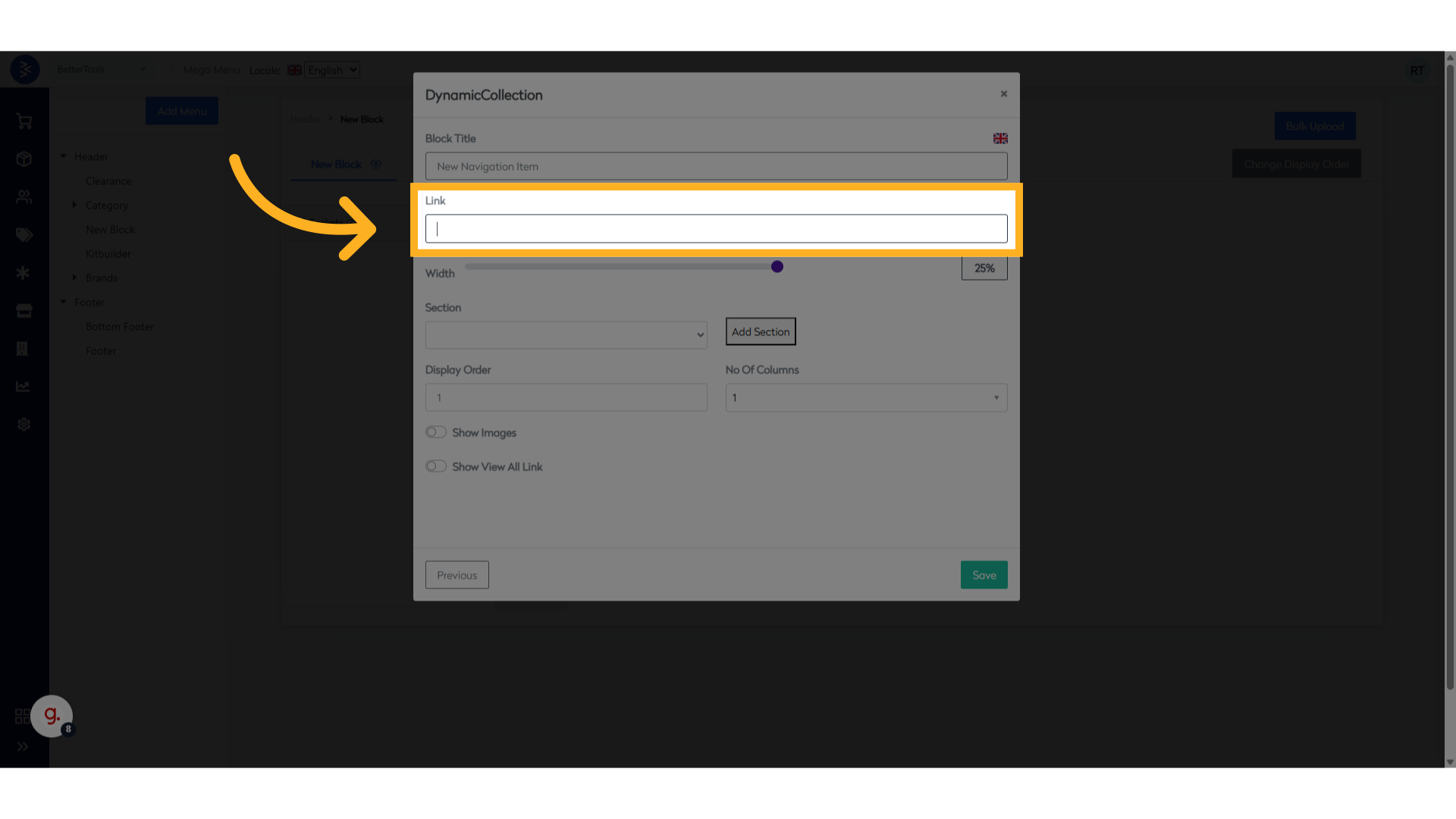
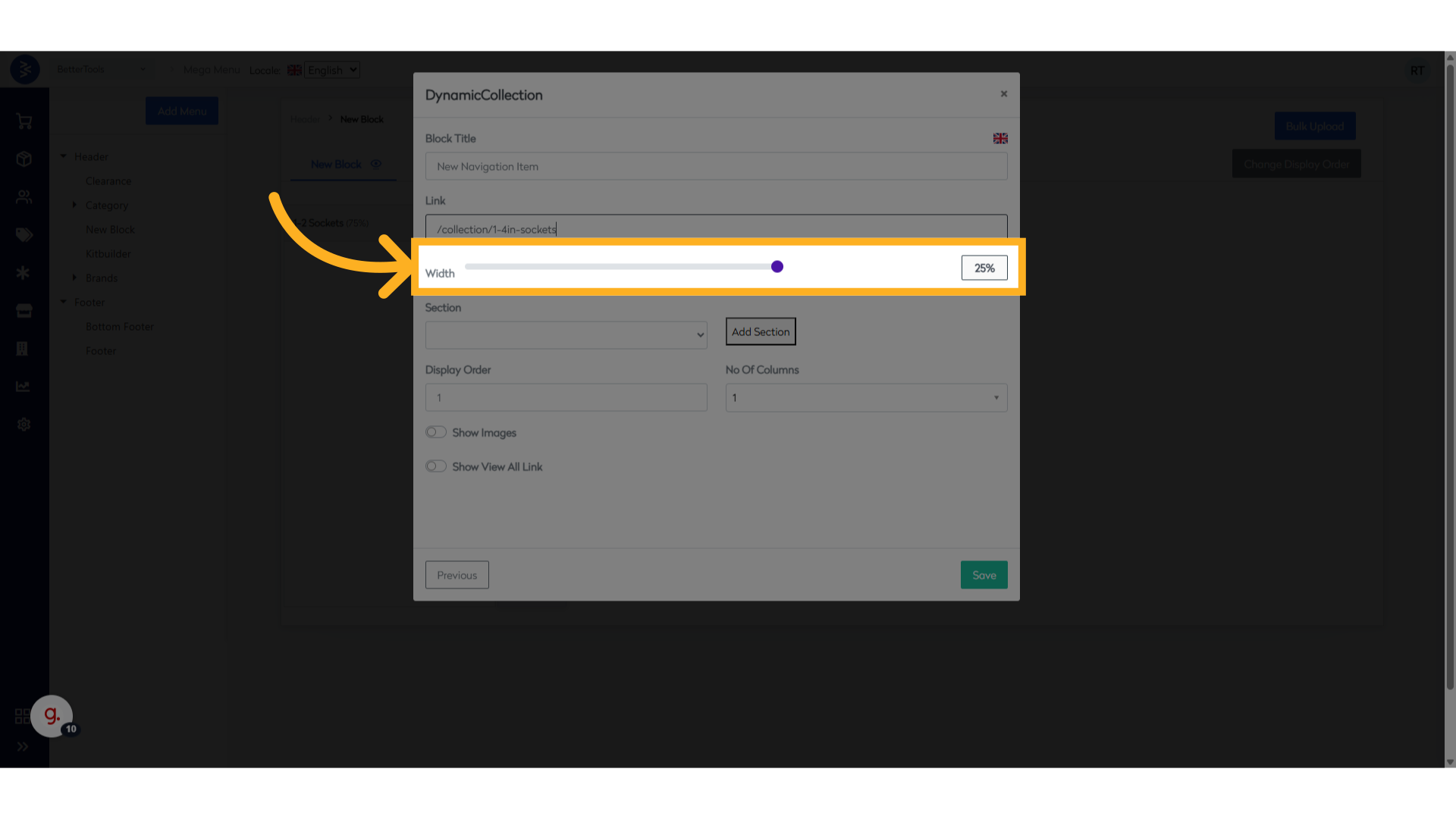
- Select the Width
- Define the number of items you can include in a navigation item.
- 100%: Only one item can be included.
- 10%: Up to 10 items can be included.
-
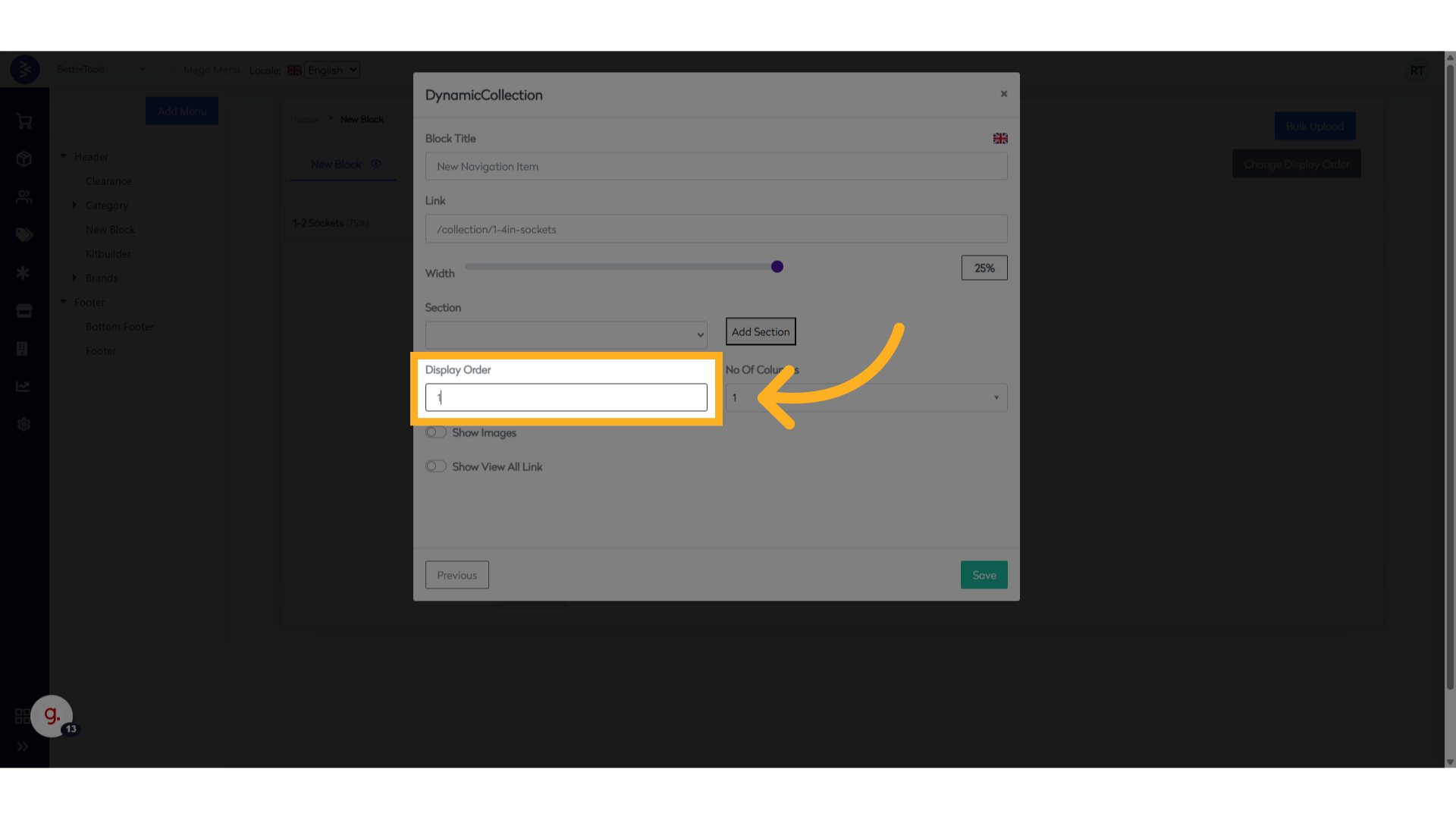
Update the Display Order to specify the order in which the navigation item will appear vertically on the website.
-
Click Save to save your changes to create the navigation item.
-
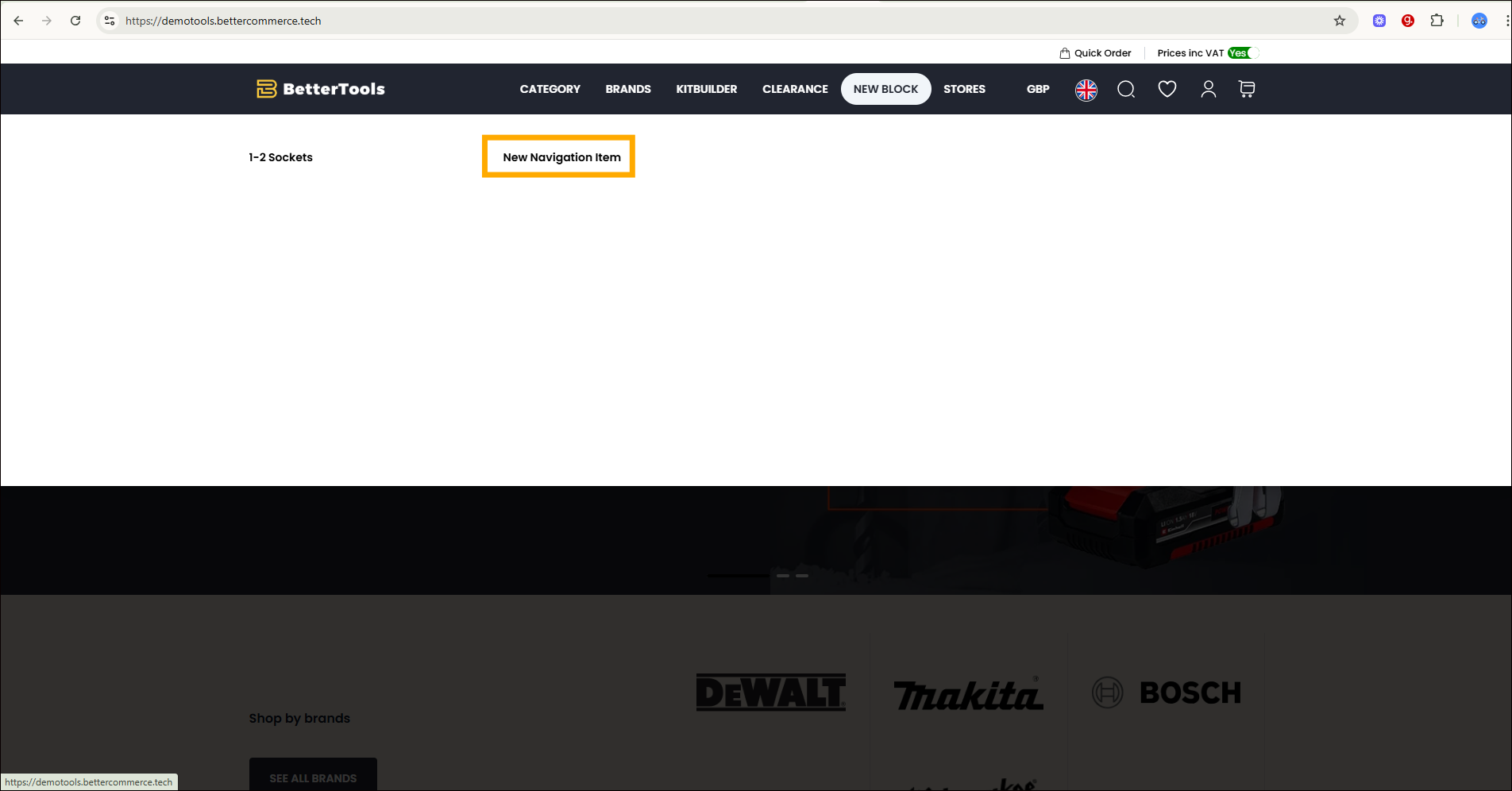
Verify the Navigation Item
- Once saved, the navigation item will appear under the selected menu on the website as shown below:
Steps to Create Navigation Item in Mega Menu
Follow the steps below to create a new Navigation Item within a selected Navigation Block in the CommerceHub Mega Menu:
-
Navigate to
StoreFront > Mega Menuwhere all menus are managed.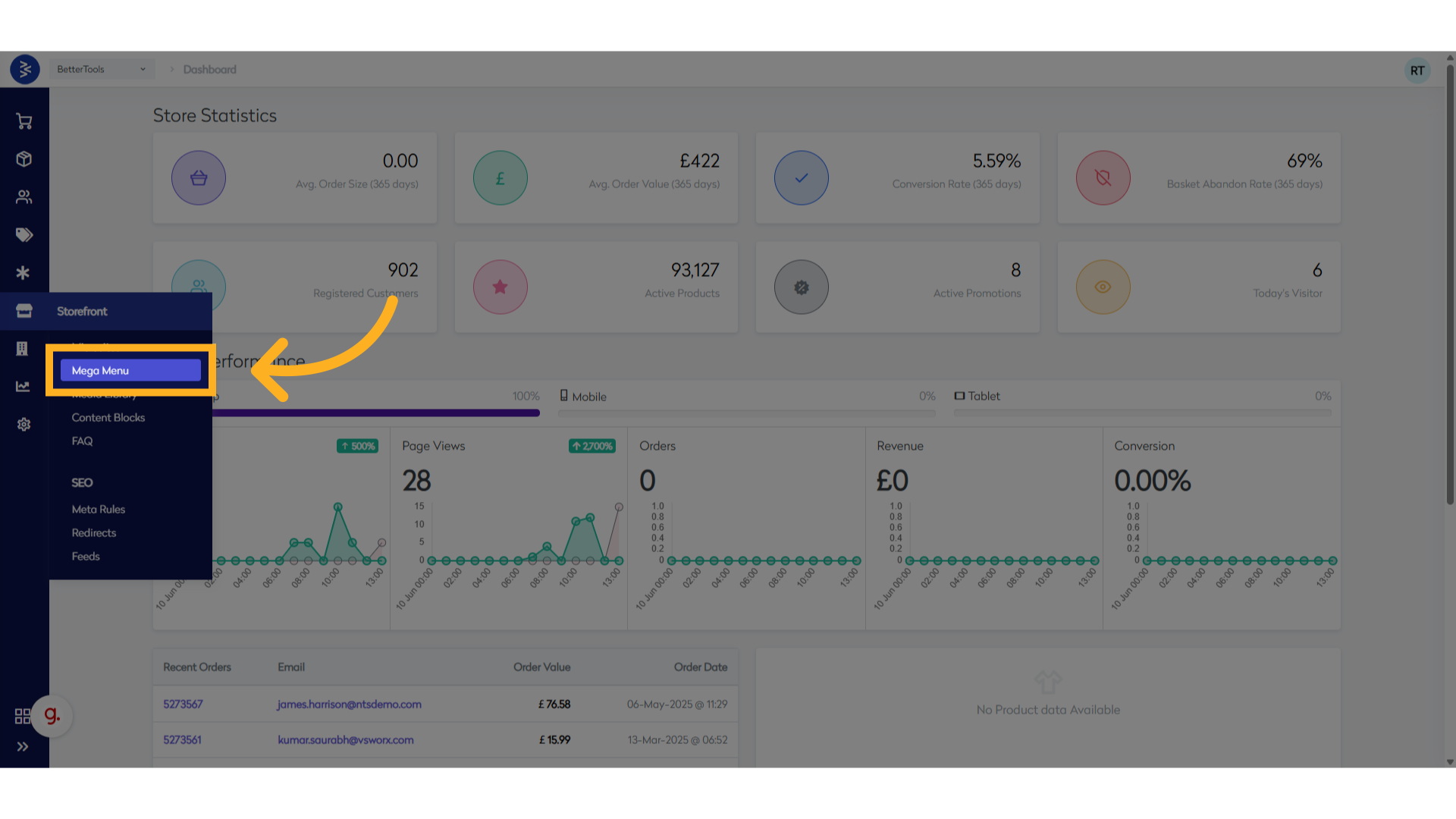
-
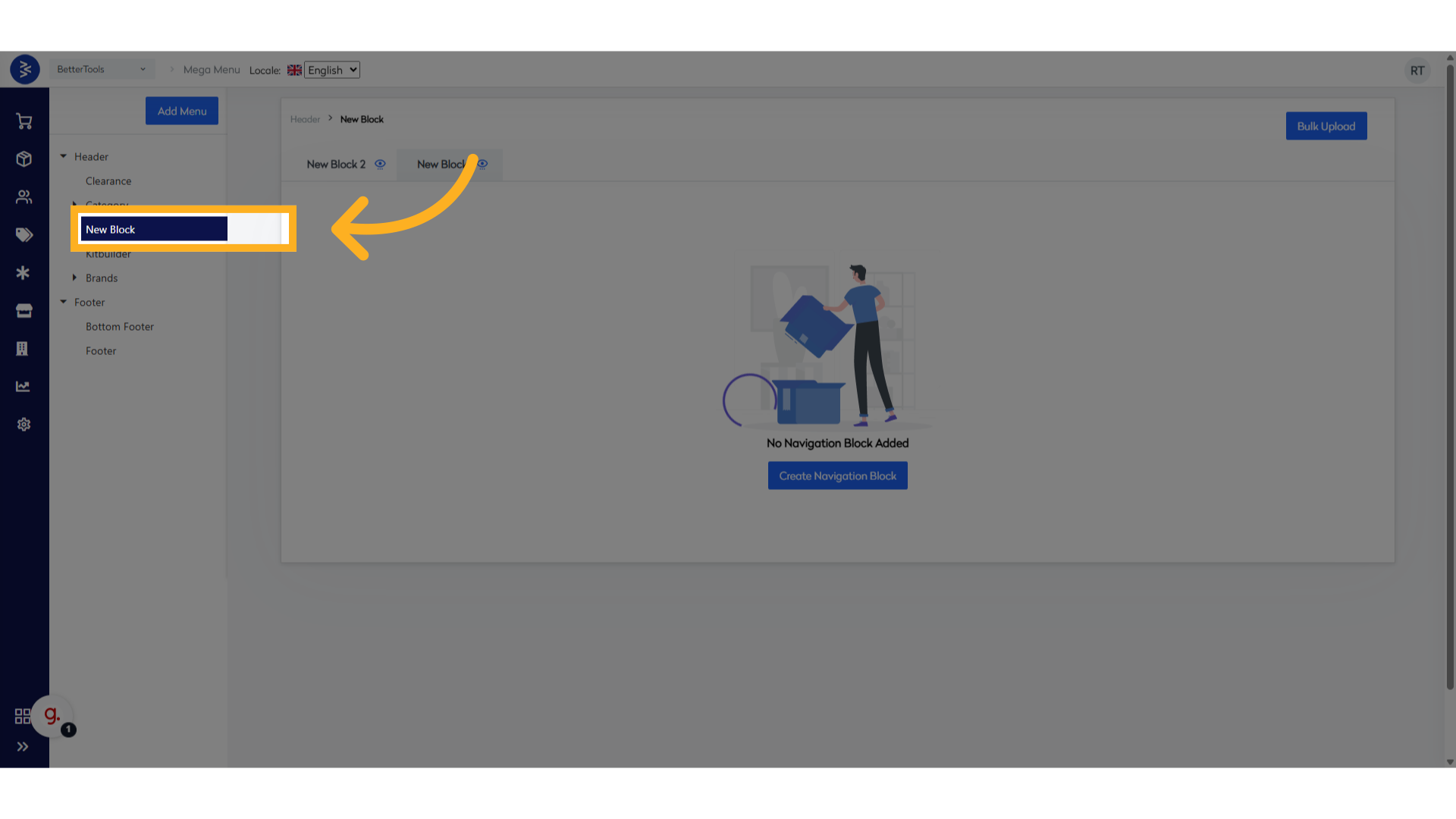
Select the Menu choose the menu where you want to add the navigation item (e.g., "New Block").
-
Select Navigation Block choose the specific Navigation Block under the selected menu where the new item will be placed.
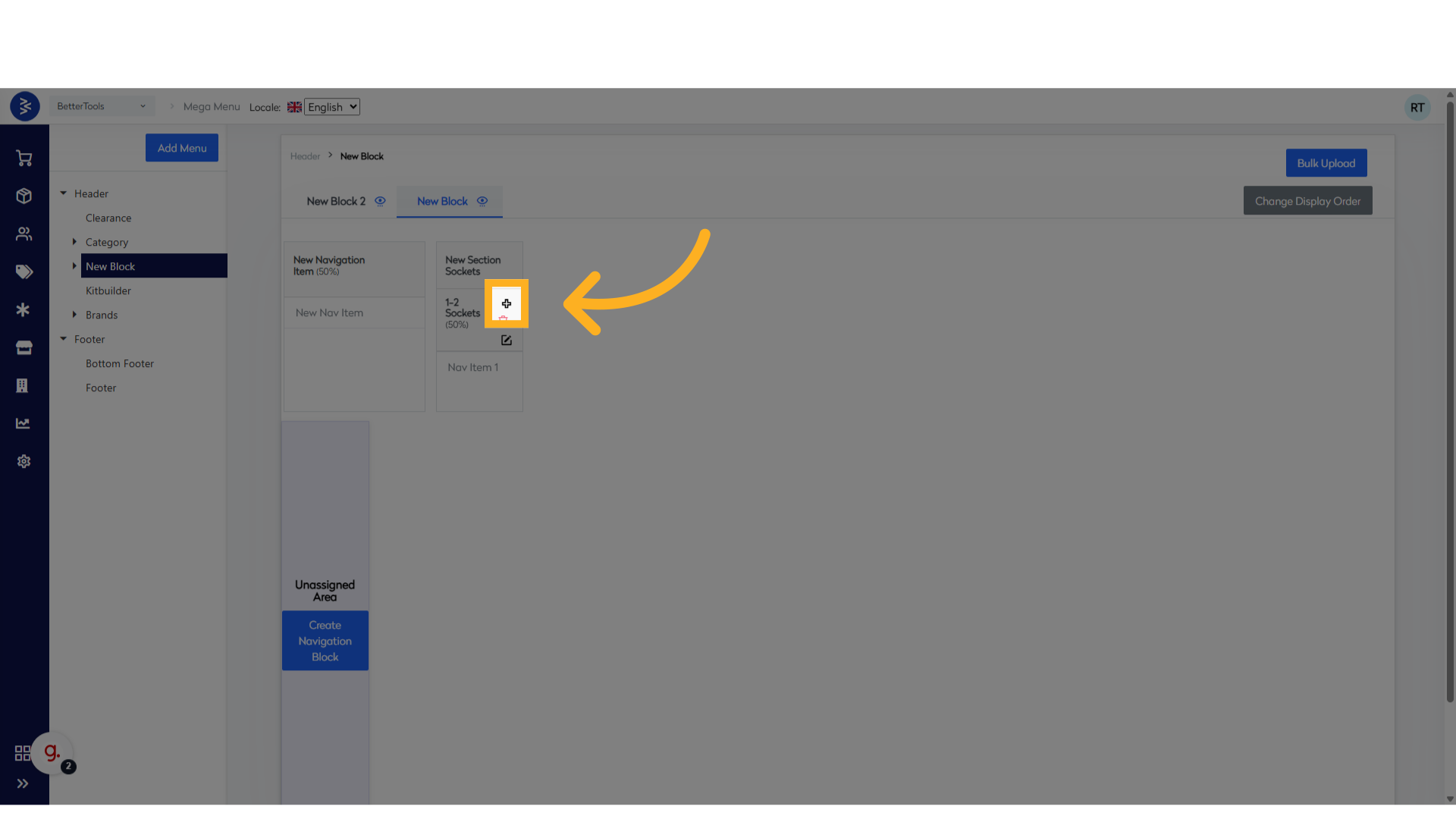
-
Enter Caption provide a caption for the navigation item. This will be displayed on the website under the selected block.
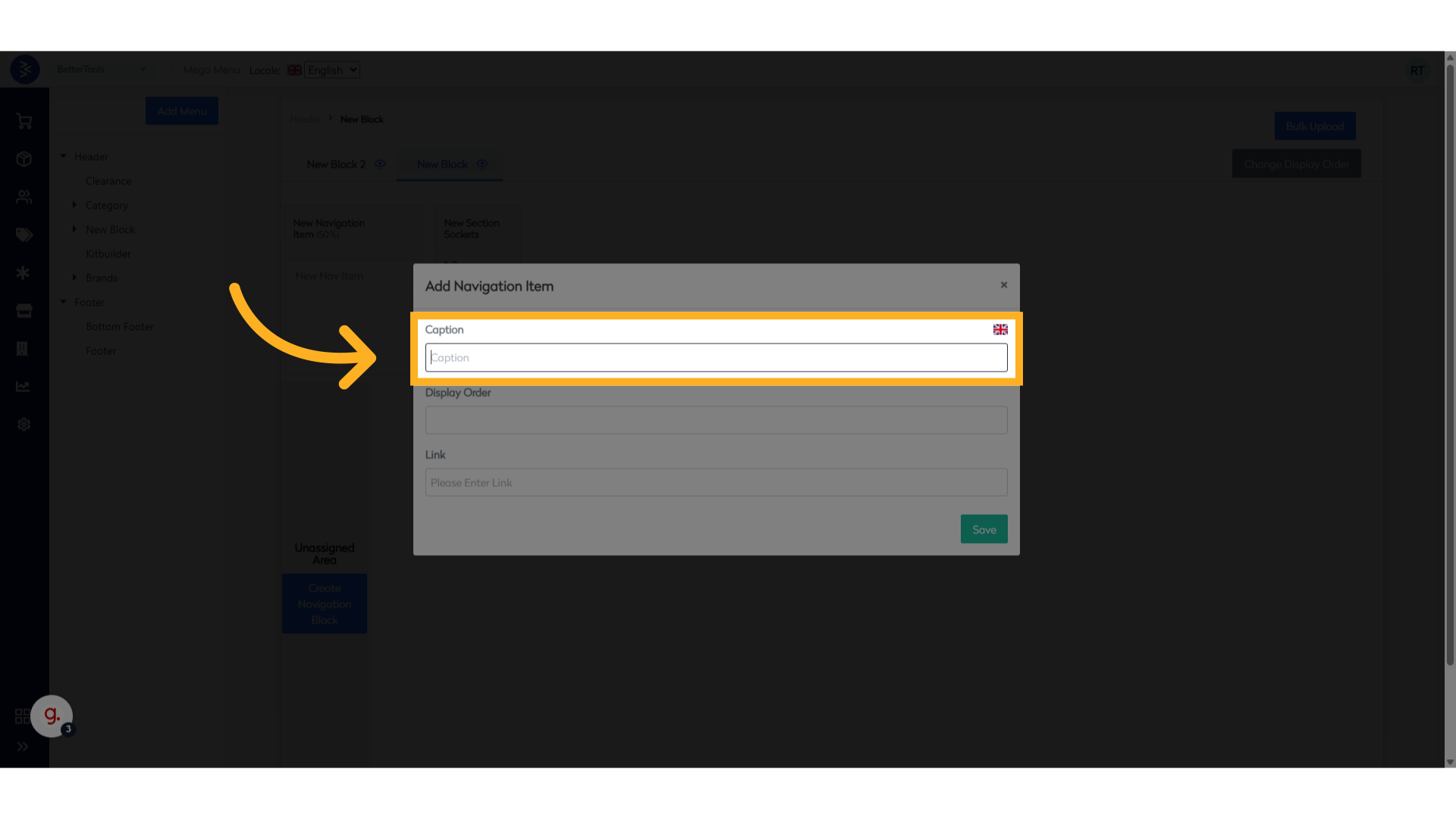
-
Update Display Order set the display order to determine the vertical position of the item within the block.

-
Update Link enter the URL in the Link field where the user should be redirected upon clicking the navigation item.

-
Click "Save" to save the changes to create the new navigation item.
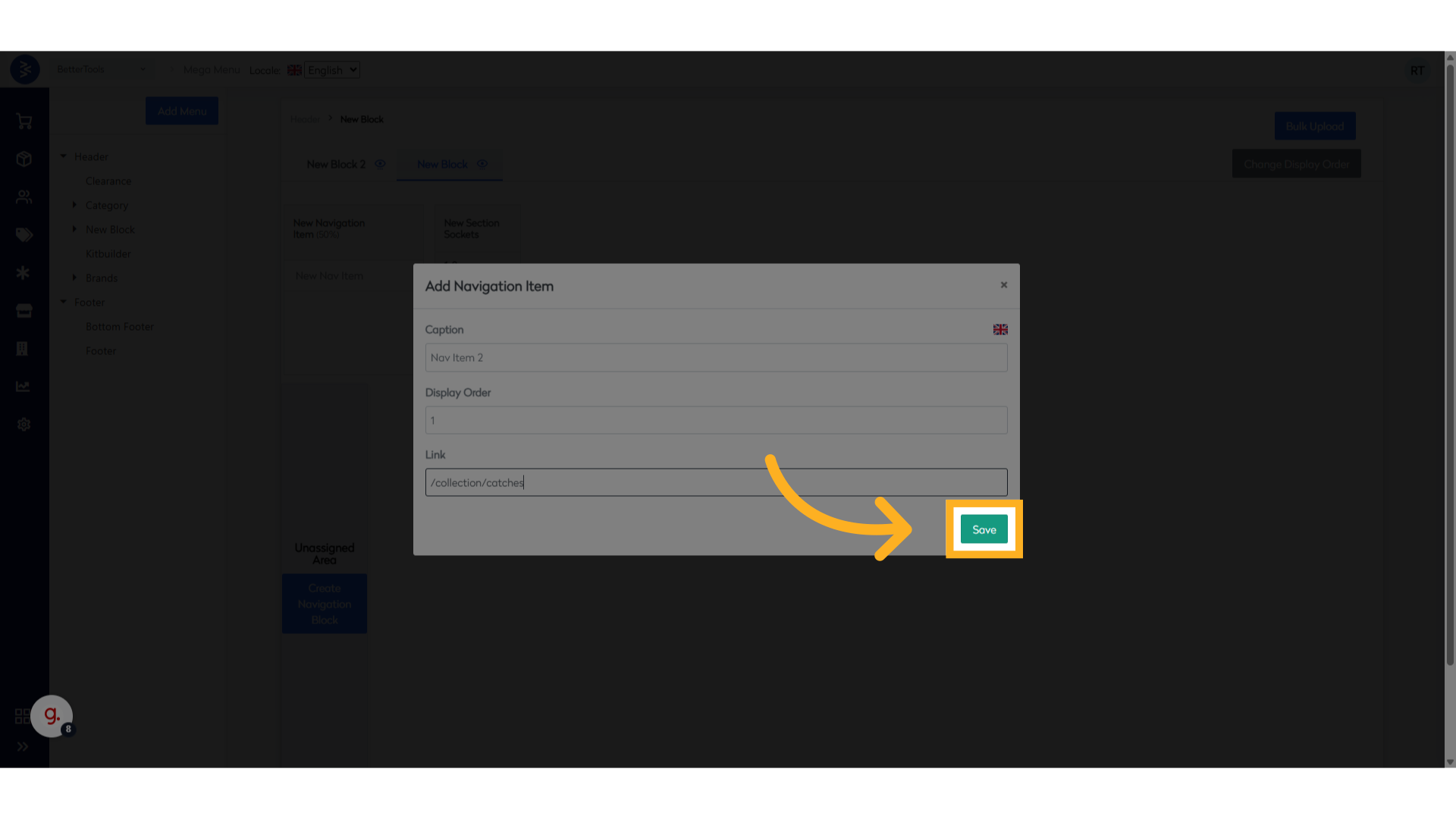
-
Verify the Display
Once saved, the item will appear under the selected Navigation Block on the website.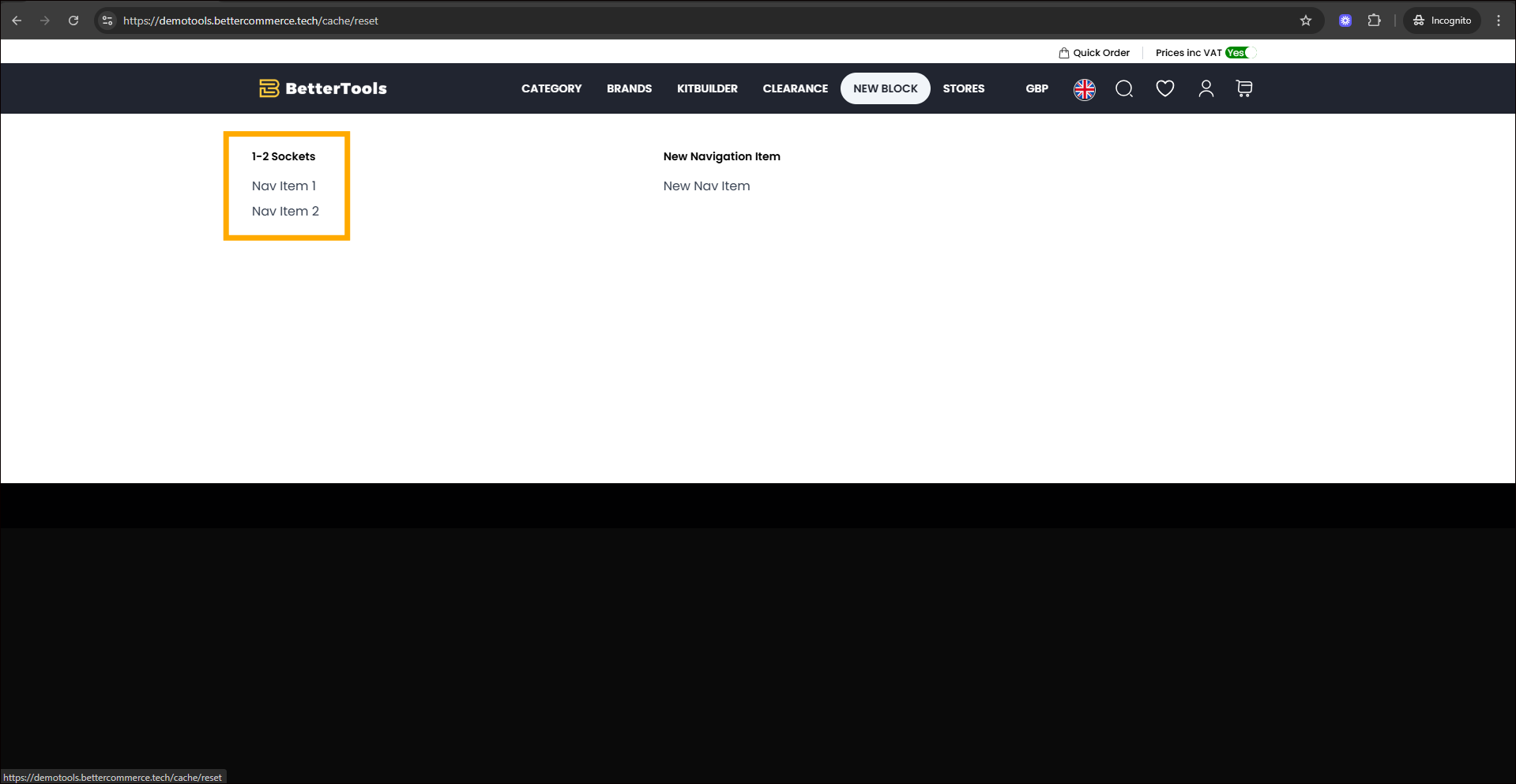
Section
Sections are used to organize content within a Navigation Block into smaller, titled groups for better structure and readability.
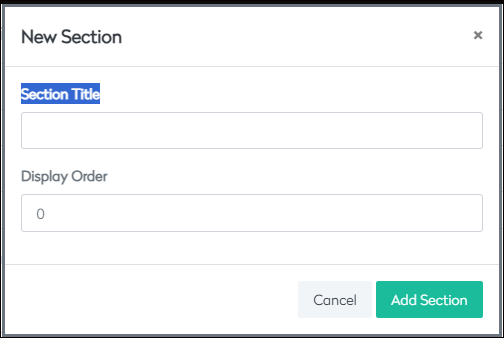
| Field | Description |
|---|---|
| Add Section | Insert a new section within the navigation block. |
| Section Title | Label for the section, which is displayed to users in the menu. |
| Display Order | Controls the horizontal order of display of the section. |
Mega Menus combine flexibility and user experience, helping businesses build high-conversion, visually engaging website navigation.
Bulk Import Mega Menus
Upload and update mega menu configurations in bulk using a CSV file to quickly deploy menu changes across multiple sites or regions.
Steps to Bulk Upload Mega Menu
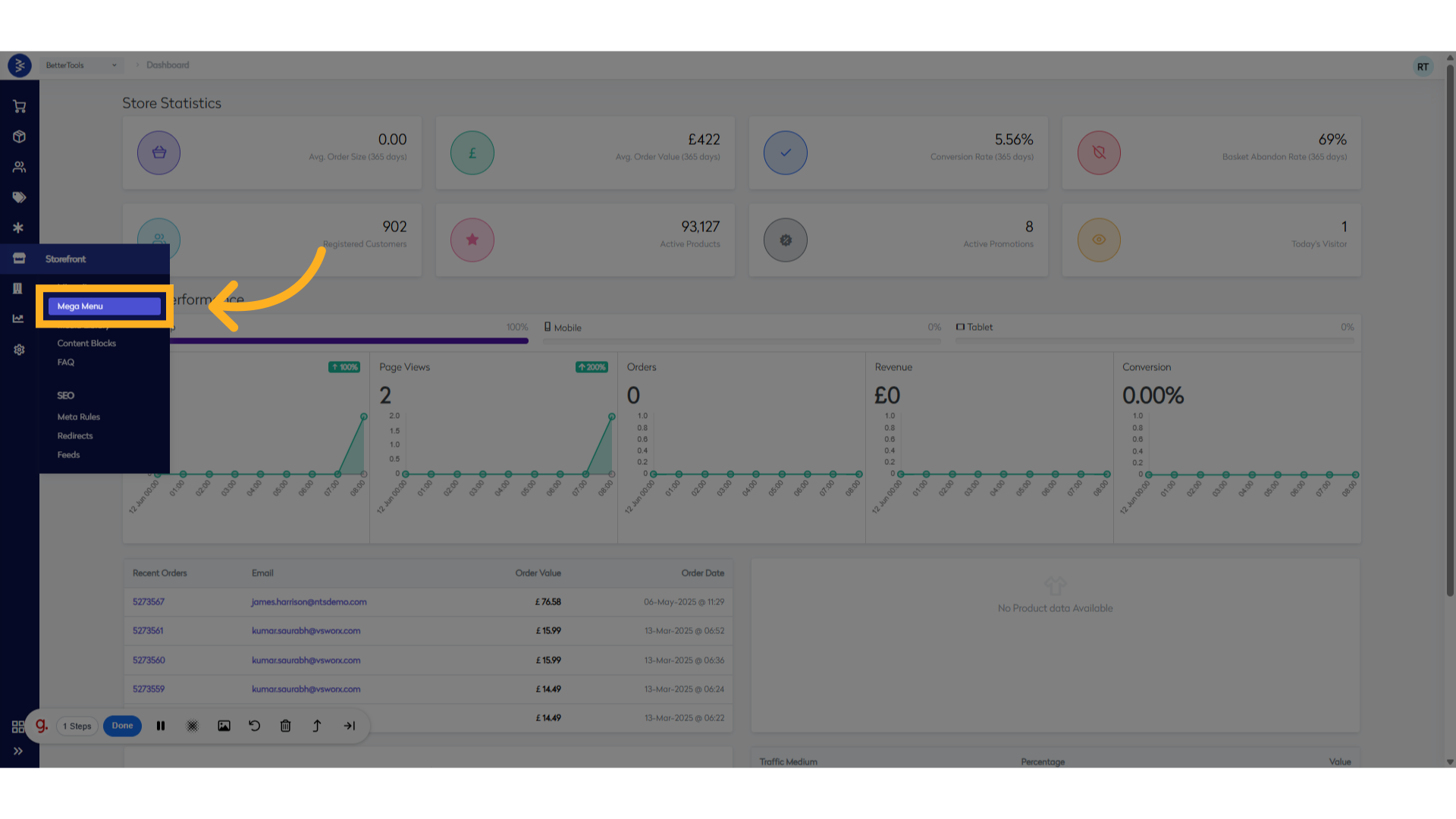
1. Go to the Commerce Module
- Navigate to the Storefront Menu.
- Click on Mega Menu.
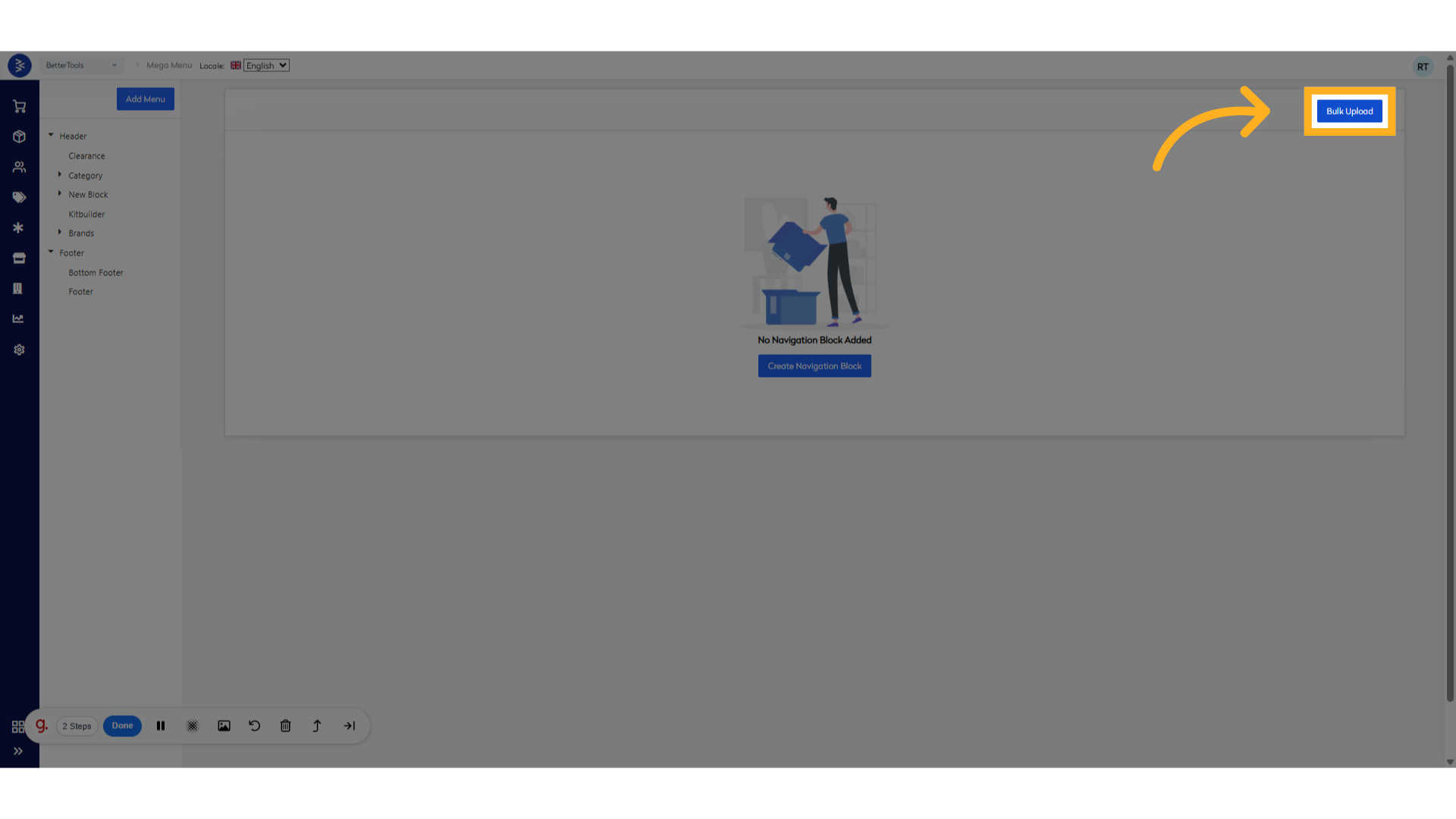
2. Click on Bulk Upload
- In the Mega Menu section, locate the Bulk Upload option (usually at the top-right or top-left of the screen).
- Click on it.
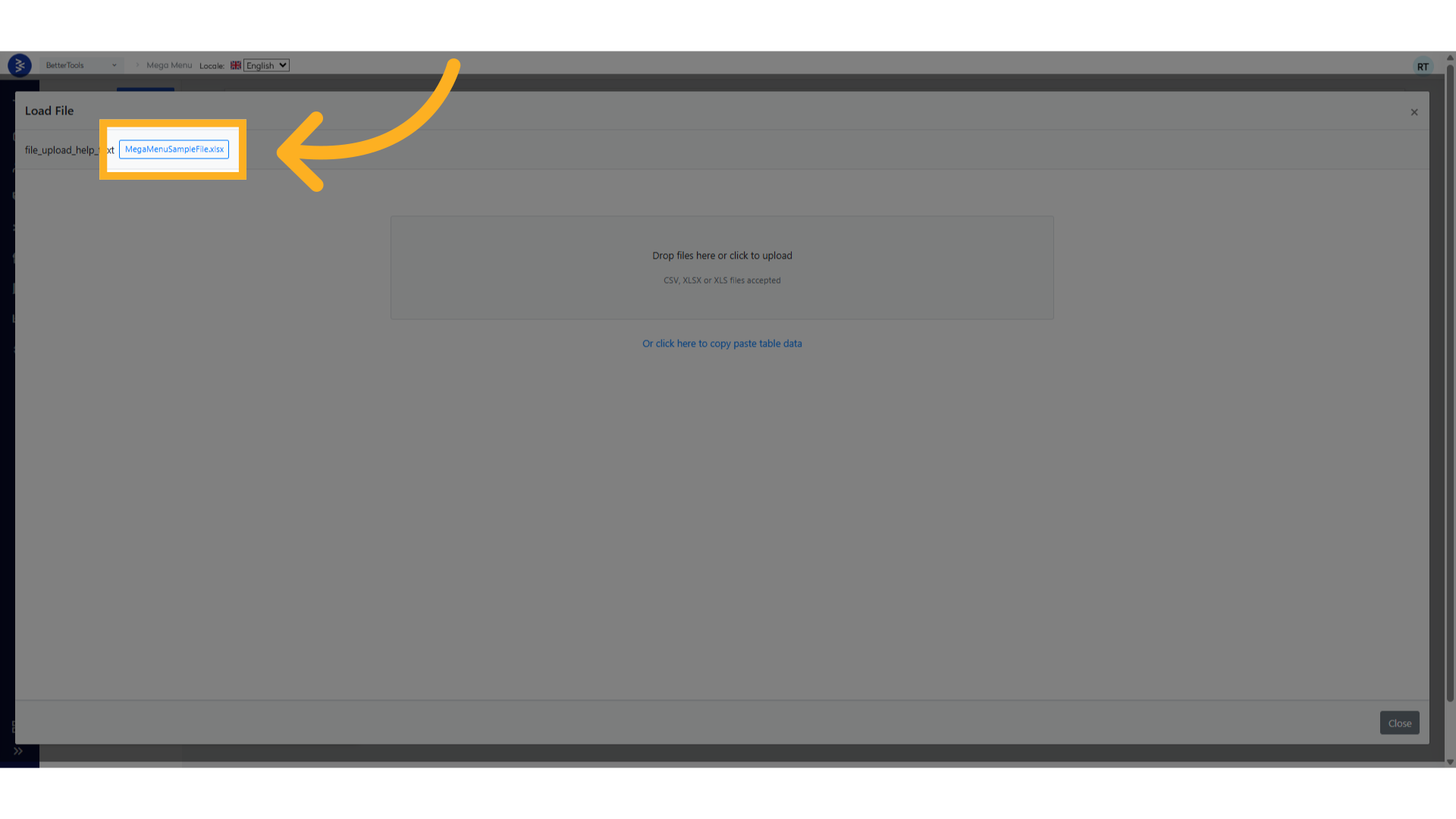
3. Download Sample File
- Click on the Download Sample File button.
- This will download an Excel template with the required format for bulk uploading mega menus.
4. Prepare the File
- Open the downloaded Excel file.
- Fill in the data. Refer to the "How to Prepare the Bulk Upload Template" section below for guidance.
- Ensure the data is complete and accurate. Missing values may cause upload errors or incomplete menu structures.
5. Upload the File
- Return to the Mega Menu > Bulk Upload section.
- Use the Browse or Choose File button to select the filled Excel file.
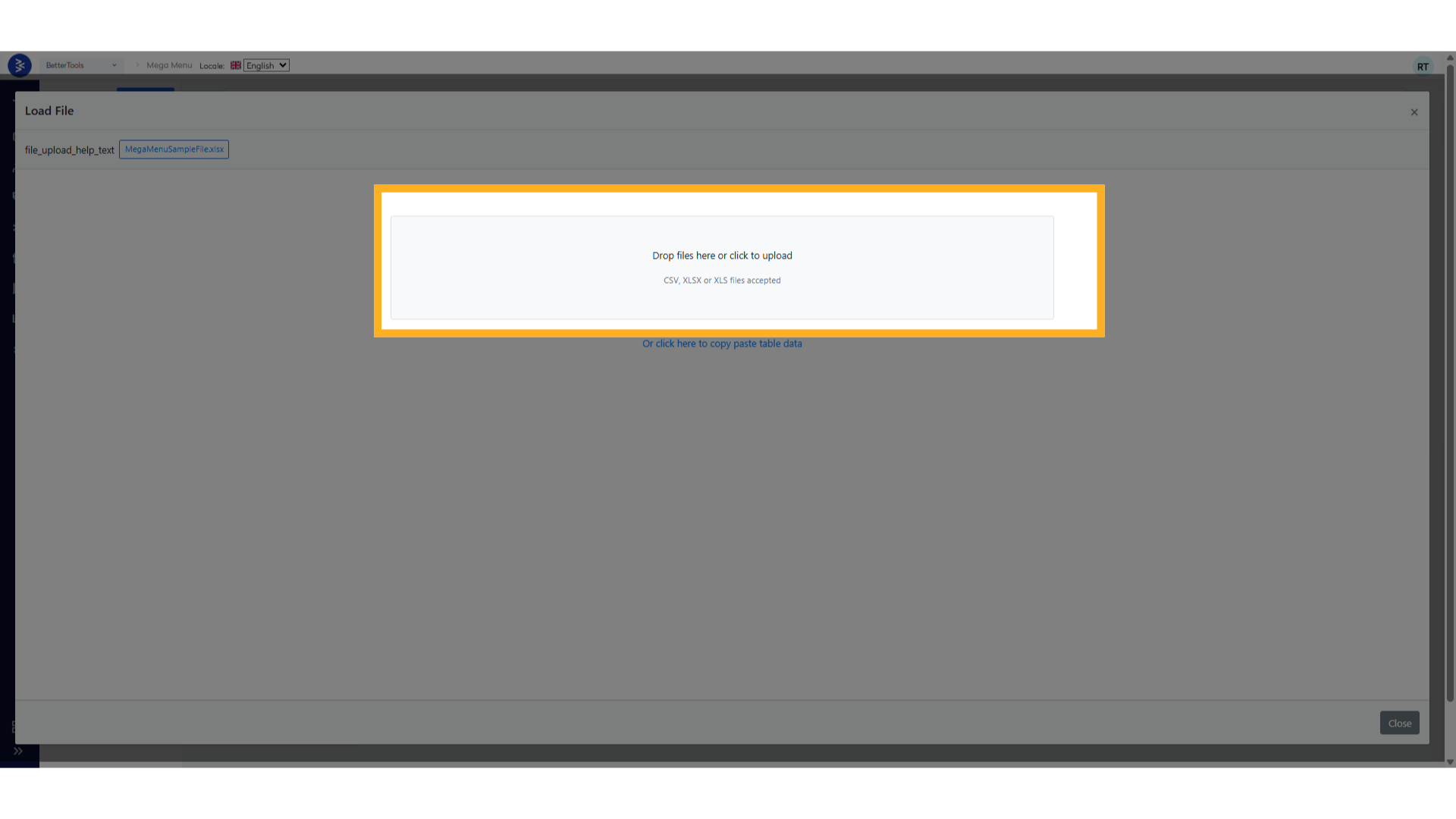
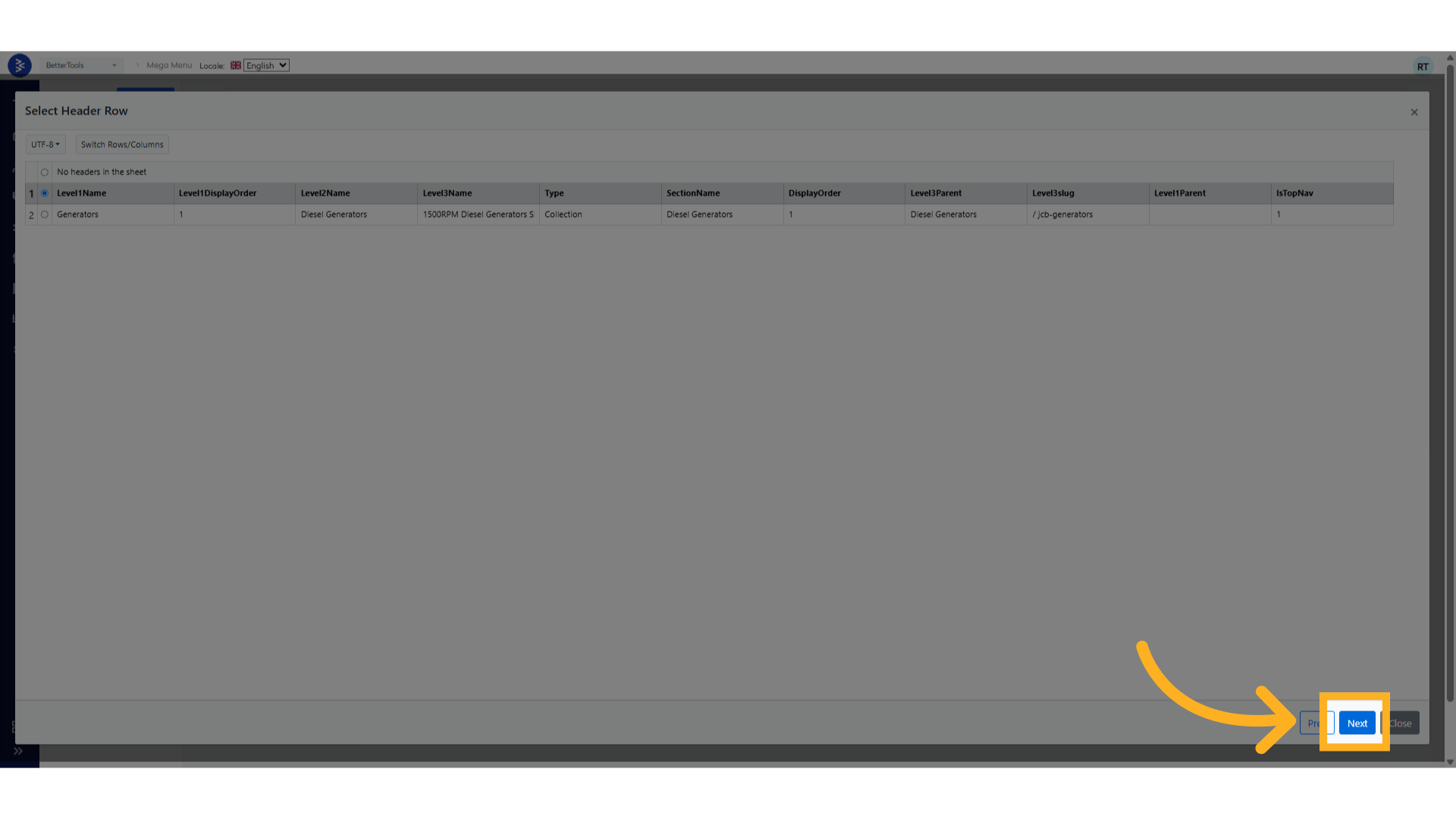
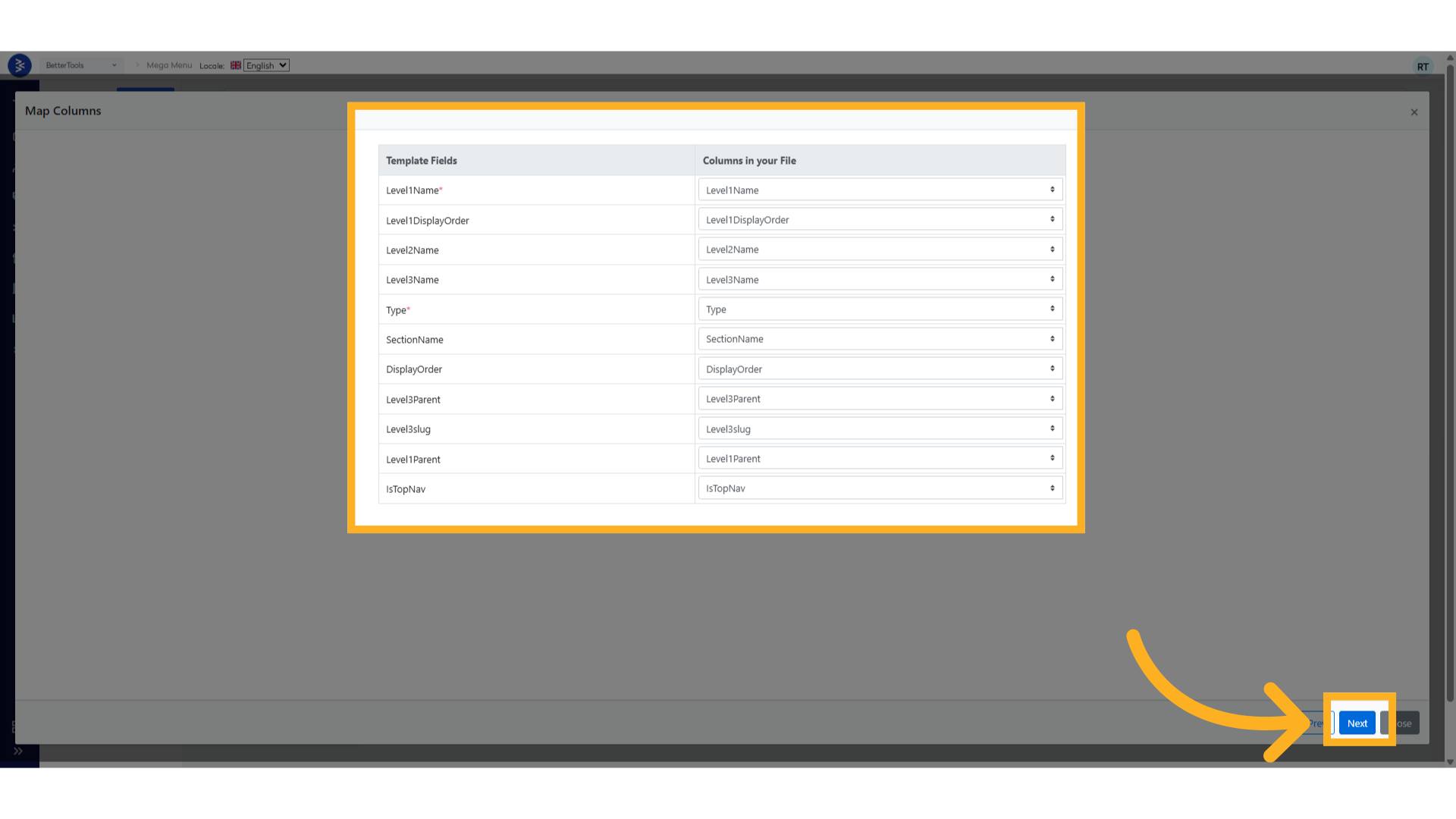
- Follow the on-screen instructions to upload.
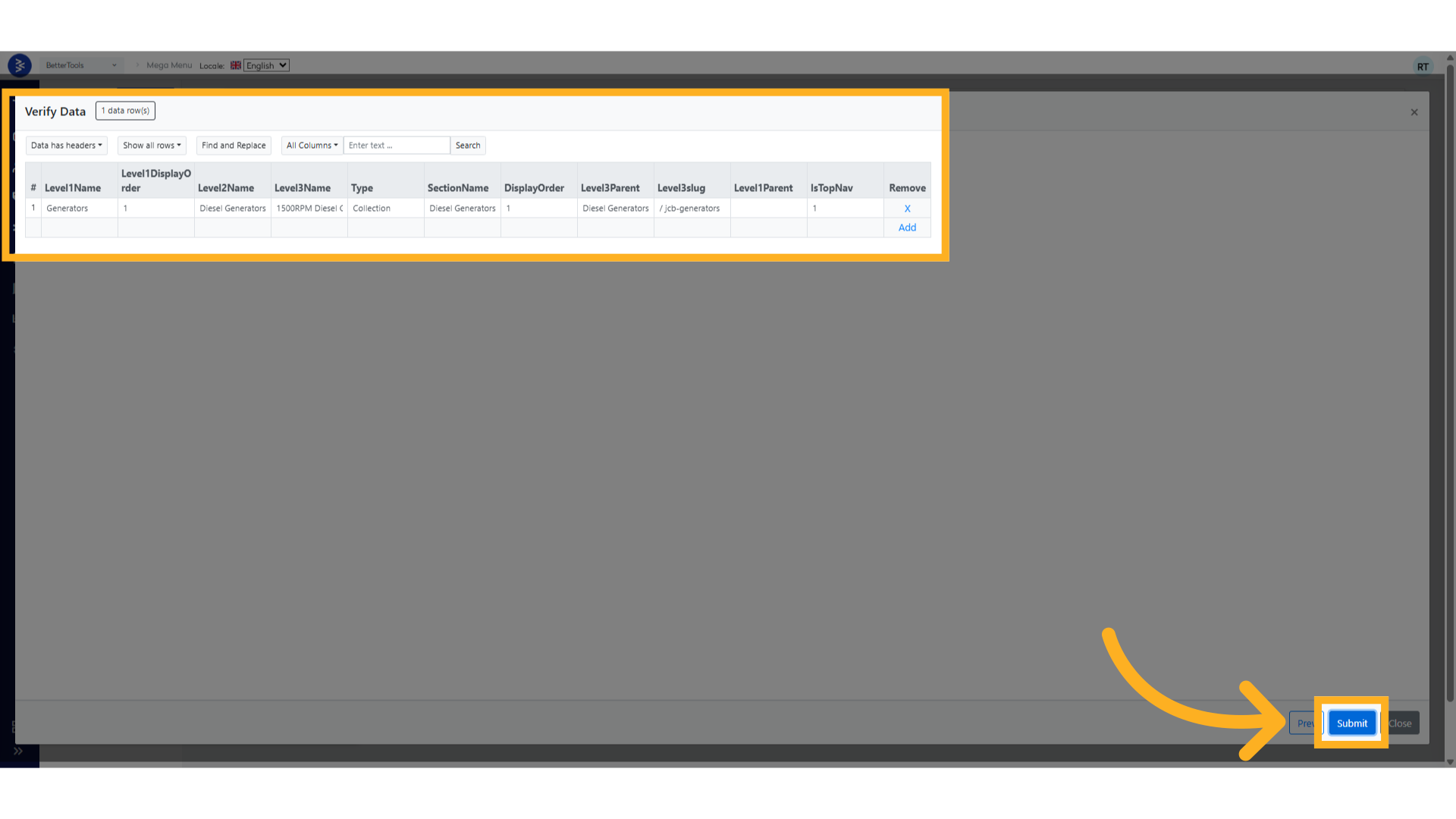
6. Completion
- Once uploaded, the system will process the file.
- If successful, the new menus and blocks will appear in the Mega Menu section as defined in your file.
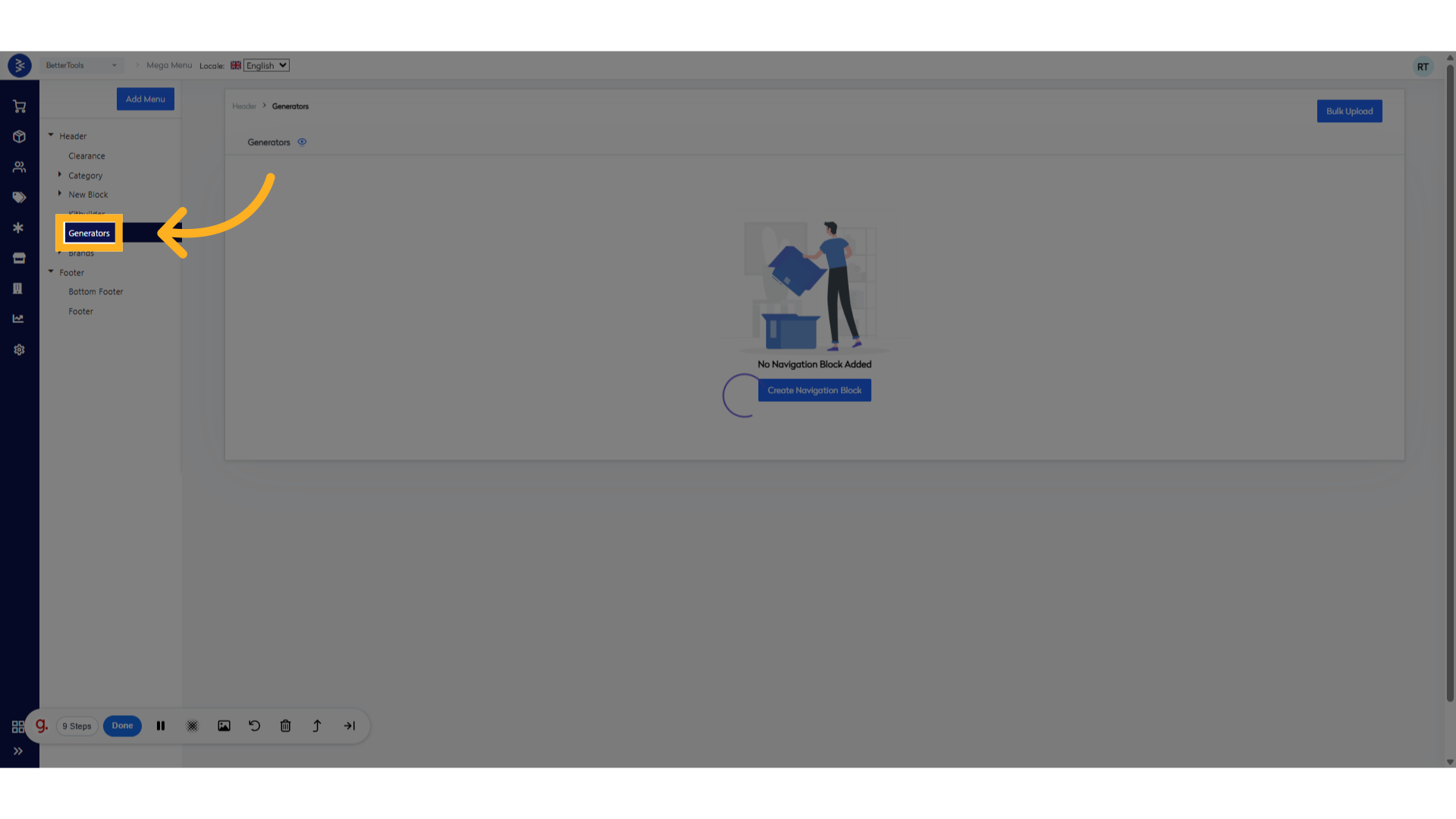
How to Prepare the Bulk Upload Template
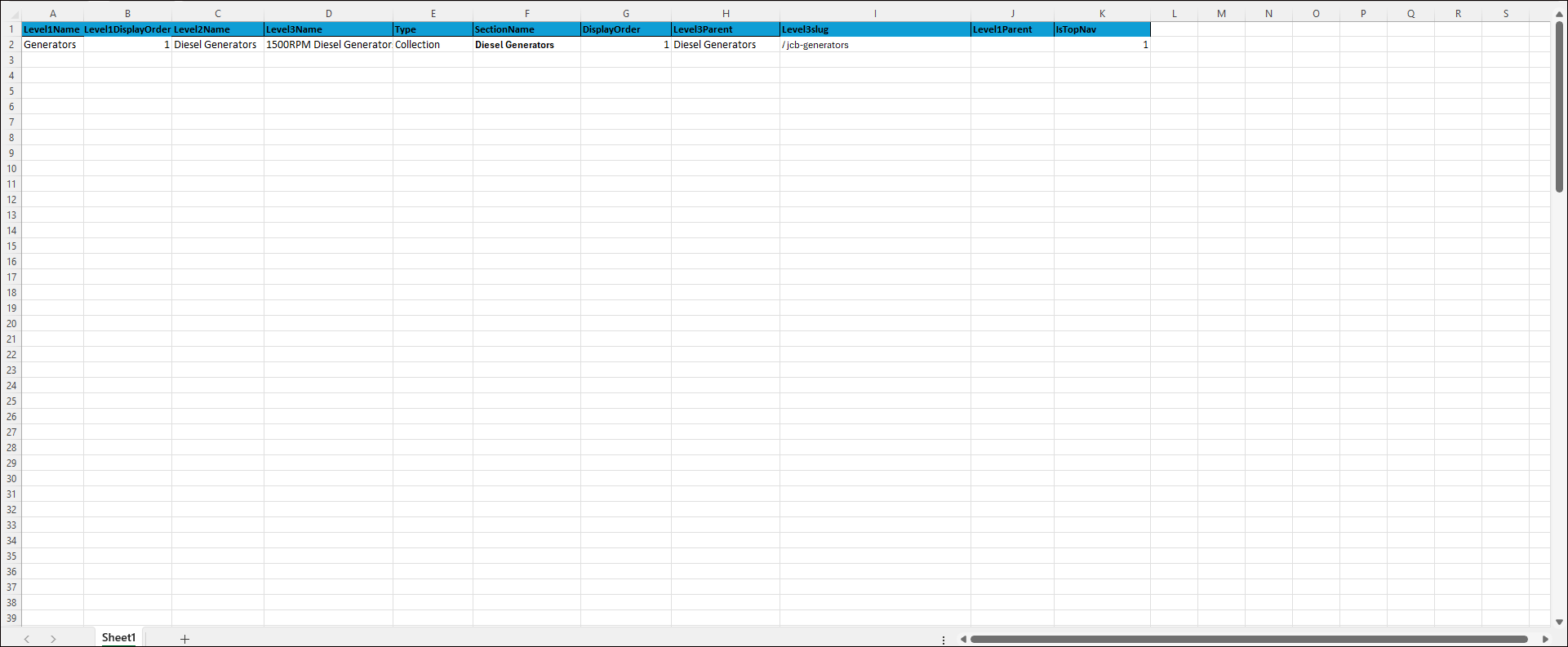
This section guides you through preparing an Excel file MegaMenuSampleFile.xlsx to structure the Mega Menu. The Mega Menu is a dropdown navigation system with multiple levels (Level 1, Level 2, Level 3) and sections.
Overview of the Mega Menu Upload Sample File
The sample file organizes menu items into a hierarchy:
- Level 1: Top-level items (e.g., "Generators").
- Level 2: Subcategories under Level 1 (e.g., "Diesel Generators").
- Level 3: Detailed categories under Level 2 (e.g., "1500RPM Diesel Generators Single Phase").
Columns in the Excel file define the hierarchy, display order, and URL slugs. Below is a brief description of each column:
| Column Name | Description | Required | Example Value |
|---|---|---|---|
| Level1Name | Top-level menu item (e.g., "Generators"). | Yes | Generators |
| Level1DisplayOrder | Display order for Level 1 items (e.g., 1 for first position). | Yes | 1 |
| Level2Name | Second-level menu item under Level 1. | Yes | Diesel Generators |
| Level3Name | Third-level menu item under Level 2. | No | 1500RPM Diesel Generators Single Phase |
| Type | Type of menu item (e.g., "Collection"). | Yes | Collection |
| SectionName | Section name under which Level 2 and Level 3 items are grouped. | Yes | Diesel Generators |
| DisplayOrder | Display order for Level 2 or Level 3 items within their section. | Yes | 1 |
| Level3Parent | Parent Level 2 item for Level 3 items. | No | Diesel Generators |
| Level3slug | URL slug for the menu item. | Yes | collection/generators-1500rpm-diesel... |
| Level1Parent | Not used (can be left blank). | No | (empty) |
| IsTopNav | Indicates if the Level 1 item appears in the top navigation bar (1 = yes). | No | 1 |
Steps to Prepare the Excel File
-
Download the Sample File:
- Use the Download Sample File button in the Bulk Upload section.
- Use the Download Sample File button in the Bulk Upload section.
-
Populate the Data:
- Level1Name: Enter the top-level menu item (e.g., "Generators").
- Level1DisplayOrder: Assign a number to control display order in the top navigation bar.
- Level2Name: Enter second-level menu items (e.g., "Diesel Generators").
- Level3Name: Enter third-level menu items (e.g., "1500RPM Diesel Generators Single Phase").
- Type: Use "Collection" for all rows.
- SectionName: Match this with the parent Level 2 name (e.g., "Diesel Generators").
- DisplayOrder: Assign numbers to define the order of sections/items.
- Level3Parent: Enter the parent Level 2 name for Level 3 items.
- Level3slug: Enter URL slugs (e.g., collection/generators-1500rpm...).
- Level1Parent: Leave blank (not used).
- IsTopNav: Use "1" for items to appear in the top navigation bar.
-
Save and Upload:
- Save the filled Excel file.
- Upload the file in the Bulk Upload section and follow the instructions.
-
Check the Mega Menu in both the backend and on the website.
- Backend
- Website
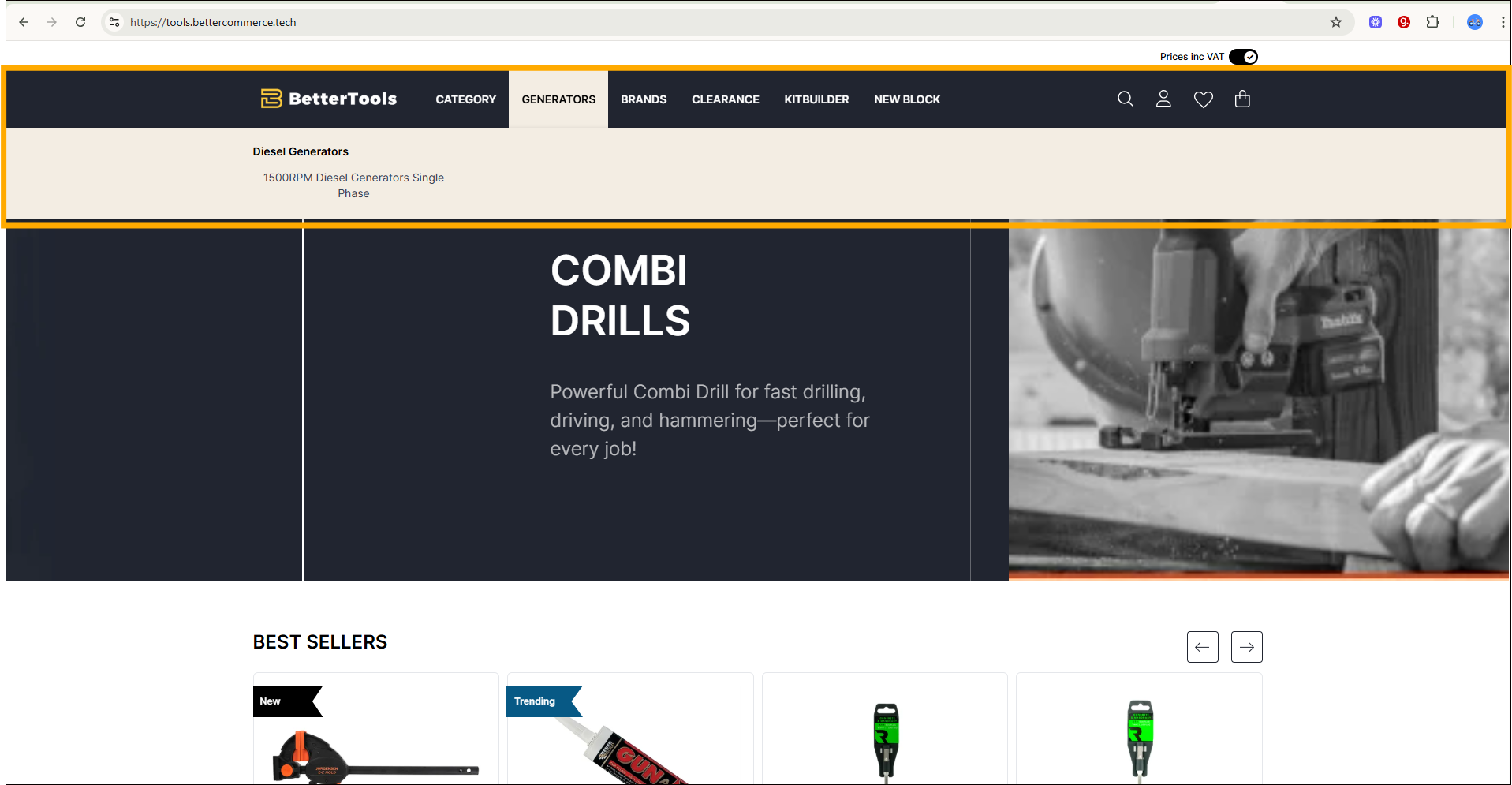
- Backend
Notes:
- The Mega Menu section in the backend configures the menu structure. However, its frontend appearance depends on proper frontend implementation.
- If the menu is visible in the backend but not on the website, ensure the frontend team has implemented the logic to consume and display data from the API.
Content Blocks and JS Snippets
Create reusable content blocks and inject custom JavaScript snippets to add banners, promotional widgets, or third-party integrations directly within your pages.
BetterCommerce Content Blocks
Overview
The Content Blocks module is a powerful content management system within BetterCommerce that allows you to inject custom HTML, JavaScript, and CSS code snippets into specific locations across your e-commerce website. This system provides granular control over where and how additional functionality, tracking codes, widgets, and custom content appear on your site.
Navigation & Access
| Attribute | Value |
|---|---|
| Location | Storefront → Content Blocks |
Interface Components
Header Actions
- ➕ New Folder – Organize content blocks in folders
- ➕ New Content Block – Add a new content snippet
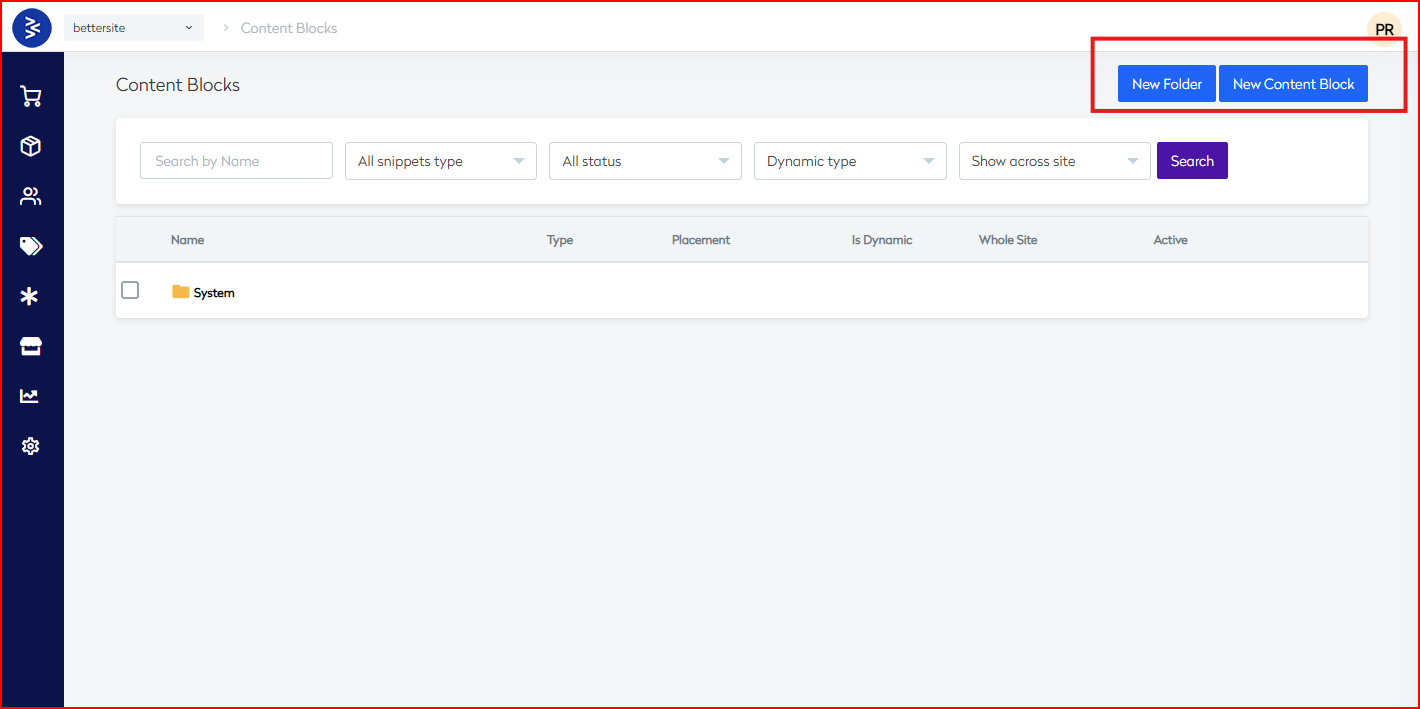
Filtering Options
| Filter | Options | Description |
|---|---|---|
| Search by Name | Text input | Find specific content blocks |
| All snippets type | Dropdown | Filter by HTML, JS, CSS |
| All status | Dropdown | Filter by active/inactive |
| Dynamic type | Dropdown | Filter static vs dynamic blocks |
| Show across site | Dropdown | Site-wide vs specific-page filters |
Table Structure
| Column | Description |
|---|---|
| Name | Content block title (clickable for editing) |
| Type | HTML, JavaScript, or CSS |
| Placement | Position on the webpage |
| Is Dynamic | Indicates whether block is dynamic |
| Whole Site | Marks if block applies site-wide |
| Active | Current activation status |
Content Block Types
1. HTML Blocks
- Used for: Widgets, layout, structured markup
- Static or dynamic content
2. JavaScript Blocks
- Used for: Analytics, event tracking, 3rd-party integrations
- Runs custom logic and external scripts
3. CSS Blocks
- Used for: Design tweaks, layout changes, responsive styles
- Applies scoped styling
Placement Locations
Document Structure Placements
| Position | Description |
|---|---|
| Head | Inside <head> (scripts, styles, meta) |
| BodyStartHtmlTagAfter | Immediately after <body> |
| BodyEndHtmlTagBefore | Just before </body> |
| FooterBefore | Before footer markup starts |
Page Layout Placements
| Position | Description |
|---|---|
| HeaderMenuBefore | Above nav menu |
| PageContainerAfter | After main content |
| ProductAndBrandDescription | In product/brand areas |
Current Content Block Inventory
Analytics & Tracking
- Google Analytics
- Global GTAG.js
- Google Tag Manager (GTM)
- GTM (noscript fallback)
- GA Ecommerce Purchase Push
Facebook Pixel
- Base Pixel Code
- Add to Cart
- Initiate Checkout
- Purchase Event
- View Content
Others
- OrderConfirmation - TAG Manager
- WebGains Conversion Script
- WebGains Landing Page Script
Third-Party Integrations
Canishub Suite
- canishub_header
- canishub_index
- canishub_index_widget
- canishub_pdp, pdp_widget
- canishub_plp_widget
- canishub_collection
- canishub_cart_widget
- canishub_addtobag
- canishub_removeFromBag
- canishub_checkout (2 instances)
- canishub_orderconfirmation
Ometria
- js library (Footer)
- product detail, basket page
- basket cookie clear
- order confirmation
Review Management
- review_io_pdp
- Review_io_widget
SEO & Performance
Schema Markup
- Organisational Schema
- Product Schema
- Product Structure Schema-2
- Schema Data - Product Pages
Optimization
- DNS Prefetch (Site-wide)
UI Components & Banners
- USP Banner (Site-wide)
- Strip Banner Headline
Content Block Management
Organization
| Feature | Description |
|---|---|
| System Folder | Core platform snippets |
| Custom Folders | User-defined groupings |
| Bulk Operations | Move, delete, or edit in bulk |
Configuration Options
- Enable/Disable toggle
- Dynamic vs Static
- Site-wide vs Page-specific
- Custom placements supported
Best Practices & Recommendations
1. Folder Structure & Naming
- Use clear, descriptive names
- Separate by purpose: tracking, layout, UI
- Maintain consistency for ease of search
2. Performance Tips
- Use
<head>for critical JS/CSS - Place heavy JS at body end
- Leverage caching & DNS prefetch
3. Testing Workflow
- Always test in staging
- Validate on mobile + multiple browsers
- Verify tracking pixel triggers
4. Ongoing Maintenance
- Audit blocks regularly
- Remove deprecated/inactive blocks
- Document custom integrations
- Monitor integration version changes
Technical Implementation Notes
Dynamic Blocks
- May use server-side variables
- Adapt to page context or customer session
- Often rely on specific template structures
Site-wide vs Page-specific
| Type | Behavior |
|---|---|
| Site-wide | Appears on all pages |
| Page-specific | Targets PDP, PLP, Cart, Checkout, etc. |
This Content Blocks system enables deep customization, faster marketing deployment, and seamless 3rd-party integrations without altering core platform code.
FAQ Management
Build and maintain a searchable FAQ library with categorized questions and answers to improve self-service support and reduce customer inquiries. The FAQ Management System within the BetterCommerce platform provides administrators with comprehensive tools to create, organize, and maintain frequently asked questions for customer support. This system enables structured content management through categorization and individual FAQ entries.
1. Default Options and Interface Components
Navigation Structure
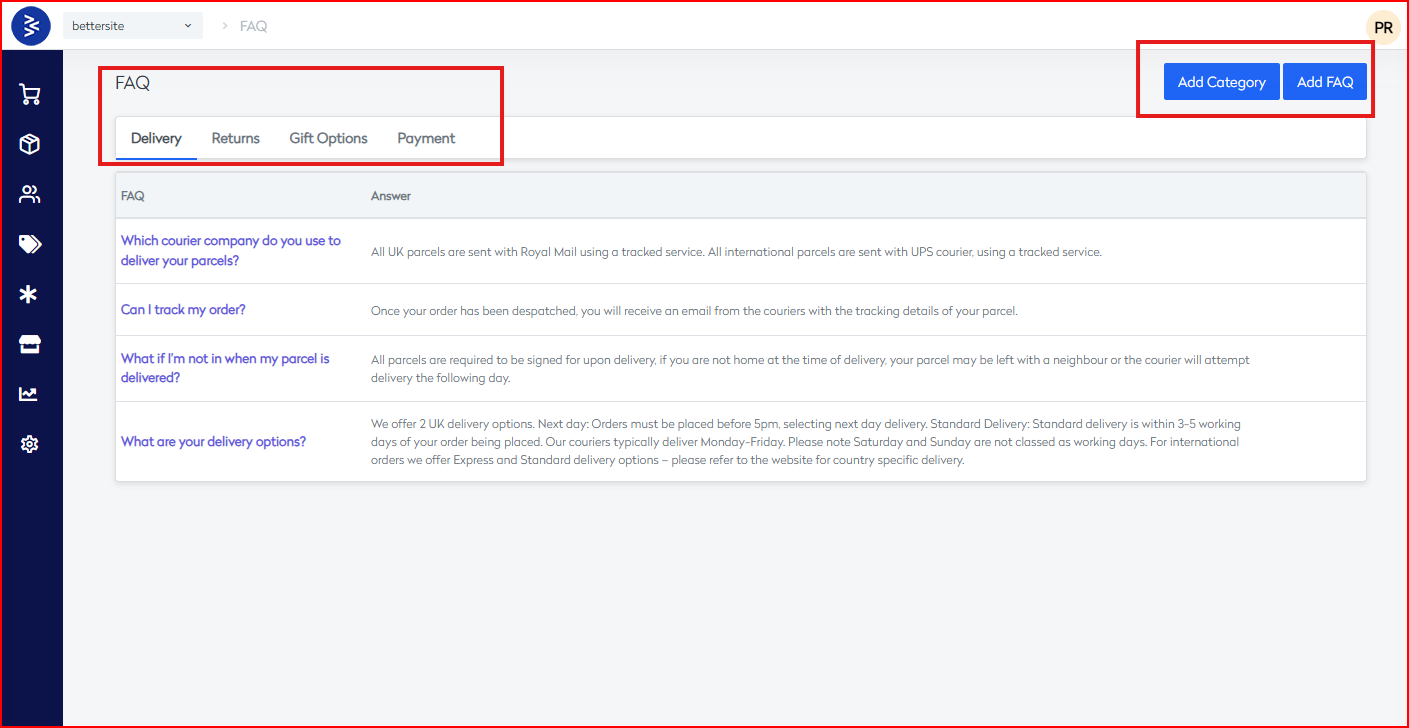
The FAQ system is accessible through the main navigation under Storefront > FAQ and provides the following interface elements:
- Primary Navigation: Located in the main menu structure
- Category Tabs: Horizontal navigation showing available FAQ categories
- Action Buttons: "Add Category" and "Add FAQ" buttons for content creation
- Content Display: Structured list view of FAQ entries with expandable answers
Default Categories
The system comes pre-configured with four standard FAQ categories:
| Category | Purpose | Content Focus |
|---|---|---|
| Delivery | Shipping and logistics inquiries | Courier services, tracking, delivery timeframes |
| Returns | Return policy and procedures | Return processes, conditions, timelines |
| Gift Options | Gift-related services | Gift wrapping, gift cards, special services |
| Payment | Payment methods and billing | Accepted payment types, billing procedures |
Interface Features
- Responsive Design: Optimized for various screen sizes and devices
- Search Functionality: Built-in search capabilities for FAQ content
- Category Filtering: Tab-based navigation for category-specific content
- Content Management: Direct access to edit and manage FAQ entries
2. Add Category Functionality
Purpose
The "Add Category" feature enables administrators to create new FAQ categories to organize content according to business needs and customer inquiry patterns.
Access Method
- Location: FAQ management interface
- Button: "Add Category" button prominently displayed in the header section
- Permissions: Requires administrative privileges
Category Management Features
- Custom Naming: Ability to create categories with custom names
- Hierarchical Organization: Support for structured content organization
- Category Ordering: Control over category display sequence
- Category Status: Enable/disable categories as needed
Best Practices for Category Creation
- Logical Grouping: Create categories that align with common customer inquiry themes
- Clear Naming: Use descriptive, customer-friendly category names
- Scalability: Consider future content expansion when designing category structure
- User Experience: Maintain intuitive navigation through logical category organization
3. Add FAQ Functionality
Purpose
The "Add FAQ" feature provides administrators with tools to create individual FAQ entries within existing categories, enabling comprehensive customer support content management.
Access Method
- Location: FAQ management interface
- Button: "Add FAQ" button located in the header section
- Direct Link:
https://commerce.bettercommerce.io/Cms/FaqDetail?id=00000000-0000-0000-0000-000000000000
FAQ Entry Components
Each FAQ entry consists of the following elements:
- Question Field: Customer-facing question text
- Answer Field: Detailed response content
- Category Assignment: Association with appropriate FAQ category
- Status Management: Published/draft status control
- Unique Identifier: System-generated UUID for tracking
Content Management Features
- Rich Text Editor: Advanced formatting options for answer content
- Media Integration: Support for images, links, and multimedia content
- Version Control: Track changes and maintain content history
- SEO Optimization: Meta tags and search-friendly URL structure
Example FAQ Structure
Based on the current system content:
- Question: "Which courier company do you use to deliver your parcels?"
- Answer: "All UK parcels are sent with Royal Mail using a tracked service. All international parcels are sent with UPS courier, using a tracked service."
- Category: Delivery
Technical Specifications
System Integration
- CMS Integration: Fully integrated with the BetterCommerce CMS system
- User Management: Respects user roles and permissions
- Multi-tenant Support: Organization-specific FAQ management
- API Access: RESTful API endpoints for programmatic access
Data Management
- Database Storage: Structured data storage with relational integrity
- Content Versioning: Maintain historical versions of FAQ content
- Backup and Recovery: Automated backup systems for content protection
- Performance Optimization: Cached content delivery for optimal performance