
B2B
BetterCommerce B2B Features
The BetterCommerce Solution offers a robust set of B2B features tailored for enterprise needs, providing flexibility, control, and efficiency for both backend administrators and frontend users. From company-specific catalogs and pricing to automated data packs and streamlined order management, these tools empower businesses to manage complex B2B operations seamlessly.
This document provides a detailed overview of the B2B features of the BetterCommerce Solution, designed to streamline enterprise-level commerce operations. The features are categorized into Backend and Frontend (Trade Portal) functionalities, ensuring efficient management for administrators and end-users.
Backend Features
1. Company Detail Management
- Description: Enables businesses to manage comprehensive company profiles in the backend.
- Key Capabilities:
- Store and update essential company information, including company name, phone number, tax identification, and registration details.
- Assign tax classes, sales account codes, and purchase account codes.
- Define payment terms and preferred shipping methods.
- Assign specific price lists tailored to the company.
- Enable account credit facilities with customizable credit limits, tracking consumed and available balances.
- Manage address books with options to add, edit, or delete addresses, with role-based access control for visibility and modification.
2. Custom Catalog
- Description: Allows the creation of company-specific product catalogs.
- Key Capabilities:
- Define catalogs based on custom attributes such as brands, categories, sizes, colors, or materials using AND/OR conditions.
- Restrict catalog access to specific companies (e.g., a company like Demo Crimson House may only access 450 designated products).
- Integrate with assigned price lists to ensure pricing consistency for the catalog.
3. User and Role Management
- Description: Facilitates the management of users and their permissions within a company.
- Key Capabilities:
- Add or link existing users to a company account.
- Assign roles such as admin, sales user, standard user, or accounts team member, each with specific permissions.
- Admins can manage user permissions and access levels, ensuring secure and controlled access to the trade portal.
4. Pricing Rules
- Description: Enables customized pricing for specific companies or product categories.
- Key Capabilities:
- Apply pricing rules at the catalog, category, or product level (e.g., a 50% discount on all products).
- Override default price lists with company-specific pricing rules, visible to users on the trade portal.
5. Reporting Manager View
- Description: A backend dashboard providing insights for managers.
- Key Capabilities:
- Offers a centralized view of key metrics, such as order statuses, sales performance, and customer activity.
- Supports data-driven decision-making with customizable reports.
6. Sales Rep View
- Description: A dedicated dashboard for sales representatives.
- Key Capabilities:
- Displays relevant sales data, including order history, customer interactions, and account statuses.
- Enhances sales team efficiency with quick access to critical information.
7. Order Journey
- Description: Tracks the complete lifecycle of orders in the backend.
- Key Capabilities:
- Monitors order statuses from placement to fulfillment.
- Provides detailed order history, including invoices and credit notes.
- Supports PDF downloads for invoices and order records.
8. Minimum Order Quantity (MOQ) and Increment Quantity Rules
- Description: Enforces order quantity restrictions to optimize business operations.
- Key Capabilities:
- Set minimum order quantities to ensure profitability.
- Define increment quantity rules (e.g., orders must increase in multiples of 5 units, such as 5, 10, 15, etc.).
- Applied at the product level to enforce consistent ordering patterns.
9. Data Pack
- Description: Automates the generation and delivery of product feeds for distributors or resellers.
- Key Capabilities:
- Configure product feeds with specific brands, categories, or attributes (e.g., include active or out-of-stock products).
- Map fields to match retailer-specific formats (e.g., mapping "ABC" to stock code or "XYZ" to product code).
- Schedule automated generation and delivery (daily, weekly, or monthly) with customizable formats (e.g., Excel or CSV).
- Include product and image data for seamless integration with retailer systems.
Frontend (Trade Portal) Features
1. Account Credit Facility
- Description: Allows businesses to manage credit-based transactions.
- Key Capabilities:
- View credit limits, consumed credit, and available balance in the "My Company" section.
- Place orders using account credit or check payments, as configured in the backend.
2. B2B Account Management
- Description: Enables businesses to manage their accounts and users on the trade portal.
- Key Capabilities:
- Register as a trading account and add multiple users with distinct roles (e.g., admin, sales, accounts).
- Admins can manage user permissions and access levels.
- Access and update company details, such as name, phone number, tax details, and credit limits.
3. Address Management
- Description: Provides tools to manage multiple addresses for a company.
- Key Capabilities:
- Admins can add, edit, or delete addresses in the address book.
- Non-admin users may have view-only access, based on permissions.
- Supports multiple address types for shipping and billing.
4. Custom Pricing
- Description: Displays company-specific pricing on the trade portal.
- Key Capabilities:
- Reflects backend-defined pricing rules (e.g., discounts or custom price lists).
- Ensures transparency with tailored pricing for each company’s users.
5. Shopping Lists
- Description: Allows users to create and save product baskets for future use.
- Key Capabilities:
- Save multiple shopping lists for recurring orders or quotations.
- Use shopping lists to create RFQs, quotes, or place orders directly.
6. Request for Quote (RFQ)
- Description: Enables users to request quotes for products directly from the trade portal.
- Key Capabilities:
- Create RFQs with details like phone number, purchase order number, assigned role, and ETA.
- Set target prices for negotiation (e.g., request a product at $48 instead of $55).
- Submitted RFQs are sent to the backend for processing (approve, cancel, or create a quote).
7. Quotes
- Description: Manages quotation requests and statuses.
- Key Capabilities:
- View all quotes in the "My Account" section with details like quote number, purchase order number, validity period, and status.
- Backend users can create, manage, or cancel quotes, which sync with the trade portal.
8. Invoices
- Description: Provides access to invoice history and details.
- Key Capabilities:
- View and download invoices in PDF format from the trade portal.
- Backend invoice history syncs with the frontend for seamless access.
9. Orders
- Description: Manages order placement and tracking.
- Key Capabilities:
- Place orders directly from shopping lists or quick order pads.
- View order history and statuses in the "My Account" section.
- Supports order tracking from placement to fulfillment.
10. Reorder
- Description: Simplifies repeat ordering for frequently purchased items.
- Key Capabilities:
- Reorder previous orders with a single click, recreating the order basket.
- Saves time for recurring purchases, enhancing user efficiency.
11. Quick Order Pad
- Description: Streamlines bulk order placement for B2B users.
- Key Capabilities:
- Input stock codes and quantities manually or via a comma-separated format for bulk uploads.
- Create baskets for quotes, RFQs, or direct order placement.
- Enforces MOQ and increment quantity rules defined in the backend.
12. Credit Notes
- Description: Manages credit notes for returns or order adjustments.
- Key Capabilities:
- Generate credit notes for returned or defective items, usable for future orders.
- View credit note details in the "My Account" section, synced with backend records.
WhatsApp Ordering for B2B
BetterCommerce offers an out-of-the-box WhatsApp integration to simplify B2B ordering and customer interactions. Users from a registered trading account can interact with the WhatsApp bot to check product details, create RFQs, place orders, and track deliveries.
Key Functionalities:
- Check stock and pricing
- Create RFQ (Request for Quote)
- Place orders
- Track order status
- Get delivery ETA
How Orders are placed using whats app.
Refer to the steps below to view how the user interface works and how customers or businesses can place an order:
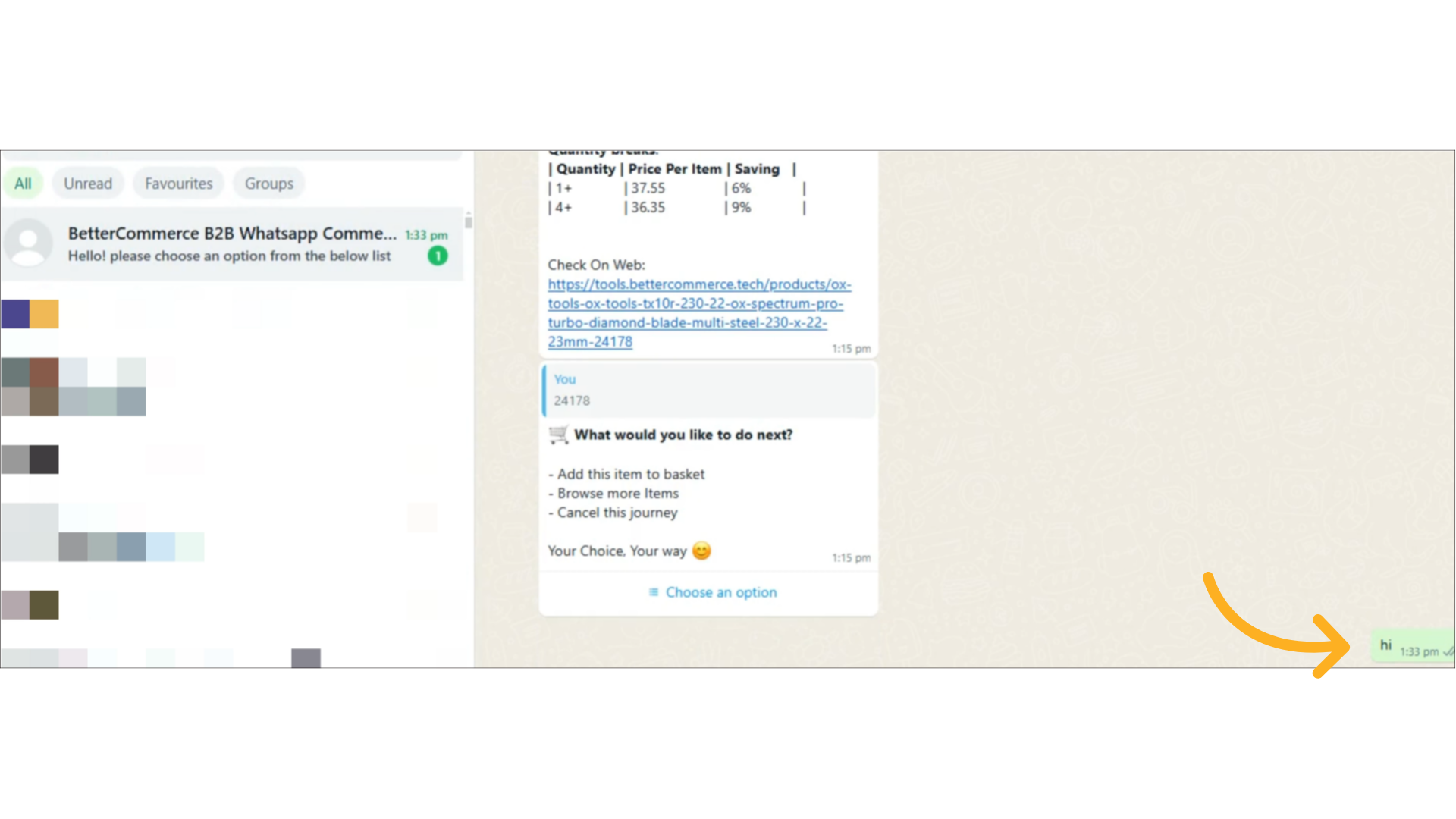
1. Start the Interaction
- Send "Hi" to the registered WhatsApp number from your company’s registered number.
- A menu with available options will be displayed.
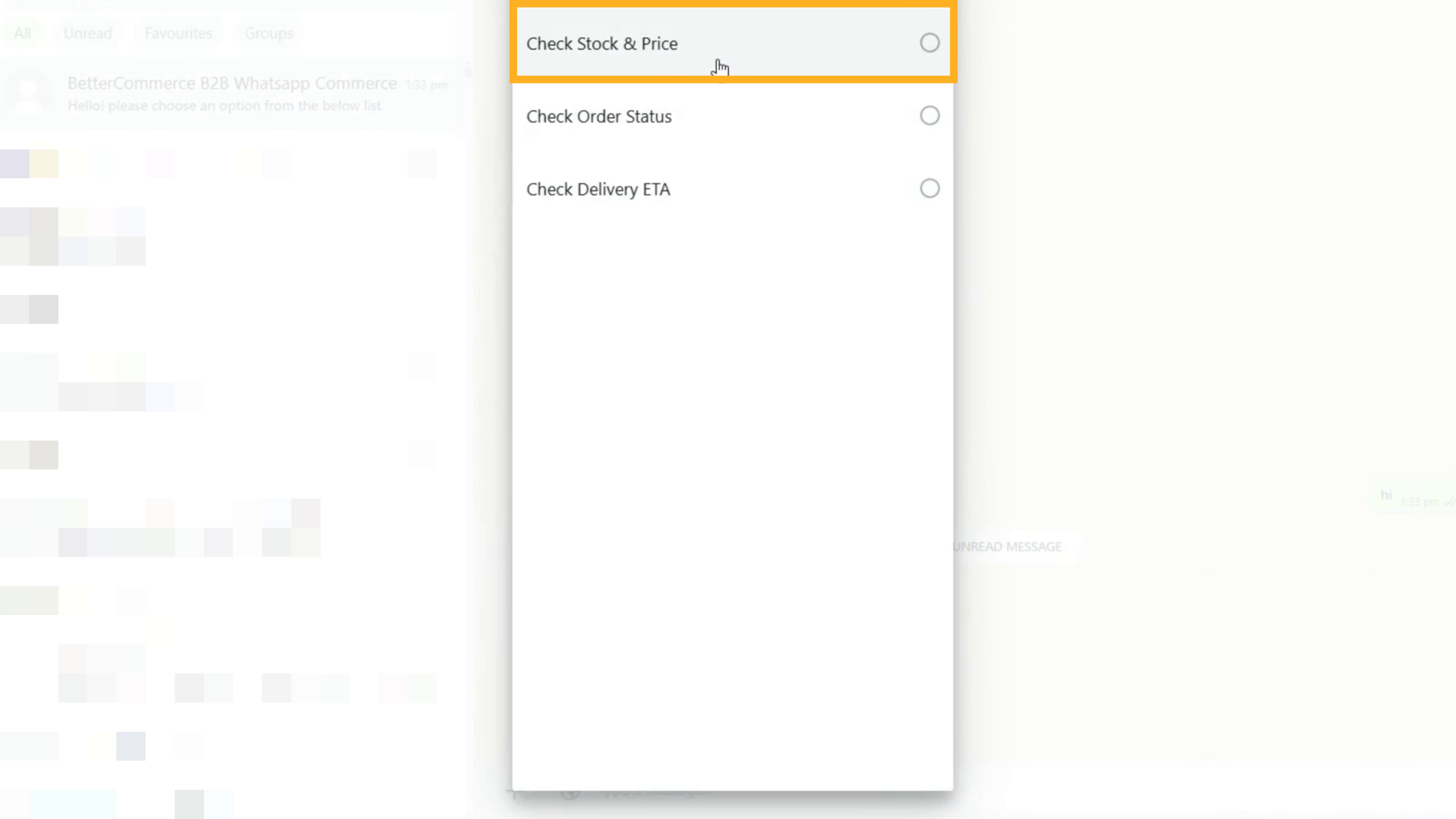
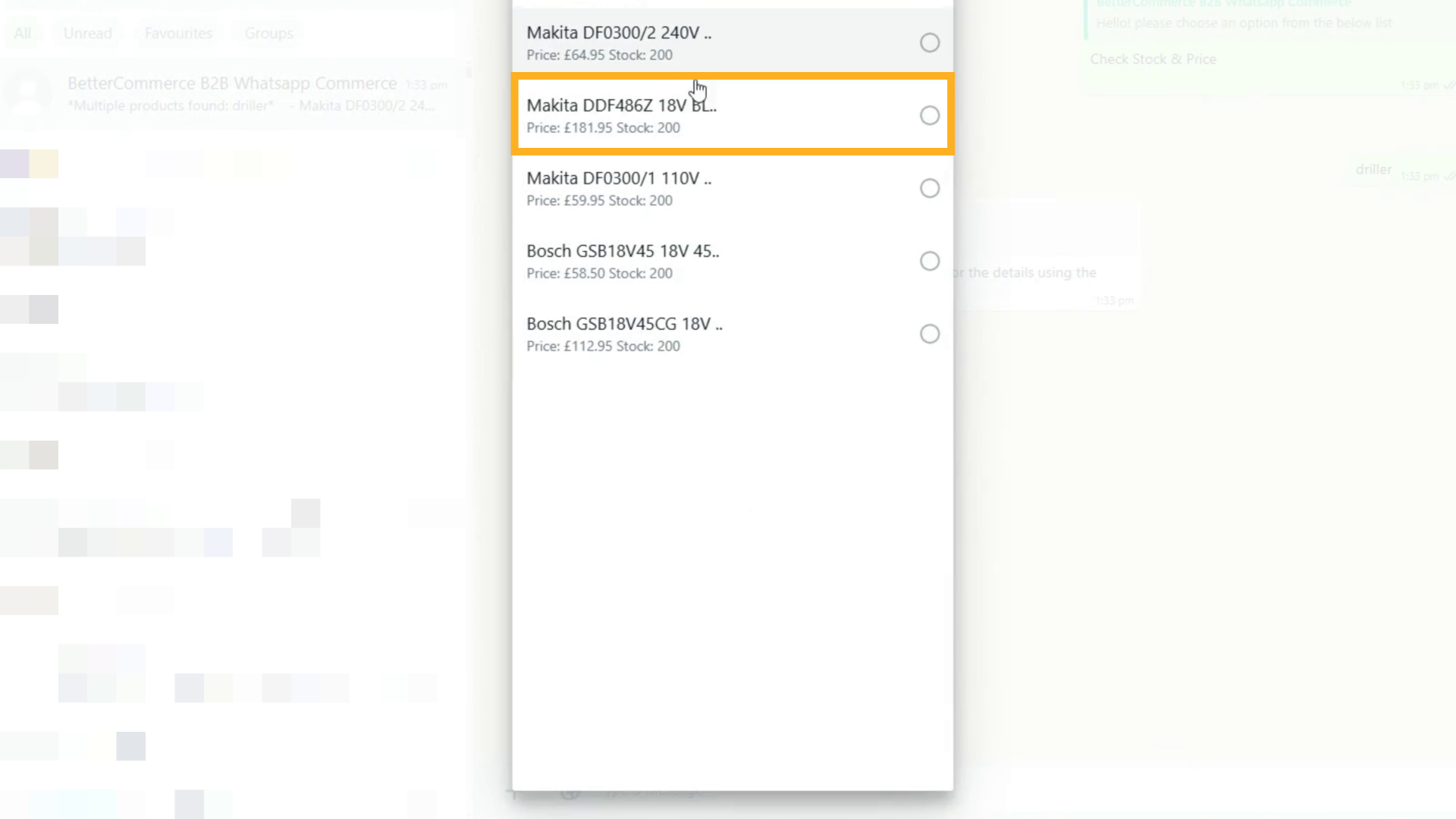
2. Check Stock and Price
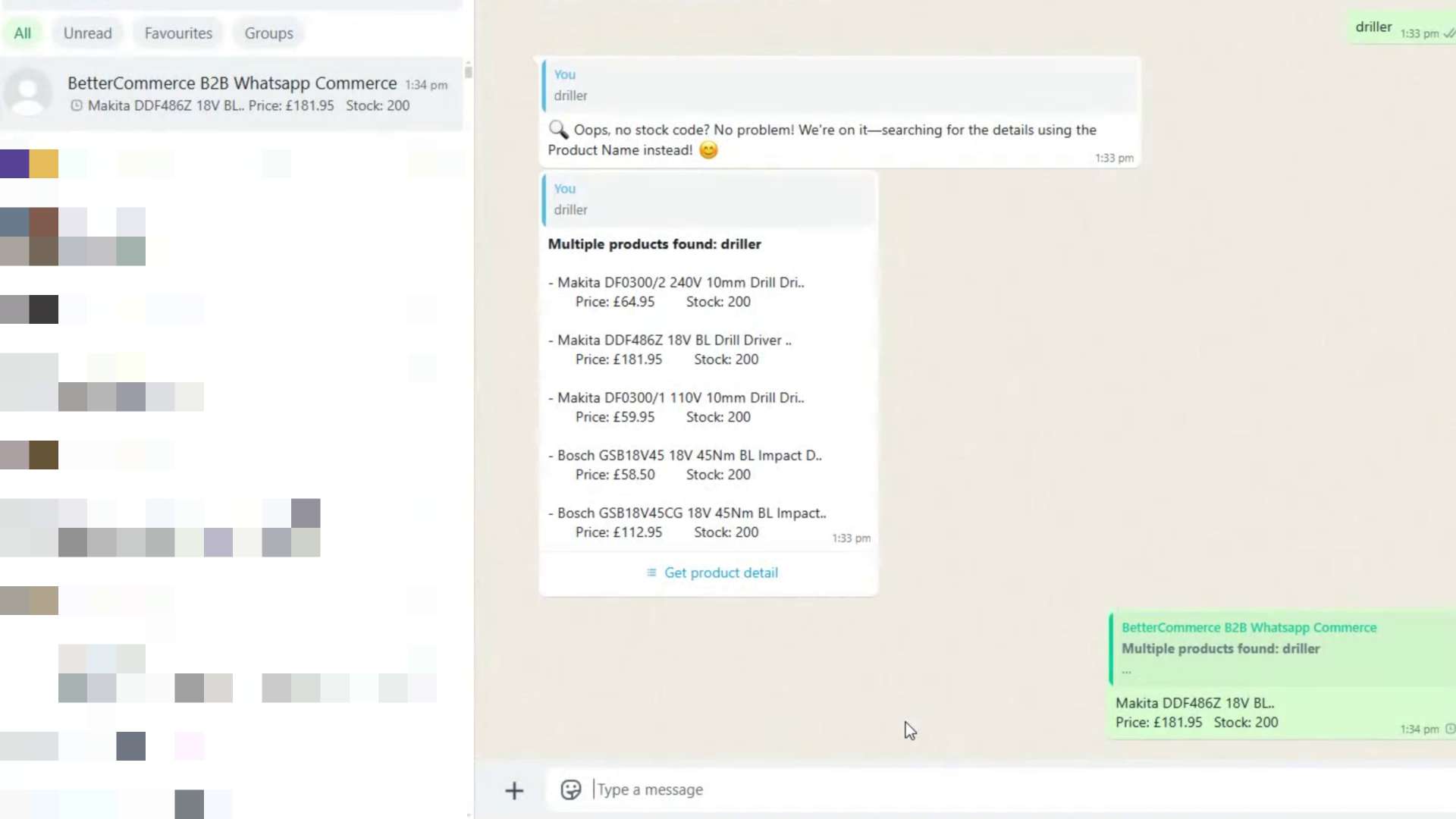
- Select "Check stock and price"
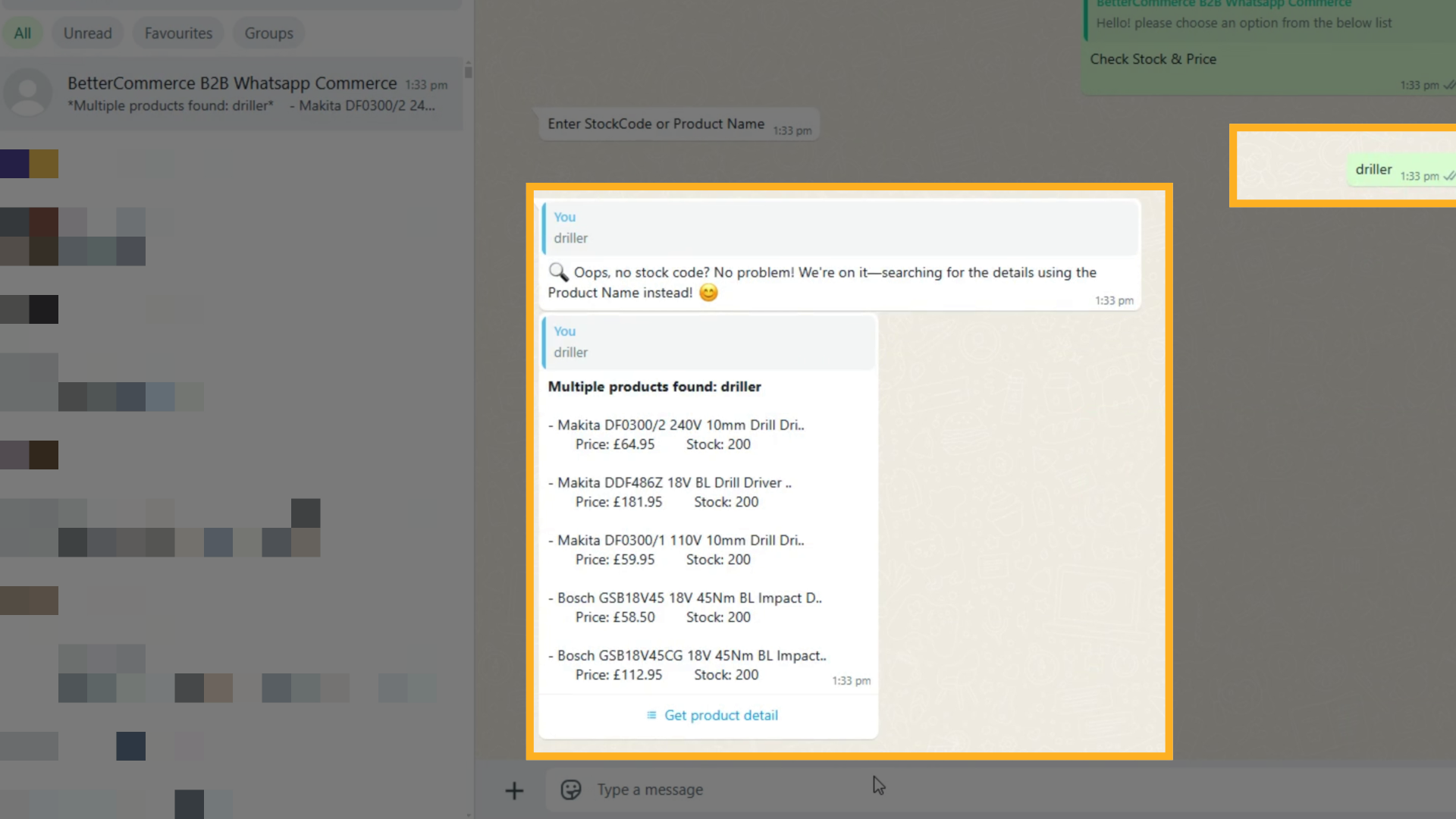
- Search by product name or stock code
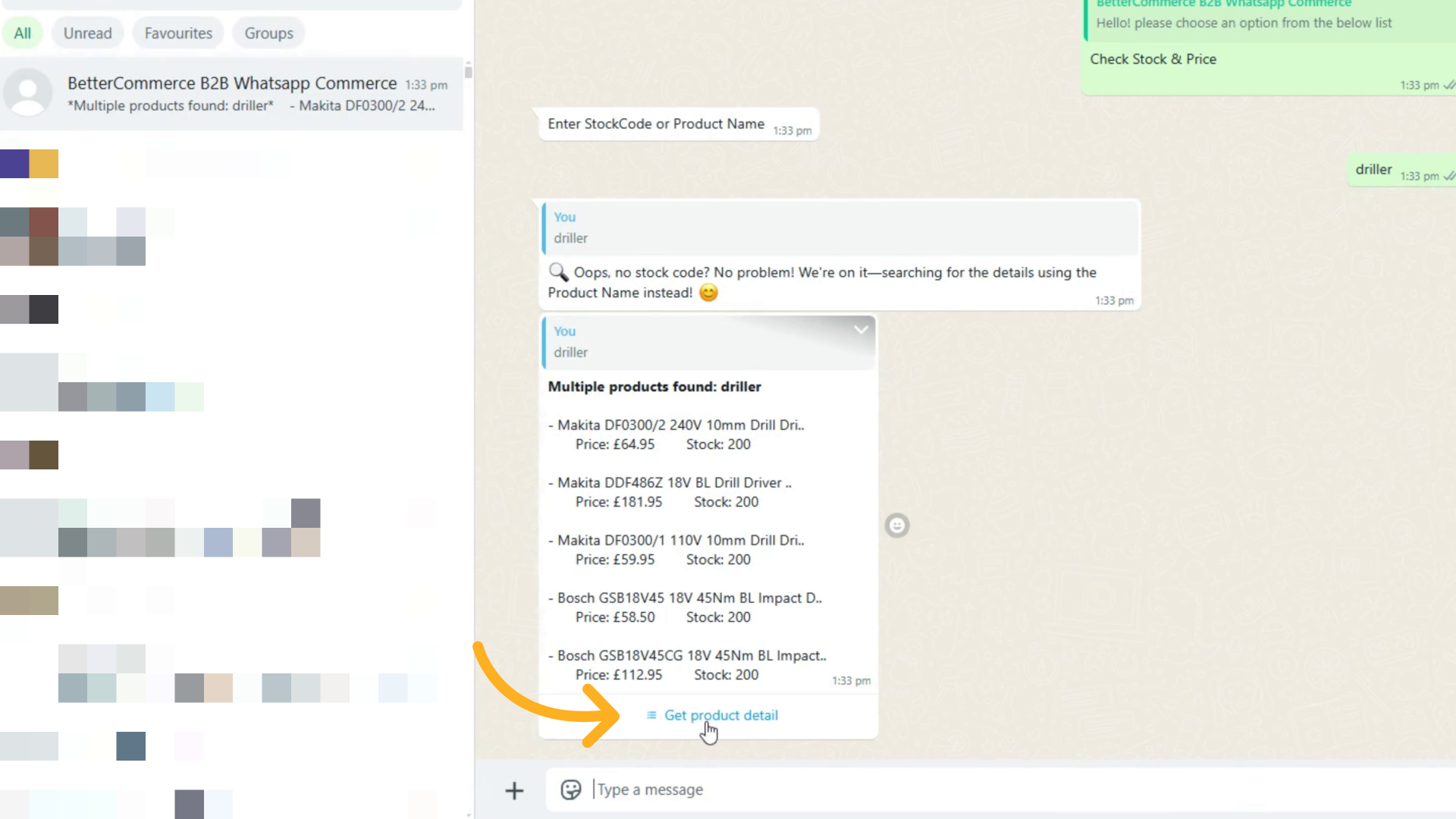
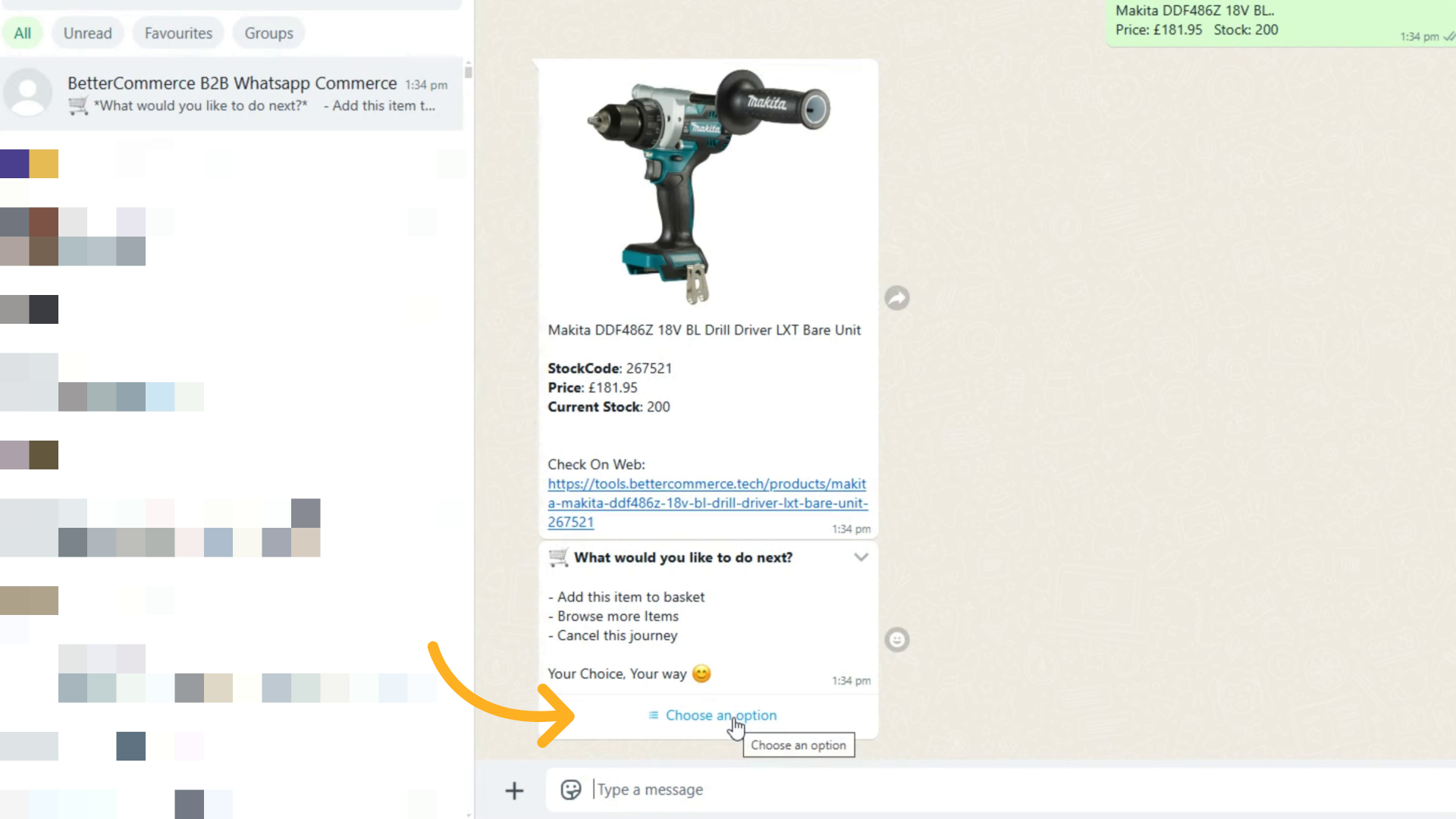
- View:
- Product name and code
- Price
- Available stock
- MOQ and increment quantity
3. Add to Basket & Request a Quote
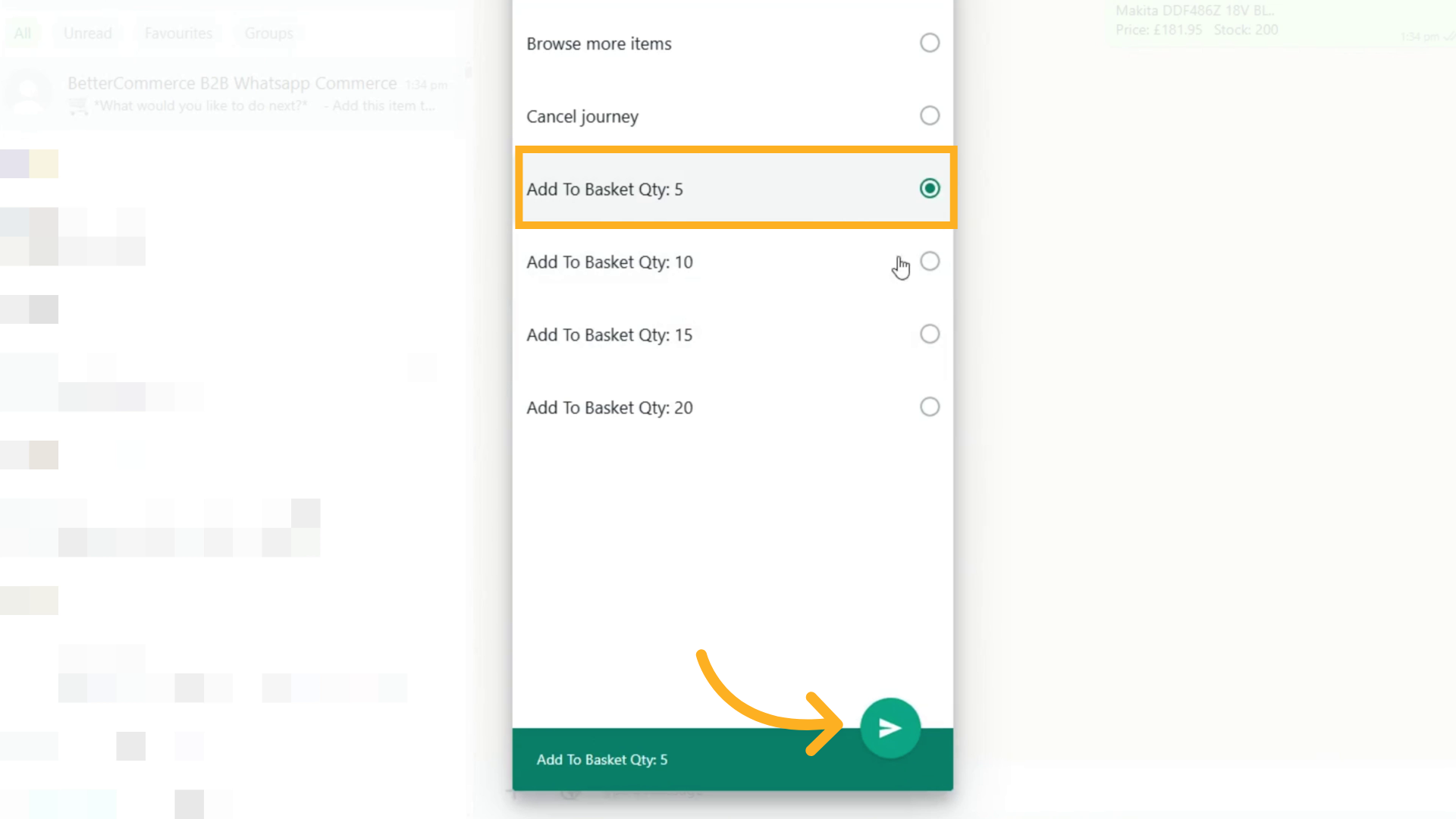
- Select product and choose quantity (based on MOQ configuration)
- Choose "Add to basket"
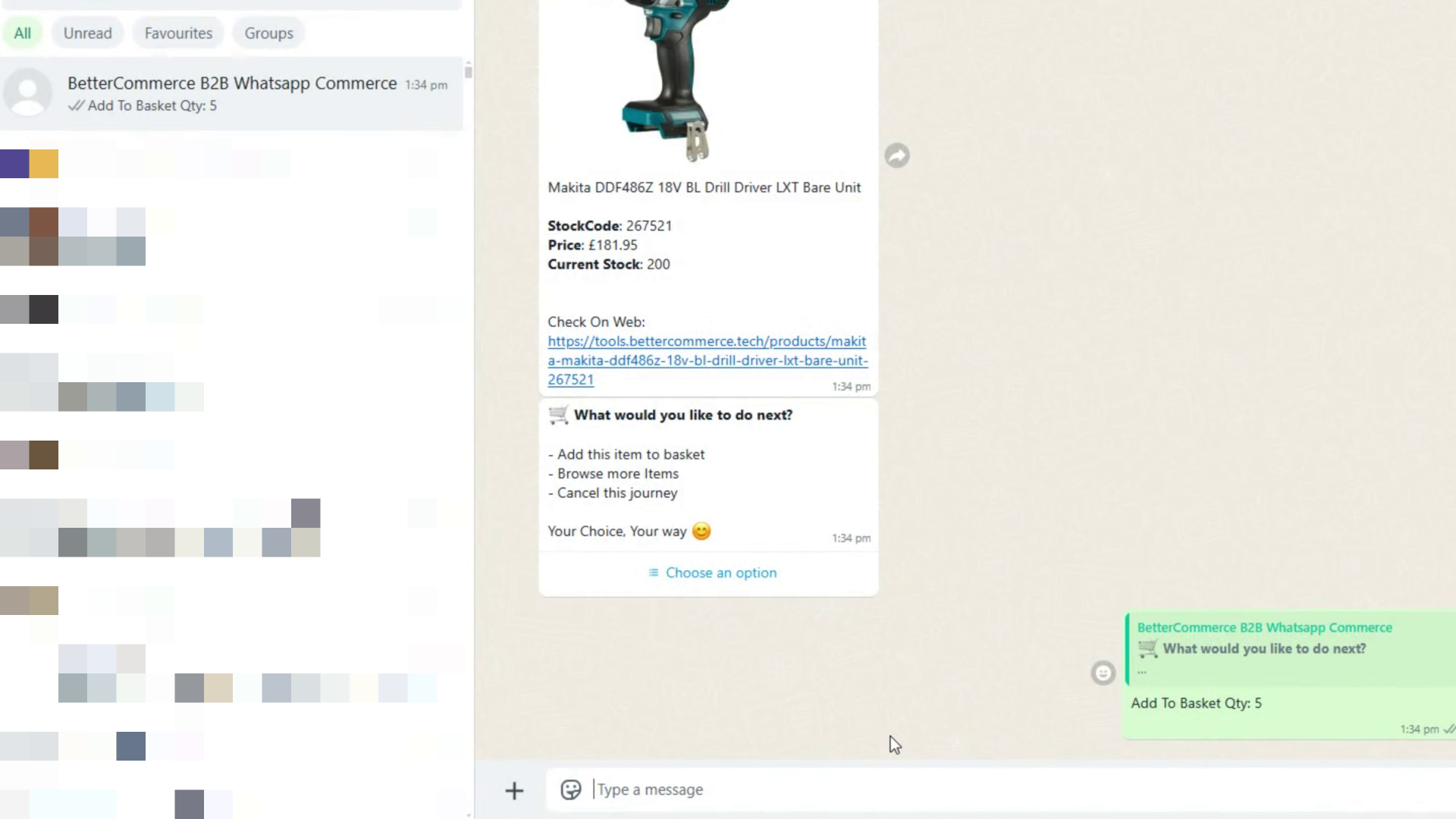
- Then choose "Request for Quote"


- Submit RFQ and receive a reference number

4. Check Order Status
-
Select "Check order status"


-
View your last 5 orders or search by order number


-
Status like Confirmed, Dispatched, or Out for Delivery will be shown

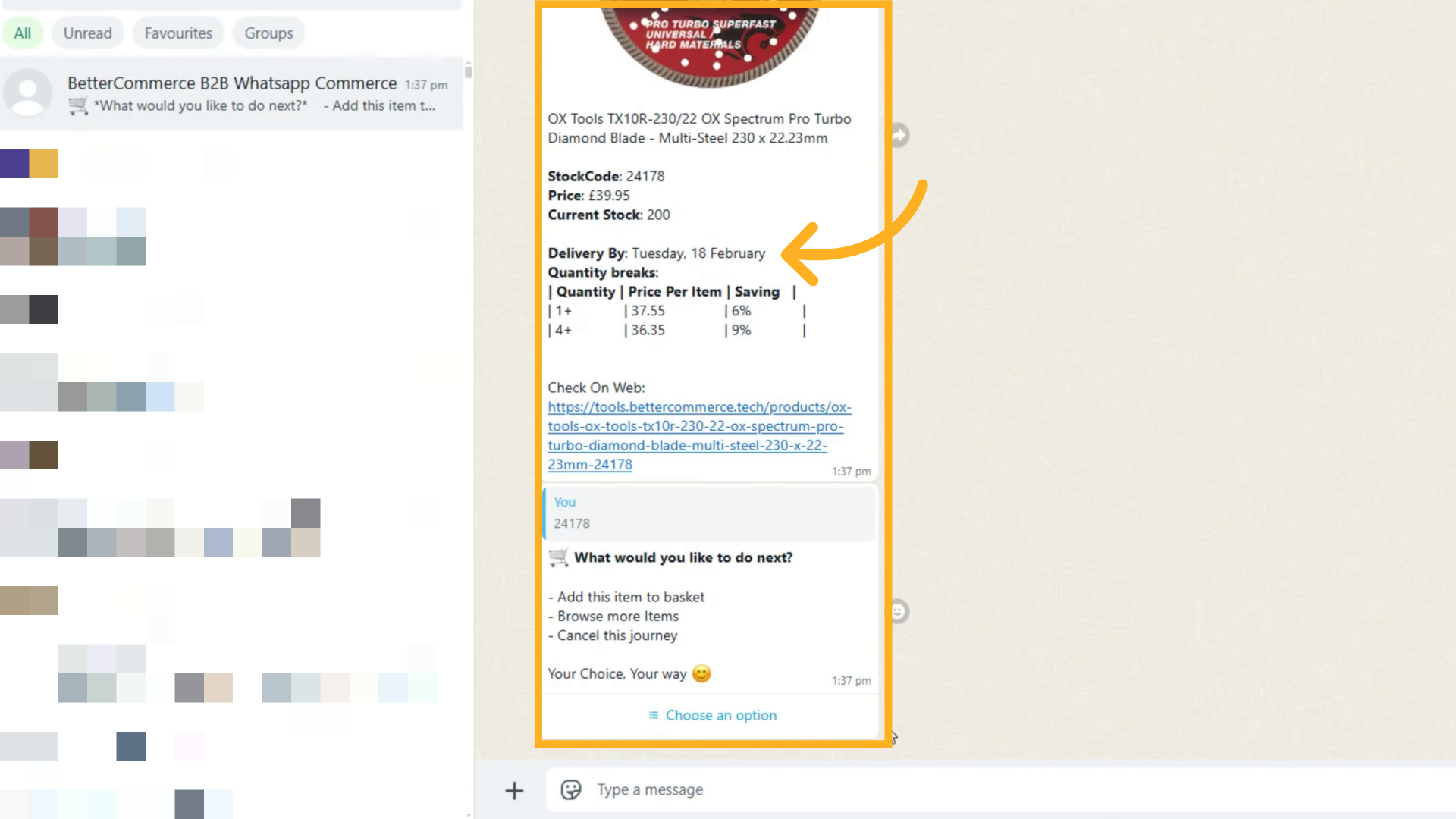
5. Check Delivery ETA
- Select "Check delivery ETA"


- Enter postcode and stock code
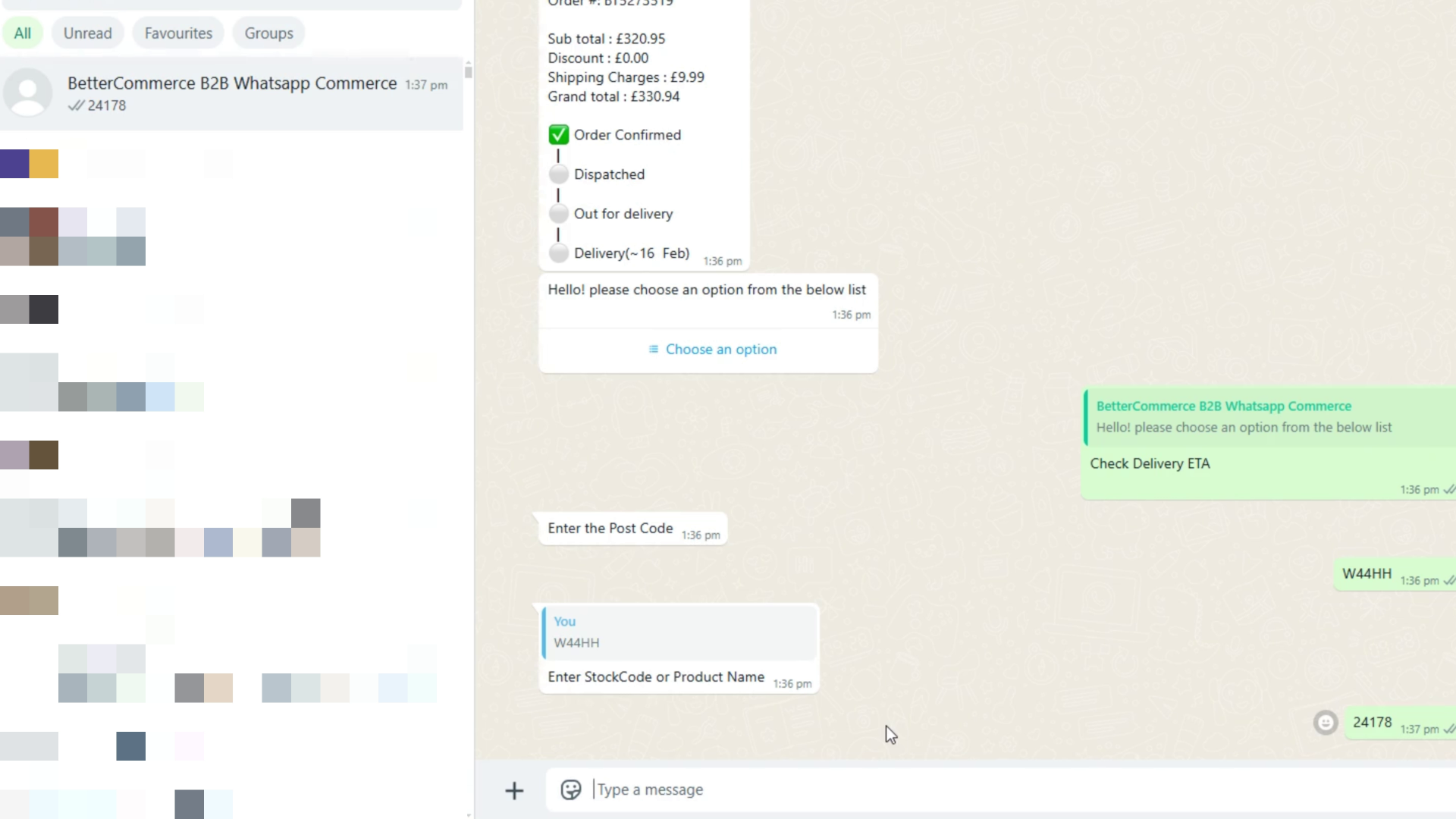
- View delivery date and quantity break discounts if applicable
Email Ordering Workflow
BetterCommerce comes out of the box with Email Order functionality designed to simplify order intake in the B2B space. This feature allows businesses to automatically process orders received through email with minimal manual intervention.
Configuring the Mailbox
Refer to article Go to MailBox Setup for Email Ordering for setting up mailbox to receive orders via emails.
Once configuration is complete, you're ready to begin receiving orders via email.
Sending an Email Order
Customers can now send orders by simply emailing the configured address. The order details must be attached in either PDF or CSV format.
How It Works
Upon receiving an email:
- The system reads and analyzes the content using AI-powered parsing.
- It extracts order details from the attachment.
- The BetterCommerce API is invoked to create the order.
Payment Handling
- If the customer has a account credit enabled, the order amount is deducted from their credit balance.
- Otherwise, the order is marked as pending payment, and invoicing can follow based on agreed B2B terms.
Monitoring Email Orders
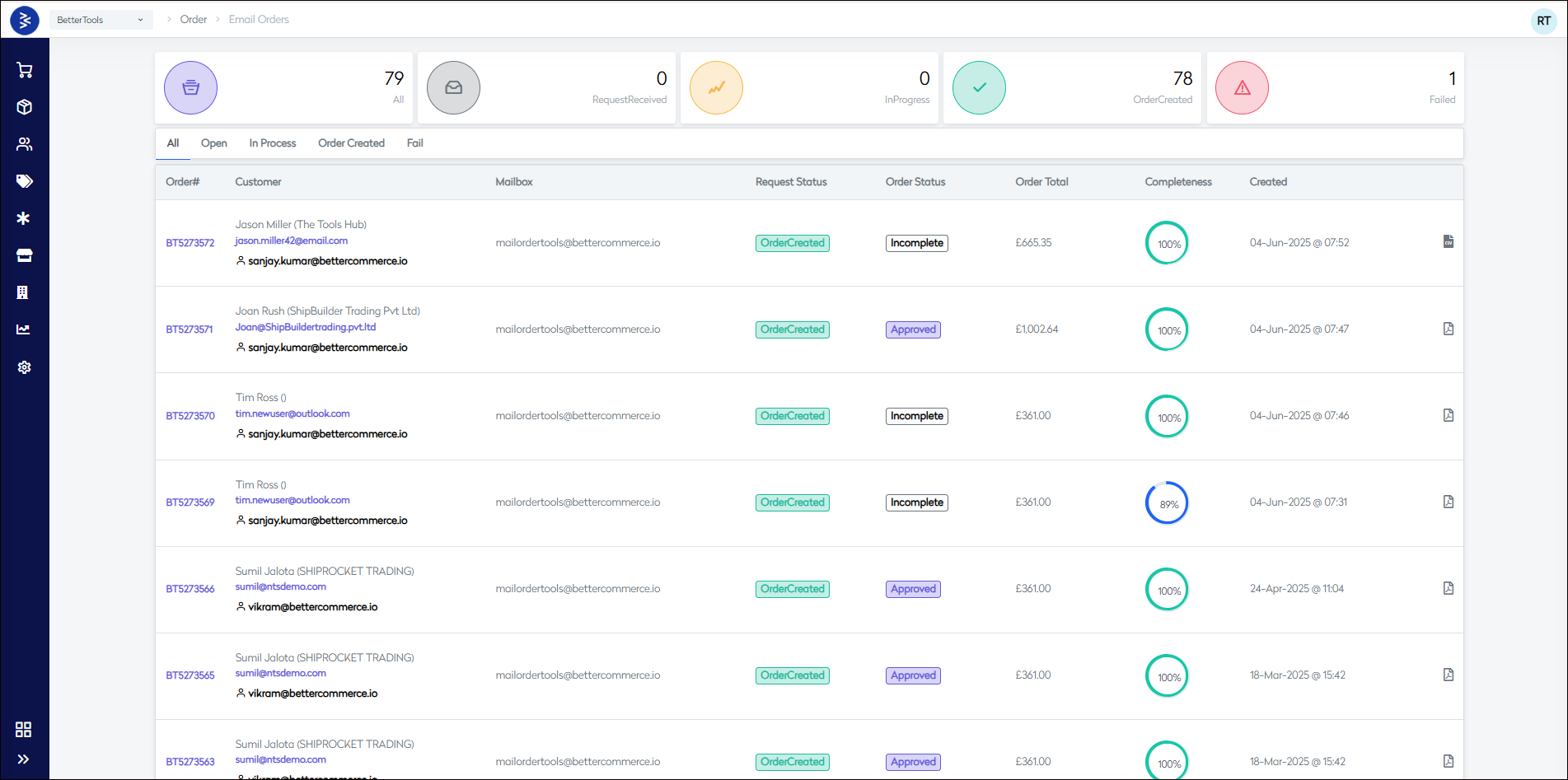
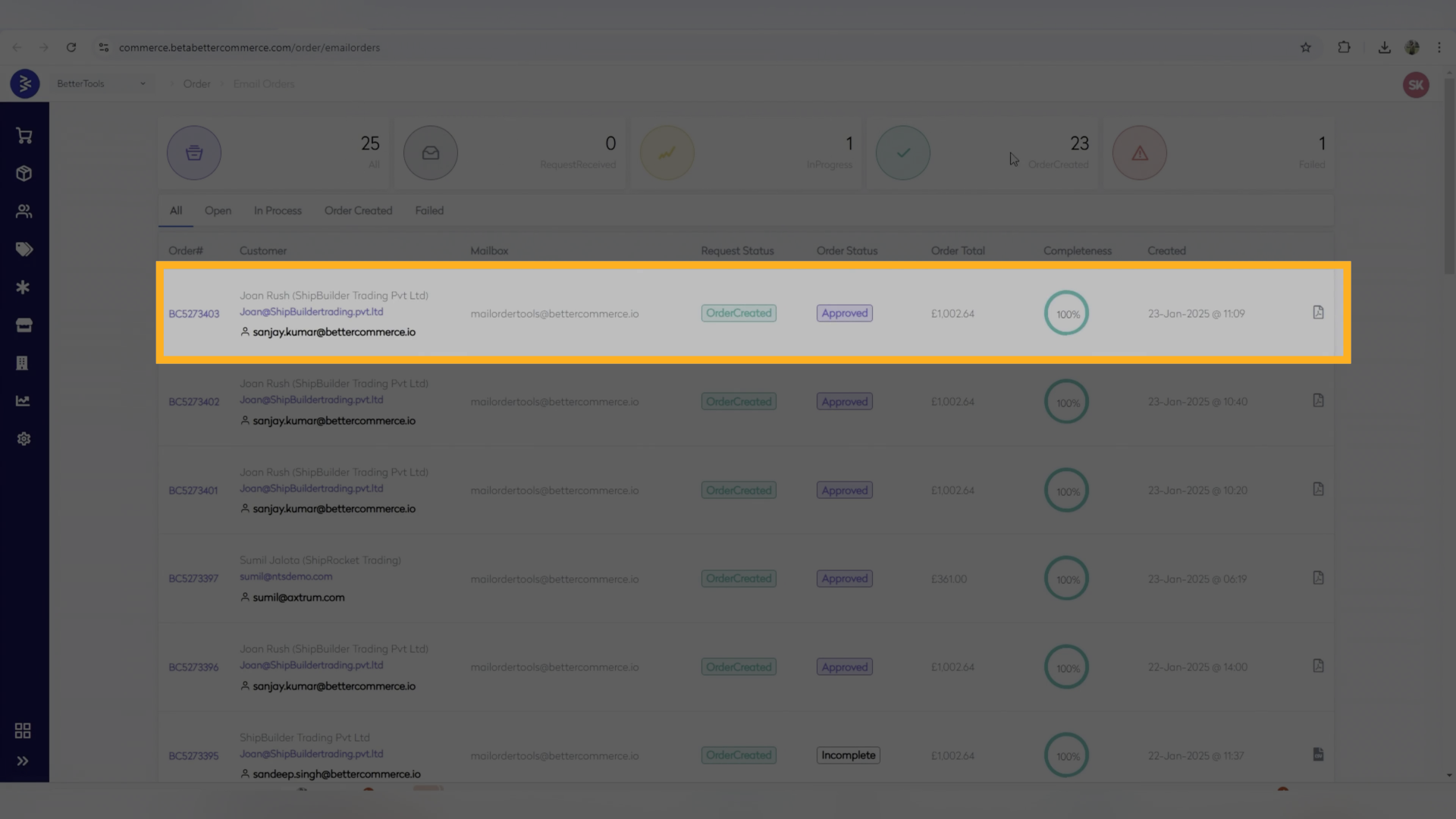
Under the Order menu, go to Email Order to view all incoming email-based requests.
Dashboard Overview
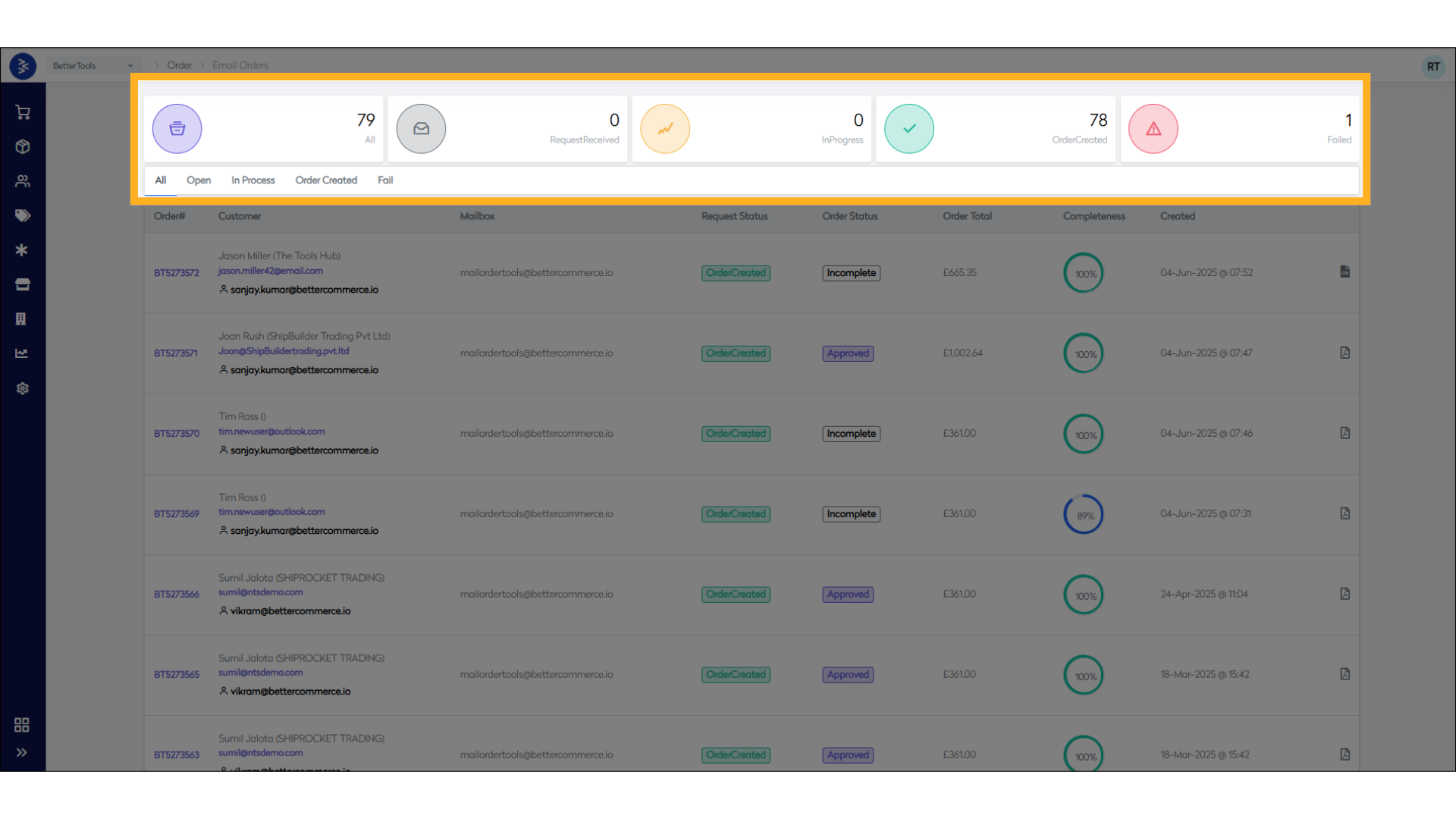
- All: All email orders received
- Requests in process: Order Under process that are received through email
- Successfully created orders: Orders succesfully placed
- Failures (if any): Email that failed create order due to any reason.
Request Listing
For each request, you'll find:
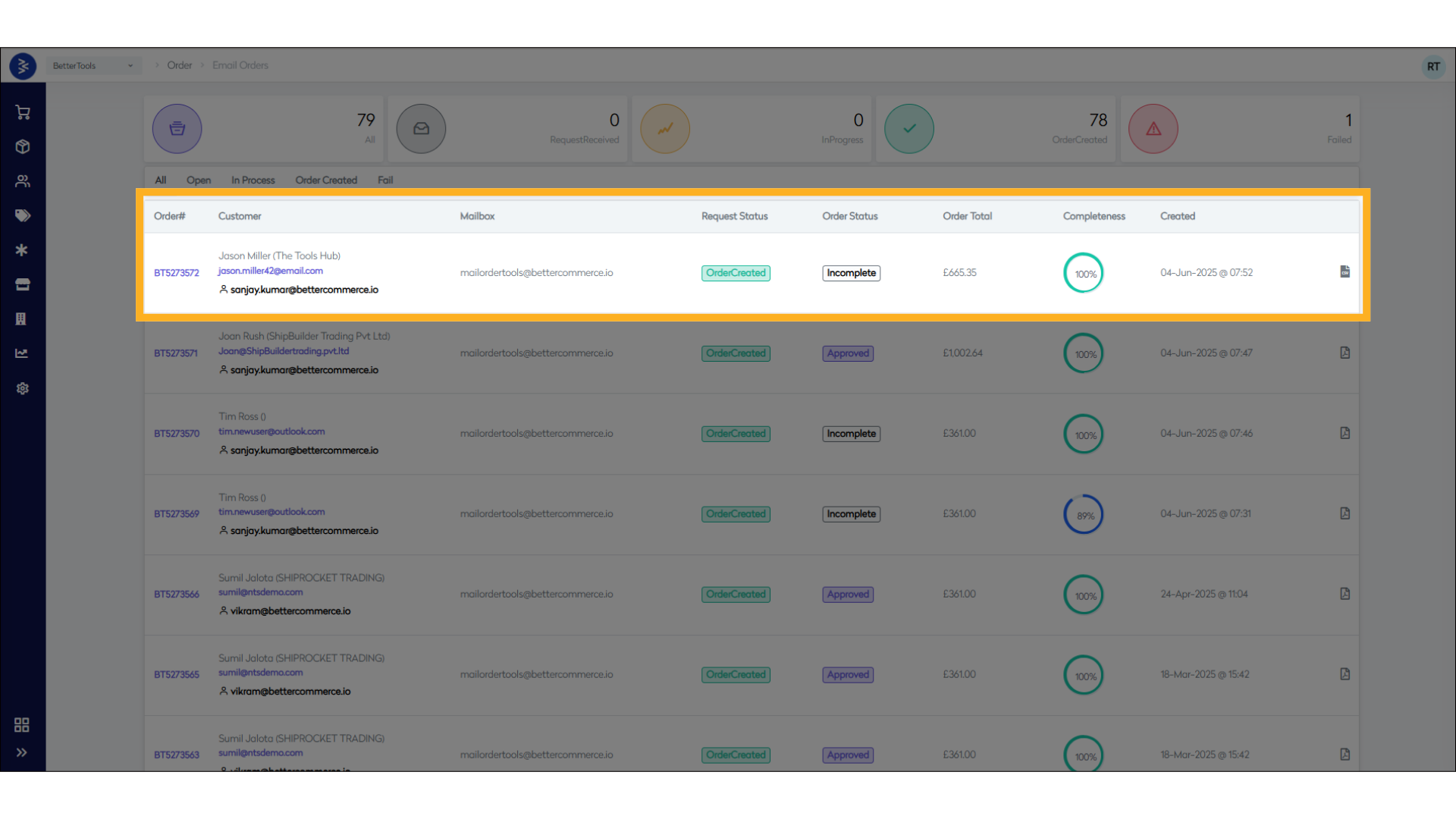
- Order Number
- Customer
- Customer Name
- Sender’s Email
- Mailbox Email Address
- Request Status
- Order Status
- Order Value
- Completeness %
Clicking the completeness percentage reveals missing data that prevented a 100% completeness score.
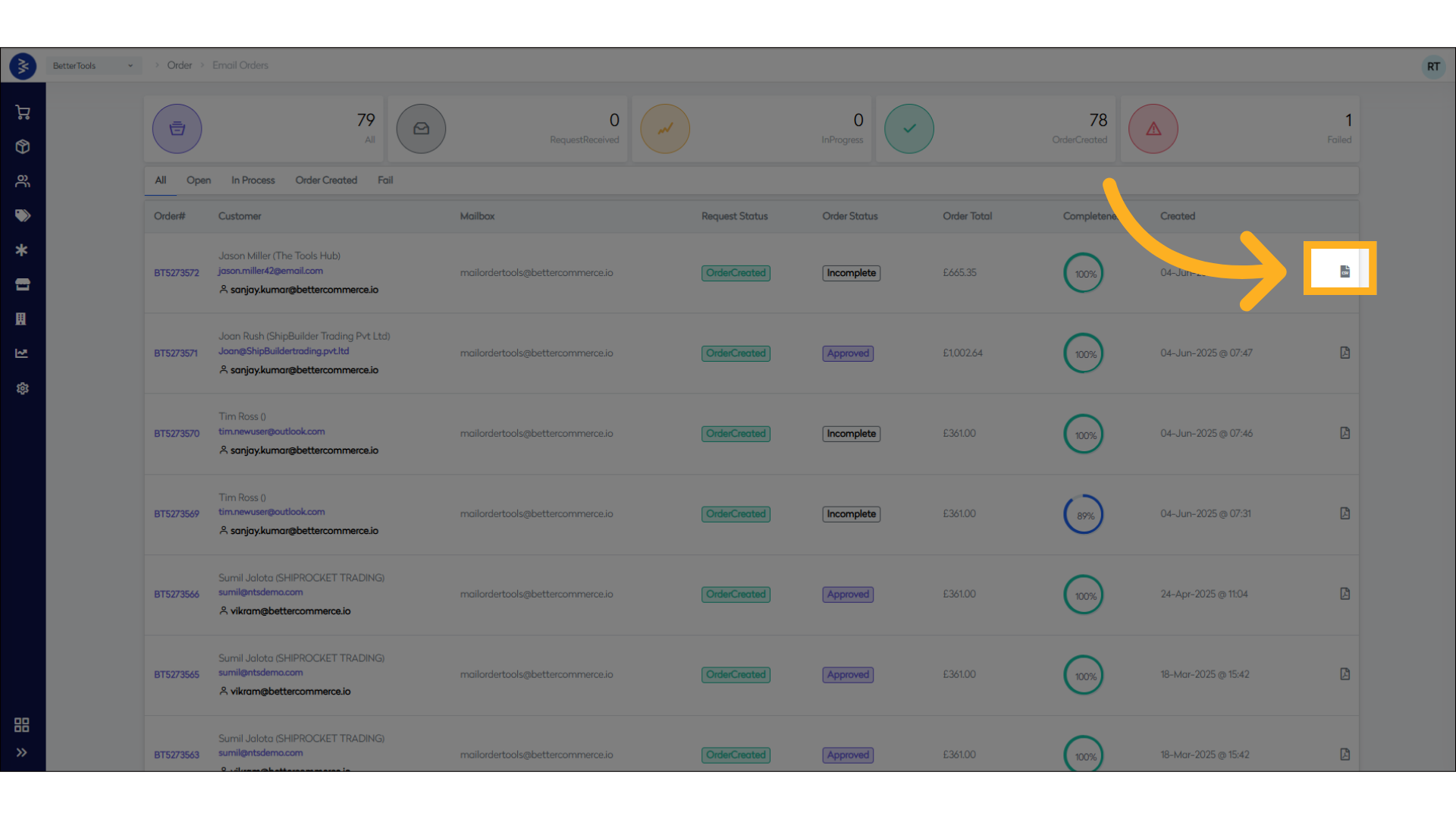
Attachments and Extracted Data
You can:
- Download the original PDF or CSV attachment.
- View all extracted information:
- Email Address
- Billing & Shipping Addresses
- Order Lines and Quantities
- Delivery Instructions
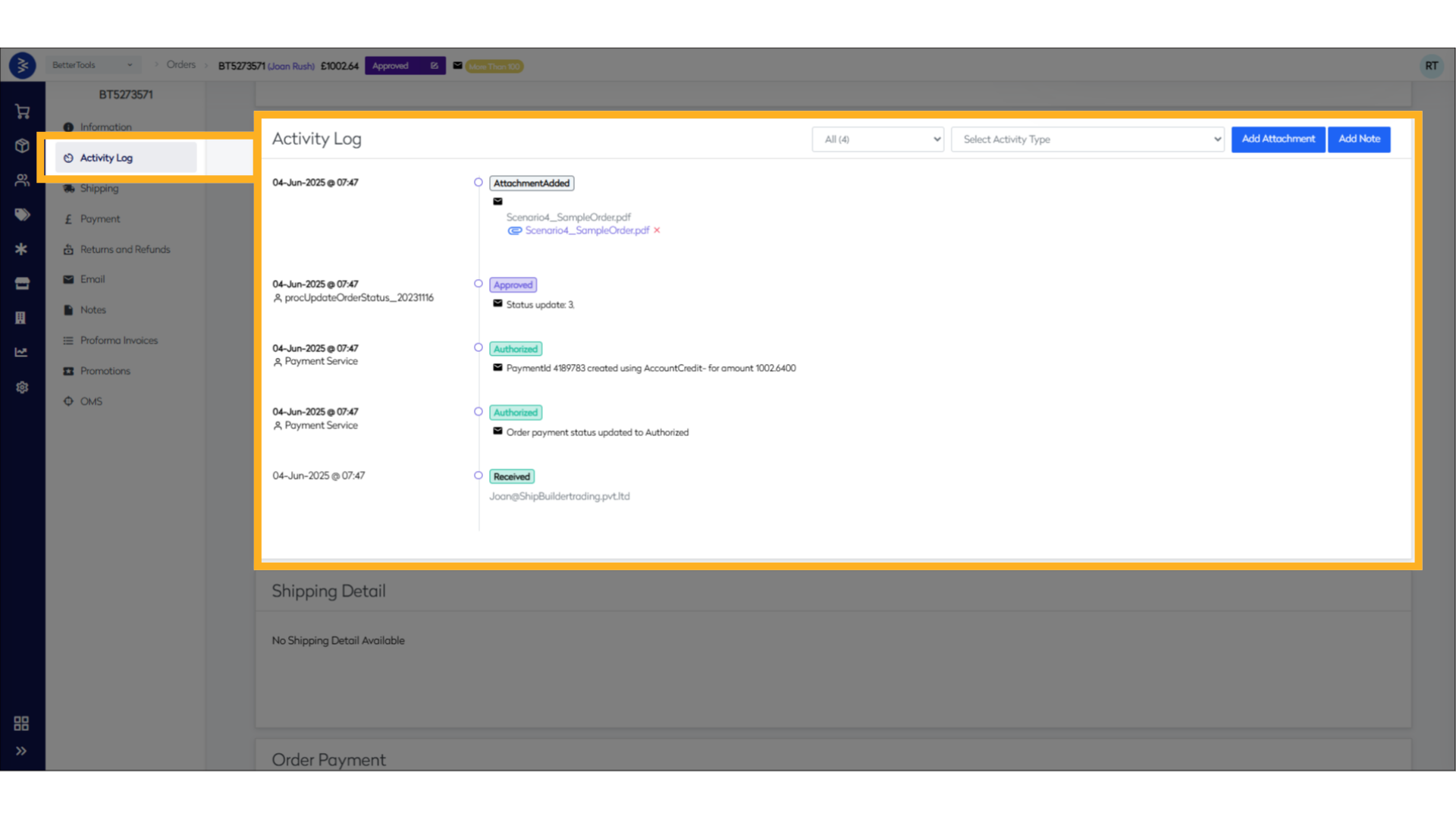
The Activity Log includes access to the original email for traceability.
How to place order using email ordering feature:
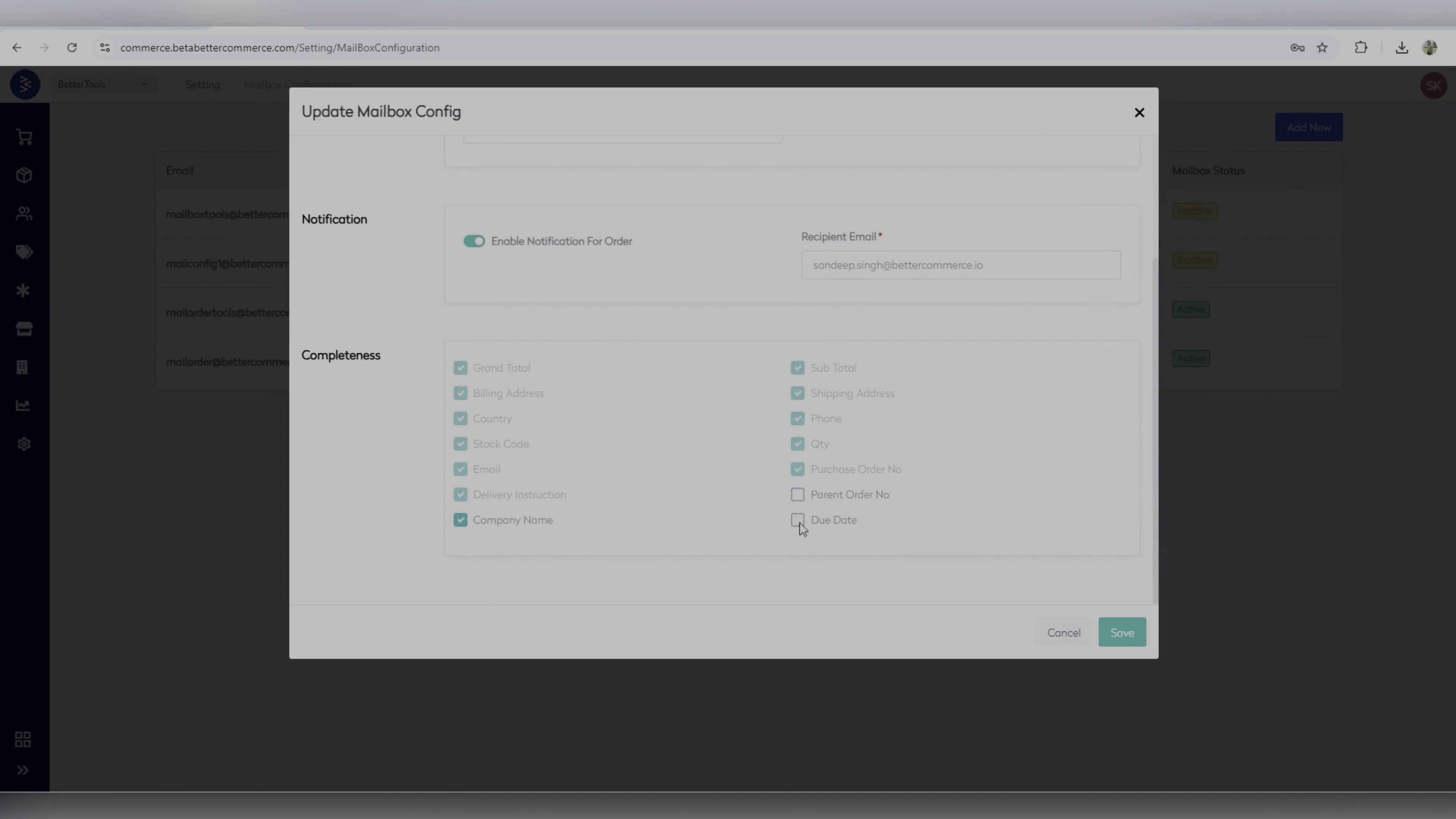
1. Create an order attachment and include all the mandaotry fields defined while setting up the Email orderingmailbox.
Mandatory Fields MailBox Setup:
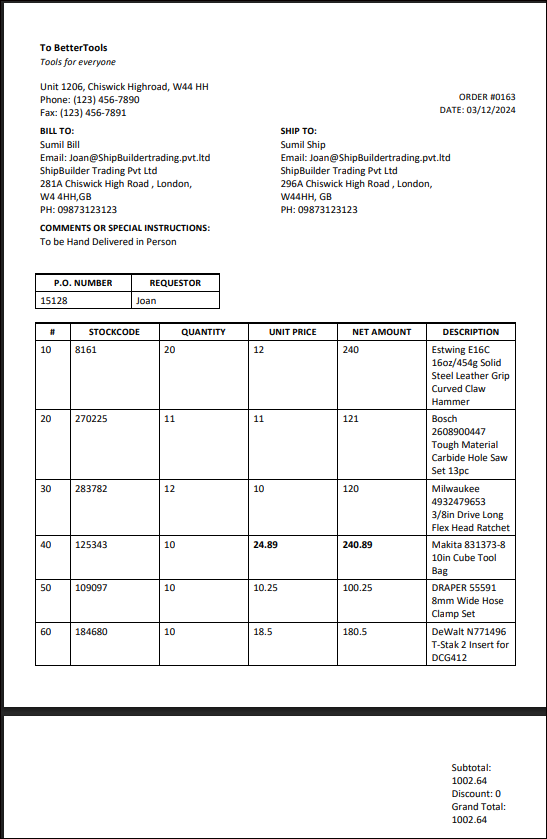
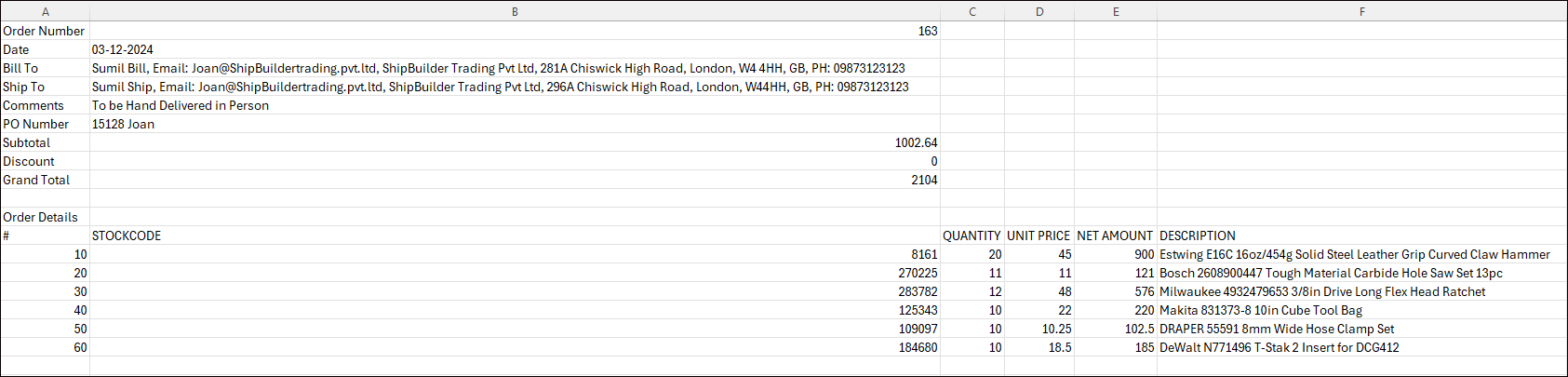
Sample files with all the mandaotry fields:
-
PDF
-
XLSX or CSV
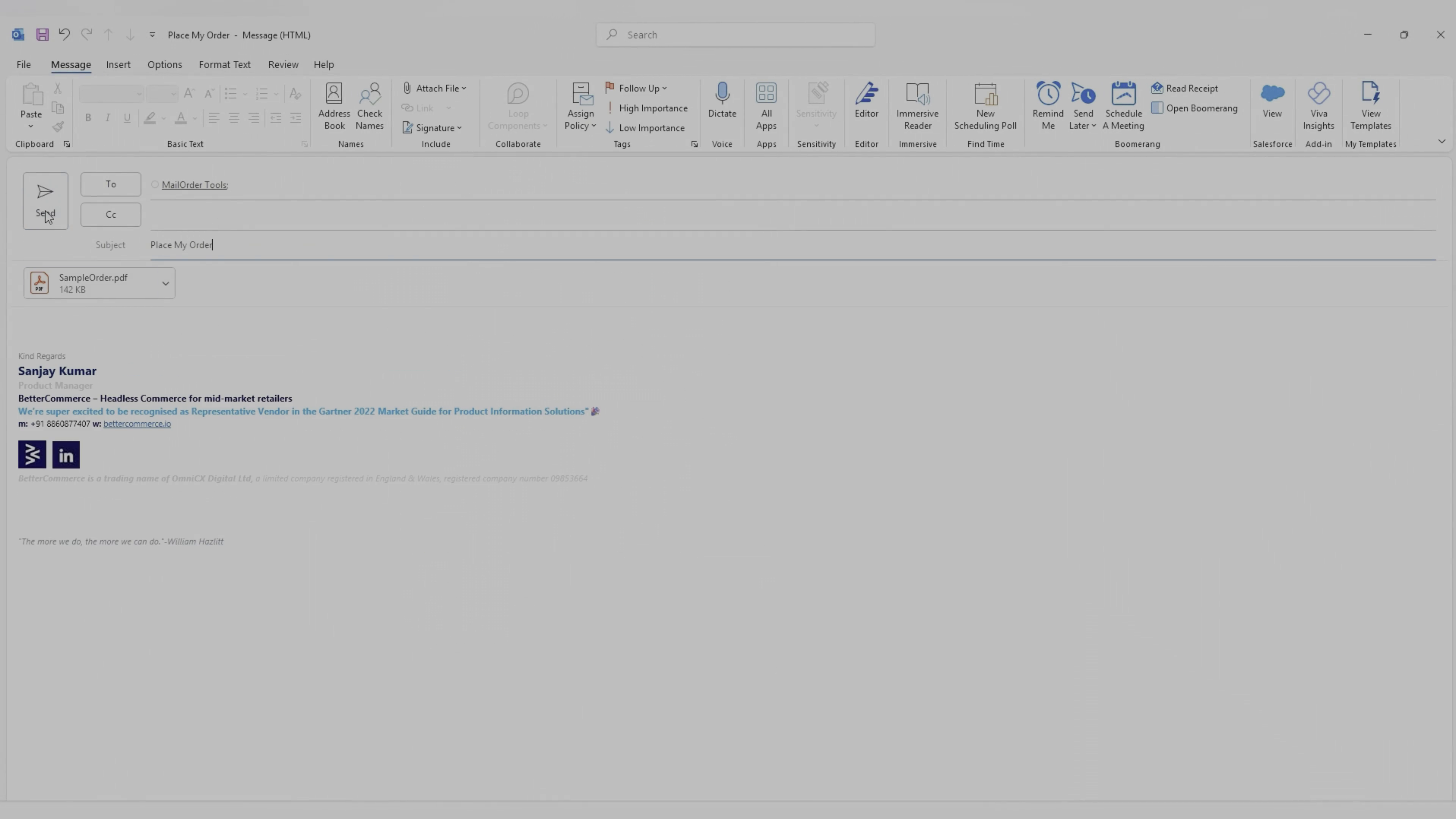
2. Send the Email to the email address confgured to receive email orders
3. Once the email is received in the mailbox, view email orders navigate to Orders > Email Order to initiate processing.
Managing Trading Accounts
Create and maintain corporate trading accounts with custom credit terms, pricing tiers, and order permissions for each business customer.
Trading Account Request & Approval
Handle new account applications by routing requests through an approval workflow, ensuring proper validation before granting trading privileges.
Managing Users and Roles
Define user roles and permissions, assign access rights for account teams, and enforce security policies across the platform.
Pricing Rules Management
The pricelist management system allows you to control pricing strategies across different company segments, apply markup multipliers, and manage discounts effectively.
How It Works:
- Markup Multiplier reduces the base sell price by multiplying it with the given factor.
- Discount % is then applied on the result of the markup to offer further savings.
Example: Base Sell Price: ₹100 Markup Multiplier: 0.9 Discount %: 10%
Calculation: £100 × 0.9 = ₹90 (price after markup) £90 - 10% = ₹81 (final sell price after discount)
Accessing Pricelist Management for B2B/Company Account:
Navigation Path
- Go to
B2B → Companies - Select a company
- Navigate to the Price book tab
- The current pricelist will be displayed
Understanding the Pricelist Structure
Key Columns in Pricelist
| Column | Description |
|---|---|
| Stock Code | Product identifier |
| Cost Price | Your cost for the product |
| List Price (RRP) | Recommended retail price |
| Sell Price | Current selling price to the customer |
| Markup Multiplier | Factor applied to cost price |
| Markup Sell Price | Price after markup calculation |
| Discount (%) | Percentage discount applied on markup price |
| Discounted Sell Price | Final price after discount |
| Margin | Profit margin percentage |
Pricing Rules Management
The Pricing Rules feature in the B2B module allows businesses to define customized pricing strategies using markup multipliers and additional discounts for B2B or Company accounts. These rules help customise pricing per rule type and collection for different or product sets.
Basic fields and their details to know before creating pricebooks
1. Rule Configuration Options
-
Rule Type:
- All: Applies to all products
- Category: Applies to specific product categories
- Product: Applies to individual products
- Collection: Select the specific category or product collection the rule applies to
-
Pricing Method:
- Markup Multiplier: Multiply cost price by a factor
- Discount %: Apply percentage discount to list price after calculation of markup price.
- Flat Price: Set a fixed price
2. Is Active: Toggle to enable/disable the rule
3. Multipliers
A markup multiplier is a factor that determines how much to mark up the sell price for a specific company account.
Multiplier Examples
Example 1: Lower Markup
- Sell Price: £10.00
- Markup Multiplier: 0.8
- Calculated Sell Price: £10.00 × 0.8 = £08.00
Example 2: Higher Markup
- Sell Price: £50.00
- Markup Multiplier: 1.3
- Calculated Sell Price: £50.00 × 1.3 = £65.00
3. Discount Types
- Percentage Discount: Reduces price by a percentage after calculation of markup price for a product if no markup price is updated discount percentage updated will be reduced from the actual sell price of the product.
- Percentage Discount Example
- Original Price: £100.00
- Discount: 15%
- Discounted Price: £100.00 × (1 - 0.15) = £85.00
- Flat Discount: Reduces price by a fixed amount
How to add/edit pricerule for a company/B2B account
Steps to Create/Edit Pricing Rules
-
Access Pricing Rules
- Navigate to
CommerceHub Dashboard > B2B - Locate the company
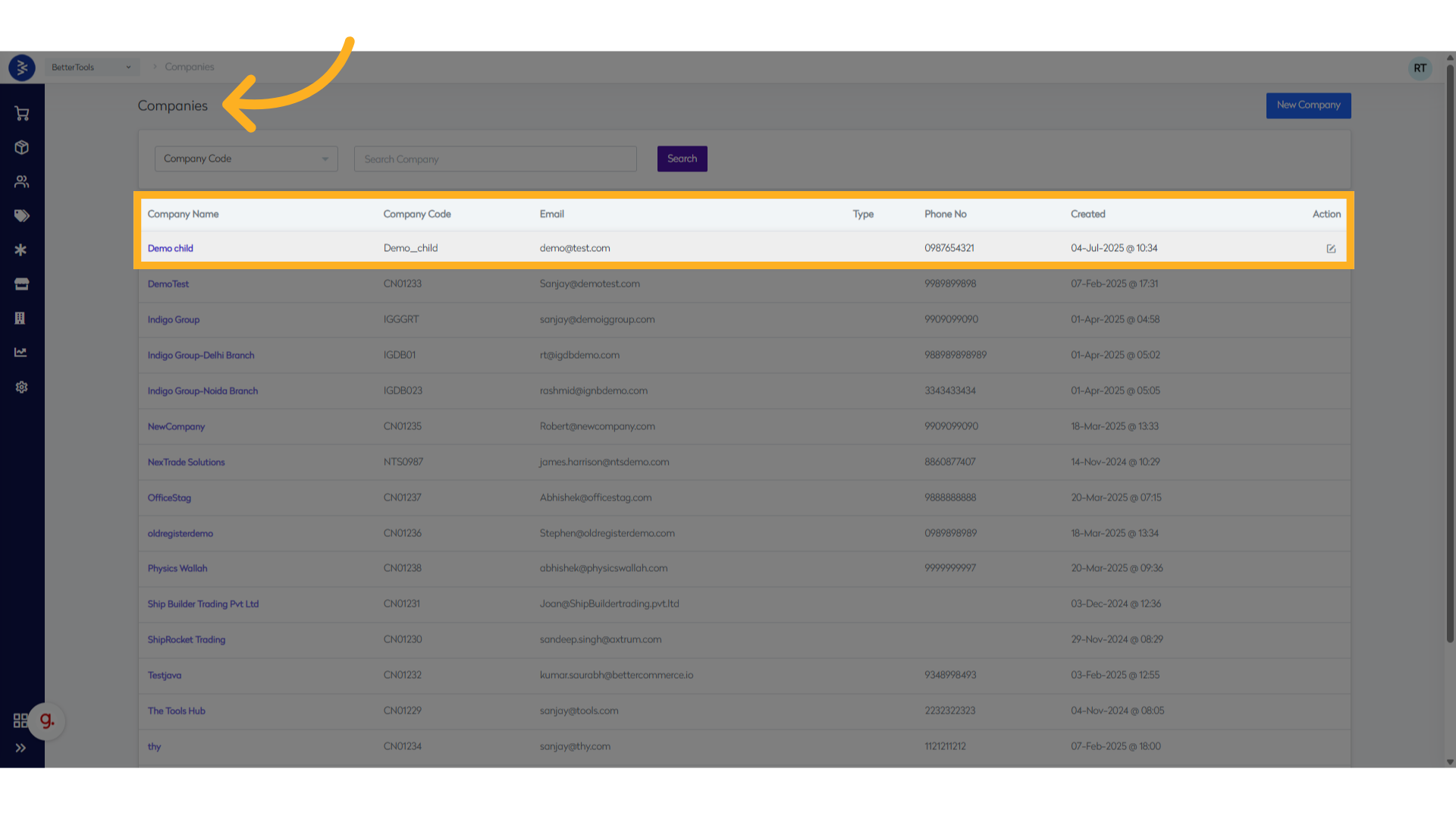
- Company's Price Book tab
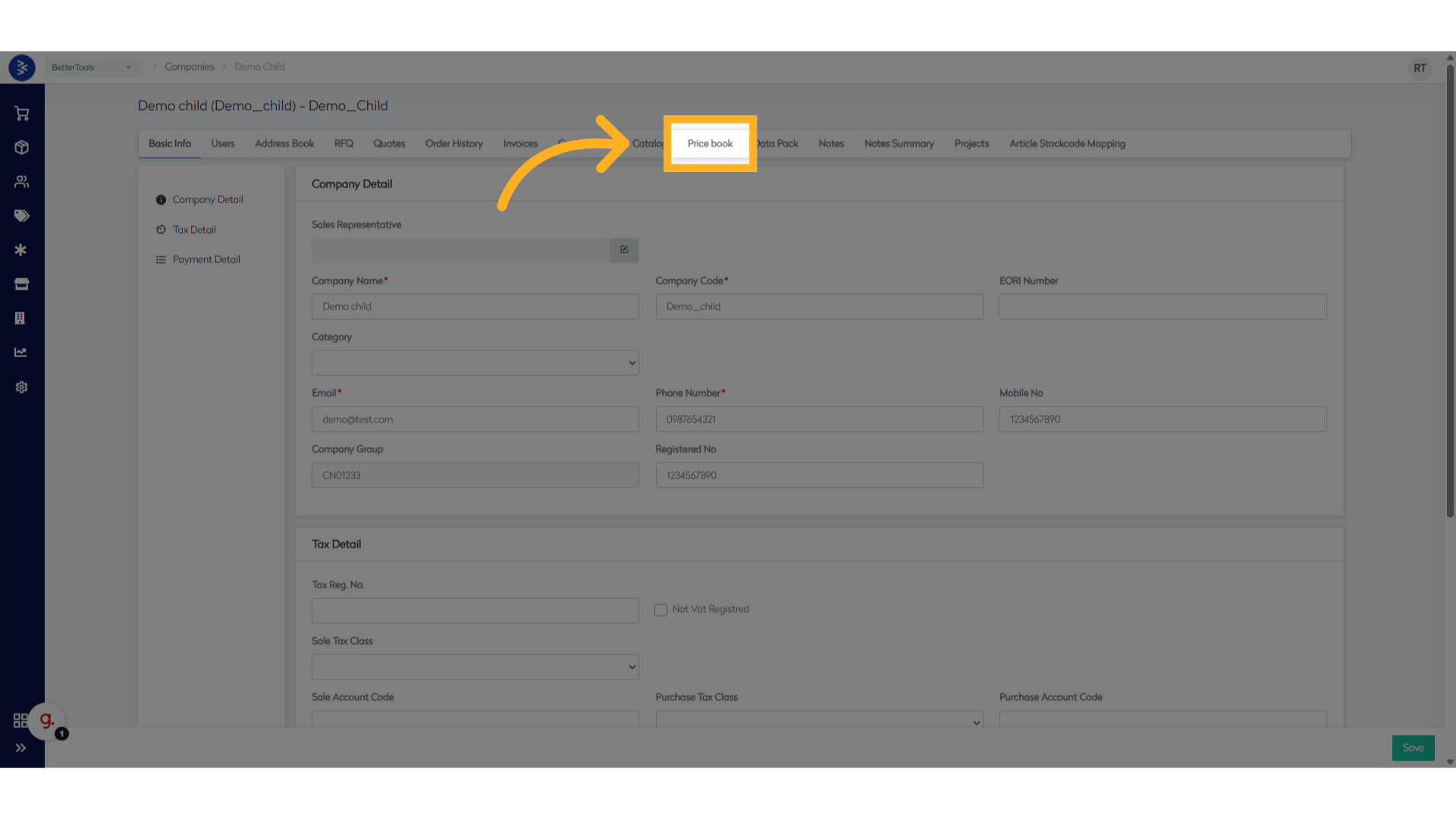
- Scroll to the "Pricing Rules" section
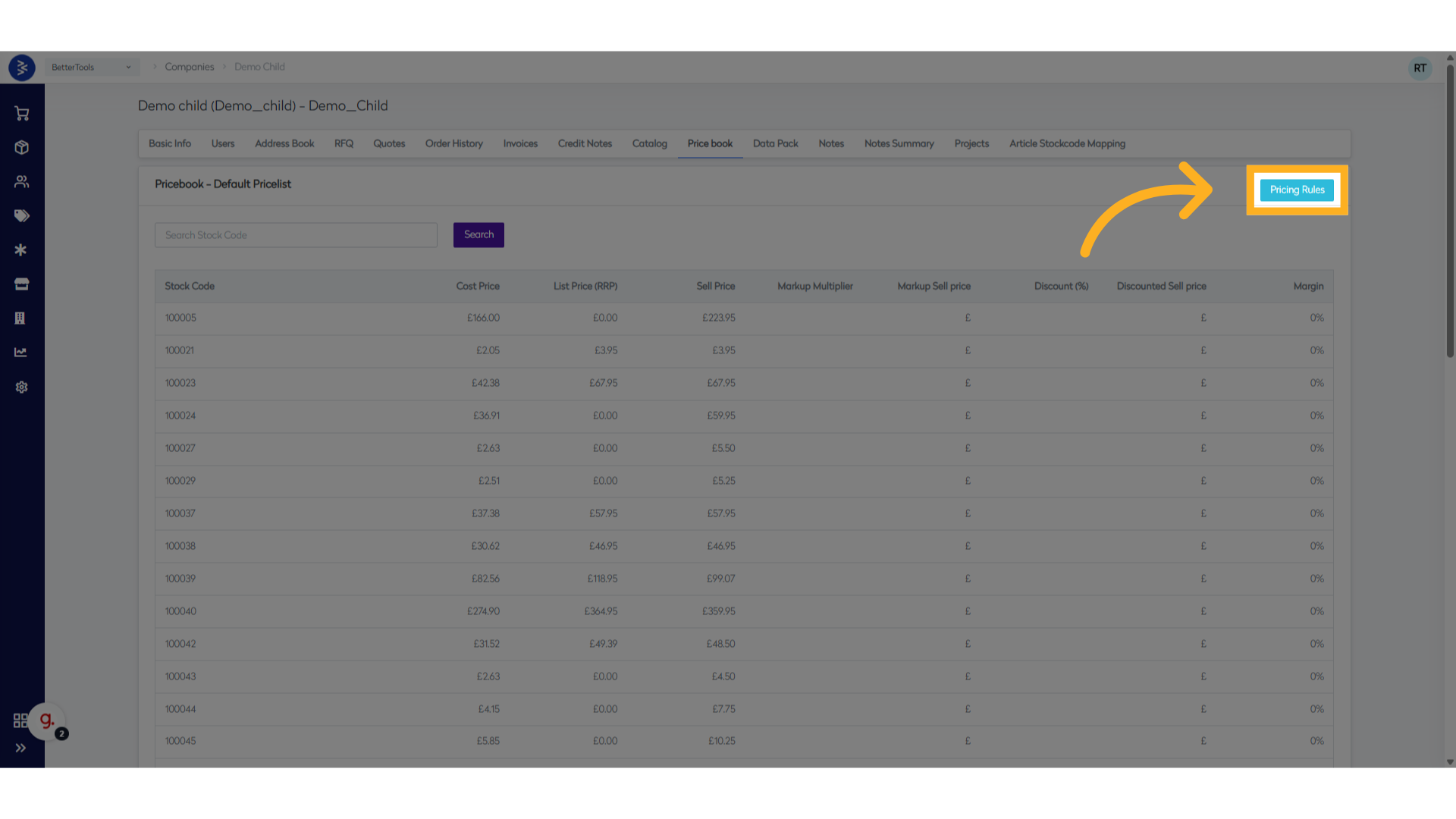
- Navigate to
-
Open Rule Dialog
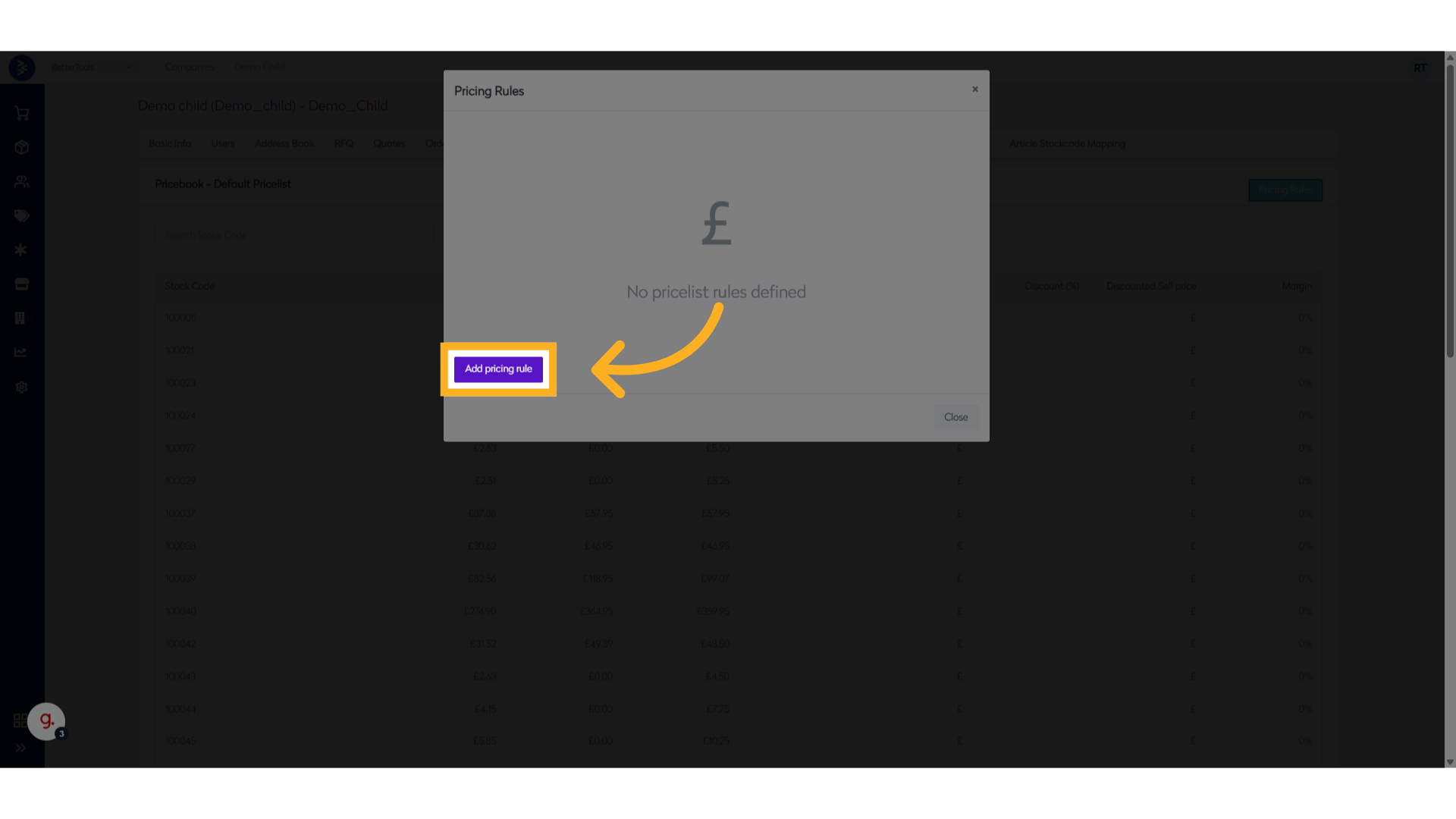
- Click "Add pricing rule" button to add or click edit icon to update existing price rule
- The Pricing Rules dialog will open
-
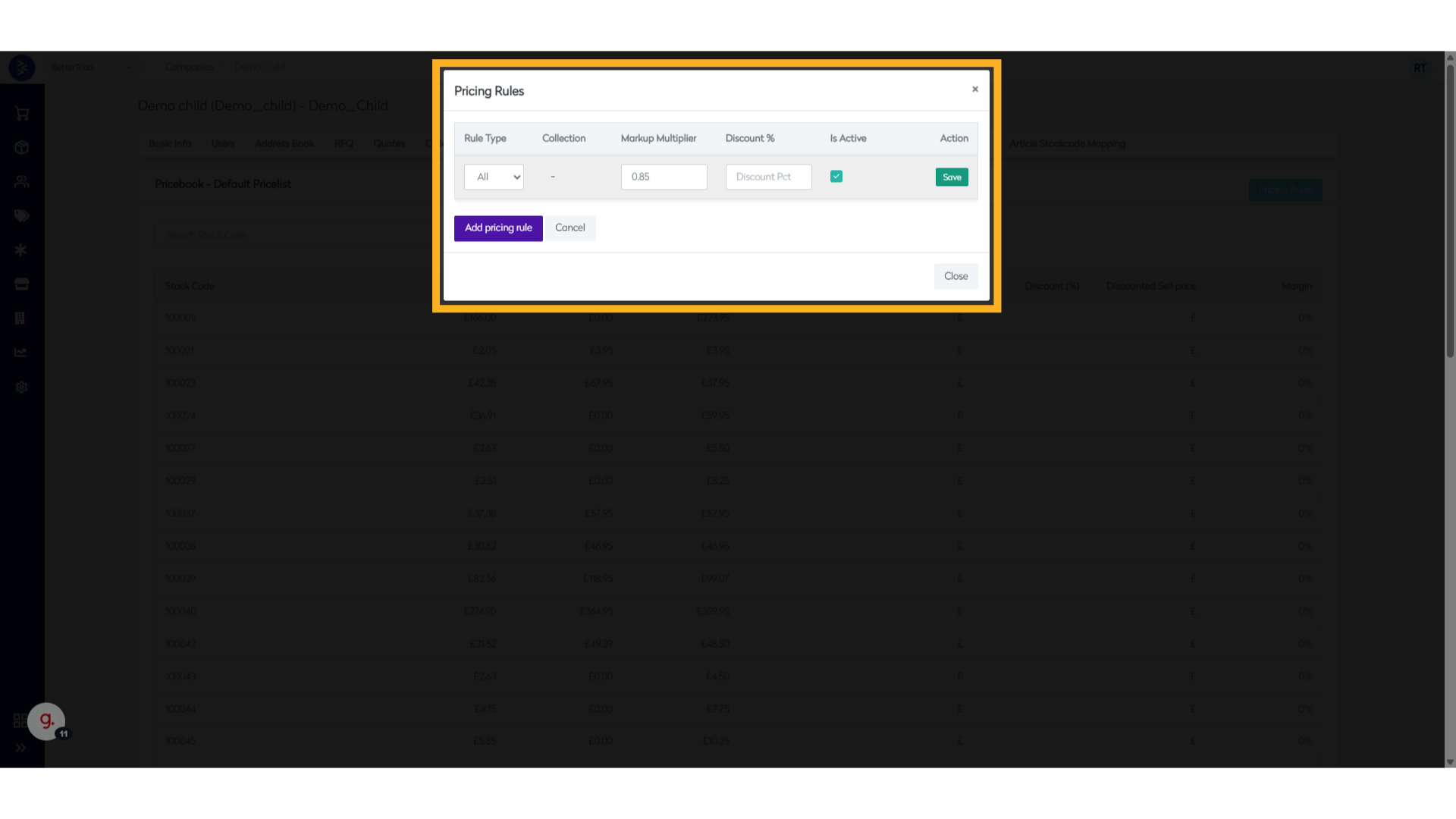
Configure Rule Type
- Select from dropdown: All, Category, or Product
- Choose the appropriate collection if Category selected and stockcodes if product is chosen.
-
Set Pricing Method
- For Multiplier: Enter the multiplier value (e.g., 0.8 for 20% discount)
- For Percent: Enter percentage (e.g., 10 for 10% discount)
- For Flat Price: Enter the fixed price amount
-
Activate Rule
- Check the "Is Active" checkbox to enable the rule
-
Save Rule
- Click "Save" to apply the pricing rule
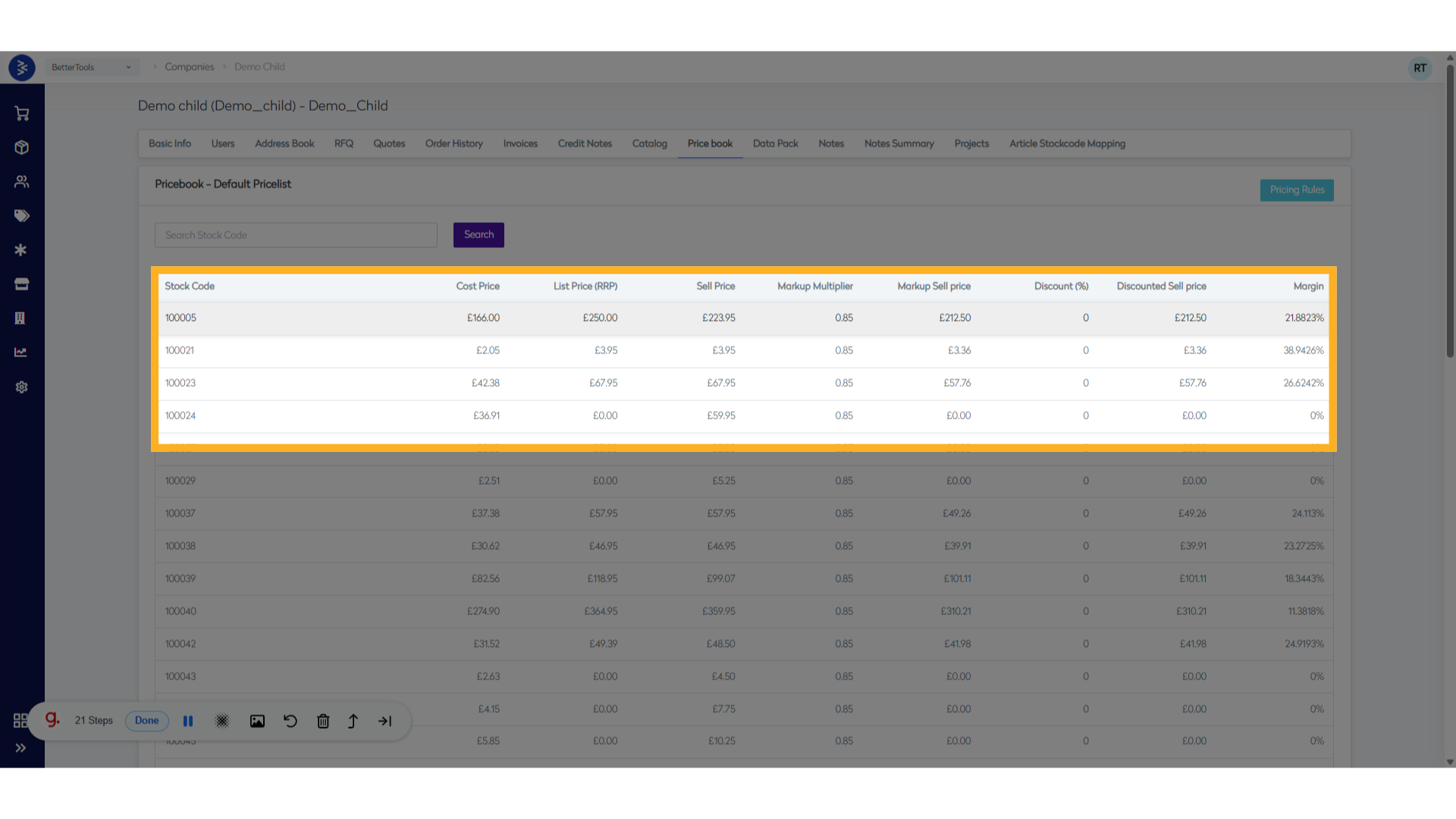
Verification Steps
- Check the "Markup Multiplier" column in the pricelist
- Verify "Markup Sell Price" calculations
- Confirm "Discounted Sell Price" if discounts are applied
Summary
This knowledge base article provides a comprehensive guide to managing pricelists and understanding multipliers in your B2B commerce platform. The multiplier system allows for flexible pricing strategies based on company accounts across the product catalog.
Company Catalogue Setup
Overview
A B2B catalog is a curated collection of products that are made visible to specific trading account users. Instead of showing all available products, you can filter and display only relevant items based on:
- Product categories
- Brands
- Custom Attributes/AttributeSets
- Stockcodes
- etc.
This helps ensure that B2B/trading accounts only see products that are meaningful to their line of business. For example : Let’s say you have a B2B customer that operates in the construction industry. To make their purchasing process smoother and more relevant, you can create a Construction Catalog under their company account that only includes construction-related SKUs.
How to Create a New Catalog
Step 1: Access Catalog Management
-
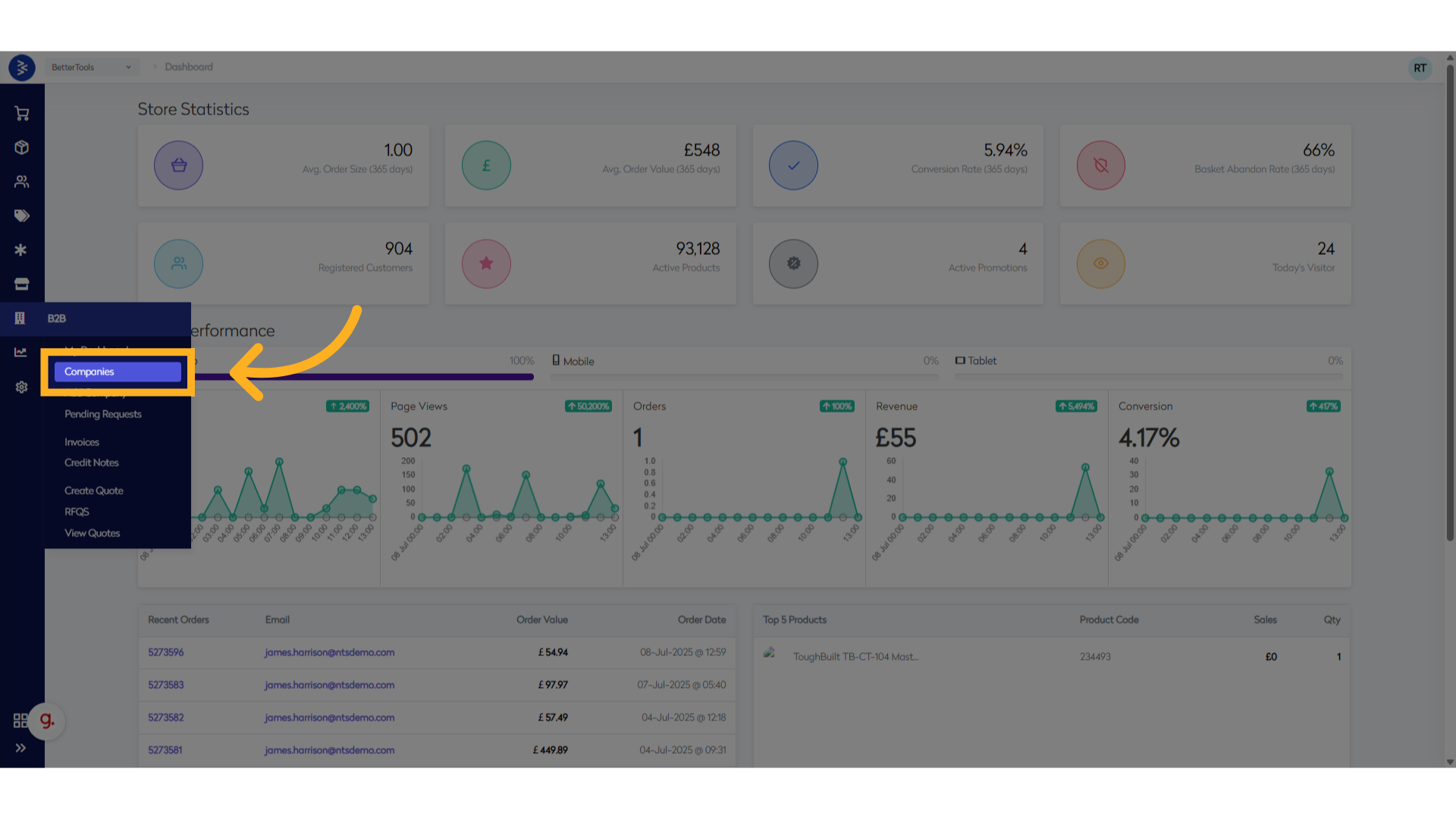
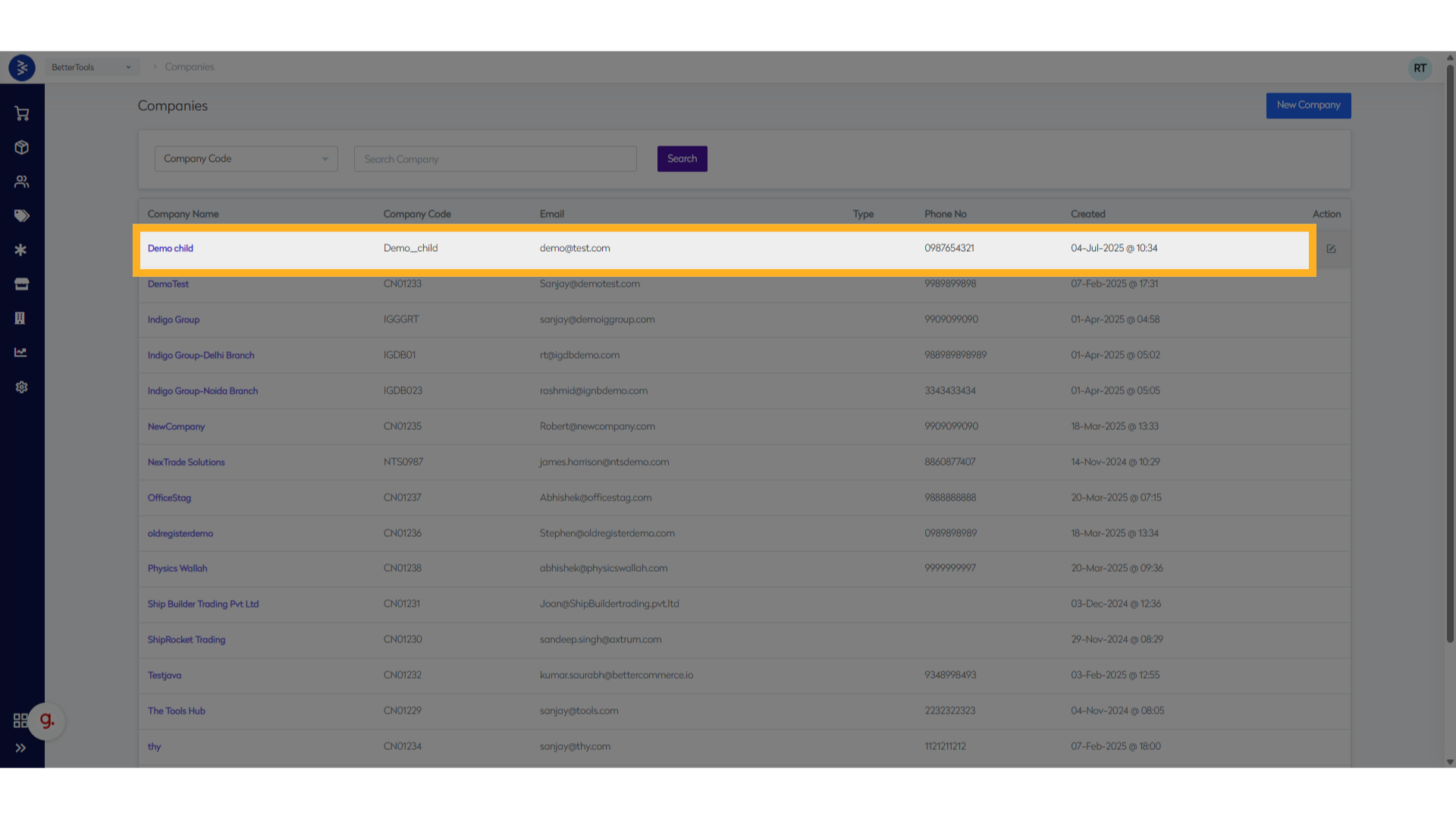
Navigate to B2B → Companies
-
Select the target company
-
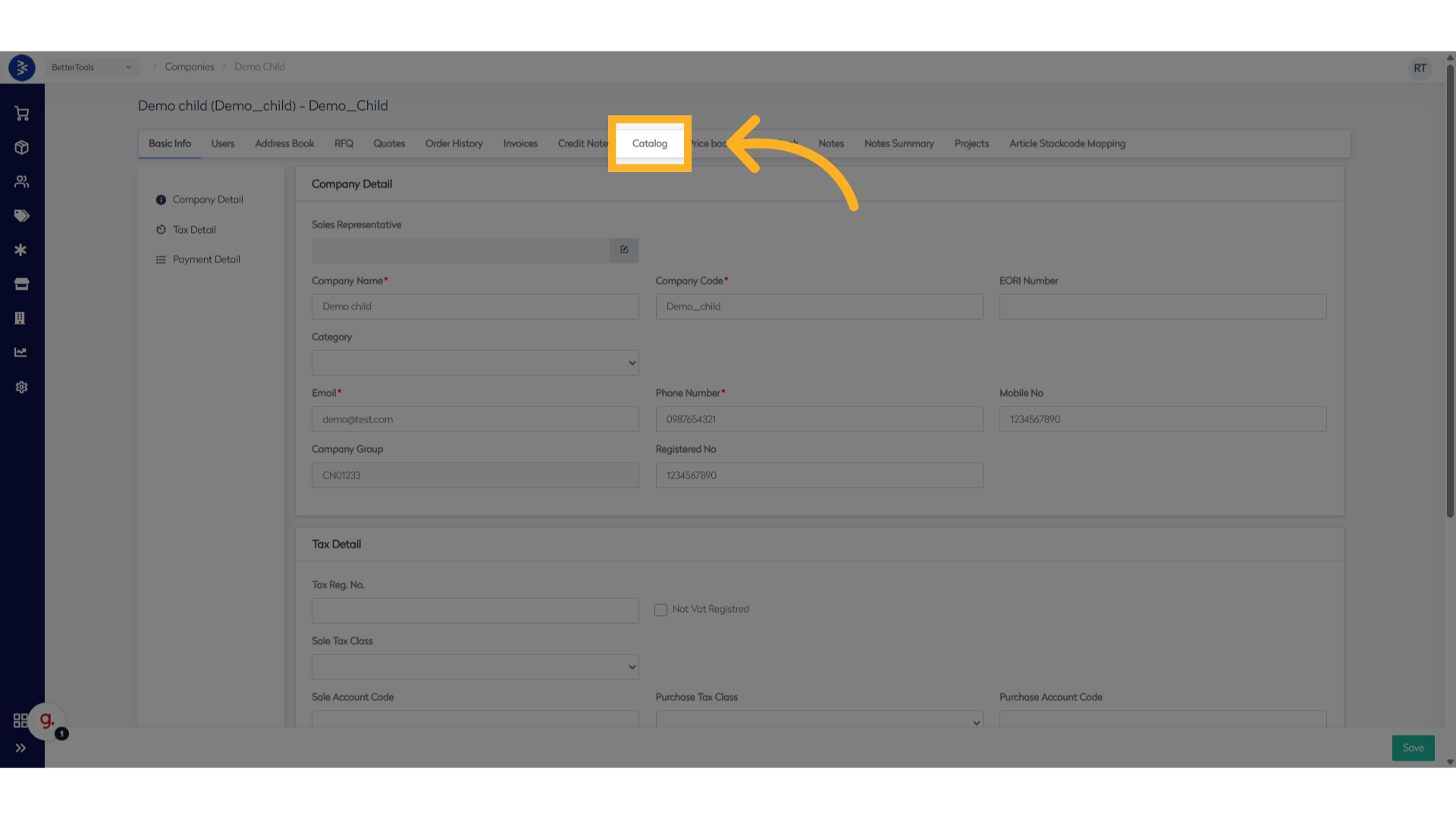
Click on the Catalog tab
Step 2: Set Up Catalog Filters
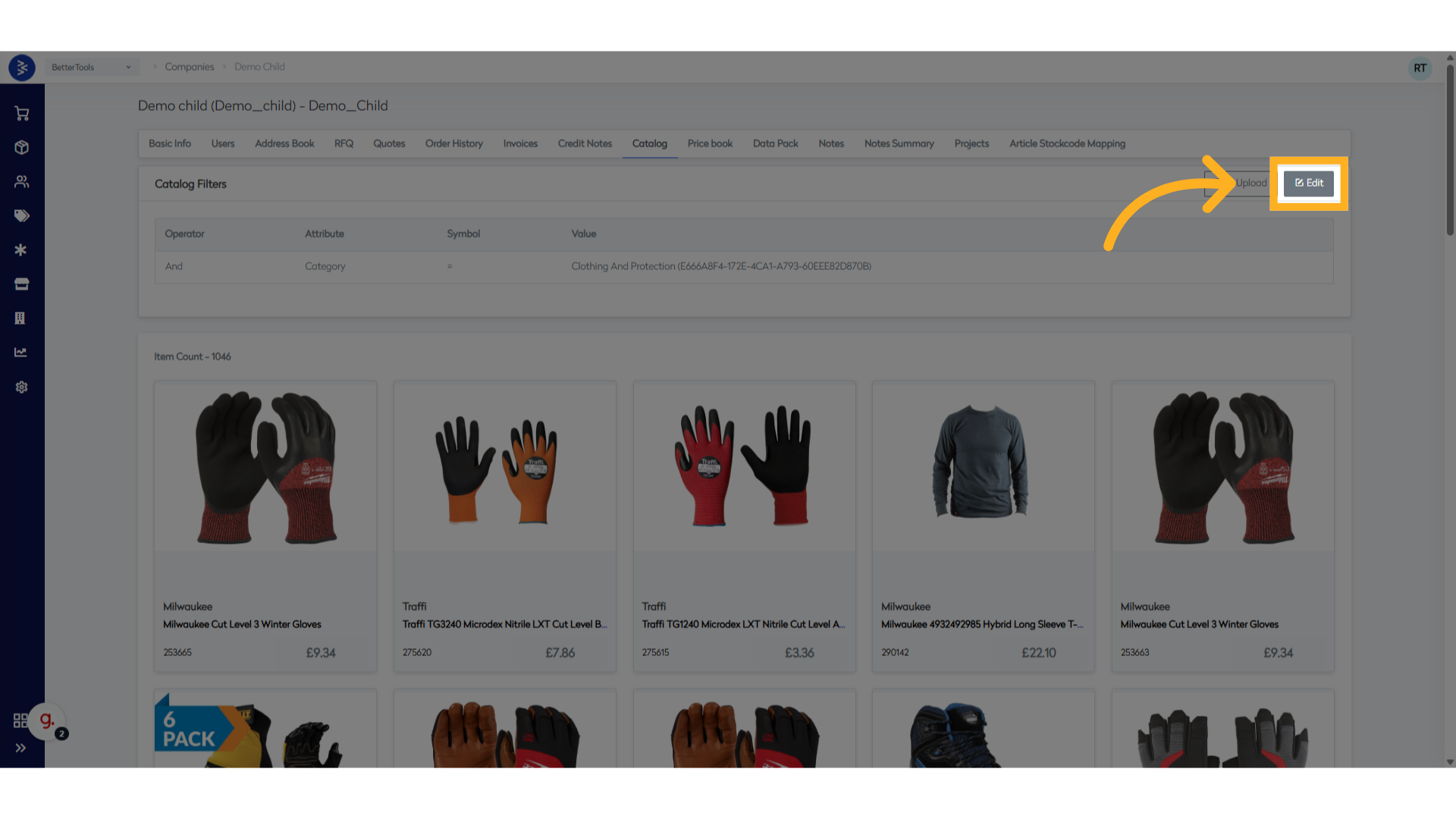
- Click Edit button in the Catalog Filters section
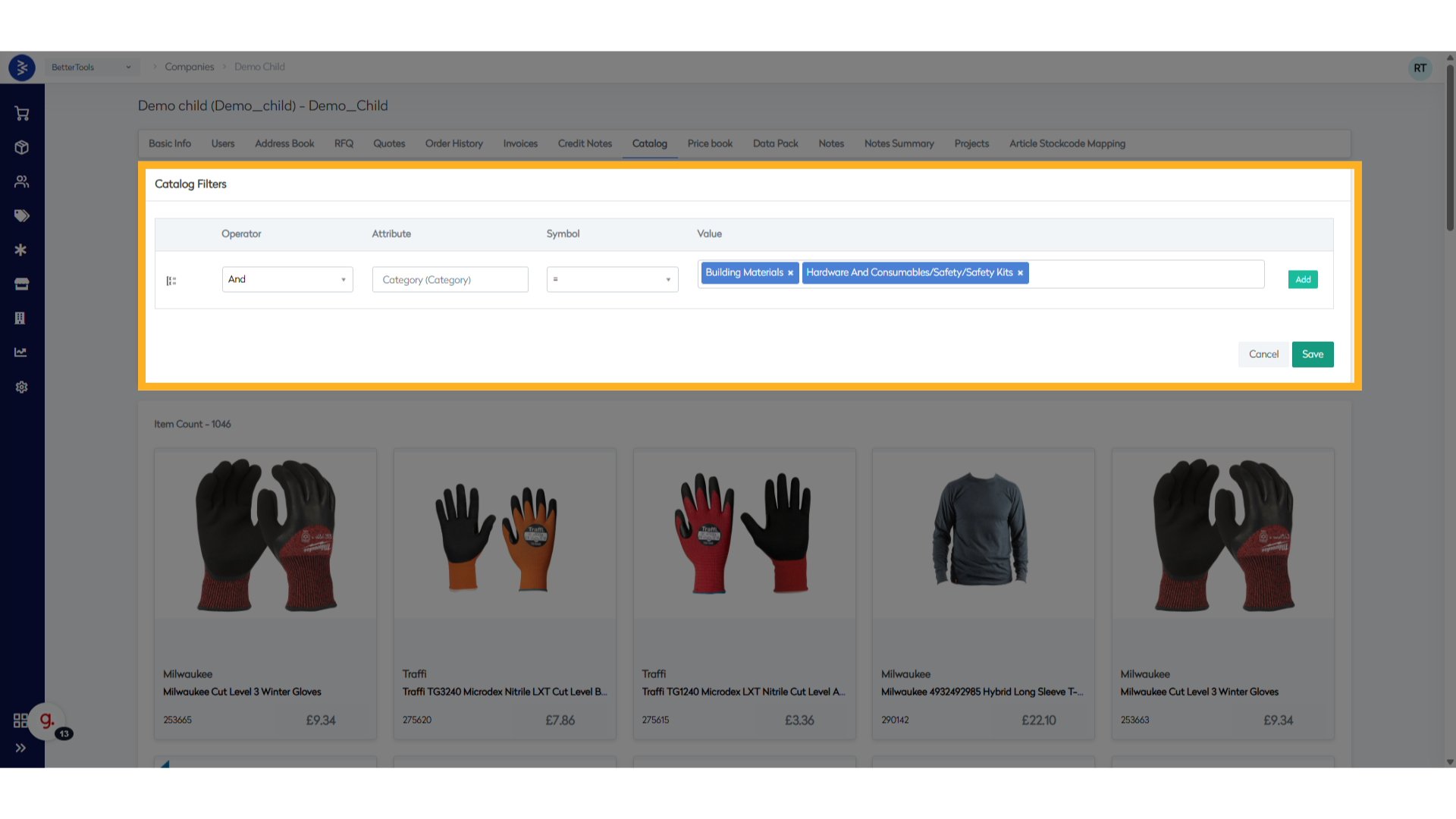
- Configure filter criteria:
- Operator: Choose "And" or "Or" logic
- Attribute: Select filtering attribute (Category, Brand, etc.)
- Symbol: Choose comparison operator (=, ≠, contains, etc.)
- Value: Specify the filter value
Step 3: Add Multiple Filters (Optional)
- Click Add to create additional filter rules
- Use And/Or operators to combine multiple conditions
- Create complex filtering logic for precise product selection
Step 5: Save Configuration
- Click Save to apply the catalog filters
- The system will display the Item Count showing how many products match your criteria
Note: Start with broad categories and gradually add more specific filters to fine-tune your catalog.
How to Edit an Existing Catalog
Step 1: Access Current Catalog
- Go to the company's Catalog tab
- Review current Catalog Filters and Item Count
Step 2: Modify Filters
- Click Edit to modify existing filters
- Update any of the following:
- Change operator logic (And/Or)
- Modify attribute selection
- Update comparison symbols
- Change filter values
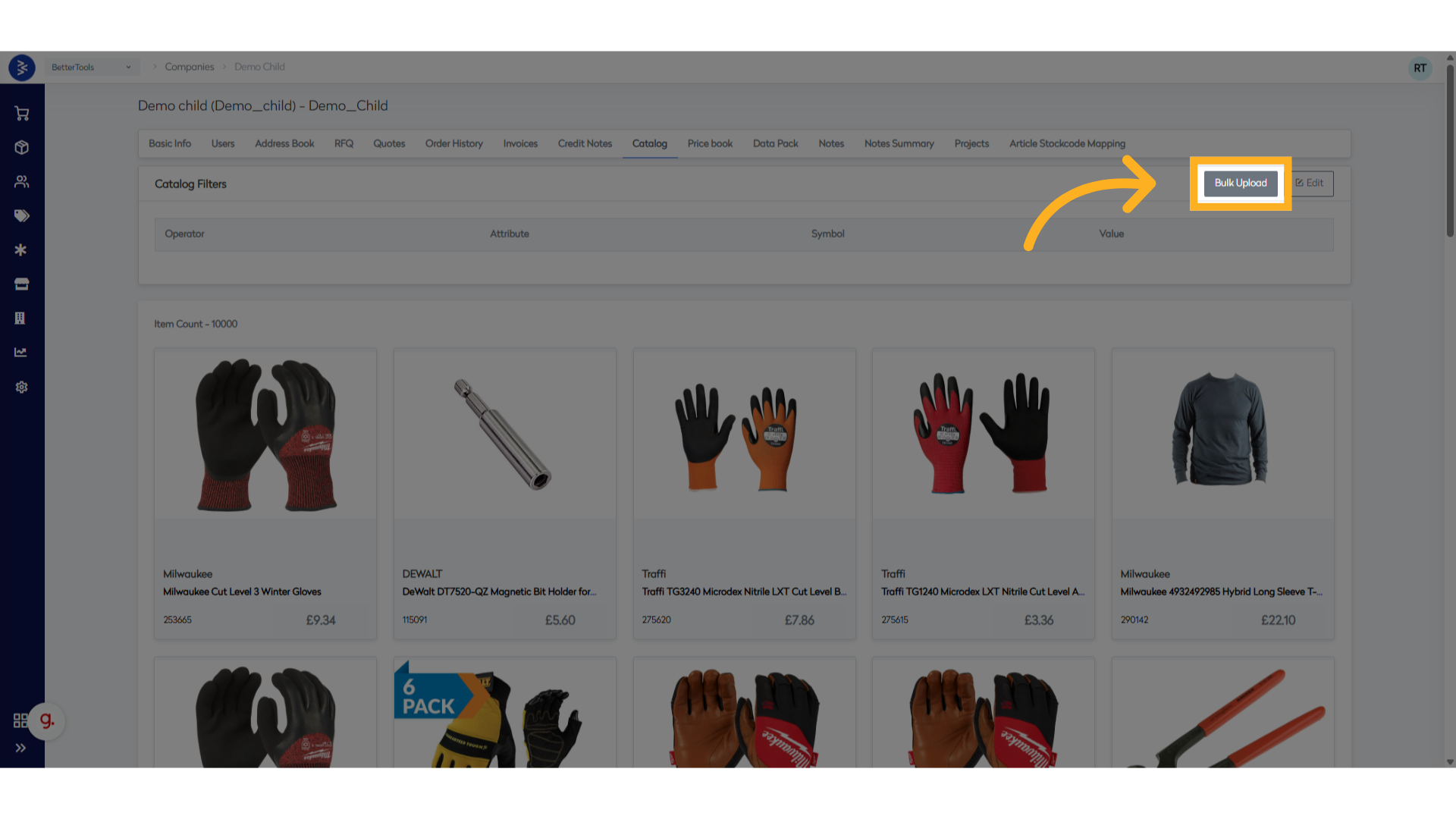
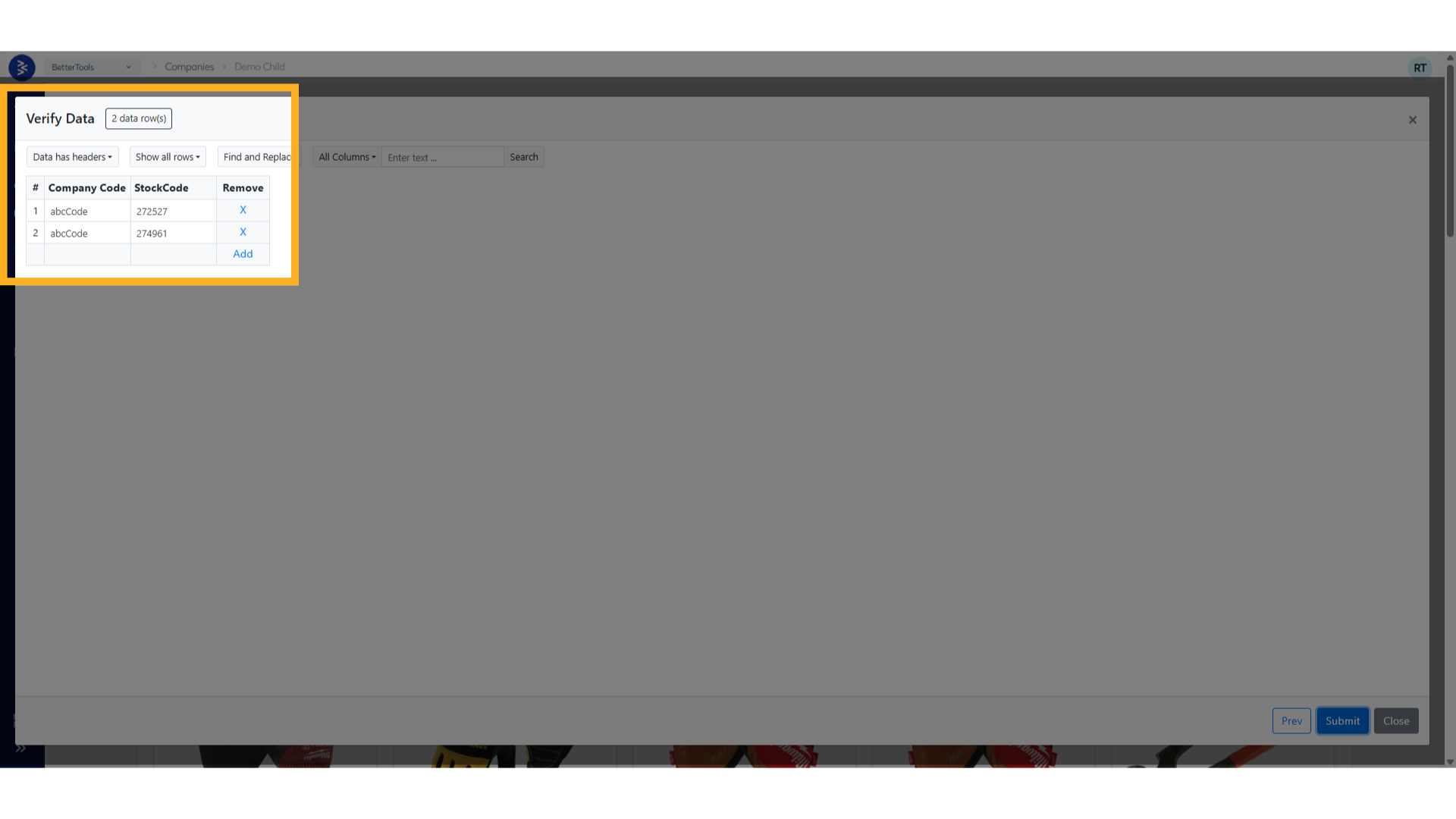
Step 3: Bulk Upload Option
- Use Bulk Upload for custom catalog create/updates
- Download the sample file
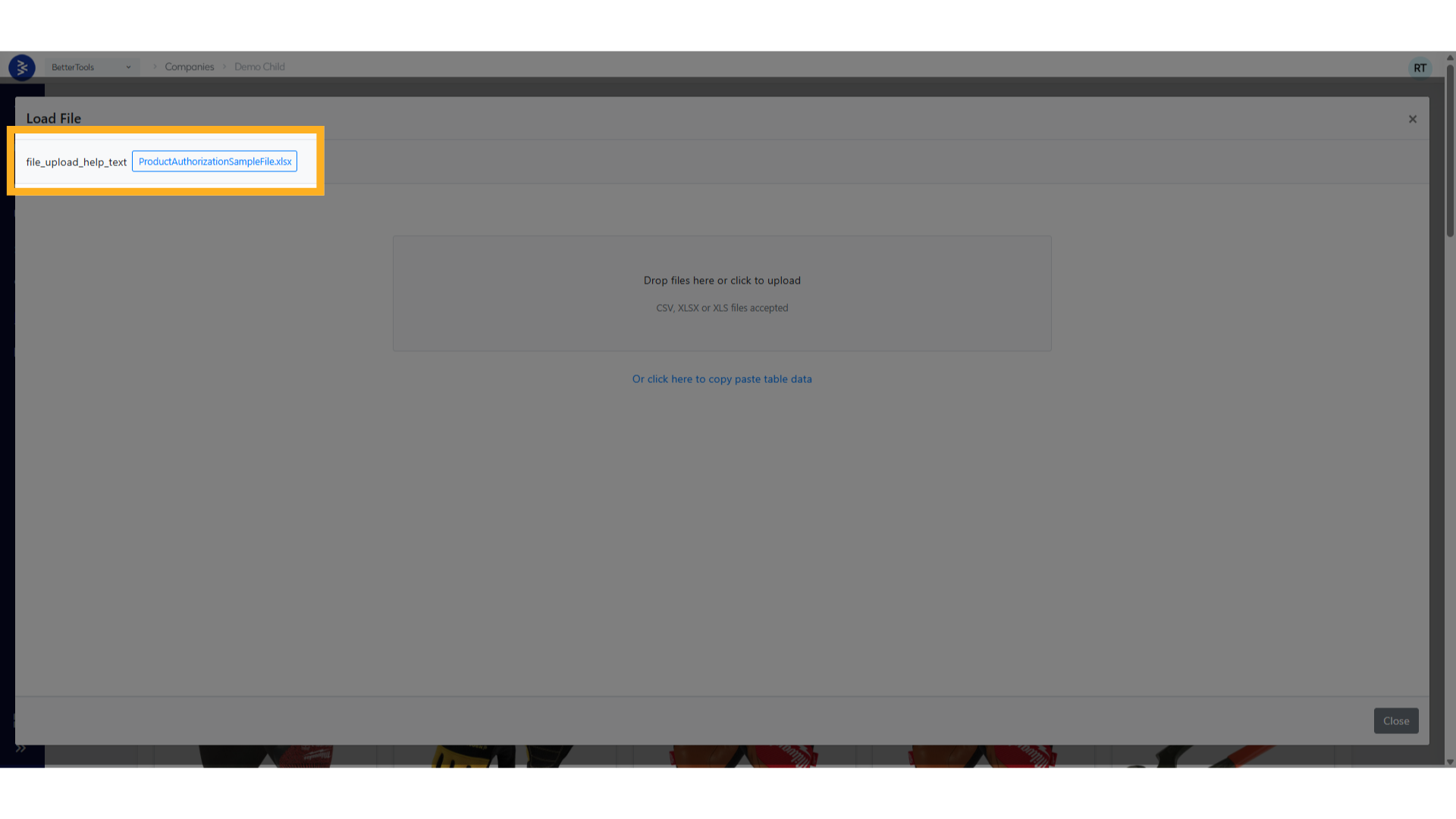
- Prepare and Upload CSV files with companycode and stockcode
Sample file format:
| CompanyCode | StockCode |
|---|---|
| abcCode | 272527 |
| abcCode | 274961 |
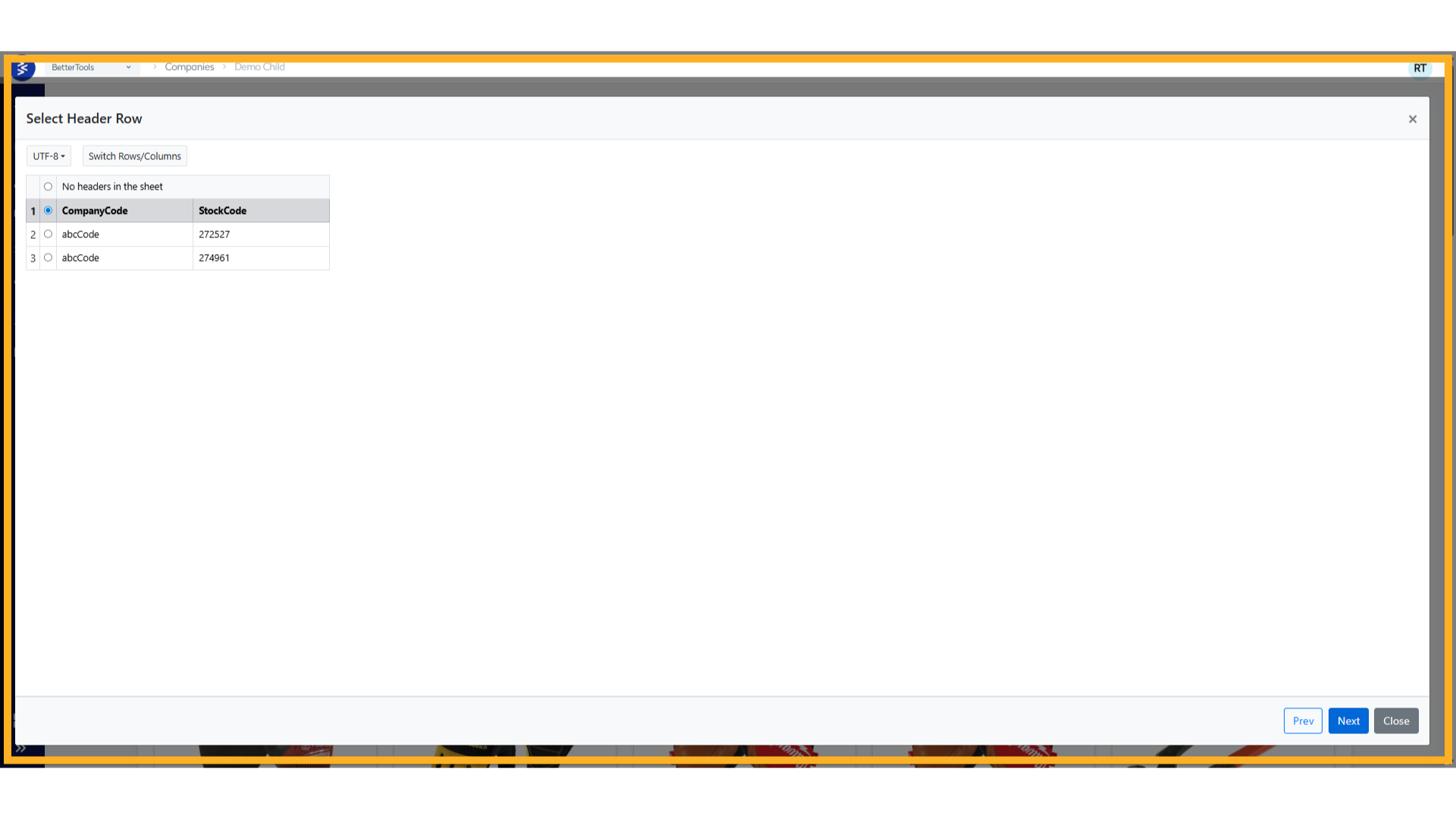
- Select Header, click next
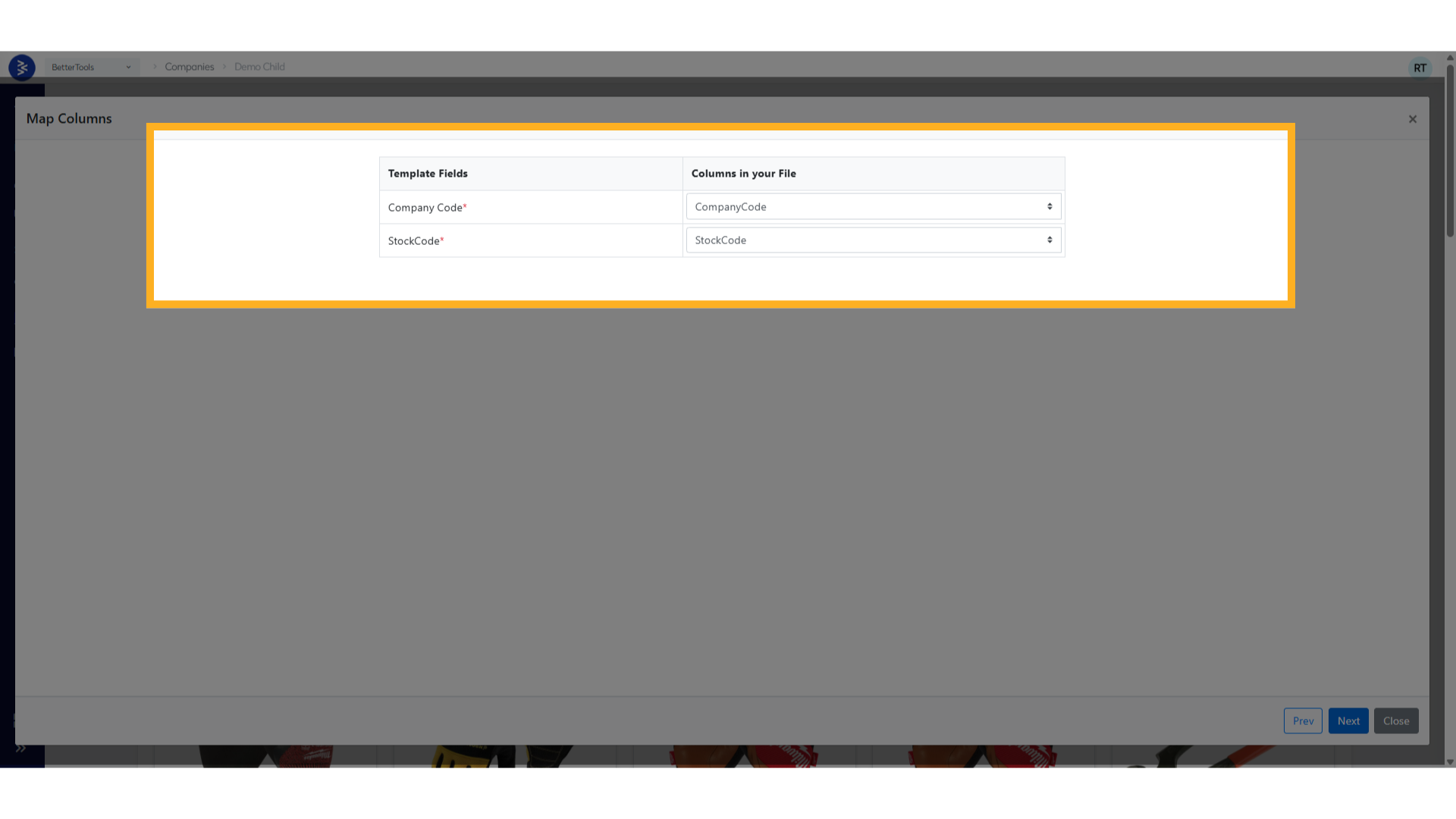
- Review Column mapping, click next
- Verify data and click submit
Step 4: Preview Changes
- Review the updated Item Count after modifications
- Browse through the product grid to verify correct products are displayed
Catalog Management Features
Filter Options Available
| Filter Type | Description | Example |
|---|---|---|
| Category-based | Show products from specific categories | "Clothing And Protection" |
| Brand filtering | Display products from selected manufacturers | "Milwaukee", "Traffi", "DEWALT" |
| Price range | Set minimum/maximum price thresholds | £10.00 - £50.00 |
| Stock status | Show only in-stock items | Available, Out of Stock |
| Custom attributes | Use product-specific attributes | Color, Size, Material |
Product Display
Each catalog shows:
- Product images with hover effects
- Brand information and logos
- Product names with links to detailed views
- Stock codes for easy ordering (e.g., 253665, 275620)
- Pricing information in customer currency
- Direct links to product editor
Pagination and Navigation
Current Example: • Products displayed in grid format (40 items per page) • Page navigation (1, 2, 3... 27 pages available) • Item count display: "1 to 40 of 1046"
Integration with Other Features
Price Books The catalog system integrates seamlessly with pricing:
Price Book Integration: • Catalogs work with customer-specific price lists • Default pricing can be overridden per customer • Supports multiple currencies (GBP, USD, EUR)
The B2B catalog functionality provides powerful tools for creating personalized customer experiences, ensuring trading accounts see only relevant products while maintaining efficient catalog management for administrators.
Key benefits include:
- Improved customer experience through relevant product discovery
- Streamlined ordering with focused product selections
- Enhanced sales efficiency with targeted product presentations
- Flexible management through powerful filtering and bulk operations
Datapack Management
The DataPack in BetterCommerce enables businesses to efficiently import, export to sync large volumes of product, pricing, and customer data across systems, channels, or storefronts. It’s designed for scalability, control, and accuracy, especially useful in B2B and enterprise-grade retail environments.
Key Features
Bulk Data Import & Export
- Import thousands of SKUs, price updates, or customer records in one go.
- Export structured data for external systems like ERPs, marketplaces, or analysis tools.
- Supports formats like CSV, XLSX, and JSON.
Data Validation
- Built-in validation engine ensures data integrity before processing.
- Common validations include:
- Required fields (e.g., Stock Code, Price, Email)
- Data types (e.g., numeric, text, enum)
- Duplicate entries or conflicts
- Errors and warnings are logged in a downloadable report for quick fixing.
Scheduling & Automation
- Schedule DataPack jobs (import/export) to run daily, weekly, or on-demand.
- Useful for syncing data from external systems (e.g., PIM, ERP) without manual intervention.
- Automate catalog updates, stock syncs, and customer data refreshes.
Channel-Specific Packaging
- Create different DataPacks for:
- B2B vs B2C
- Regional storefronts
- Brand-specific catalogs
- Control visibility of products, prices, or content per channel.
Attribute & Variant Handling
- Sync complex product structures including:
- Sizes, Colors, Styles
- Configurable and bundled products
- Maintain consistency across marketplaces and websites.
Change Tracking & Logs
- Audit logs show:
- Who initiated the import/export
- When it ran
- What data changed or failed
- Downloadable logs help track root causes and fix issues proactively.
Notifications & Alerts
- Set up success/failure notifications via email.
- Alerts for failed validations or skipped entries.
Pre-Processing & Transformation
- Map columns before import (e.g., ExternalField → InternalField)
- Apply default values, data cleaning, or formatting rules during upload.
API Integration Support
- Trigger DataPack jobs via APIs for real-time sync with external systems.
- Suitable for headless or hybrid commerce implementations.
How to create a datapack in B2B
Field and their descriptions to know before proceeding to create datapack in B2B module:
DataPack Settings
| Field Name | Description | Required | Options/Format |
|---|---|---|---|
| Name | Unique identifier for the DataPack | Yes | Text field |
| Language | Language setting for the DataPack content | Yes | Dropdown (Default: English) |
| Pricelist | Associated pricelist for product pricing | Yes | Dropdown (Default: Default Pricelist) |
Basic Information
| Field Name | Description | Required | Options |
|---|---|---|---|
| Brands | Select which brands to include in the DataPack | Yes | • All Brands (default) • Specific Brands |
| Categories | Select which product categories to include | Yes | • All Categories (default) • Specific Categories |
Configuration
| Field Name | Description | Required | Options |
|---|---|---|---|
| Include All Active Products | Whether to include all active products in the catalog | Yes | • No (default) • Yes |
| Include OOS Products | Include Out of Stock products in the DataPack | Yes | • No (default) • Yes |
| Include Image DataPack | Include product images in the DataPack | Yes | • No (default) • Yes |
Generation Schedule
| Field Name | Description | Required | Options/Format |
|---|---|---|---|
| Frequency | How often the DataPack should be automatically generated | Yes | Dropdown (Default: Once a day) |
| Time | Specific time for automatic generation | Yes | Time picker (Select...) |
Delivery Preferences
| Field Name | Description | Required | Options |
|---|---|---|---|
| Delivery Type | Method of DataPack delivery to the customer | Yes | Dropdown (Default: Portal) |
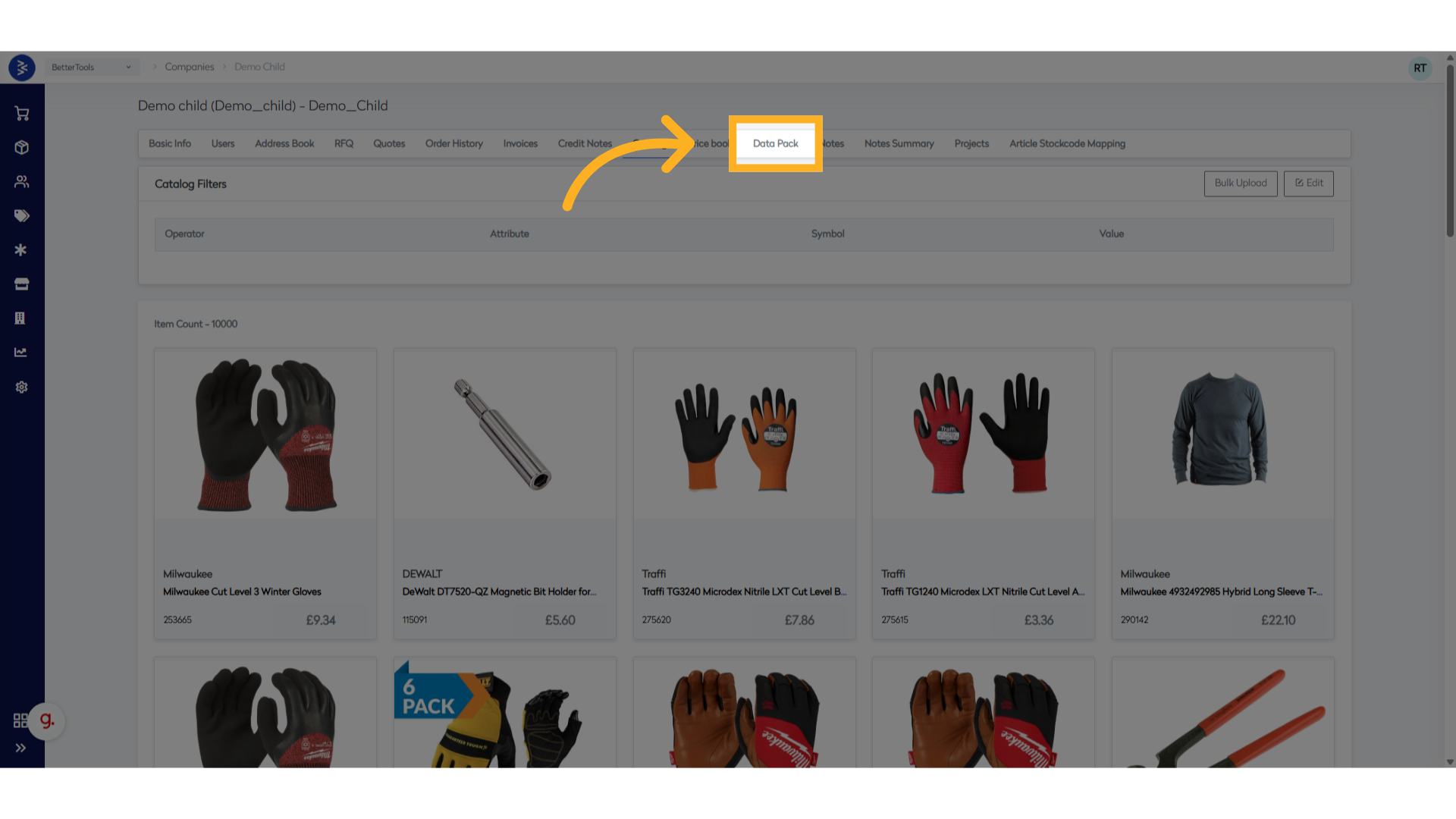
Step 1: Navigate to the DataPack tab of a B2B/Company Account
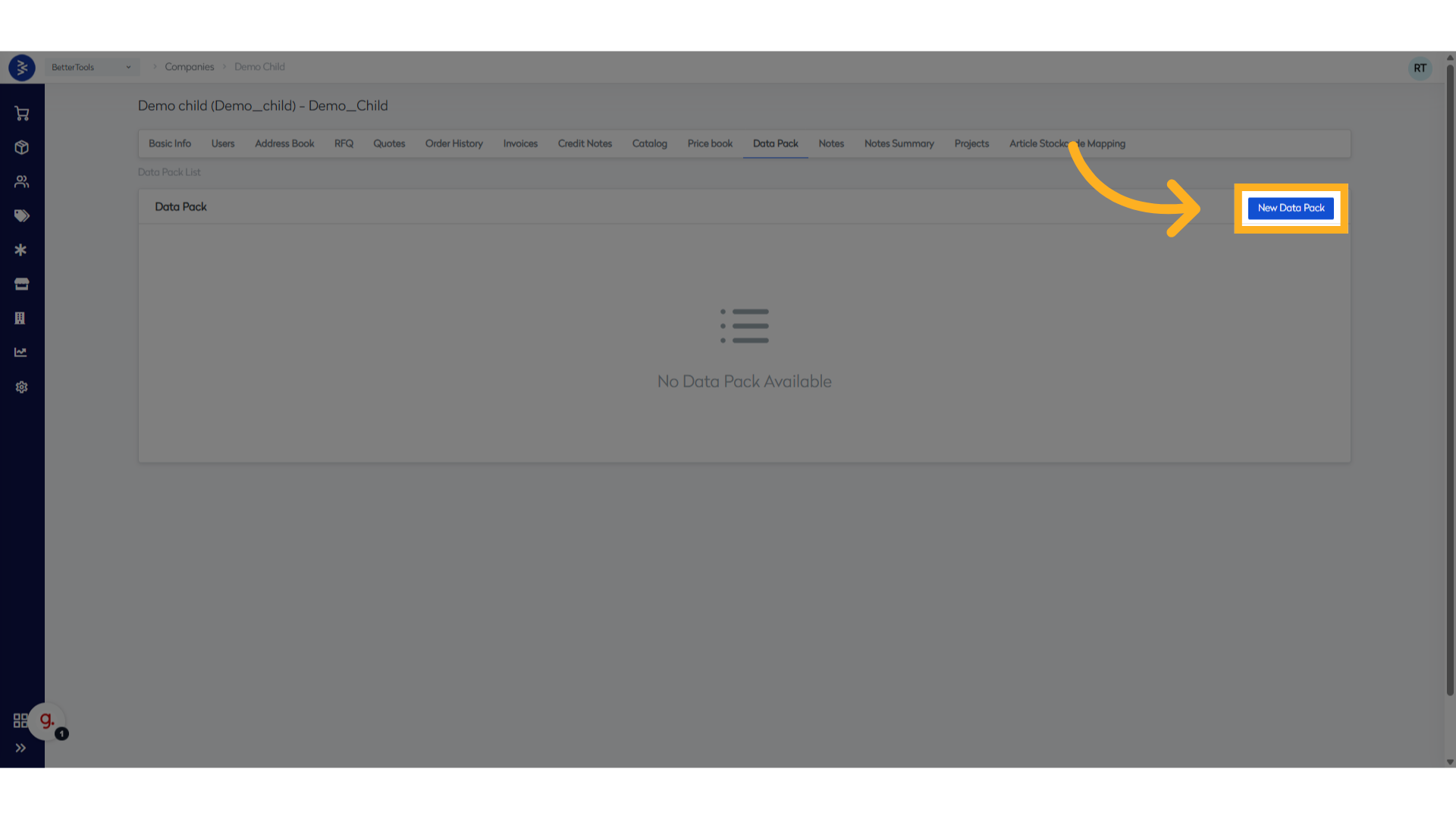
Step 2: Click New Data Pack to create new datapack.
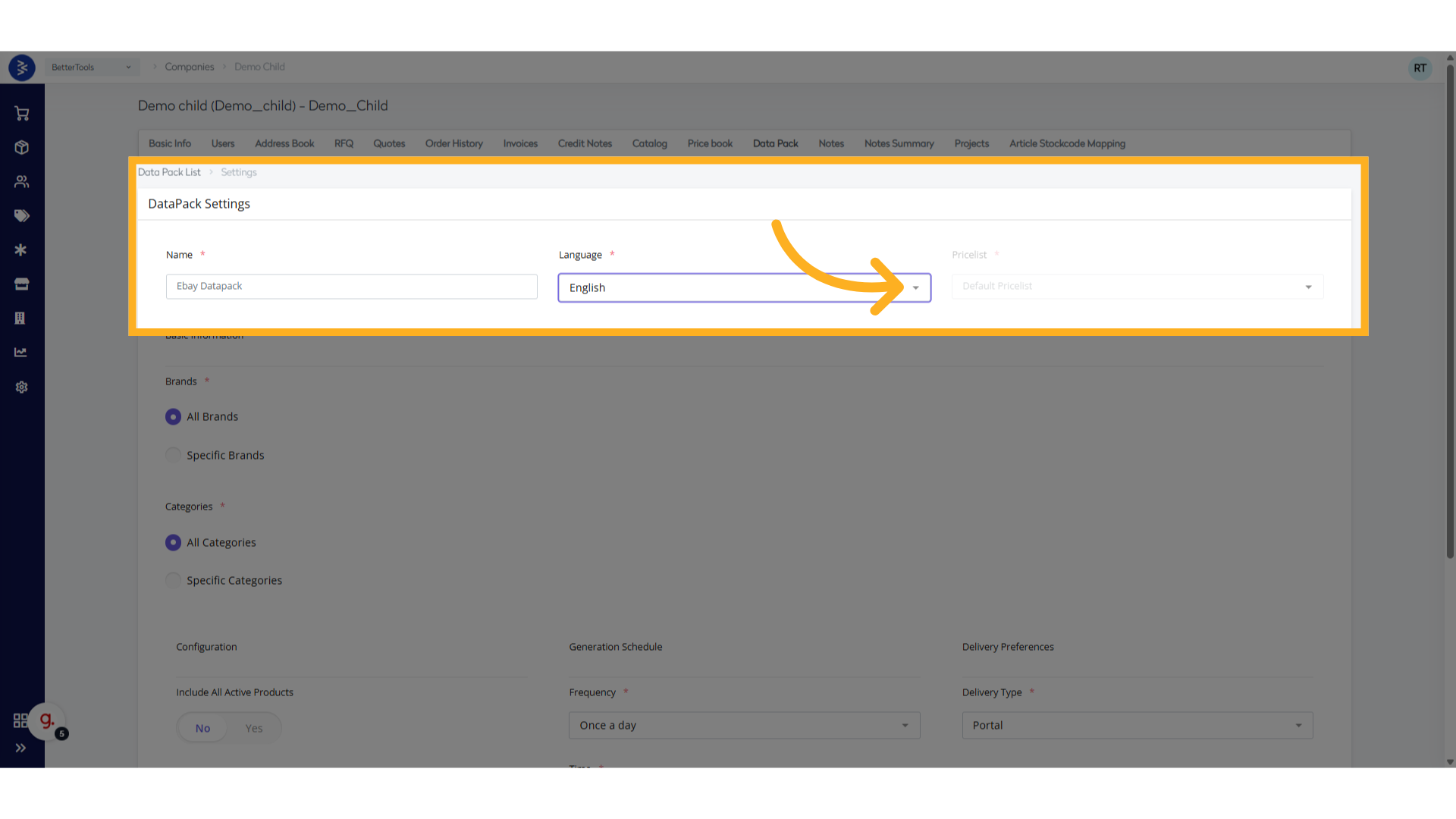
Step 3: Configure DataPack Settings
- Name: Enter a unique name for your DataPack.
- Language: Select the preferred language (default is English).
- Pricelist: Choose the relevant price list associated with this customer.
Step 4: Set Basic Information and click next
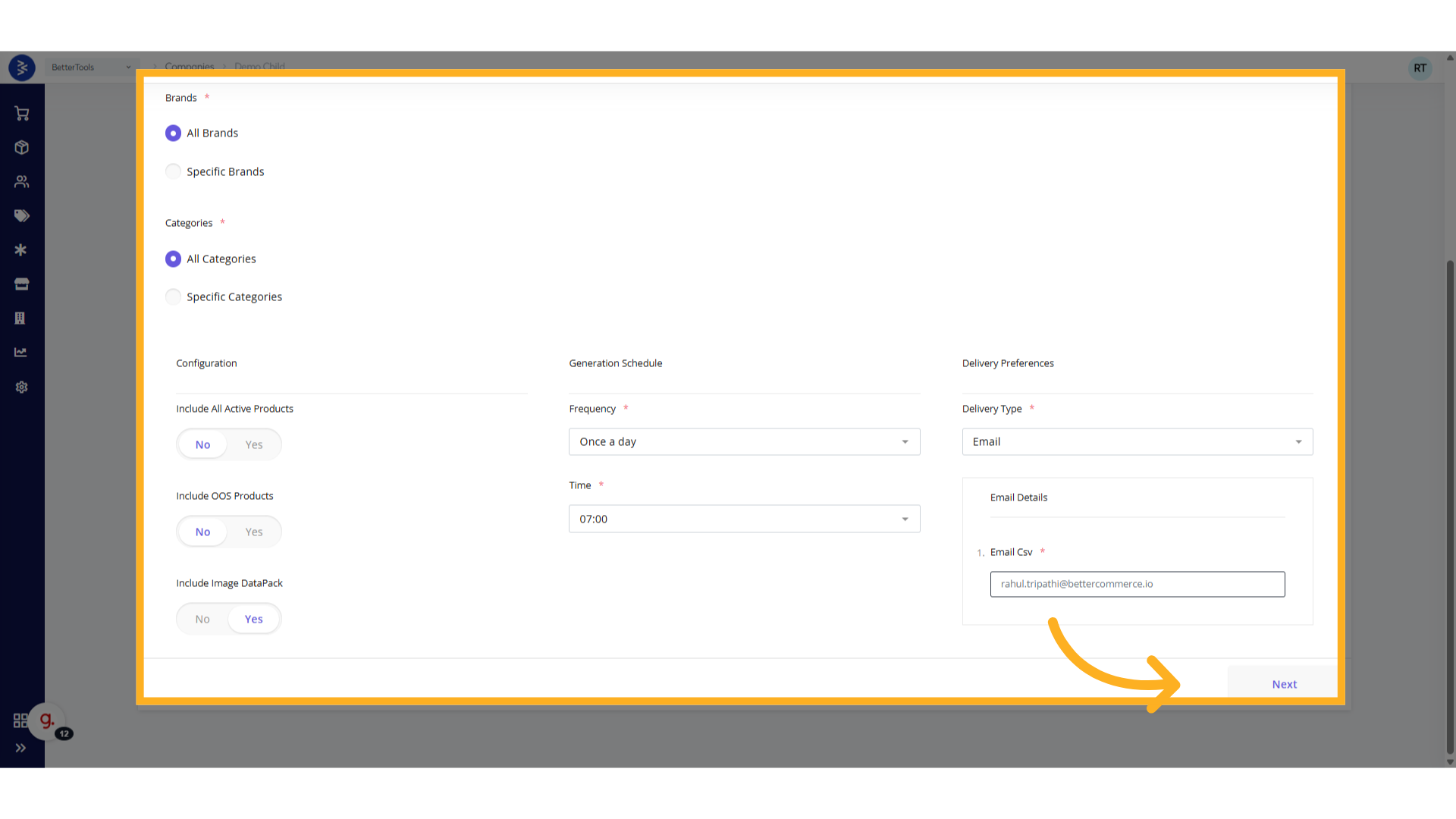
| FieldName | Options / Description |
|---|---|
| Brands Selection |
|
| Categories Selection |
|
| Include All Active Products |
|
| Include OOS Products |
|
| Include Image DataPack |
|
| Schedule Generation |
|
| Delivery Preferences |
|
Step 5: Update Product attributes to be included in Data Pack
- Update attributes separated by tab in the space provided
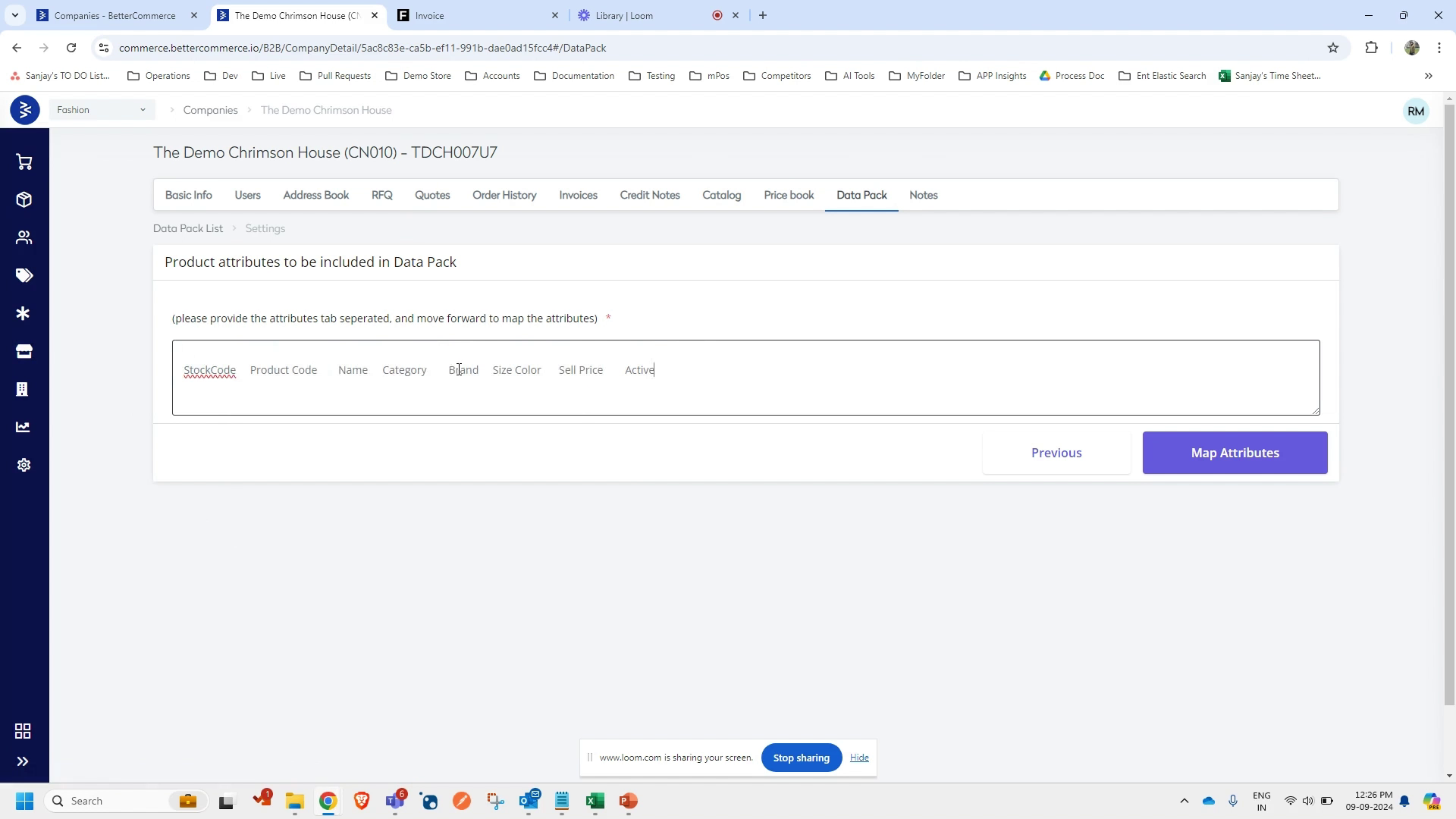
- Click Save
- Map the external attributes with the fields from BetterCommerce
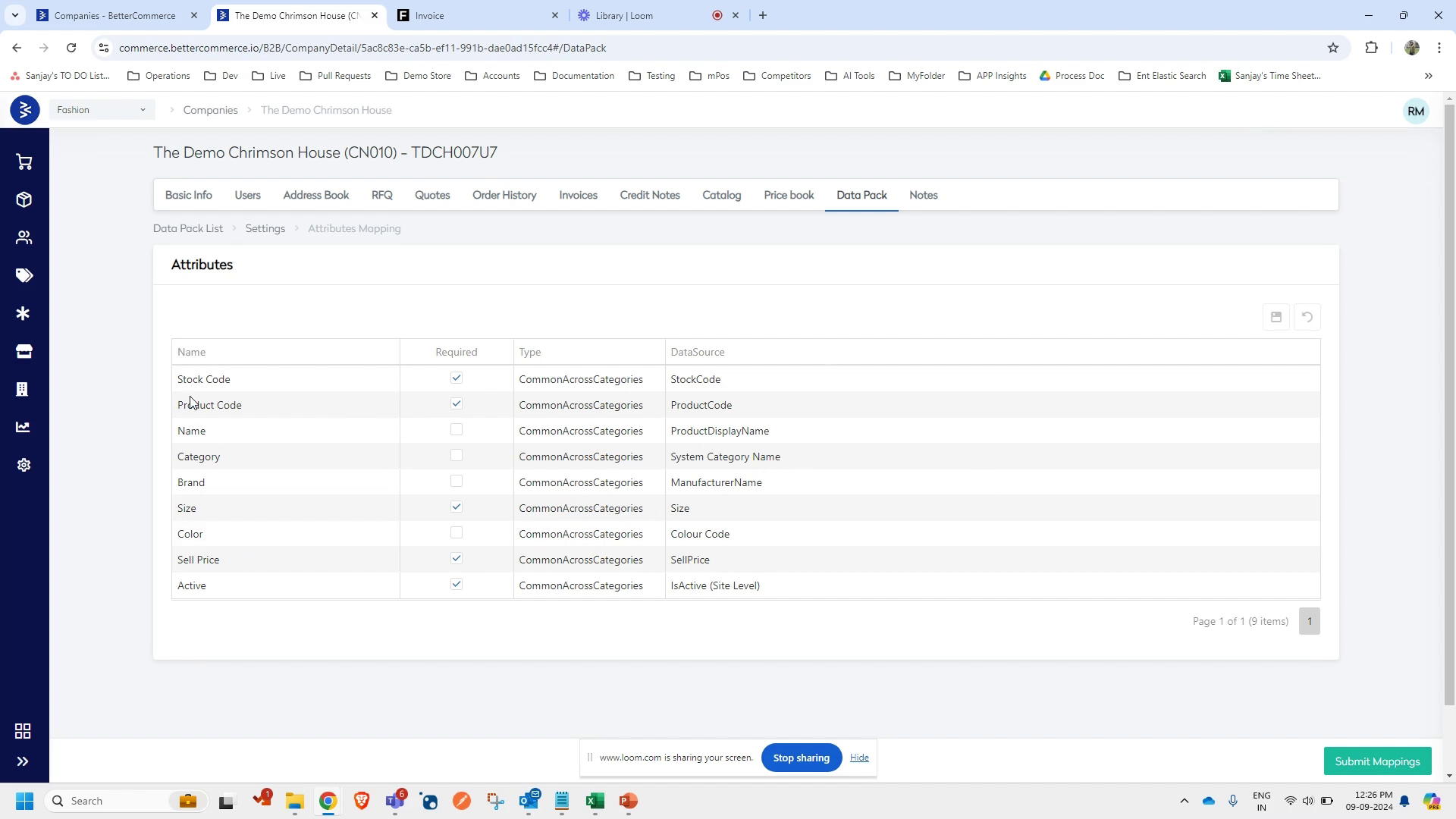
Step 6: Save and Generate
- Review all configured settings for accuracy.
- Click Save to store the DataPack configuration.
- The system will automatically generate the DataPack based on the defined schedule.
- Monitor the generation status in the DataPack list view.
By leveraging DataPack features, businesses can streamline operations, minimize manual tasks, and maintain consistent, high-quality data across all selling channels.
B2B Address Management
Store and manage multiple business addresses—billing, shipping, and delivery points—tailored to each trading account’s needs.
B2B Address Book
Overview
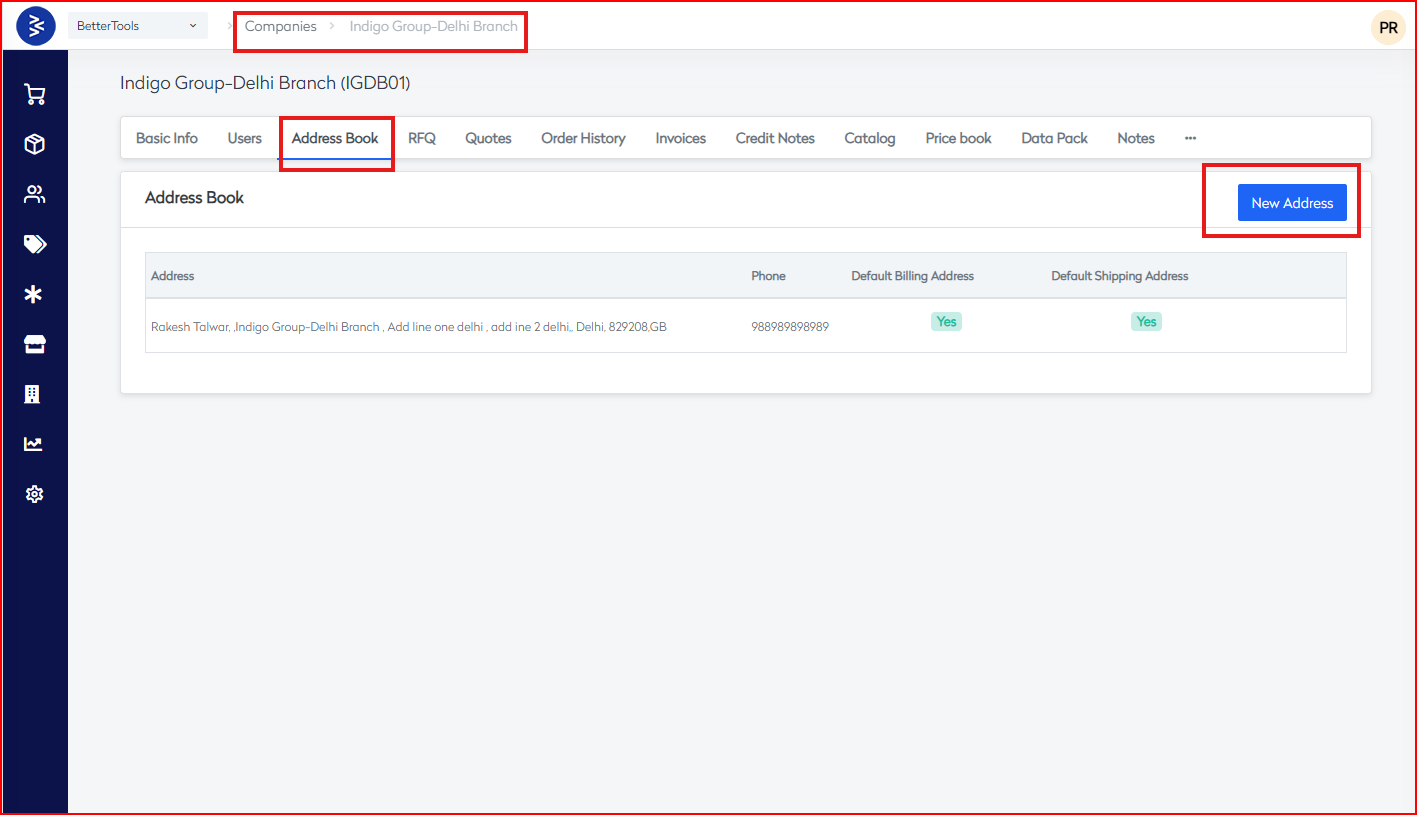
The Address Book module in the BetterCommerce B2B platform enables companies to manage their shipping and billing addresses centrally. This document details the current implementation as observed in the Indigo Group – Delhi Branch (IGDB01).
Interface Overview**
Navigation Path
Companies > Indigo Group-Delhi Branch > Address Book
Company Context
- Company: Indigo Group – Delhi Branch
- Branch Code: IGDB01
Primary Action
- New Address button available at the top right.
Address Book Table Structure
| Column | Description |
|---|---|
| Address | Full address including contact name, company, street, city, postal code, and country |
| Phone | Contact phone number |
| Default Billing | Indicates if this is the default billing address, includes a "Set as default" link |
| Default Shipping | Indicates if this is the default shipping address, includes a "Set as default" link |
Example Address Record
| Field | Value |
|---|---|
| Contact | Rakesh Talwar |
| Company | Indigo Group-Delhi Branch |
| Address Line 1 | Add line one delhi |
| Address Line 2 | add ine 2 delhi |
| City | Delhi |
| Postal Code | 829208 |
| Country | GB (Great Britain) |
| Phone | 988989898989 |
| Default Billing | Yes |
| Default Shipping | Yes |
Functional Capabilities
Address Management
- Add new addresses via the New Address button
- Edit and delete existing addresses using the respective icons
- Set billing and shipping defaults using "Set as default" links
Default Logic
- Separate default billing and shipping addresses can be configured
- Current state: one address is used for both defaults
- Toggle default options are visible per address
System State
Data Status
- Total Active Addresses: 1
- Default Configuration: Single address marked for both billing and shipping
- International Acceptance: GB country code accepted with Indian city (Delhi)
Empty State Message
"No Addresses Available" — Displayed when no address is configured.
User Actions
Available Actions
- New Address – Add new address records
- Set as Default – Update billing or shipping defaults
- Edit – Modify current address details
- Delete – Remove address from the company profile
Company Tab Navigation
Tabs available for company management:
- Basic Info
- Users
- Address Book
- RFQ
- Quotes
- Order History
- Invoices
- Credit Notes
- Catalog
- Price Book
- Data Pack
- Notes
Integration Touchpoints
- Order Processing: Uses shipping address
- Invoice Generation: Uses billing address
- Quote Generation: Allows address selection per quote
Address Data Structure
Each address entry consists of the following fields:
- Contact name
- Company association
- Address Line 1
- Address Line 2
- City
- Postal/ZIP code
- Country (2-letter ISO code)
- Phone number
- Default Billing (Boolean)
- Default Shipping (Boolean)
Sales Rep Dashboard
Provide sales representatives with a real-time overview of their accounts, orders, and performance metrics to drive proactive engagement.
Reporting Manager Dashboard
Offer managers consolidated reports on sales, orders, and customer behavior, with filtering and export options for strategic insights.
Managing RFQs
Allow customers to submit Request for Quotes (RFQs), track their status, and negotiate terms within the platform.
Creating and Managing Quotes
Generate formal quotes for customers, apply pricing and discount rules, and convert approved quotes into orders with a single click.
Product-Article Mapping
Overview
Article Mapping allows to create relationships between internal stock codes and customer-specific article codes. This is essential for customers who have their own internal product numbering systems and need to cross-reference products using their familiar codes.
How to map articles with products
Method 1: Individual Article Mapping
Step 1: Access Article Mapping
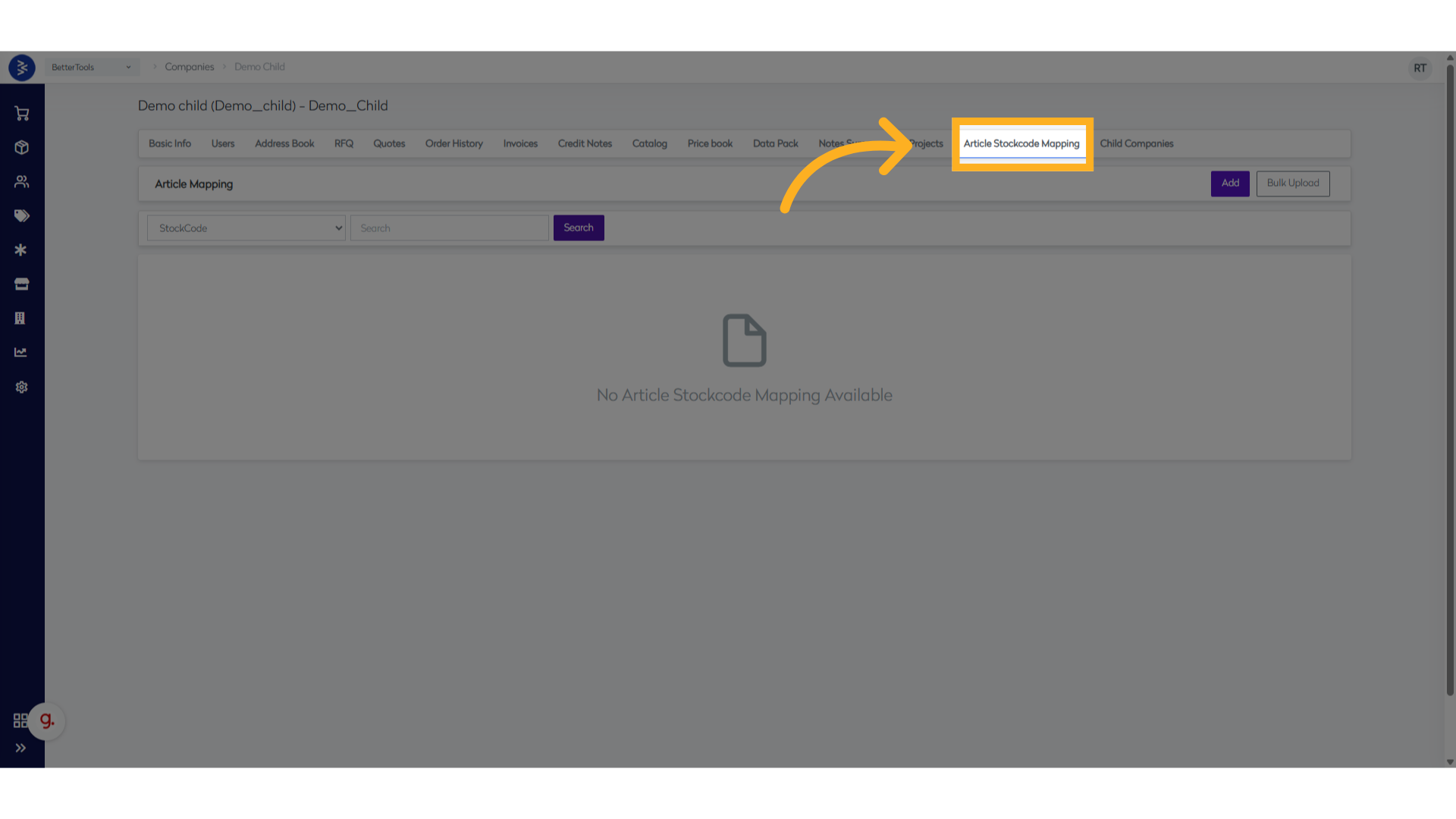
- Navigate to
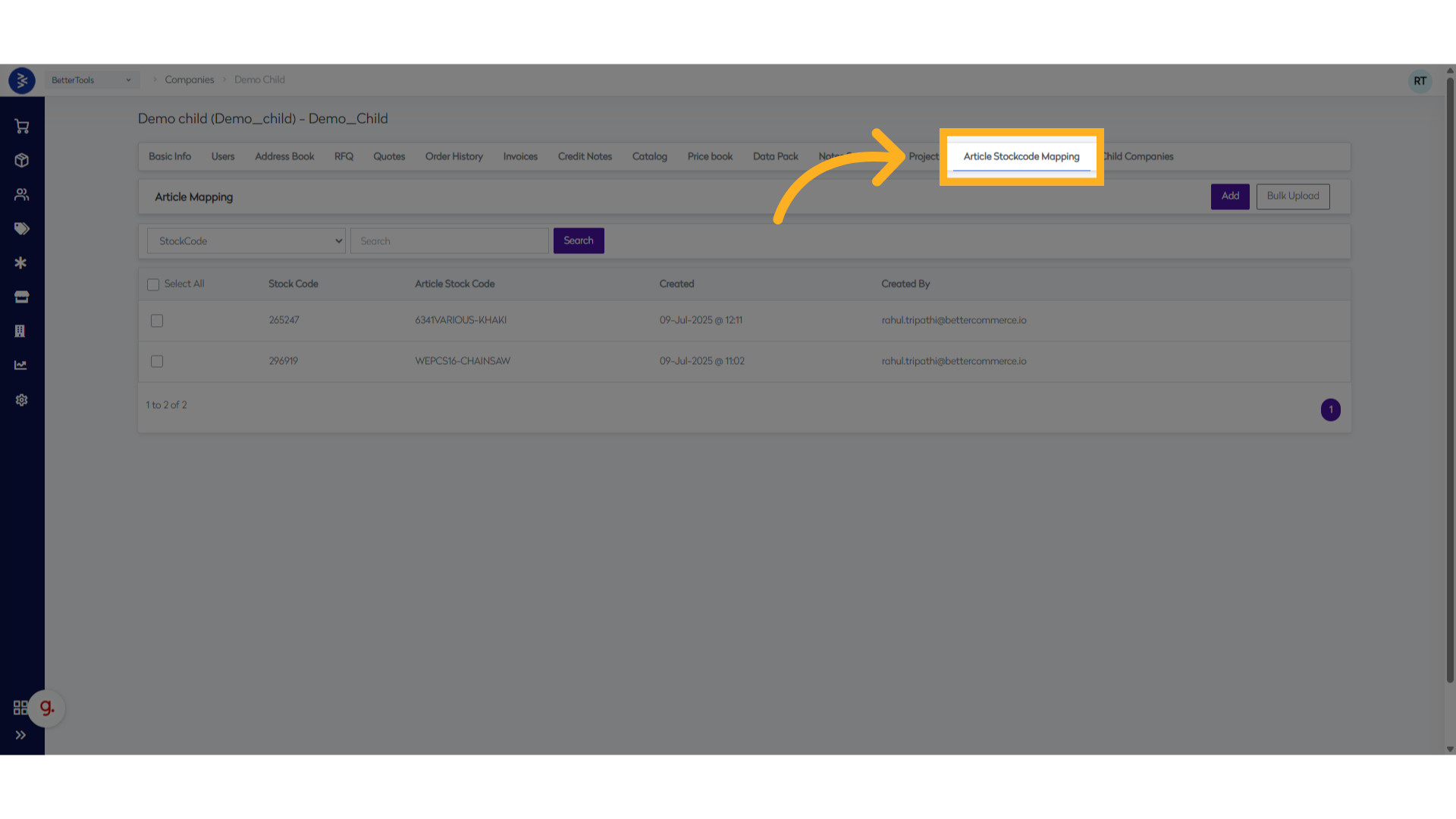
B2B → Companies - Select the target company
- Click on the Article Stockcode Mapping tab
Step 2: Add New Mapping
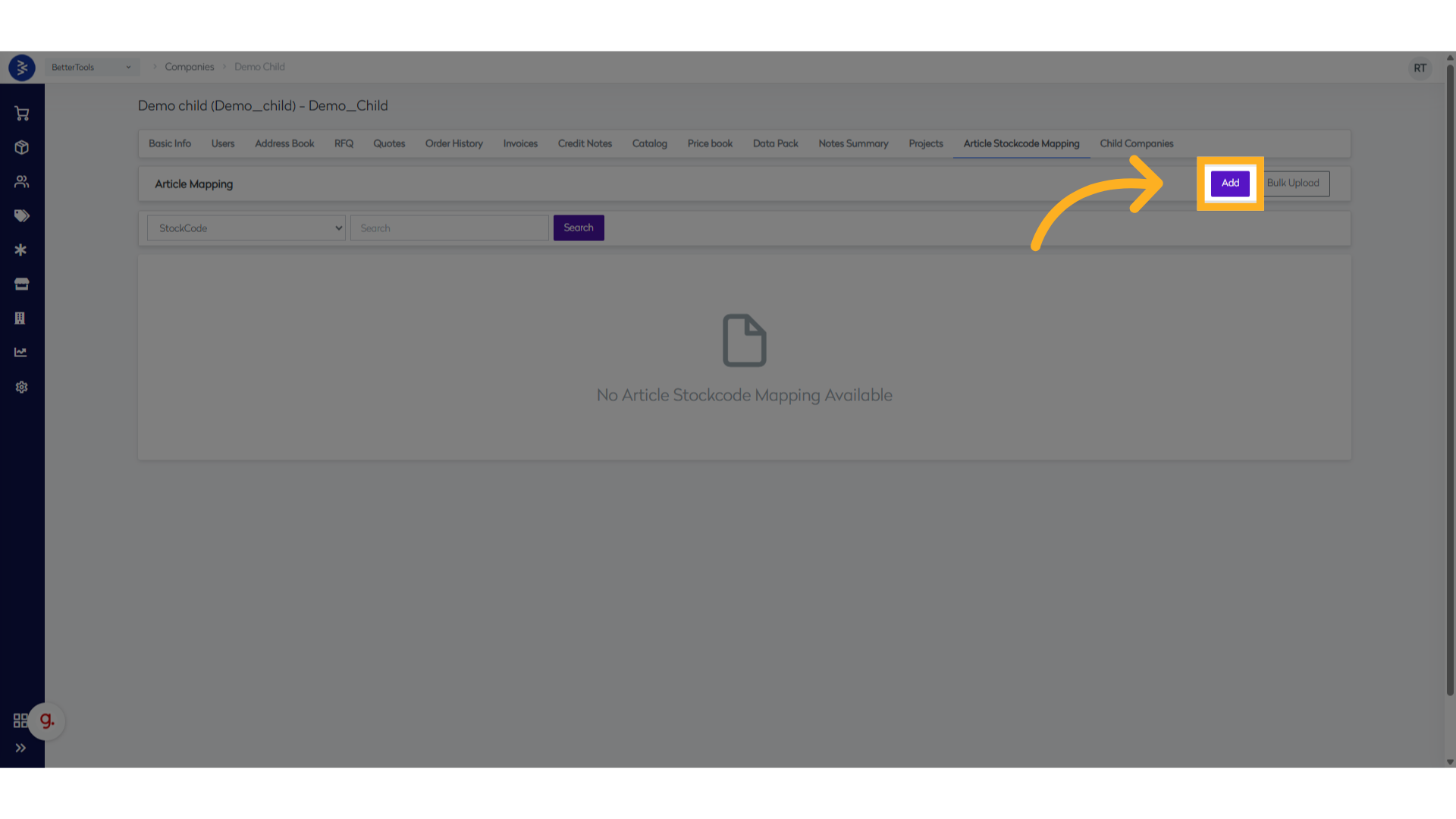
- Click the Add button
- A new mapping form will appear
Step 3: Enter Mapping Details
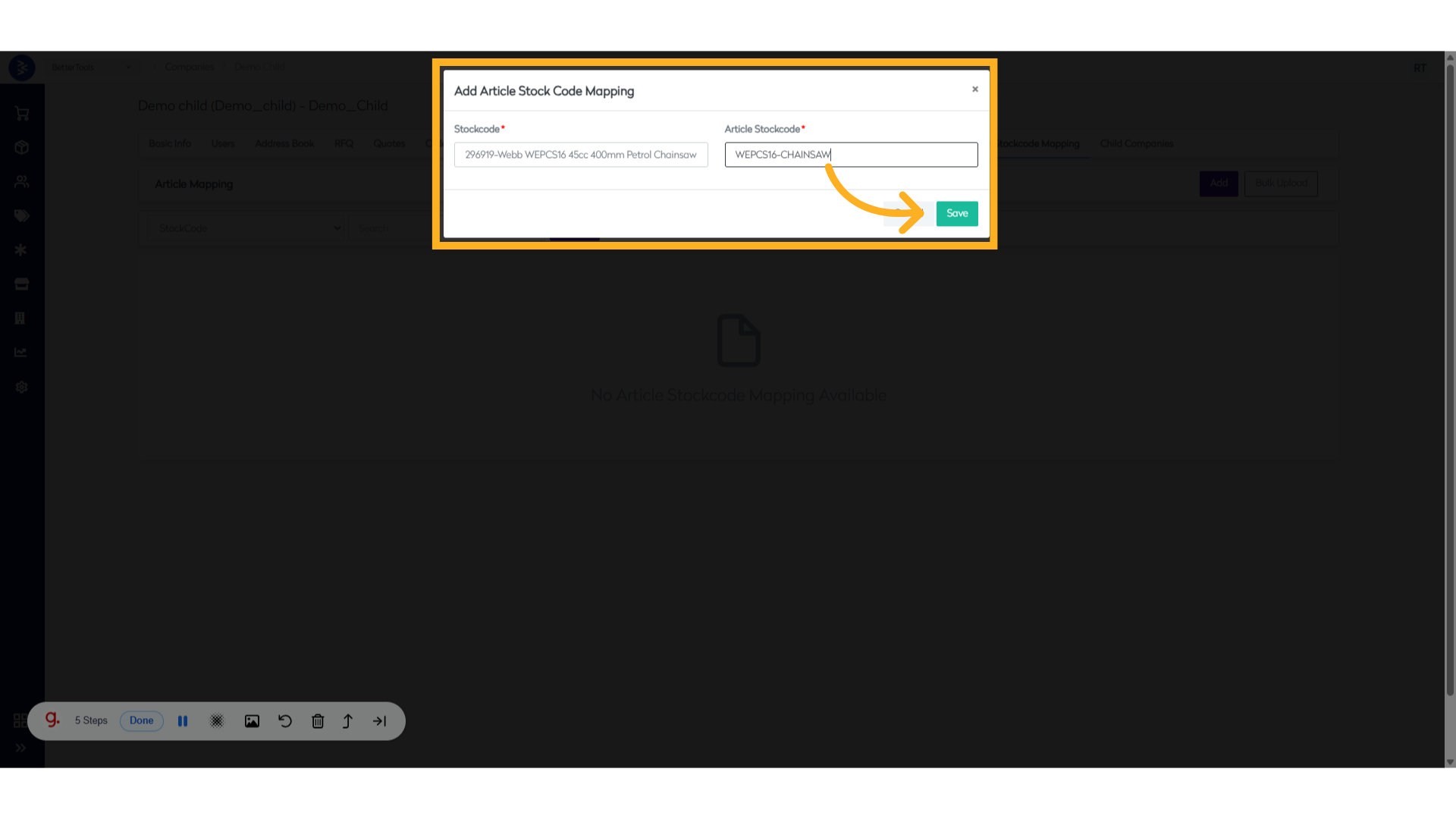
- Stock Code Field:
- Enter your internal stock code.
- This should match an existing product in your catalog.
- Article Stock Code Field:
- Enter the customer's article code
- Use the customer's preferred naming convention
Step 4: Save the Mapping
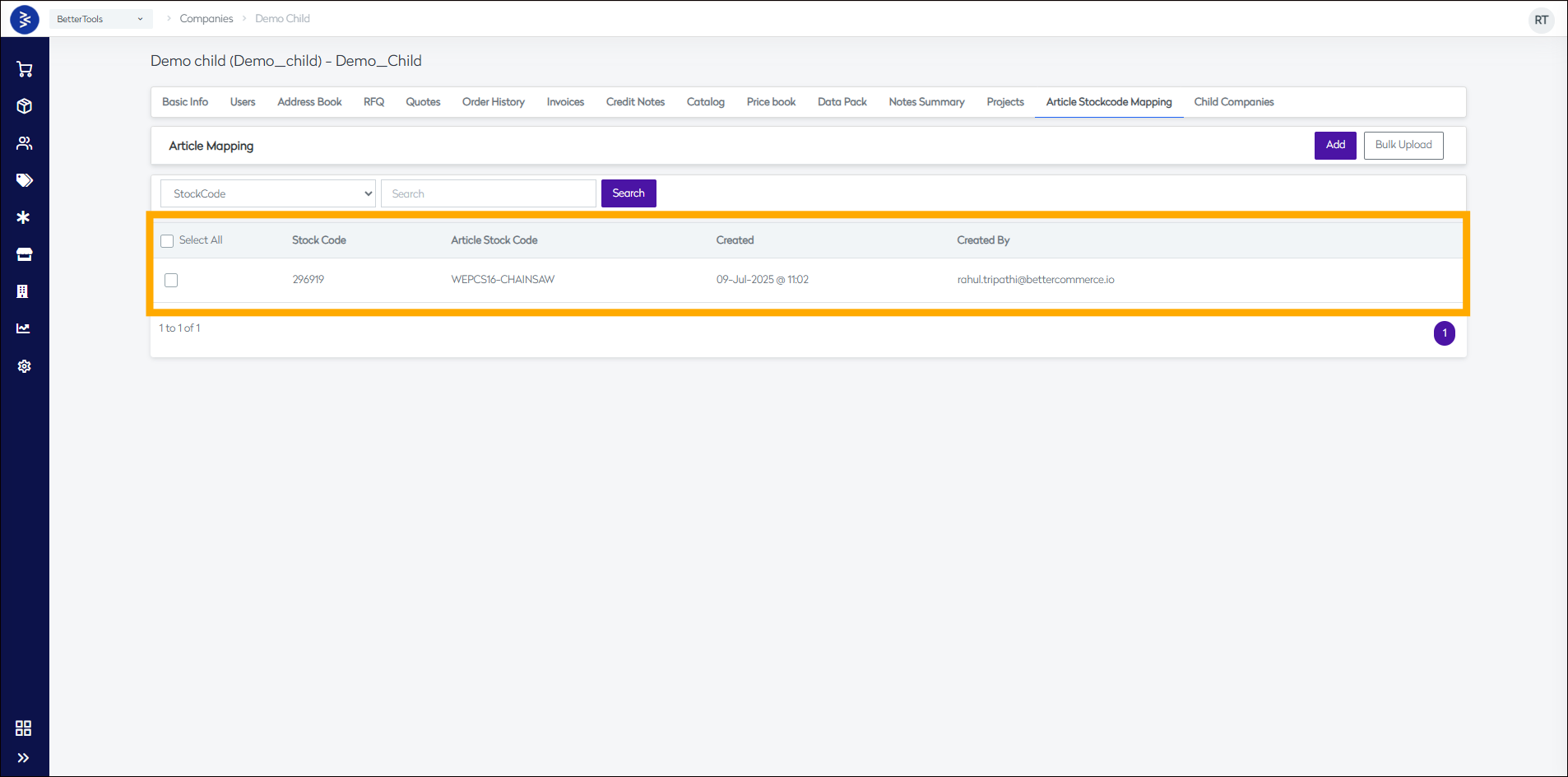
- Click Save to create the mapping
- The system will validate both codes
- Mapping will appear in the table with creation details
Method 2: Bulk Upload Article Mapping
This method allows you to map article stock codes to internal stock codes in bulk using a CSV upload.
Step 1: Navigate to Article Mapping Section
- Click on the Bulk Import
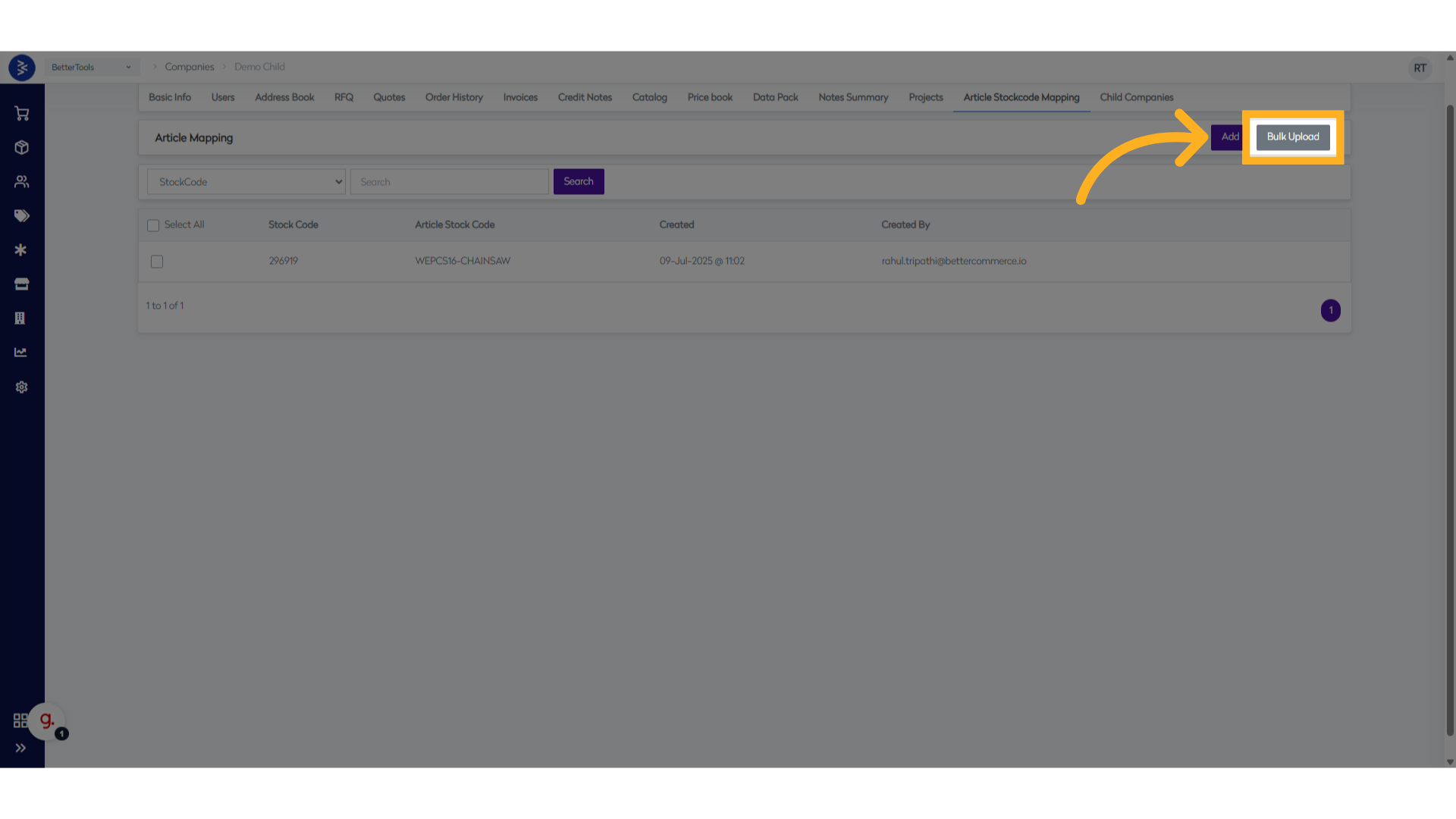
Step 2: Prepare CSV File
- Download sample file and create a CSV file for upload
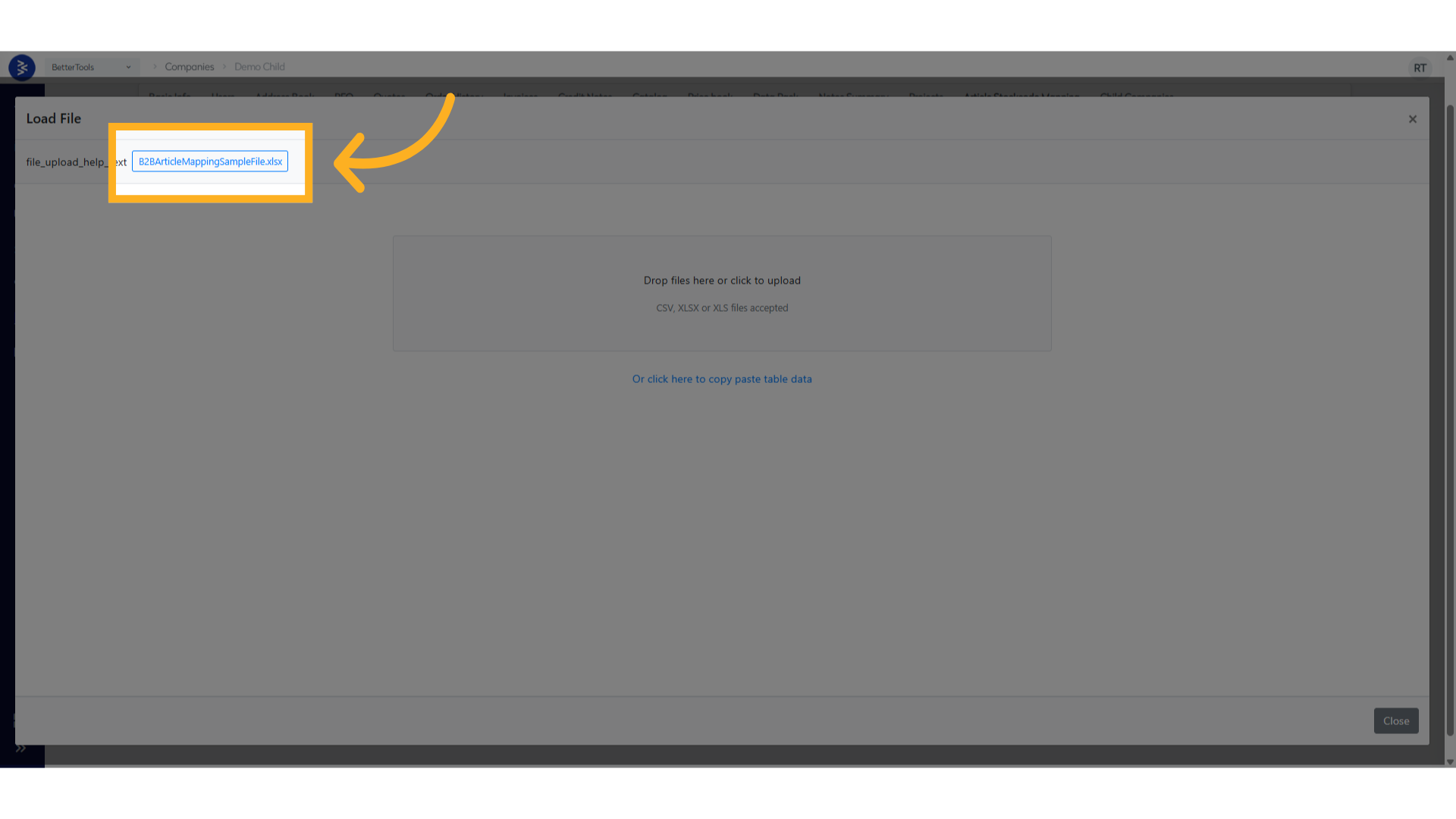
Sample file format:
| CompanyCode | StockCode | ArticleStockCode |
|---|---|---|
| abcCode | 272527 | 7643 |
| abcCode | 274961 | 6789 |
Step 2: Upload File
- Click the Bulk Upload button
- Select your prepared CSV file and upload
- Select Header, click next
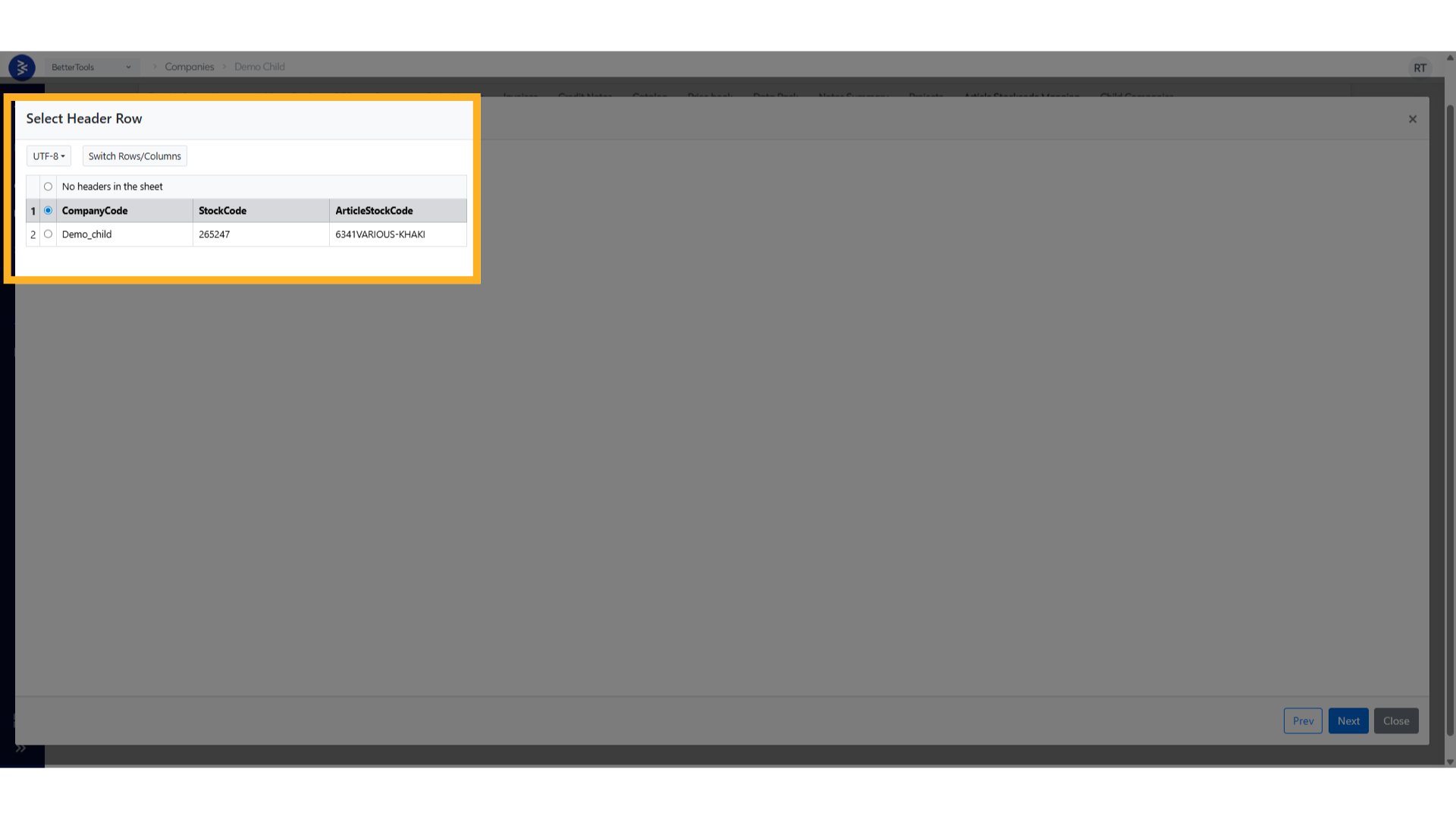
- Review Column mapping, click next
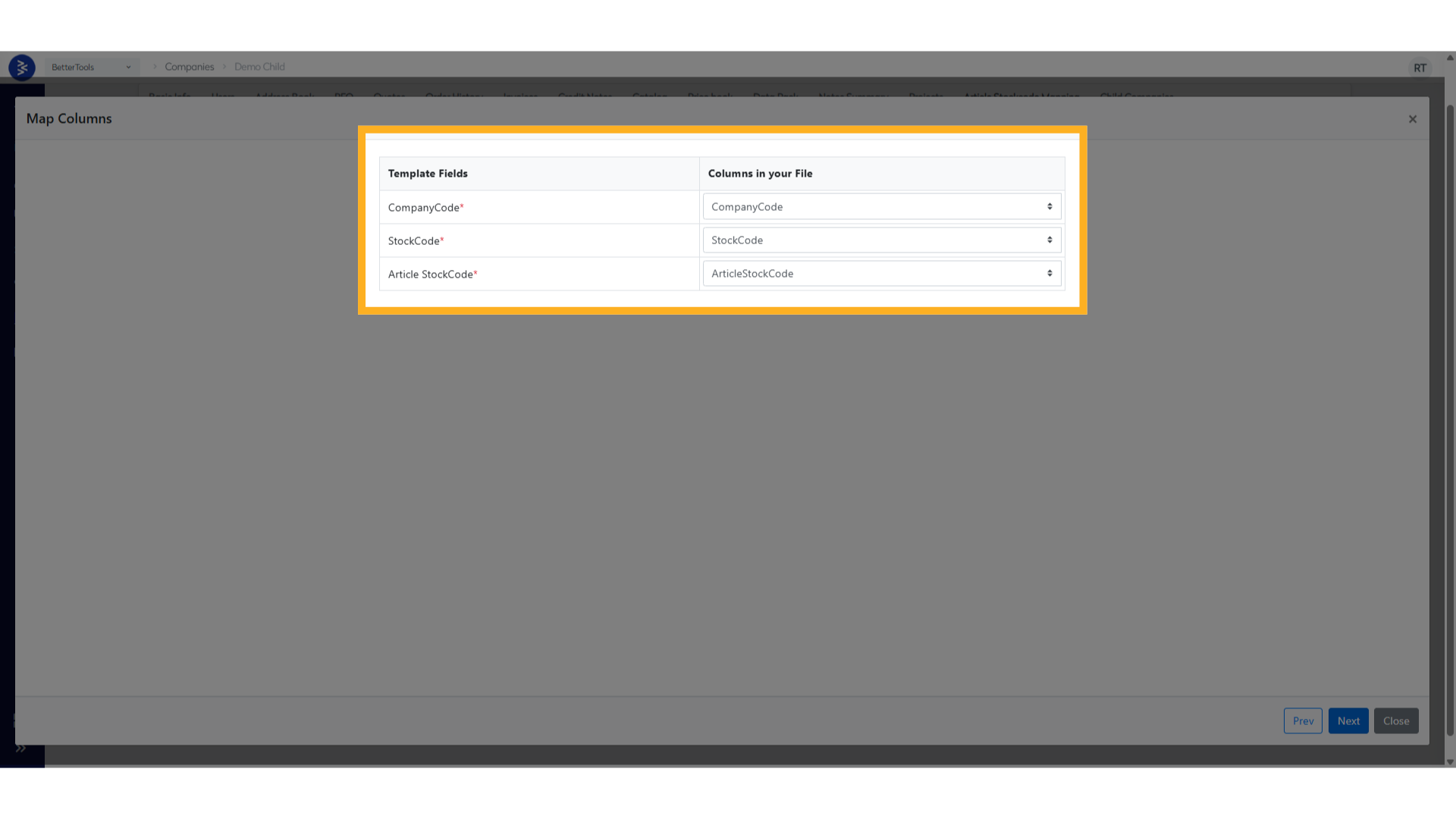
- Verify data and click submit
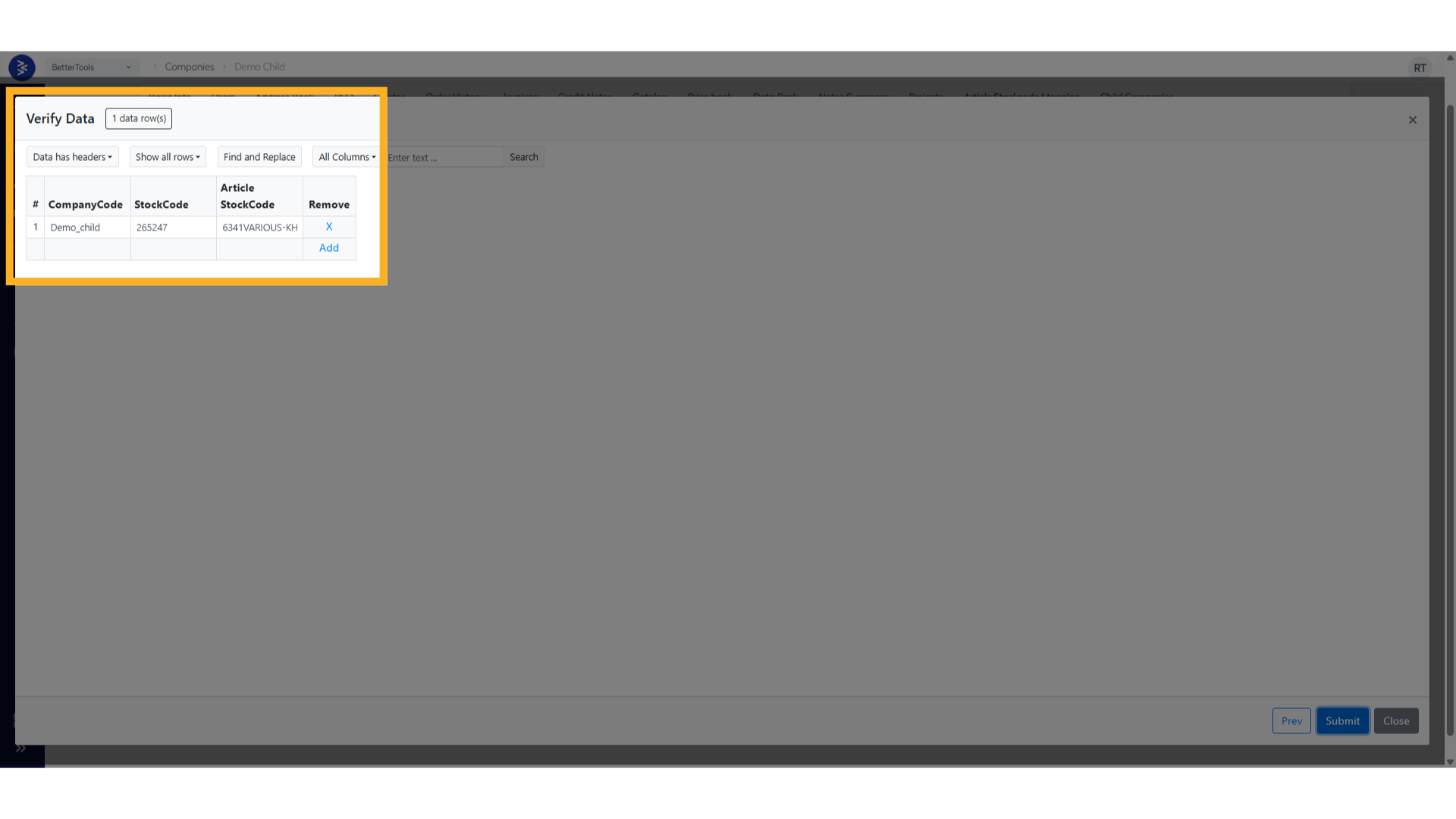
Step 3: Review changes
- Verify stockcodes mapping in the listing.
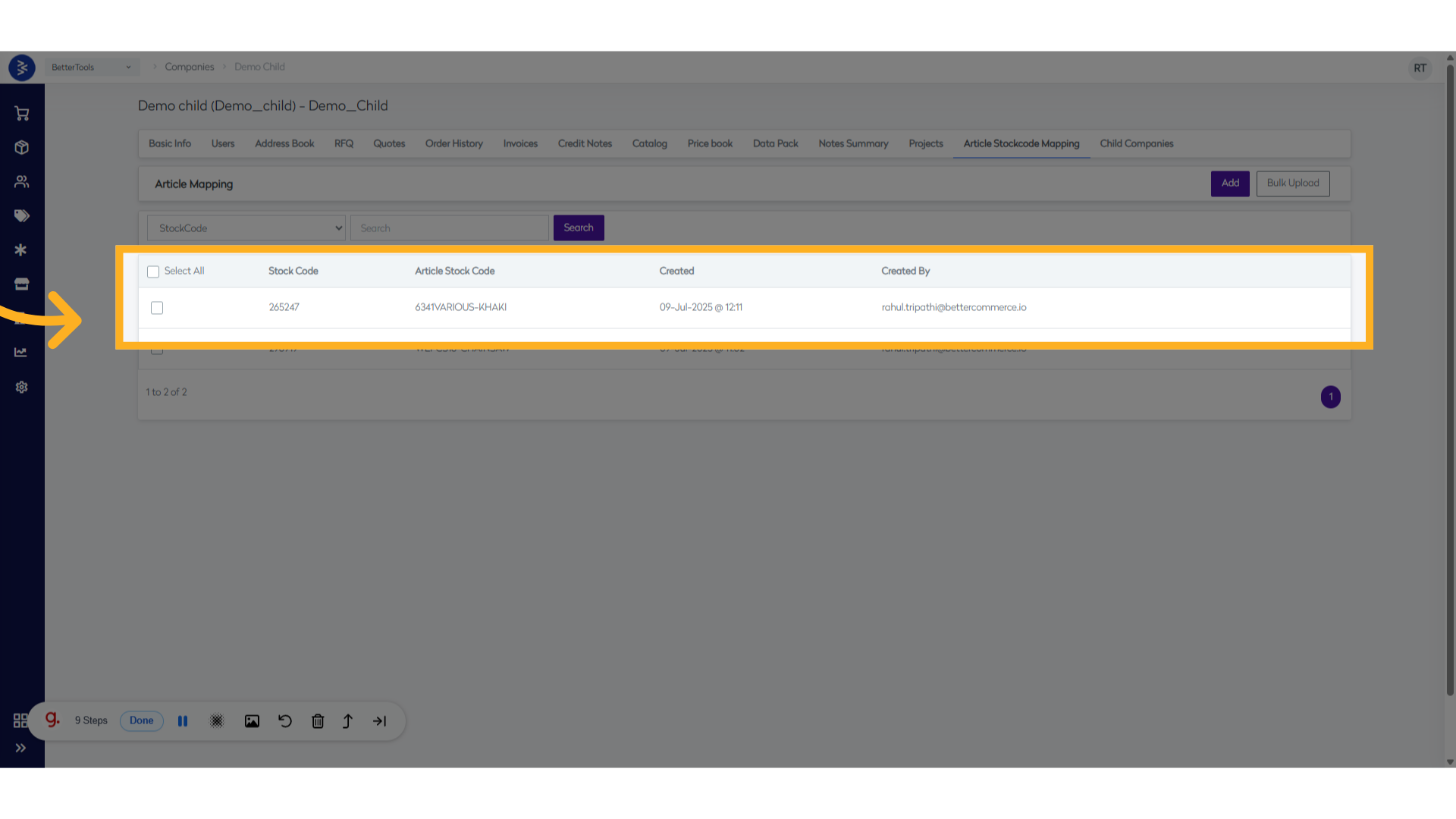
Managing Existing Mappings
1. Edit Existing Mappings
- Find the mapping in the list
- Click the Edit button
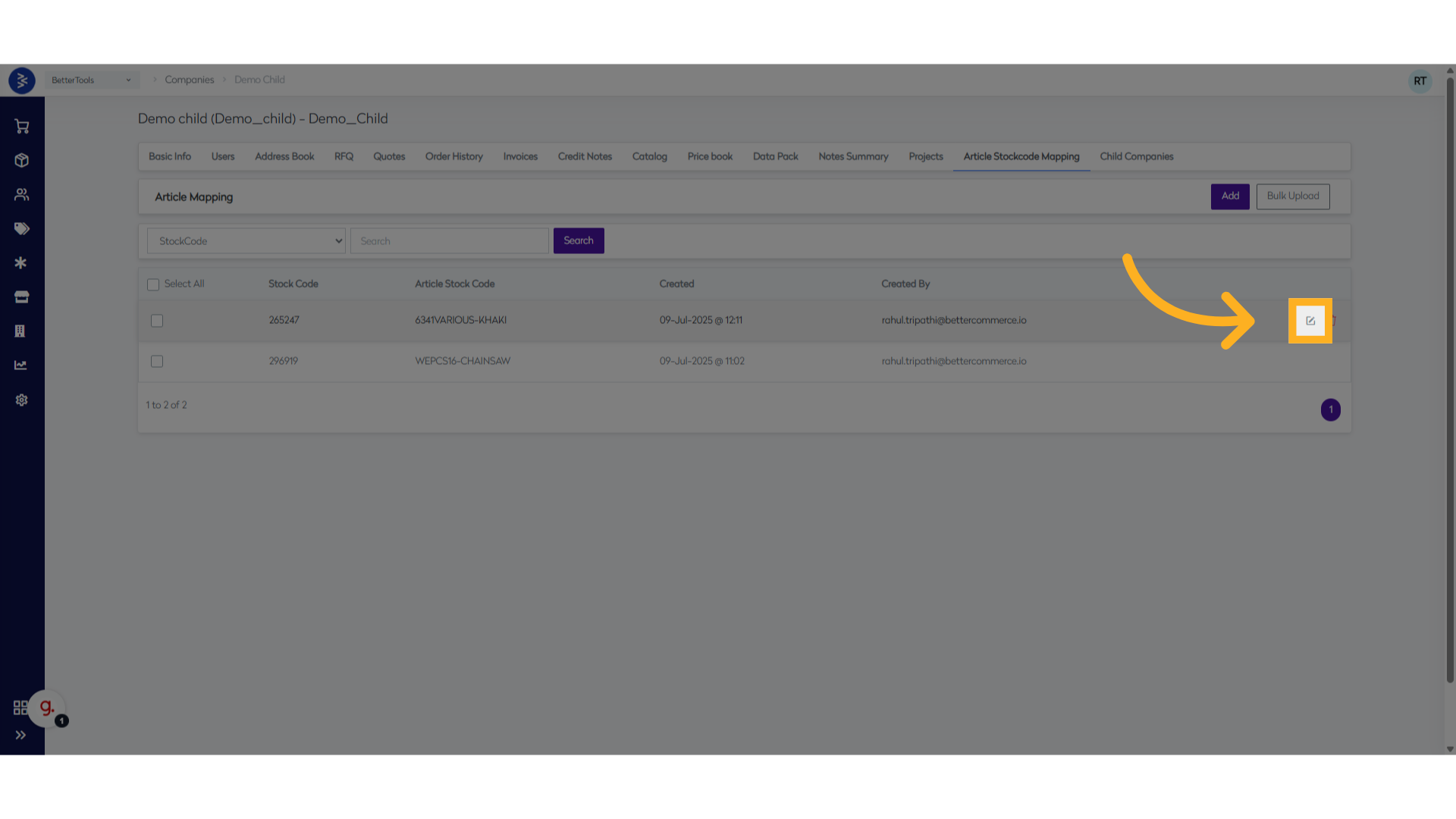
- Update the article or stock code value
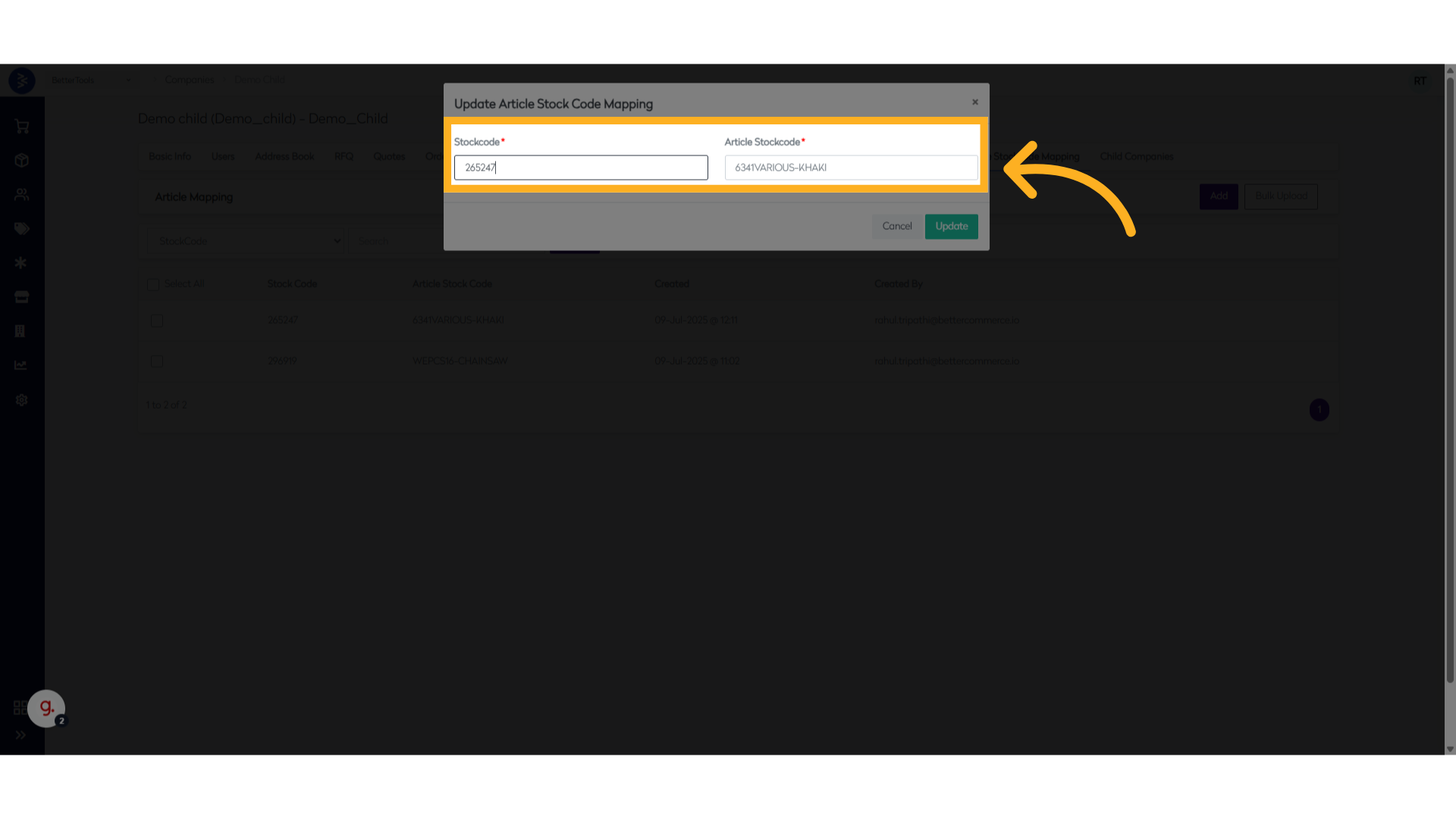
- Click Update
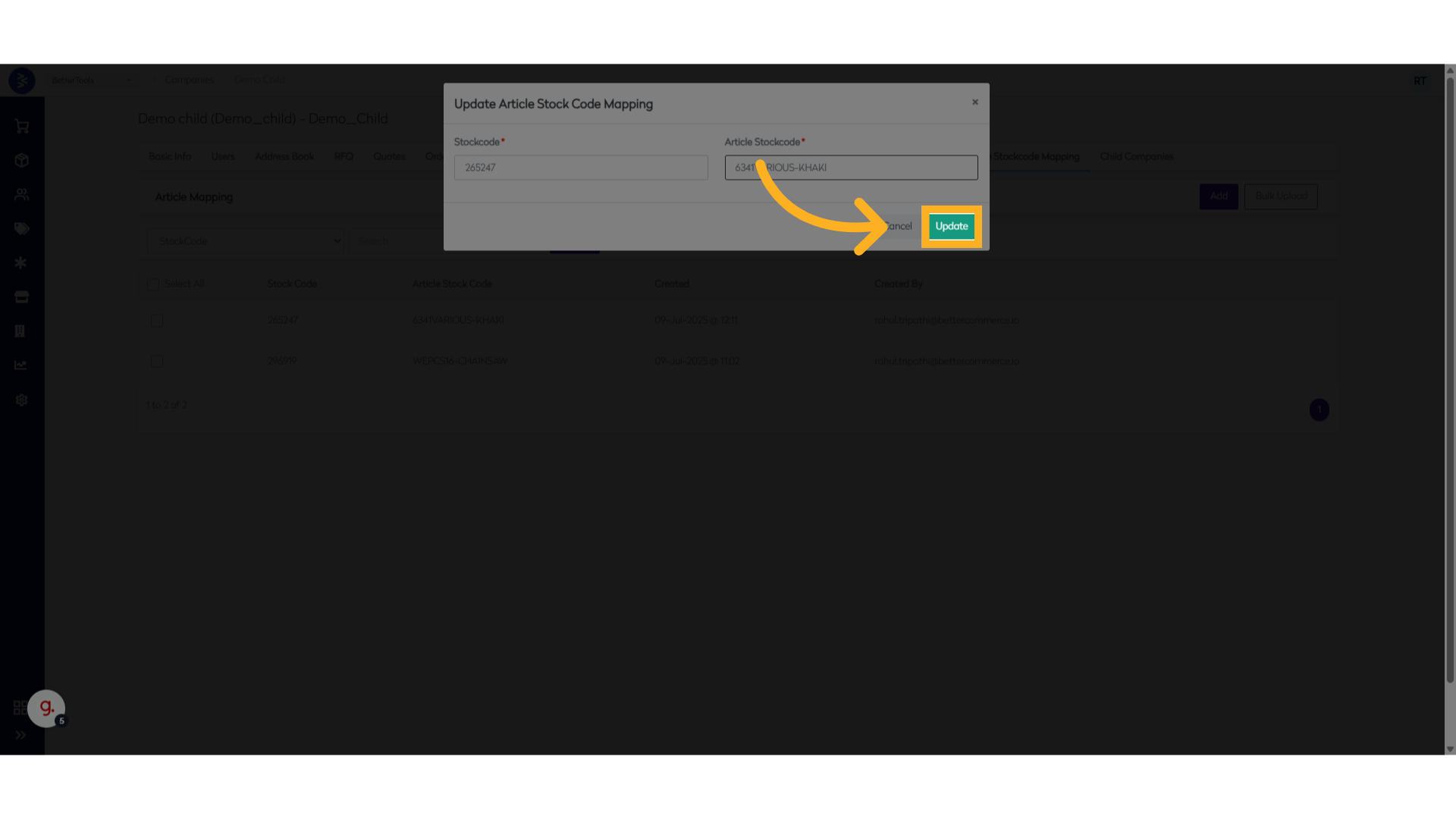
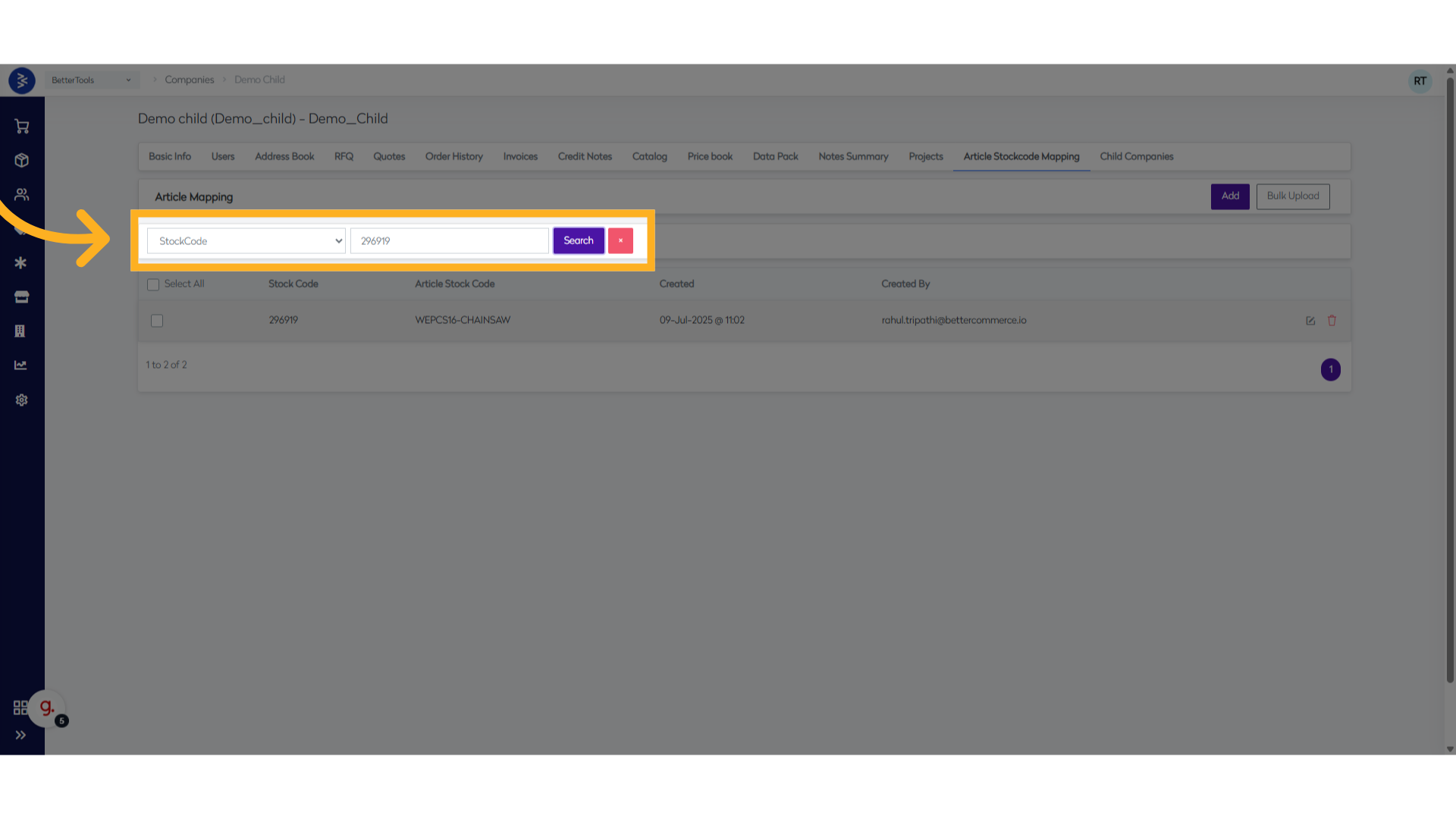
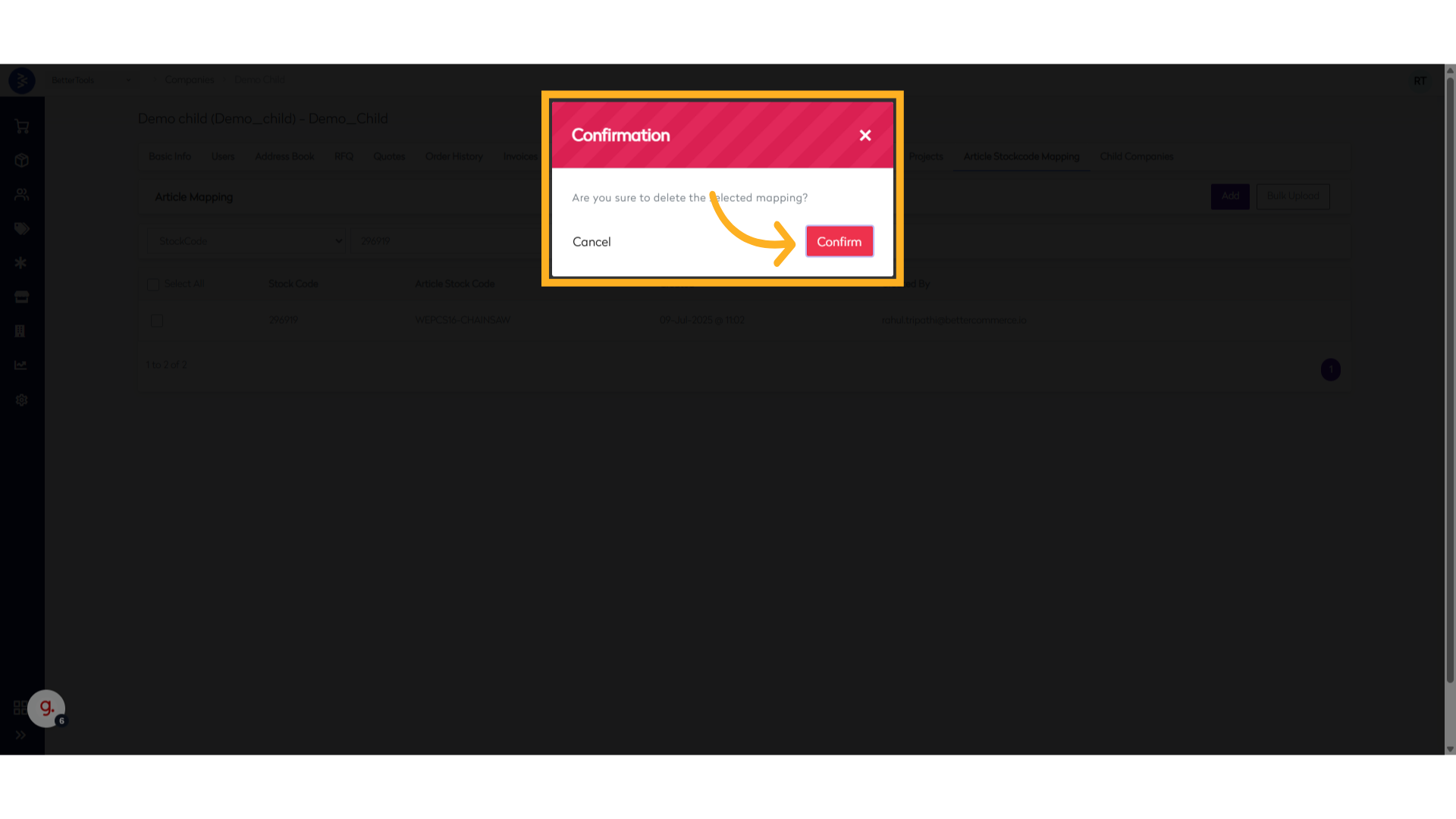
2. Delete Mappings
- Locate the mapping to delete (search by stockcode or article stockcode)
- Click the Delete button
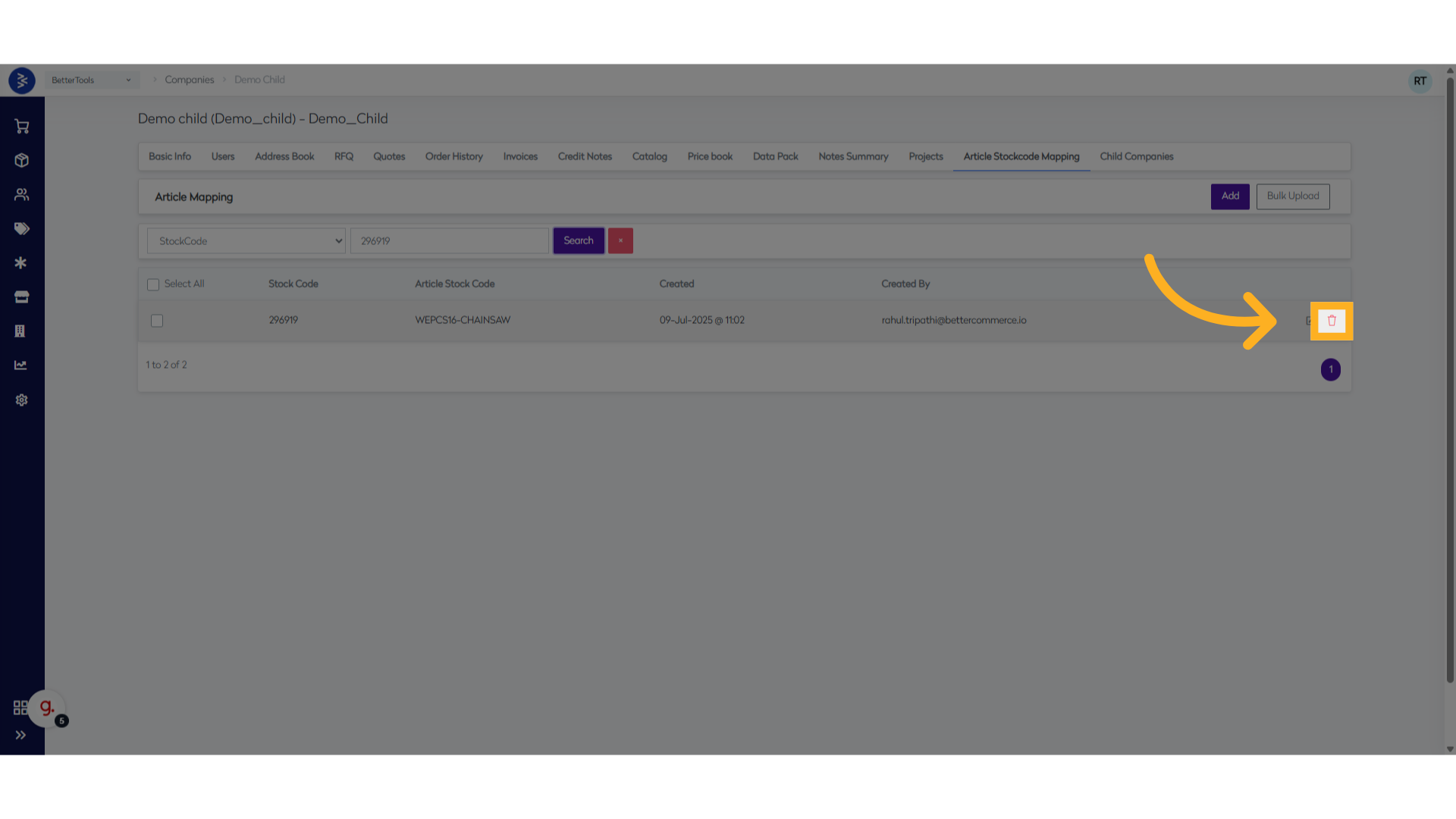
- Confirm deletion when prompted
Account Credit Setup
Account credit allows businesses to offer their B2B customers the ability to purchase goods and services on credit terms, with payments settled at agreed intervals rather than requiring immediate payment. This feature is essential for maintaining strong business relationships and facilitating larger transactions.
Key Features
Credit Limit Management
The system provides robust credit limit controls:
- Credit Limit Setting: Administrators can set specific credit limits for each company (e.g., £500.00 as shown in the interface)
- Real-time Monitoring: Track used credit amounts and available balance
- Automatic Calculations: The system automatically calculates available balance based on credit limit and used credit
Payment Terms Configuration
The system supports various payment terms:
- Due On Receipt
- 7 Days, 10 Days, 15 Days
- 30 Days, 45 Days
- Net 60, 90 Days
Configuration Settings
Setting Credit Limits Credit Limit: £500.00 [Set Credit Limit for the Company Acccount]
Monitoring Usage
- Used Credit: £0.00 [Real-time Update]
- Unbilled: £0.00
- Billed: £0.00
Available Balance Display Available Balance: £500.00 [Auto-calculated]
Credit Management Process
For Administrators
- Monitor credit utilization across all B2B customers
- Adjust credit limits based on payment history and business needs
- Generate reports on credit usage and outstanding amounts
- Manage payment terms and credit policies
For B2B Customers
- View available credit balance in real-time
- Track order history and credit usage
- Manage payment schedules and outstanding invoices
- Request credit limit adjustments through proper channels
Integration Points
ERP Systems
- Financial Data Sync: Integration with accounting systems
- Credit Reporting: Automated credit utilization reports
- Payment Reconciliation: Streamlined payment matching processes
Reporting and Analytics
Credit Utilization Reports
- Customer-wise credit usage analysis
- Aging reports for outstanding credit amounts
- Payment pattern analysis and trends
Summary
Account credit functionality in BetterCommerce provides a comprehensive solution for B2B credit management, enabling businesses to offer flexible payment terms while maintaining control over financial exposure. The system's real-time monitoring, automated calculations, and integrated workflow make it an essential tool for B2B commerce operations.
The combination of credit limit management, usage tracking, and payment integration creates a robust framework that supports both customer satisfaction and business financial health.