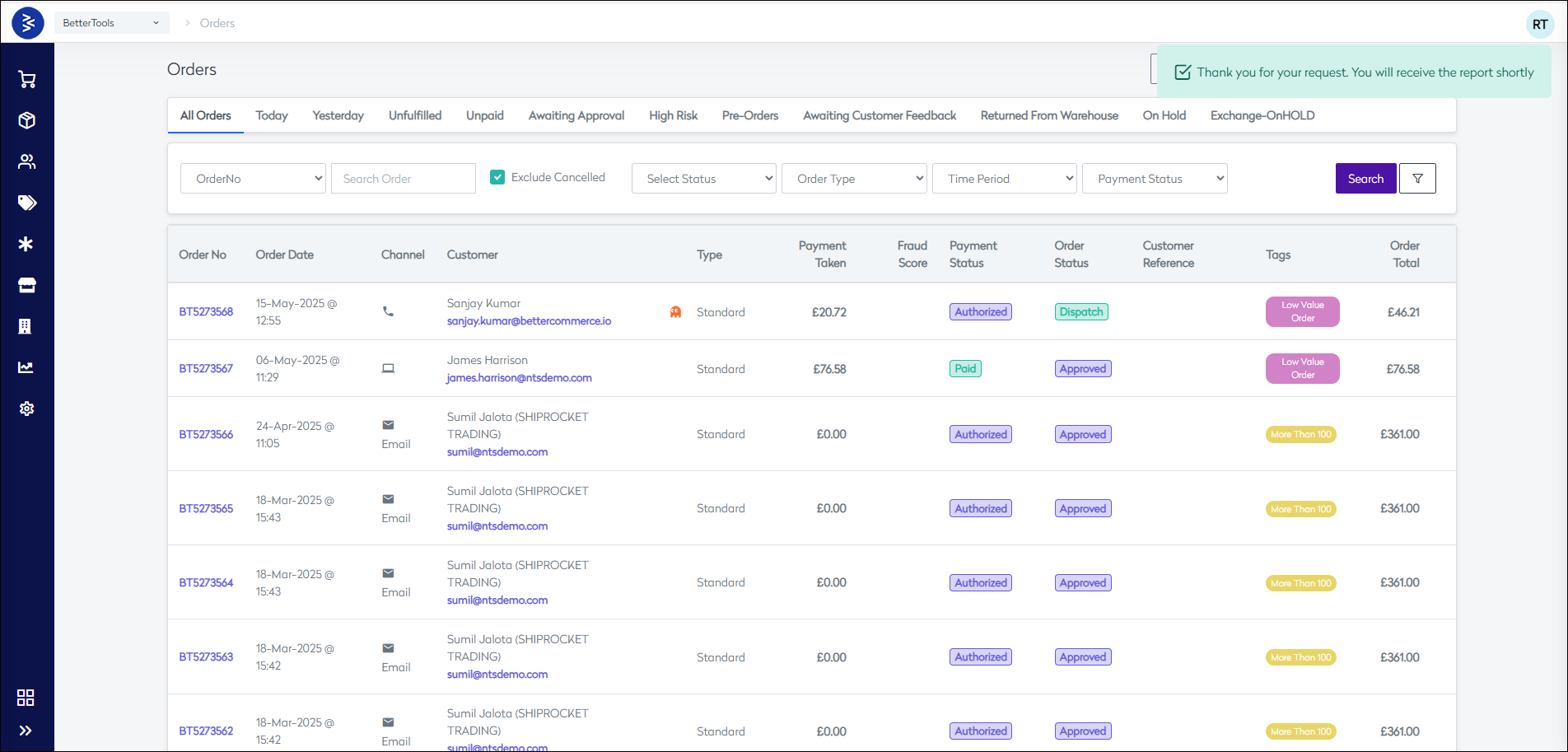
Manage Orders
Viewing Orders
This screen provides the list of all orders in the system with predefined filters on Date Periods, Order Types, Status, Payment Status, Order Source, etc., and an advanced search on Order Number, Customer Email Address, or a custom date range.
https://commerce.bettercommerce.io/order

Quick Filters
The platform provides some predefined quick filters based on:
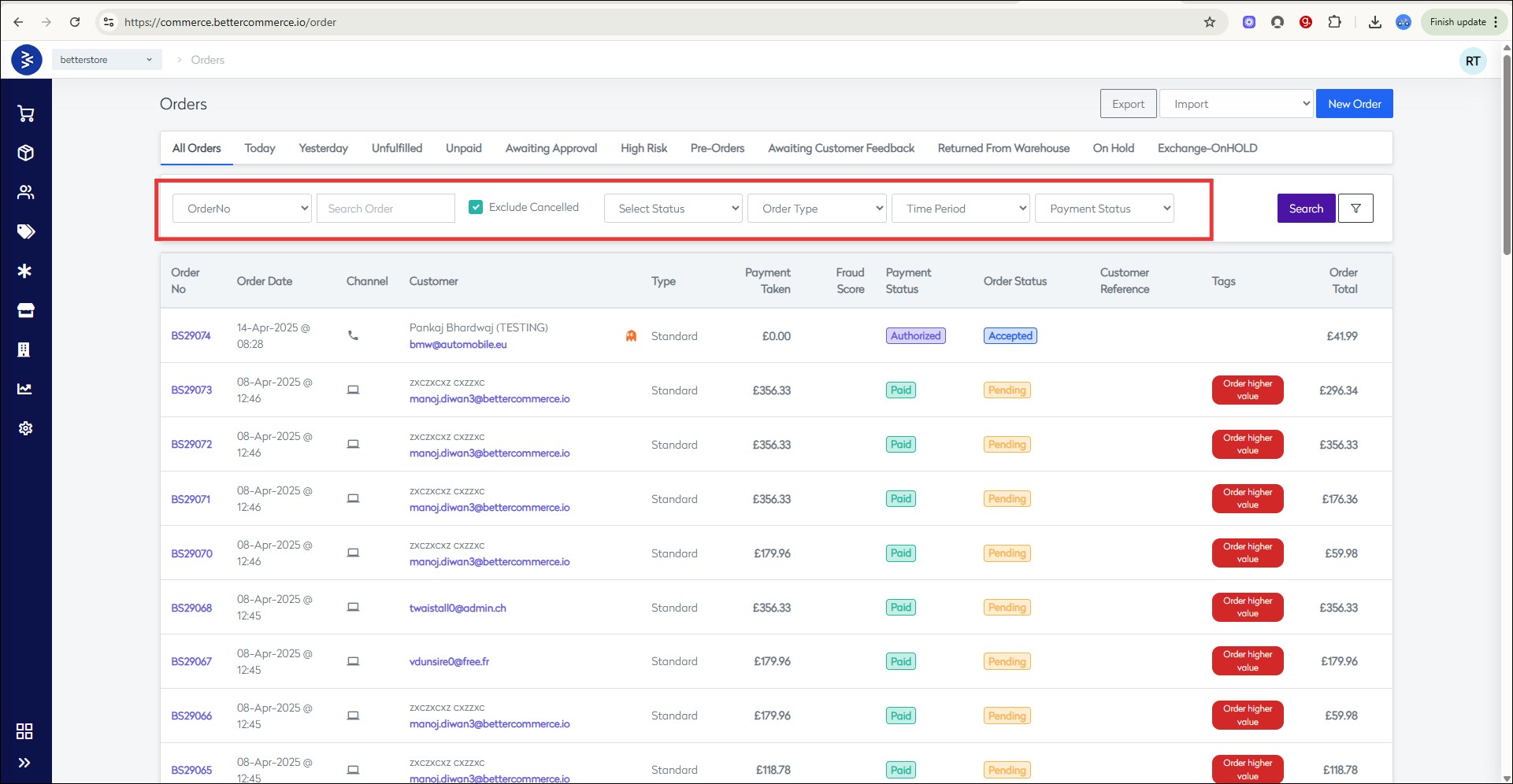
Filter Options
Advanced Search
Advanced Search gives you the option to search based on several different filters:
- Source, Microsite, Payment Source, Payment Status, Email, Post Code, Date Range
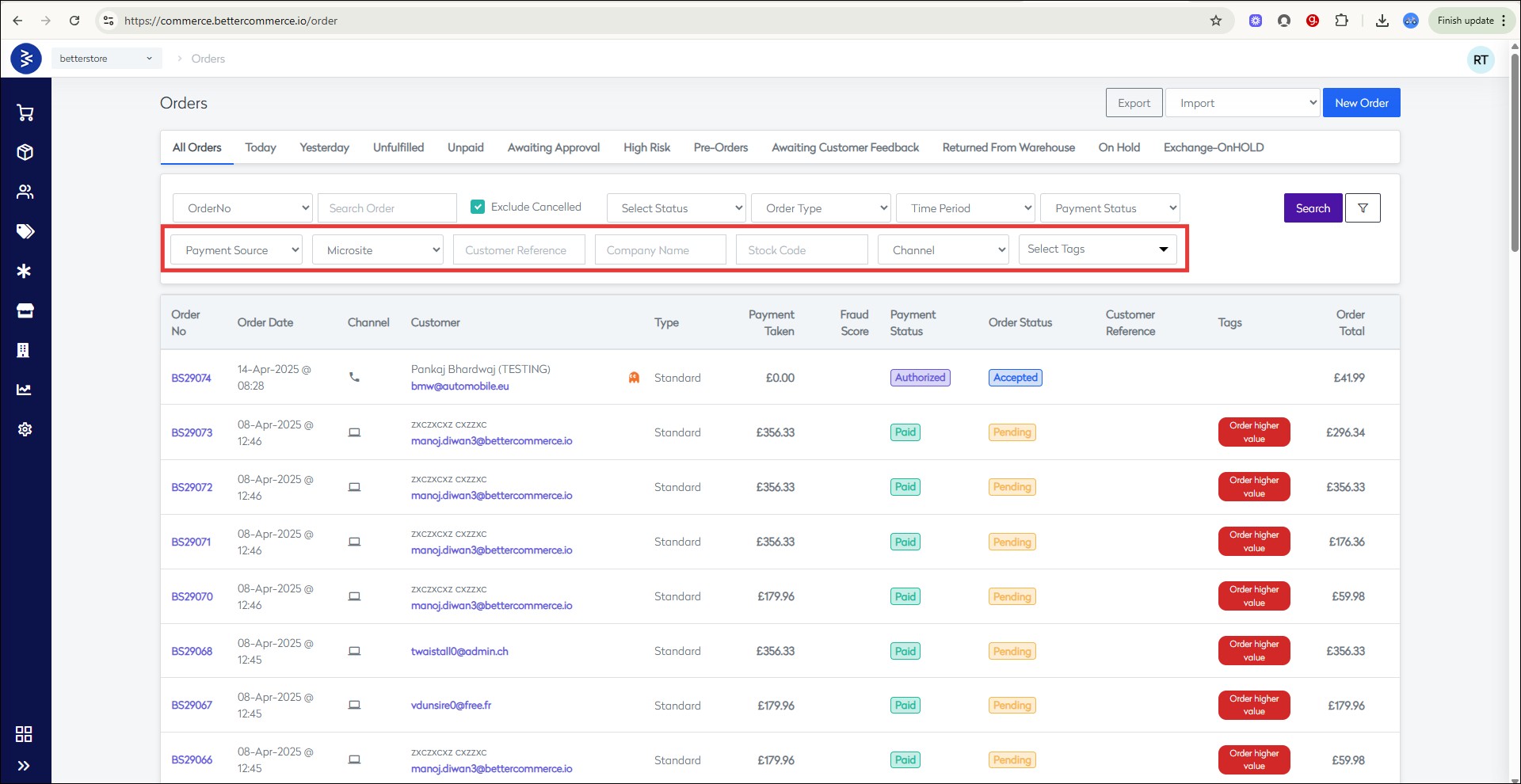
Adding a New Order
This guide provides step-by-step instructions to help you create and manage orders using the CommerceHub module in the BetterCommerce platform.
Backend order creation is especially useful for handling phone orders, assisted sales, and customer service scenarios.
Follow the steps below to navigate the order creation process seamlessly within the CommerceHub module.
Step 1: Open Order Listing Screen
- Click on “View” under the Orders section of the CommerceHub module.
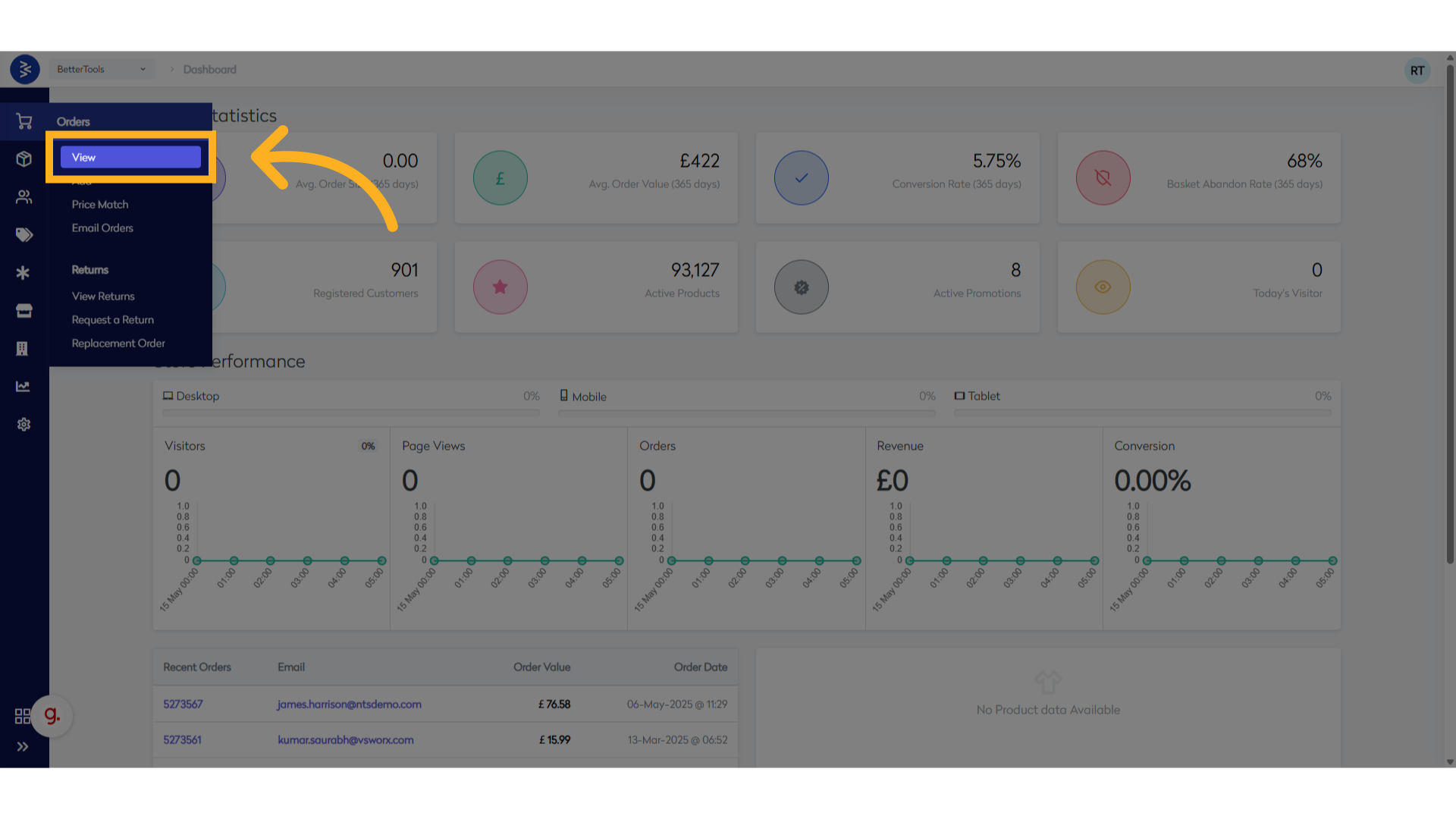
Step 2: Initiate New Order
- Click on “New Order” to start the order creation process.
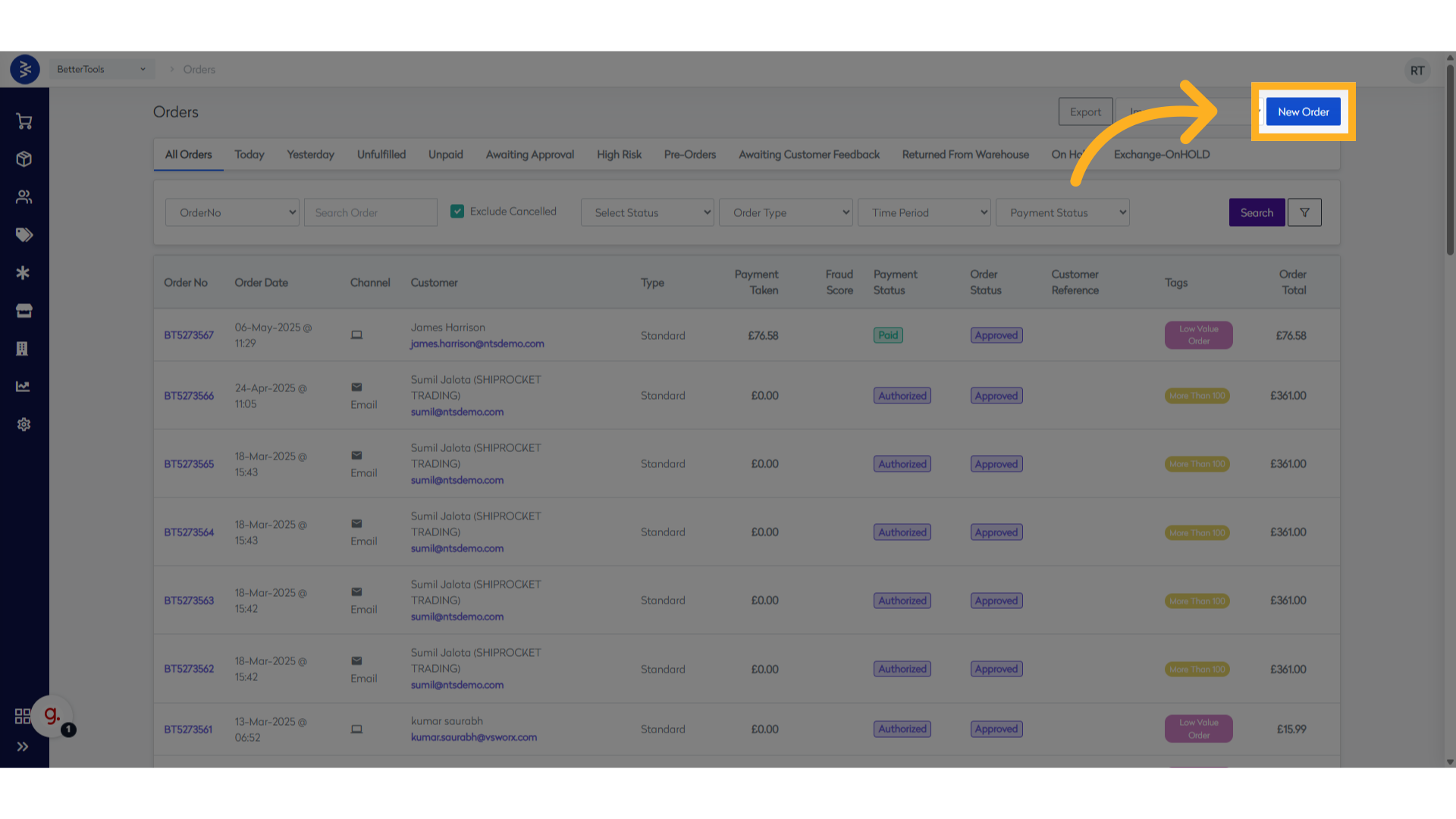
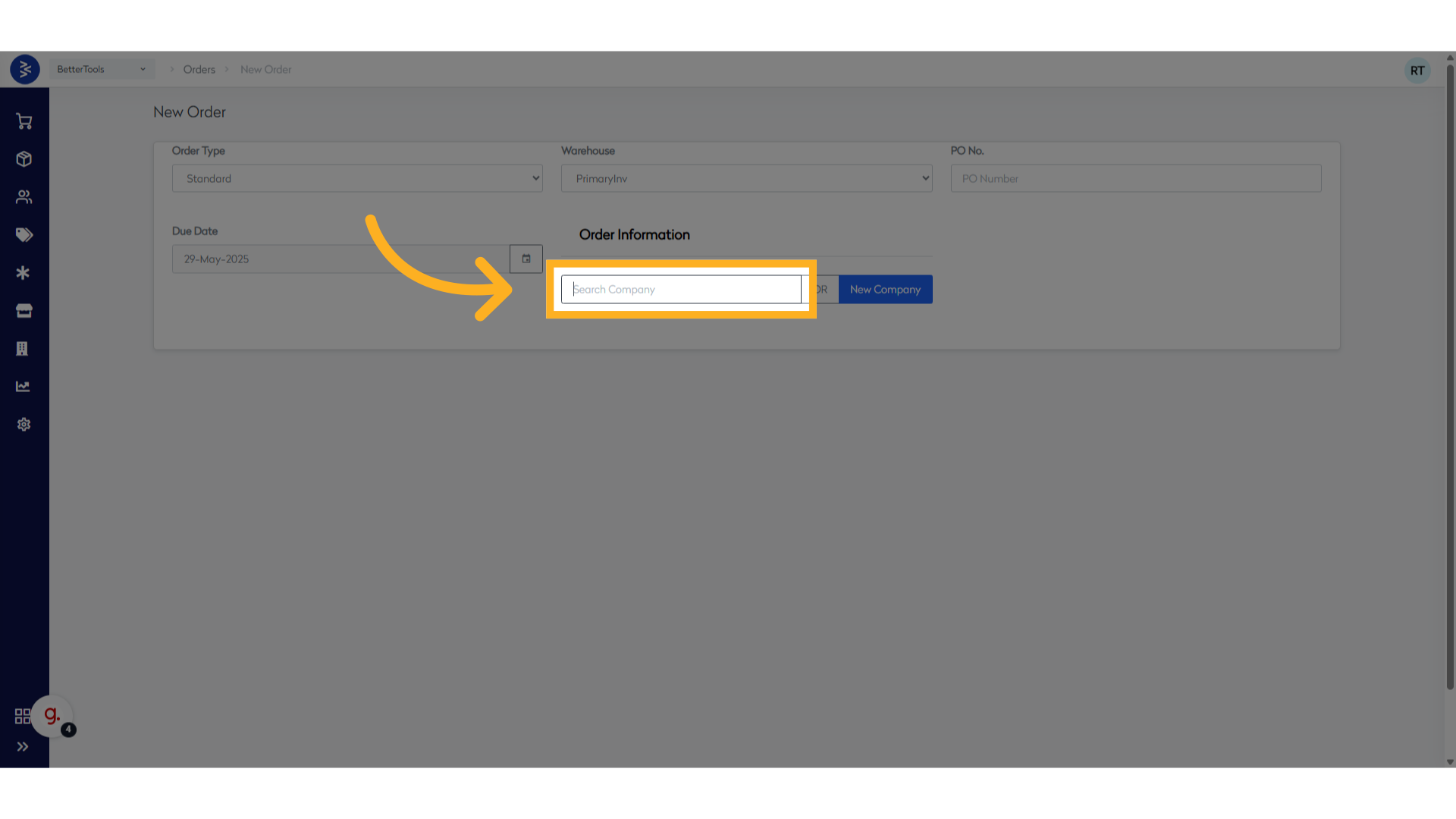
Step 3: Select a Customer
- Click "Search Company" (for B2B) or search and choose the user by their email address or phone number.
💡 Note: The User/Company must exist in the system to appear in the results.
- Select the customer from the search results.
Example: Sanjay Kumar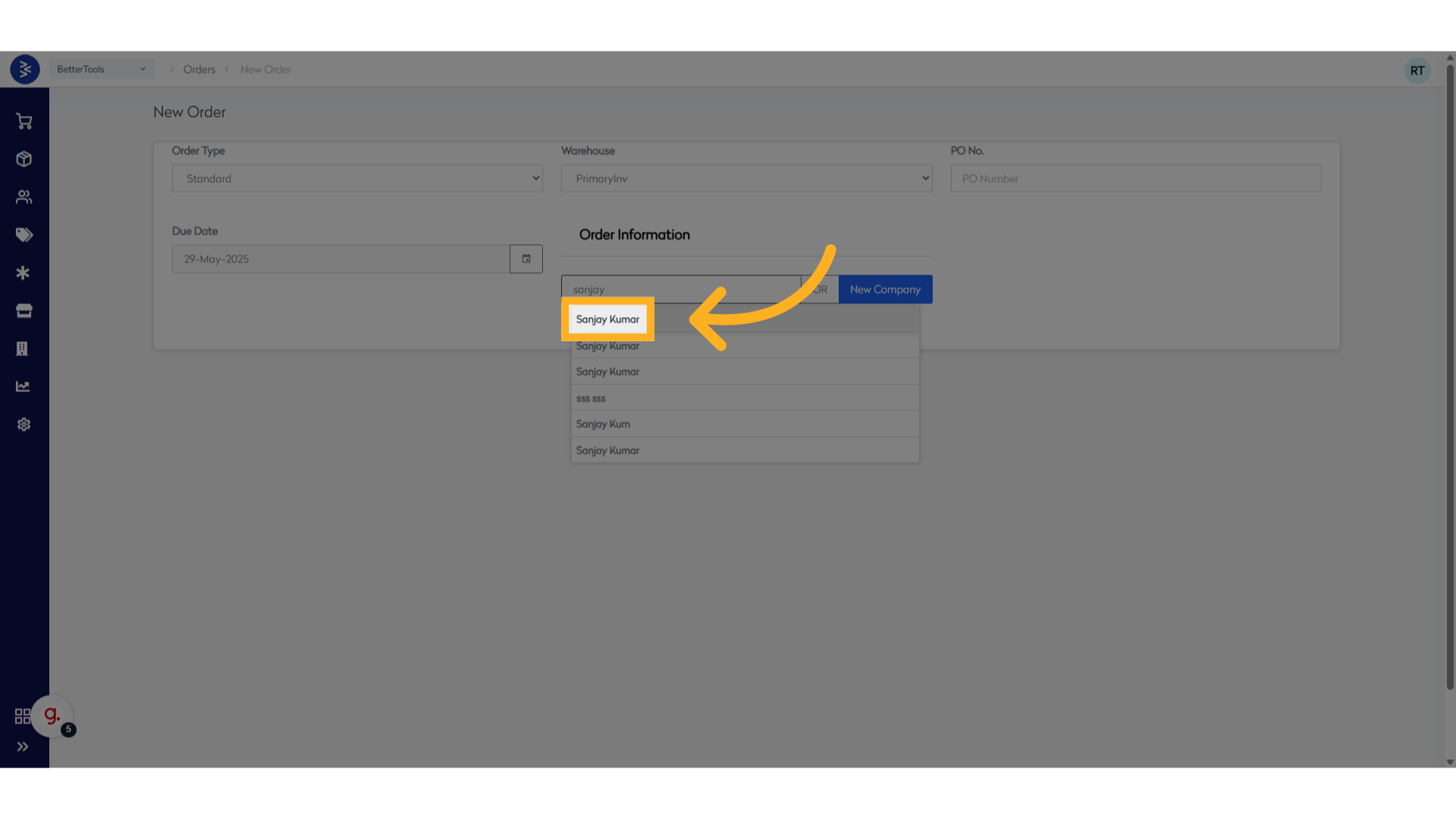
Step 4: Add Products to Order
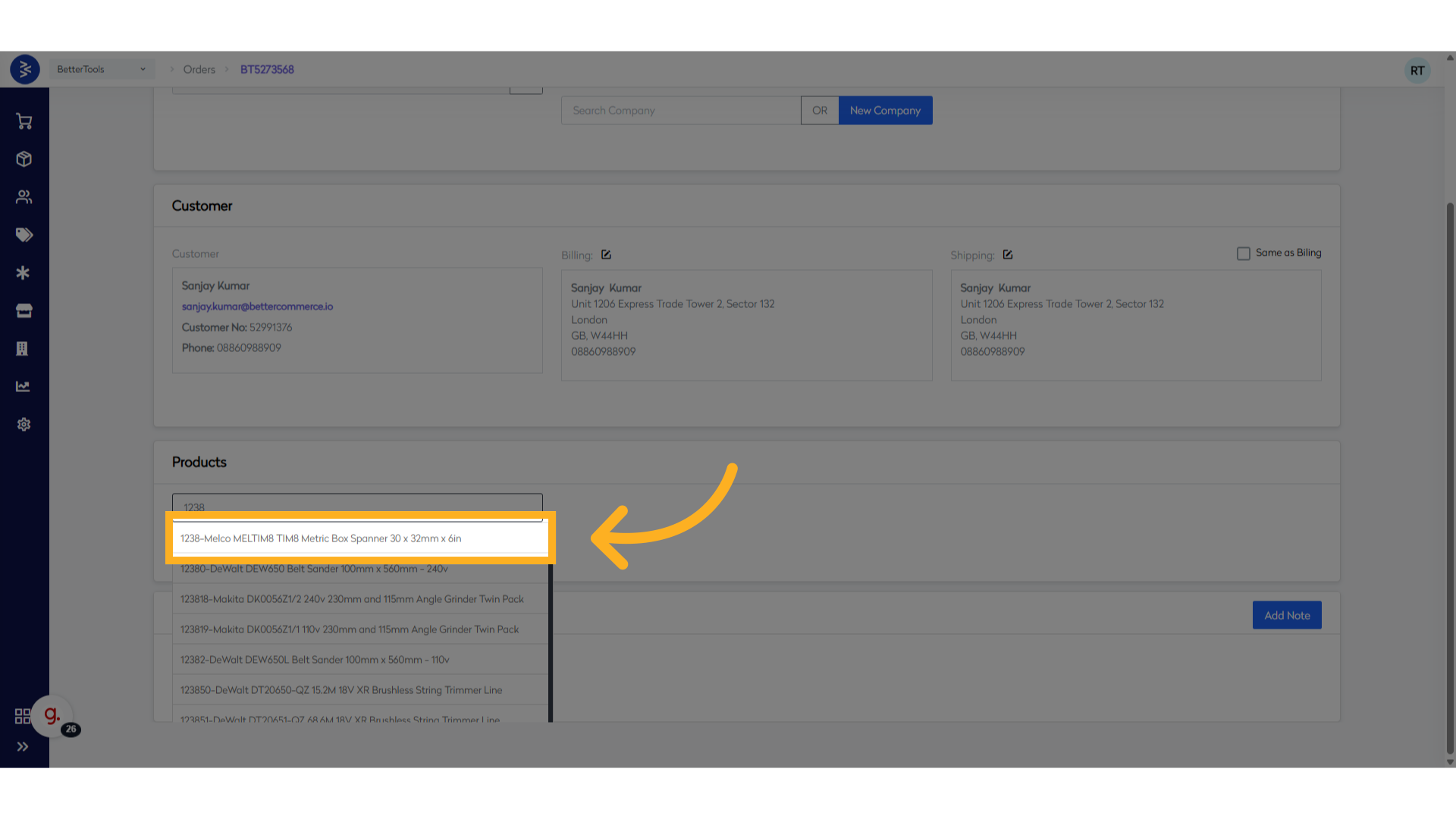
- Enter the Stock Code or Product Name in the search field.
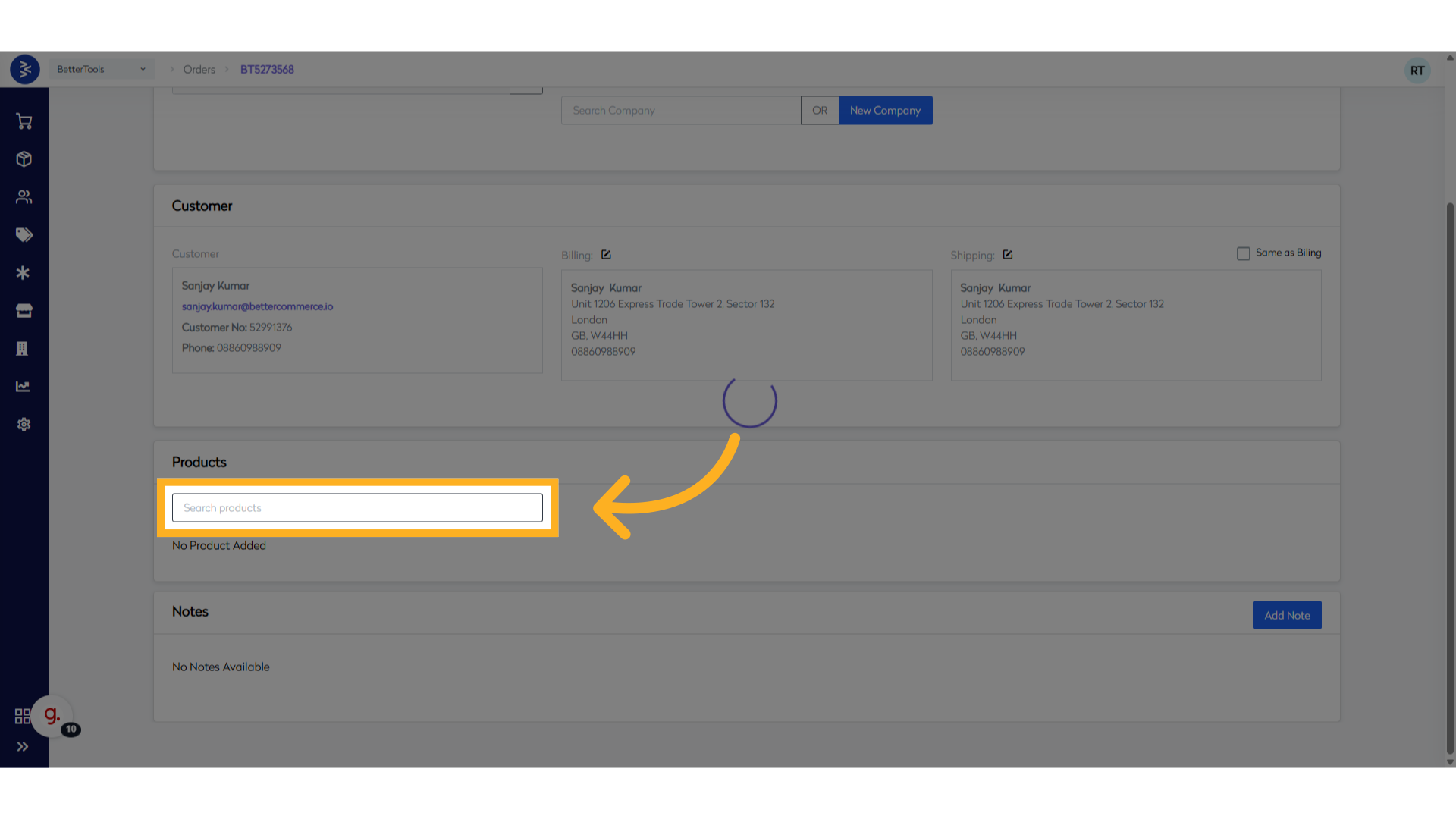
- Choose the correct product from the list.
Step 5: Place the Order
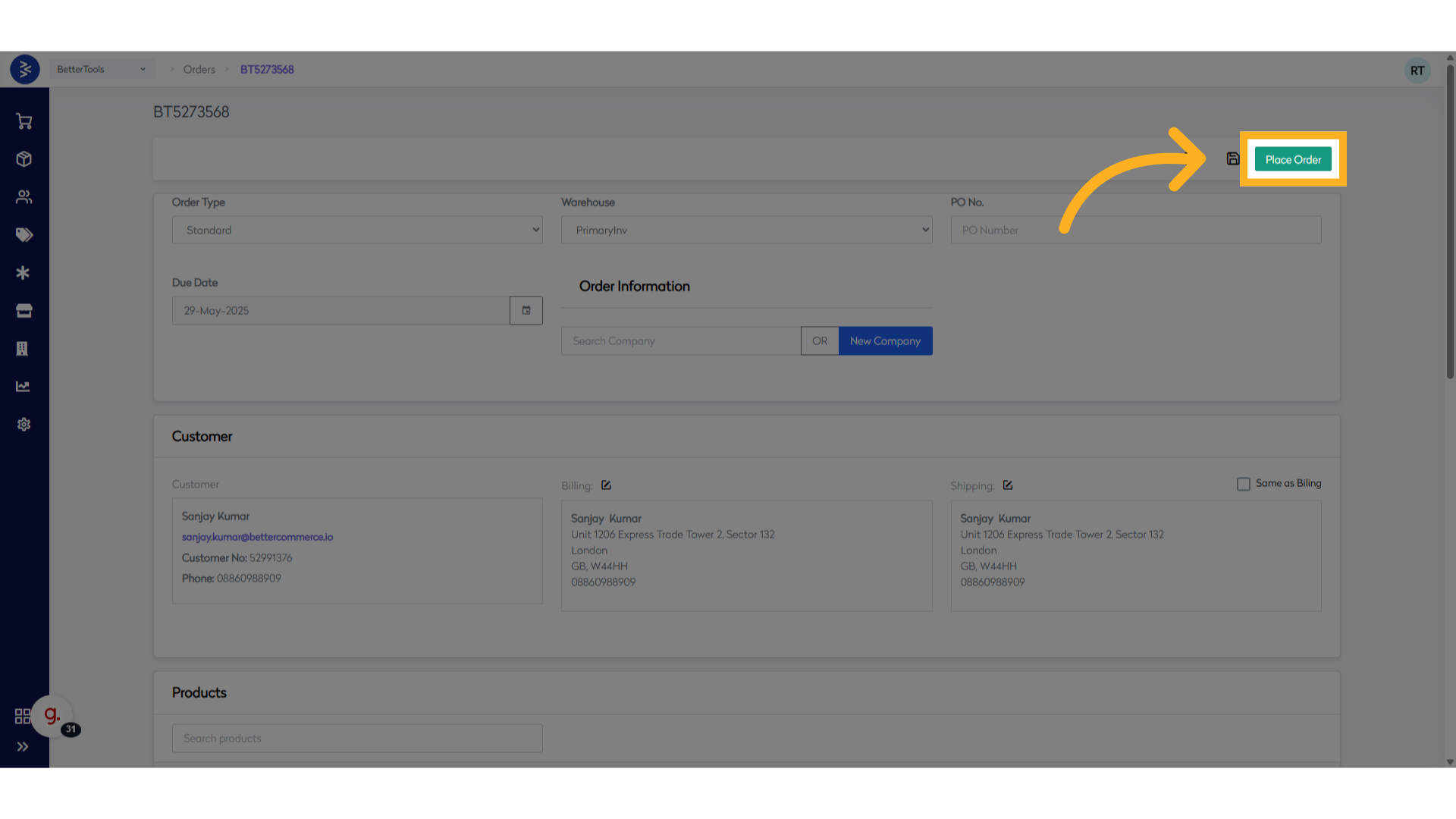
- Once all products are added, click “Place Order”.
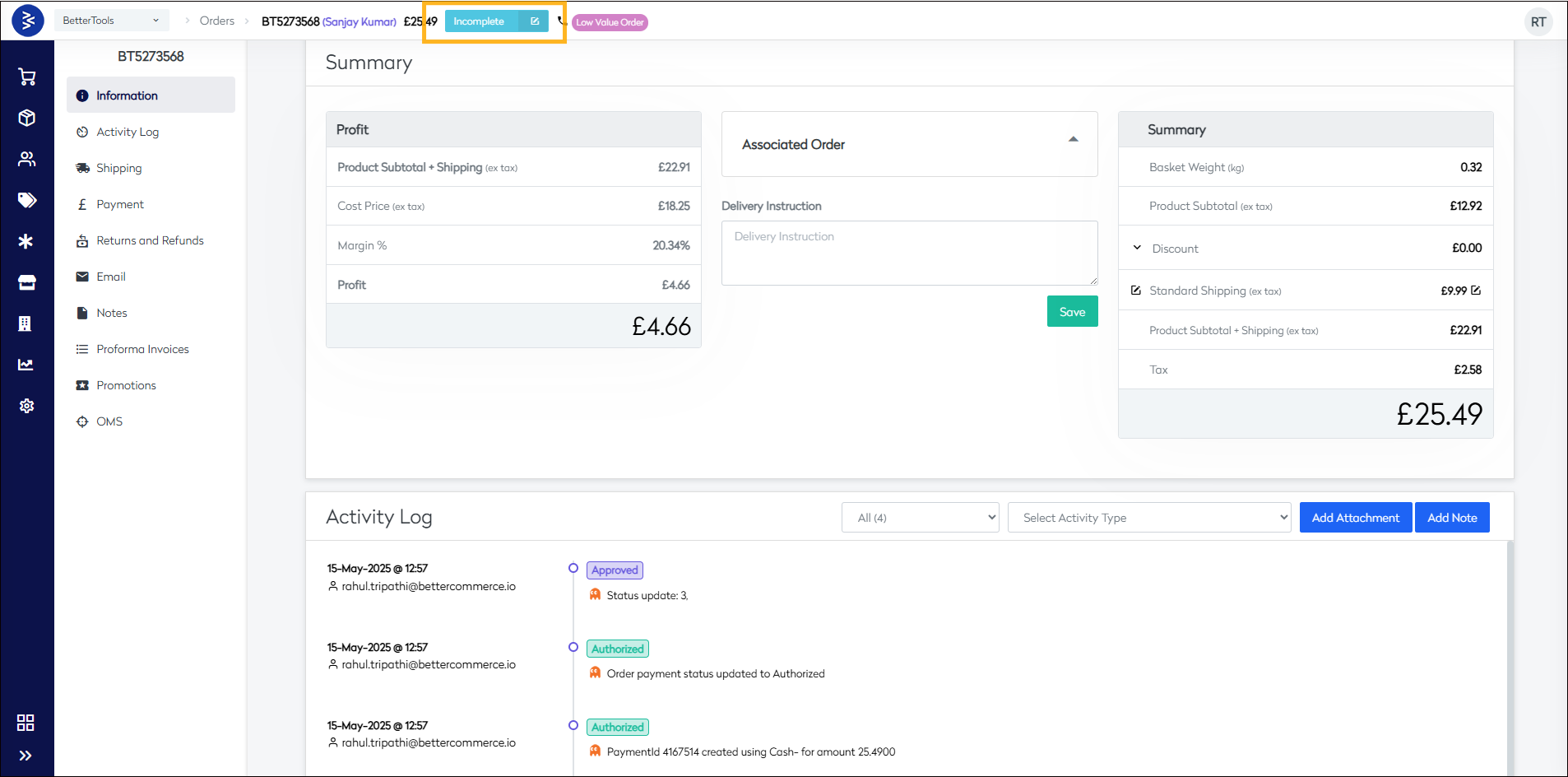
🔔 Note: At this stage, the order is in an Incomplete state (payment not captured).
- A unique Order Number will be generated, and you'll be redirected to the Order Details page.
Step 6: Mark Order as Paid
-
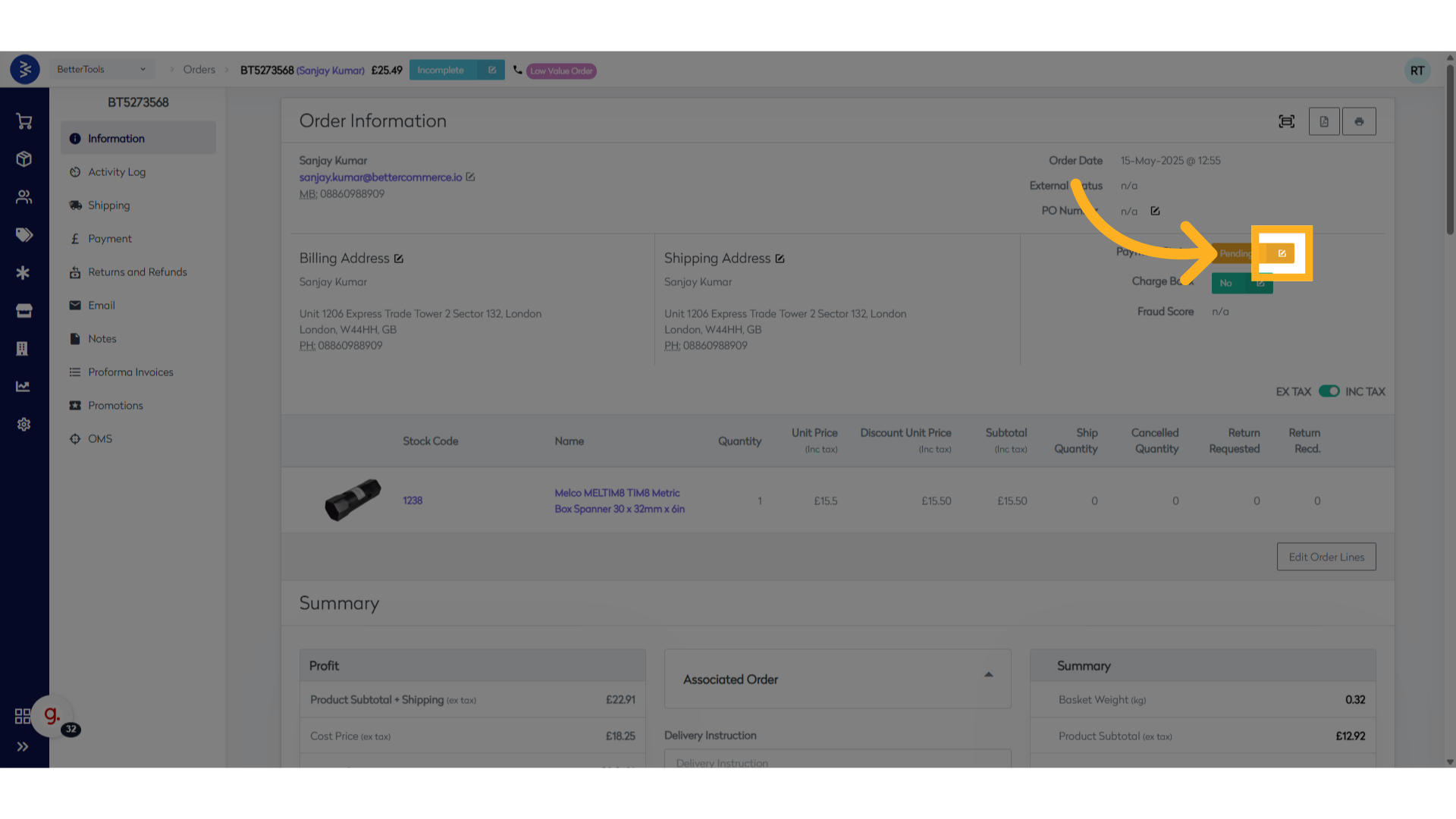
Click the button next to “Payment Status” on the Order Details page.
-
Choose a Payment Method:
- Available Payment Methods: Bacs (offline), Cheque (offline), Cash (offline), Card over phone (offline), FOC (free of charge), Card over phone (moto)
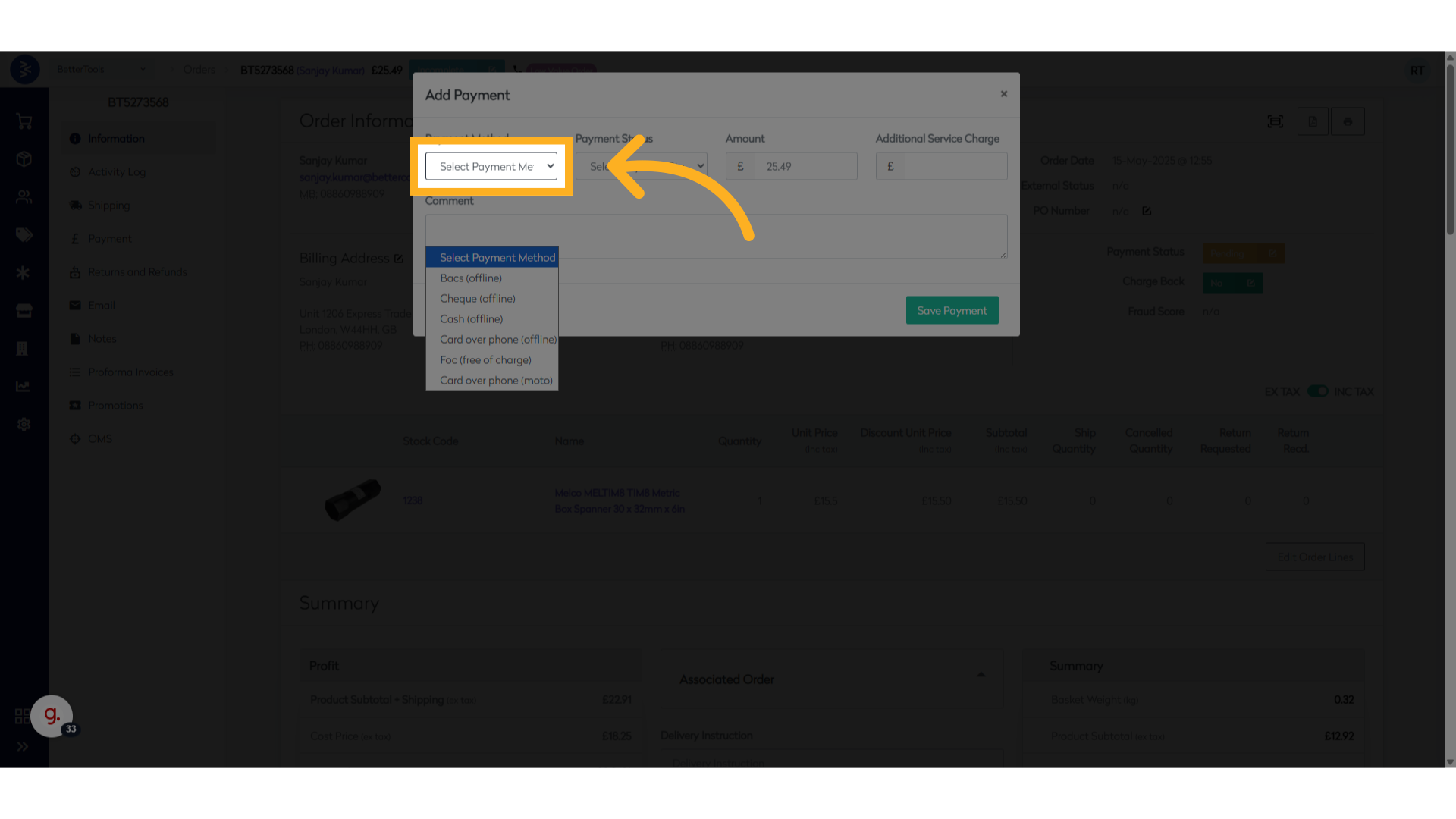
Step 7: Update Payment Status
- Select one of the following Payment Statuses from the dropdown:
- Pending, Authorized, Paid, Declined
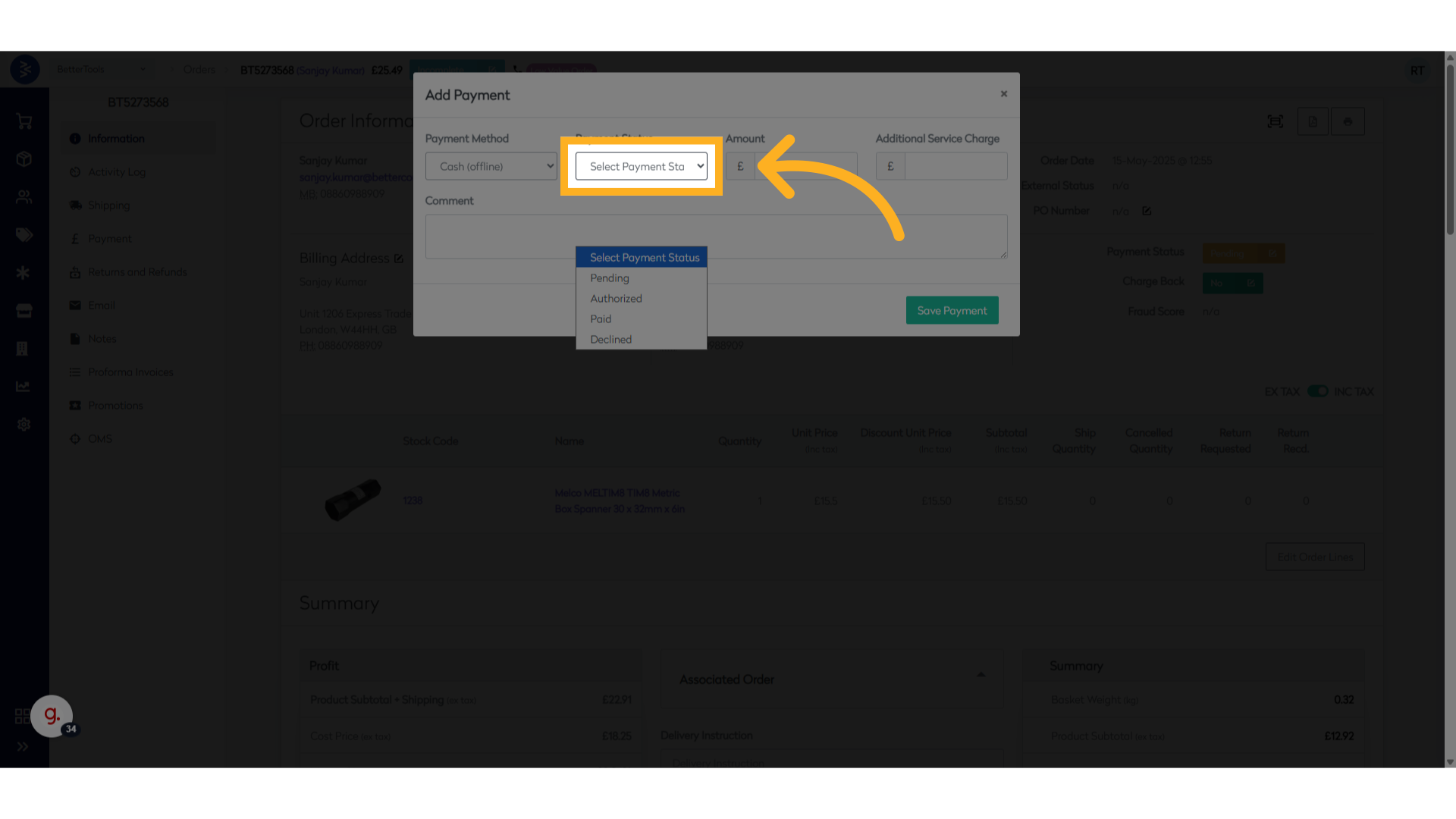
- Pending, Authorized, Paid, Declined
Step 8: Finalize Payment
- Add Comments if required.
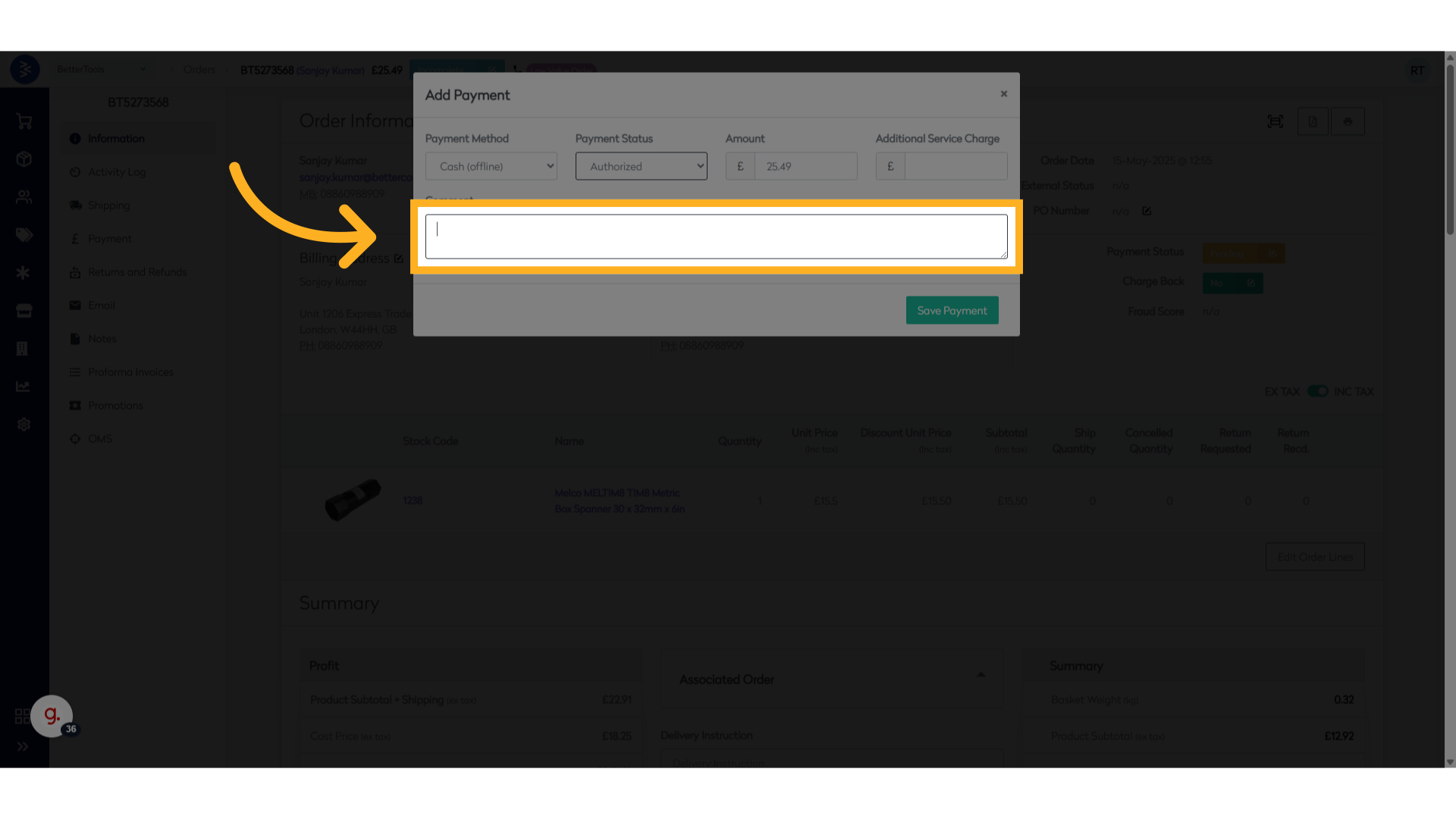
- Click “Save Payment” to complete the process.
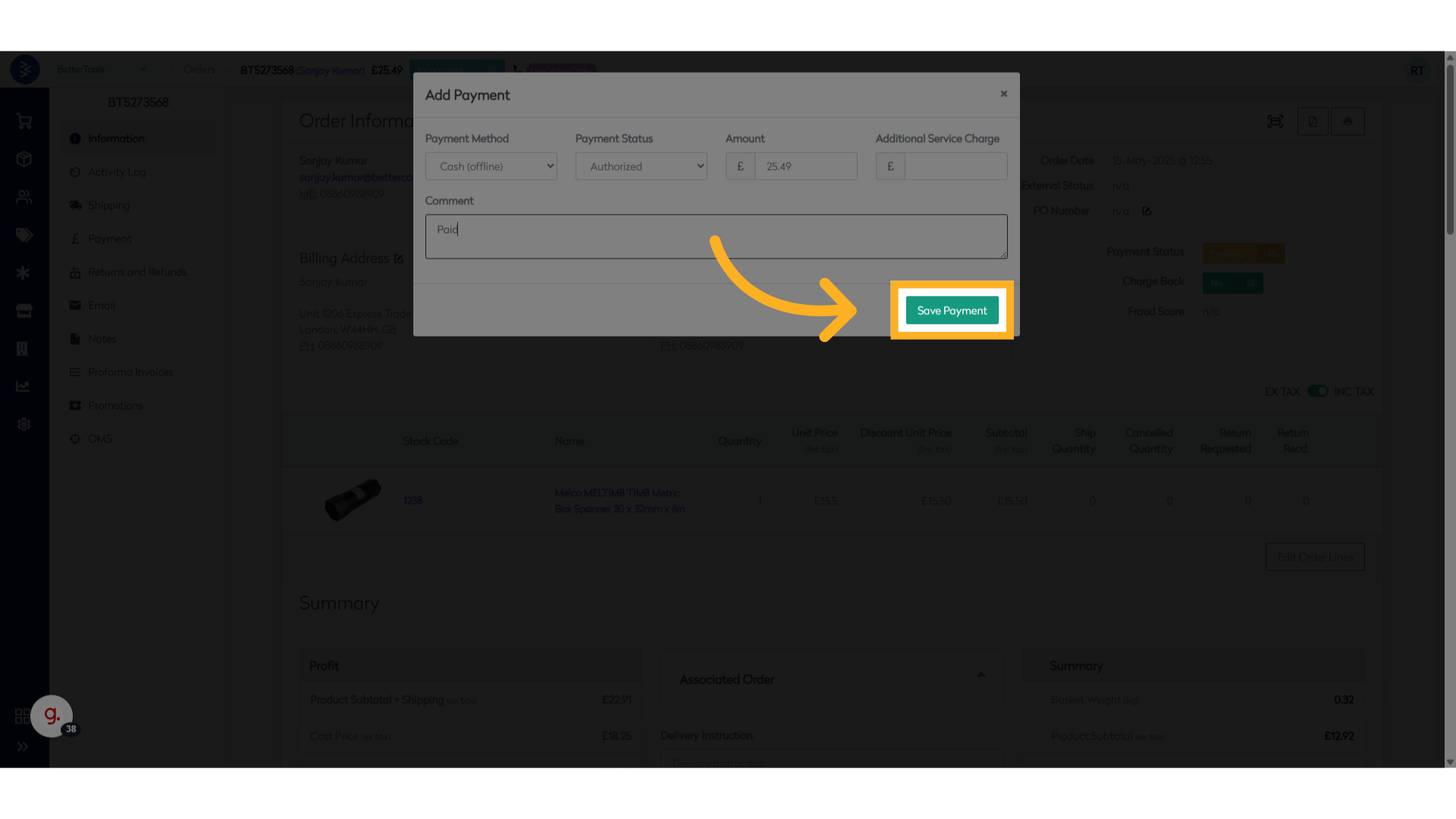
Step 9: Order Completed
- Orders placed from the backend will appear as Phone Orders in the Order Listing/Details page.
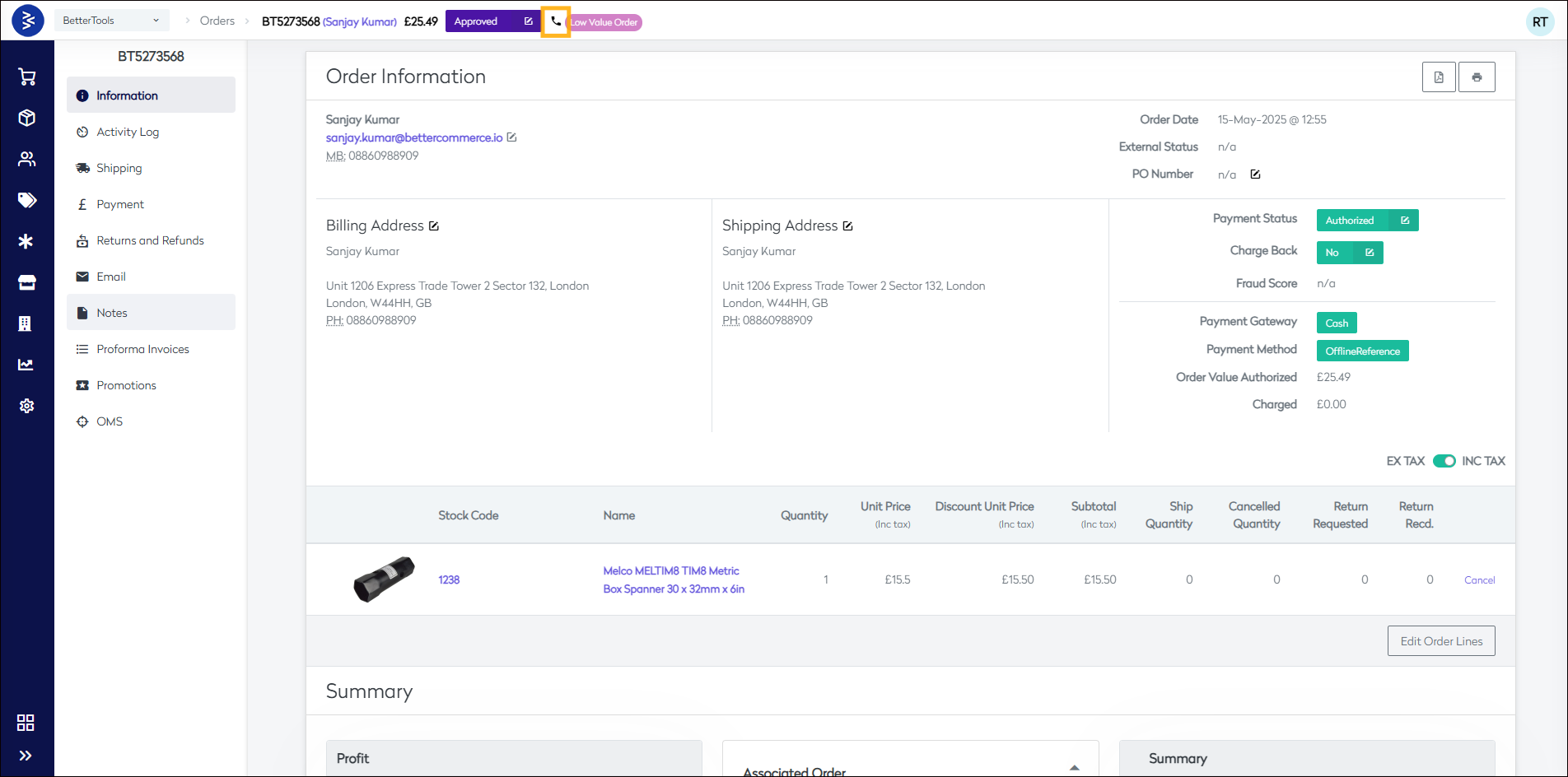
This article walked you through the complete backend order process—from customer selection and product addition to payment and final submission.
Using these steps, you can confidently create and fulfill orders within the CommerceHub module.
Editing an Order
Overview
Editing an order capability comes within the BetterCommerce CommerceHub module, especially when handling customer service requests or correcting data before fulfillment.
There are scenarios where minor changes—like updating payment status, adjusting quantities, or adding tracking details—are needed after the order is placed but before it moves to fulfillment. These changes help avoid downstream issues and reduce cancellations or manual interventions.
In this article, you’ll learn when and how you can edit an order, what fields are editable, and the most common use cases for each.
When Can an Order Be Edited?
Orders can be edited only until they are sent for fulfillment. Once the order is pushed to fulfillment systems like ERP/OMS, most fields become non-editable.
| Field | Description |
|---|---|
| Order Status | Allows updating the order status (e.g., Accepted, Cancelled). Useful when a customer requests cancellation or manual confirmation post-order placement. |
| Products | Products in the order can be added or removed. This is helpful when a customer wants to change or swap a product after placing the order. |
| Adjust Product Quantity | Quantity of ordered products can be modified. Common when a customer mistakenly ordered the wrong quantity. |
| Discount | Apply or update discounts on the order manually. Typically used when applying an offline discount or price adjustment. |
| Payment Status | Allows updating payment status (Pending, Paid, Refunded). Used when recording offline or failed payments manually. |
| Activity Log Notes | Add internal comments visible in the activity log. Helps track order changes or add operational context. |
| Tracking Info | Add or update tracking number. Useful when shipping is arranged post-order confirmation. |
Update Order Status
- Go to commerce.bettercommerce.io and open the desired order.
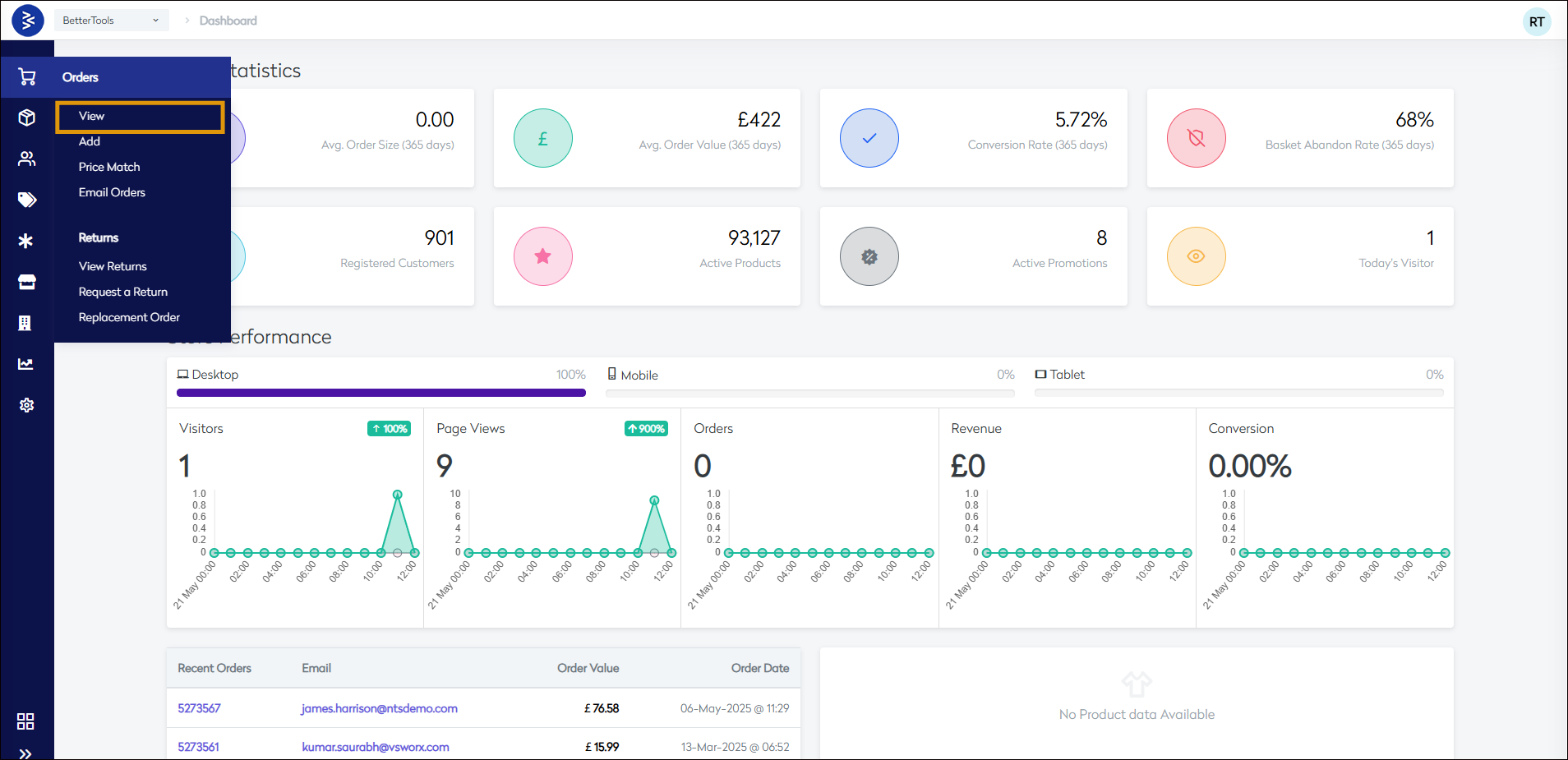
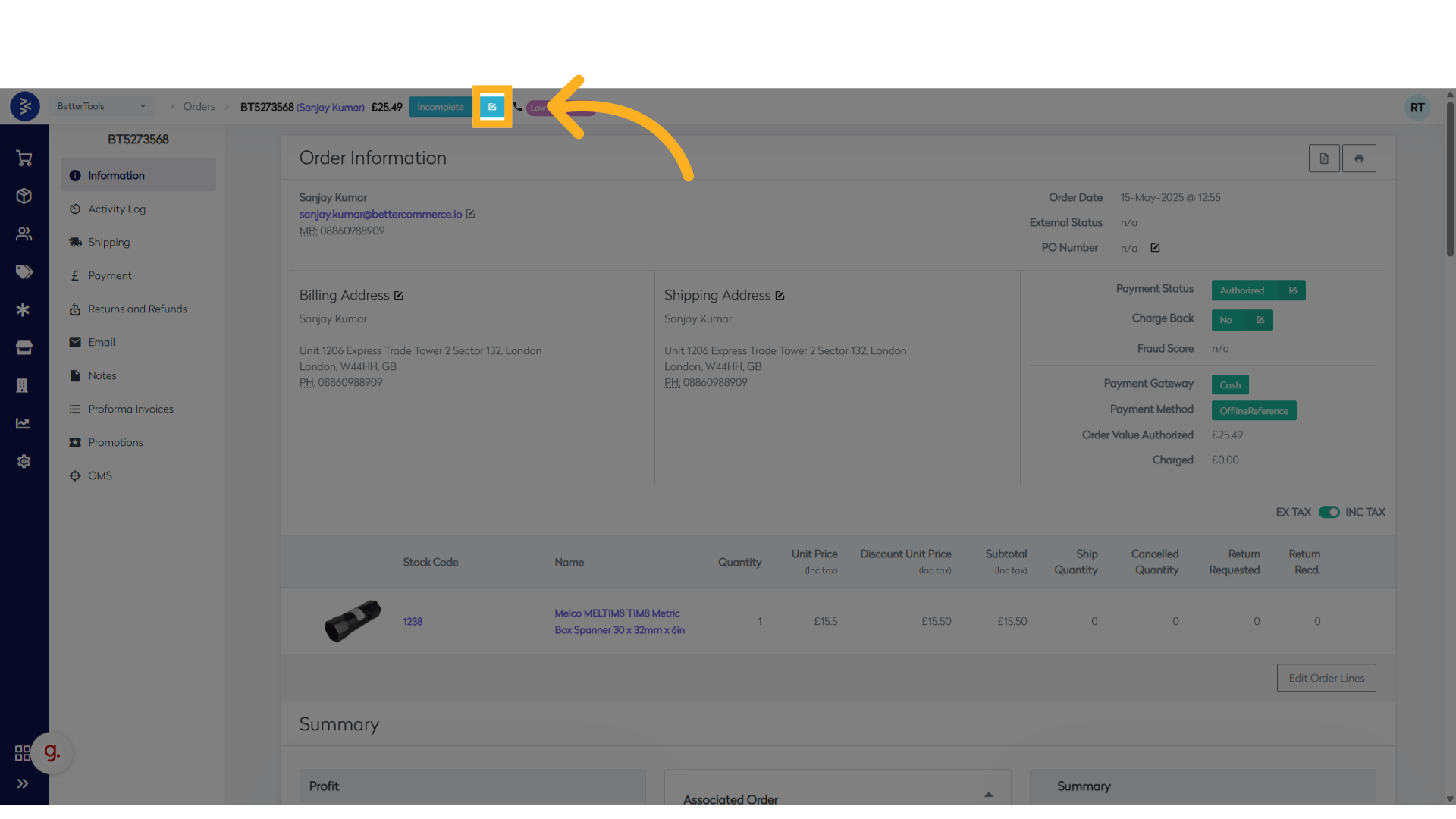
- Click the Edit button next to the current Order Status.
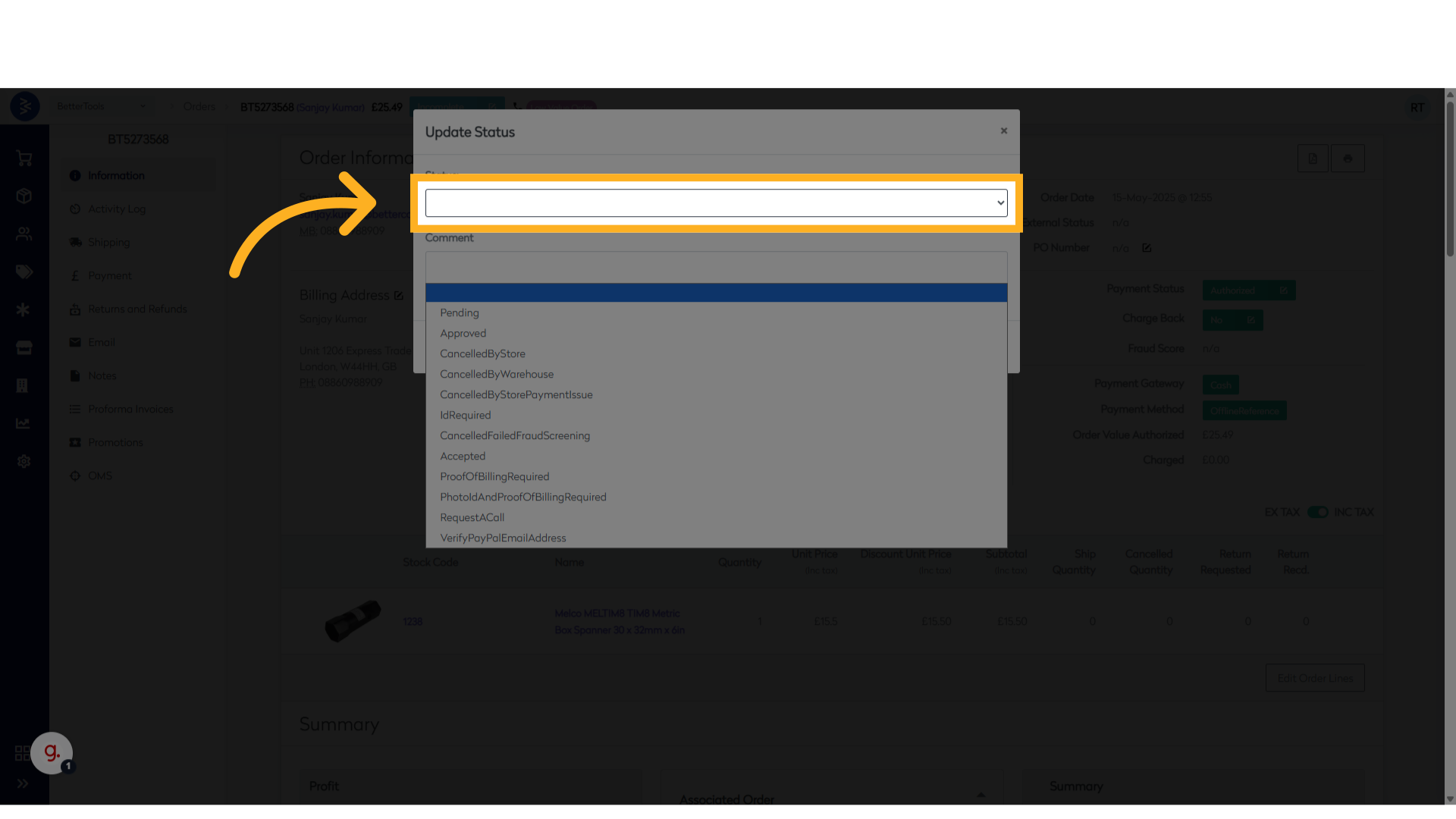
- Choose the desired status from the dropdown.
- (Optional) Add a comment in the Comment Section.
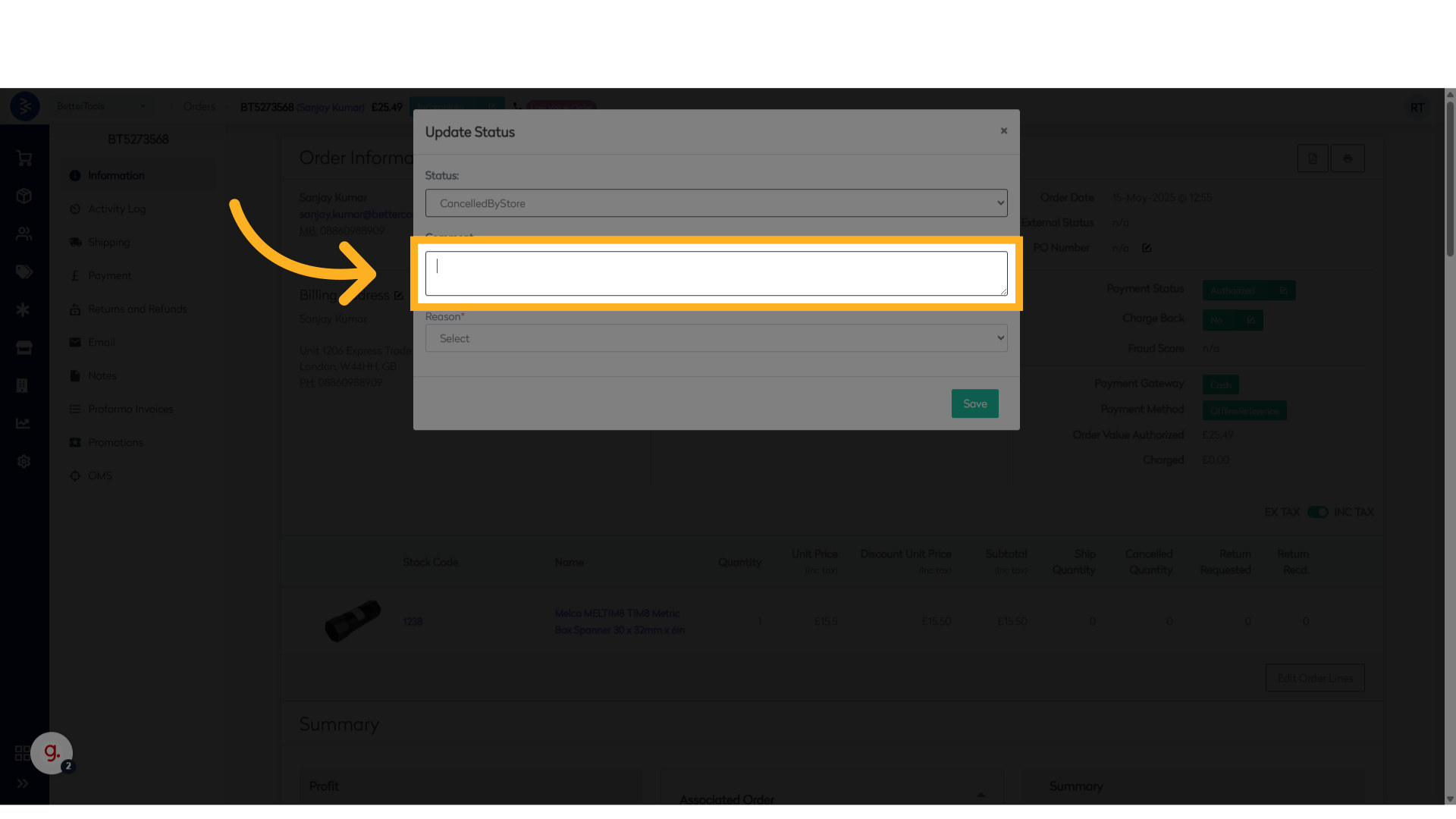
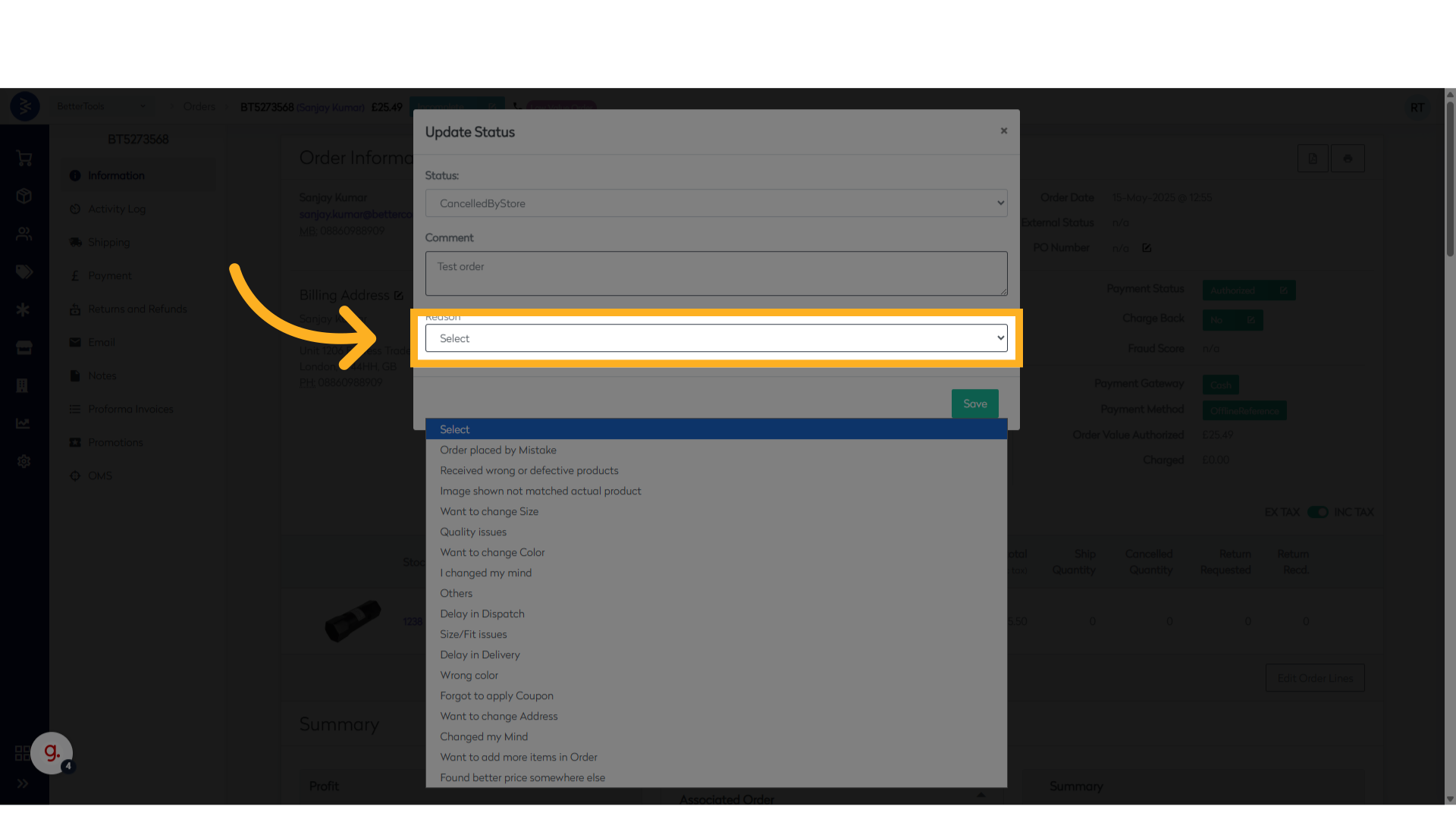
- If canceling the order, select a reason from the available options.
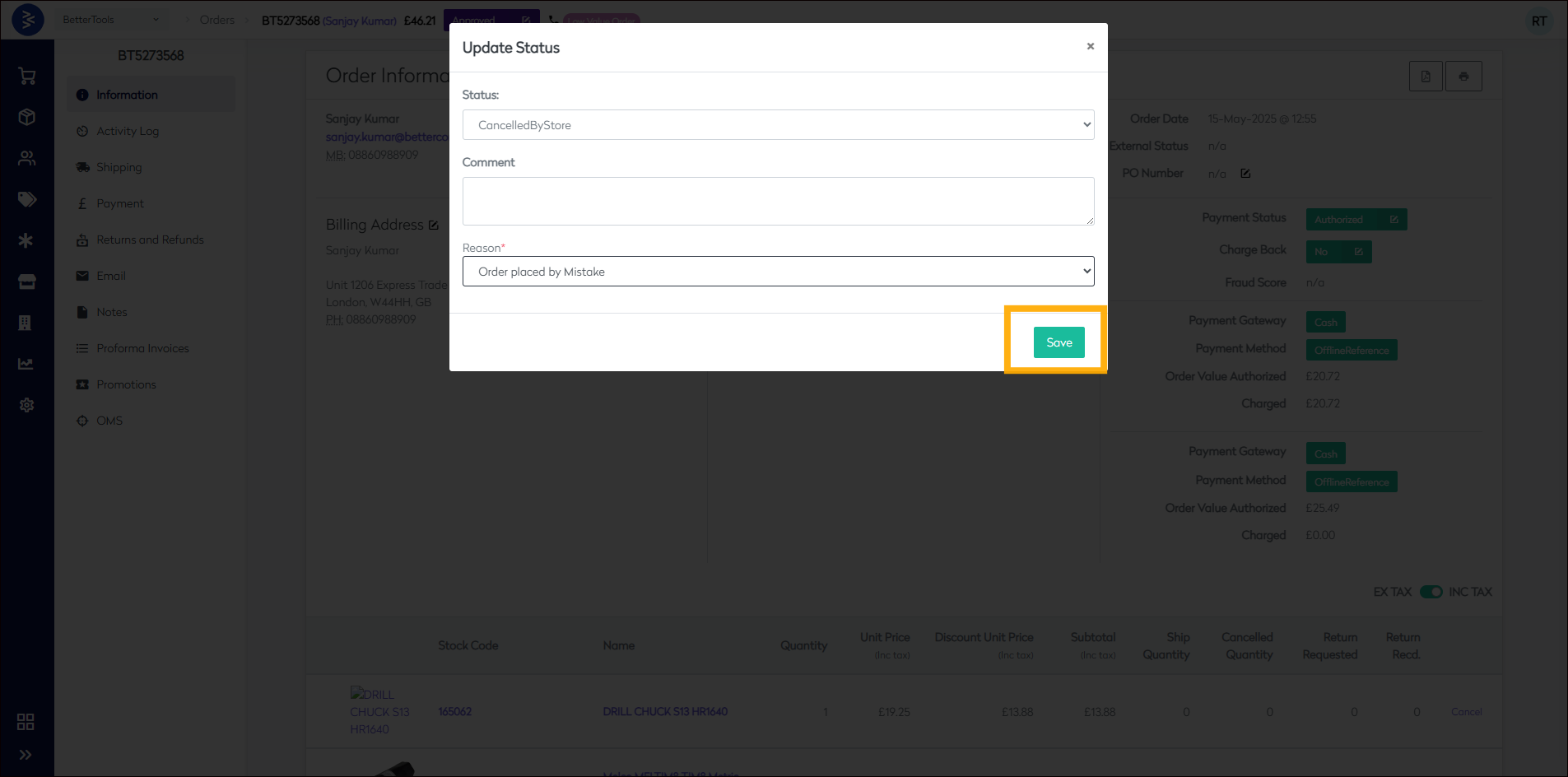
- Click Save to apply the changes.
Edit Order Lines (Add Product / Update Quantity)
- Click Edit Order Lines on the order details page.
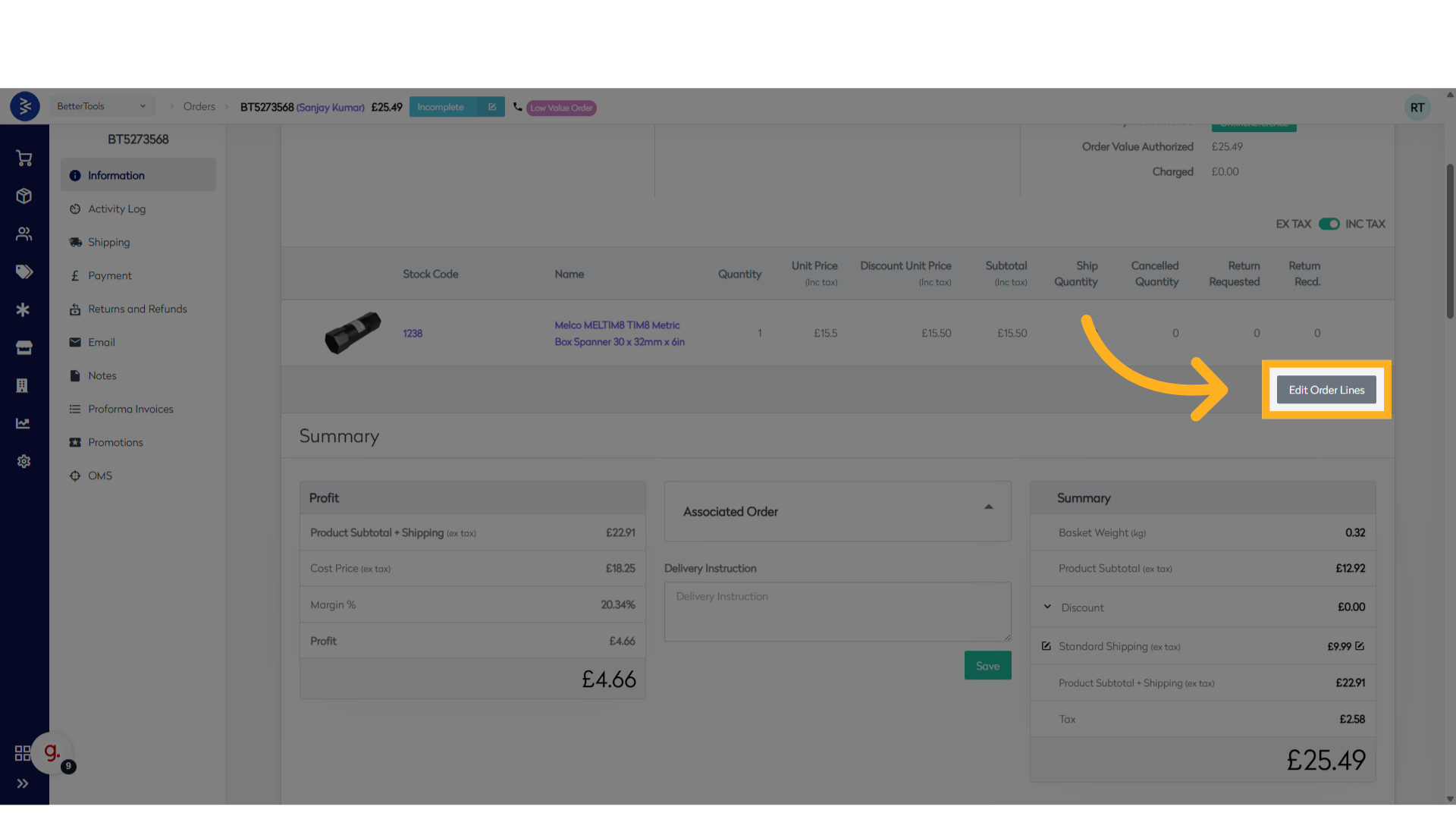
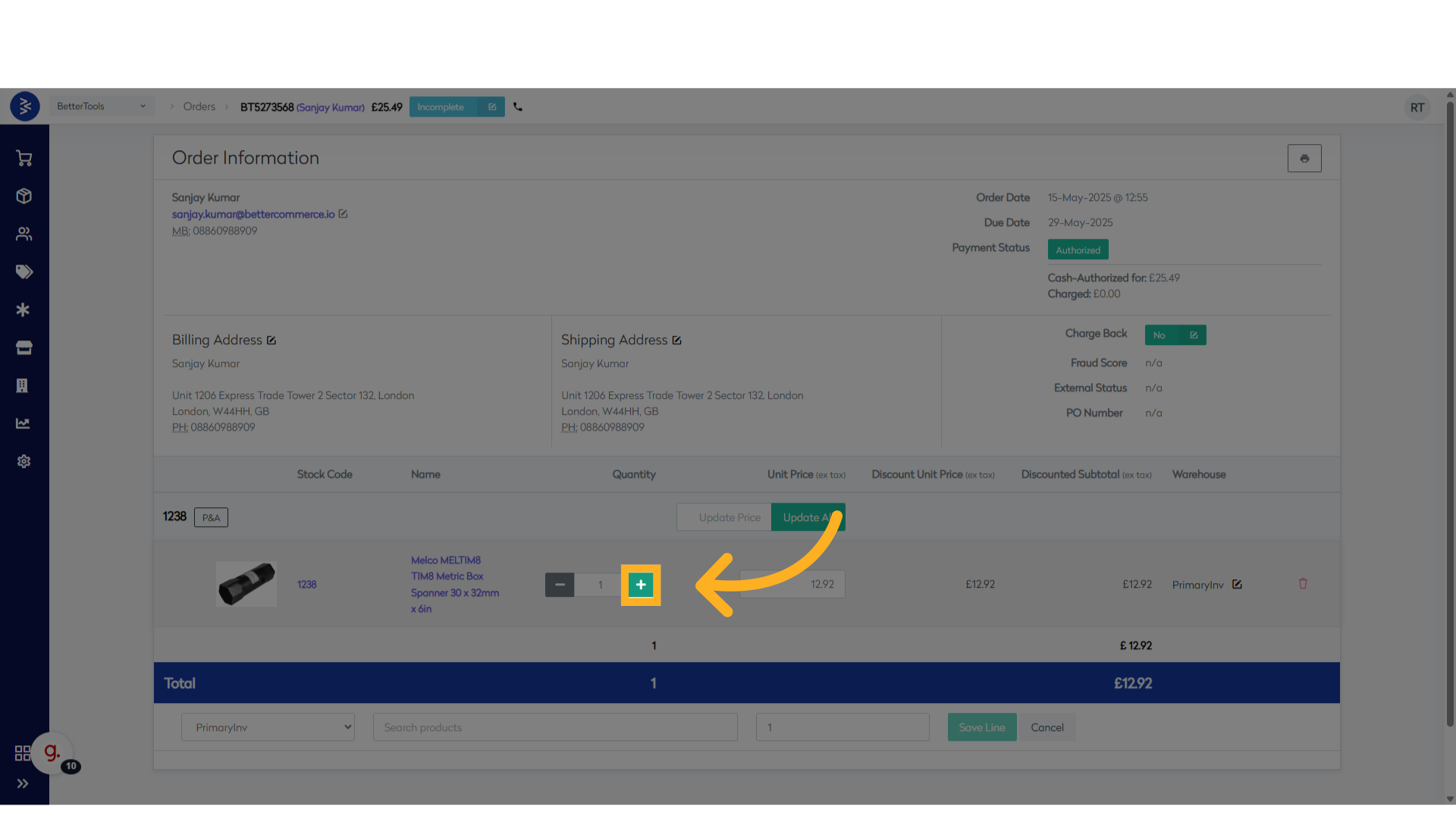
- To update quantity, click the + icon next to the existing product line.
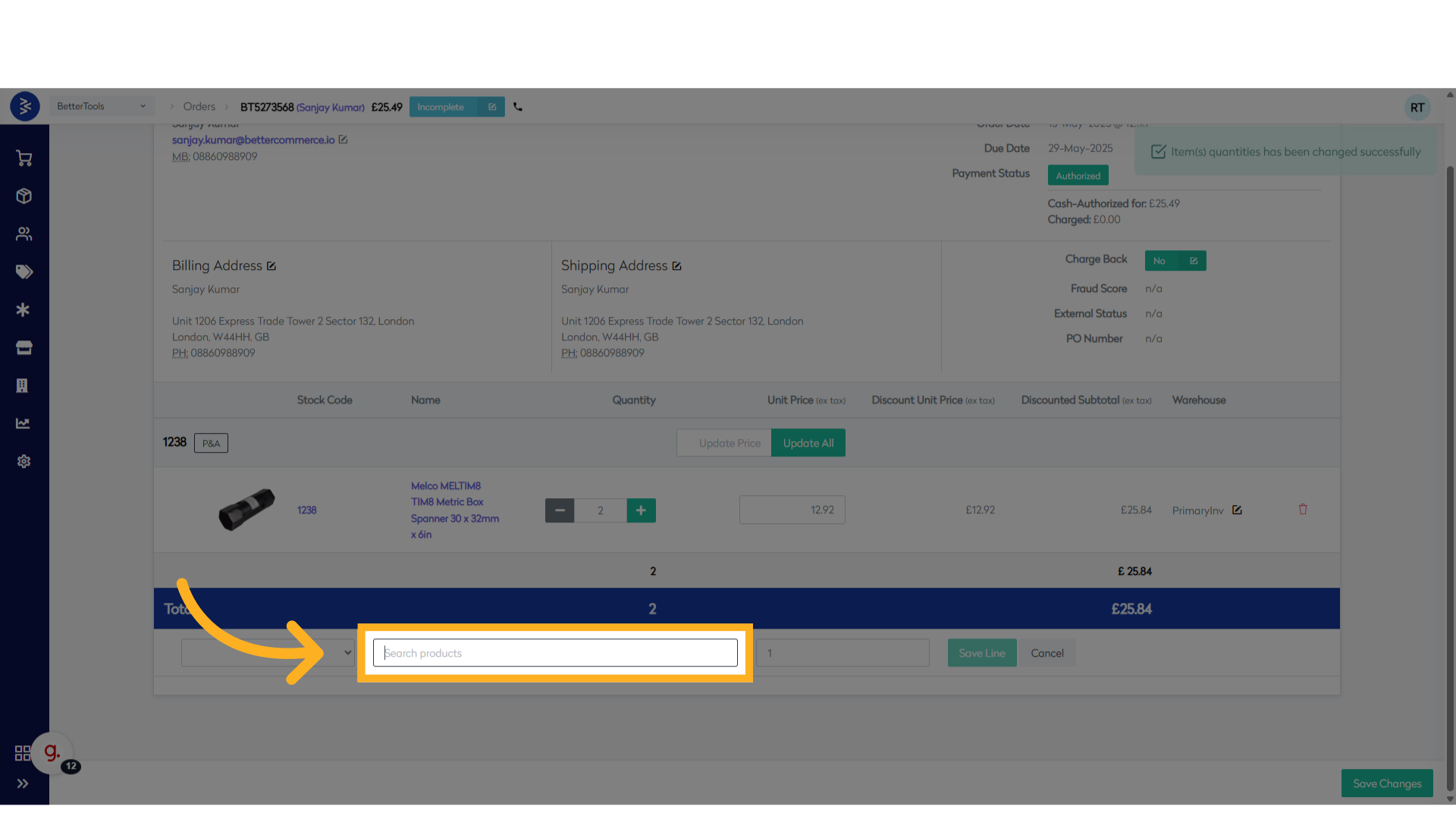
- To add a new product, use the Search products field to enter the Stock Code or Product Name.
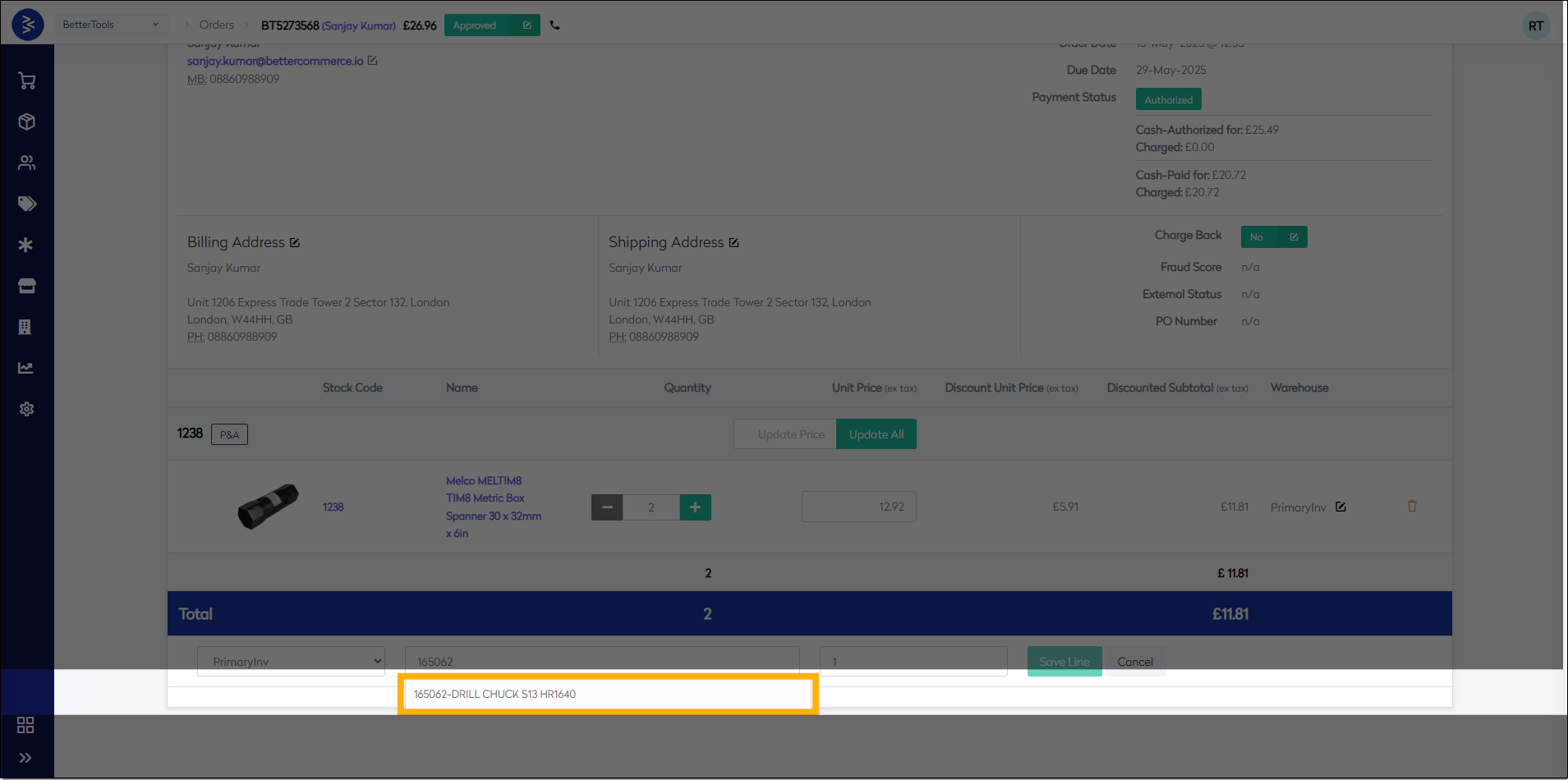
- Select the required product(s) from the list.
- Click Save Line after adding new items.

- Once all changes are done, click Save Changes.
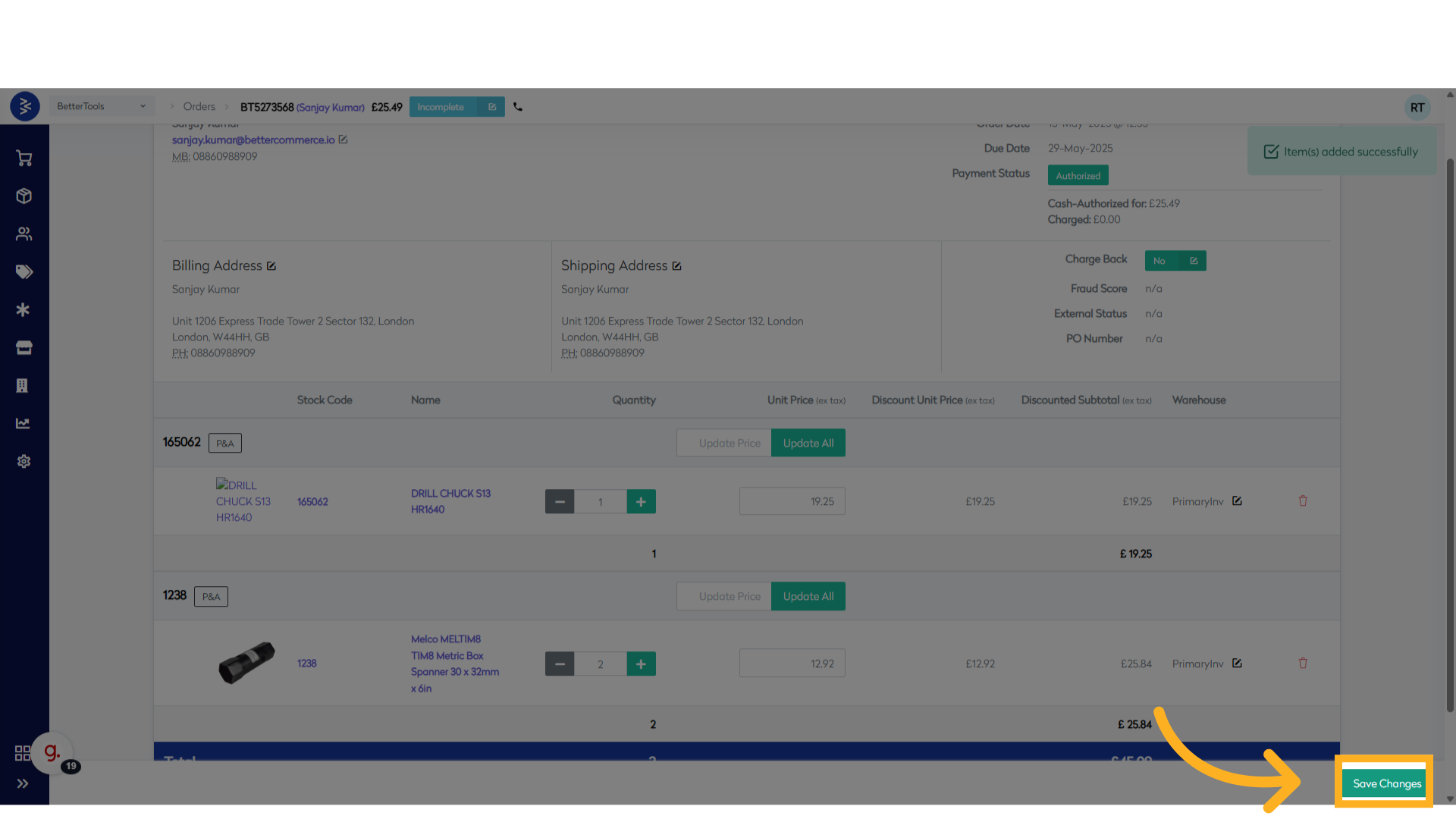
- You will be redirected to the updated Product Details page.
Add Promotion to an Existing Order
Option 1: Apply Existing Promotion Code
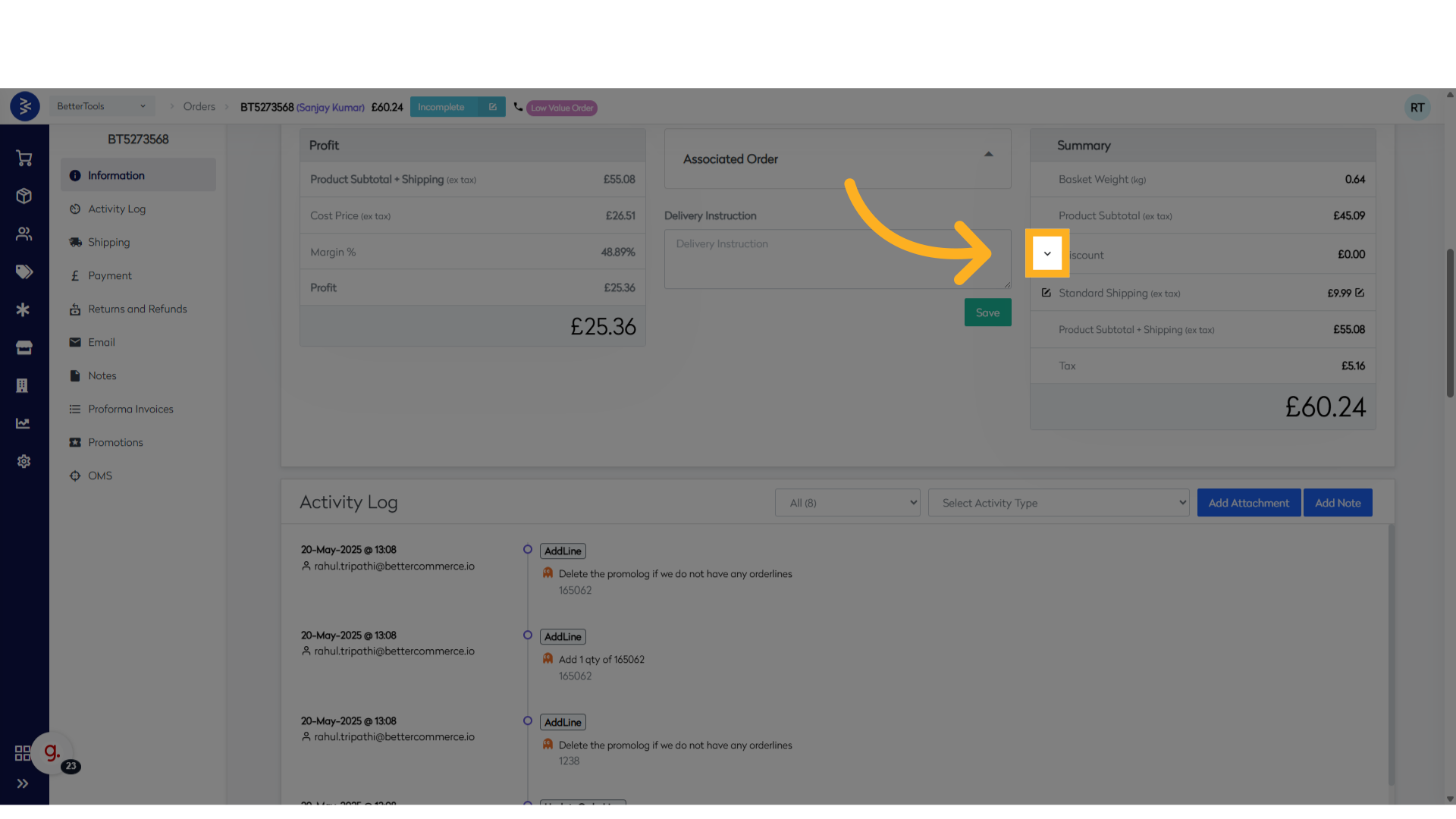
- Navigate to the Discount section and click the expand icon.
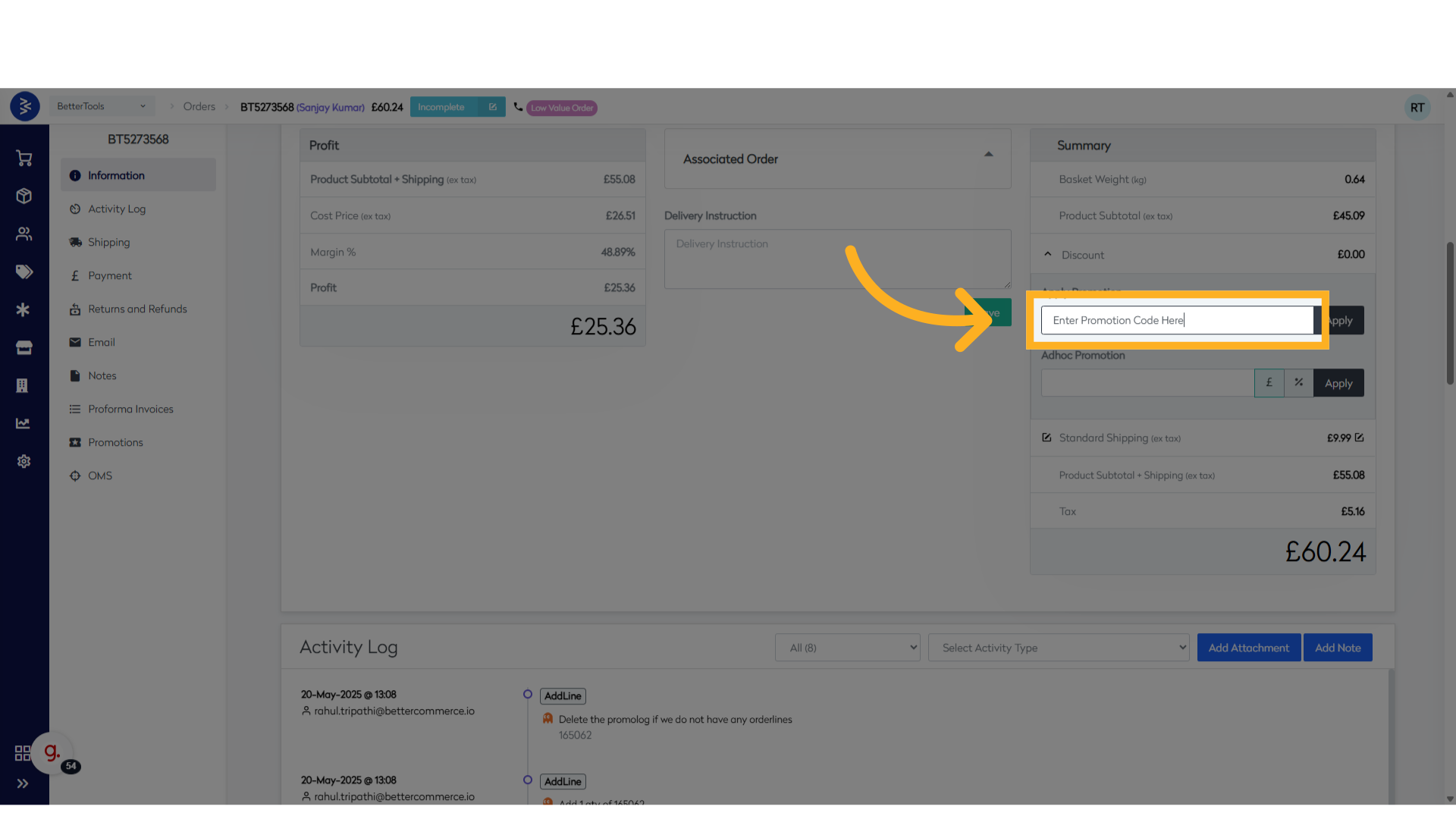
- Enter the Promotion Code in the Apply Promotion field.
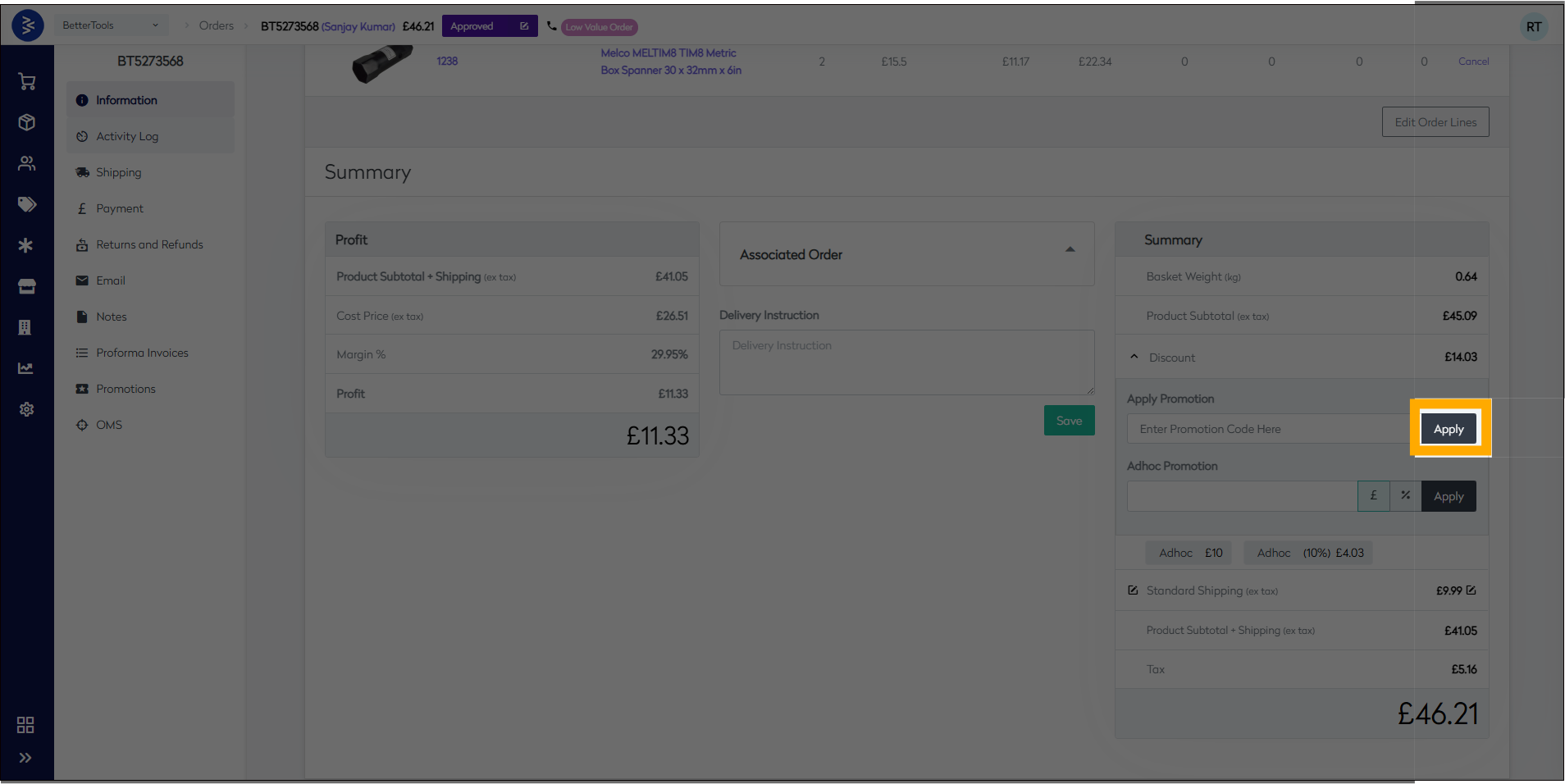
- Click Apply.
✅ Promotion will be applied only if the products qualify for it and the discount will reflect accordingly.
Option 2: Apply Adhoc Discount
- Navigate to the Adhoc Promotion section.
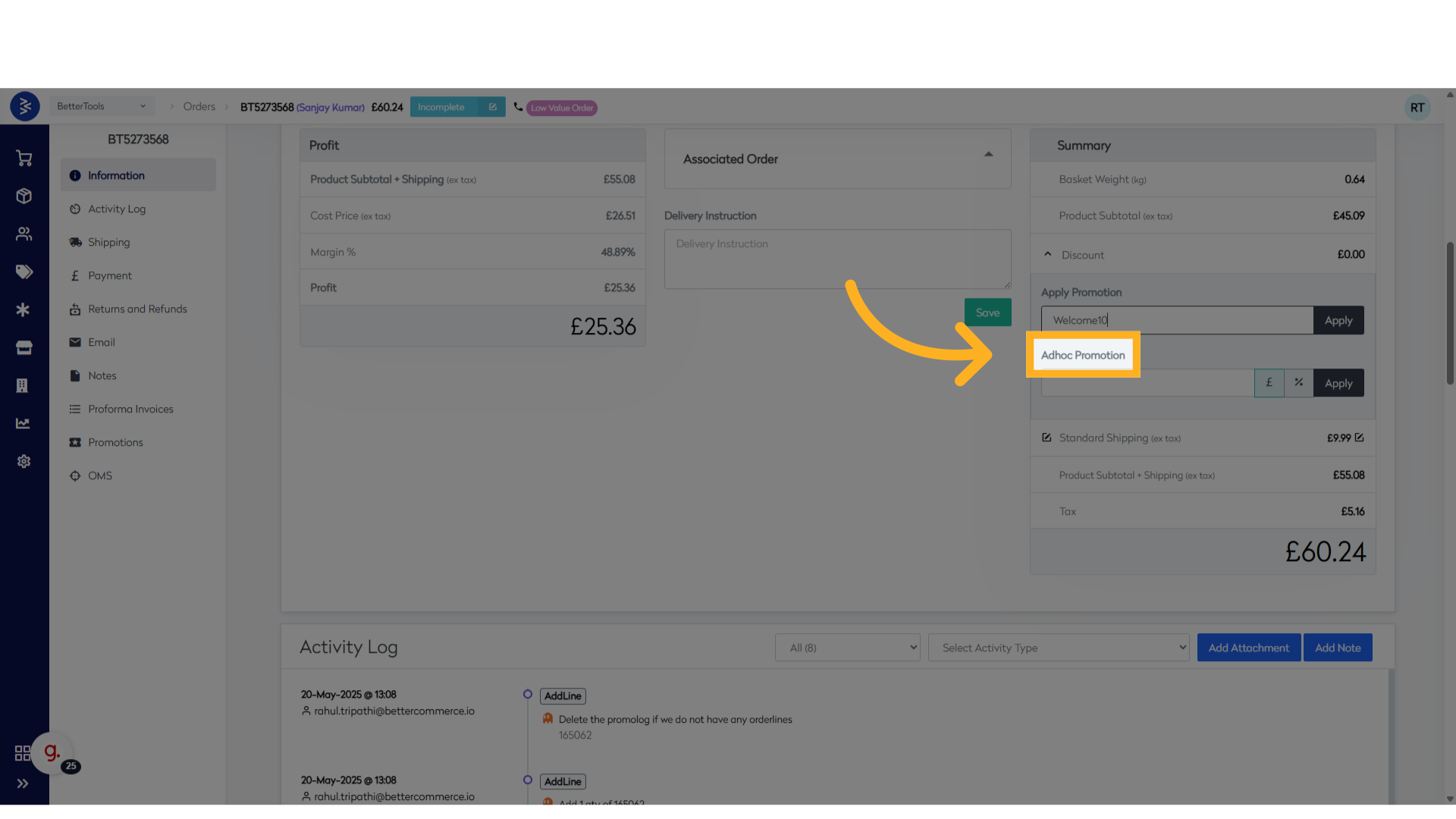
- Enter the value in the text box.
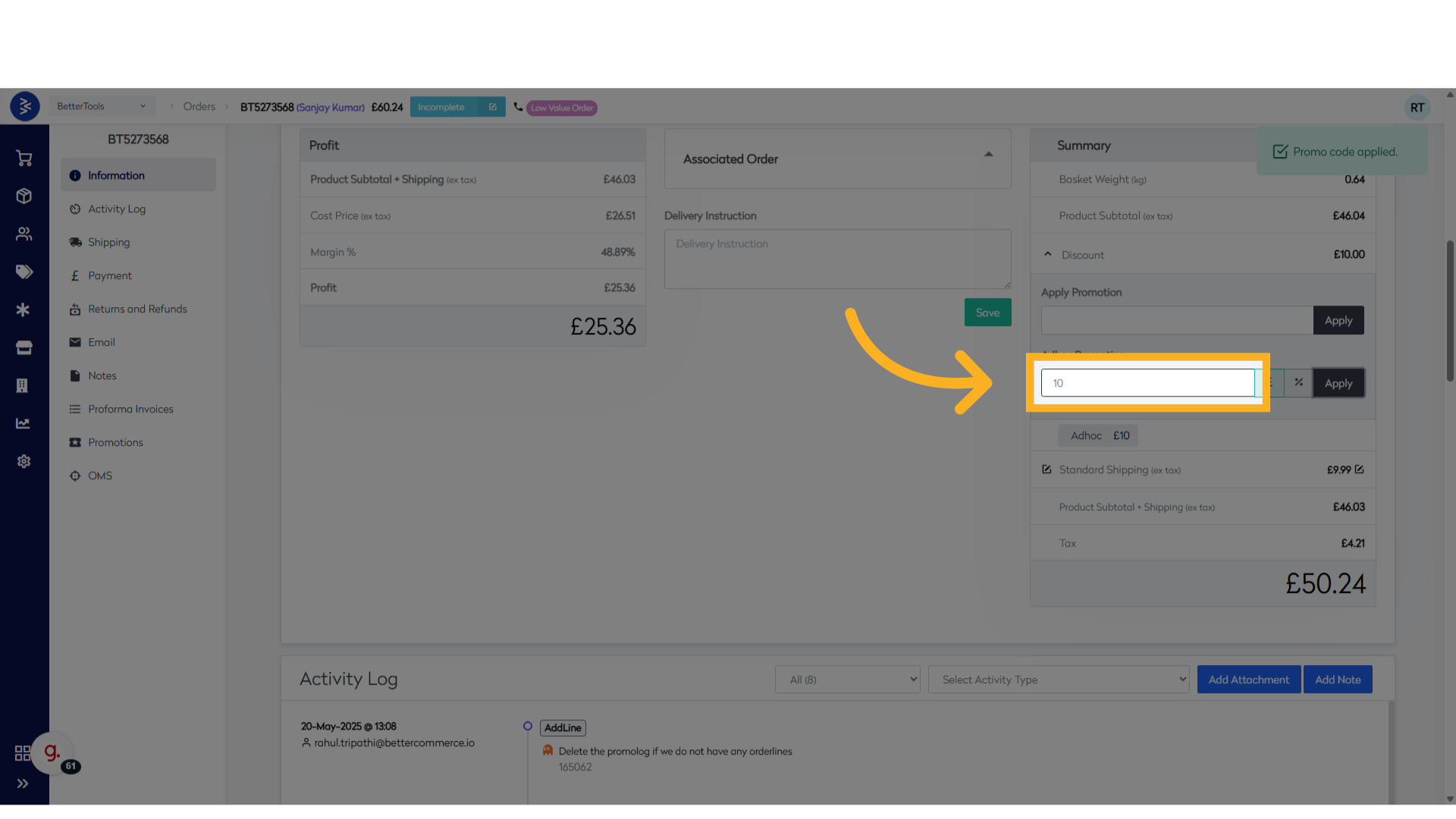
- Select £ (amount) or % (percent).
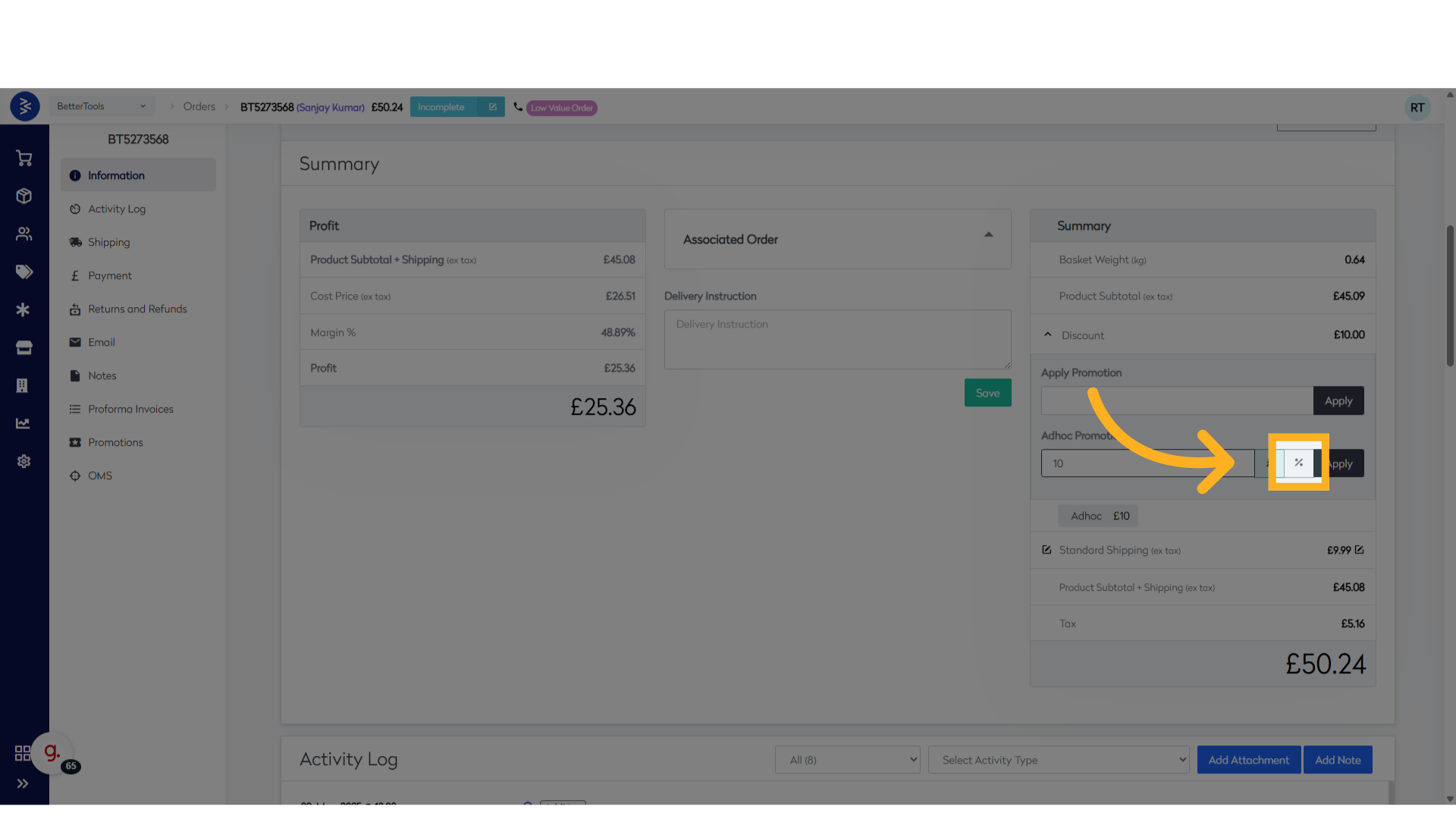
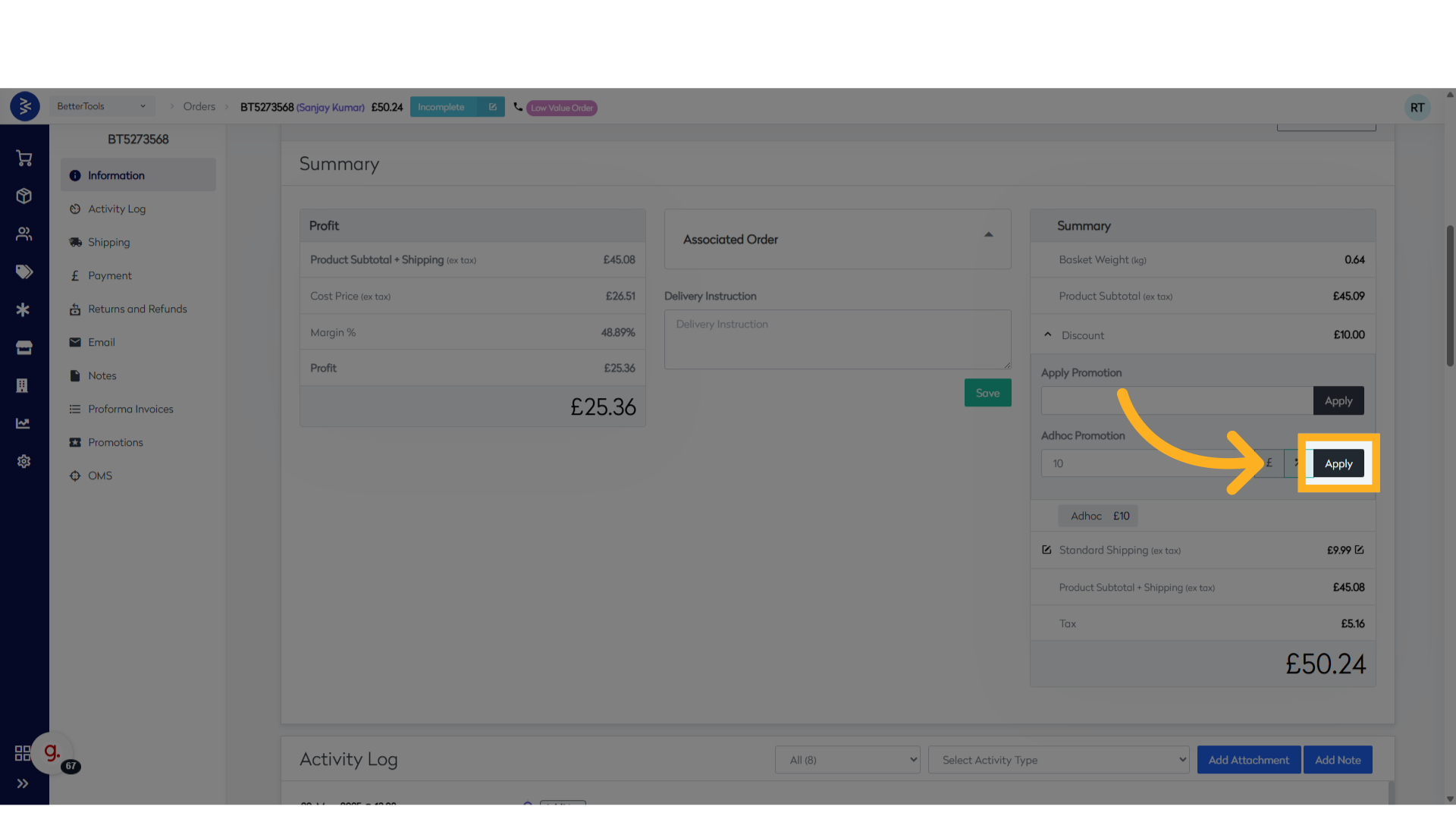
- Click Apply.
✅ The discount will be applied to the order total as specified.
Add Custom Note or Attachment
Add a Note
- Navigate to the Activity Log section.
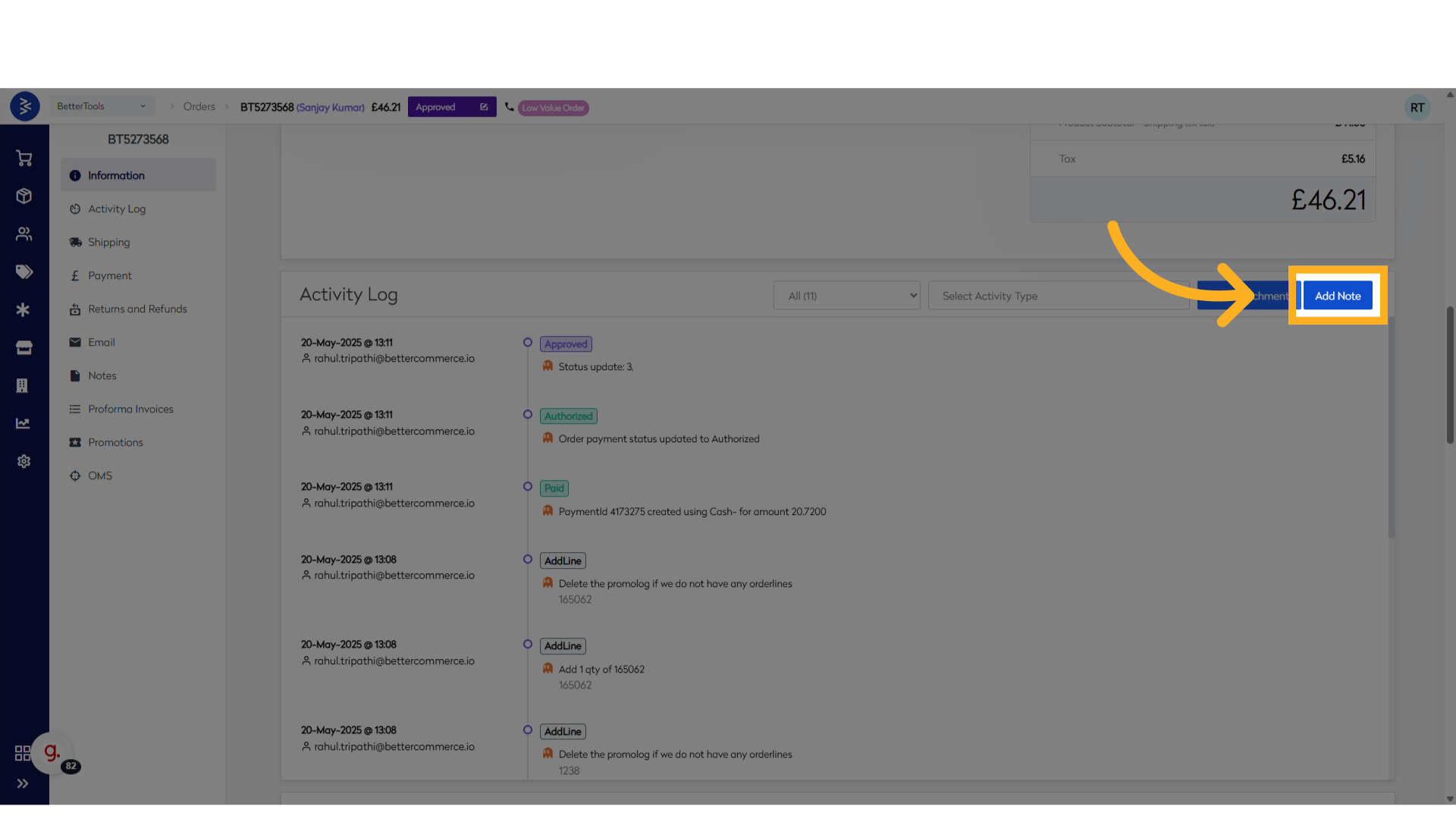
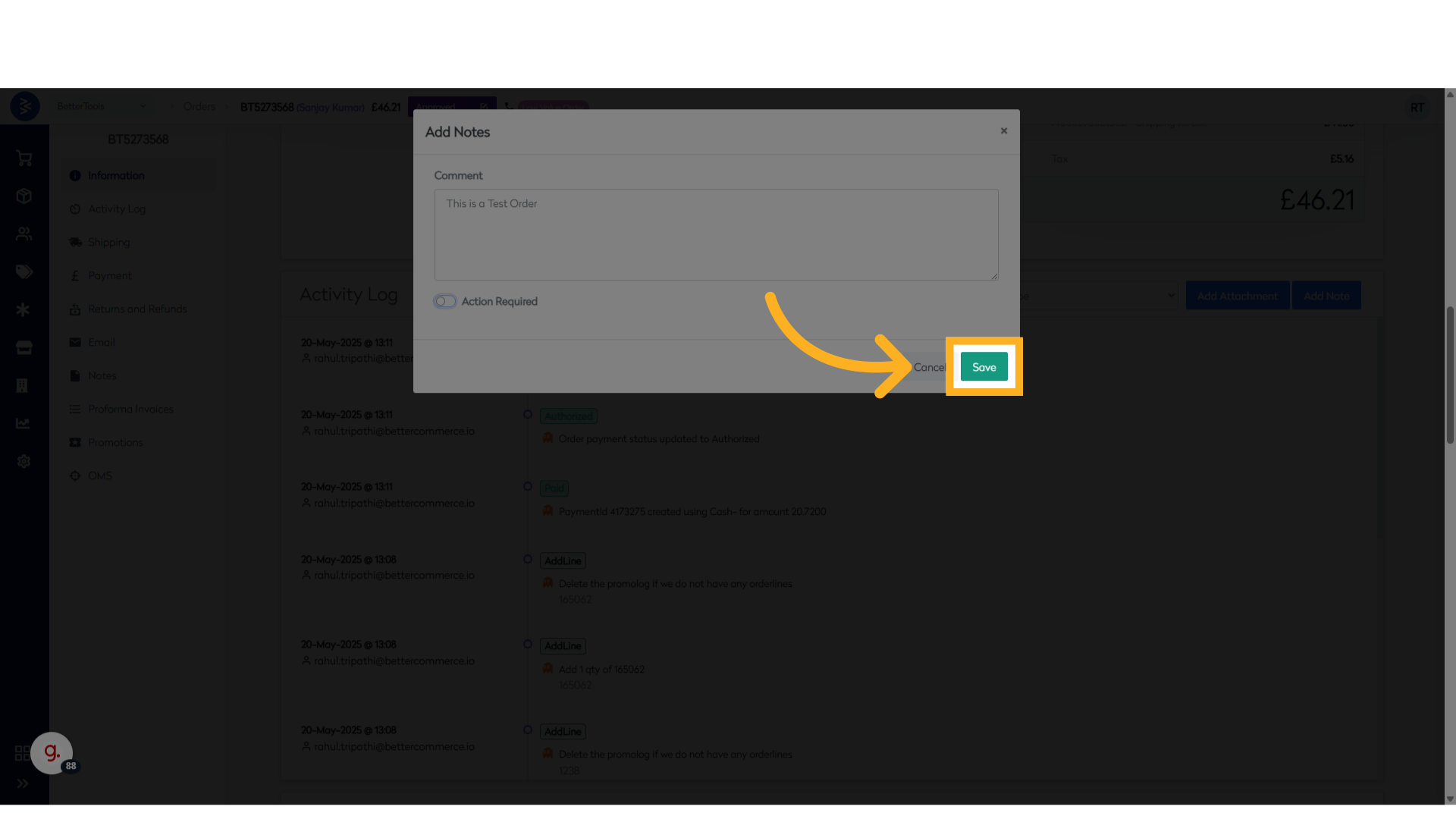
- Click Add Note, enter your custom note or internal instructions, Click Save.
Add an Attachment
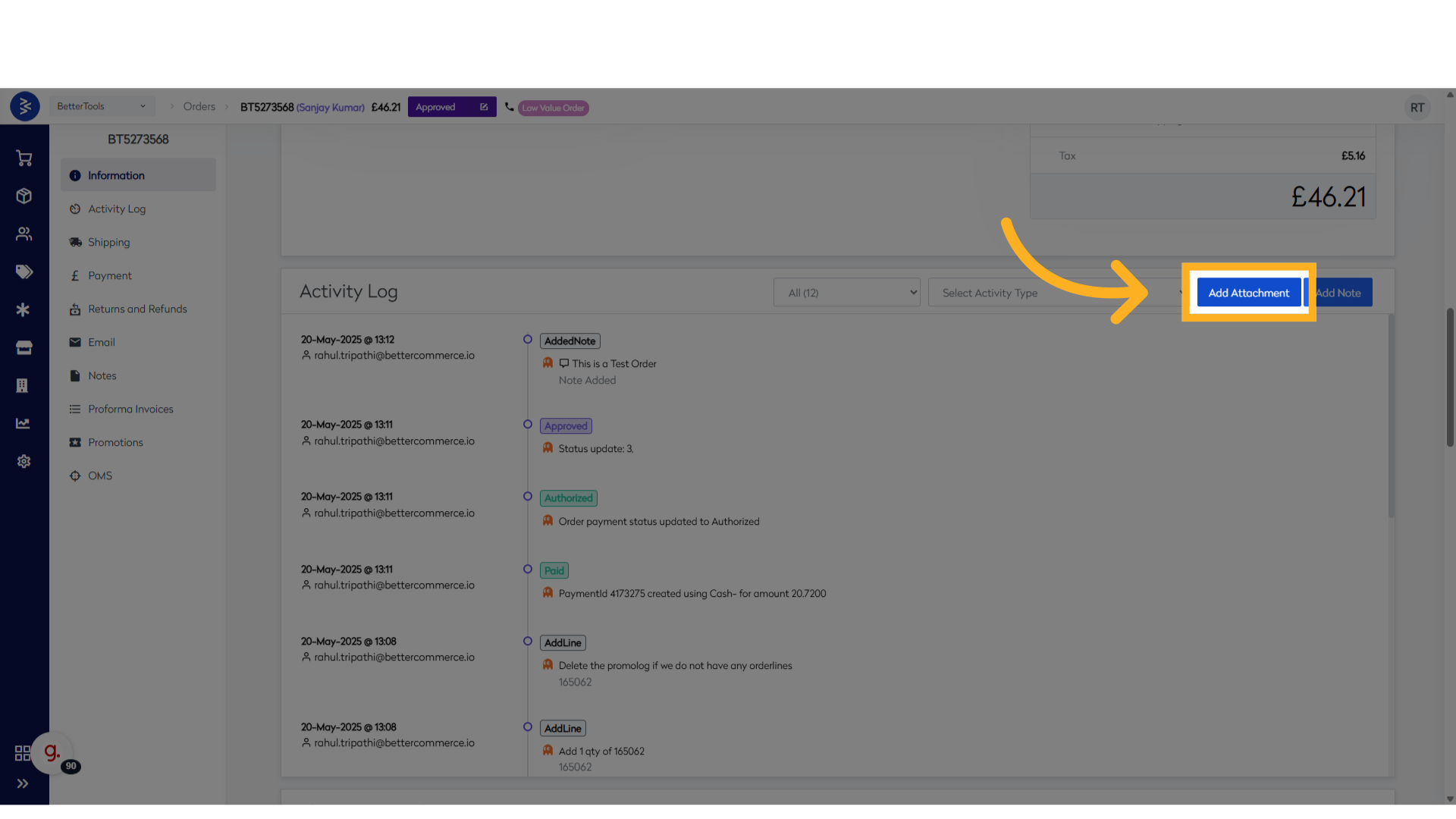
- Click Add Attachment in the Activity Log section.
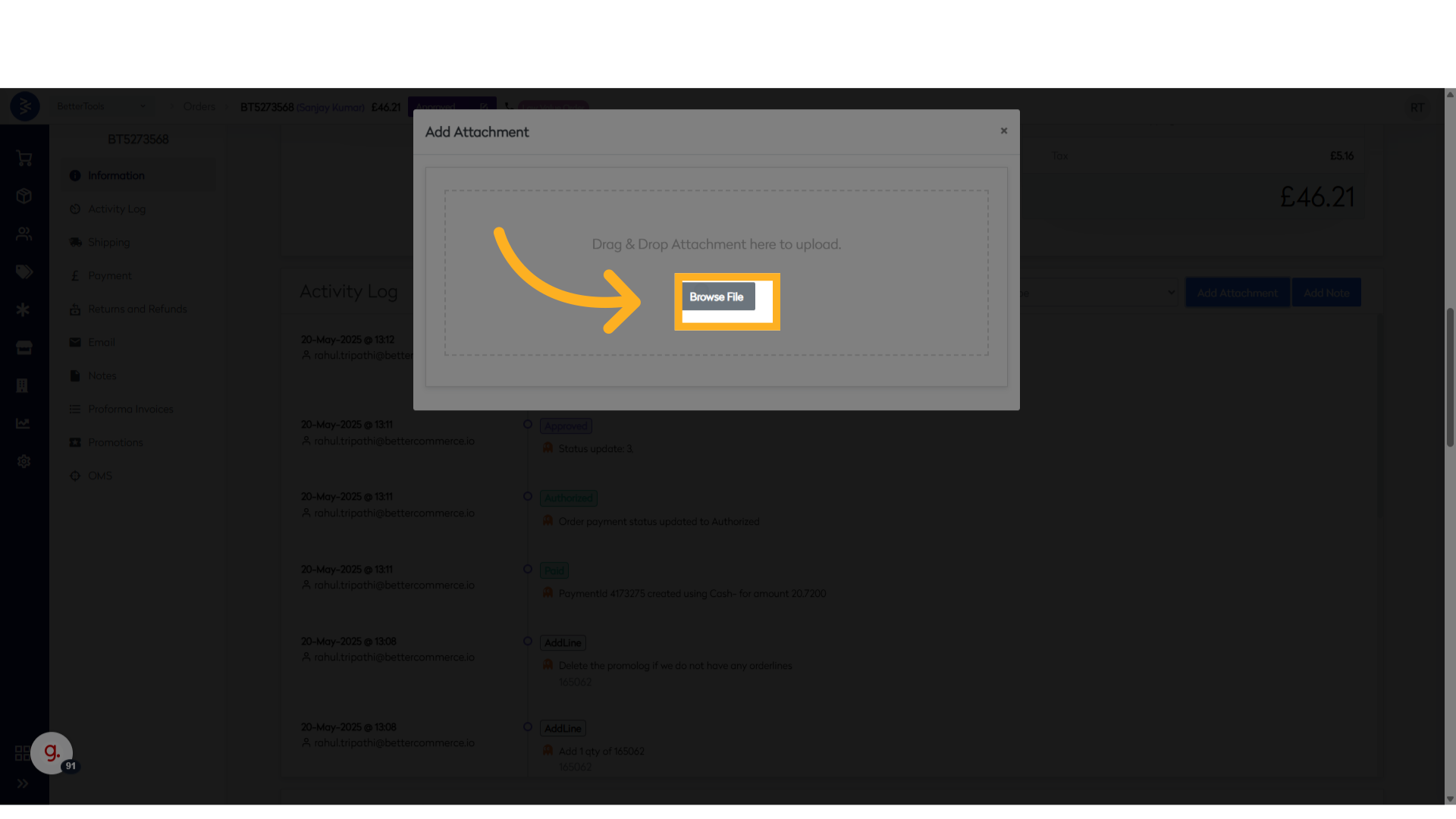
- Click Browse File to open your system's File Explorer.
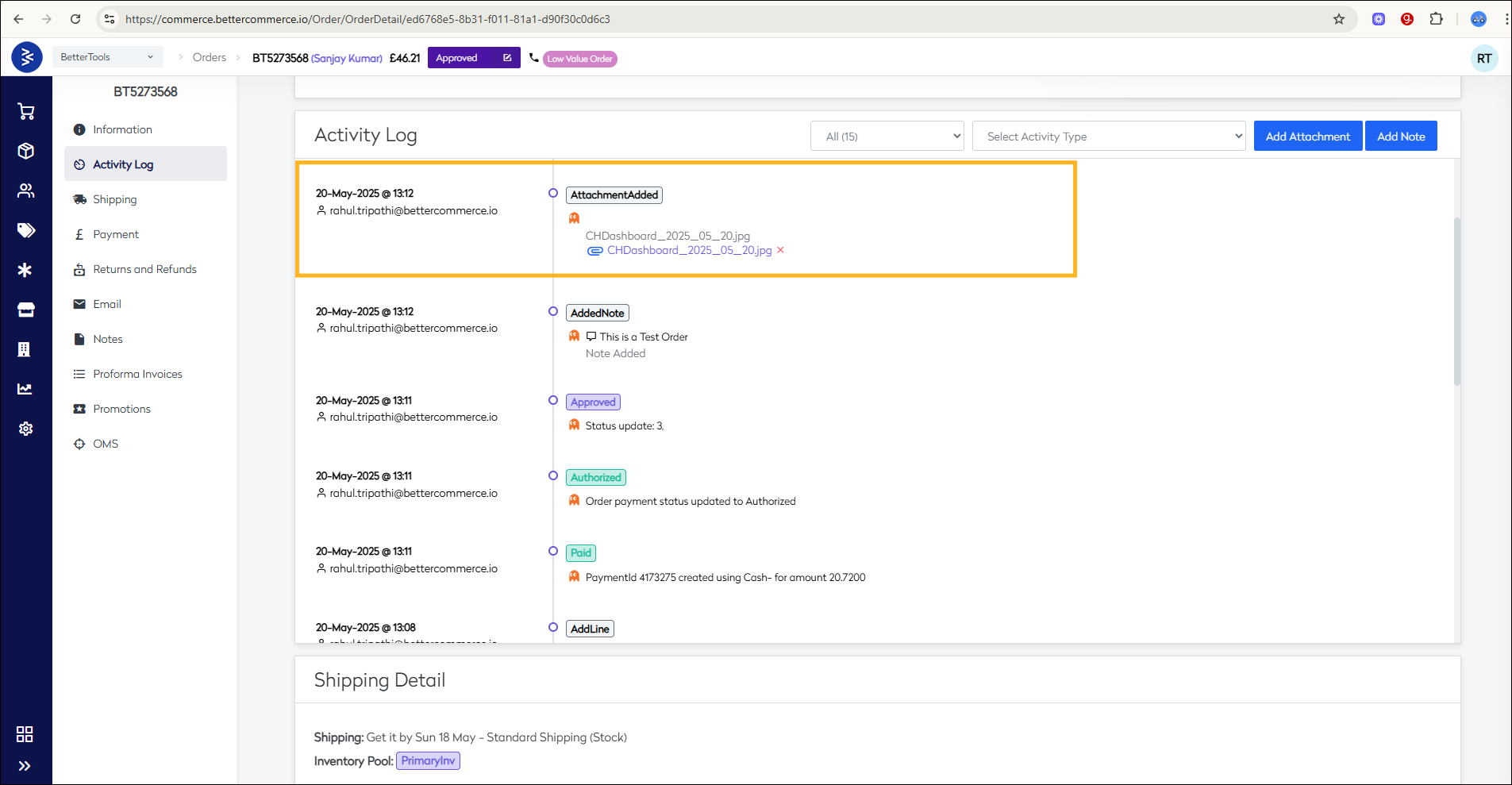
- Select the desired file to upload.
📎 The file will be saved as an attachment within the order’s activity log.
Update Tracking Information for an Order
Note: The option to update tracking details becomes available only after the order status is changed to Ready To Dispatch.
Steps to Update Tracking Details
- Open Order Details page of the order.
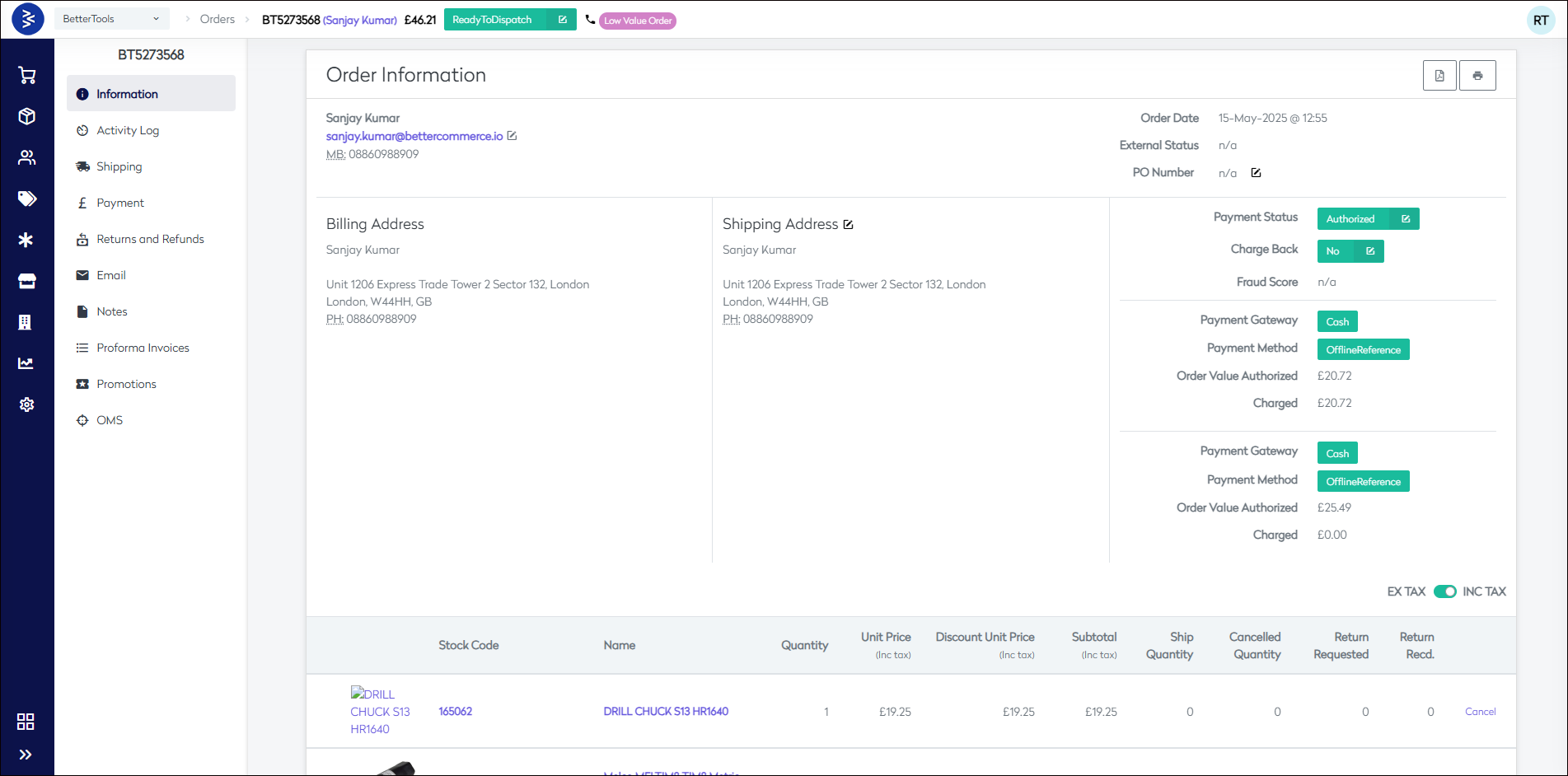
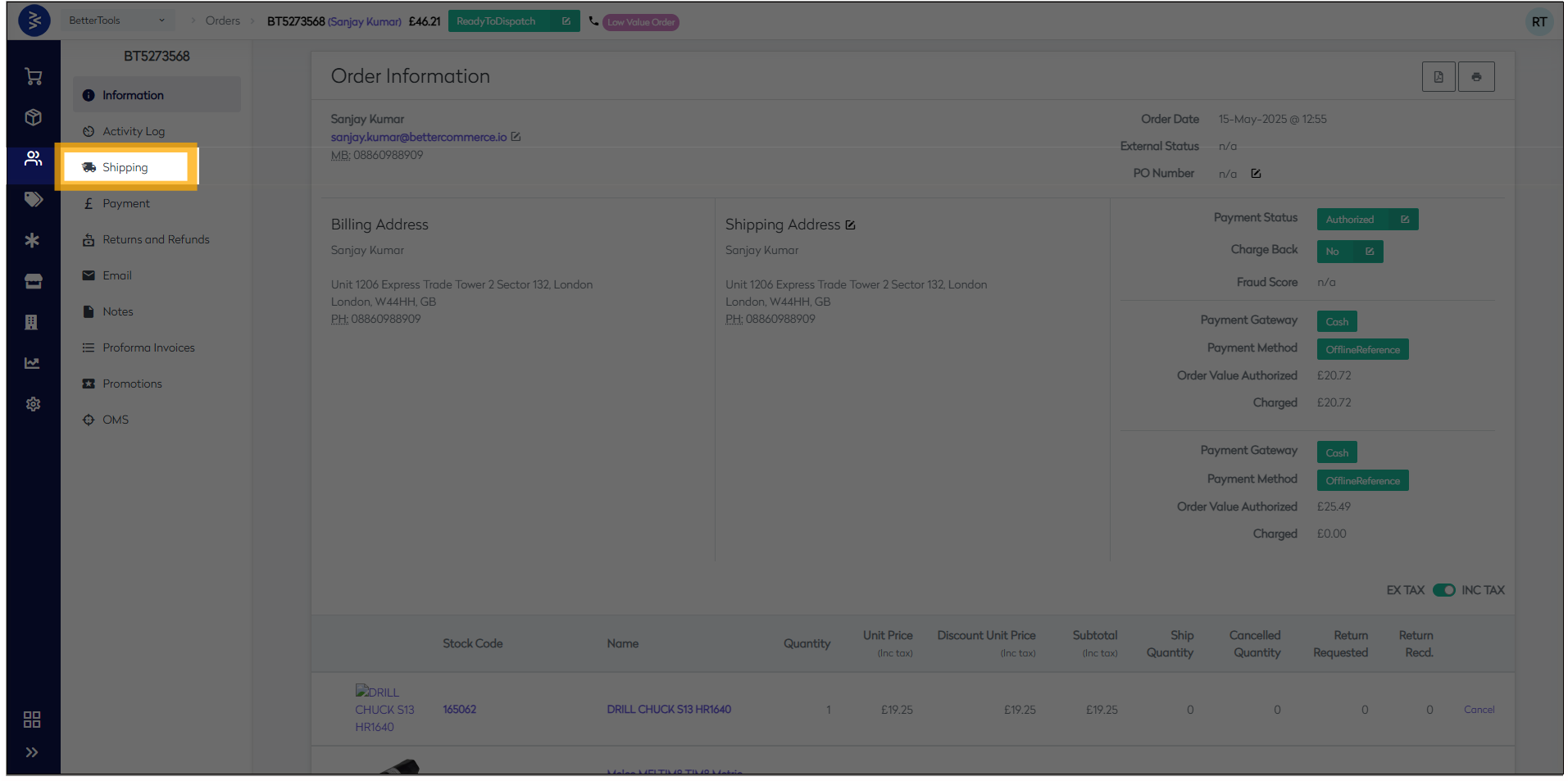
- Scroll down and go to the Shipping section of the page.
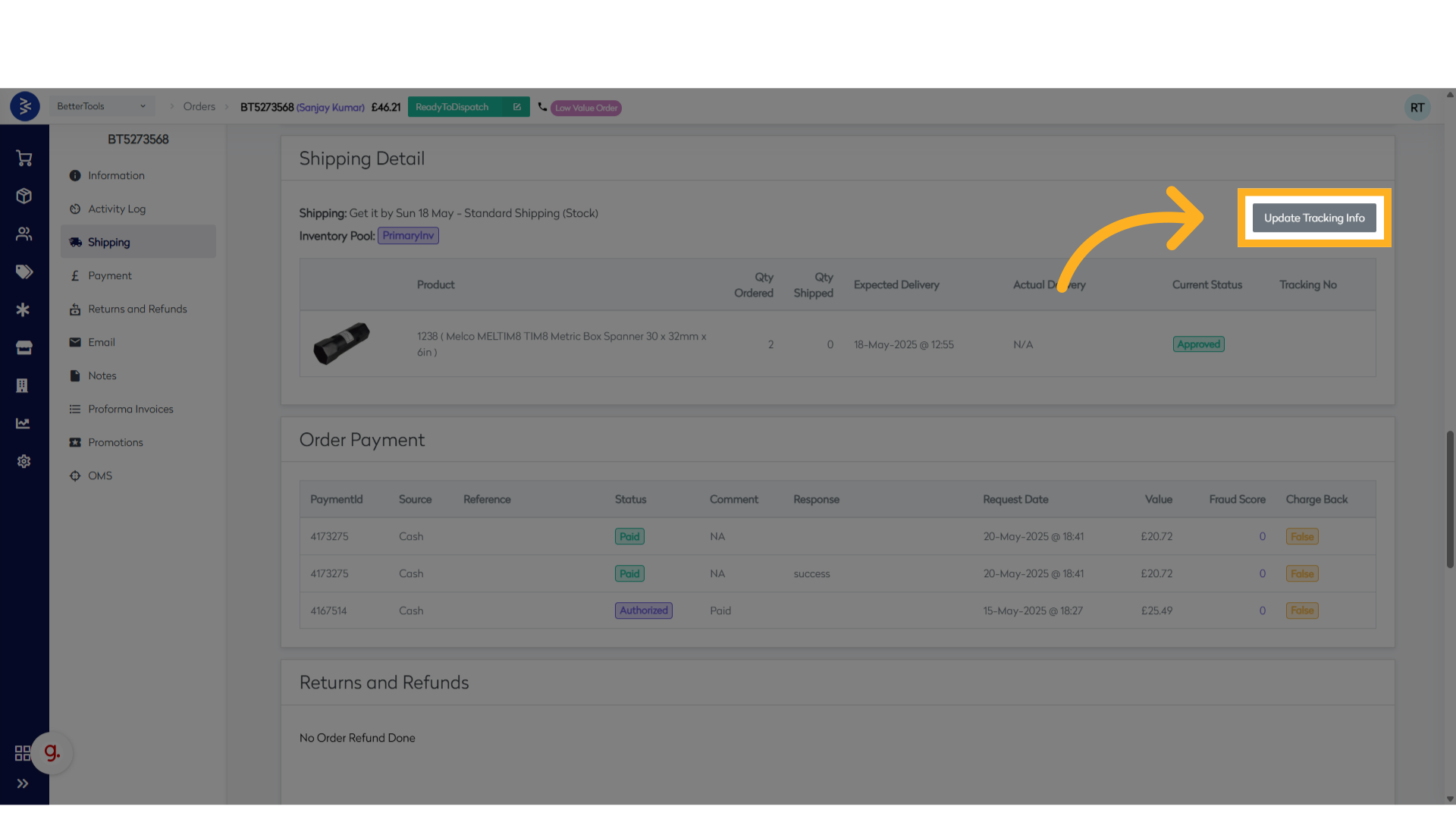
- Click the Update Tracking Info button available within the shipping section.
- Enter Tracking Details
- Tracking Link: Paste the full tracking URL provided by the courier (e.g.,
https://courier.com/track/907876876)
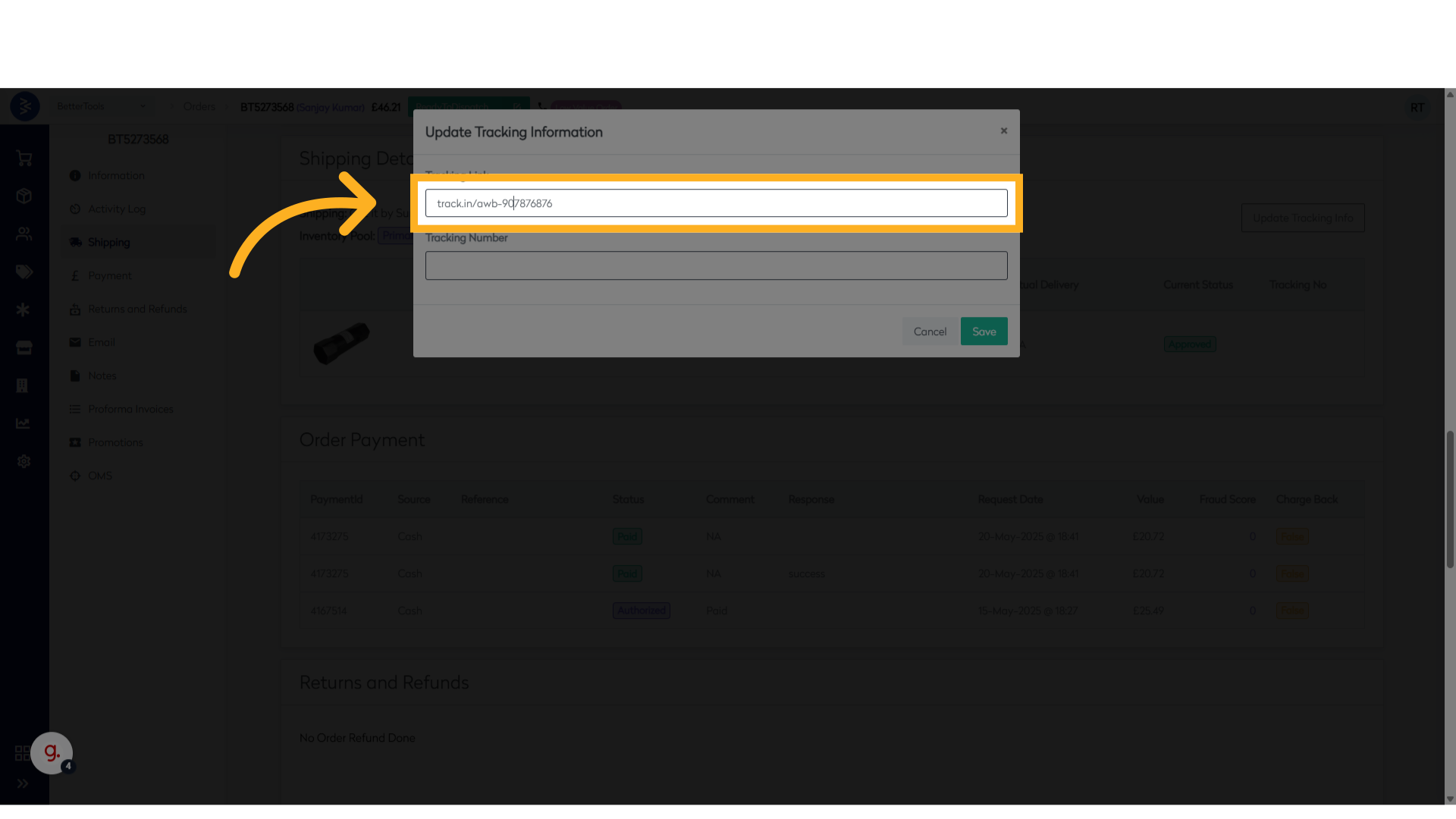
- Tracking Number: Enter the tracking number. Example:
907876876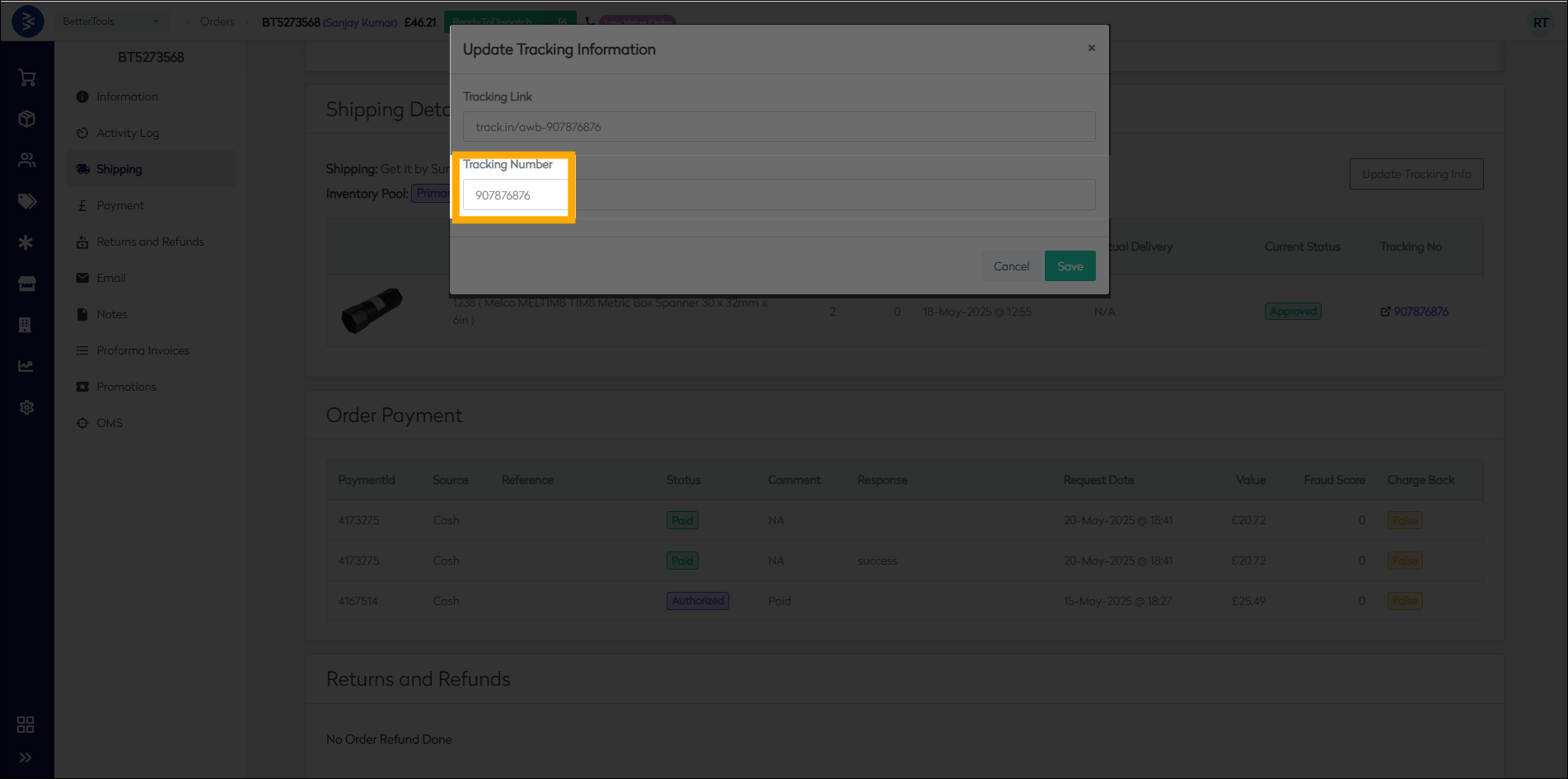
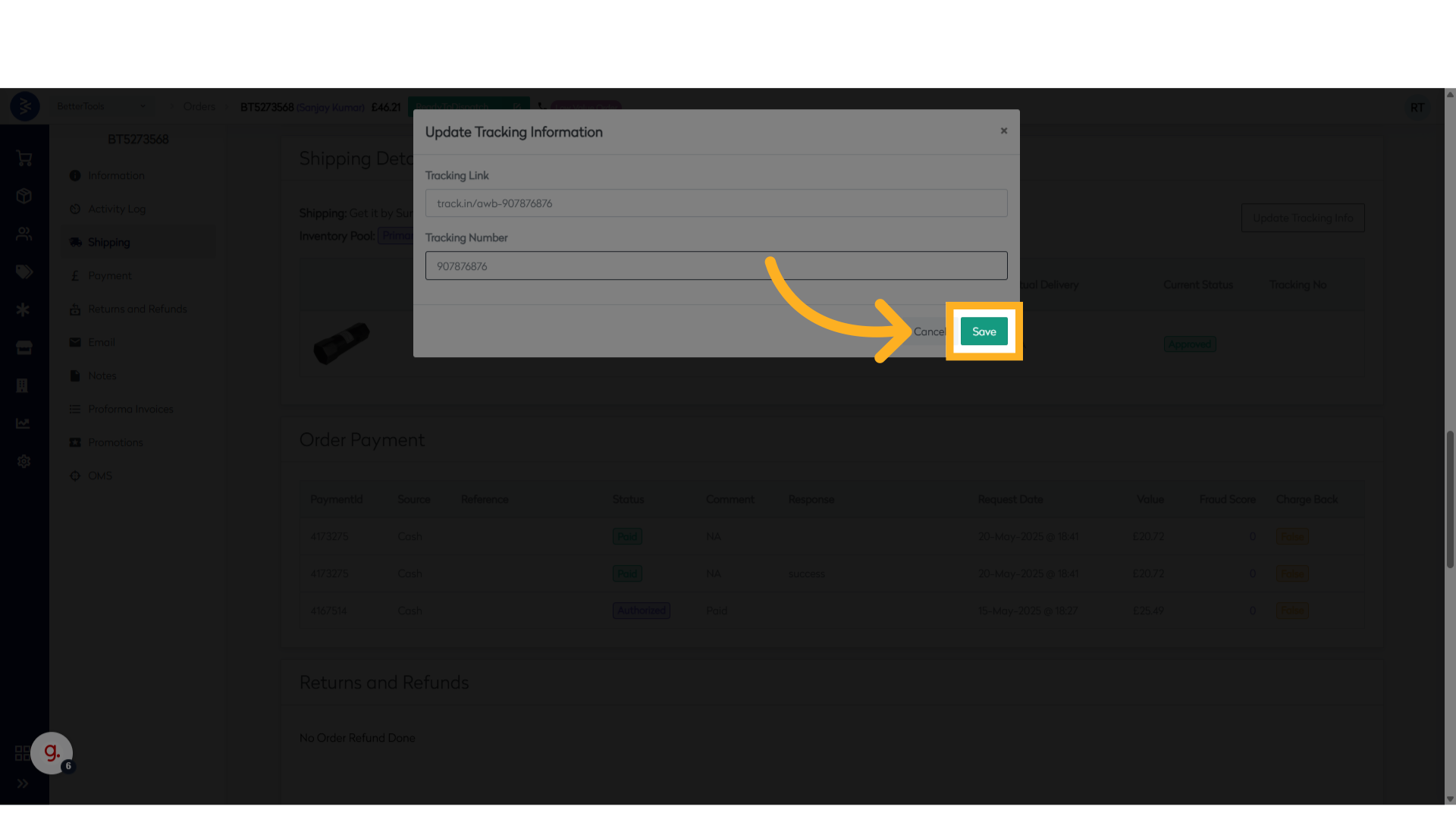
- Click Save to apply the tracking information to the order.
Summary
Using the steps above, you can manage order updates, modify product lines, apply promotions, and attach relevant information. These capabilities ensure your order management is flexible and aligned with real-time needs before fulfillment.
Managing Returns and Replacements
The platform isn't limited to selling products across multiple channels—it also means offering seamless post-purchase support regardless of how or where the customer made their purchase. The BetterCommerce platform empowers businesses to provide exactly that flexibility—enabling a "buy anywhere, return anywhere" experience.
The Returns process helps manage returns efficiently across all channels. It ensures returned items are tracked correctly and that customers receive refunds or replacements aligned with their original order and account.
Ways to Initiate a Return
Returns can be initiated by customers through multiple touchpoints:
- My Account: Customers can log in and raise a return request directly from their order history.
- Customer Support: Returns can be initiated by support teams on behalf of customers through backend tools.
- In-Store: Customers can walk into a physical store and initiate a return for online or offline purchases.
🔔 Note: By default, return creation is allowed only after the order status is updated to Dispatched.
In all cases, the return request is reviewed by the customer service team. Depending on the customer’s preference and eligibility, a refund may be issued, or a replacement order processed.
RMA Statuses and their description
The BetterCommerce platform provides a set of default RMA statuses to manage the return lifecycle effectively. These are enabled as per your business rules.
Pre-Defined Return Statuses
| Status | Description |
|---|---|
| ReturnRequested | Customer has initiated a return request. |
| ApproveRequest | Return request has been approved. |
| RejectRequest | Return request has been rejected. |
| ReturnReceived | Returned product has been received at the warehouse. |
| ProcessReturn | Return is being processed for refund or replacement. |
| ReturnCantBeProcessed | Return request cannot be processed due to a business or system constraint. |
| ReturnProcessingProblem | An issue occurred during the return process that needs manual intervention. |
| ReturnNotReceived | The return product has not been received. |
| ReplacementOrderCreated | A replacement order has been successfully created against the return. |
| RefundProcessed | Refund has been successfully processed. |
| RefundPaymentProblems | Problem occurred while processing the refund payment. |
| CreditNoteCreated | Credit note has been generated for the return. |
| CourierReturn | Return initiated due to courier not delivering the product. |
| DTO | Direct to Origin where the product is returned directly to the seller's warehouse or origin point. |
| ExchangeDenied | Exchange request was denied. |
| ExchangeRequested | Customer has requested an exchange instead of refund. |
| ReturnOutforPickup | Return item is out for pickup by courier. |
| ReturnPickedup | Return item has been picked up from customer. |
| ReturnPickupCancelled | Scheduled pickup has been canceled. |
| ReturnPickupRescheduled | Pickup of the return item has been rescheduled. |
| RMAQCcomplete | Quality check on the returned item is completed. |
| RMAReceived | RMA request and product have both been received and logged. |
Steps to Create a Return or Replacement Request from CommerceHub module on customer's behalf
Refund
-
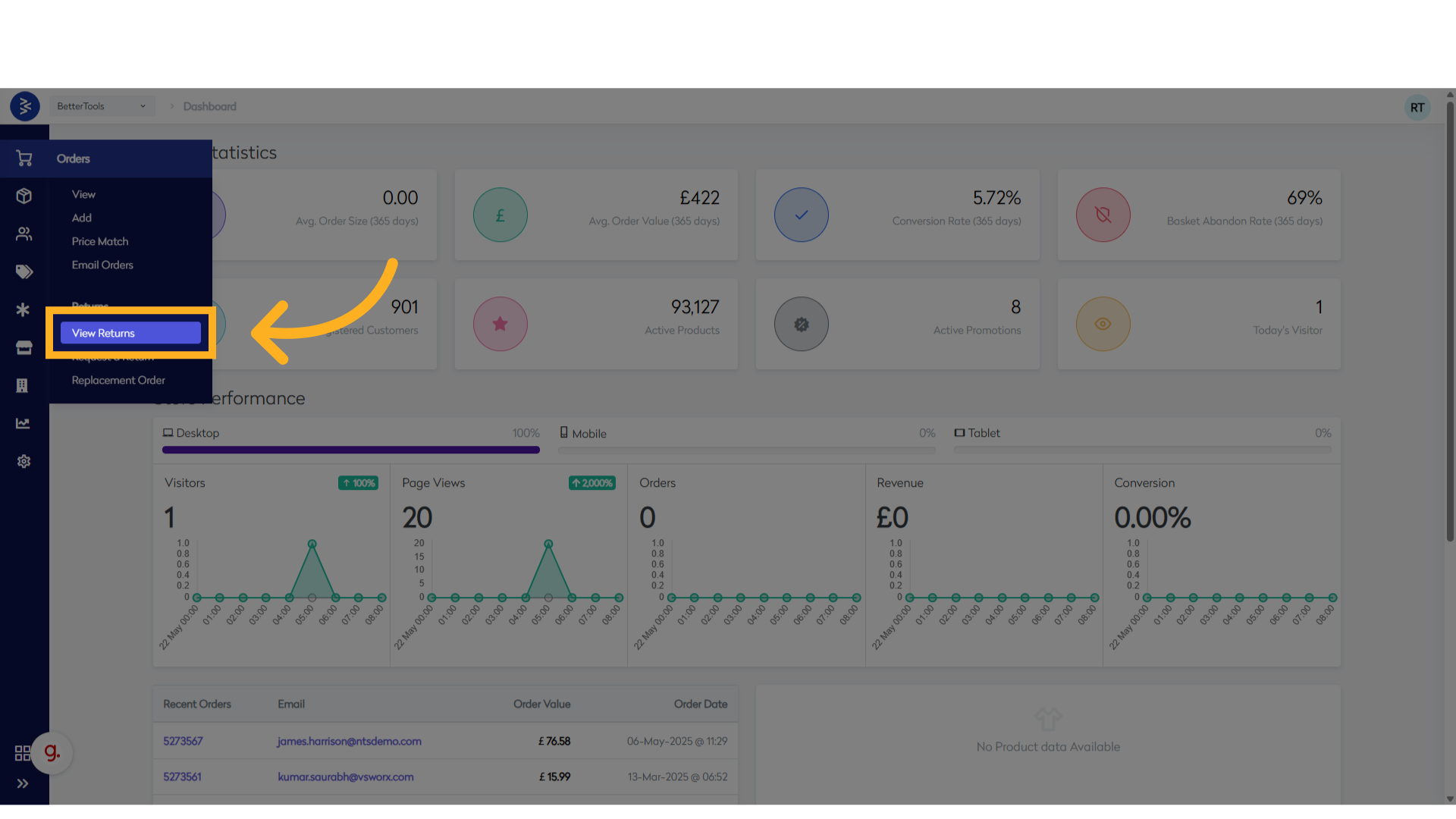
Navigate to Order and Click "View Returns"
-
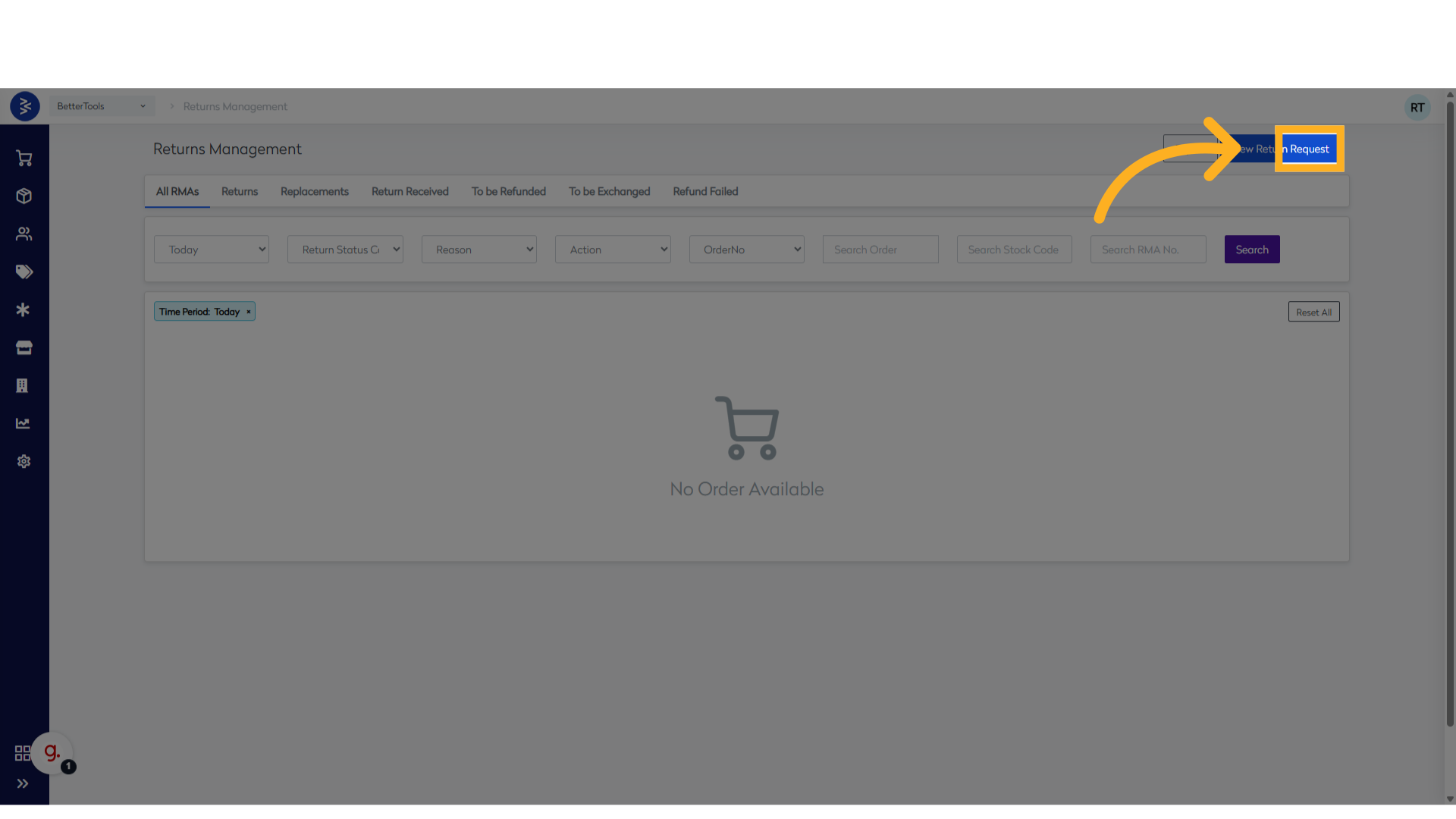
Click "New Return Request"
-
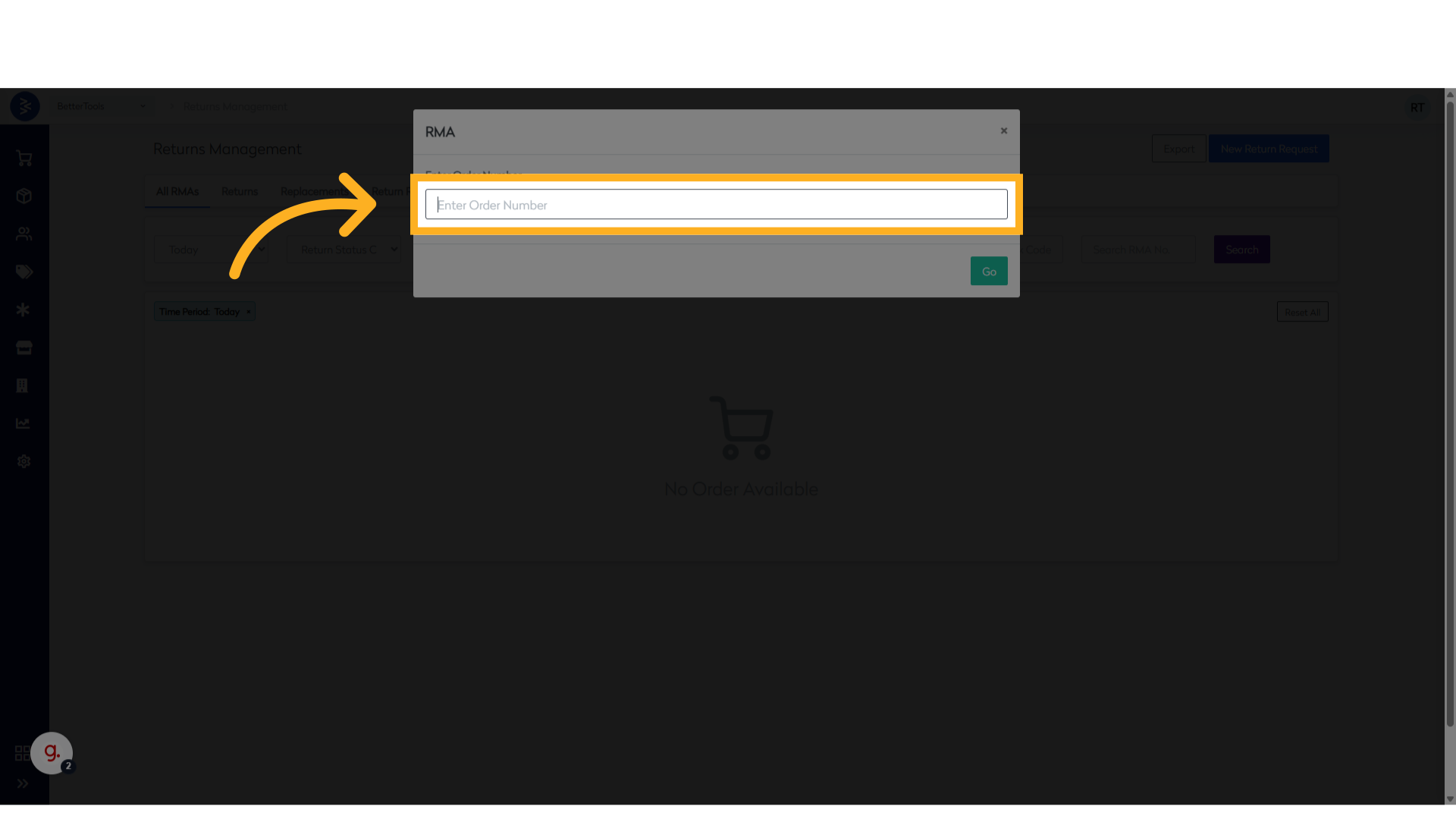
In the pop-up window, enter the Order Number in the text box.
-
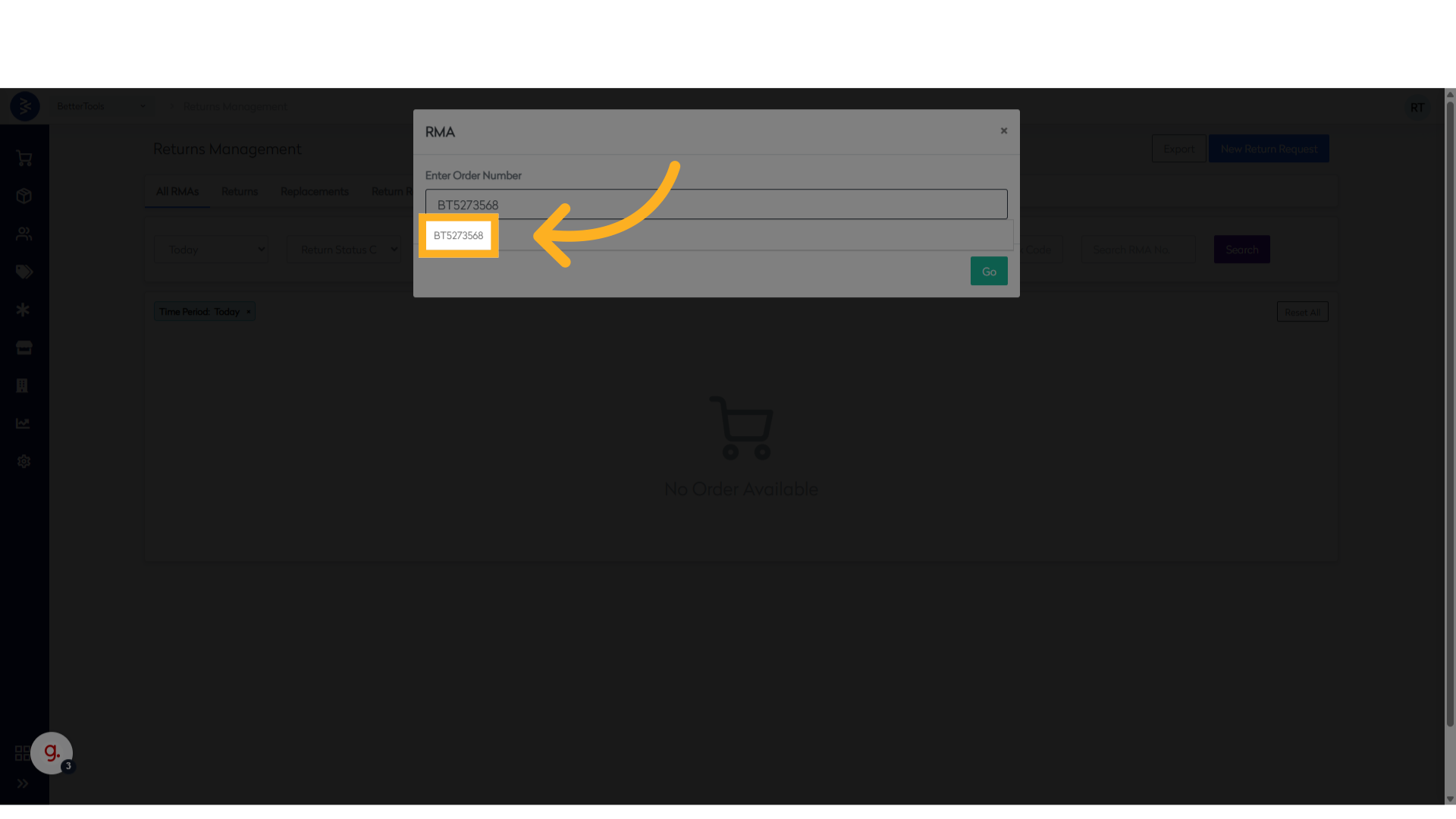
Choose the correct order from the list that appears.
-
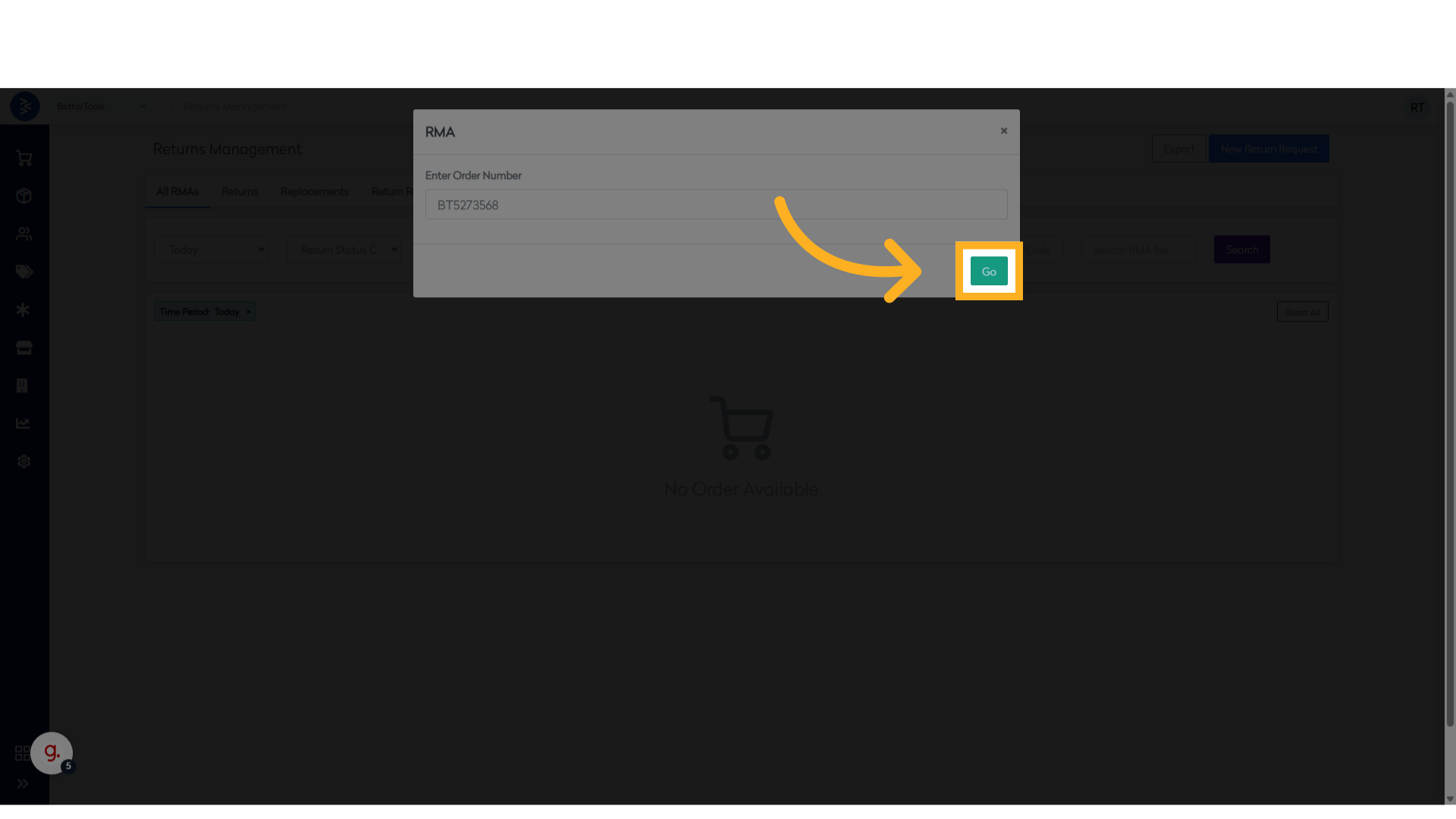
Proceed to the next step by clicking the Go button.
-
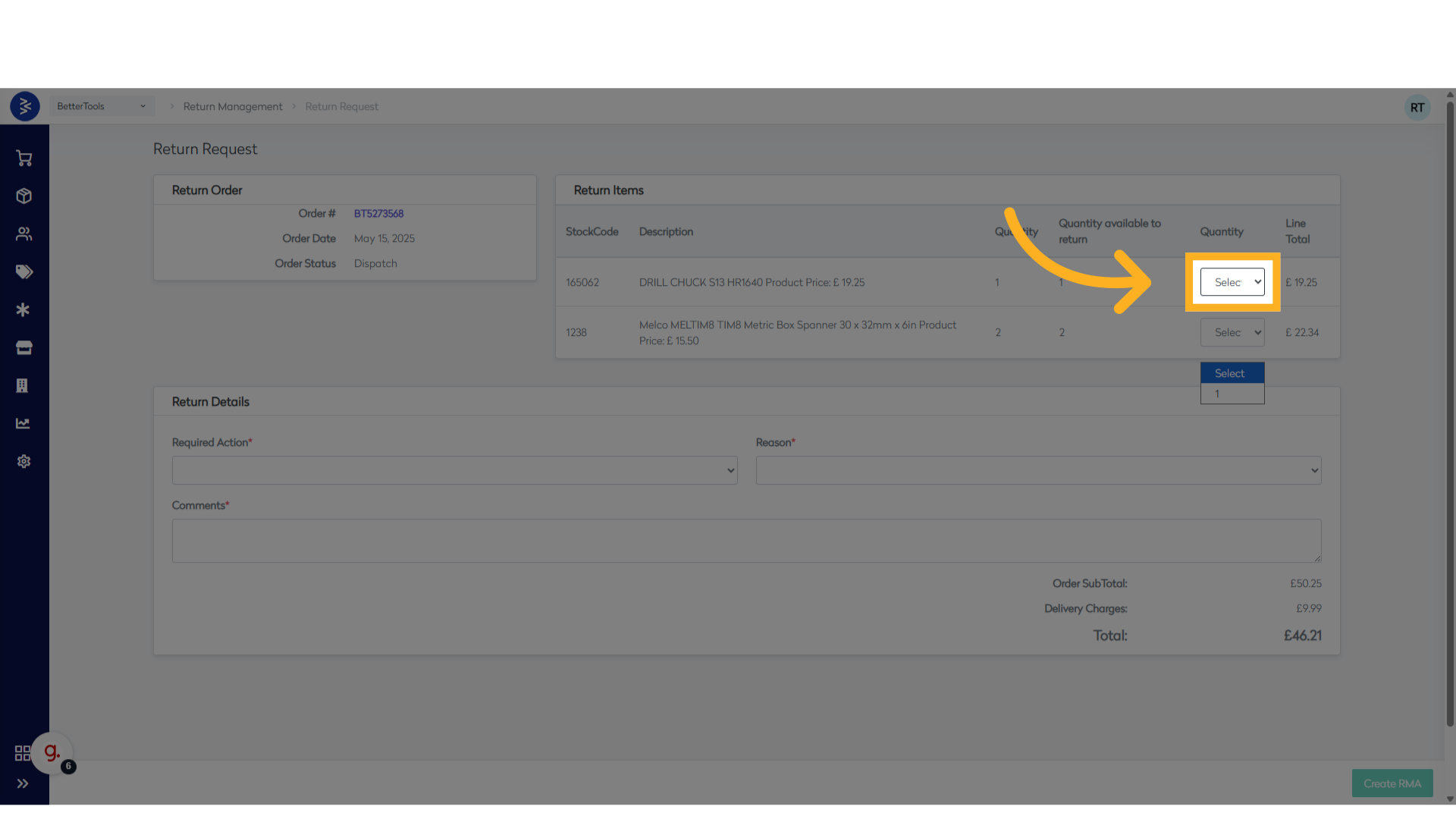
Use the dropdown next to the stockcode to select the quantity being returned.
- The system allows partial quantities to be returned against an order line
- For example, if 2 were ordered but only 1 is can be returned.
-
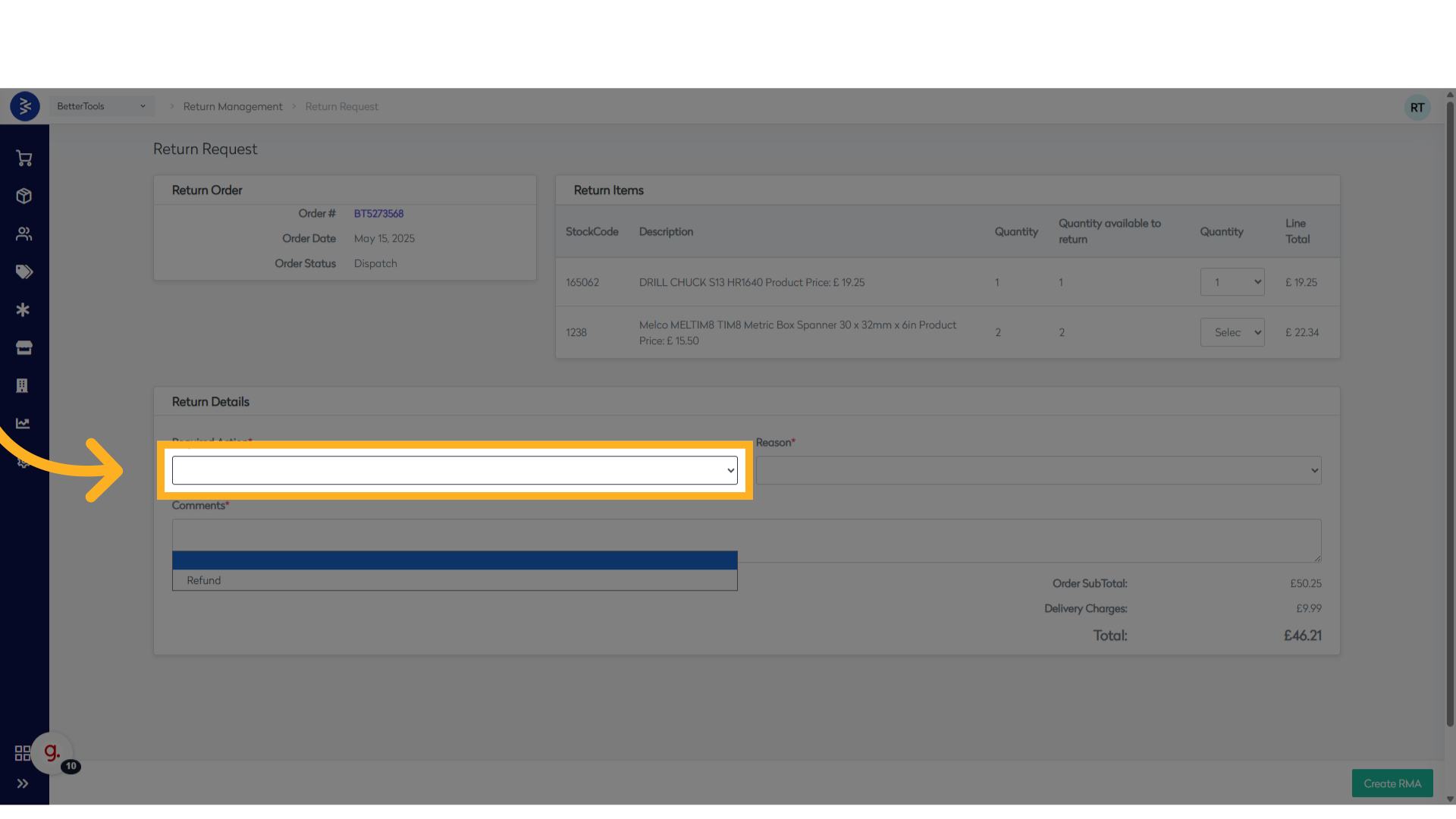
Choose Refund from the Required Action dropdown menu.
-
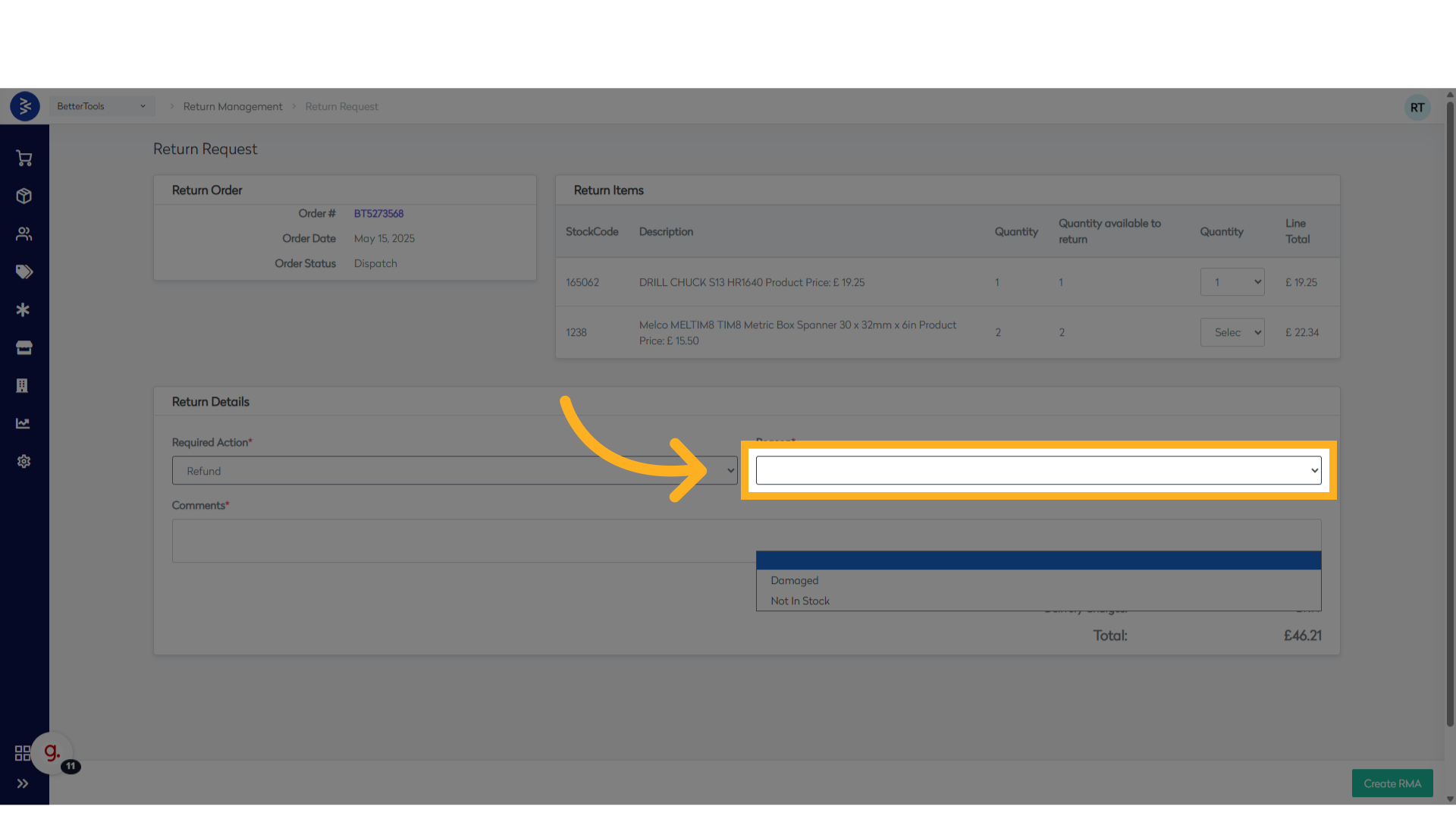
Select the reason for the return from the list.
-
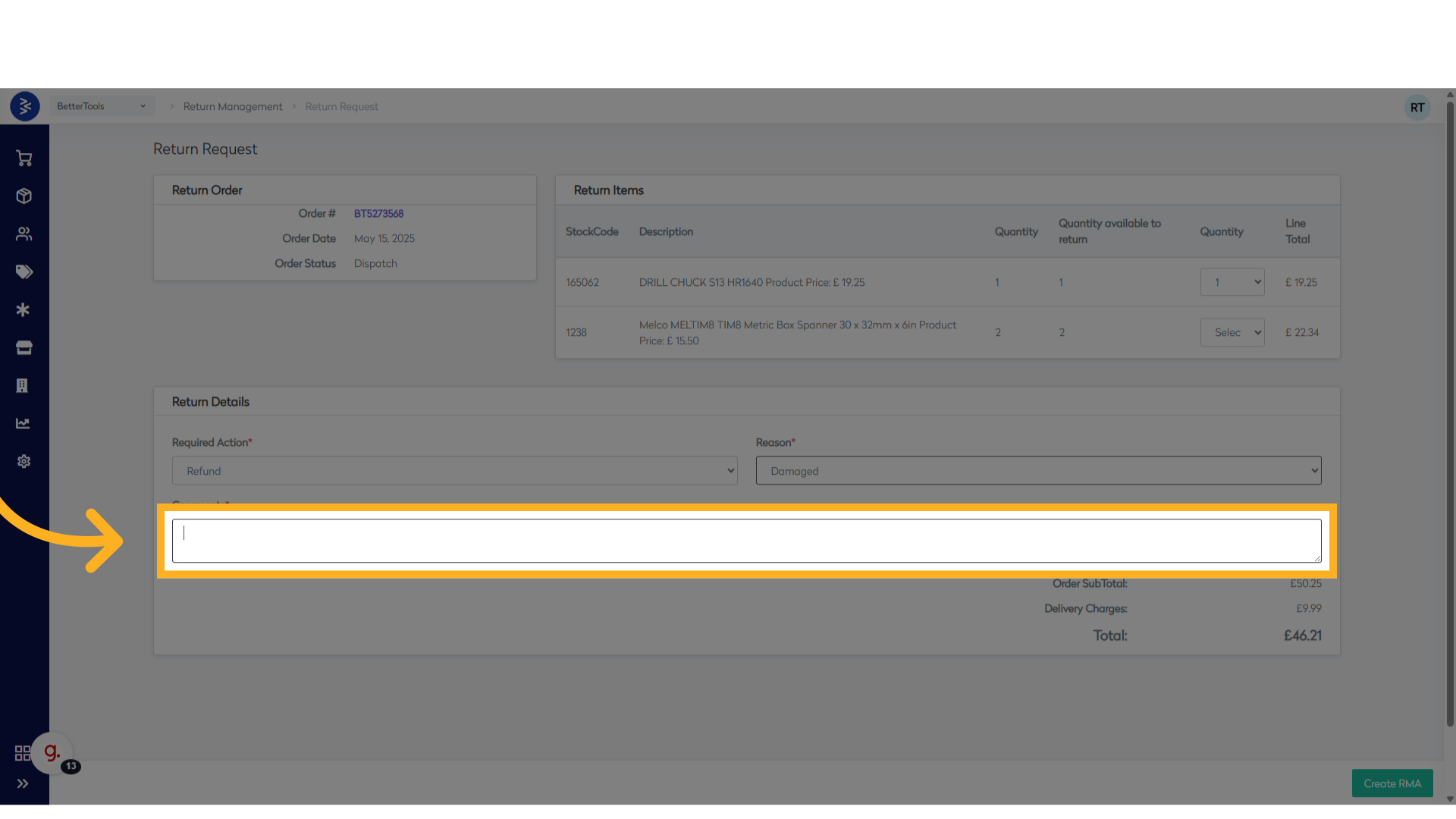
Add any relevant comments for the return (not mandatory).
-
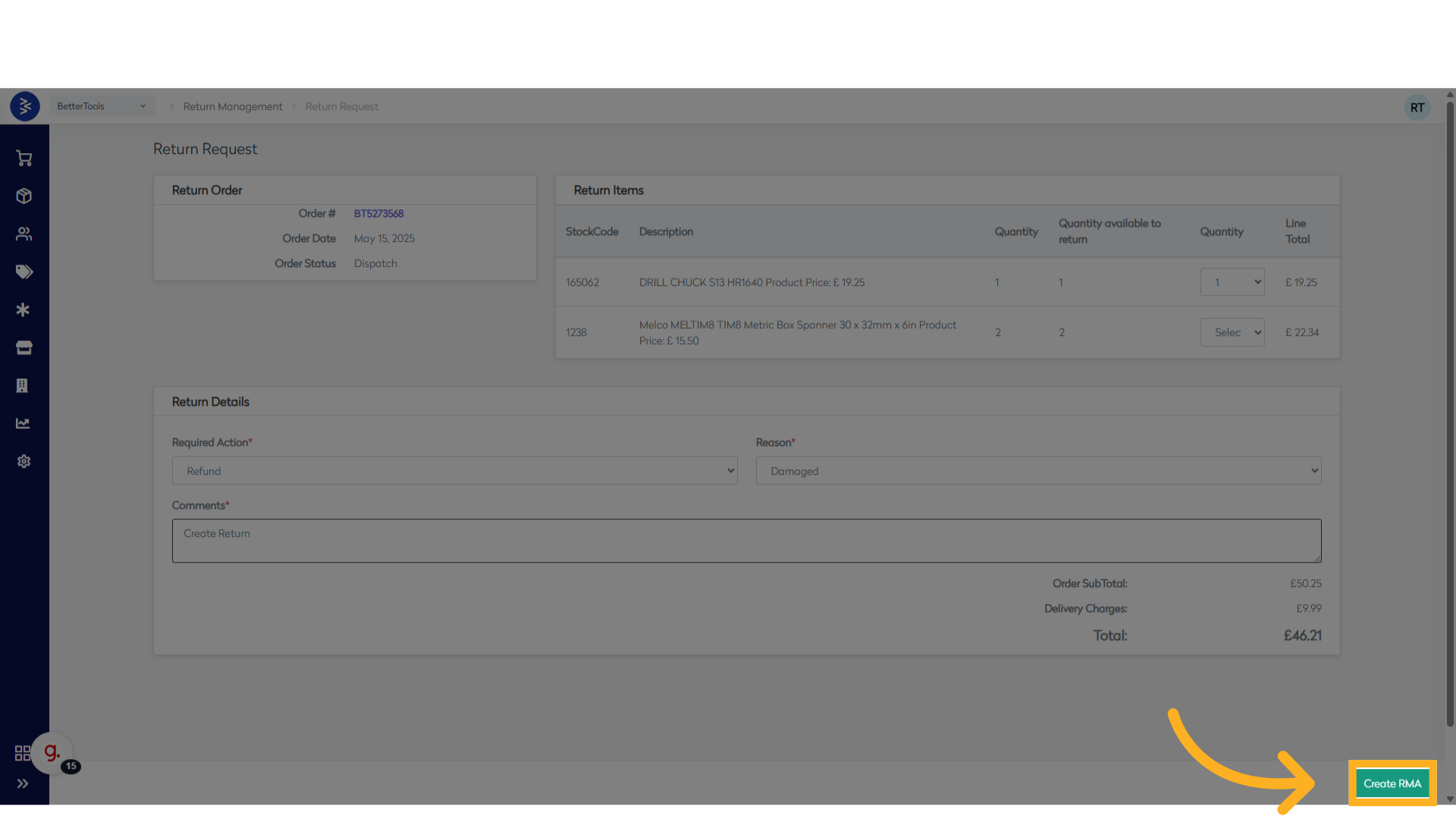
Submit the return request by clicking Create RMA.
Replacement
-
Navigate to Order and Click "View Returns"
Access the order you want to initiate the replacement for, then click on the View Returns button. -
Click "New Return Request"
To create a return, click on the New Return Request option. -
Enter the Order Number
In the pop-up window, enter the Order Number in the text box. -
Select the Order from the List
Choose the correct order from the list that appears. -
Click "Go"
Proceed to the next step by clicking the Go button. -
Select Quantity for Return
Use the dropdown next to the stockcode to select the quantity being returned. -
Select Required Action
Choose Replacement from the dropdown menu. -
Choose Return Reason
Select the reason for the return from the list. -
Enter Comments (Optional)
Add any relevant comments for the return (not mandatory). -
Click "Create RMA"
Submit the return request by clicking Create RMA.
Steps to Manage / Process Returns
Once the RMA is created the RMA details page will open and to manage or process the return request below are the steps:
- On the RMA details page, click the Edit icon next to the current status.
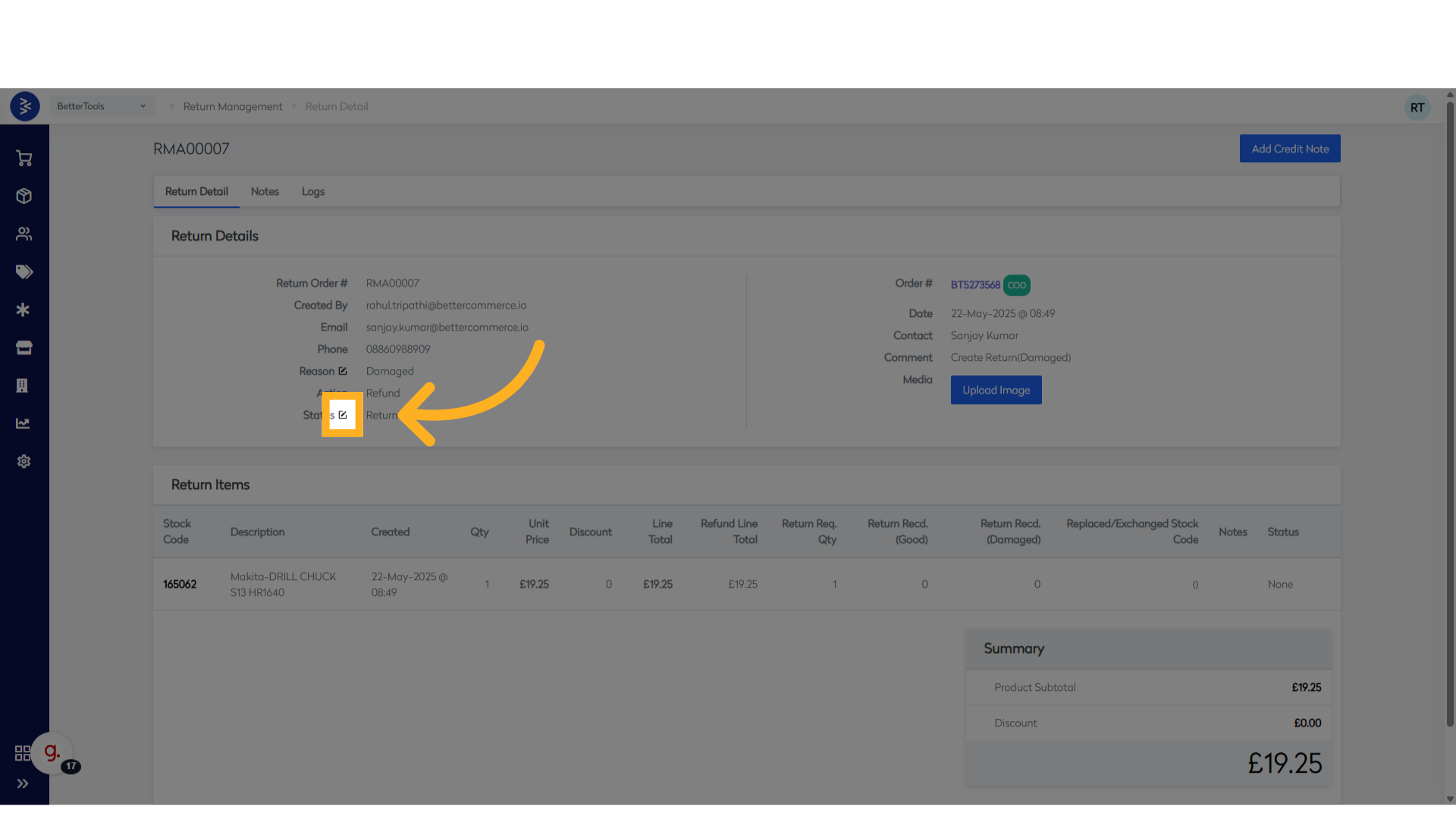
- Select Approve Request or Reject Request.
⚠️ Note: If rejected, the return request will be closed and cannot be reopened. A new request must be created to process the return against the order item.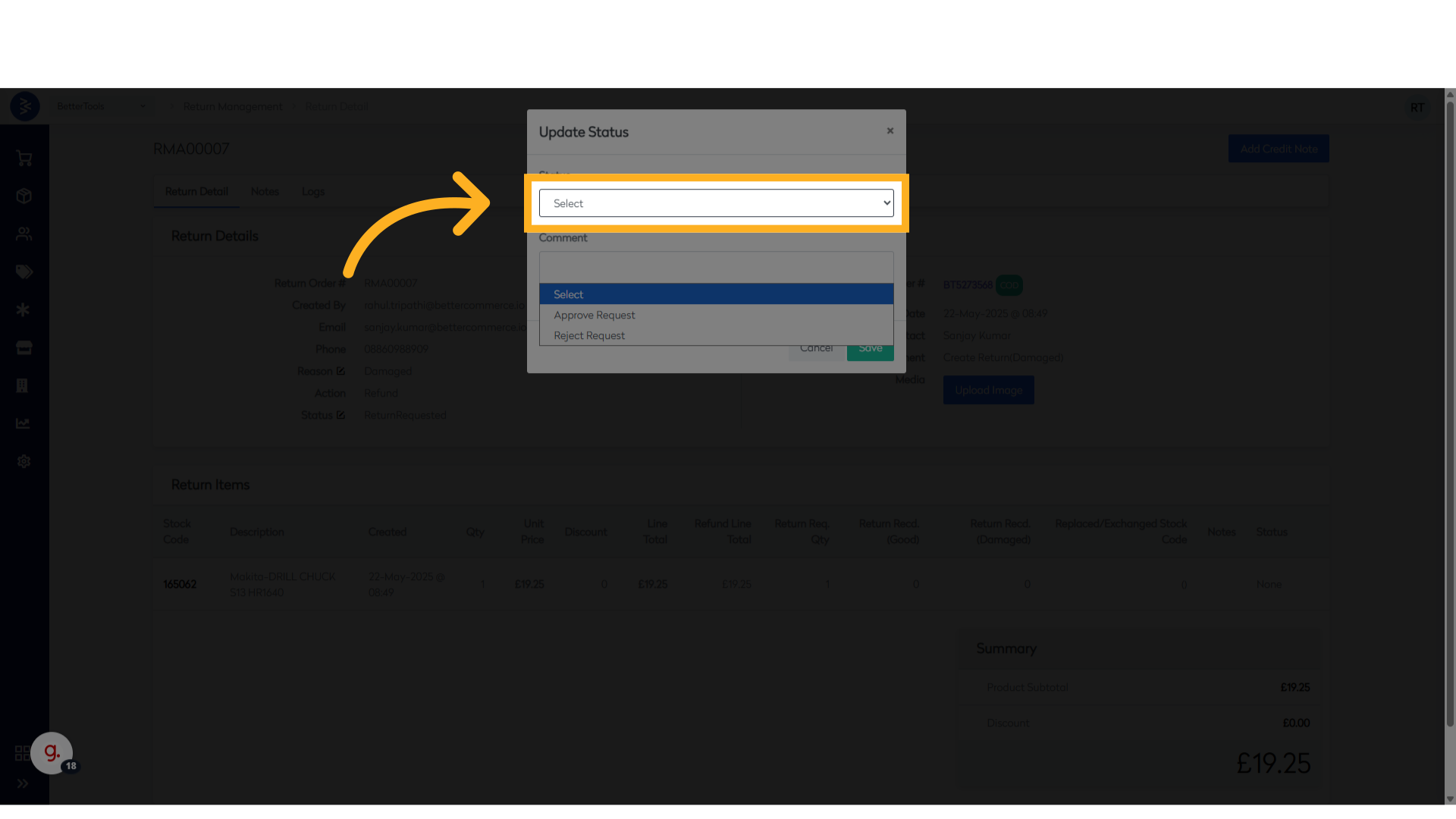
- Enter comments if needed.
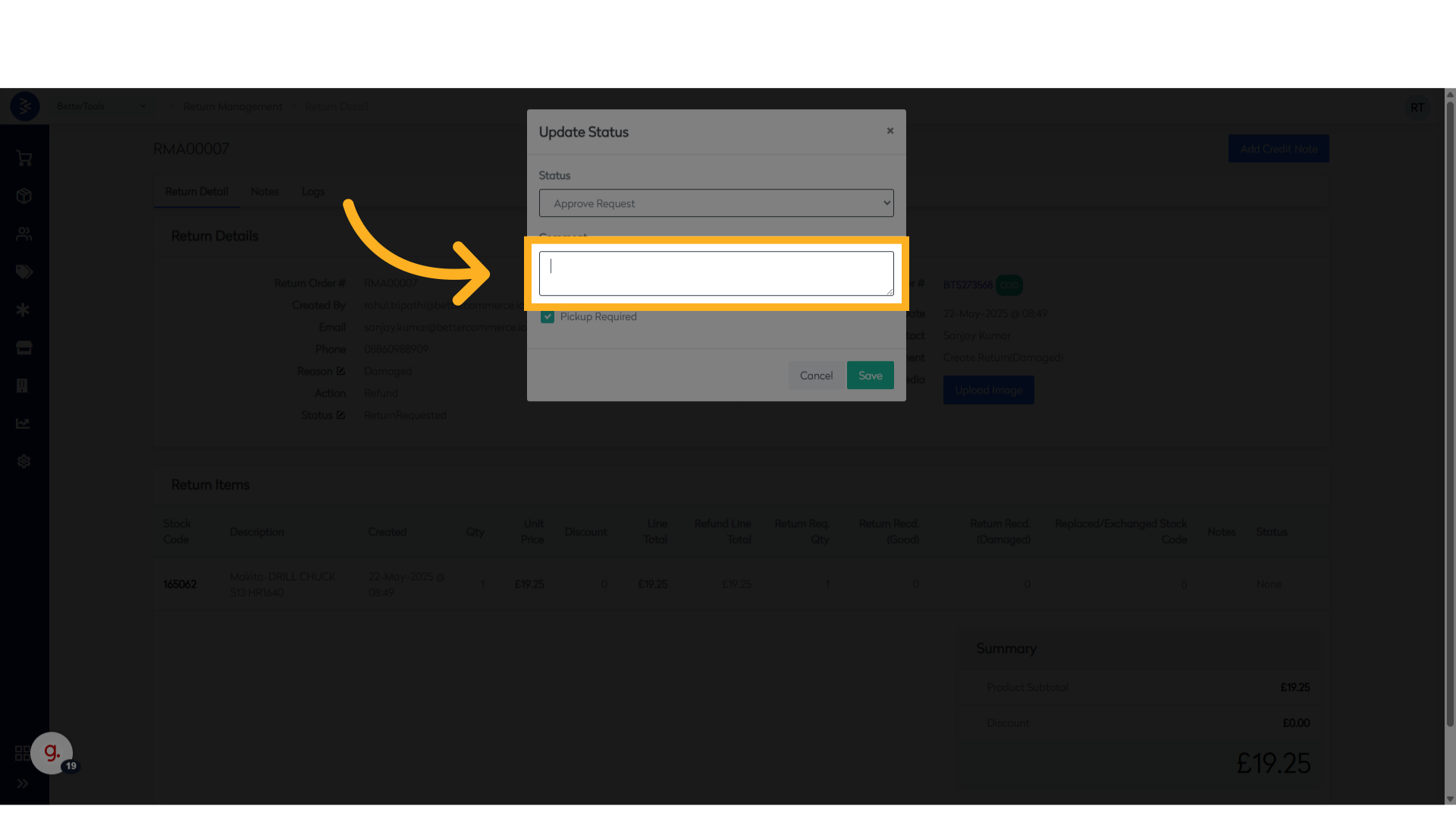
- Choose whether a pickup will be arranged or user has to ship themselves to the Return Processing Unit's address.
⚠️ Note: If not selected, the customer will need to return the product manually.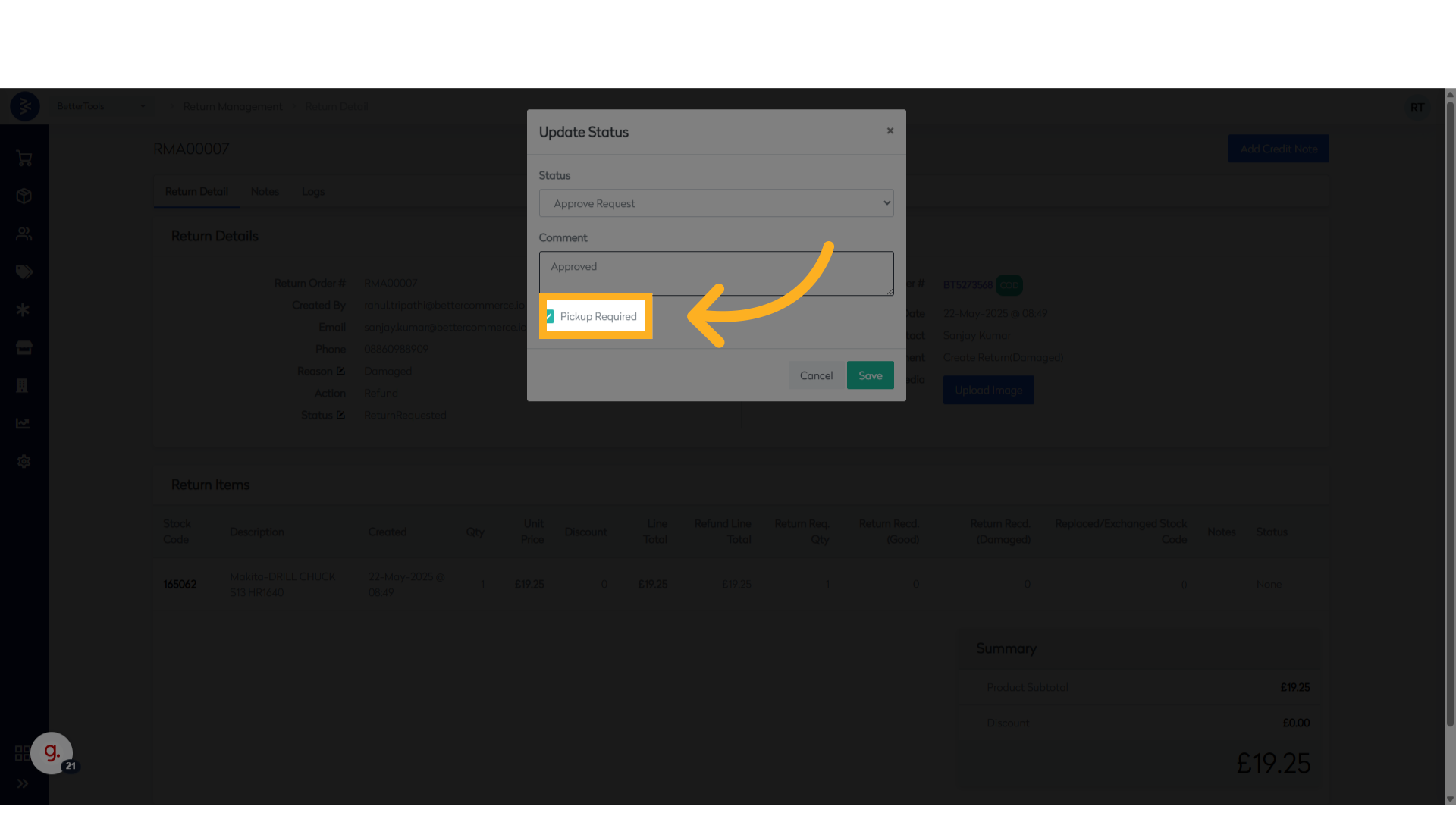
-
Click Save to save the changes made.
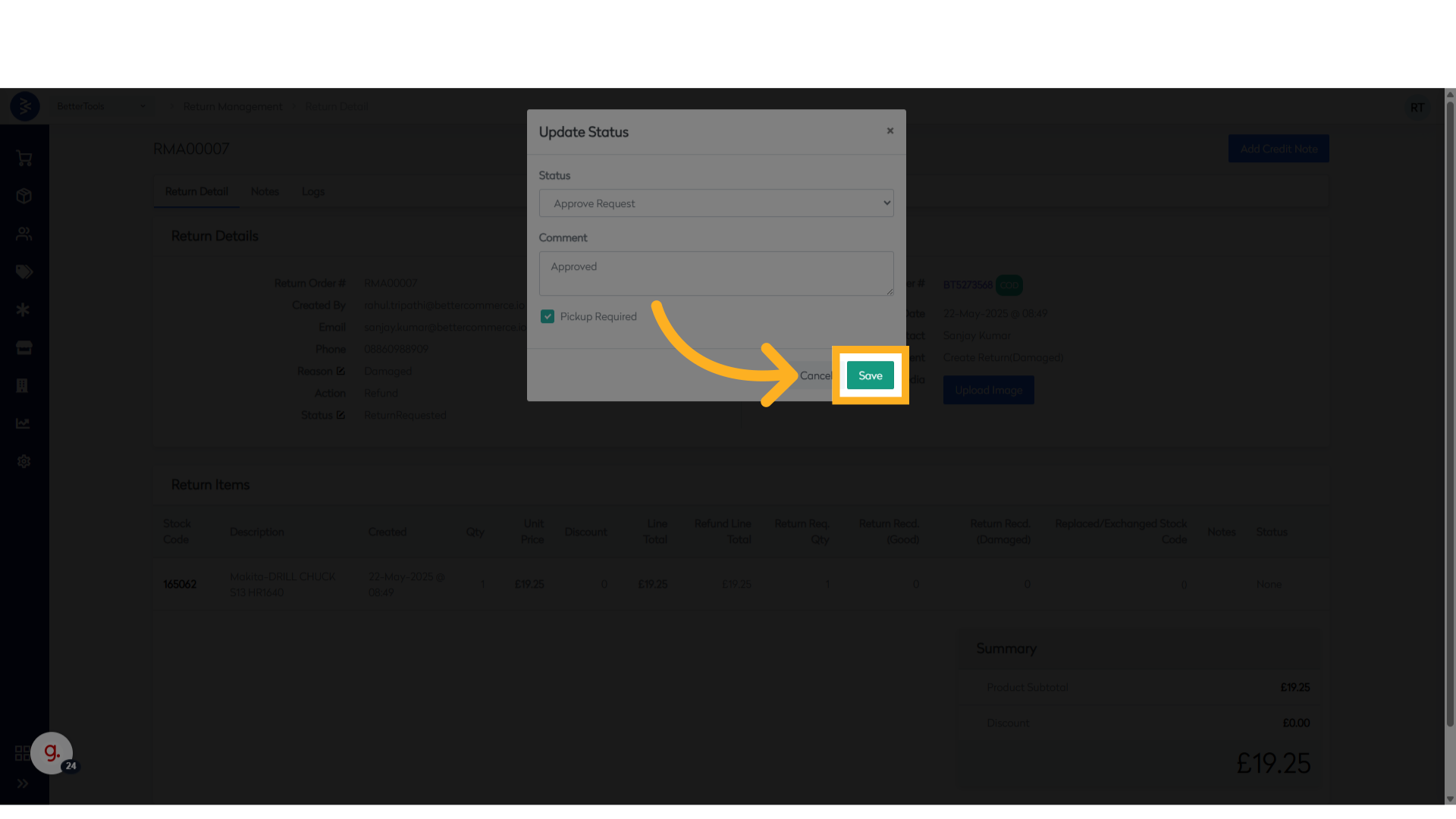
-
Click on the status button again to continue processing.
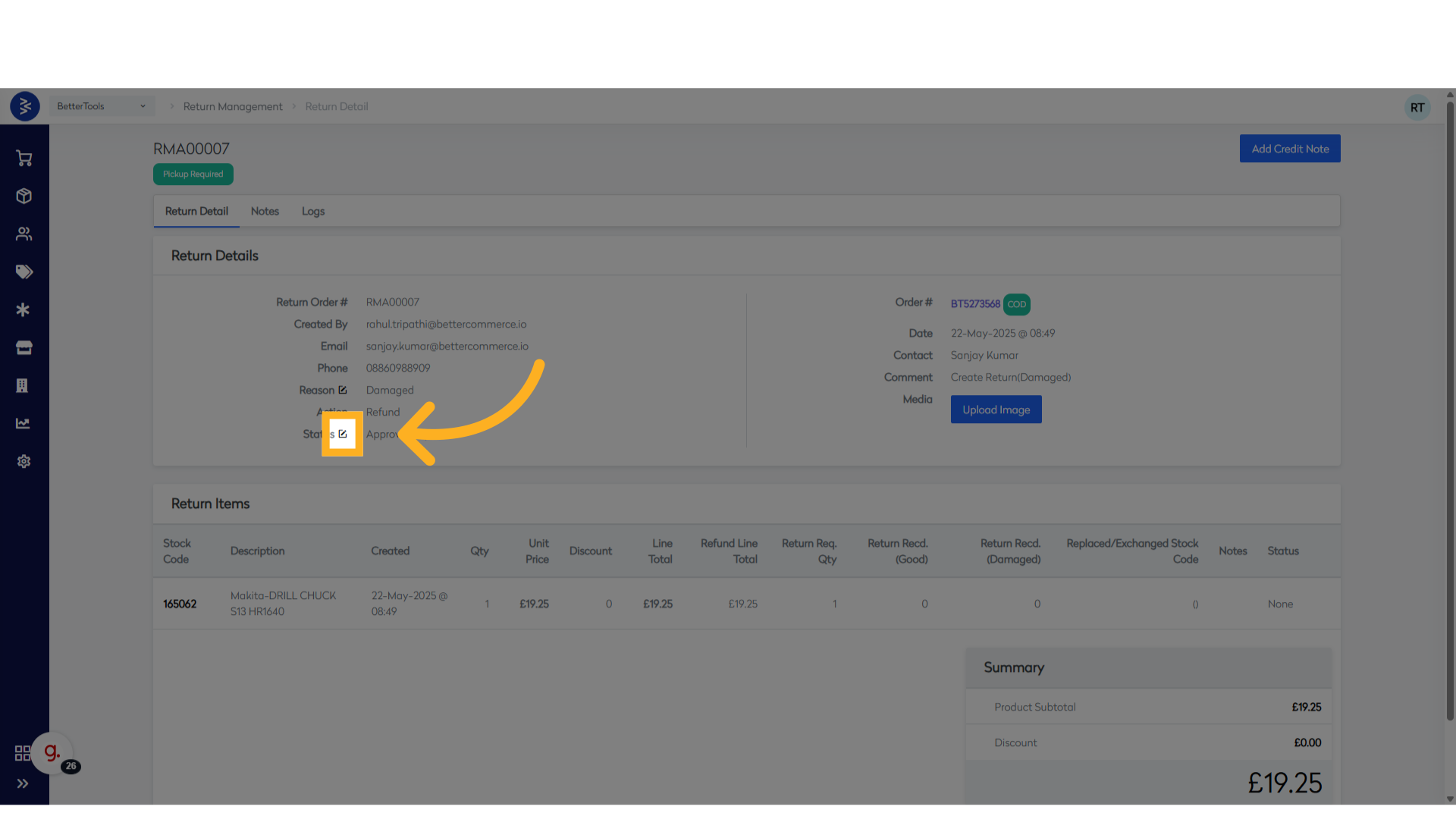
-
Choose Return Received to indicate the item has been received and QC is underway.
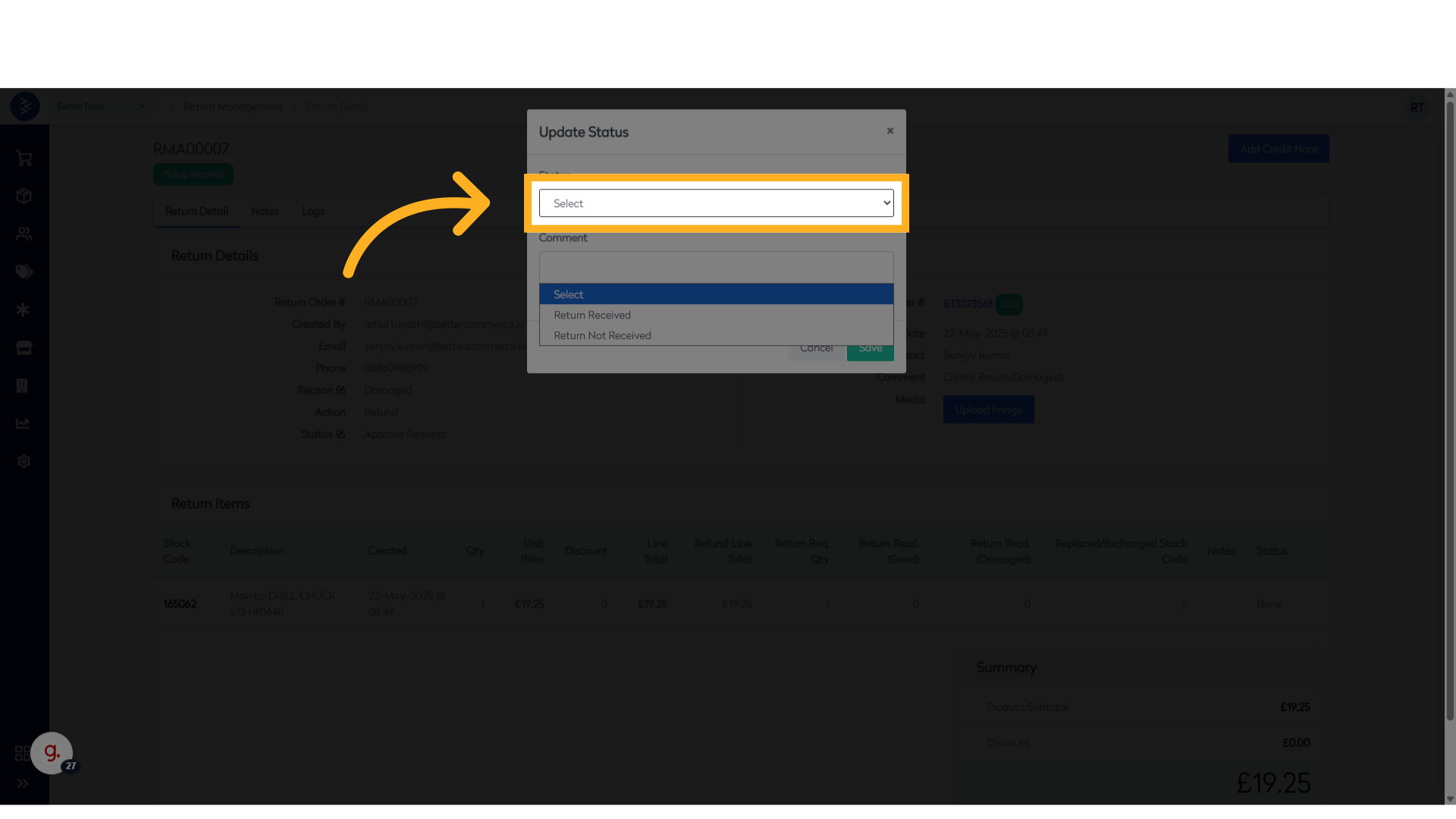
-
Add relevant comments if required and click Save.
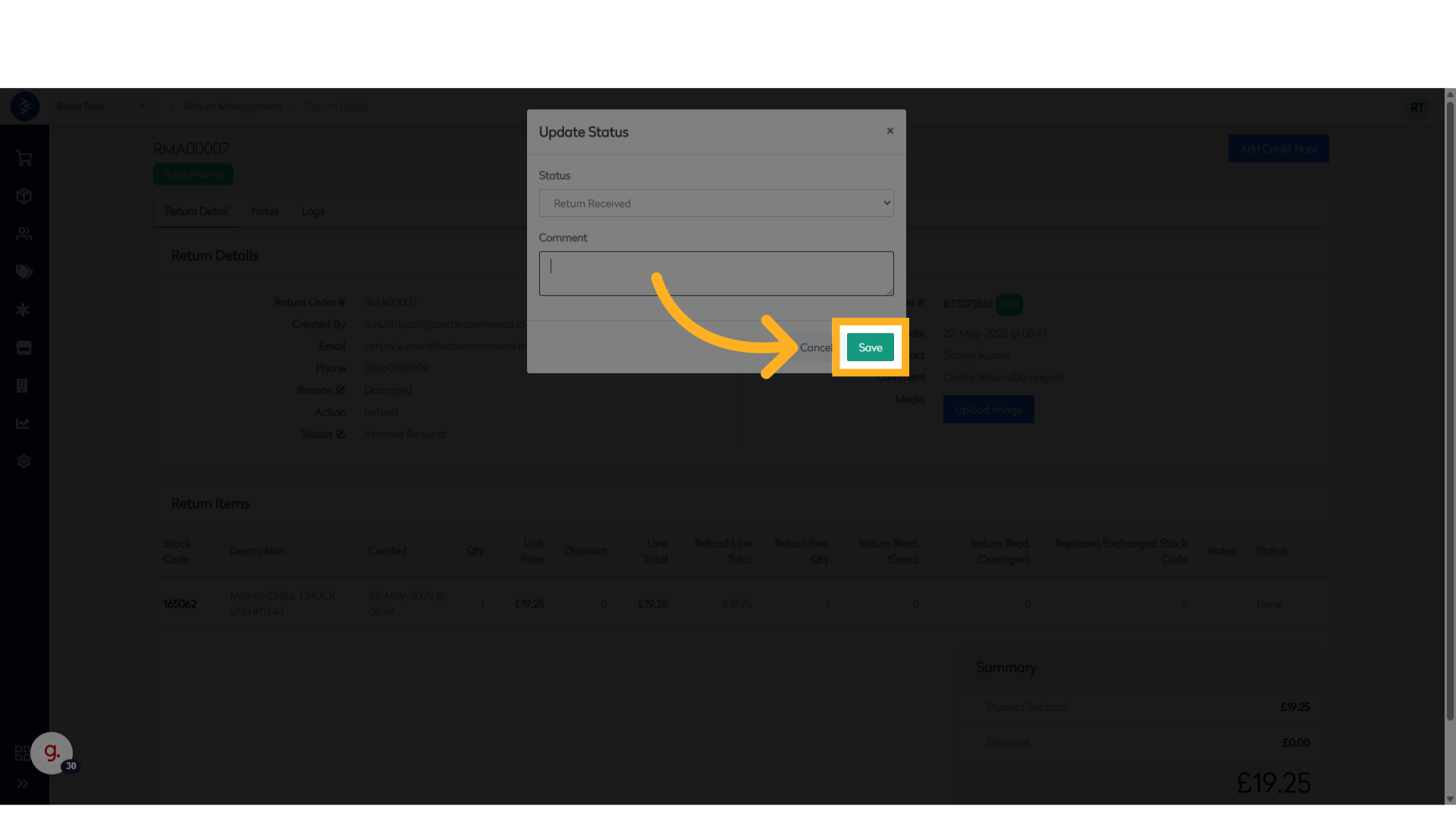
-
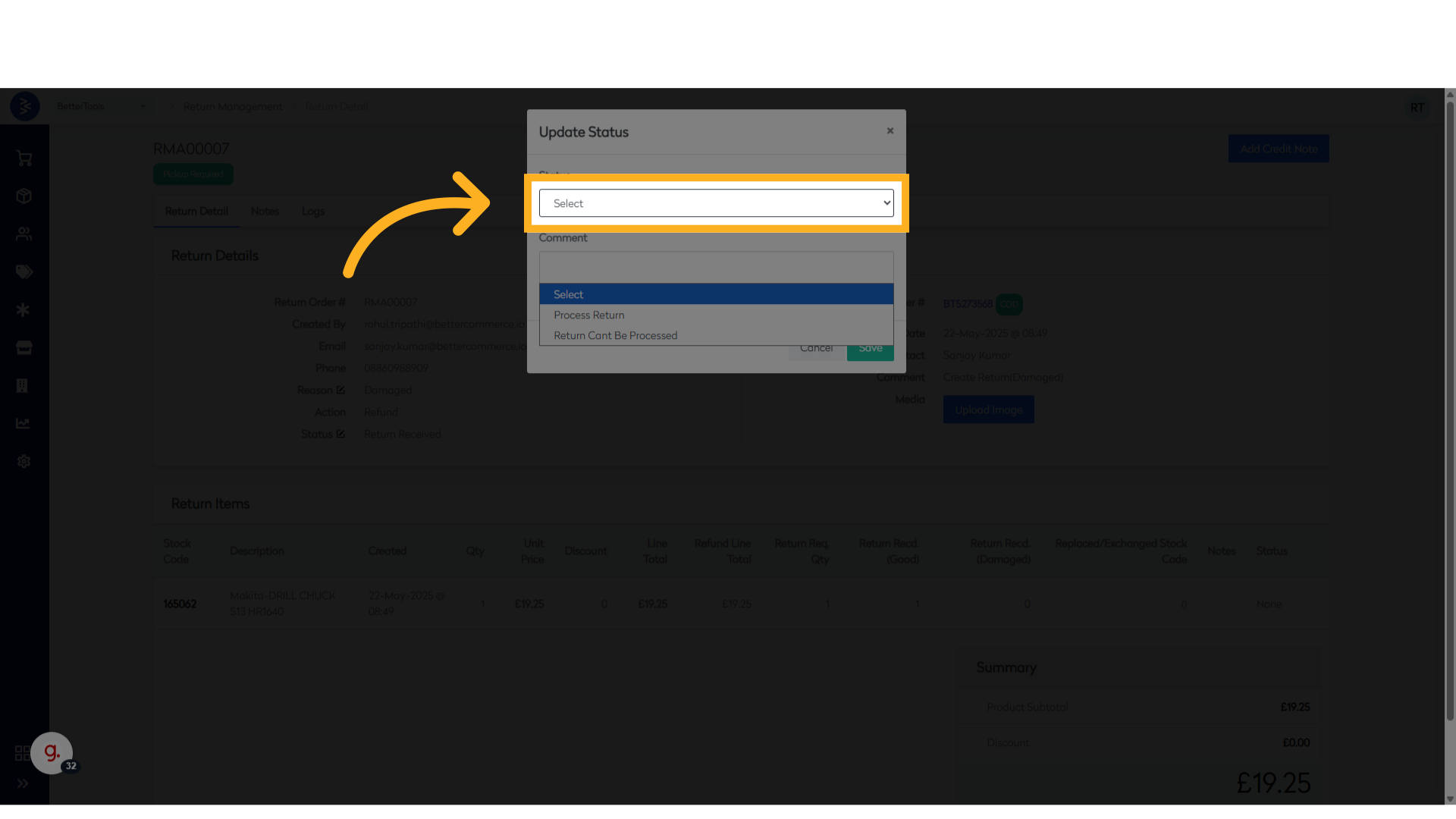
Choose Process Return or ReturnCan’t Be Processed based on QC status. Add comments.
-
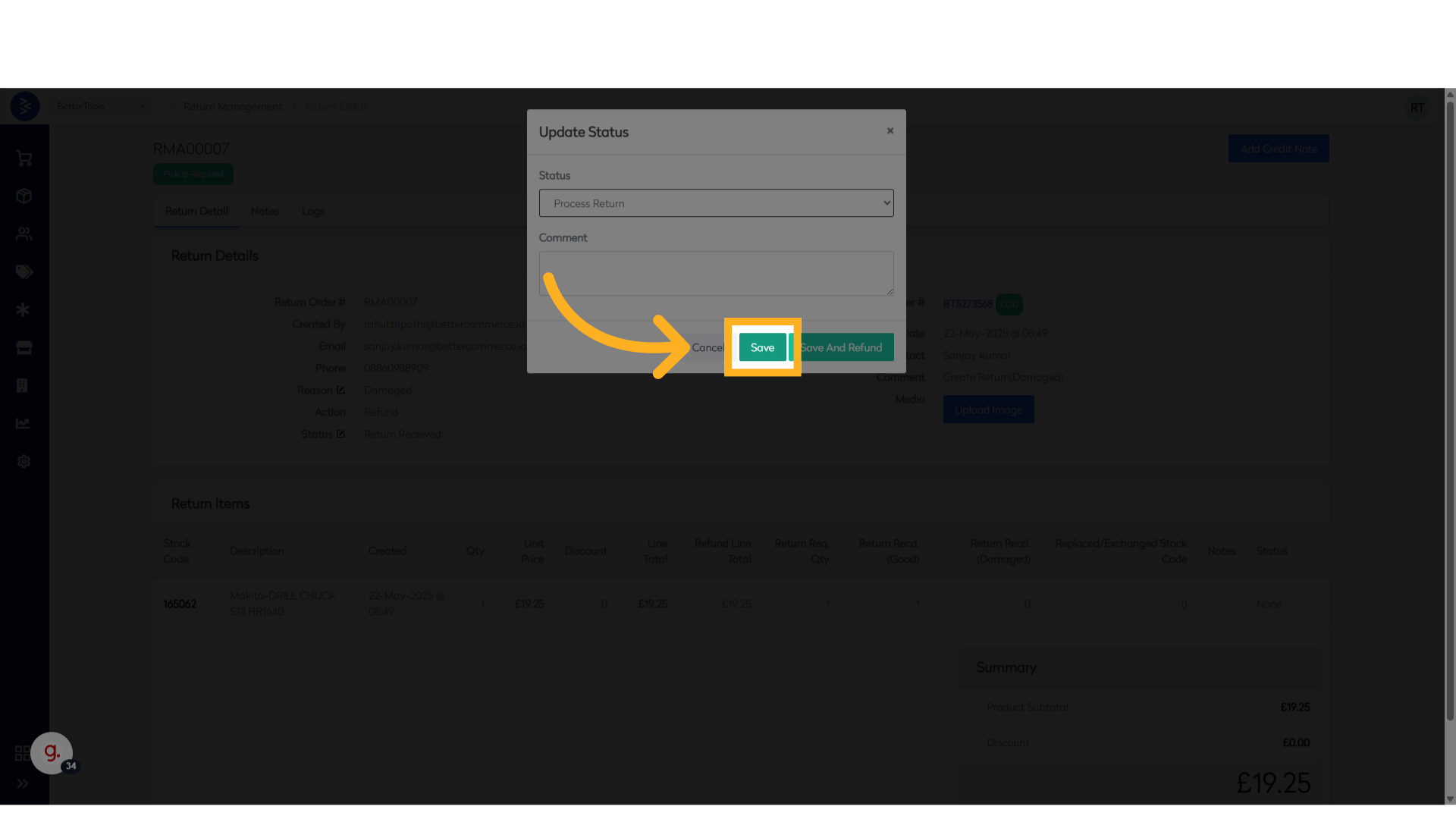
Click Save and Refund to process refund immediately, or just Save to refund later.
-
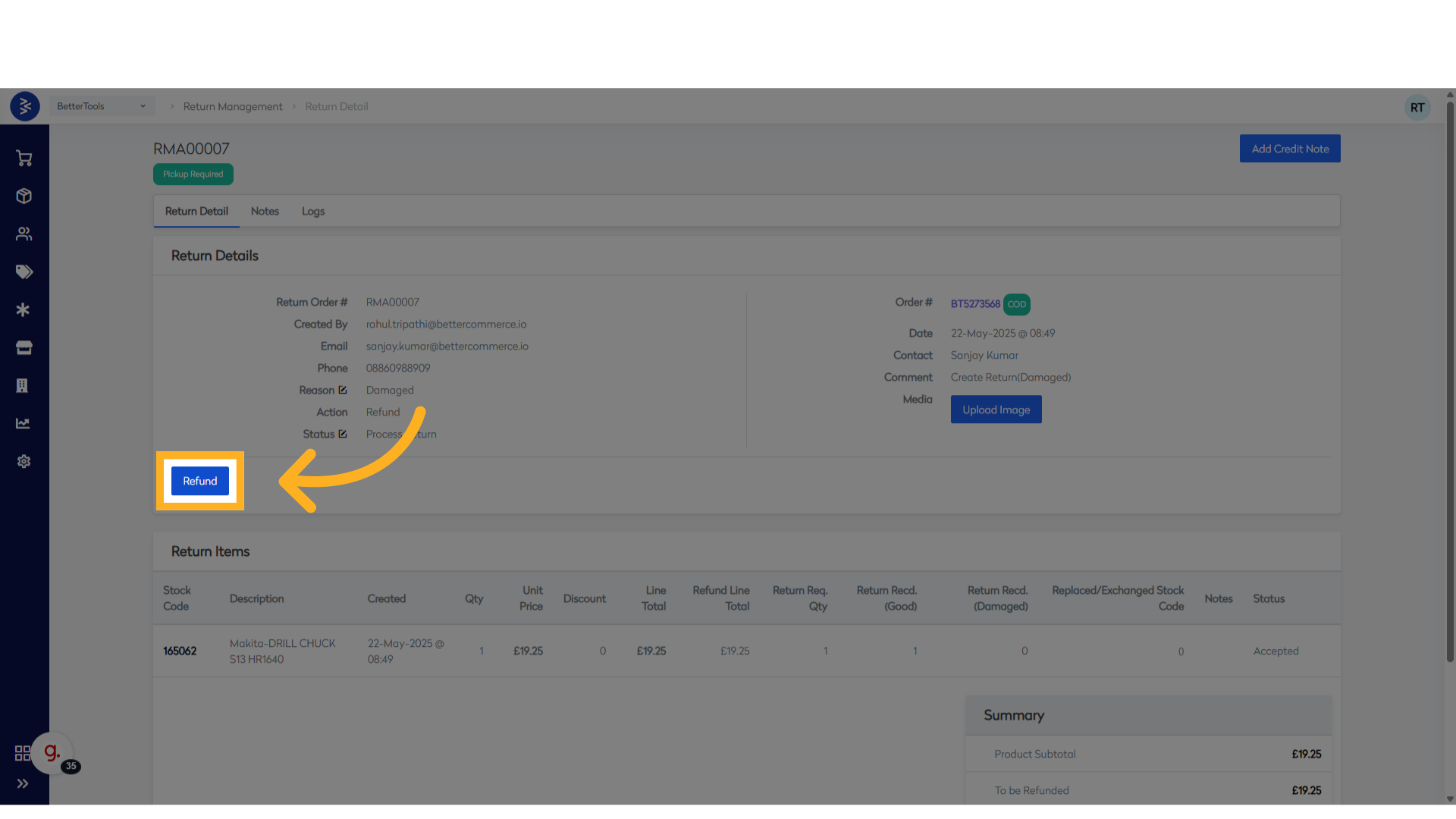
If Saved Previously, Click Refund button to proceed.
-
Verify Details
Check the amount and stockcode, then click Save.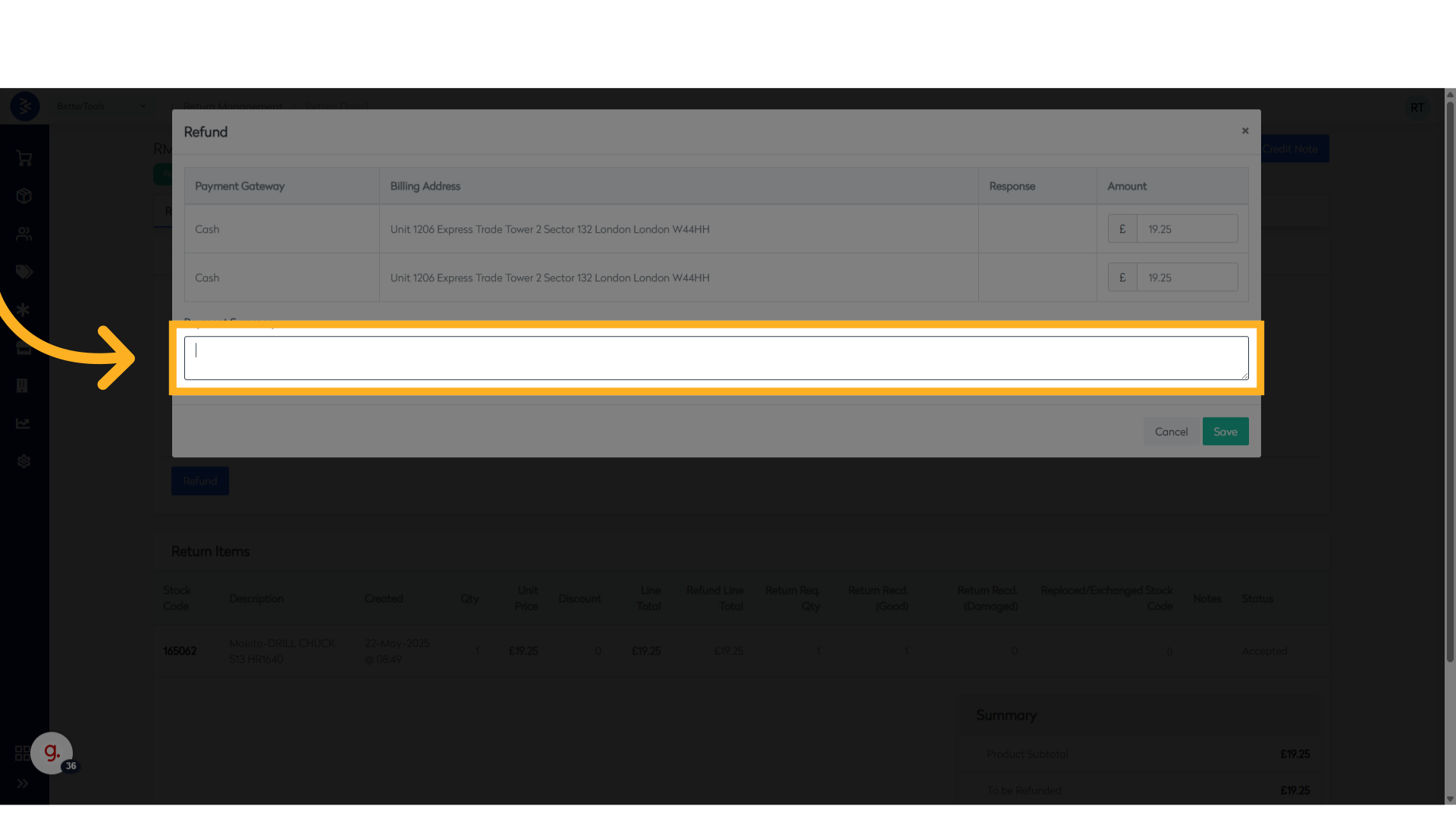
-
RMA Status Update
The RMA status will now reflect as RefundProcessed.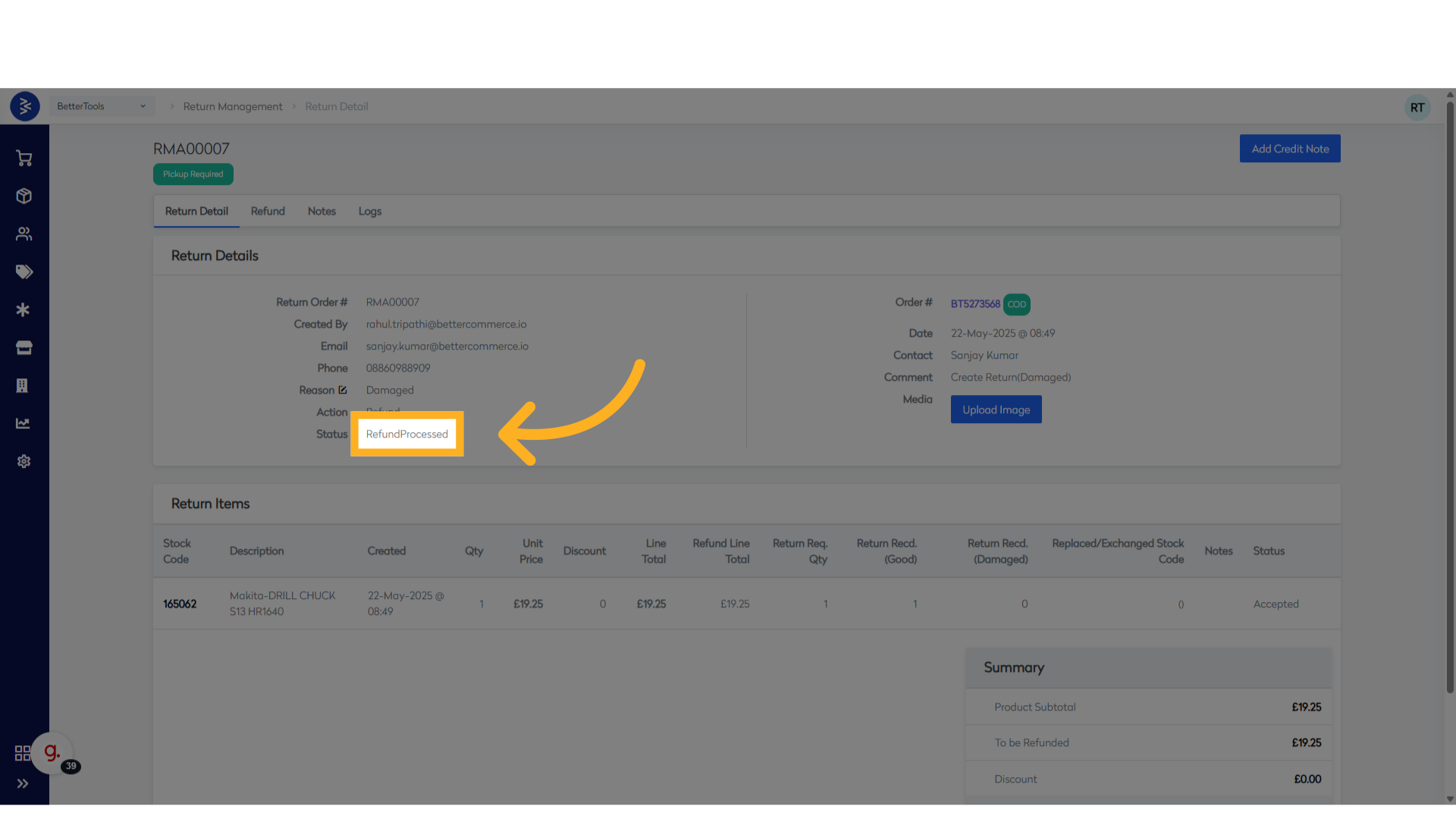
Summary
Using the steps above, you can initiate and manage product returns or replacements seamlessly. From raising a return request on customer's behalf from the CommerceHub to processing approvals, tracking pickups and completing refunds or replacements—each stage ensures transparency and operational accuracy. These capabilities help streamline post-order management while keeping the customer experience smooth and consistent.
Price Match Workflow
The Price Match functionality in the CommerceHub module allows product prices to be checked across all the available sales channels such as Own Website, App, Amazon, and Myntra.
It helps in identifying pricing differences across platforms and ensures consistency in product pricing. This feature enables the business to maintain price parity and stay competitive across all marketplaces.
How to View or Check Price Match Rules
Follow the steps below to view or manage Price Match rules in the CommerceHub module:
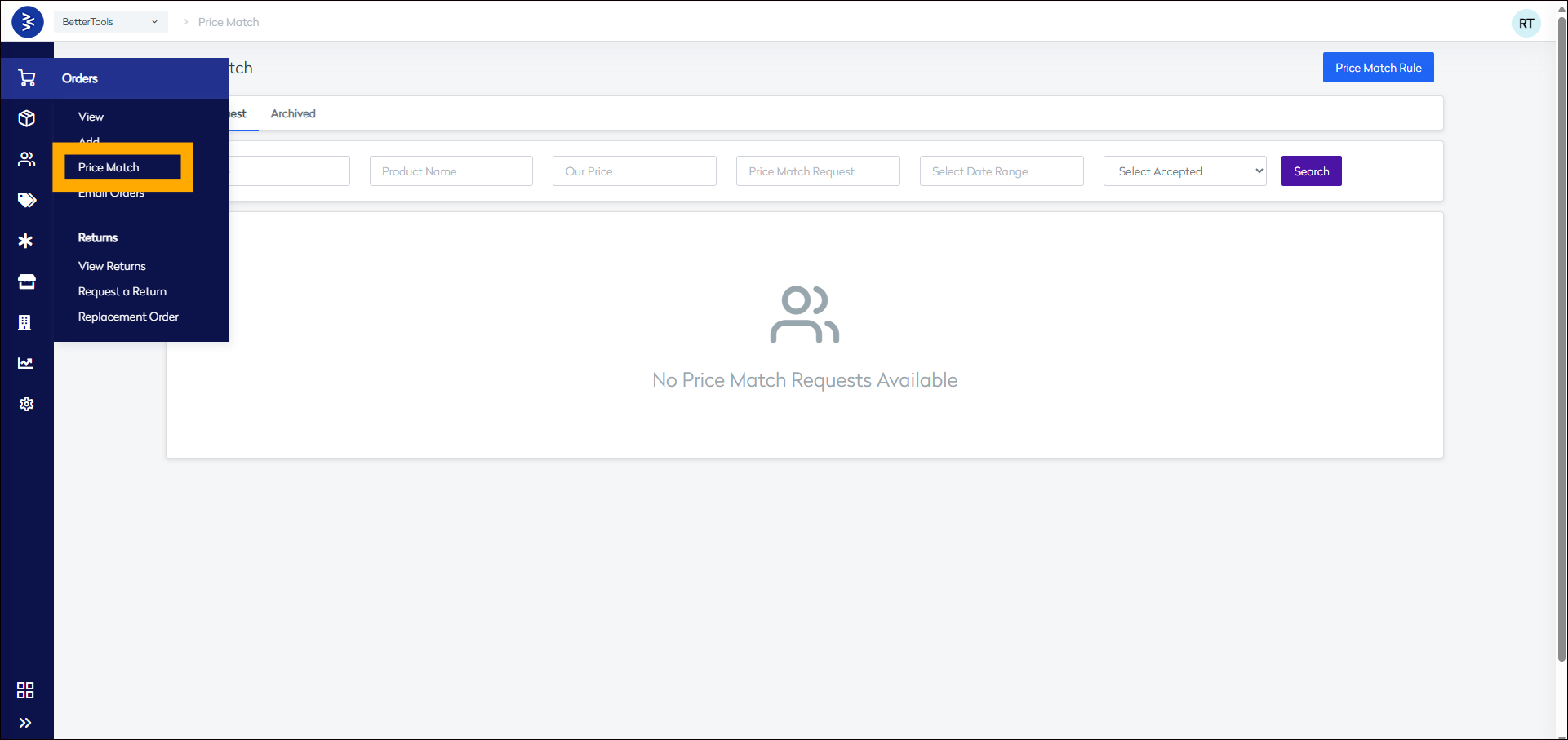
- Click Orders from the CommerceHub Dashboard and choose "Price Match".
- To access or create rules, click on the “Price Match Rule” button.
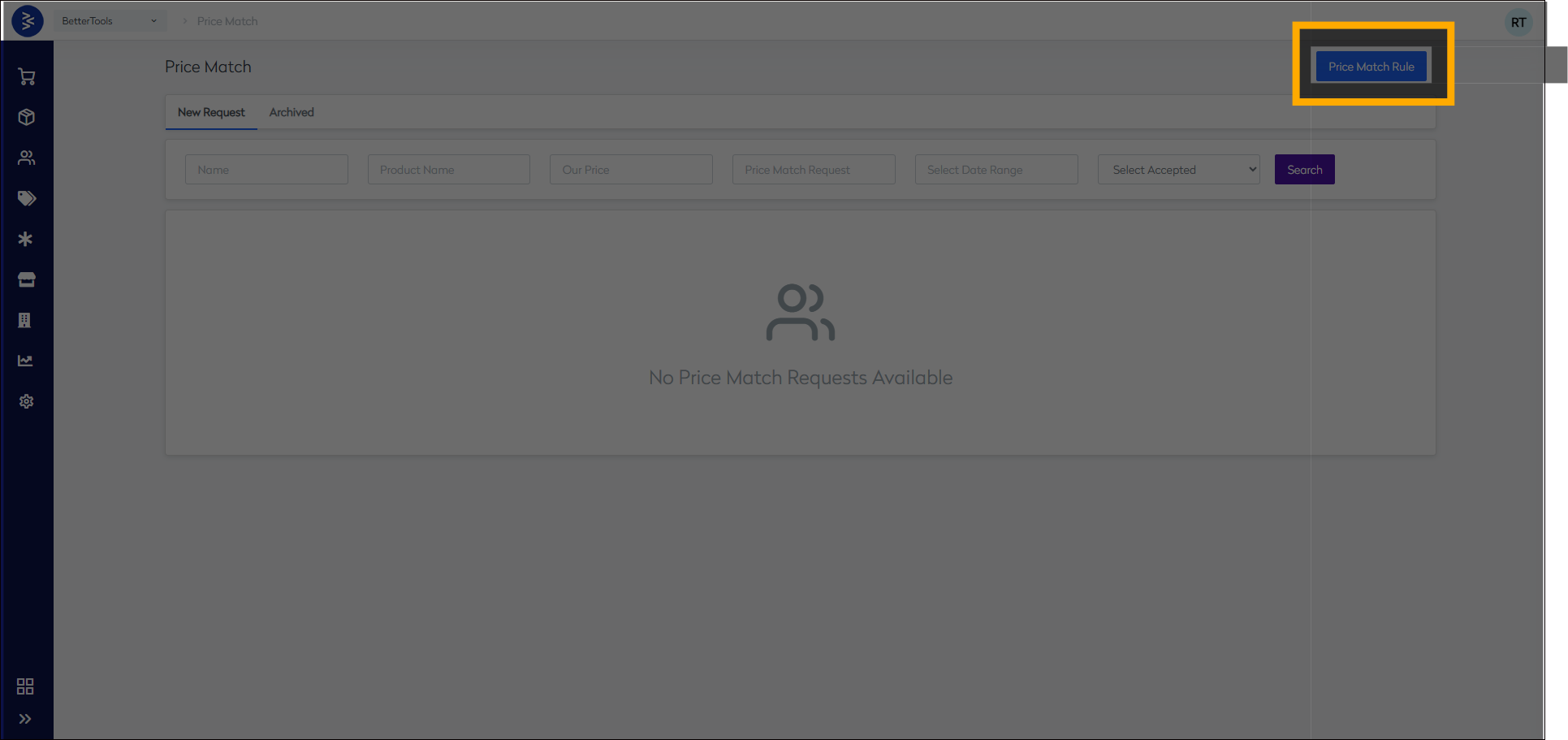

This section allows you to view existing rules, create new ones, or modify them based on your pricing strategy across channels like Brand Website, App, Amazon, Ebay and Flipkart.
Importing Order Data via CSV
Overview
The BetterCommerce platform provides order import functionality through the Orders management interface, allowing users to bulk import order data into the system.
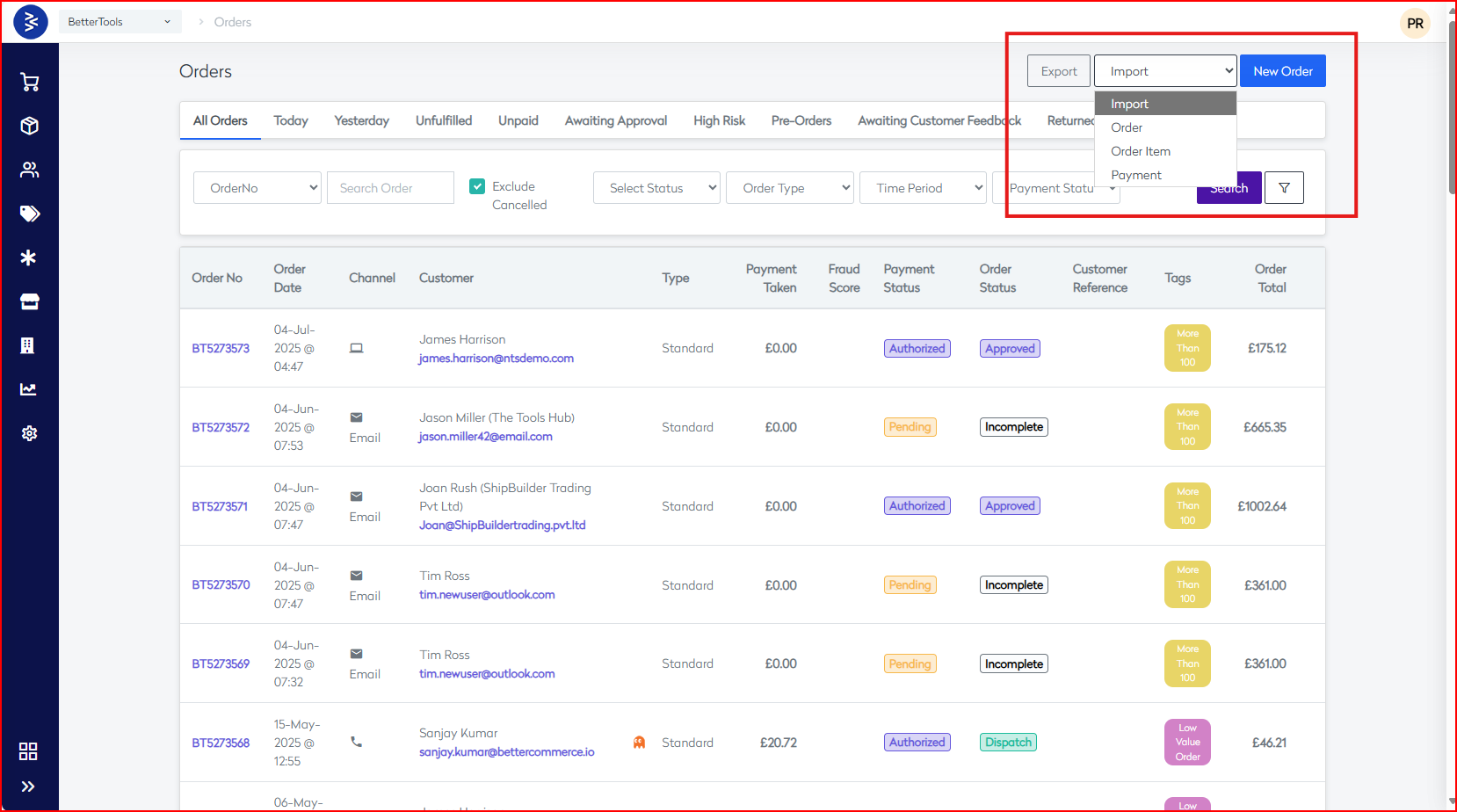
Accessing Import Orders
Navigation Path
| Step | Action |
|---|---|
| 1 | Navigate to Orders → View from the Main Menu |
| 2 | Alternatively, access via Direct URL |
| 3 | Click on the Import dropdown located in the top-right corner |
Interface Location
- Import functionality is available via a dropdown button labeled "Import"
- Positioned next to the Export and New Order buttons in the Orders page header
Import Options Available
| Import Type | Purpose |
|---|---|
| Order Import | Bulk import complete order data |
| Order Item Import | Import individual line items of orders |
| Payment Import | Import payment-related data associated with orders |
Order Management Context
Current Order Filters
The system supports multiple filters that may influence imports:
- All Orders
- Today’s Orders
- Yesterday’s Orders
- Unfulfilled Orders
- Unpaid Orders
- Awaiting Approval
- High Risk Orders
- Pre-Orders
- Awaiting Customer Feedback
- Returned from Warehouse
- On Hold
- Exchange-OnHOLD
Order Data Structure
| Data Section | Fields |
|---|---|
| Core Order Info | Order Number (BT + 7 digits), Order Date/Time, Channel (Web, Email, Admin), Customer Info (Name, Email, Company), Order Type |
| Financial Data | Payment Taken, Payment Status, Order Total, Fraud Score (if applicable) |
| Status Info | Order Status (Approved, Incomplete, Dispatch), Customer Reference, Tags (High Order Value, etc.) |
Supported Channels
The system supports importing orders from various channels:
- Web
- Admin
- Mobile
- Telephone
- Physical Store
- Marketplace (Amazon, eBay, Etsy)
- Customer Support
System Features
Organization Context
| Feature | Description |
|---|---|
| Multi-org Support | Organizations like BetterTools, BetterFixings |
| Import Scope | Affected by selected organization context |
Export Functionality
| Export Type | Usage |
|---|---|
| Order Export | For data backup and analysis |
| Order Item Export | For individual line item validation |
| Payment Export | For reviewing imported payment status |
Technical Considerations
User Permissions
- Import actions require correct user roles
- Permissions managed via the BetterCommerce User Management system
Data Validation
| Validation | Details |
|---|---|
| Status | Imported order/payment statuses must match platform values |
| Channel | Must be a valid configured sales channel |
| Customer | Ensure matching with existing or fully detailed records |
Best Practices
- Ensure data format matches system expectations
- Validate all mandatory fields are present
- Pre-check customer and channel configuration
- Test with small datasets before full-scale import
- Use export data for structure references
Related Features
- Order Export: Backup or pre-import verification
- New Order Creation: Manual order entry support
- Order Management: Track, manage, and update order status
- Customer Management: Integrated customer record handling
- Payment Processing: Multi-gateway compatibility
This documentation offers a comprehensive reference to the Import Orders capability in BetterCommerce. For morew details on How to Import data CLICK HERE
Exporting Order Data
The Export Order functionality in the CommerceHub module allows users to export order data using predefined date range filters. This is useful for reviewing or analyzing order history in bulk.
To fetch orders based on the predefined date range filters, follow the steps below:
-
Go to the Order Listing screen from the Dashboard by clicking Orders > View.
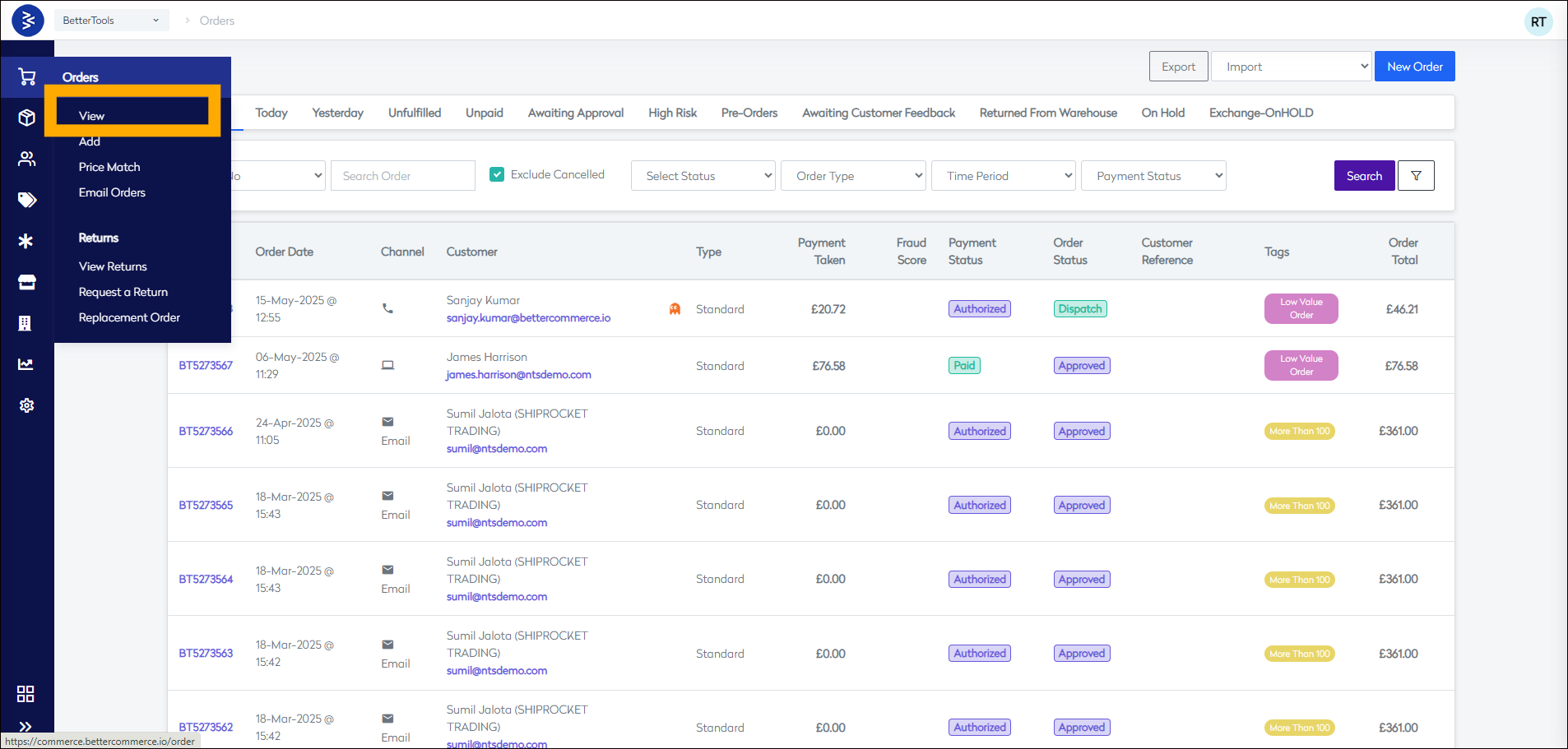
-
Click on the Export button.
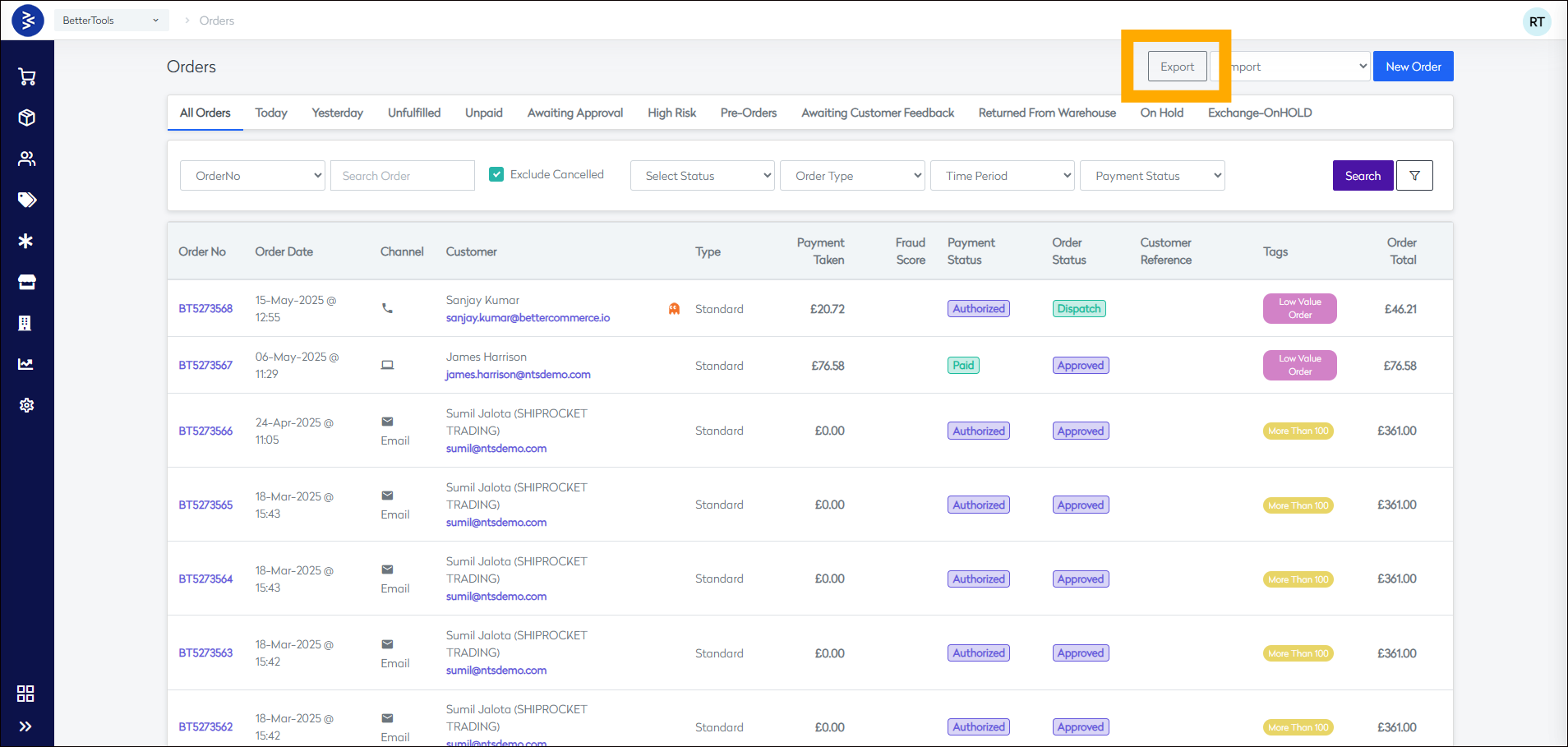
-
Select any of the predefined date ranges and click on Export.
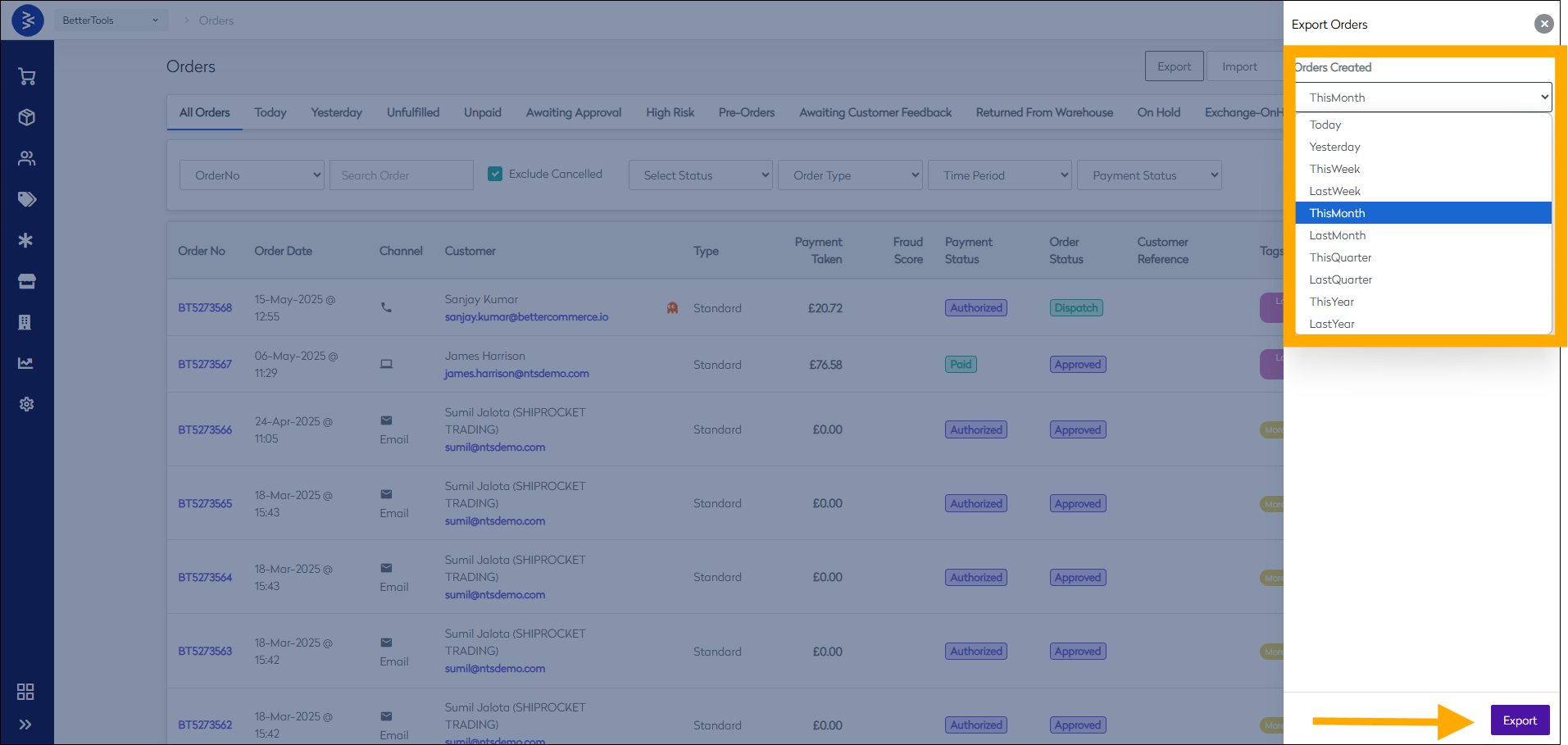
-
Once the export is triggered, a success message will appear on the screen. The order data will be sent to your registered email address in xlsx format.