
Searchandising
Overview
The Searchandising module allows advanced control over how user search queries are processed and interpreted across the platform.It helps in improving the quality of search results and product discoverability through features like keyword redirection, synonym mapping, character replacement rules, and stopwords configuration — all designed to deliver a more relevant and optimized search experience for users.
Keyword Redirection
The Keyword Redirection functionality in the Searchandising module allows specific user search terms to be redirected to predefined pages such as category, product, or landing pages. It helps in improving the search experience by guiding users directly to the most relevant pages. This functionality is particularly useful for marketing campaigns, promotions, or commonly searched phrases.
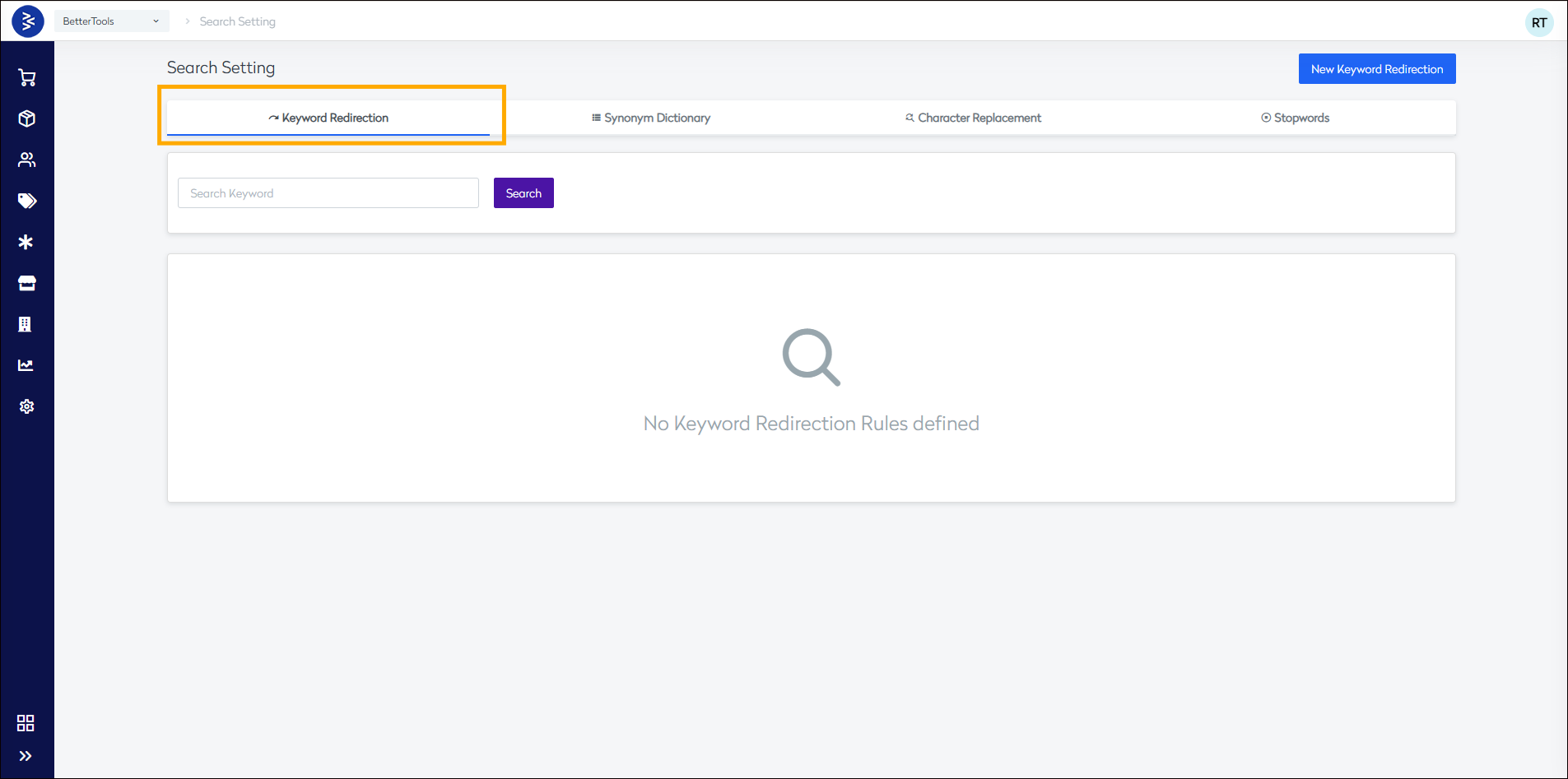
How to Set Up Keyword Redirection in CommerceHub
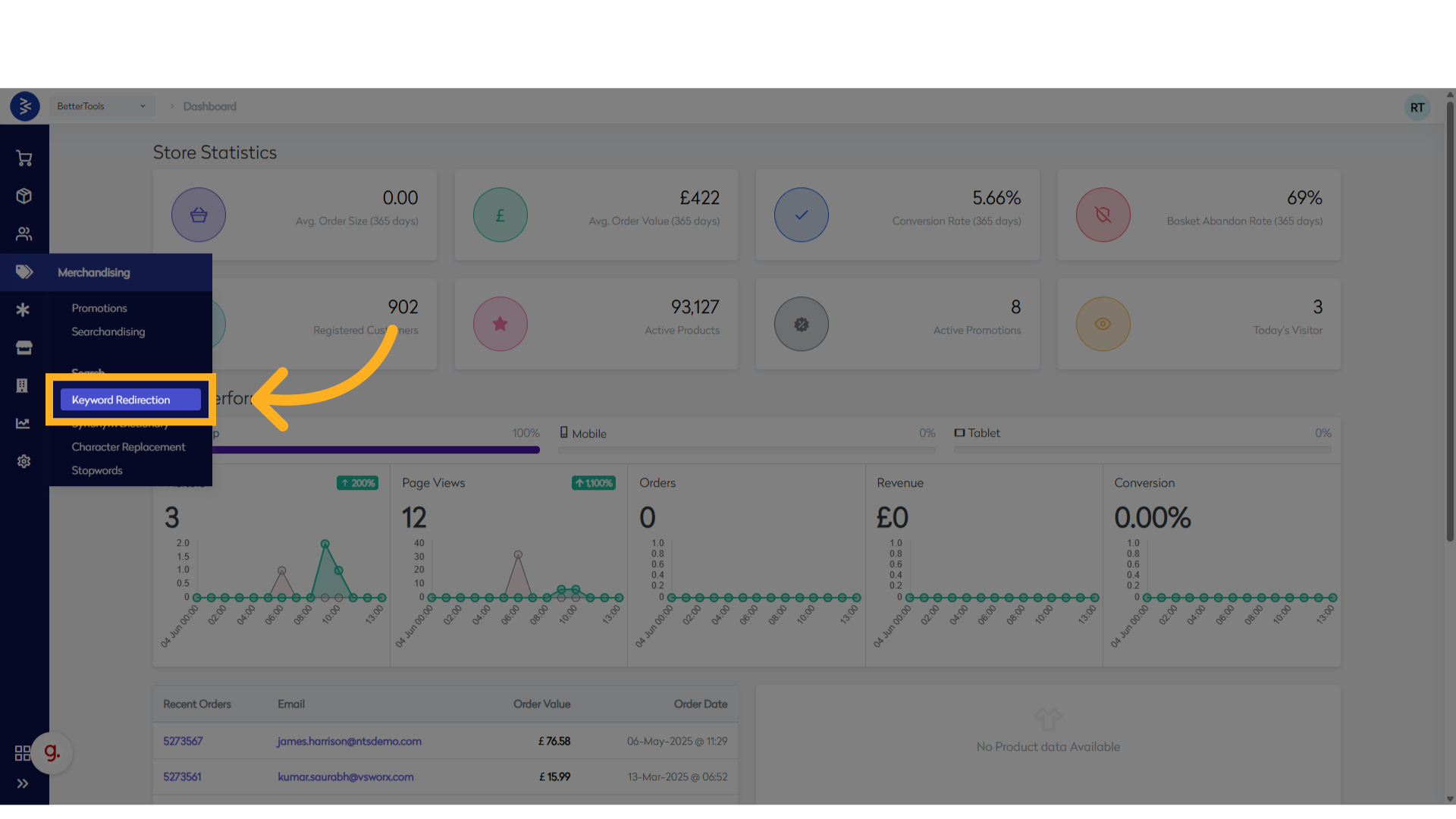
- Open the CommerceHub Dashboard navigate to Merchandising > Keyword Redirection.
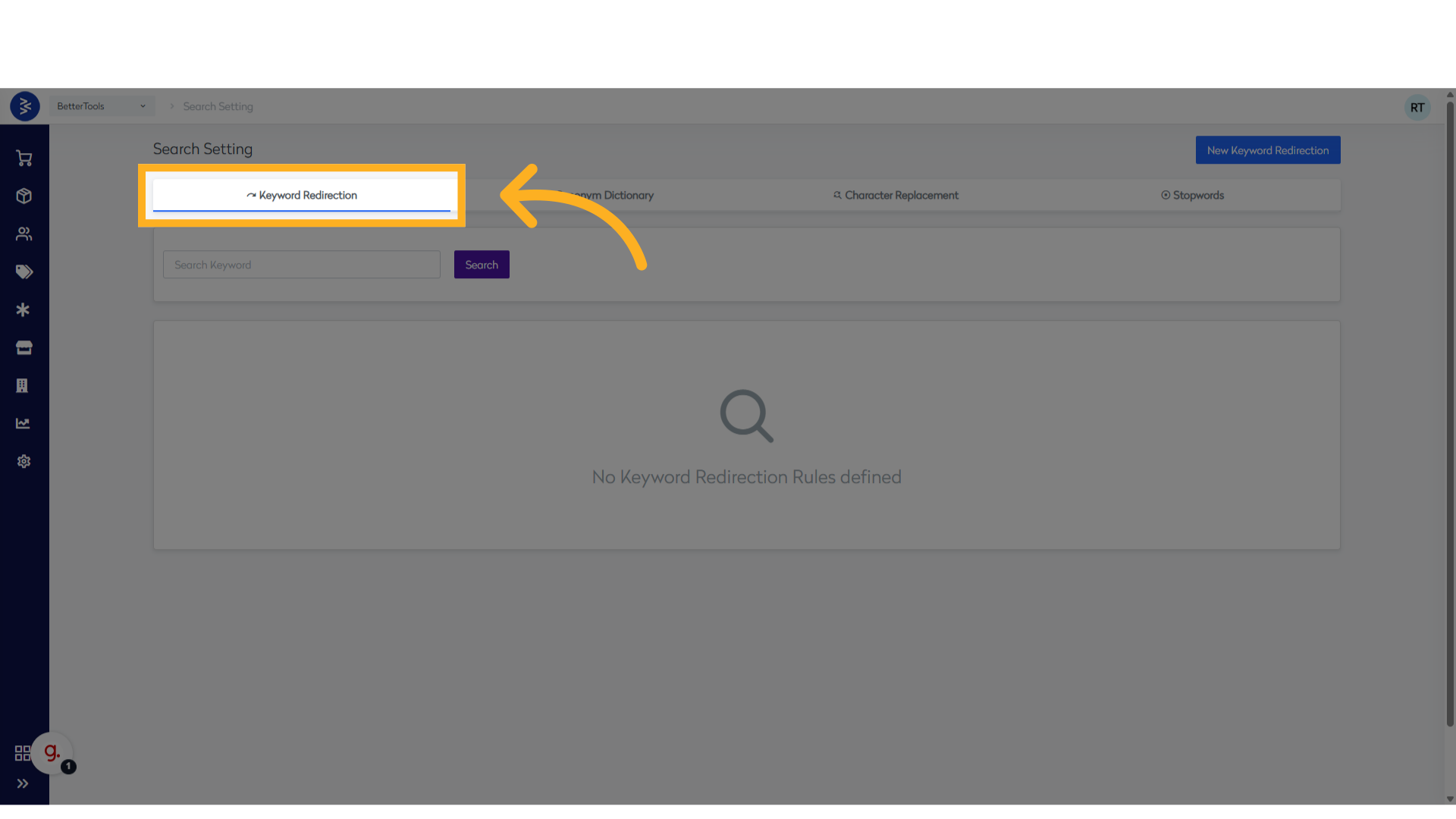
- Click on "Keyword Redirection" to access the setup screen.
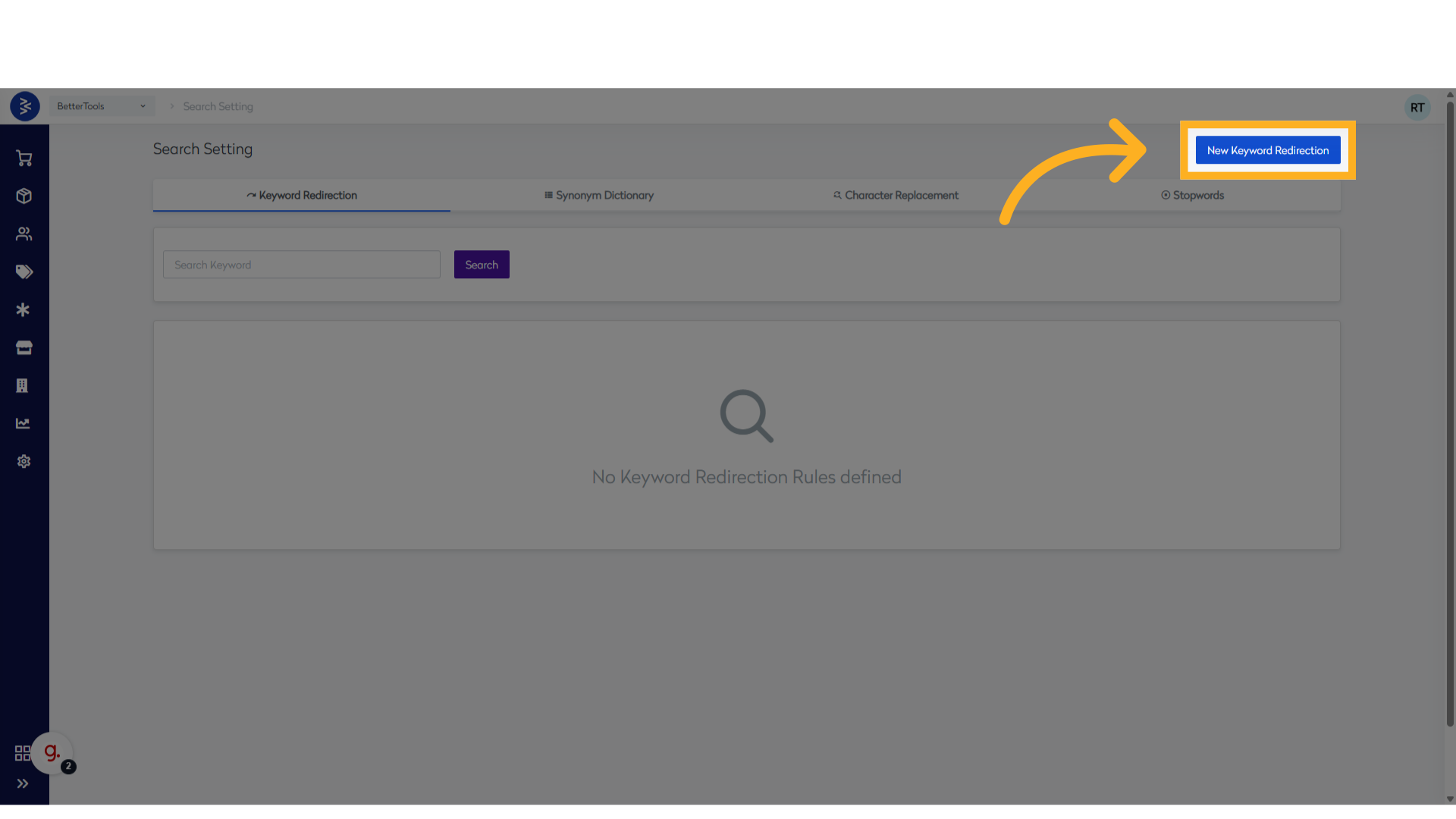
- Click "New Keyword Redirection" to create a new entry.
- Enter a Reference Name for internal identification.

- Enable the "IsActive" toggle to activate the rule.

-
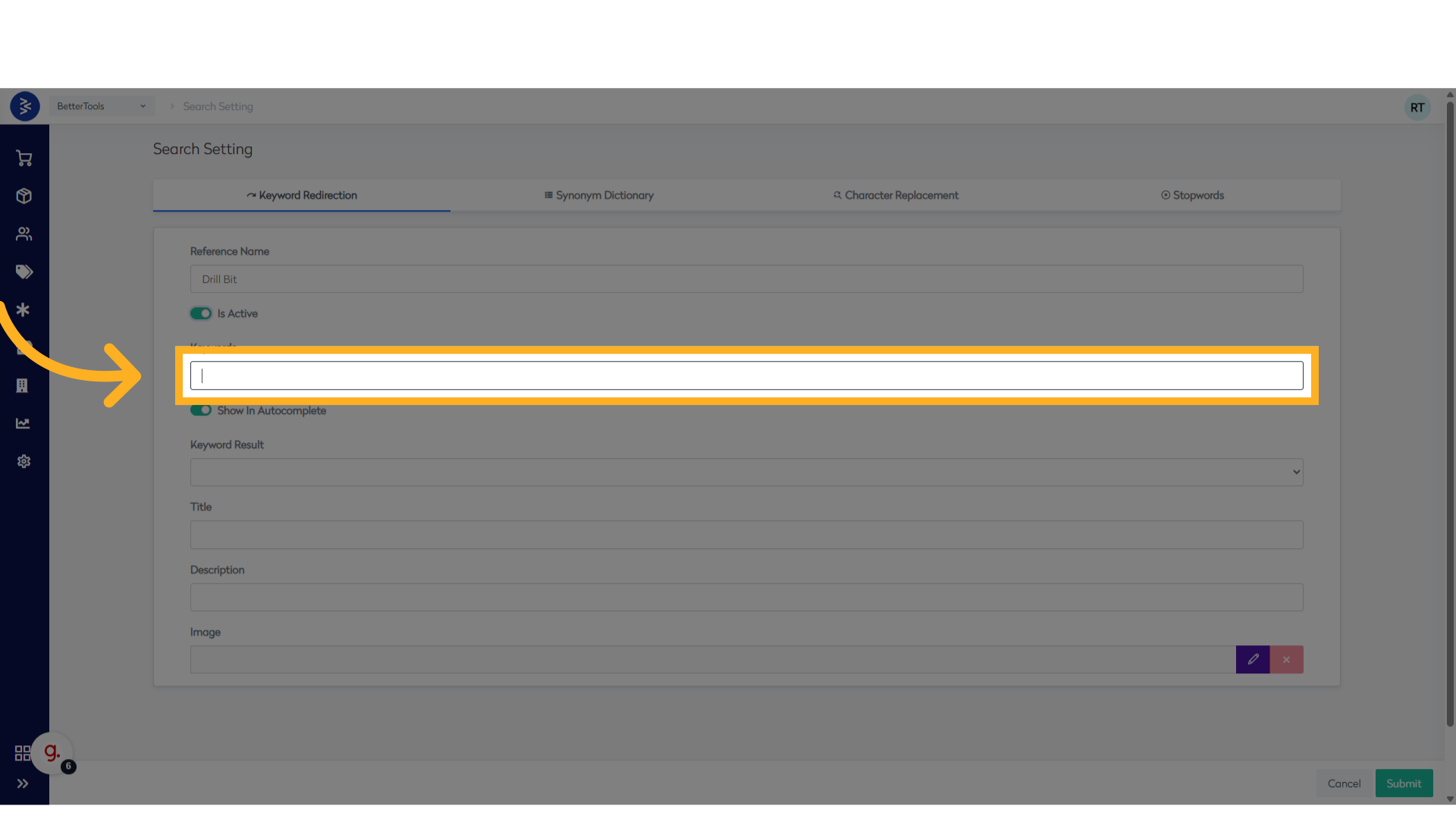
Under Keywords, enter the search terms you want to redirect.
ℹ️ These keywords can redirect users to a URL, Product, Brand, or Category page.
-
Select the desired KeyWord Result from the dropdown menu:
URL, Brand, Category or Product

- Enter the corresponding Landing Page URL based on the selected destination.
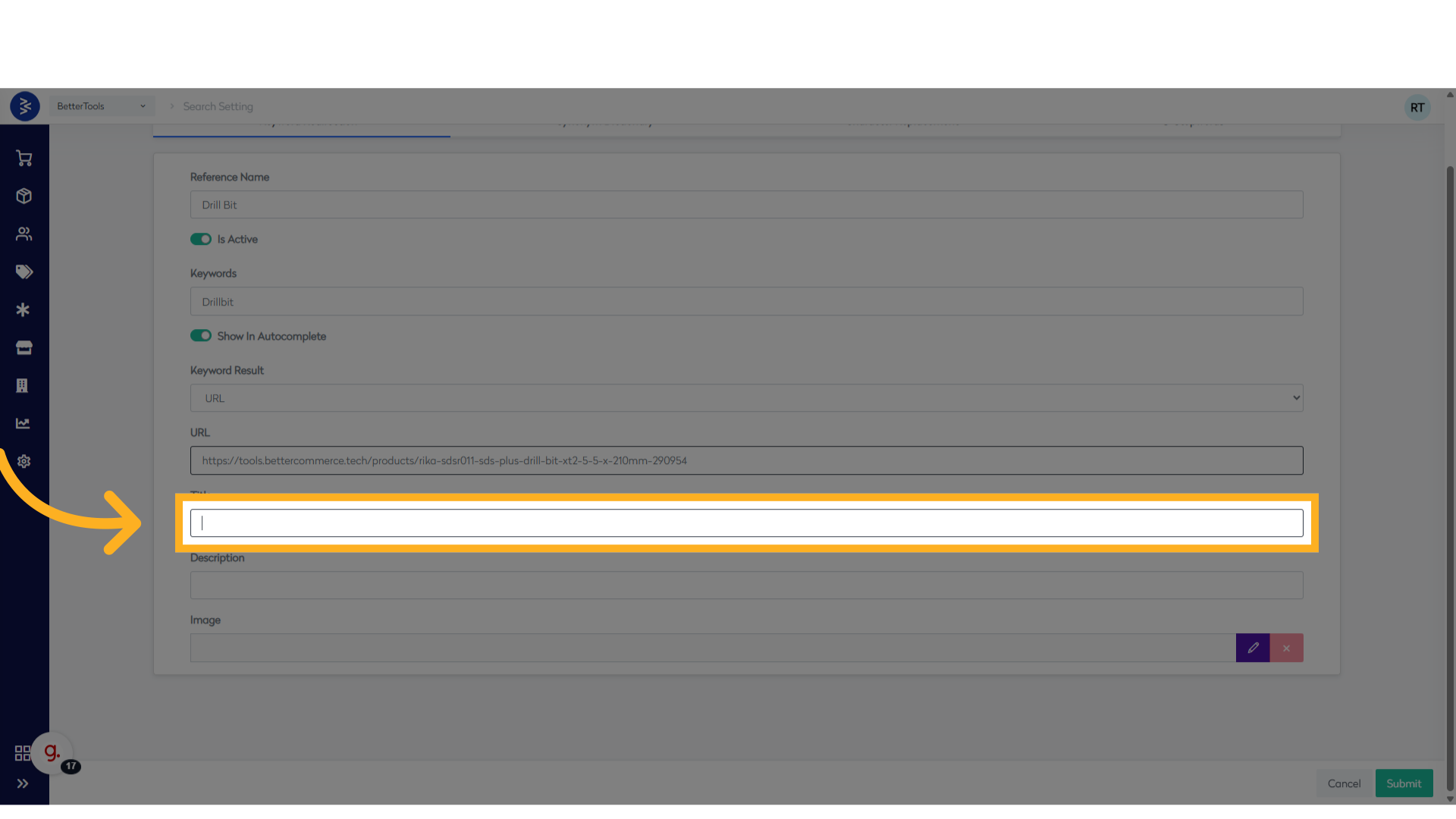
- Update the Title (mandatory).
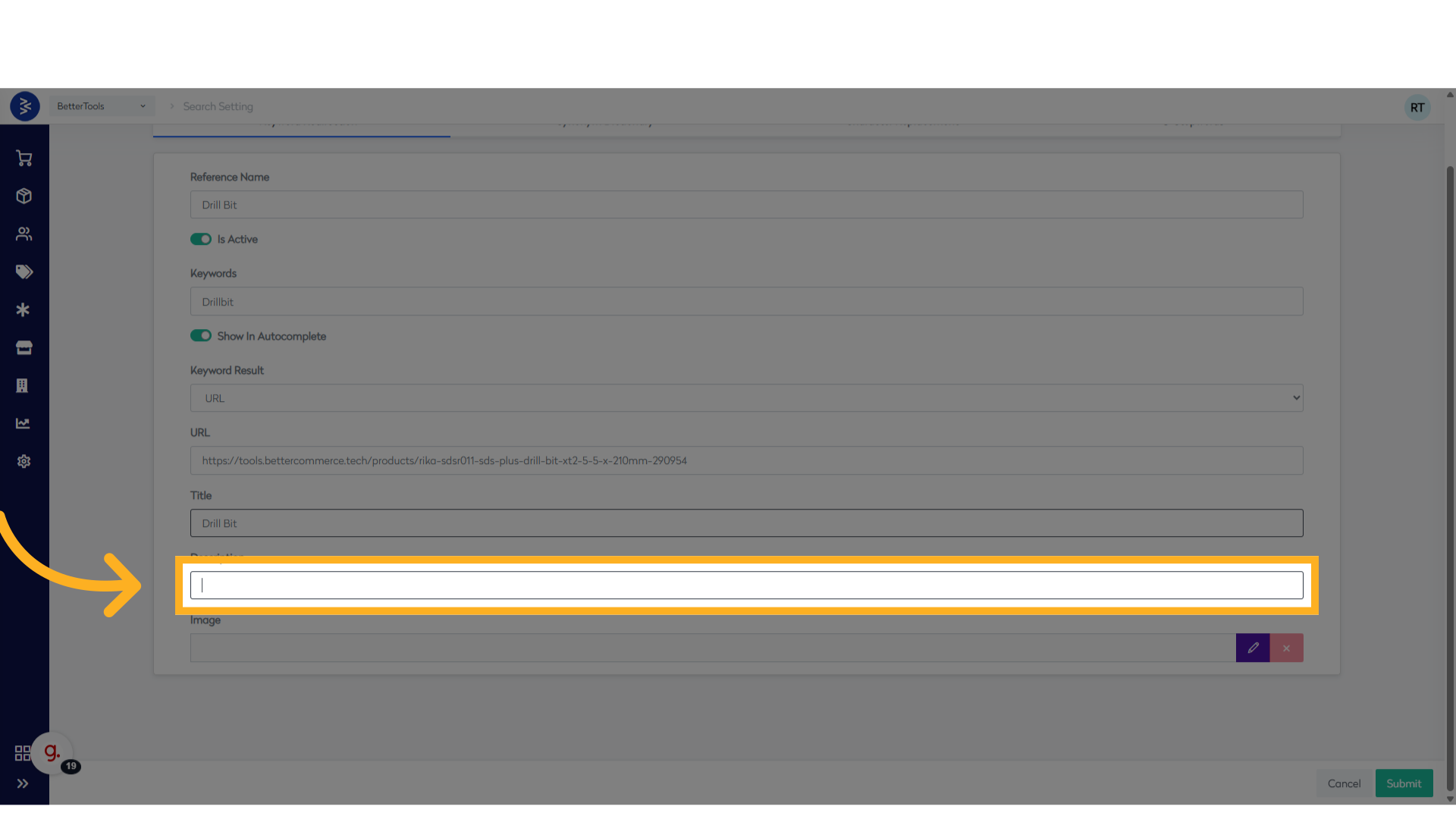
- Optionally, add a Description for the redirection rule.
- If required, you can also upload or update an image by clicking the Edit button next to the image field (optional).
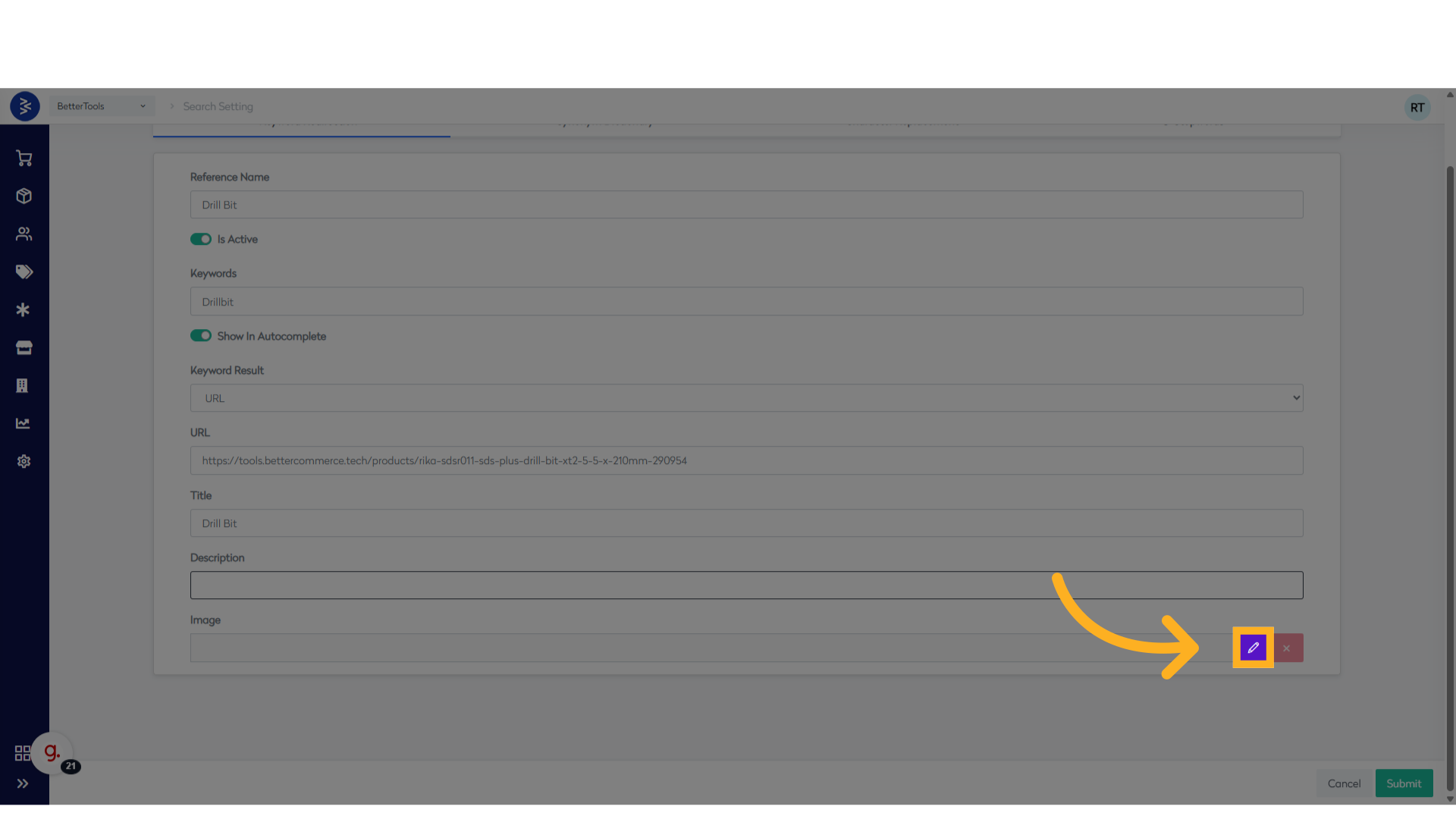
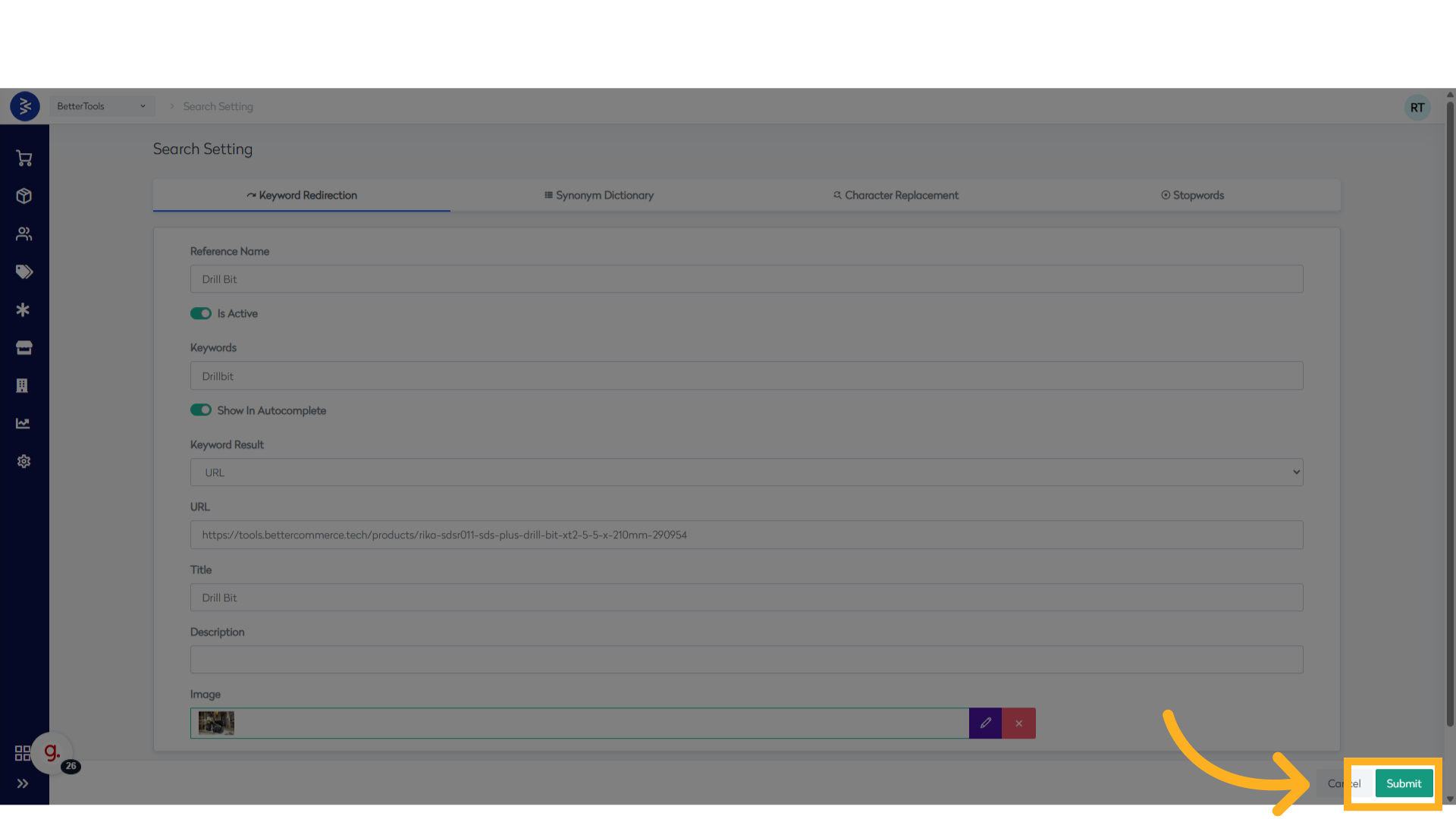 Once saved, the redirection rule becomes active, and users entering the defined keywords in the website’s search bar will be redirected to the configured destination.
You can view or edit existing rules from the Keyword Redirection screen in CommerceHub.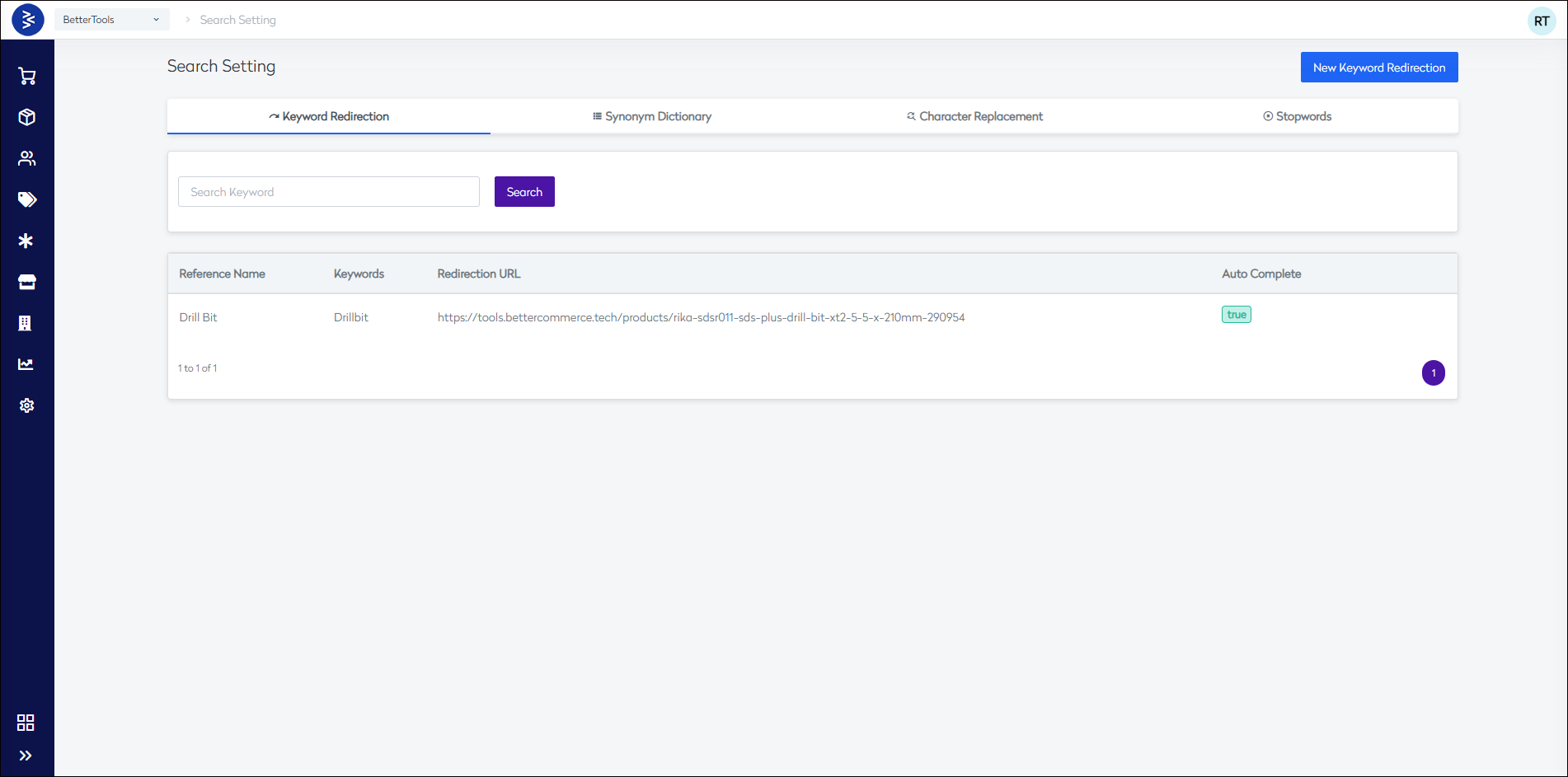
Synonym Dictionary Management
The Synonym Dictionary functionality in the Searchandising module allows the definition of related search terms to improve the relevancy of search results. It helps in mapping user queries to appropriate products even when different words are used, such as mapping "tee" to "t-shirt", ensuring better product visibility and discoverability.
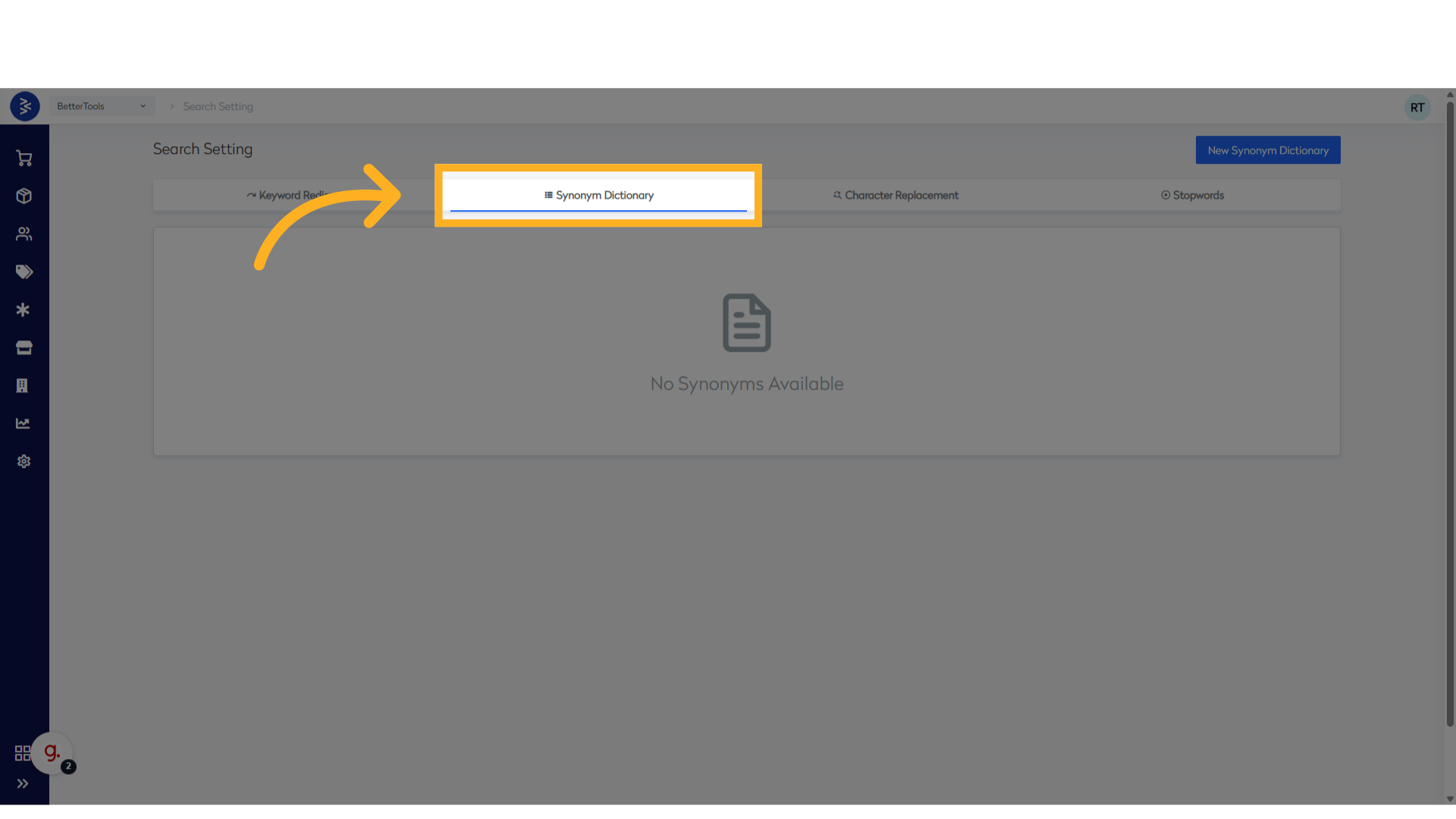
Follow the steps below to create a new synonym entry:
-
Navigate to Merchandising > Synonym Dictionary from the CommerceHub Dashboard.
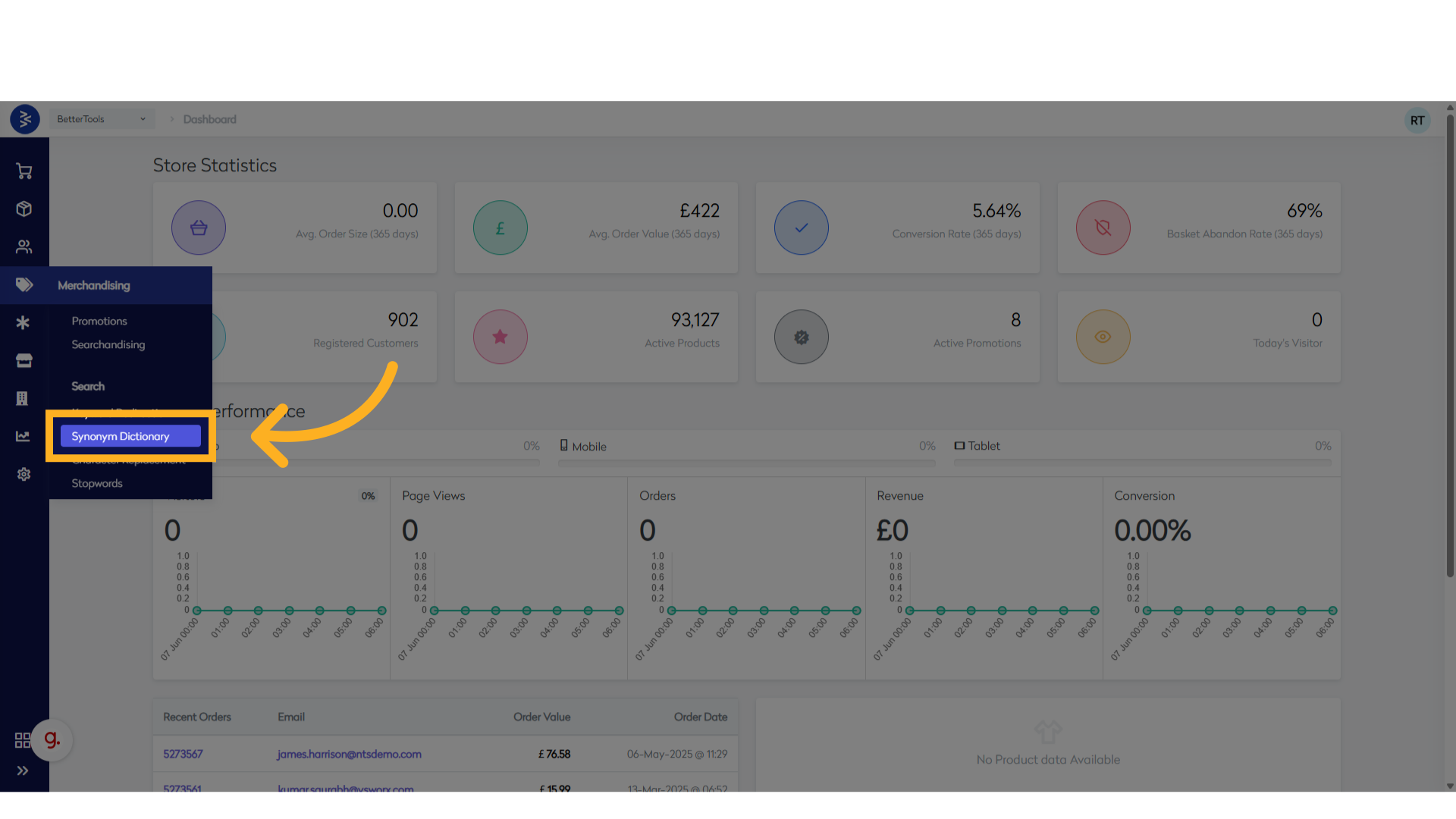
-
Click on "Synonym Dictionary" to open the existing list of entries.

-
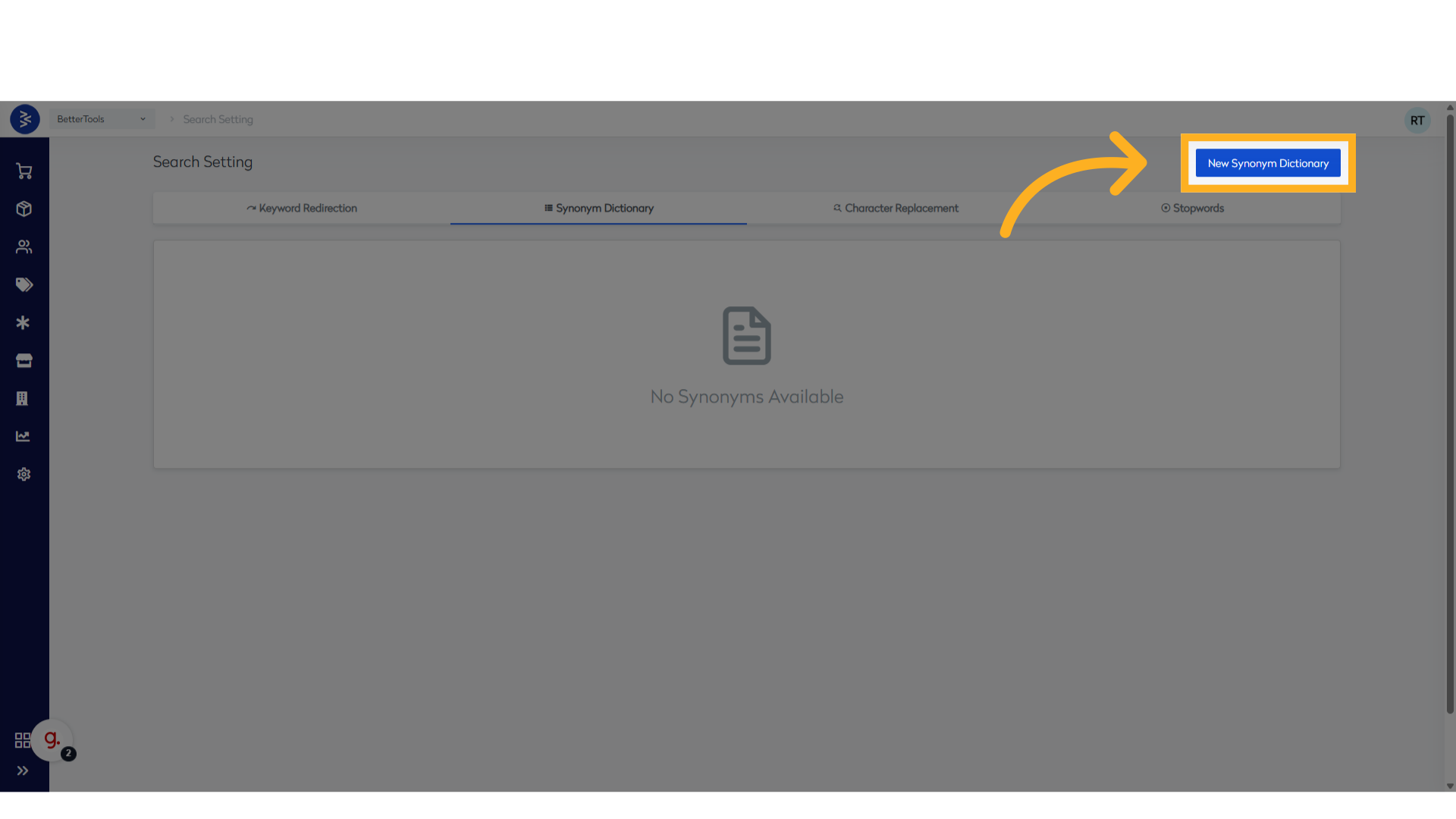
To add a new entry, click "New Synonym Dictionary".
-
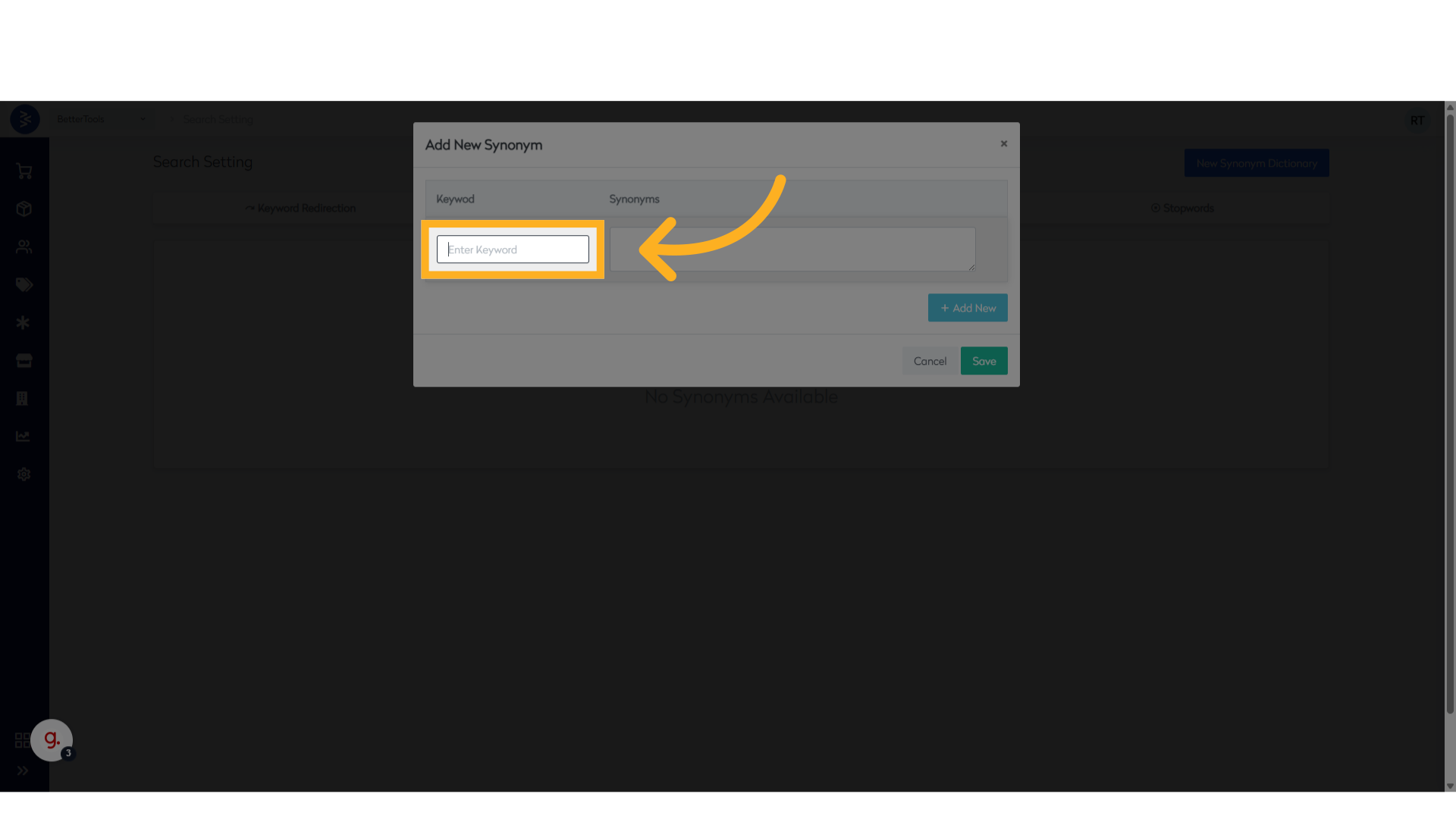
In the "Enter Keyword" field, type the main keyword you want to associate synonyms with.
-
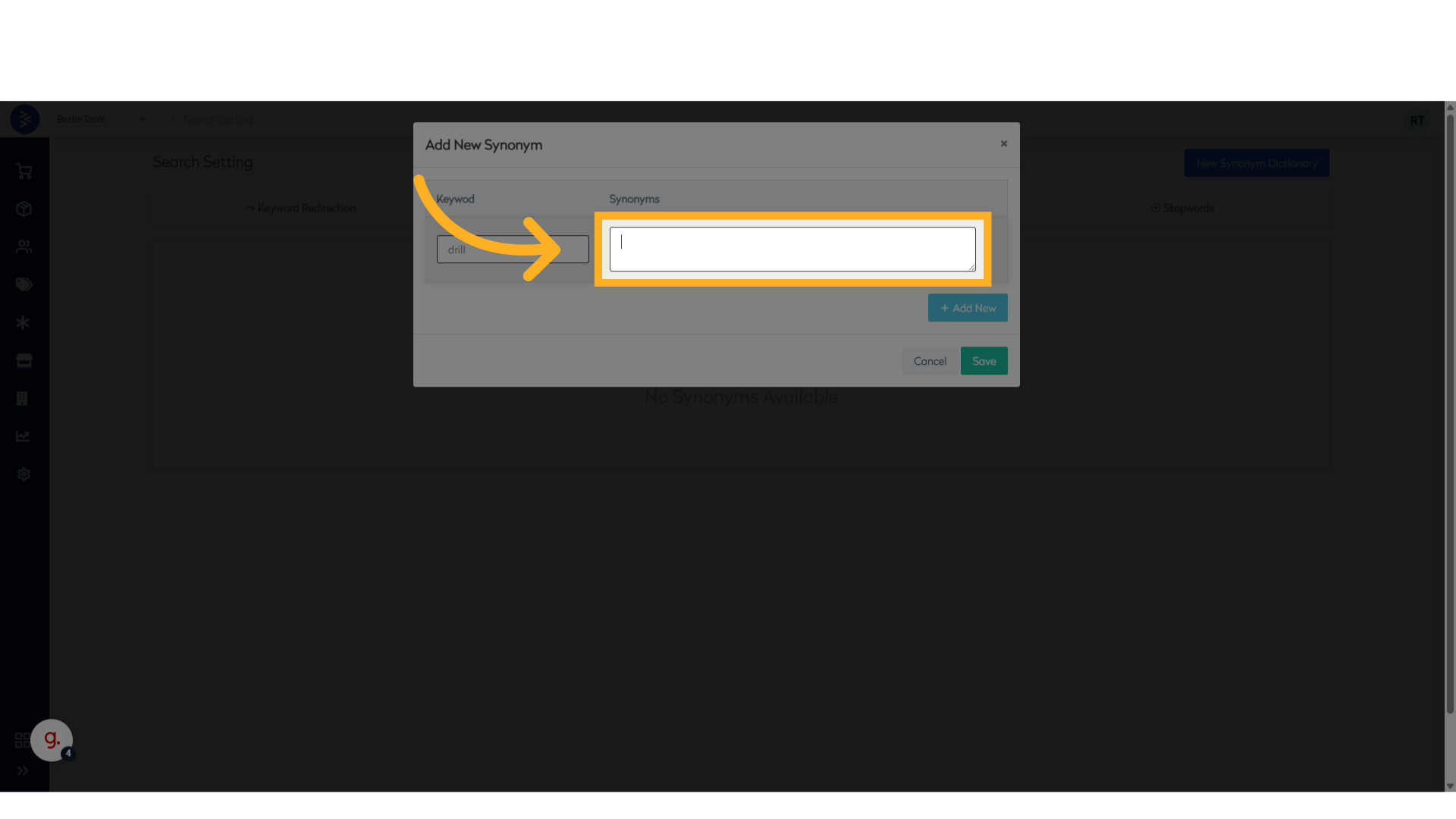
In the "Synonyms" field, enter one or more synonym terms that should be mapped to the keyword.
-
Click "Save" to apply and store the new synonym mapping.

Once saved, these synonyms will be used to enhance search behavior, helping users discover relevant products even when alternative terminology is used.
Character Replacement Rules
The Character Replacement Rules functionality in the Searchandising module allows specific characters in user search queries to be replaced or removed to normalize the input. It helps in improving the accuracy of search results by standardizing queries — for example, replacing symbols like "&" with "and" or removing hyphens and underscores that may affect matching logic.
Steps to Create a Character Replacement Rule
- Navigate to Merchandising > Character Replacement in the CommerceHub Dashboard.
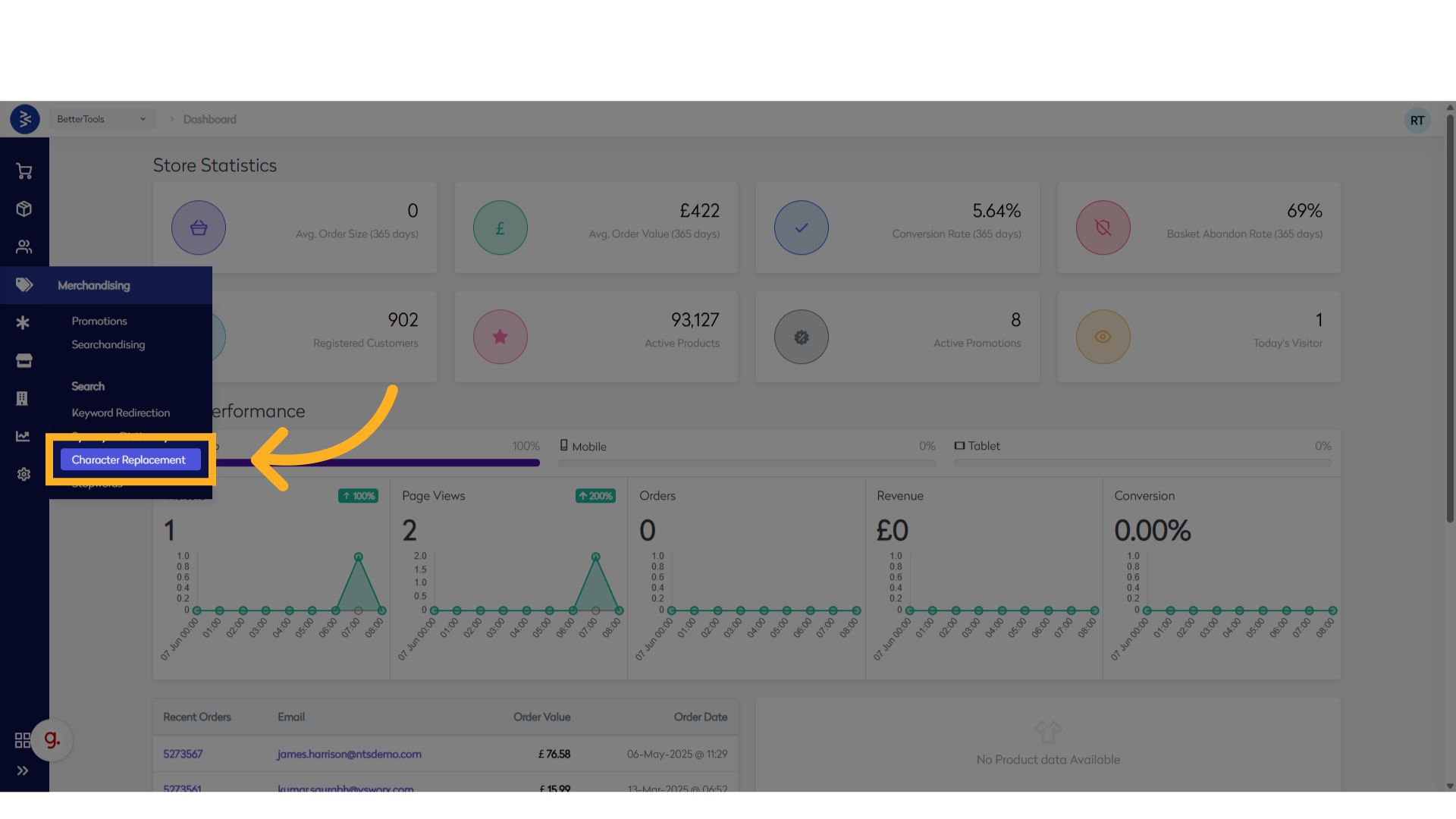
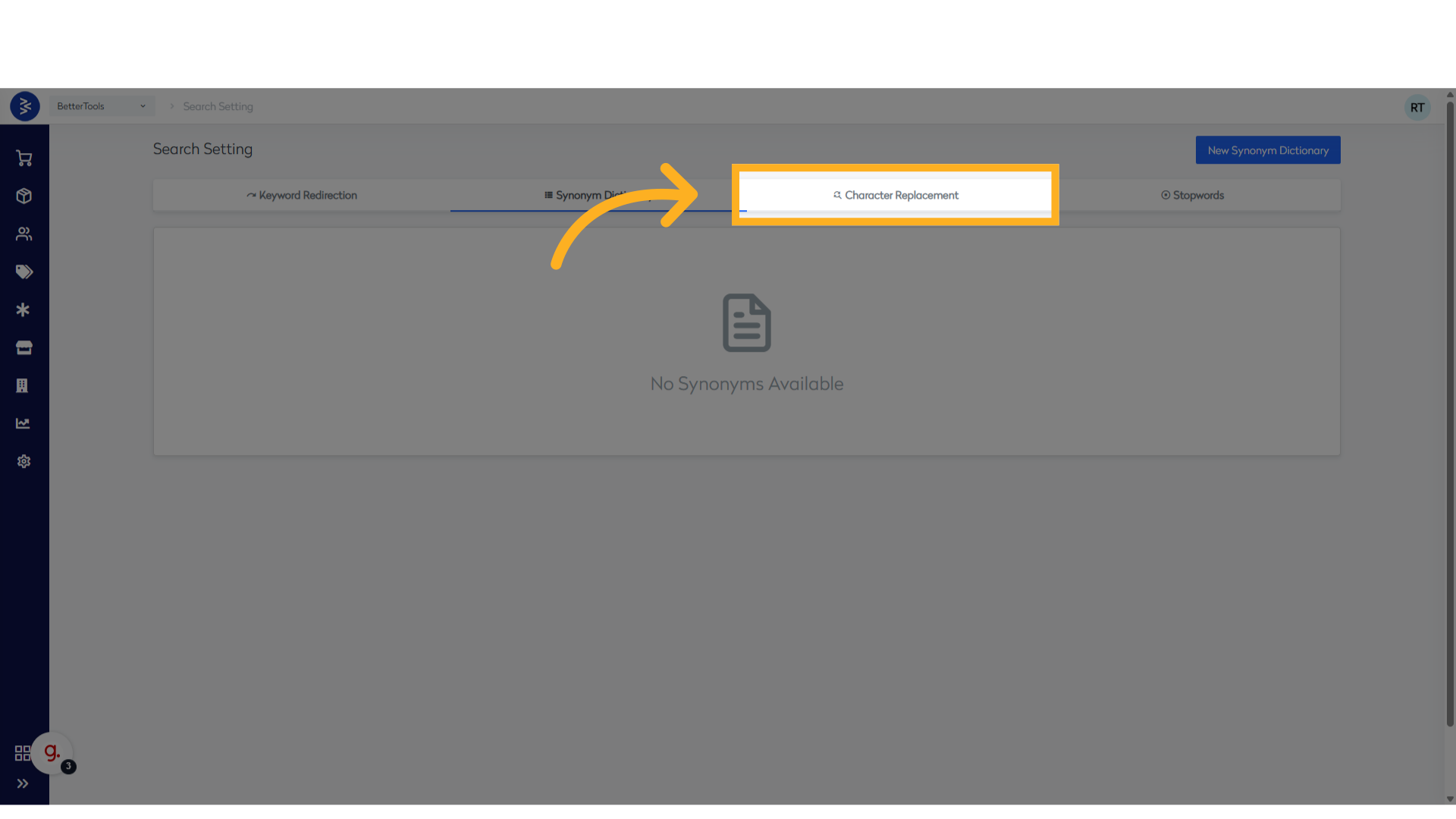
- Click "Character Replacement" to view existing rules.

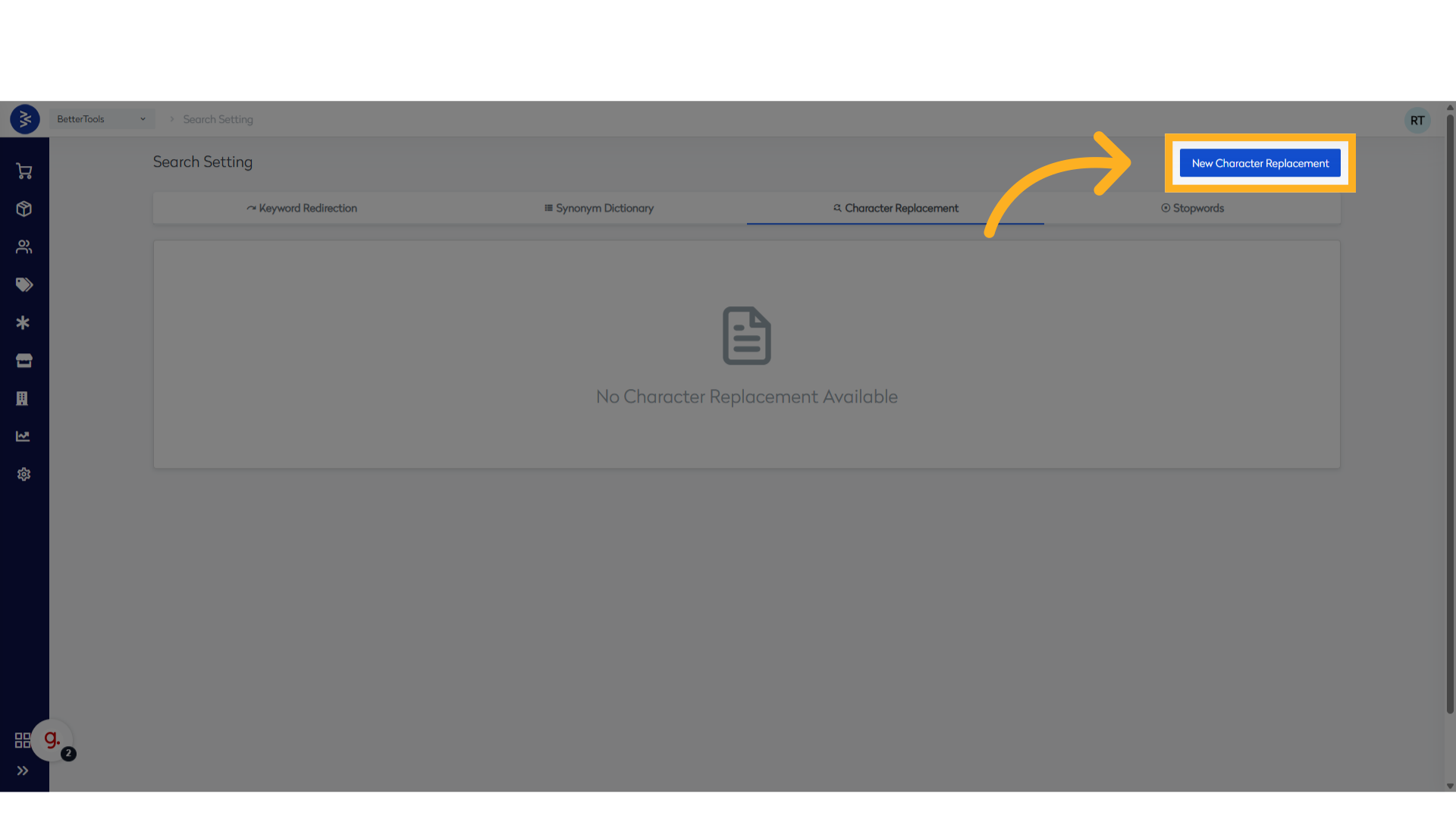
- Click "New Character Replacement" to open the creation dialog.
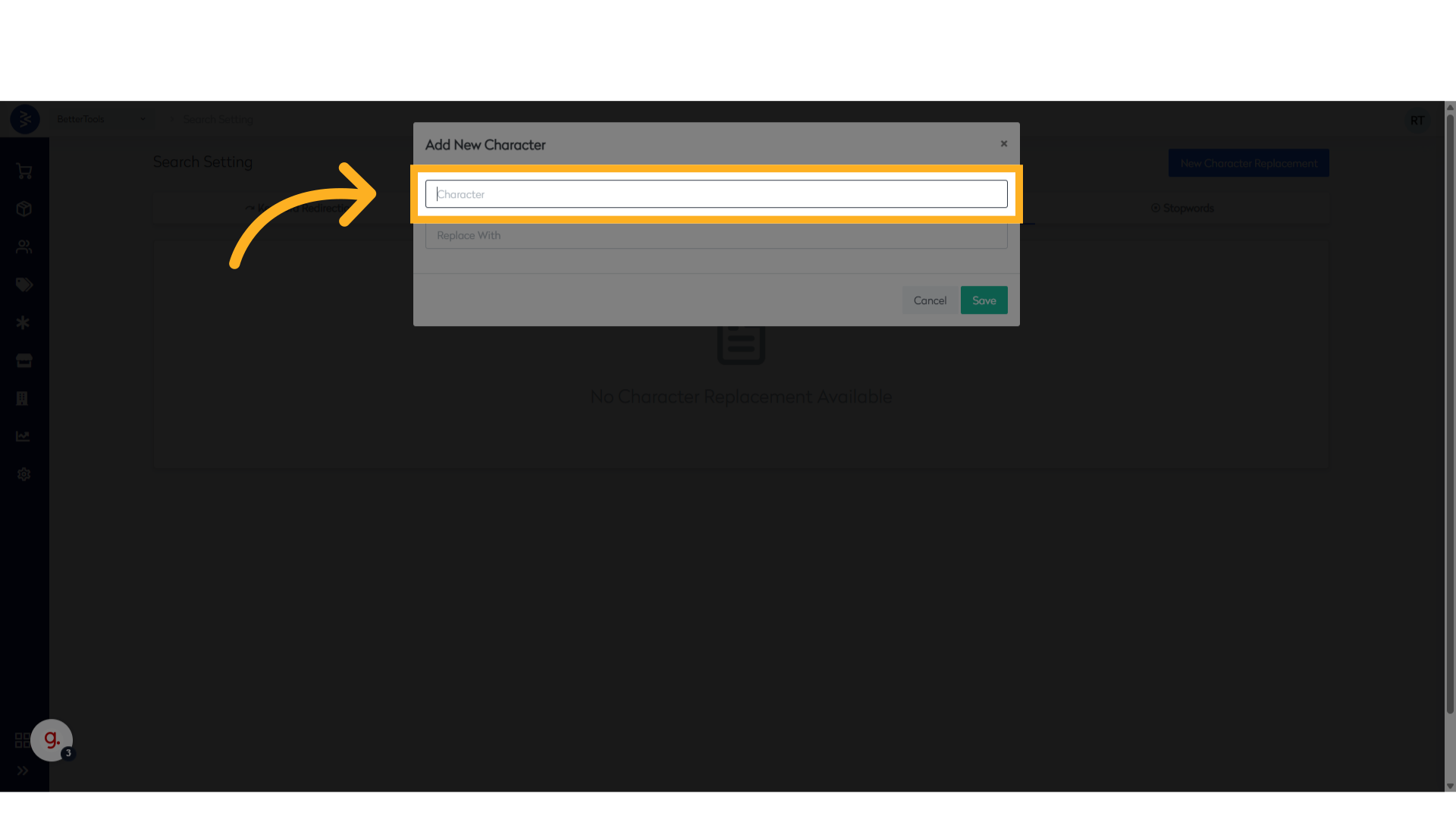
- In the Character field, enter the single character you want to replace.
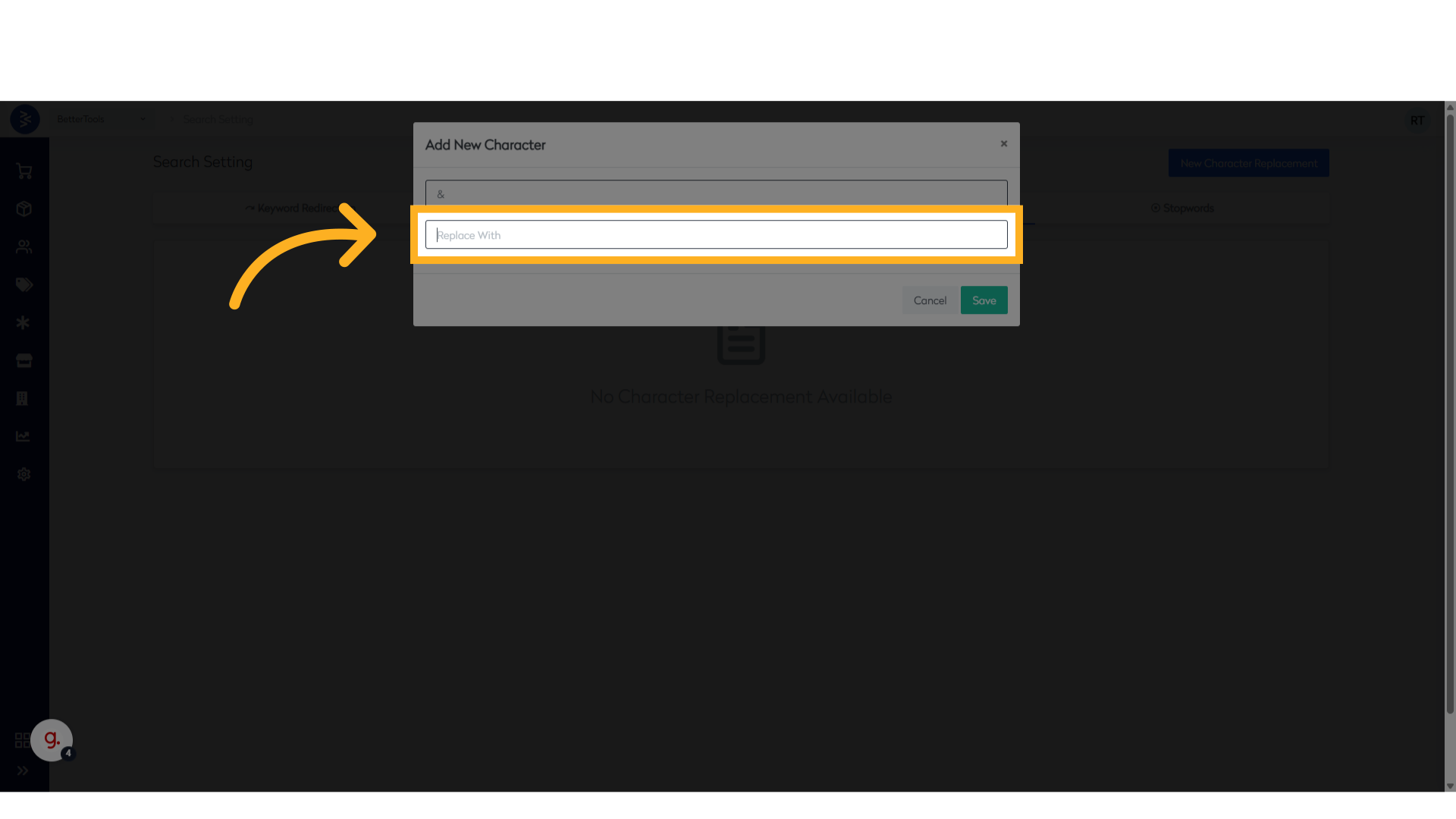
- In the Replace With field, enter the single character that should take its place.
- Click "Save" to store the new rule.
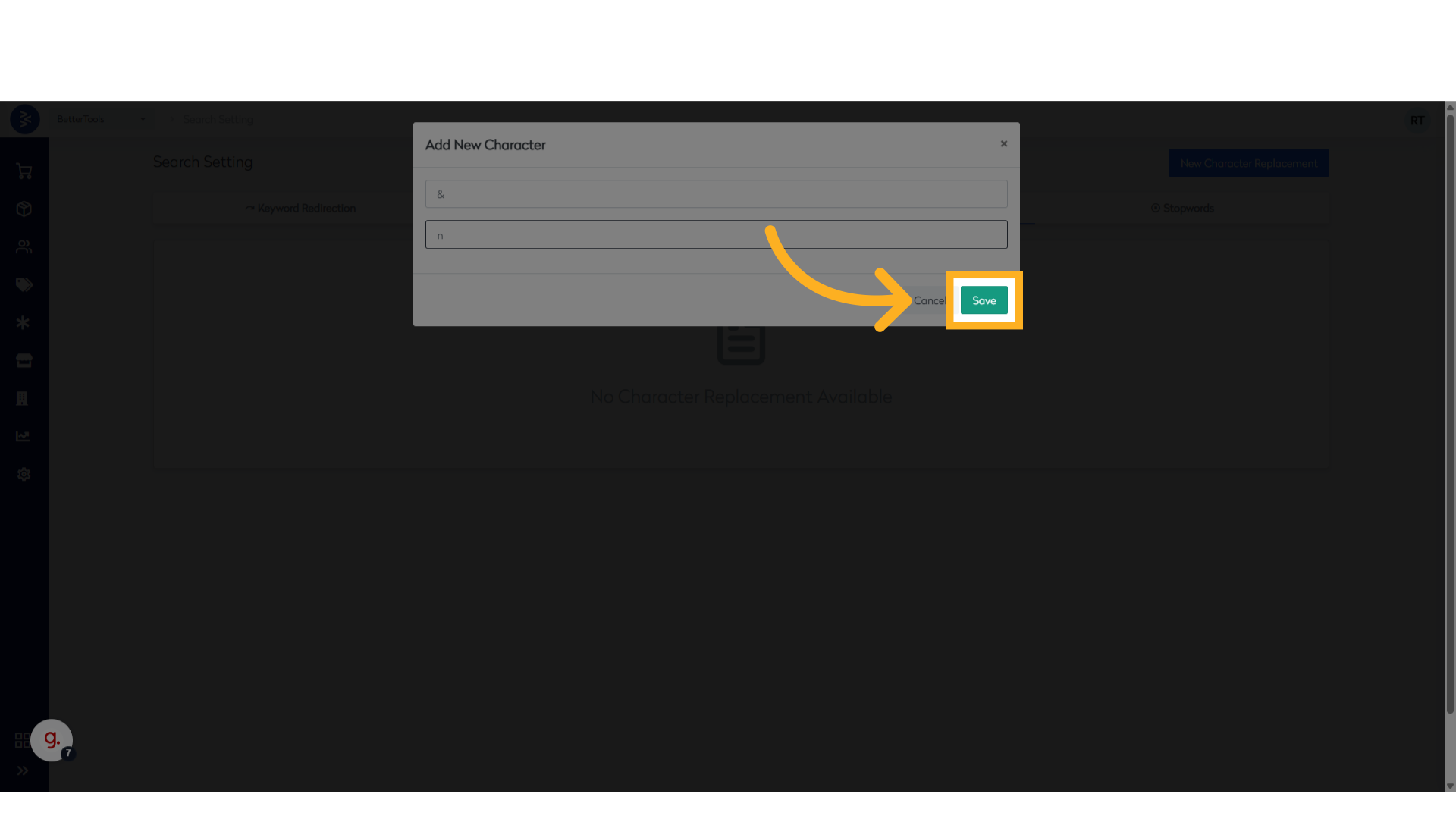
Once saved, the system will apply these rules at query time, ensuring consistent search results across variations in user input.
Stopwords Configuration
The Stopwords Configuration functionality in the Searchandising module allows the exclusion of commonly used words from the search query processing logic. It helps in optimizing search relevance by ignoring filler words such as "the", "for", or "in", allowing the system to focus on the actual product-related keywords.
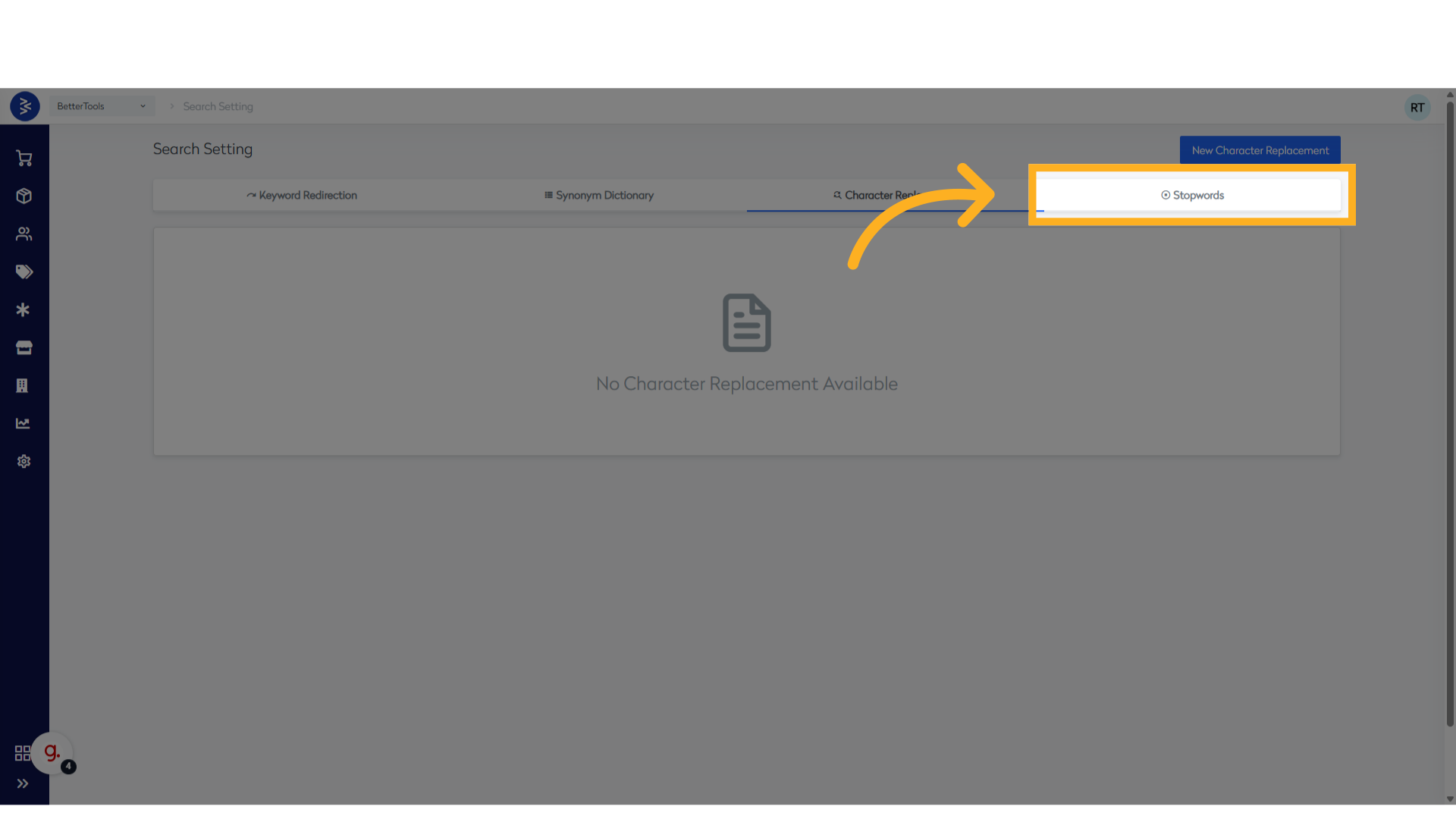
Steps to Create a Stopword
- Navigate to Merchandising > Stopwords in the CommerceHub Dashboard.
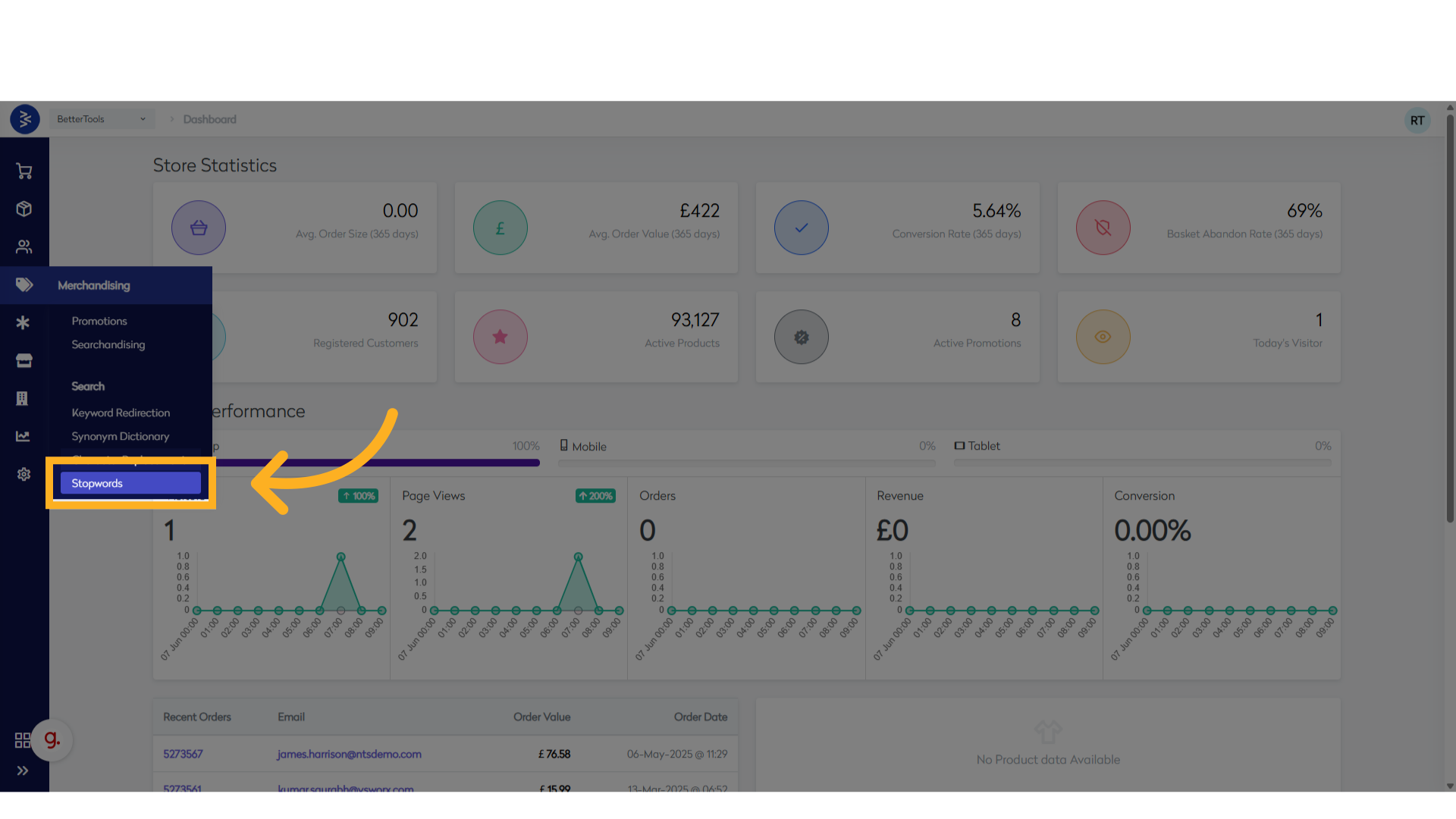
- Click "Stopwords" to view existing entries.
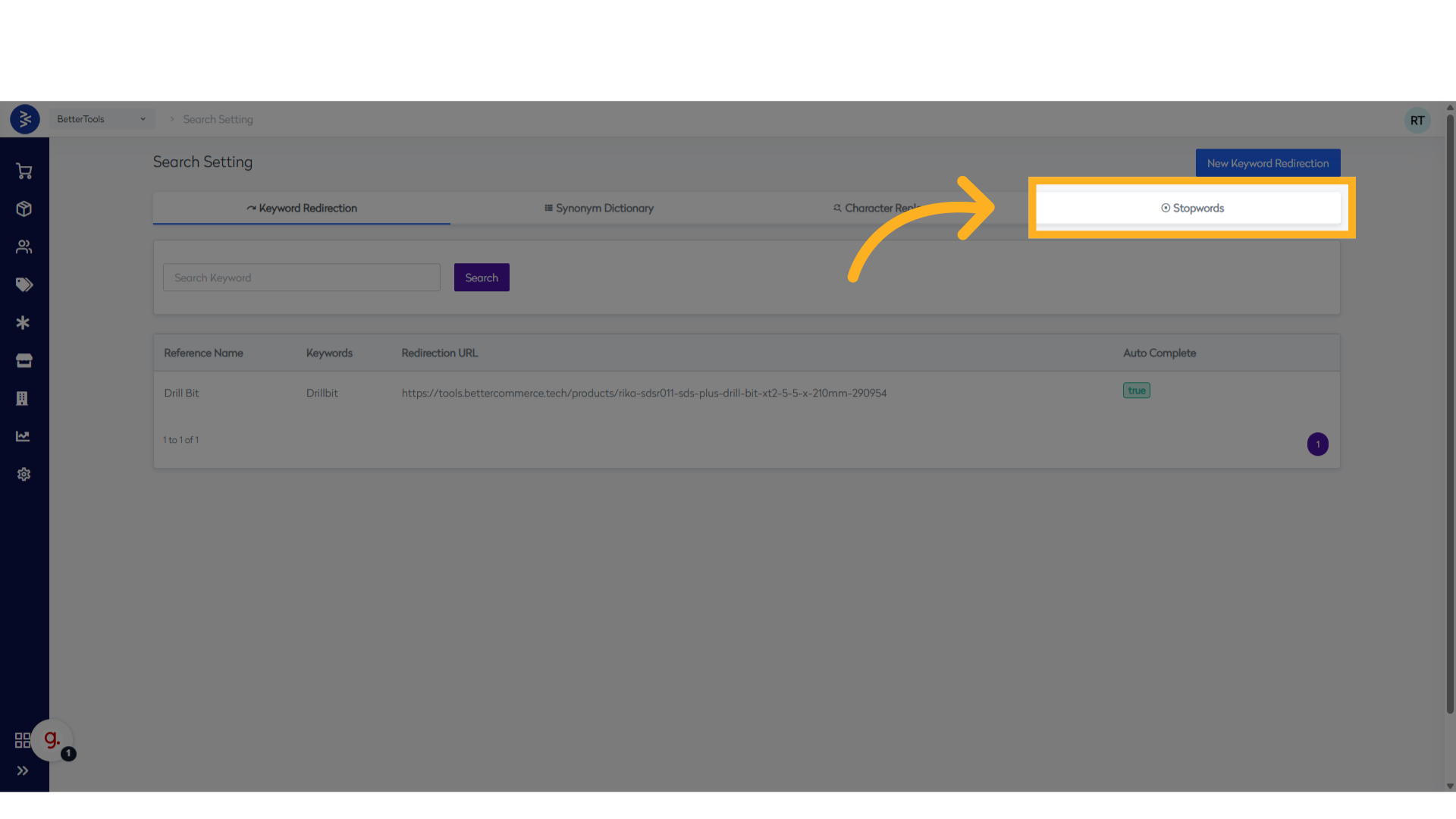
- Click "New Stopwords" to open the creation dialog.
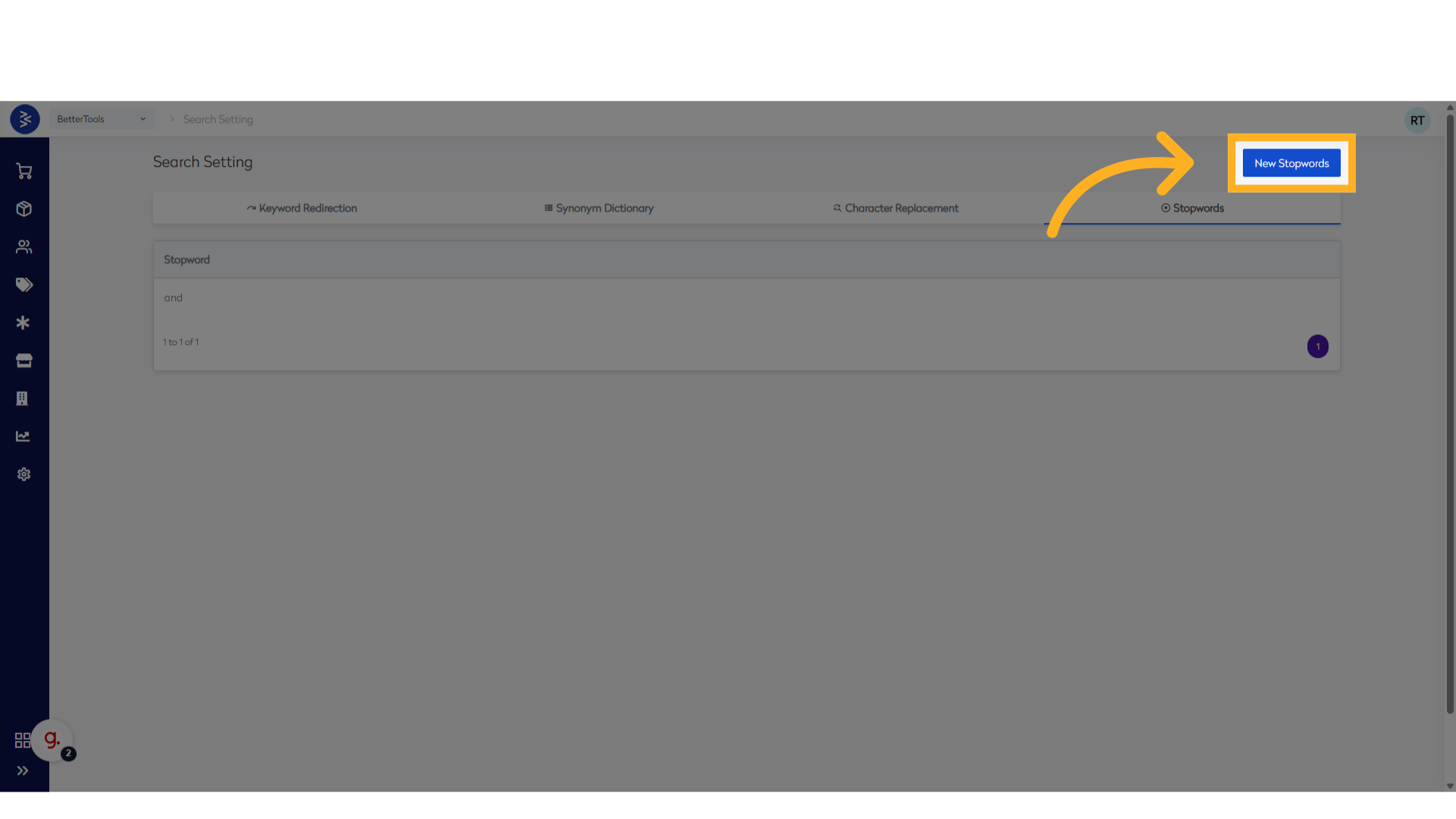
- In the Stopword field, enter the word you want to exclude from search queries and Click "Save" to store the new stopword.
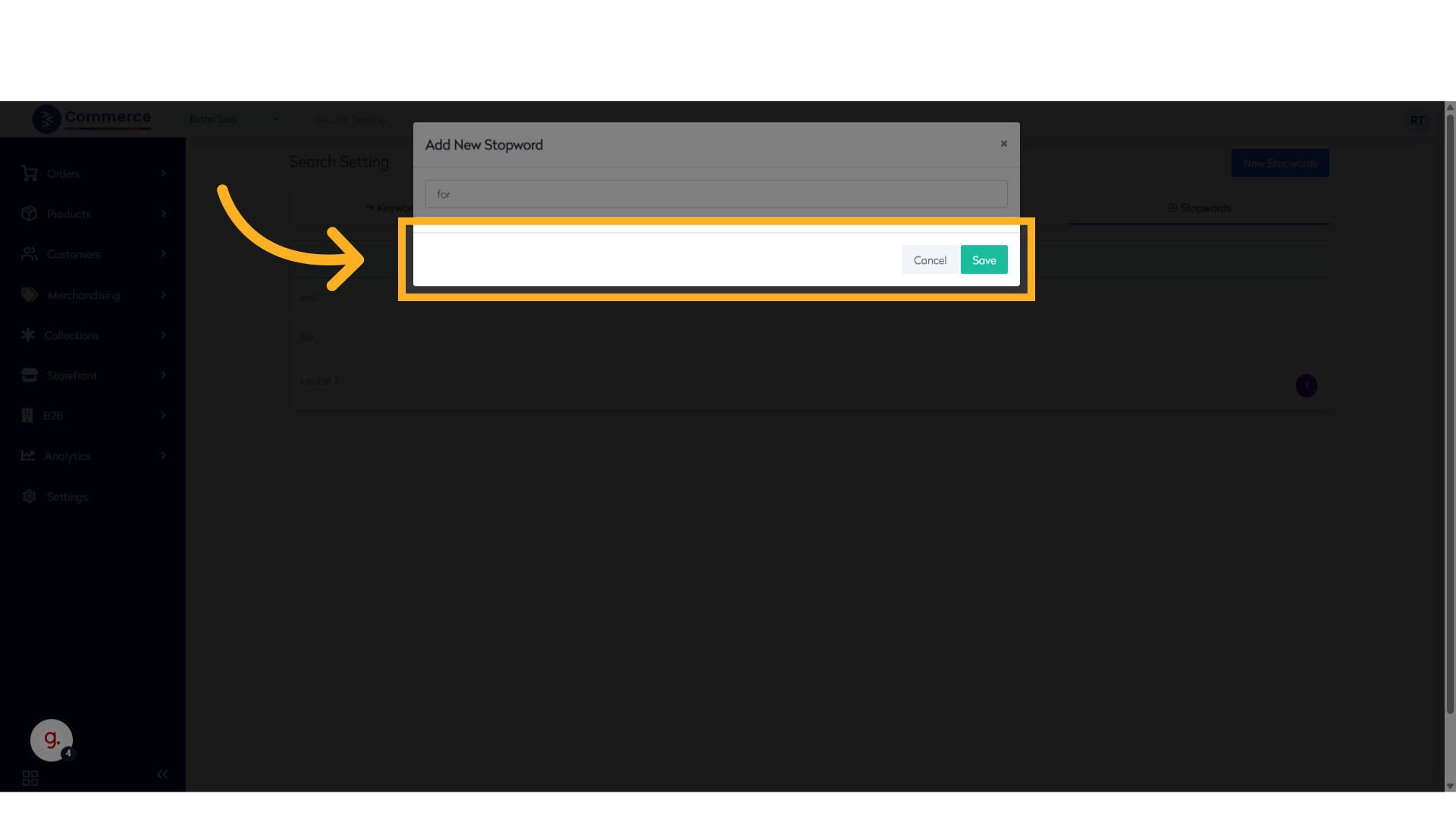
- Once saved, the new stopword will appear in the list and will be automatically ignored during search processing.
