
General Settings
Store Details
Configure basic information about your store and how it operates.
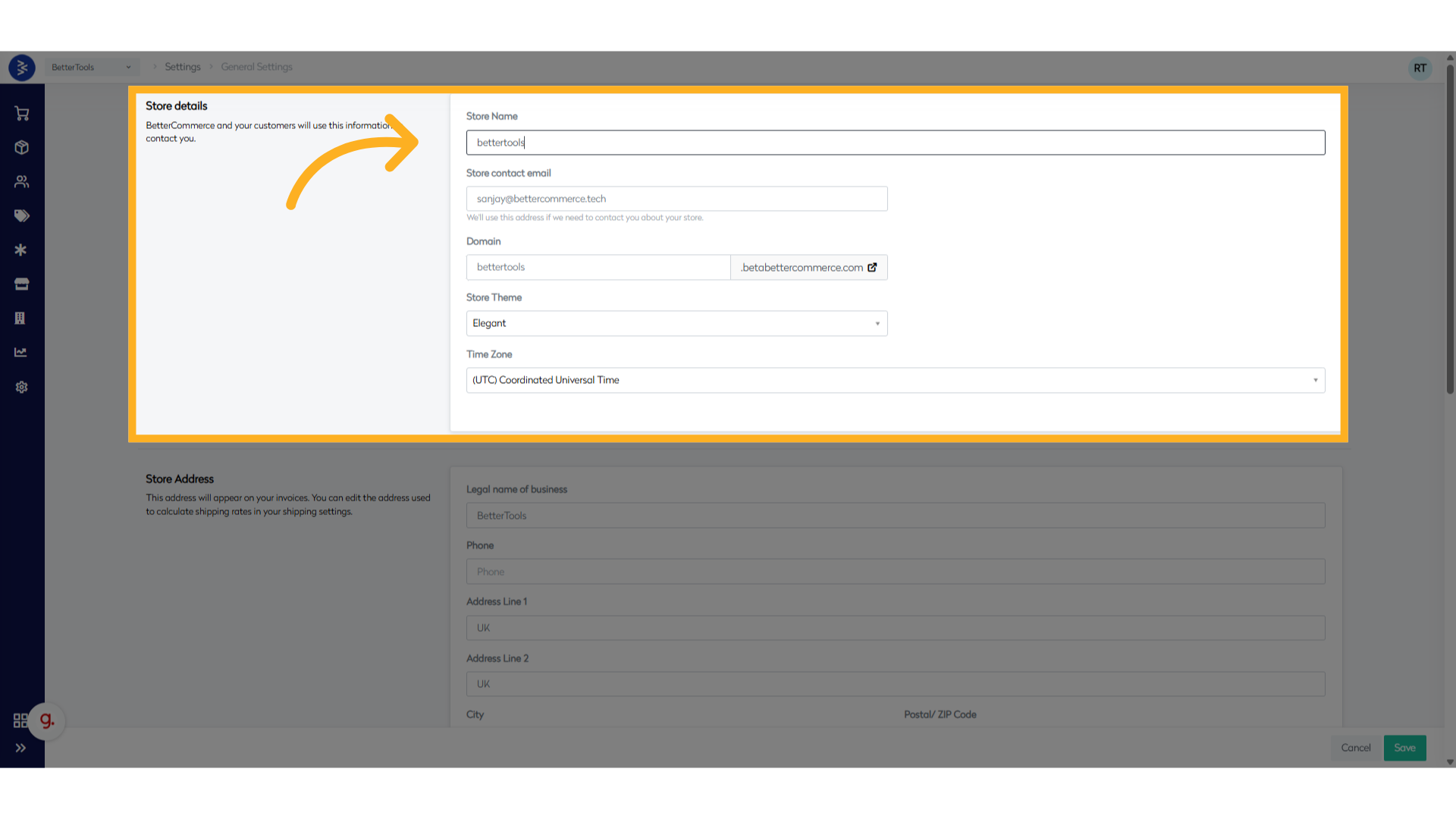
Store Information
The foundational information about your online store. This section defines your store's identity and basic operational settings.
| Field | Description |
|---|---|
| Store Name | Name of your store (e.g., "bettertools") |
| Store Contact Email | Primary contact email for store communications |
| Domain | Your store's domain (e.g., "bettertools.betabettercommerce.com") |
| Store Theme | Visual theme selection (e.g., "Elegant") |
| Time Zone | Store's operating timezone (e.g., "(UTC) Coordinated Universal Time") |
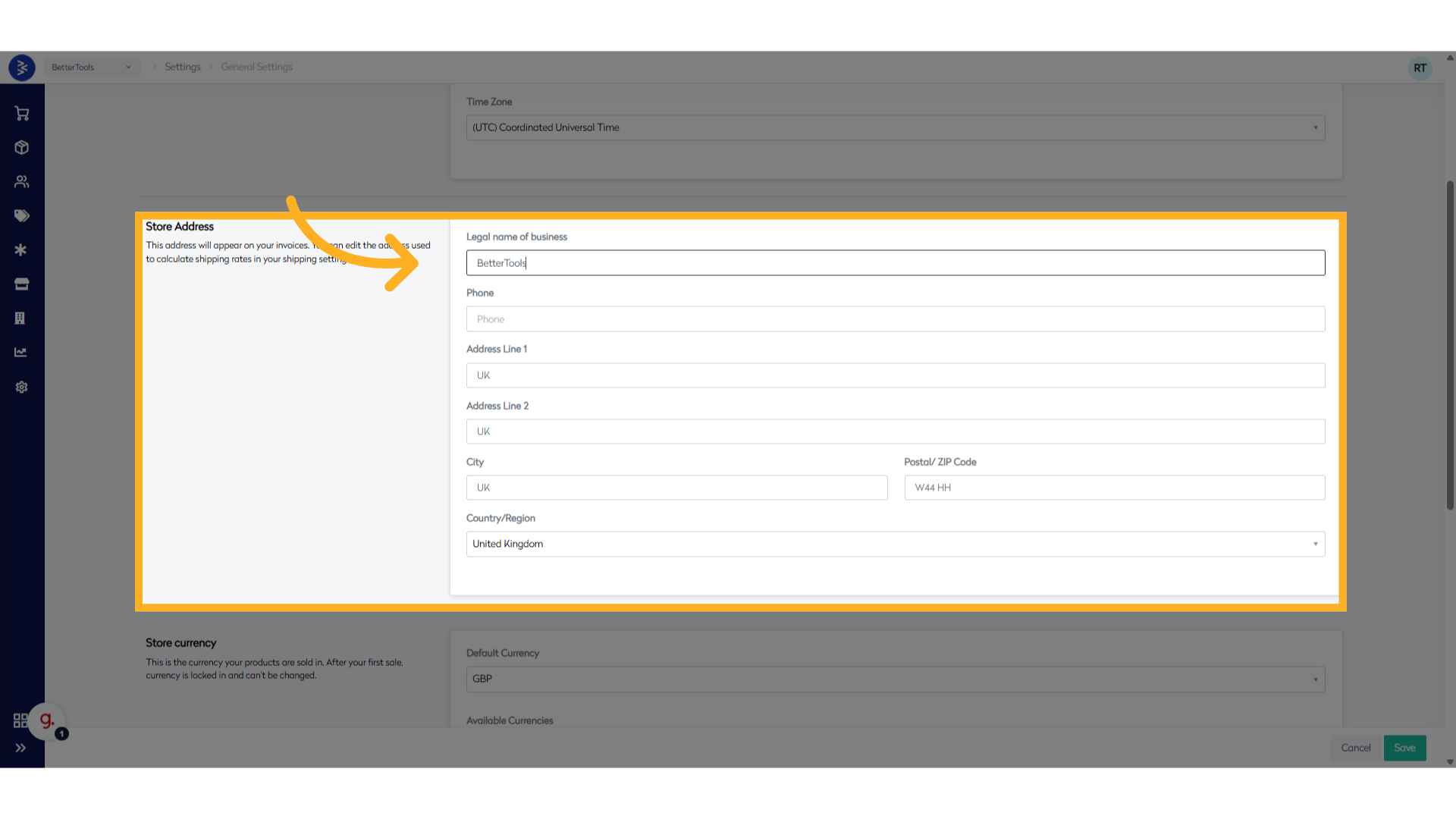
Store Address
This address will appear on your invoices. You can edit the address used to calculate shipping rates in your shipping settings.
| Field | Description |
|---|---|
| Legal Name of Business | Official registered business name |
| Phone | Contact phone number |
| Address Line 1 | Primary address line |
| Address Line 2 | Secondary address line (optional) |
| City | Business city location |
| Postal/ZIP Code | Local postal code |
| Country/Region | Country of operations |
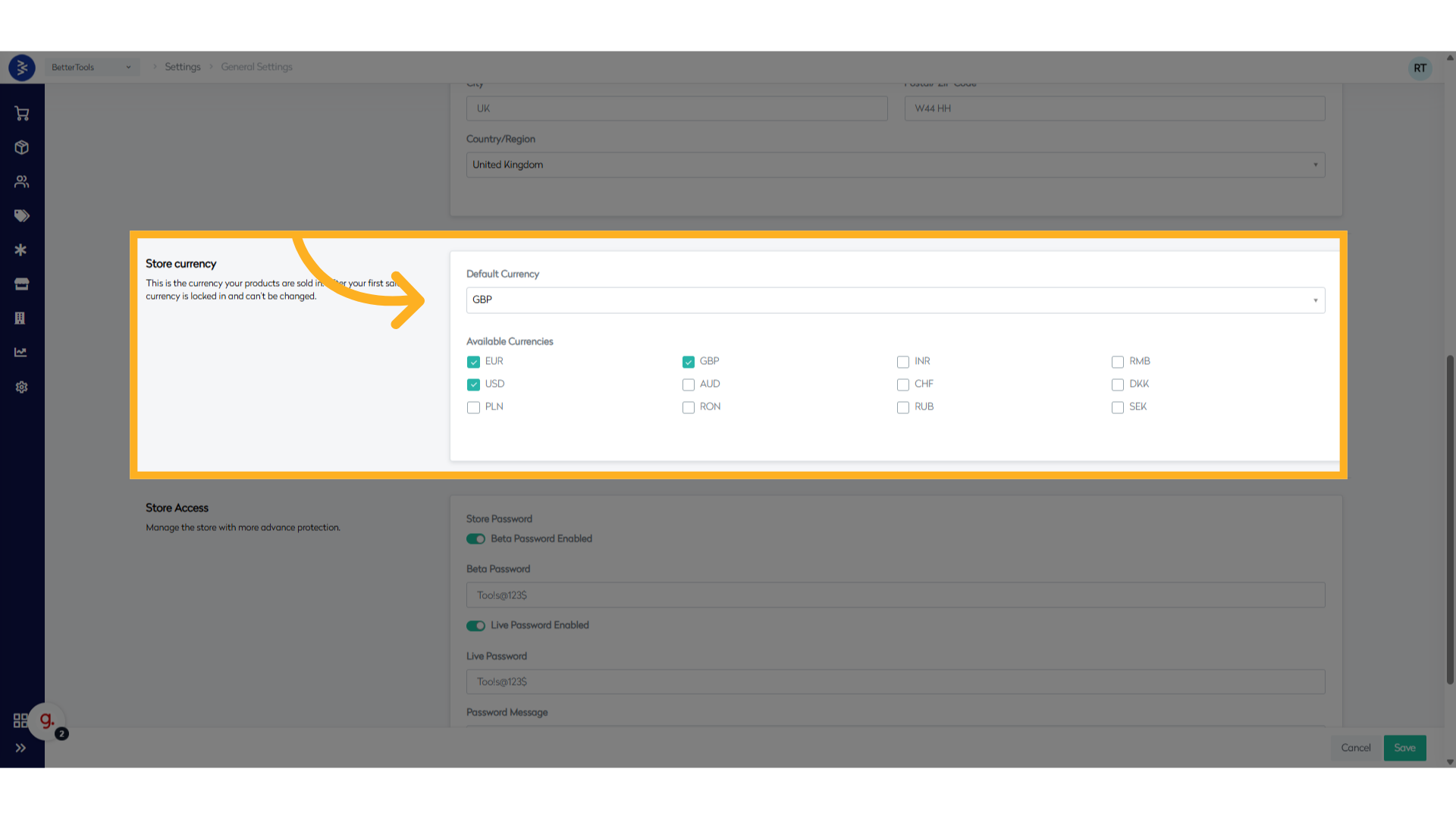
Store Currency
This is the currency your products are sold in. After your first sale, currency is locked in and can’t be changed.
| Code | Symbol | Currency Name |
|---|---|---|
| EUR | € | Euro |
| GBP | £ | British Pound Sterling |
| INR | ₹ | Indian Rupee |
| RMB | ¥ | Chinese Yuan Renminbi |
| USD | $ | United States Dollar |
| AUD | A$ | Australian Dollar |
| CHF | CHF | Swiss Franc |
| DKK | kr | Danish Krone |
| PLN | zł | Polish Złoty |
| RON | lei | Romanian Leu |
| RUB | ₽ | Russian Ruble |
| SEK | kr | Swedish Krona |
Store Access
Control how users can access store and manage security settings for different environments.
| Field | Description |
|---|---|
| Beta Password Enabled | Toggle beta environment password protection |
| Beta Password | Set password for beta environment |
| Live Password Enabled | Toggle live environment password protection |
| Live Password | Set password for live environment |
| Password Message | Custom message shown on password prompt |
| Site Access | Choose between Anonymous or MembersOnly access |

Shipping and Delivery Settings
Overview
Shipping is a critical part of most eCommerce operations. The platform supports a range of flexible shipping configurations to meet the needs of different businesses. Shipping methods define how shipping is calculated and presented to customers during checkout. Each method includes information about shipping regions, charges, and service-level expectations.
At least one shipping method must be enabled so that customers can complete their purchases.
Shipping Methods types
The platform offers the following types of shipping methods that provides flexibility to accommodate varying customer preferences, product types, and delivery requirements:
| Type | Description |
|---|---|
| None | Used when shipping is not applicable — typically for services, digital products, or test configurations. |
| Standard | Basic delivery option with flat or weight-based rates. |
| Express | Faster delivery service with options for cutoff times and prioritized handling. |
| Nominated | Allows customers to choose specific delivery dates and time slots. |
| Pickup | Customers can collect orders from specified locations; includes instructions. |
| DigitalDelivery | Used for digital products with no physical delivery, Eg: download links. |
Shipping Cost Methods
Different shipping cost calculation methods that allows to charge customers accurately based on factors like order value, weight, delivery type, or location, ensuring flexibility and cost control across various shipping scenarios. Below are the list of shipping methods available in the platform:
| Method | Description |
|---|---|
| Flat Rate | Charges a fixed amount for shipping, based either on the total number of items or the entire order. |
| Weight Based | Charges are based on a rate table tied to the total weight of the order. |
| Price on Request | Dynamically calculated charges using real-time shipping data or integrations. |
| Manual Update | Allows manual update of shipping charges for an order |
How to Create Shipping Methods
- Navigate to
Settings > Shipping and Deliveryclick "Add Shipping Methods" to add a new shipping method.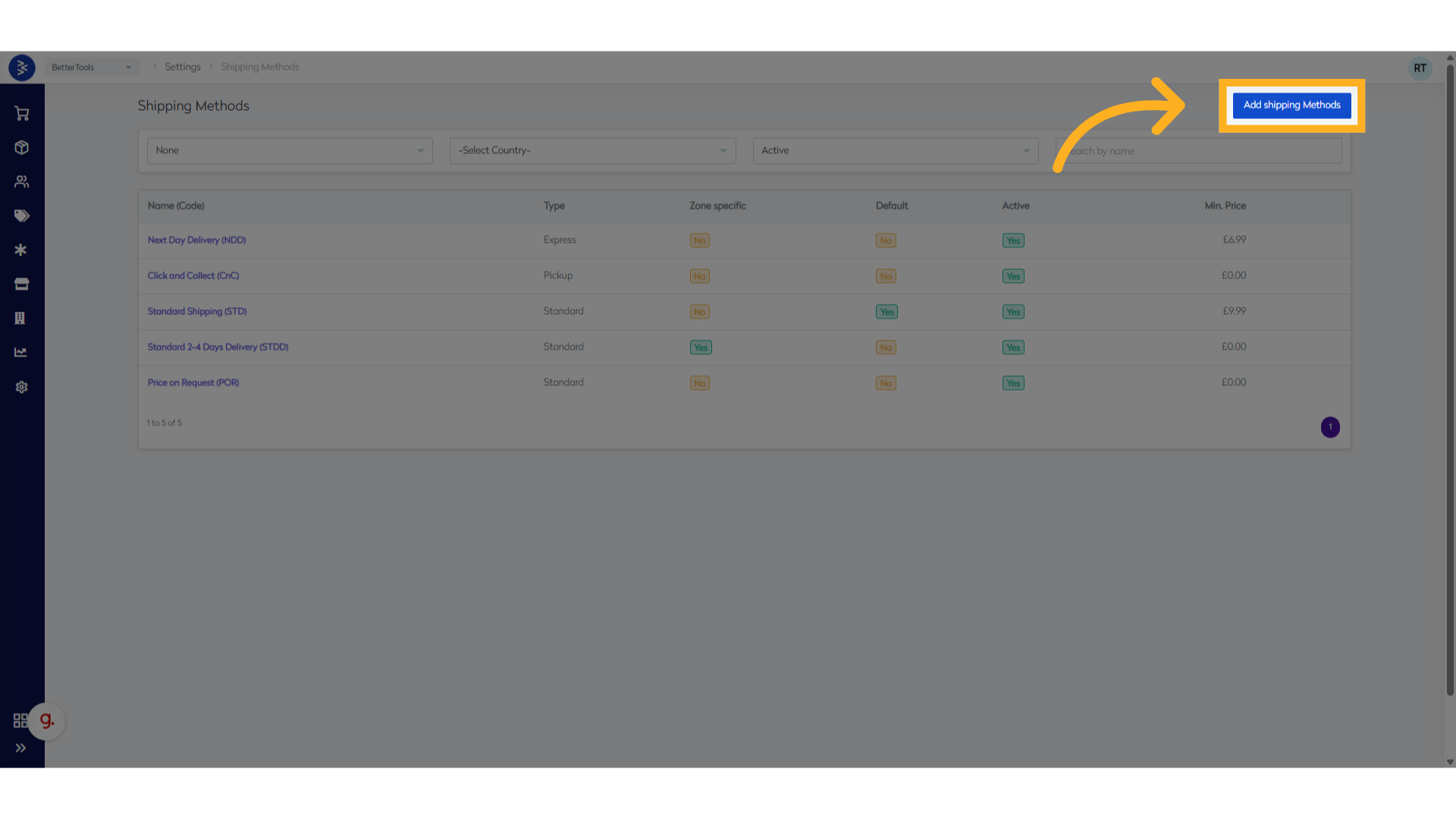
- Fill in the following details and click "Next":
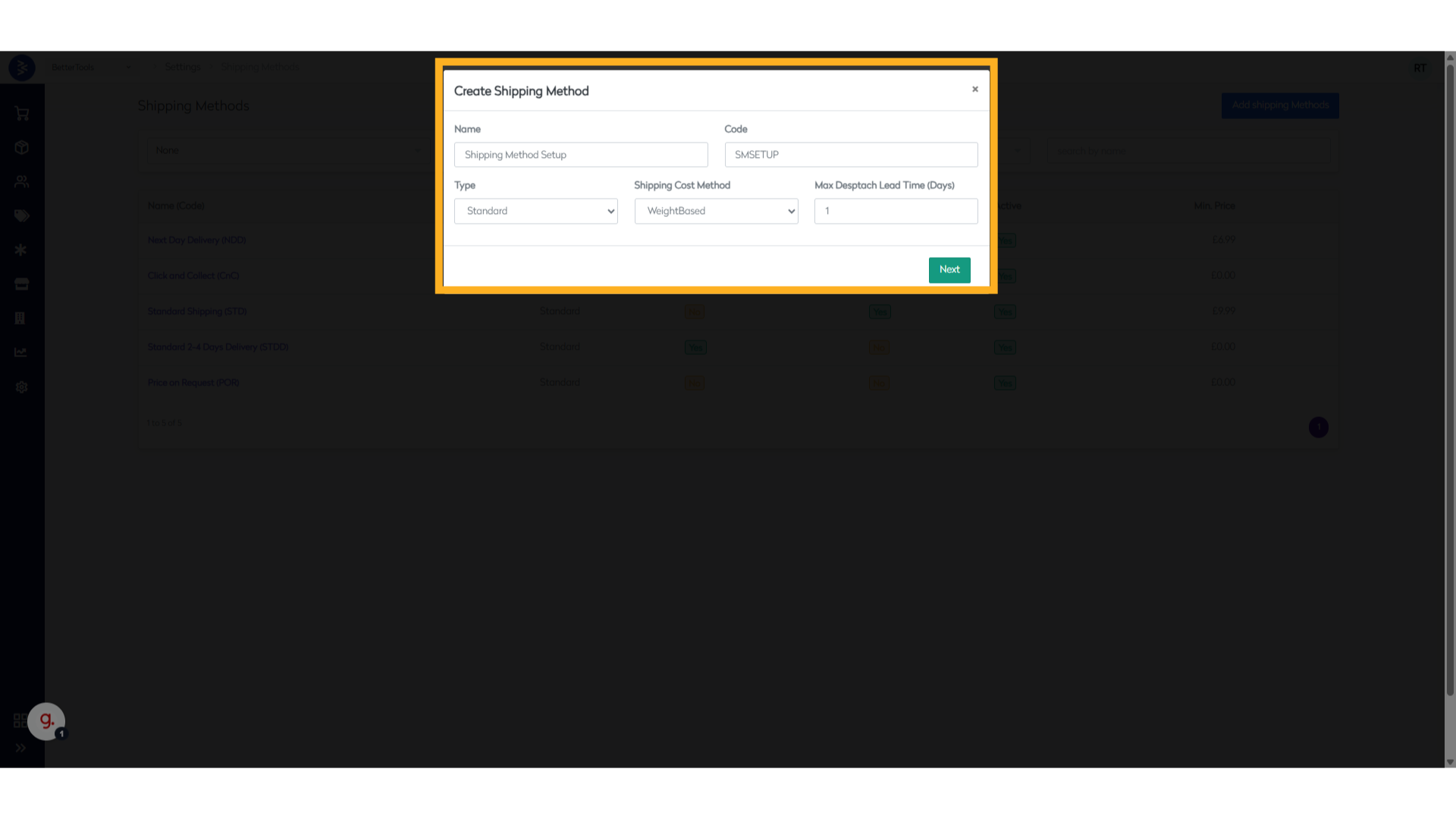
Fields from Add Shipping Method section and their descriptions:
| Field | Description |
|---|---|
| Name | Name of the shipping method that will be displayed on the website. |
| Code | Unique code used for backend reference. |
| Type | Specify the type of shipping method (e.g., Standard, Express). Note: This cannot be changed once moved to the next step. |
| Shipping Cost Method | Select the method used to calculate shipping charges. Available options: - Flat - Weight-based - Price on Request - Manual Update |
| Max Despatch Lead Time (Days) | Maximum number of days required to dispatch the order. Used to calculate estimated delivery timeline. |
Once the basic details are filled in, the next step involves configuring additional settings based on the shipping method type & shipping cost method chosen such as shipping charge calculations, serviceable or non-serviceable locations.
- Update or verify details in the Basic Information section of the shipping method and move to the next section.
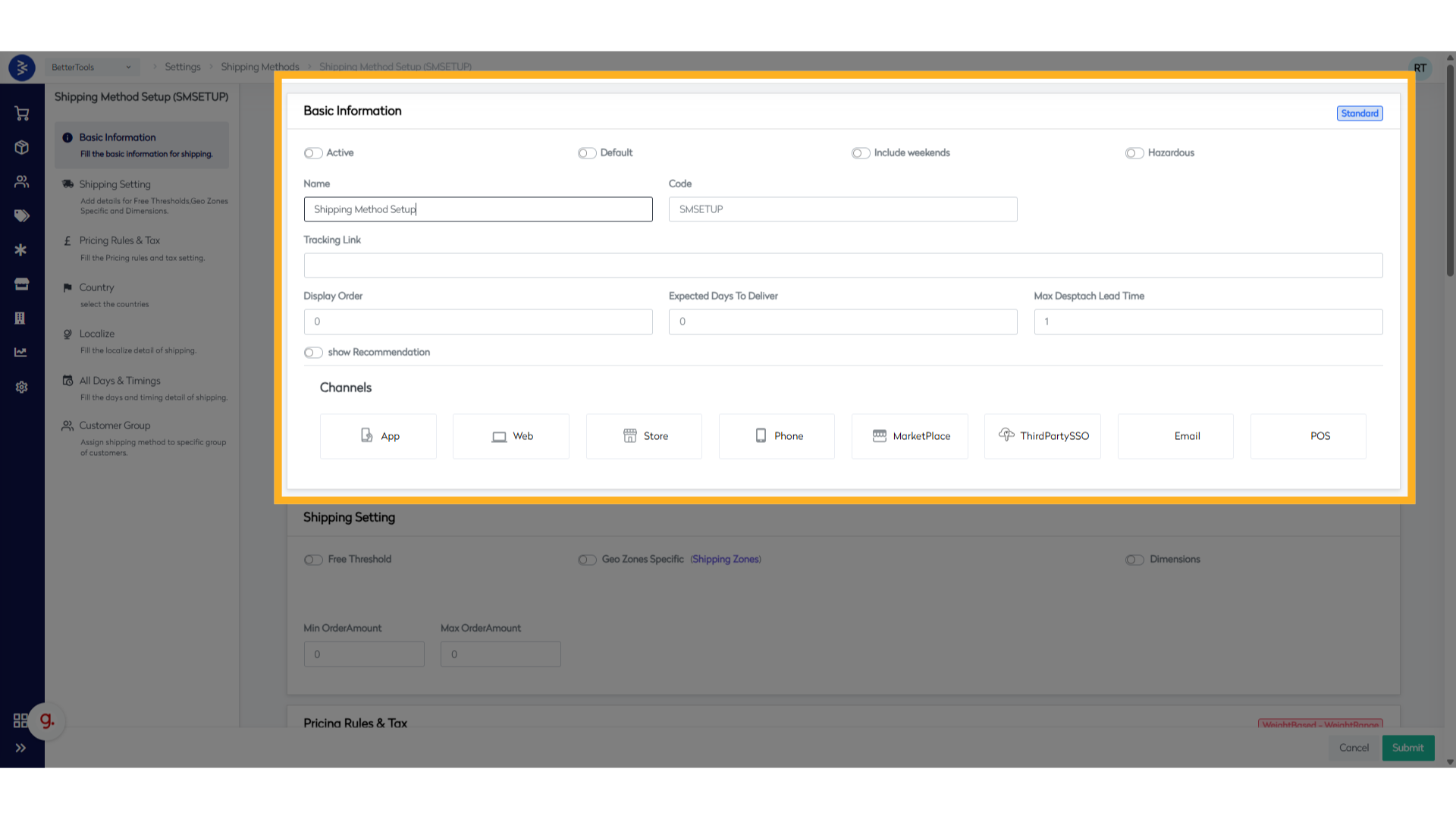
Fields from Basic Information section and their descriptions:
| Fields | Description |
|---|---|
| Active | Toggle to enable or disable the shipping method. |
| Default | Toggle to make this the default shipping method if multiple are configured. |
| Include Weekends | Specifies whether weekends are included in delivery calculations. |
| Hazardous | Indicates if the method supports hazardous/restricted items. |
| Name | Auto-filled based on the previous step. |
| Code | Auto-filled based on the previous step. |
| Tracking Link | URL or base link for shipment tracking (e.g., courier link). |
| Display Order | The order in which this method appears among other options. |
| Expected Days to Deliver | Estimated delivery days from dispatch date. |
| Max Dispatch Lead Time | Maximum days to dispatch an order. |
| Show Recommendation | Highlights or recommends this method at checkout. |
| Channels | Sales channels (e.g., Web, App, Store) where this method is available. |
- Update Shipping Settings section, this is common across all the Shipping Methods and Shipping Cost Method types. Fill in the following details appearing on the screen and proceed to the next section:
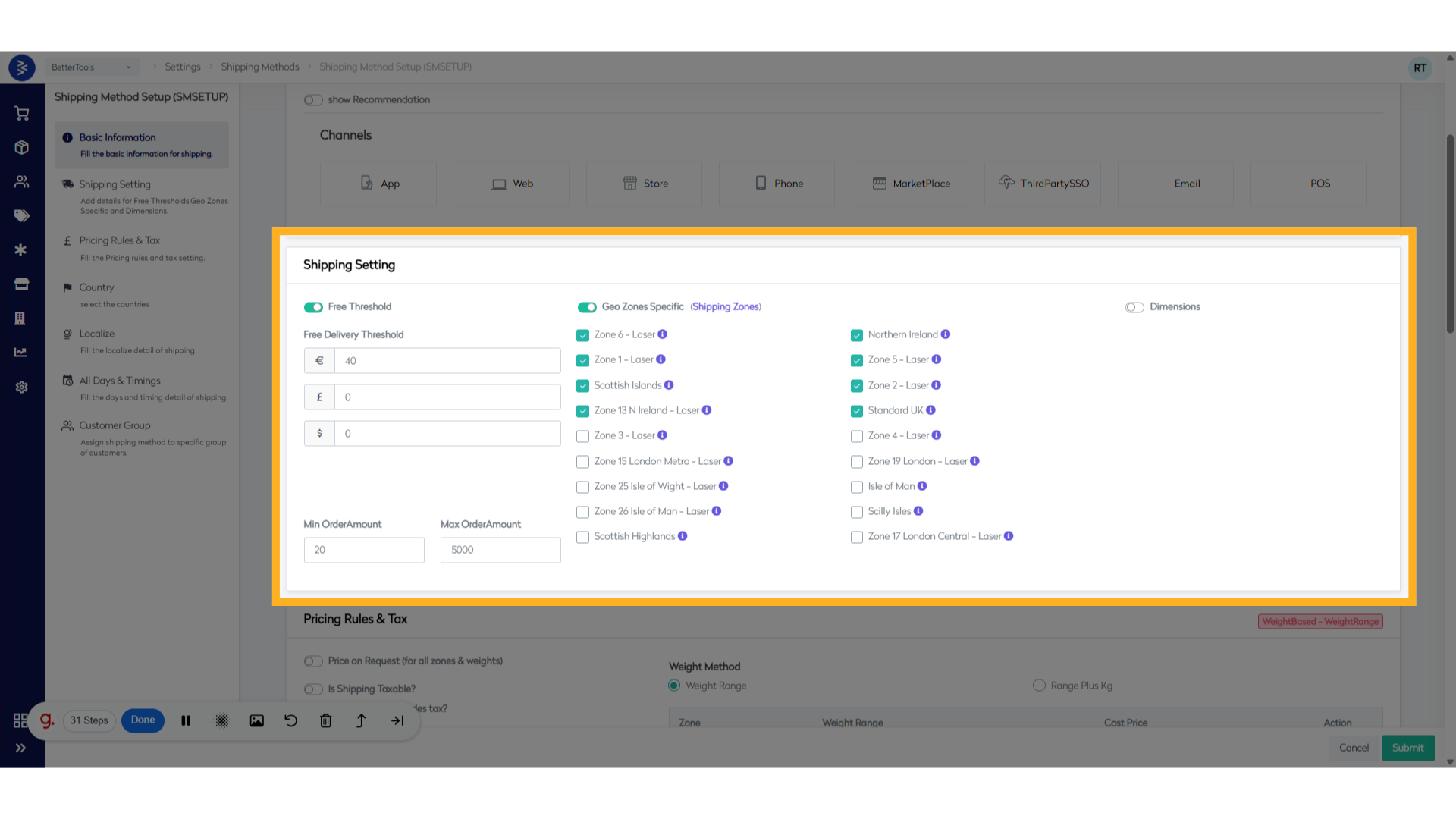
Fields from Shipping Settings section and their description:
Free Threshold
| Field Name | Description |
|---|---|
| Free Threshold Toggle | Enables free shipping for orders meeting a threshold. |
| Free Delivery Threshold | Minimum order amount required for free shipping. |
| Min Order Amount | Minimum value for which this method is available. |
| Max Order Amount | Maximum value allowed for this method. |
Dimensions
| Field Name | Description |
|---|---|
| Dimensions Toggle | Enables dimension-based restrictions. |
| Min Dimension (mm) | Minimum combined package dimension (L+W+H) in millimeters. |
| Max Dimension (mm) | Maximum combined package dimension (L+W+H) in millimeters. |
| Max Height (mm) | Maximum allowable package height. |
| Max Width (mm) | Maximum allowable package width. |
| Max Girth (mm) | Maximum girth (2×width + 2×height). |
Geo Zones Specific
Restricts method to specific geographic zones (e.g., regions within a Country currently UK zones are included).
- Update Pricing Rules & Tax as per the shipping method cost chosen for each details are provided below, as these fields vary based on the Shipping Cost Method selected during creation.
Common Field names and their descriptions:
| Field | Description |
|---|---|
| Price on Request(for all zones & weights) | Shipping price is provided manually and not shown during checkout. |
| Is Shipping Taxable? | Toggle to indicate if shipping charges are taxable. |
| Shipping Price Includes Tax | Indicates if the entered shipping price includes taxes. |
| Sell Price Calculation Operand | Determines the calculation of the selling price: - Same as Cost Price: Selling price matches cost price. - Cost Price Uplifted by: Adds markup to cost price for final selling price. |
| Round Up Nearest | Rounds the price to the nearest increment (e.g., 5, 10). |
| Cost Price Without Tax | Fixed amount that will be added as shipping charge in the orders (e.g., 5, 10). |
-
Flat Rate Shipping methods with flat rate shipping cost, fill up below details and proceed to next section:
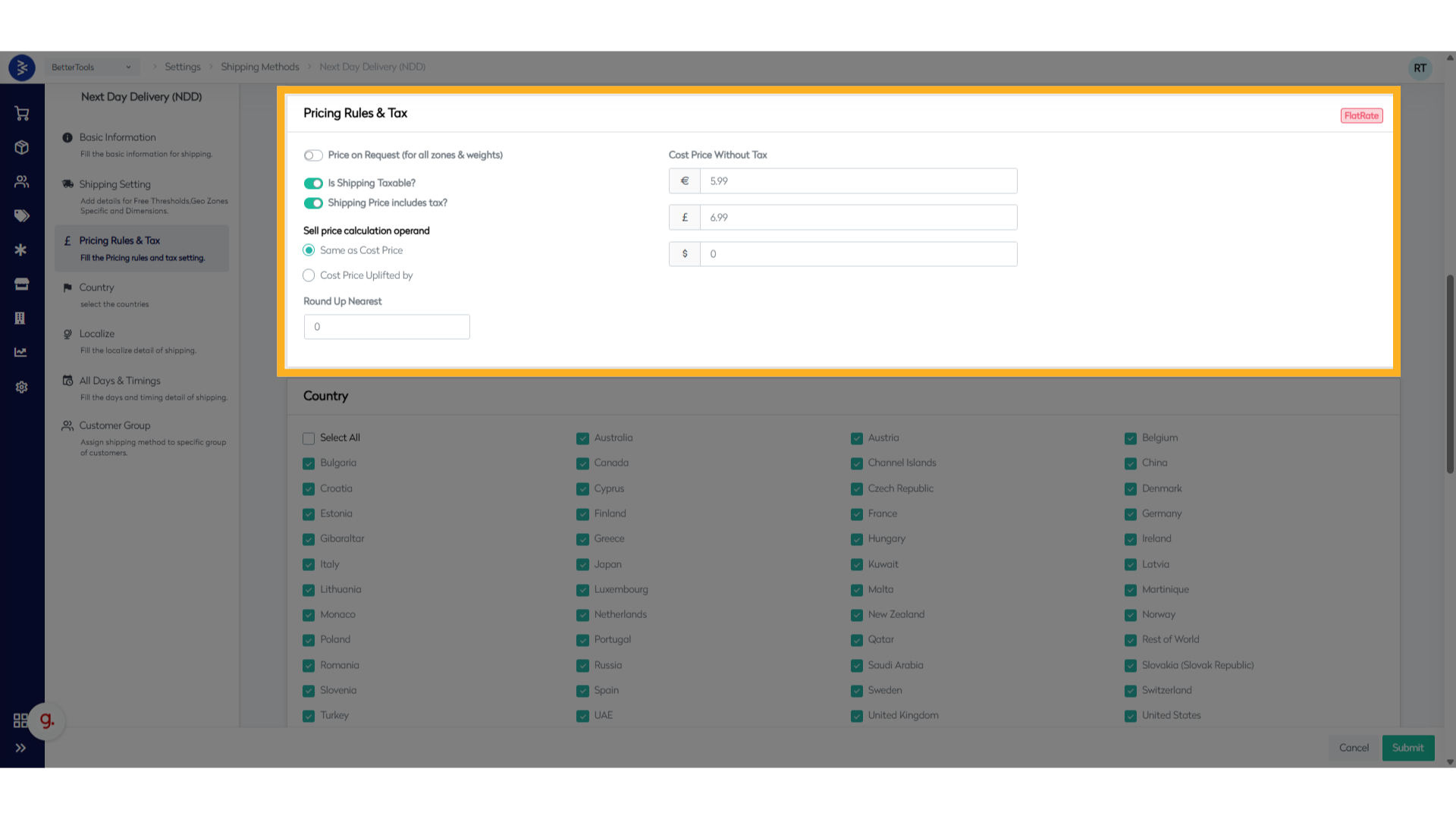
- Price on Request (for all zones & weights)
- Is Shipping Taxable?
- Shipping Price includes tax?
- Same as Cost Price or Cost Price Uplifted by
- Round Up Nearest
- Cost Price Without Tax
-
Weight Based Weight based specific fields and their descriptions:
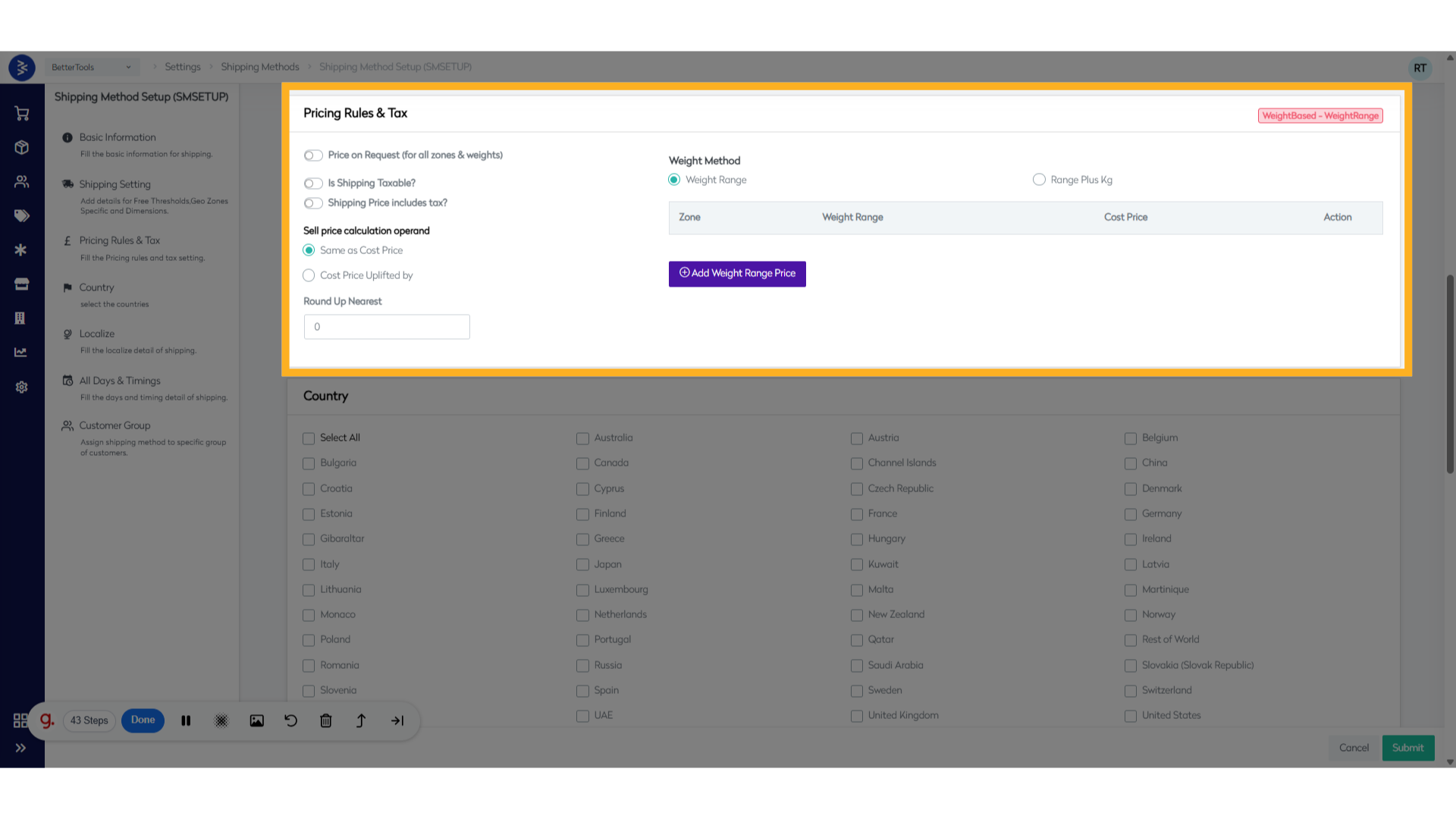
Field names and their descriptions:
| Field | Description |
|---|---|
| Zone | Geographic zone for the weight range. |
| Base Weight Min | Minimum weight for the range (kg). |
| Base Weight Max | Maximum weight for the range (kg). |
| Cost Price | Shipping cost for the range. |
| Price on Request | Checkbox for non-fixed prices communicated manually. |
-
Shipping methods with weight based shipping cost methods, fill up below details and proceed to next section:
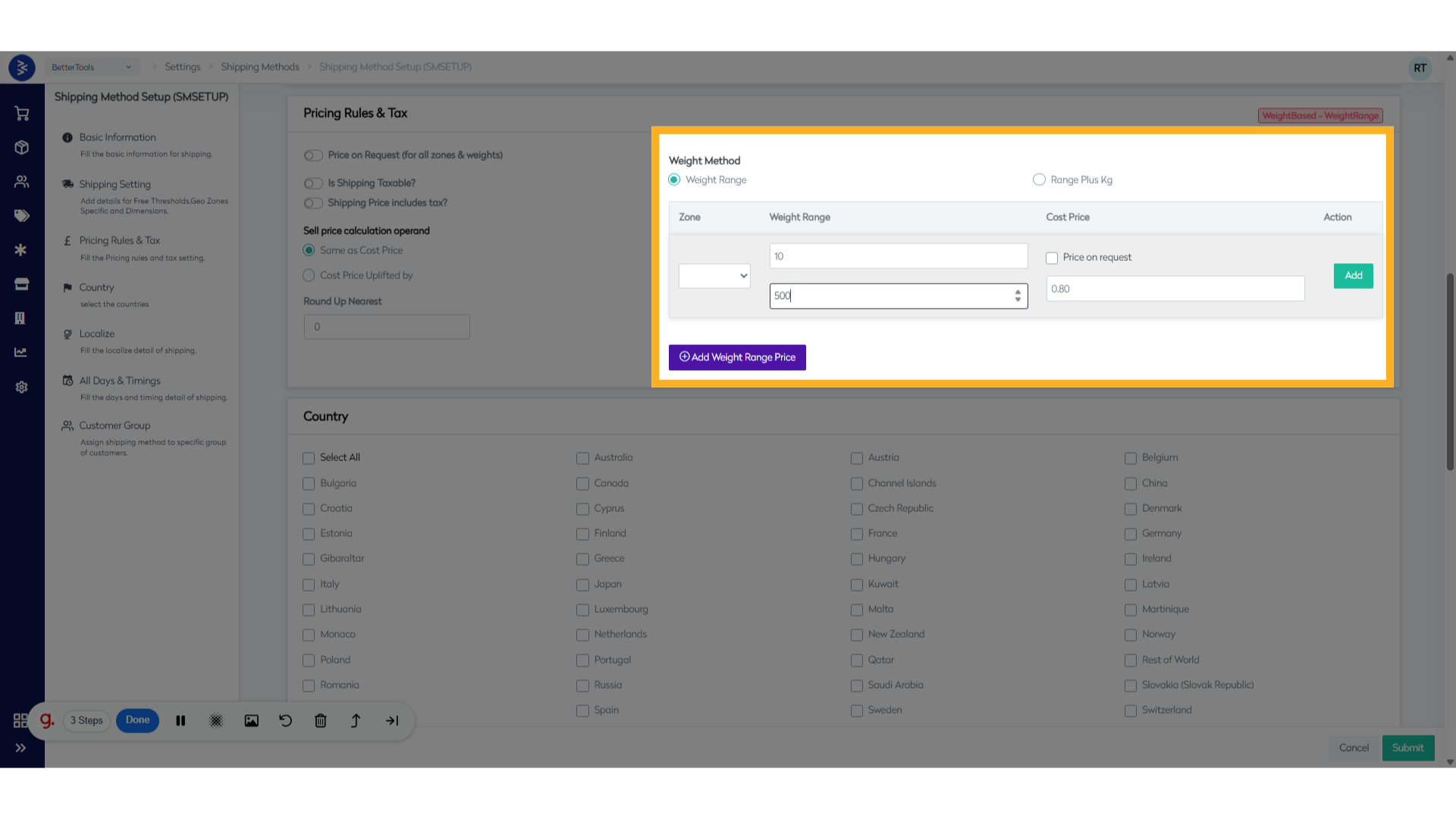
- Price on Request (for all zones & weights)
- Is Shipping Taxable?
- Shipping Price includes tax?
- Same as Cost Price or Cost Price Uplifted by
- Round Up Nearest
- Zone
- Base Weight Min
- Base Weight Max
- Cost Price
- Price on Request
-
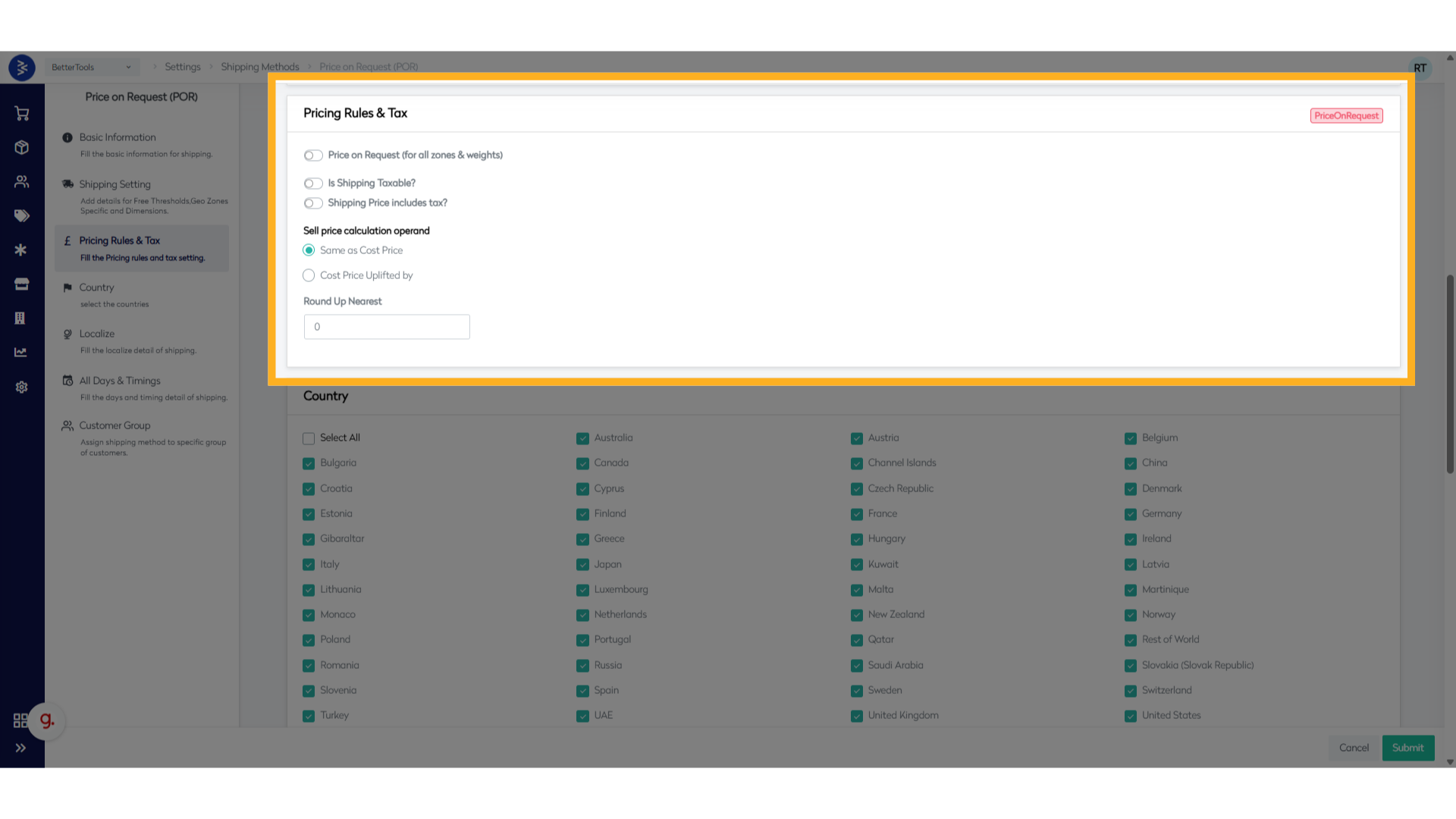
Price on Request
- Based on the requirements adjust the toggles and fill up details mentioned below:
- Price on Request (for all zones & weights)
- Is Shipping Taxable?
- Shipping Price includes tax?
- Same as Cost Price or Cost Price Uplifted by
- Round Up Nearest
- Manual Update This section is not available since shipping charges and serviceability will be updated manually in this case by Backoffice team.
-
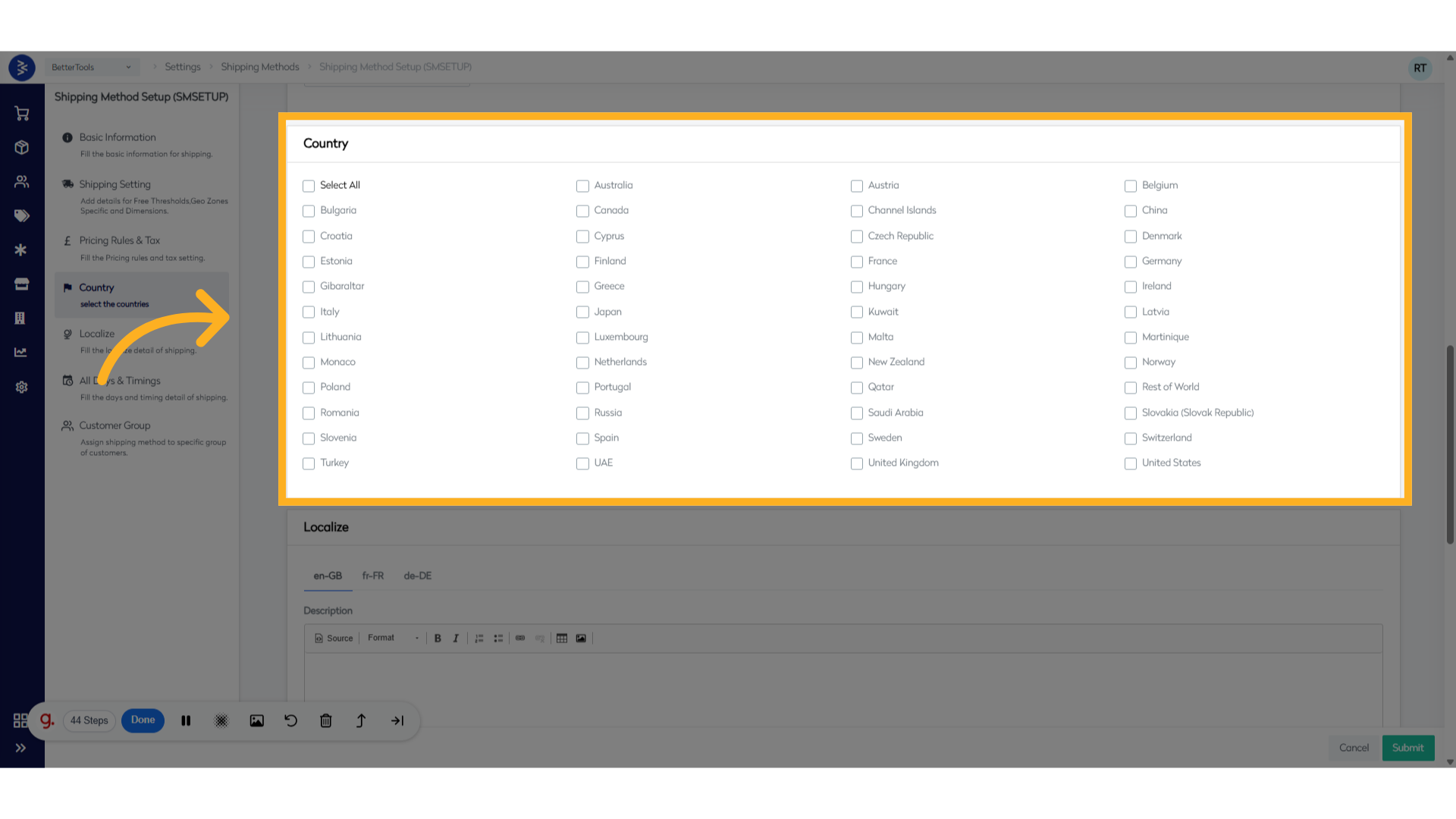
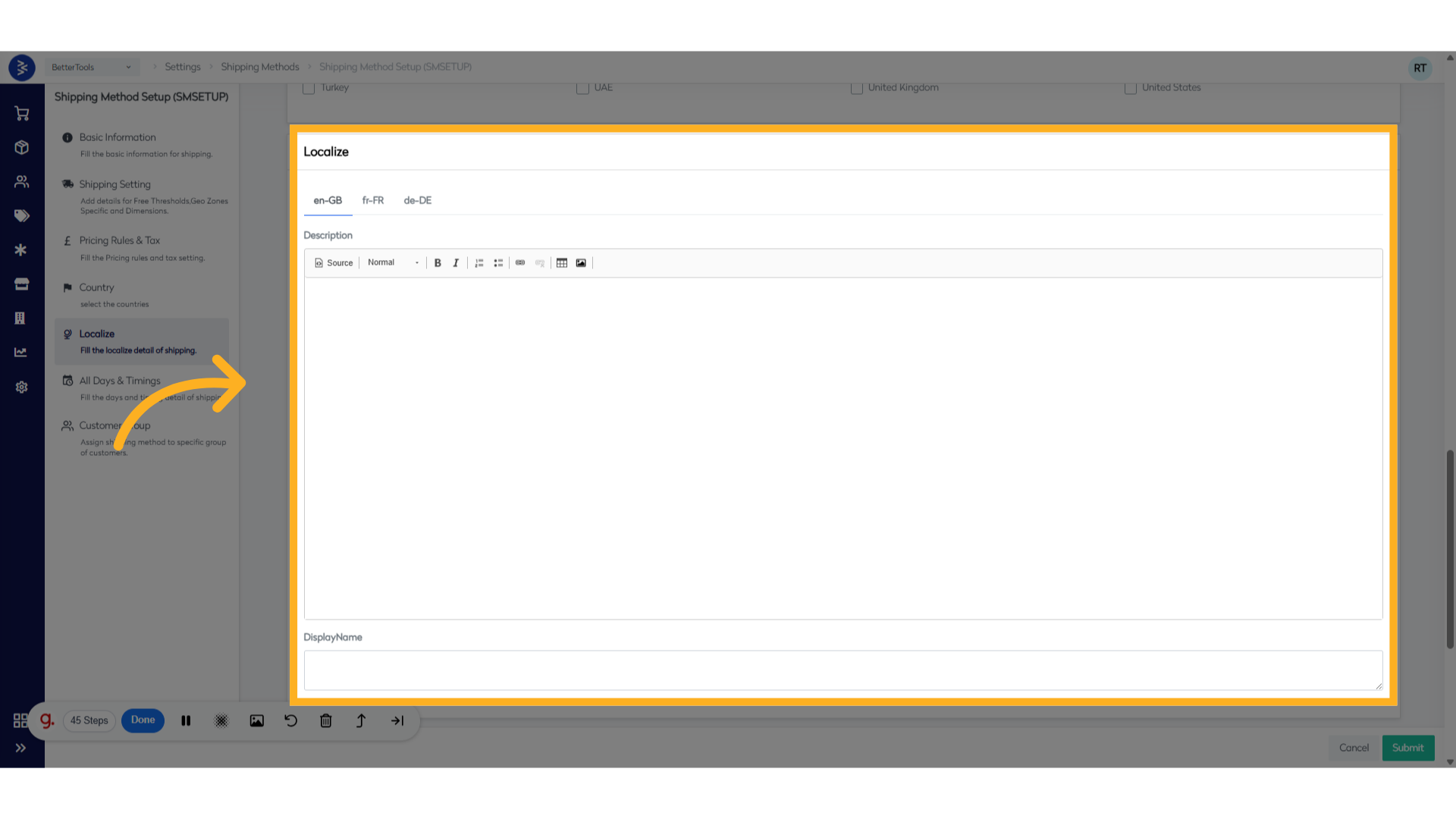
Update Localize to configure localized values such as shipping display method name and description in different languages or regions to support multi-language storefronts. Localize: Add translated descriptions and display name for multi-language storefronts.
-
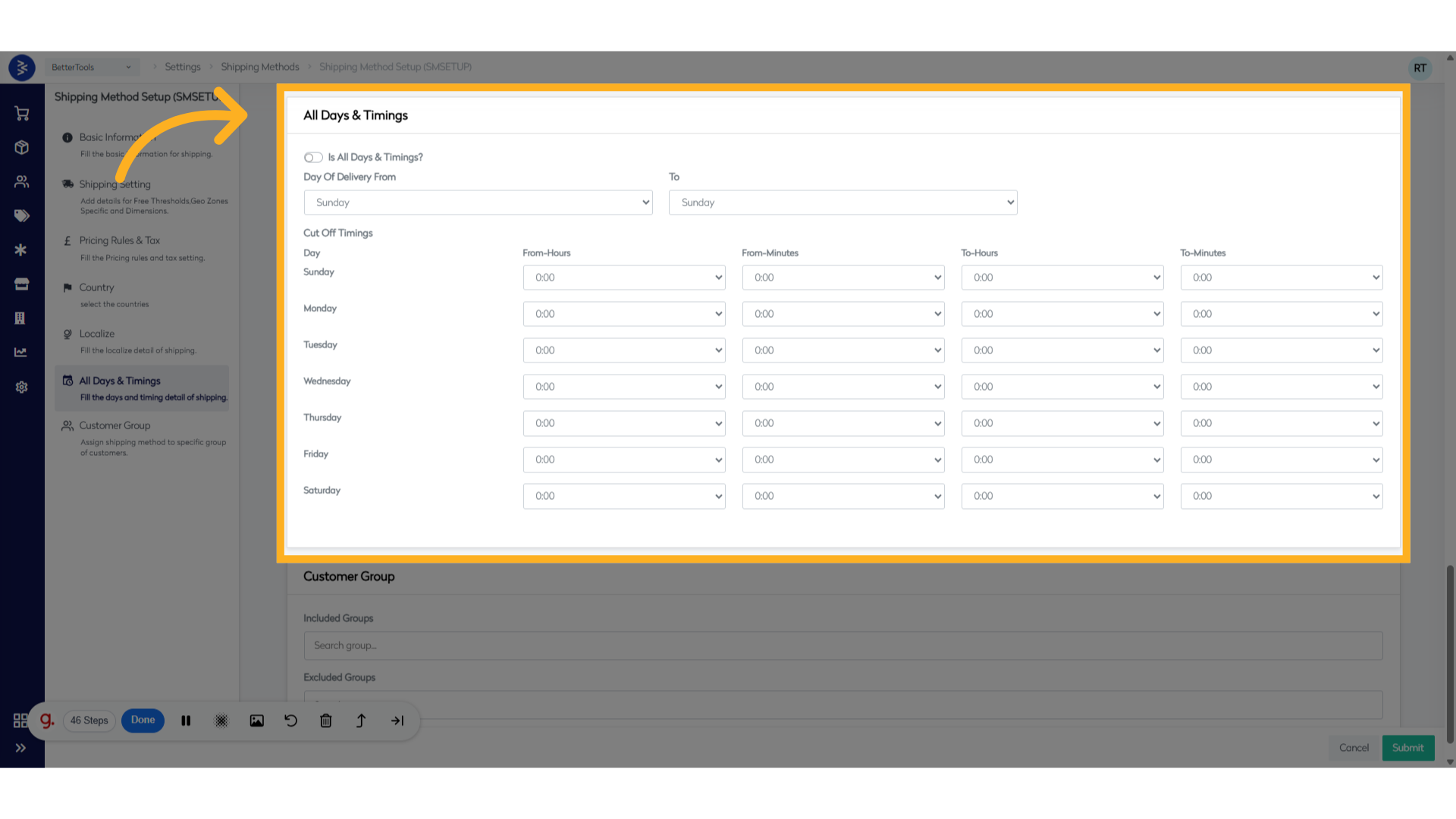
Enable/Disable "All Days & Timings" this section, defines when a shipping method is available and during what timeframes orders can be processed or dispatched. Enable/Disable Days & Timings: Configure available days and timeframes for order processing:
- Day of Delivery From/To: Specify available delivery days (e.g., Mon–Fri).
- Cut-Off Timings: Set time windows for order acceptance.
-
Customer Group Include or exclude specific customer groups. This section allows adding an existing customer group in Included or Excluded groups to enable or disable the shipping method to a specified group of customer that is already created in the system.
-
Click Submit Once all fields are configured, click Submit to save the shipping method. All configured methods will appear in the shipping methods list and be available for selection during checkout.
Payment Settings and Gateways
Manage payment providers, configure gateway settings, and enable payment methods to support secure transactions across channels.
Payment Methods Configuration
Purpose and Scope
Purpose
This Standard Operating Procedure establishes the standardized methodology for configuring, managing, and maintaining payment gateway integrations within the BetterCommerce platform to ensure secure, compliant, and efficient payment processing across all customer touchpoints.
Scope
This SOP applies to all personnel responsible for:
- Payment gateway configuration and maintenance
- E-commerce platform administration
- Financial operations and reconciliation
- Compliance and security management
- Customer payment experience optimization
System Overview
Payment Gateway Module Access
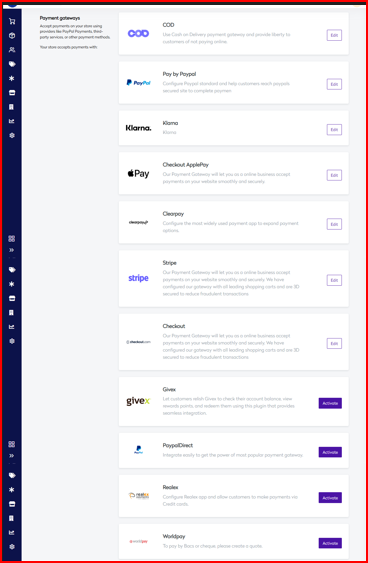
- Navigation Path: Settings → Payment Methods → Payment gateways
- System URL: https://commerce.bettercommerce.io/Admin/SettingsPaymentGateways
Payment Gateway Architecture
The BetterCommerce platform supports multiple payment processing models:
- Direct Integration: Real-time payment processing
- Hosted Payment Pages: Redirect-based secure processing
- Mobile Wallet Integration: Digital payment solutions
- Alternative Payment Methods: Buy-now-pay-later and regional solutions
Supported Payment Gateway Portfolio
Primary Payment Processors
Credit Card and Digital Wallet Solutions
| Gateway | Type | Primary Use Case | Security Features |
|---|---|---|---|
| Stripe | Direct Integration | Global card processing | 3D Secure, PCI DSS Level 1 |
| Checkout.com | Hosted/Direct | Enterprise card processing | Advanced fraud detection |
| Worldpay | Direct Integration | UK/EU card processing | Tokenization, 3D Secure |
| Total Processing | Multiple Models | Comprehensive processing | Host page, direct integration |
| Realex | Direct Integration | European market focus | Advanced security protocols |
Digital Wallet and Mobile Payment Solutions
| Gateway | Platform | Integration Model | Target Market |
|---|---|---|---|
| Apple Pay | iOS/Web | Direct/Checkout | Mobile-first customers |
| Google Pay | Android/Web | Direct/Checkout | Android ecosystem |
| PayPal Standard | Web-based | Redirect | Global consumer base |
| PayPal Direct | API Integration | Direct processing | Seamless checkout experience |
Alternative Payment Methods (APM)
| Gateway | Service Type | Market Focus | Business Model |
|---|---|---|---|
| Klarna | Buy Now Pay Later | European/US markets | Installment payments |
| Clearpay | Buy Now Pay Later | UK/AU markets | Deferred payment solutions |
| Razorpay | Comprehensive | Indian market | Multi-method processing |
| Juspay | Payment Orchestration | Indian market | Unified payment experience |
Specialized and Regional Solutions
| Gateway | Specialization | Geographic Focus | Use Case |
|---|---|---|---|
| COD (Cash on Delivery) | Offline Payment | Emerging markets | Last-mile payment |
| COD GoKwik | Enhanced COD | Indian market | RTO fraud prevention |
| Givex | Gift Cards/Loyalty | Global | Customer retention |
| MasterCard | Brand-specific | Global | Direct card processing |
| Paytriot | Regional Processing | Specific markets | Localized solutions |
NOTE The payment gateways mentioned above are available out of the box, but you can integrate any new payment gateway with BetterCommerce.
Payment Gateway Configuration Process
Pre-Configuration Requirements
Business Prerequisites
- Valid merchant account with chosen payment provider
- Completed KYC (Know Your Customer) documentation
- PCI DSS compliance certification (where applicable)
- Business registration and tax identification numbers
- Bank account details for settlement configuration
Technical Prerequisites
- SSL certificate installation and validation
- Domain verification and whitelisting
- API credentials and authentication tokens
- Webhook endpoint configuration
- Testing environment setup
Gateway Activation Workflow
Initial Setup Process
Gateway Selection
- Navigate to Payment Methods → Payment gateways
- Identify required payment gateway from available options
- Click Activate button for selected gateway
Configuration Access
- Click Edit button to access gateway settings
- Review gateway-specific configuration requirements
- Gather necessary credentials and parameters
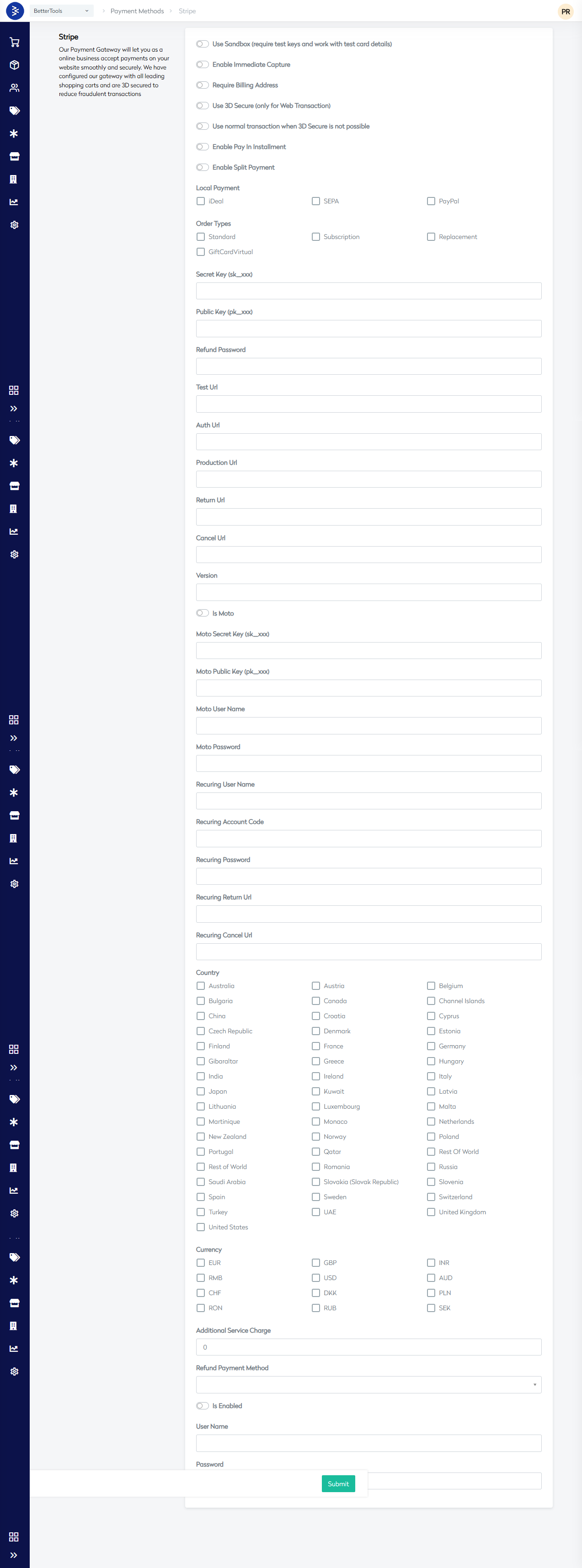
Below are the payment Method Configuration Fields
Main Configuration Fields
| Field Name | Field Type | Description | Required | Default Value |
|---|---|---|---|---|
| Use Sandbox | Checkbox | Enable test environment mode (requires test keys and works with test card details) | No | Unchecked |
| Enable Immediate Capture | Checkbox | Process payments immediately upon order placement | No | Unchecked |
| Require Billing Address | Checkbox | Make billing address mandatory during checkout | No | Unchecked |
| Use 3D Secure | Checkbox | Enable 3D Secure authentication (only for Web Transactions) | No | Unchecked |
| Use normal transaction when 3D Secure is not possible | Checkbox | Fallback to standard processing if 3D Secure fails | No | Unchecked |
| Enable Pay In Installment | Checkbox | Allow customers to pay in installments | No | Unchecked |
| Installment Display Text | Text Field | Custom text to display for installment options | No | Empty |
| Enable Split Payment | Checkbox | Allow partial prepayment with COD balance | No | Unchecked |
| Prepaid Value Type | Radio Button | Choose between Price (fixed amount) or Percent (percentage) | No | Price |
| Minimum Prepaid Value | Number Field | Minimum amount/percentage for prepayment | No | Empty |
| Local Payment - iDeal | Checkbox | Enable iDeal payment method (Netherlands) | No | Unchecked |
| Local Payment - SEPA | Checkbox | Enable SEPA payment method (European Union) | No | Unchecked |
| Local Payment - PayPal | Checkbox | Enable PayPal payment method | No | Unchecked |
| Order Types - Standard | Checkbox | Enable COD for standard orders | No | Checked |
| Order Types - Subscription | Checkbox | Enable COD for subscription orders | No | Checked |
| Order Types - Replacement | Checkbox | Enable COD for replacement orders | No | Checked |
| Order Types - GiftCardVirtual | Checkbox | Enable COD for virtual gift card orders | No | Checked |
| Secret Key (sk_xxx) | Text Field | Server-side API authentication key | Yes | Empty |
| Public Key (pk_xxx) | Text Field | Client-side API authentication key | Yes | Empty |
| Refund Password | Password Field | Password for processing refunds | No | Empty |
| Test Url | URL Field | Sandbox/testing environment URL | No | Empty |
| Auth Url | URL Field | Authentication endpoint URL | No | Empty |
| Production Url | URL Field | Live production environment URL | No | Empty |
| Return Url | URL Field | Customer redirect URL after successful payment | No | /checkout/orderconfirmation |
| Cancel Url | URL Field | Customer redirect URL after payment cancellation | No | Empty |
| Version | Text Field | API version specification | No | Empty |
| Is Moto | Toggle Switch | Enable Mail Order/Telephone Order processing | No | Disabled |
| Moto Secret Key (sk_xxx) | Text Field | MOTO-specific server-side authentication key | No | Empty |
| Moto Public Key (pk_xxx) | Text Field | MOTO-specific client-side authentication key | No | Empty |
| Moto User Name | Text Field | Username for MOTO transactions | No | Empty |
| Moto Password | Password Field | Password for MOTO transactions | No | Empty |
| Recuring User Name | Text Field | Username for recurring/subscription payments | No | Empty |
| Recuring Account Code | Text Field | Account code for recurring payments | No | Empty |
| Recuring Password | Password Field | Password for recurring payments | No | Empty |
| Recuring Return Url | URL Field | Return URL for recurring payment confirmations | No | Empty |
| Recuring Cancel Url | URL Field | Cancel URL for recurring payment cancellations | No | Empty |
| Country | Multi-Select Dropdown | Select countries where COD is available | Yes | Multiple options available |
| Currency | Multi-Select Dropdown | Select supported currencies for COD | Yes | Multiple options available |
| Additional Service Charge | Number Field | Extra fee charged for COD service | No | Empty |
| Refund Payment Method | Text Field | Method used for processing refunds | No | Empty |
| Is Enabled | Checkbox | Enable/disable the COD payment method | No | Unchecked |
| User Name | Text Field | General username for payment gateway authentication | No | Empty |
| Password | Password Field | General password for payment gateway authentication | No | Empty |
Country Options Available
| Country/Region | Code |
|---|---|
| Australia | AU |
| Austria | AT |
| Belgium | BE |
| Bulgaria | BG |
| Canada | CA |
| Channel Islands | - |
| China | CN |
| Croatia | HR |
| Cyprus | CY |
| Czech Republic | CZ |
| Denmark | DK |
| Estonia | EE |
| Finland | FI |
| France | FR |
| Germany | DE |
| Gibraltar | GI |
| Greece | GR |
| Hungary | HU |
| India | IN |
| Ireland | IE |
| Italy | IT |
| Japan | JP |
| Kuwait | KW |
| Latvia | LV |
| Lithuania | LT |
| Luxembourg | LU |
| Malta | MT |
| Martinique | MQ |
| Monaco | MC |
| Netherlands | NL |
| New Zealand | NZ |
| Norway | NO |
| Poland | PL |
| Portugal | PT |
| Qatar | QA |
| Rest Of World | - |
| Romania | RO |
| Russia | RU |
| Saudi Arabia | SA |
| Slovakia (Slovak Republic) | SK |
| Slovenia | SI |
| Spain | ES |
| Sweden | SE |
| Switzerland | CH |
| Turkey | TR |
| UAE | AE |
| United Kingdom | GB |
| United States | US |
Currency Options Available
| Currency | Code | Description |
|---|---|---|
| EUR | EUR | Euro |
| GBP | GBP | British Pound Sterling |
| INR | INR | Indian Rupee |
| RMB | CNY | Chinese Yuan Renminbi |
| USD | USD | US Dollar |
| AUD | AUD | Australian Dollar |
| CHF | CHF | Swiss Franc |
| DKK | DKK | Danish Krone |
| PLN | PLN | Polish Zloty |
| RON | RON | Romanian Leu |
| RUB | RUB | Russian Ruble |
| SEK | SEK | Swedish Krona |
Configuration Parameters
Standard Configuration Fields
| Parameter | Description | Requirement Level | Security Consideration |
|---|---|---|---|
| Merchant ID | Unique merchant identifier | Mandatory | Store securely, audit access |
| API Key/Secret | Authentication credentials | Mandatory | Encrypt, rotate regularly |
| Environment | Production/Sandbox mode | Mandatory | Validate before go-live |
| Currency Settings | Supported currencies | Mandatory | Match business requirements |
| Transaction Limits | Min/max transaction amounts | Optional | Risk management alignment |
Advanced Configuration Options
- 3D Secure Settings: Enhanced authentication protocols
- Fraud Detection Rules: Risk-based transaction filtering
- Webhook Configuration: Real-time status notifications
- Retry Logic: Failed transaction handling
- Settlement Configuration: Payout frequency and methods
###Testing and Quality Assurance
Pre-Production Testing Protocol
Functional Testing Requirements
- Payment Flow Testing: End-to-end transaction processing
- Error Handling: Failed transaction scenarios
- Refund Processing: Return and cancellation workflows
- Multi-Currency Testing: International transaction validation
- Mobile Responsiveness: Cross-device compatibility
This SOP ensures standardized, secure, and compliant payment gateway management while maintaining optimal customer payment experiences and operational efficiency across all supported payment methods.
Tax Configuration
Set up tax rules, regions, and rates to calculate sales tax automatically based on customer location and product categories.
Tax Zones Configuration
Overview
This document provides a comprehensive guide for configuring and managing tax zones within the BetterTools platform's Taxation module. The Tax Zones feature allows administrators to define and maintain tax rates and zones to ensure accurate tax application across different regions, enhancing compliance with local tax regulations and improving operational efficiency.
Purpose
- To establish a standardized process for creating and modifying tax zones.
- To ensure tax configurations align with regional tax laws and business requirements.
- To provide a reference for administrators to manage tax zones effectively.
Scope
This documentation applies to:
- IT administrators responsible for tax configuration.
- Finance and compliance teams overseeing tax accuracy.
- Operations staff managing regional tax settings.
System Requirements
- Access to the BetterTools platform with administrative privileges.
- Stable internet connection (e.g., current date and time: 04:37 PM IST, Monday, June 30, 2025).
- Familiarity with tax regulations and BetterTools interface.
Accessing the Tax Zones Module
Navigation
- Log in to the BetterTools platform using administrative credentials.
- From the main dashboard, click Settings in the top navigation bar.
- Select Taxation from the dropdown menu.
- In the Taxation section, click Tax Zones under the sidebar menu.
Interface Overview
- Header: Displays "Taxation" with a "PR" indicator (suggesting a pull request or preview mode).
- Sidebar: Includes collapsible sections (Tax Zones, Tax Classes).
- Main Panel: Shows the "Create or Modify Tax Rates & Zones" section with a list of existing tax zones, including Zone Name, Zone Type, and Status.
- Action Button: "New Tax Zone" button for creating new tax zones.
Tax Zones Configuration Process
Existing Tax Zones
The following tax zones are currently configured, as observed in the screenshot:
| Zone Name | Zone Type | Status |
|---|---|---|
| UK TAX ZONE | Country | Active |
| Channel Island Tax | Country | Active |
| Ireland Tax Zone | Country | Active |
- Zone Name: Unique identifier for each tax zone (e.g., "UK TAX ZONE").
- Zone Type: Specifies the geographical scope (e.g., "Country").
- Status: Indicates whether the zone is active (green "Active" badge) or inactive.
Configuration Steps
Creating a New Tax Zone
- Navigate to Settings → Taxation → Tax Zones.
- Click the New Tax Zone button in the top-right corner.
- Enter the following details in the configuration form:
- Zone Name: Provide a unique name (e.g., "US TAX ZONE").
- Zone Type: Select the appropriate type (e.g., "Country", "State", "Region").
- Countries: Specify the countries included in the zone (e.g., "US", "CA").
- Tax Rates: Define applicable tax rates (e.g., 10% VAT).
- Set the Status to "Active" or "Inactive" as needed.
- Save the configuration by clicking the save button (location may vary; refer to UI documentation).
- If in PR mode, submit the pull request for review.
Modifying an Existing Tax Zone
- Locate the desired tax zone (e.g., "UK TAX ZONE") in the list.
- Click the zone name or an edit icon (if available) to open the configuration panel.
- Update the Zone Name, Zone Type, associated countries, tax rates, or status as required.
- Save changes and submit for review if in PR mode.
Deactivating a Tax Zone
- Select the tax zone to deactivate.
- Change the Status to "Inactive".
- Save the changes to apply the update.
Tax Classes Configuration
Overview
This document provides a comprehensive guide for configuring and managing tax classes within the BetterTools platform's Taxation module. The Tax Classes feature enables administrators to define tax categories for products and services, ensuring accurate tax application based on classification, enhancing compliance with tax regulations, and streamlining financial operations.
Purpose
- To establish a standardized process for creating and modifying tax classes.
- To ensure tax classifications align with business and regulatory requirements.
- To provide a reference for administrators to manage tax classes effectively.
Scope
This documentation applies to:
- IT administrators responsible for tax configuration.
- Finance and compliance teams overseeing tax accuracy.
- Operations staff managing product and service tax settings.
System Requirements
- Access to the BetterTools platform with administrative privileges.
- Stable internet connection (e.g., current date and time: 05:24 PM IST, Monday, June 30, 2025).
- Familiarity with tax regulations and BetterTools interface.
Accessing the Tax Classes Module
Navigation
- Log in to the BetterTools platform using administrative credentials.
- From the main dashboard, click Settings in the top navigation bar.
- Select Taxation from the dropdown menu.
- In the Taxation section, click Tax Classes under the sidebar menu.
Interface Overview
- Header: Displays "Taxation" with a "PR" indicator (suggesting a pull request or preview mode).
- Sidebar: Includes collapsible sections (Tax Zones, Tax Classes).
- Main Panel: Shows the "Create or Modify Tax Classes" section with fields for defining tax class labels and settings.
- Action Button: "+" button for adding new tax classes.
Tax Classes Configuration Process
Existing Tax Classes
The following tax classes are currently configured, as observed in the screenshot:
| Tax Class Label | Ignore Tax Rate if Tax Region is Unavailable & Invalid |
|---|---|
| Default Product Tax Class | Unchecked |
| Default Tax Class | Unchecked |
| HC | Unchecked |
| HSE | Unchecked |
| TAX | Unchecked |
| TAXEXEMPT | Checked |
| Add New Tax Class | Unchecked |
- Tax Class Label: Unique identifier for each tax class (e.g., "TAXEXEMPT").
- Ignore Tax Rate if Tax Region is Unavailable & Invalid: Checkbox to determine if tax rates should be ignored when no valid tax region is available (e.g., checked for "TAXEXEMPT").
Configuration Steps
Creating a New Tax Class
- Navigate to Settings → Taxation → Tax Classes.
- In the "Create or Modify Tax Classes" section, locate the Add New Tax Class field.
- Enter a unique Tax Class Label (e.g., "NEW_TAX_CLASS").
- Check or uncheck the Ignore tax rate if tax region is unavailable & invalid option based on requirements:
- Checked: Ignores tax rates if no valid tax region is found.
- Unchecked: Applies default or zero tax rates in such cases.
- Click the + button to add the new tax class.
- Save the configuration (location of save button may vary; refer to UI documentation).
- If in PR mode, submit the pull request for review.
Modifying an Existing Tax Class
- Locate the desired tax class (e.g., "TAXEXEMPT") in the list.
- Click the tax class label or an edit icon (if available) to open the configuration panel.
- Update the Tax Class Label or toggle the Ignore tax rate if tax region is unavailable & invalid option as needed.
- Save changes and submit for review if in PR mode.
Accounting Integrations
Integrate with accounting systems (e.g., QuickBooks, Xero) to automate invoicing, reconciliation, and financial reporting.
Xero Integration
The Xero Integration within BetterCommerce provides a seamless way for businesses to connect their ecommerce platform with Xero, a leading cloud-based accounting system. This connection allows companies to streamline financial operations without the overhead of developing custom accounting functionalities.
Key Benefits:
- Real-time synchronization of financial and order data
- Accurate invoice and billing management
- Direct PDF invoice generation and transfer
- Streamlined onboarding and order workflows
Getting Started
Prerequisites
Before initiating the integration:
- ✅ Ensure your Xero account credentials are available.
- ✅ Sync product shipping methods with Xero.
- ✅ Confirm the Xero web job is active in your Azure environment.
- ✅ Verify webhook and Azure queue configurations are in place.
Data Flow Architecture
Components
- Webhook Events: Triggered on company creation, updates, and order placement
- Azure Queues: Temporarily hold data until processed
- WebJobs: Process queue data and push it to Xero
- Xero: Receives and manages company and order information
Data Mapping & Transformation
| Data Element | Xero Handling |
|---|---|
| Line Items & Addons | Separate line entries |
| Discounts | Added as individual lines |
| Shipping Charges | Captured as a distinct line item |
| Customer Billing Address | Populated in Xero Contact |
| Supplier Address | Added to invoice metadata |
| Product Cost Price | Included in item details |
| Invoice (PDF) | Sent from BetterCommerce to Xero |
| Company PO Number | Displayed for company accounts |
| Non-Company Reference | Email shown in place of company name |
| Bundle Components | Displayed as separate items in Xero |
| Order Status Requirement | Only "Accepted" orders are pushed |
| Invoice Status | Initially set as “Awaiting Payment” |
| Individual Customers | Labeled as "Cash" in Xero |
👥 Integration Workflow
Actors
- Jack – Company representative (ABC Inc.)
- Andrea – Customer service associate (BetterCommerce)
- Stephen – CFO (ABC Inc.)
Step 1: Request Trading Account
Jack from ABC Inc. submits a request for a trading account via the BetterCommerce portal by entering all necessary details.
Step 2: Account Review & Approval
Andrea (Customer Service Associate) performs the following:
- Reviews Jack's request
- Adds ERP code, shipping & payment preferences
- Defines account credit limit (if applicable)
- Approves the trading account
Step 3: Sync Company Info to Xero
Once approved:
- Company data is pushed to Azure Queue via webhook
Relevant Queues:
CreateCompanyAdmin-QueueUpdateCompany-QueueCreatePurchaseOrder-Queue
A WebJob processes this data and sends it to Xero.
✅ In Xero, navigate to Contacts > All Contacts and search for the company name.
Step 4: Order Placement & Processing
- Jack places an order on the BetterCommerce site
- Andrea reviews and accepts the order via the Commerce Hub
System Events:
- Data is sent to
CreateOrder-Queue - WebJob sends order and invoice data to Xero
📄 Invoice PDF is automatically generated and delivered.
Step 5: Financial Management in Xero
Stephen, the CFO, accesses Xero to:
- Review invoices and payment status
- Perform reconciliations
- Use order and financial data for reporting
Security & Compliance
- Authentication: OAuth 2.0
- Data Transmission: Encrypted via HTTPS
- Access Control: Role-based permissions
- Audit Logs: Every sync and webhook call is logged and traceable

Troubleshooting
| Issue | Resolution Suggestion |
|---|---|
| Company not visible in Xero | Check WebJob logs and webhook execution |
| Order missing in Xero | Confirm status is “Accepted”; ensure CreateOrder-Queue is active |
| Invoice not appearing | Verify PDF generation and log outputs |
| Incorrect shipping or discounts | Review mapping logic and line item structure |
Best Practices
- Use sandbox mode for initial integration testing
- Align shipping methods and tax settings across both systems
- Monitor Azure queues and WebJob logs regularly
- Configure alerting for failed webhook or job events
Merchandising Configurations
Define product attributes, sorting rules, and display logic to control how products are presented across the storefront.
Merchandising Settings
The Merchandising Settings page in BetterCommerce provides comprehensive configuration options for managing product merchandising, stock availability, and product sorting. It allows administrators to control how products are displayed, categorized, and managed across the e-commerce platform.
Navigation Path
Settings > Merchandising Settings
Stock Availability Configuration
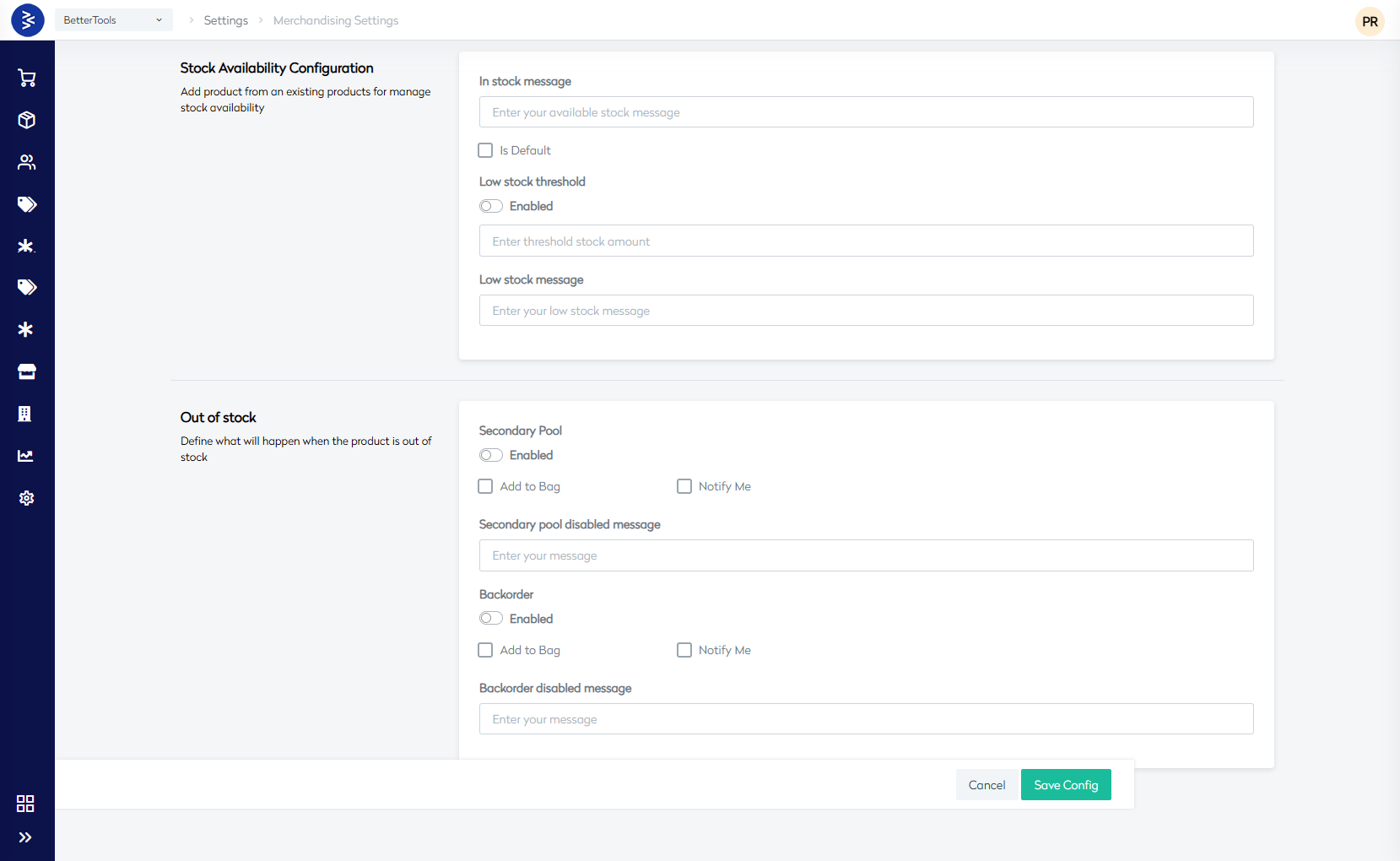
Purpose
Configure how stock availability messages and behaviors are displayed to customers based on inventory levels.
Configuration Options
📦 Stock Status Messages
- InStock Message: Custom message displayed when products are in stock.
- LowStock Message: Message shown when inventory falls below a threshold.
- LowStock Threshold: Numeric value that triggers low stock warnings.
- LowStock Threshold Amount: Specific quantity that defines low stock level.
🔁 Secondary Pool (SP) Settings
- SP Enabled Message: Message shown when the secondary pool is active.
- SP Disabled AddToBag: Controls "Add to Bag" button when SP is disabled.
- SP Disabled NotifyMe: Manages "Notify Me" option when SP is disabled.
- SP Disabled Message: Custom message when SP is disabled.
📥 Backorder (BO) Settings
- BO Enabled Message: Message displayed when backorders are enabled.
- BO Disabled AddToBag: Controls "Add to Bag" when backorders are disabled.
- BO Disabled NotifyMe: Manages "Notify Me" when backorders are disabled.
- BO Disabled Message: Custom message for disabled backorders.

You can setup a new Config by clicking on the New Config button on upper right corner and setun new configuration. There are 2 sections here :
1. Stock Availability Configuration
The Stock Availability Configuration section allows you to manage how stock availability messages are displayed to customers across your e-commerce platform. This configuration helps control customer expectations and shopping behavior based on inventory levels.
Key Features
In Stock Message Configuration
-
In Stock Message (Custom Message Field) Enter a personalized message that displays when products are in stock (e.g., "Available now", "In stock and ready to ship")
-
Default Setting
Option to set this configuration as the default for all products -
Purpose
Provides clear communication to customers about product availability
Low Stock Threshold Management
-
Enable/Disable Toggle
Control whether low stock warnings are active -
Threshold Amount
Set the specific inventory number that triggers low stock status -
Custom Low Stock Message
Define what message customers see when inventory falls below the threshold
2.Out of Stock Configuration
The Out of Stock Configuration section defines the customer experience and available actions when products are unavailable. This configuration is crucial for maintaining customer engagement even when inventory is depleted.
Secondary Pool Settings
Functionality
-
Enable/Disable Toggle
Activate secondary inventory pools when primary stock is exhausted -
Add to Bag Option
Allow customers to add out-of-stock items to their cart from secondary inventory -
Notify Me Option
Enable customers to request notifications when items become available -
Custom Disabled Message
Set specific messaging when secondary pool options are not available
Use Cases
- Warehouse overflow management
- Drop-shipping scenarios
- Multi-location inventory handling
Backorder Management
Core Features
-
Enable/Disable Control
Activate backorder functionality for out-of-stock products -
Add to Bag Capability
Allow customers to purchase items that will be fulfilled later -
Notification System
Enable "Notify Me" for backorder availability updates -
Custom Messaging
Define specific messages for when backorder options are disabled
Product Merchandising Configuration
Purpose
Define automated merchandising rules that categorize products based on performance metrics.
Rule Types Available
- Trending: Products gaining popularity.
- NewLaunch: Recently launched products.
- BestSeller: Top-performing products based on sales.
Rule Levels
- Domain: Applies rules across the entire store.
- Brand: Applies rules within specific brands.
- Category: Configures rules at the category level.
- Product: Sets rules per individual product.
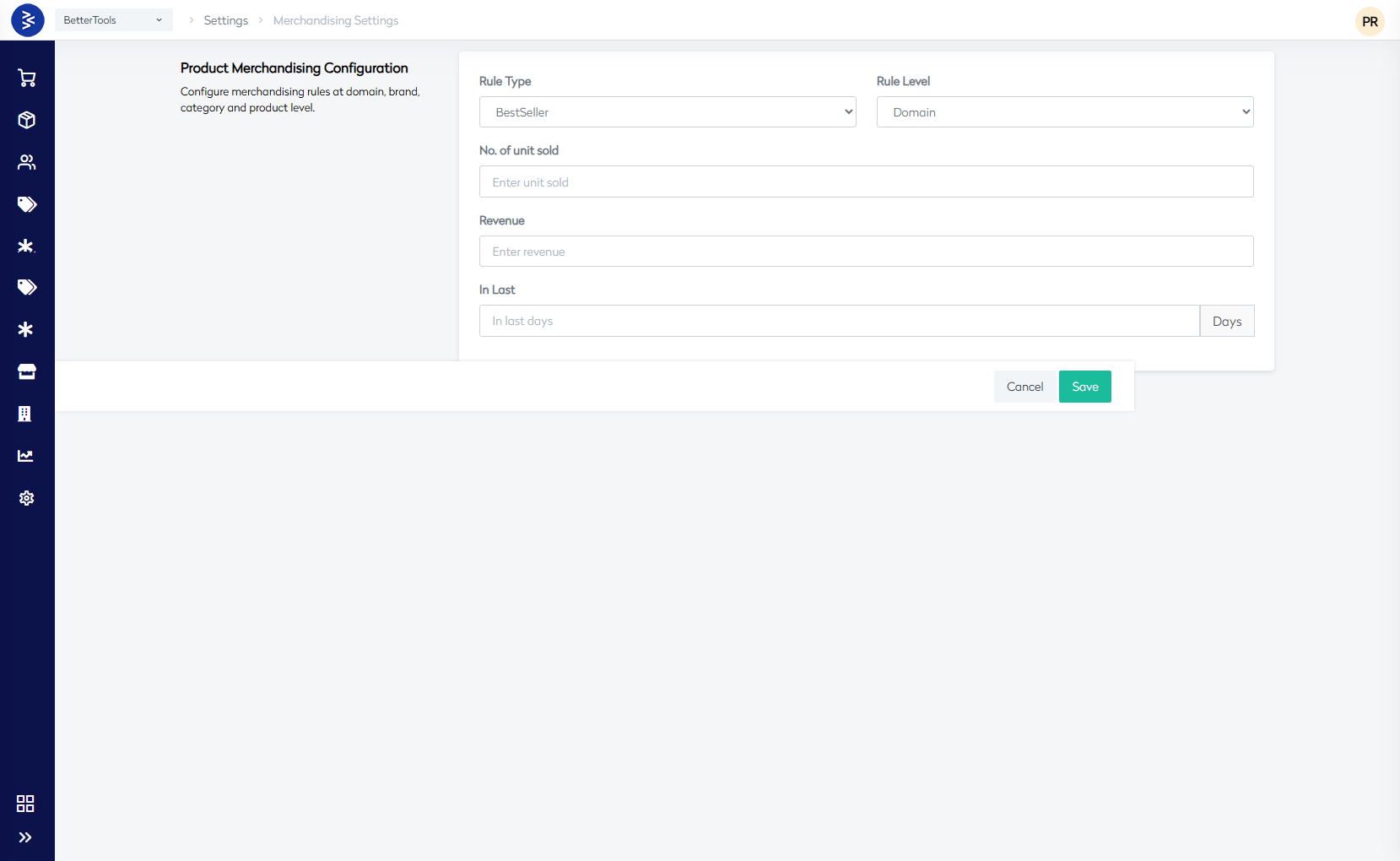
Metrics Configuration
- No. of Unit Sold: Minimum quantity sold for rule activation.
- Revenue: Minimum revenue for qualification.
- In Last Days: Time frame in days for performance calculation.
- In Last Hours: Time frame in hours for short-term trends.
Lets see how we can setup a new configuration in this section for this as well click on New Config on upper right section
Product Merchandising Configuration
The Product Merchandising Configuration is a powerful feature within BetterCommerce that allows you to automatically categorize and promote products based on their performance metrics. This system helps create dynamic product labels like "Best Seller," "New Launch," and "Trending" to enhance the customer shopping experience and drive sales.
Purpose
Configure merchandising rules at multiple levels (domain, brand, category, and product) to automatically assign promotional labels to products based on their sales performance and timing criteria.
Available Rule Types
-
Best Seller
- Identifies top-performing products based on sales volume
- Helps customers quickly find popular items
- Drives social proof and increases conversion rates
-
New Launch
- Highlights recently introduced products
- Creates awareness for new inventory
- Supports product launch strategies
-
Trending
- Showcases products with increasing popularity
- Captures momentum in customer interest
- Promotes items gaining traction in the market
Configuration Parameters
Rule Level Hierarchy
The system supports four levels of rule application:
Domain Level
- Applies rules across the entire e-commerce platform
- Sets baseline merchandising standards
- Provides consistent experience across all products
Brand Level
- Creates brand-specific merchandising rules
- Allows different criteria for different brands
- Supports multi-brand retail strategies
Category Level
- Tailors rules to specific product categories
- Accounts for category-specific buying patterns
- Enables targeted merchandising approaches
Product Level
- Provides granular control over individual products
- Overrides higher-level rules when needed
- Allows for special product promotions
Number of Units Sold
- Set minimum sales volume thresholds
- Quantitative measure of product popularity
- Configurable based on business scale and expectations
Revenue Threshold
- Define minimum revenue requirements
- Focus on high-value product performance
- Balance volume with profitability metrics
Days Period
- Configure evaluation timeframe in days
- Standard setting for most merchandising rules
- Allows for longer-term trend analysis
Hours Period
- Set shorter evaluation windows in hours
- Useful for flash sales or rapid trend identification
- Enables real-time merchandising adjustments
Implementation Benefits
Customer Experience
- Enhanced Discovery: Customers can easily identify popular and new products
- Social Proof: Best seller labels build confidence in purchase decisions
- Trend Awareness: Trending labels help customers stay current with popular items
Product Sorting
Purpose
Controls the default sorting behavior for product listings on the storefront.
Configuration Options
- Available Sort By: Defines which sort options are visible to users.
- Default Sort By: Sets the default method for sorting product lists.
Current Setting
- Default Sort By:
Trending(products are sorted based on trending status)
Navigation Path
Settings > Merchandising Settings Key Features
Configuration Management
- New Config: Allows creation of new configurations.
- Save Config / Cancel: Options for managing draft configurations.
- Is Default: Toggle to set primary configuration.
Flexibility
- Multiple configuration profiles supported.
- Rules applied at various organizational levels (domain, brand, category, product).
- Custom messages available per stock state and inventory behavior.
Integration
- Seamlessly integrates with inventory and stock systems.
- Tightly coupled with the product catalog and customer experience modules.
- Compatible with both B2C and B2B business models.
Best Practices
- Stock Thresholds: Use realistic thresholds based on product velocity.
- Merchandising Rules: Review rules periodically for optimal business alignment.
- Customer Messaging: Ensure clear and actionable customer messages.
- Rule Hierarchy: Avoid conflicts by strategically applying rules at each level.
Store Language Settings
Enable multi-language support, configure locale-specific formats (dates, numbers), and manage translations for global audiences.
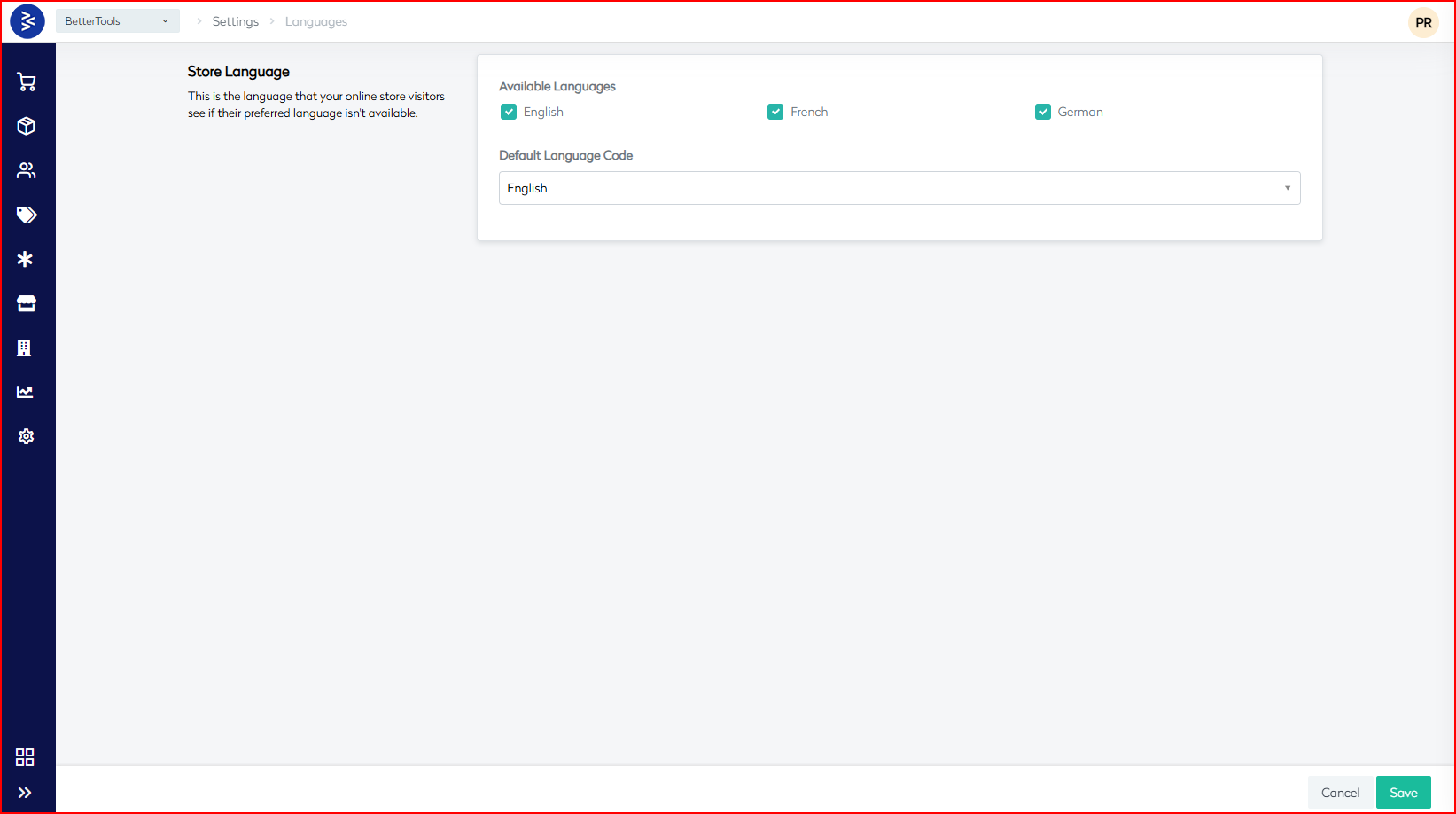
The Store Language configuration in BetterCommerce allows you to set up multilingual support for your e-commerce platform. This feature enables you to serve customers in their preferred languages while maintaining a fallback default language for optimal user experience.
Configuration Components
Store Language Settings
Purpose
The Store Language section defines the primary language that your online store visitors will see when their preferred language isn't available among your configured options.
"This is the language that your online store visitors see if their preferred language isn't available."
Available Languages
The system currently supports three major languages with checkbox selection:
- ✅ English – Enabled by default
- ✅ French – Available and enabled
- ✅ German – Available and enabled
Configuration Method:
- Simple checkbox interface for enabling/disabling languages
- Multiple languages can be active simultaneously
- Easy toggle functionality for quick language management
Default Language Code
- Current Setting: English
Functionality:
- Dropdown selection interface
- Determines the fallback language when a visitor's preferred language is unavailable
- Serves as the primary language for the store interface
Selection Options:
Choose from enabled languages using the dropdown as the default fallback option.
Technical Implementation
Language Hierarchy
- Visitor's Browser Language – First priority if available in your enabled languages
- Default Language Code – Fallback if the browser language isn't supported
- System Default – Final fallback (typically English)
Configuration Process
- Enable Languages: Check the boxes for languages you want to support
- Set Default: Select your primary/fallback language from the dropdown
- Save Configuration: Apply changes using the Save button
- Cancel Option: Discard changes using the Cancel button
Business Benefits
Customer Experience
- Localized Shopping: Customers can shop in their native language
- Reduced Bounce Rate: Language familiarity increases engagement
- Global Reach: Expand market reach to non-English speaking regions
- Cultural Adaptation: Better connection with international customers
Operational Advantages
- Market Expansion: Enter new geographical markets more effectively
- Competitive Edge: Stand out in markets where localization is rare
- Customer Support: Reduce language-related support queries
- Conversion Optimization: Higher conversion rates in native languages
Technical Requirements
- URL Structure: Consider language-specific URL patterns
- SEO Optimization: Implement
hreflangtags for international SEO - Currency Integration: May need to integrate with multi-currency features
- Regional Compliance: Ensure compliance with local regulations and standards
Best Practices
Language Selection Strategy
- Market Research: Choose languages based on your target markets
- Analytics Review: Use website analytics to identify visitor language preferences
- Gradual Rollout: Start with one additional language before expanding further
- Resource Planning: Ensure adequate resources for translation and maintenance
Default Language Configuration
- Primary Market Focus: Set default to your primary market's language
- Fallback Logic: Choose the language that serves the broadest audience
- Business Alignment: Align with your primary business operations language
- Customer Base Analysis: Consider your existing customer demographics
Ongoing Management
- Regular Updates: Keep translations current with product and content changes
- Performance Monitoring: Track conversion rates and engagement by language
- Customer Feedback: Gather feedback on translation quality and cultural relevance
- Competitive Analysis: Monitor how competitors handle multilingual experiences
Fraud Rules Configuration
Configure risk rules, velocity checks, and scoring models to identify and block potentially fraudulent transactions in real time.
The Fraud Rules system in BetterCommerce provides comprehensive protection against fraudulent transactions through multiple layers of security checks. This multi-faceted approach helps merchants minimize chargebacks, protect revenue, and maintain customer trust while balancing security with user experience.
1. Fraud Threshold
Purpose
Establish risk scoring parameters that automatically flag potentially fraudulent transactions based on configurable criteria and monetary limits.
Key Components
Risk Score Threshold
- Functionality: Sets the maximum acceptable risk score for automatic order processing
- Range: Typically 0–100 scale where higher scores indicate higher fraud risk
- Automatic Actions: Orders exceeding the threshold are flagged for manual review
- Business Impact: Balances fraud prevention with order processing efficiency
Transaction Amount Limits
- High-Value Threshold: Defines monetary amounts that trigger additional scrutiny
- Currency Support: Configurable across different currencies
- Escalation Rules: Higher amounts may require additional verification steps
- Risk Mitigation: Protects against high-value fraudulent transactions
Scoring Factors
- Payment Method Risk
- Geographic Risk
- Customer History
- Device Fingerprinting
Configuration Options
- Threshold Adjustment
- Amount-Based Rules
- Time-Based Variations
- Channel-Specific Settings
Steps to add a New Threshold
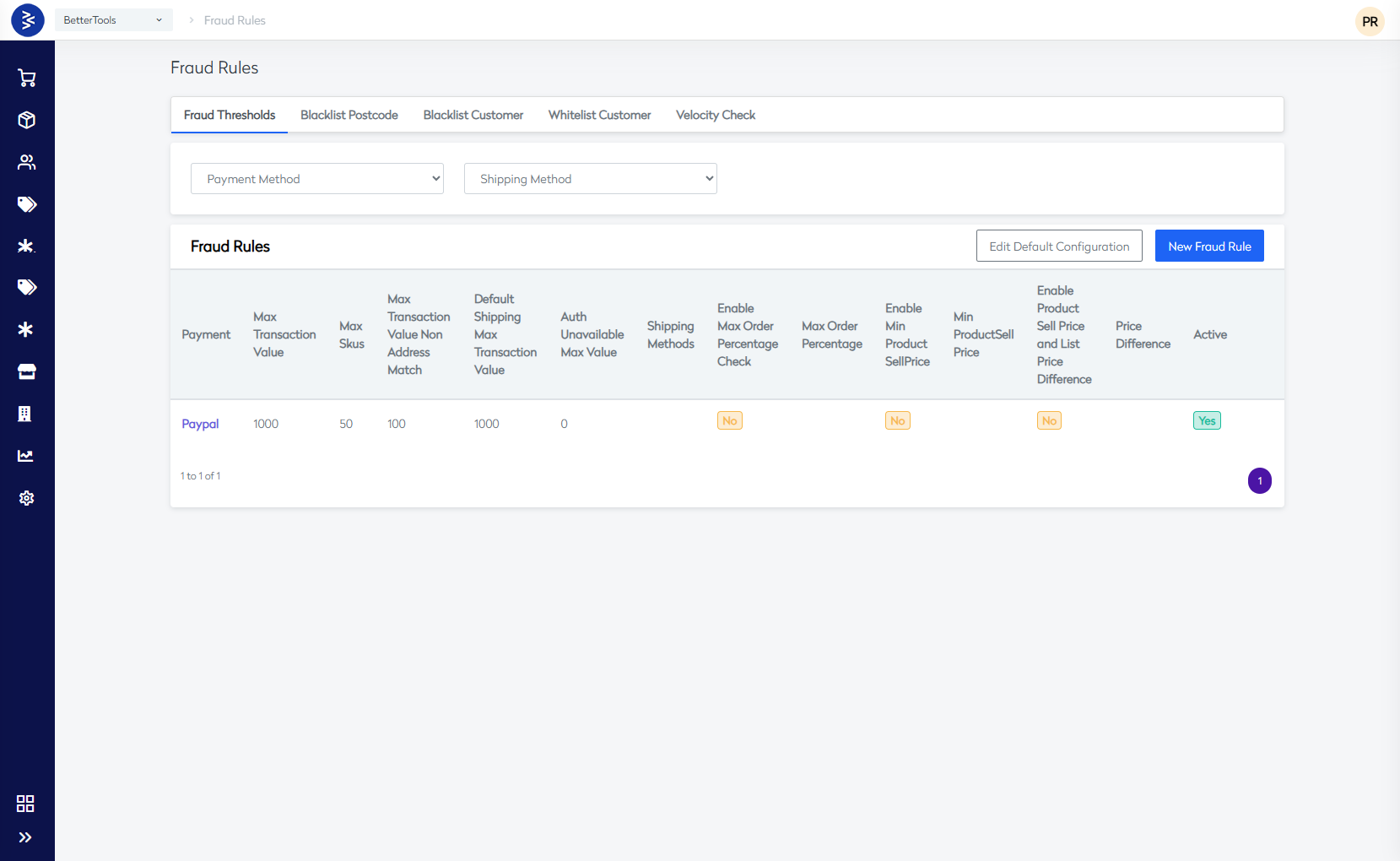
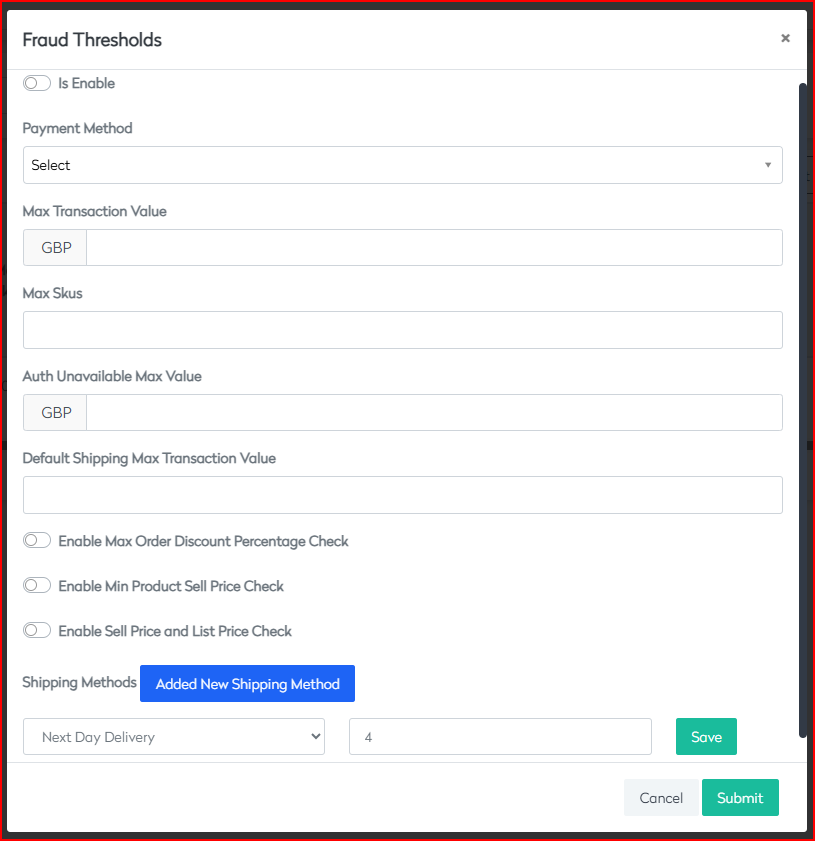
Fraud Thresholds Configuration
The Fraud Thresholds Configuration section allows administrators to define transaction validation rules to detect and prevent potential fraud. These rules are configurable by payment method and include several transaction value and product-specific checks.
This configuration is part of the fraud prevention system in BetterCommerce and provides rule-based validation for orders based on transaction value, product pricing, and shipping methods.
Configuration Fields
Is Enable
- Type: Toggle
- Description: Enables or disables the fraud threshold rule for the selected payment method.
- Default: Off
Payment Method
- Type: Dropdown
- Description: Select the payment method for which the fraud thresholds will apply (e.g., Credit Card, PayPal).
Max Transaction Value
- Type: Currency Field
- Description: Specifies the maximum transaction amount allowed for the selected payment method.
- Currency: GBP
Max Skus
- Type: Number Input
- Description: Sets the maximum number of different SKUs allowed in a single order.
Auth Unavailable Max Value
- Type: Currency Field
- Description: Maximum transaction value allowed when authorization services are temporarily unavailable.
- Currency: GBP
Default Shipping Max Transaction Value
- Type: Number Input
- Description: Sets a maximum transaction value for orders using default shipping methods.
Additional Validation Options
Enable Max Order Discount Percentage Check
- Type: Toggle
- Description: When enabled, the system checks that the order discount percentage does not exceed a configured maximum threshold.
Enable Min Product Sell Price Check
- Type: Toggle
- Description: When enabled, prevents transactions if the product’s sell price is below the configured minimum value.
Enable Sell Price and List Price Check
- Type: Toggle
- Description: When enabled, validates the sell price against the list price to prevent suspicious pricing anomalies.
Shipping Method Control
Shipping Methods
- Description: Define or update the shipping methods to which the configured fraud thresholds will apply.
- UI Element: Button labeled
Added New Shipping Method
Once all necessary updates are complete hit Save and the Submit to save your updates.
Use Cases
- Preventing high-risk transactions based on price thresholds
- Restricting excessive discounts or unusually low prices
- Blocking orders with large SKU counts which may indicate abuse
- Applying stricter rules to specific shipping methods or during outages
2. Blacklist Postcode
Purpose
Block orders from specific postal codes known for high fraud rates or delivery issues.
Functionality
Postcode Management
- Add/Remove Postcodes
- Pattern Matching (e.g., "SW1*")
- Geographic Blocking
- Import/Export support
Blocking Mechanisms
- Order Prevention
- Warning System
- Custom Messages
- Alternative Options
Use Cases
- High-Risk Areas
- Delivery Issues
- Regulatory Compliance
- Business Strategy
Management Features
- Reason Codes
- Expiration Dates
- Exception Handling
- Reporting and Metrics
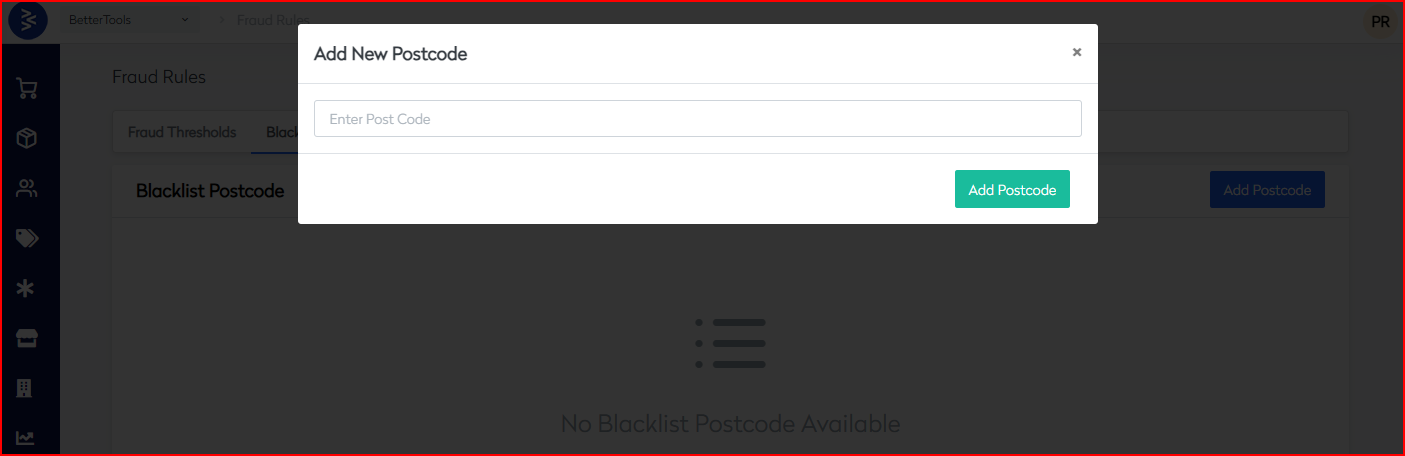
Steps to add a ** Add New Postcode**
The Add New Postcode interface allows administrators to manually blacklist postal codes associated with high fraud risk or delivery issues. This functionality is part of the broader Fraud Rules Configuration within the BetterCommerce platform. Helps merchants restrict order placements from specific postal codes by adding them to a blacklist.
Field Description
Enter Post Code
- Type: Text Field
- Description: Enter the postal code to be blacklisted. Partial codes are supported (e.g.,
SW1*) to block all matching codes. - Validation: Accepts alphanumeric characters and patterns
Actions
- Add Postcode (Green Button)
Saves the entered postcode to the blacklist. Once saved, all orders originating from this postcode will either be blocked or flagged depending on the configuration.
Use Cases
- Block deliveries to regions with persistent fraud or logistical problems
- Enforce regional shipping restrictions or legal compliance
- Prevent orders from unsupported service areas
3. Blacklist Customer
Purpose
Provide granular control to block specific individuals who have demonstrated fraudulent behavior or violated terms of service.
Identification Methods
Customer Identifiers
- Email Addresses
- Phone Numbers
- Customer IDs
- IP Addresses
Advanced Matching
- Name Matching
- Address Matching
- Payment Method Blocking
- Device Fingerprinting
Blocking Scope
Account Actions
- Registration Prevention
- Login Restrictions
- Order Blocking
- Partial Restrictions
Communication Control
- Email Blocking
- Support Restrictions
- Review Blocking
- Forum Access
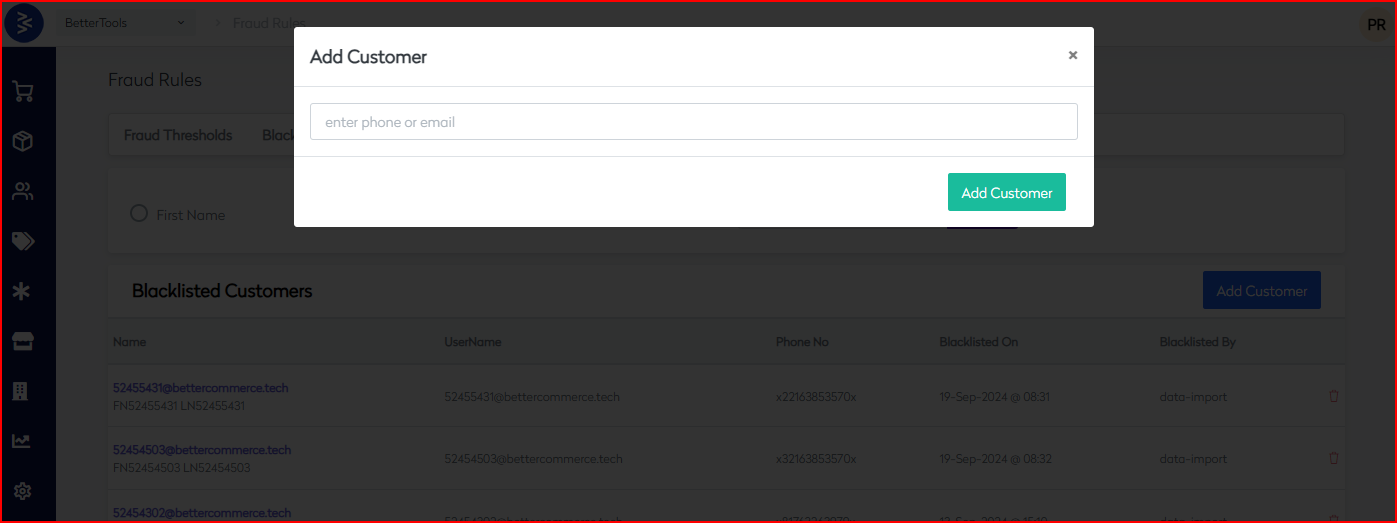
Steps to Add a Blocked Customer
The Blocked Customer interface allows administrators to manually blacklist customers who have demonstrated fraudulent behavior or violated terms of service. This functionality is part of the broader Fraud Rules Configuration within the BetterCommerce platform. It helps merchants restrict order placements and account activity from identified customers using their email addresses or phone numbers.
Field Description
Enter Email or Phone Number
- Type: Text Field
- Description: Enter the customer’s email address or phone number to be blacklisted.
- Validation:
- For email: Must follow valid email format (e.g.,
user@example.com) - For phone: Accepts numeric input, typically in international format (e.g.,
+447912345678)
- For email: Must follow valid email format (e.g.,
Actions
- Block Customer (Green Button)
Saves the entered email or phone number to the blacklist. Once added, the customer will be prevented from placing new orders, logging in, or interacting with the platform based on the blocking scope defined in the system.
4. Whitelist Customer
Purpose
Create a trusted customer tier that bypasses standard fraud checks for verified, low-risk customers.
Qualification Criteria
Trust Indicators
- Purchase History
- Account Age
- Verification Status
- Payment Reliability
Business Relationships
- VIP Customers
- Corporate Accounts
- Partner Organizations
- Loyalty Program Members
Whitelist Benefits
Enhanced Experience
- Faster Checkout
- Higher Limits
- Priority Processing
- Reduced Verification
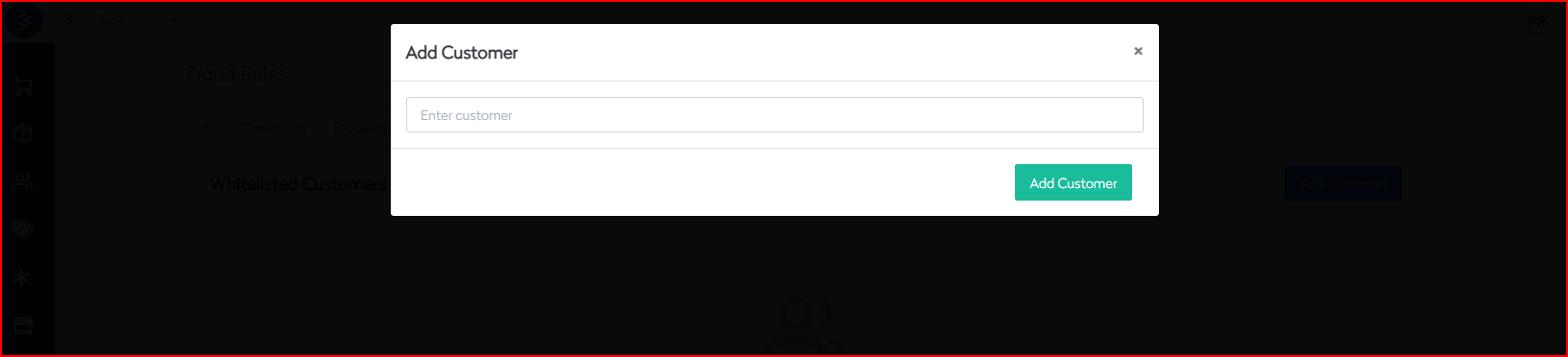
Steps to Add a Whitelisted Customer
The Whitelisted Customer interface allows administrators to manually add trusted customers to a whitelist. This functionality is part of the broader Fraud Rules Configuration within the BetterCommerce platform. It helps ensure that verified or high-value customers are not affected by standard fraud checks, allowing smoother transaction processing.
Field Description
Enter Email or Phone Number
- Type: Text Field
- Description: Enter the customer’s email address or phone number to be whitelisted.
- Validation:
- For email: Must follow valid email format (e.g.,
trusted@example.com) - For phone: Accepts numeric input, typically in international format (e.g.,
+447912345678)
- For email: Must follow valid email format (e.g.,
Actions
- Whitelist Customer (Green Button)
Saves the entered email or phone number to the whitelist. Once added, the customer will bypass standard fraud checks and may receive enhanced service privileges, such as faster order processing or higher transaction limits.
5. Velocity Check
Purpose
Monitor transaction patterns and frequencies to identify suspicious rapid-fire ordering behavior.
Monitoring Parameters
Transaction Frequency
- Orders per Hour
- Orders per Day
- Payment Attempts
- Account Creation Rate
Pattern Detection
- Rapid Succession Orders
- Identical Orders
- Multiple Payment Methods
- Geographic Velocity
Webhooks Overview
Webhooks are a tool used to automatically send data between two applications when a specific event occurs. For example, when an order is placed in one system, the webhook sends the data to another system in real-time, allowing the second application to act without manual intervention.
In CommerceHub, webhooks can be configured for various predefined events to enable seamless data communication across systems.
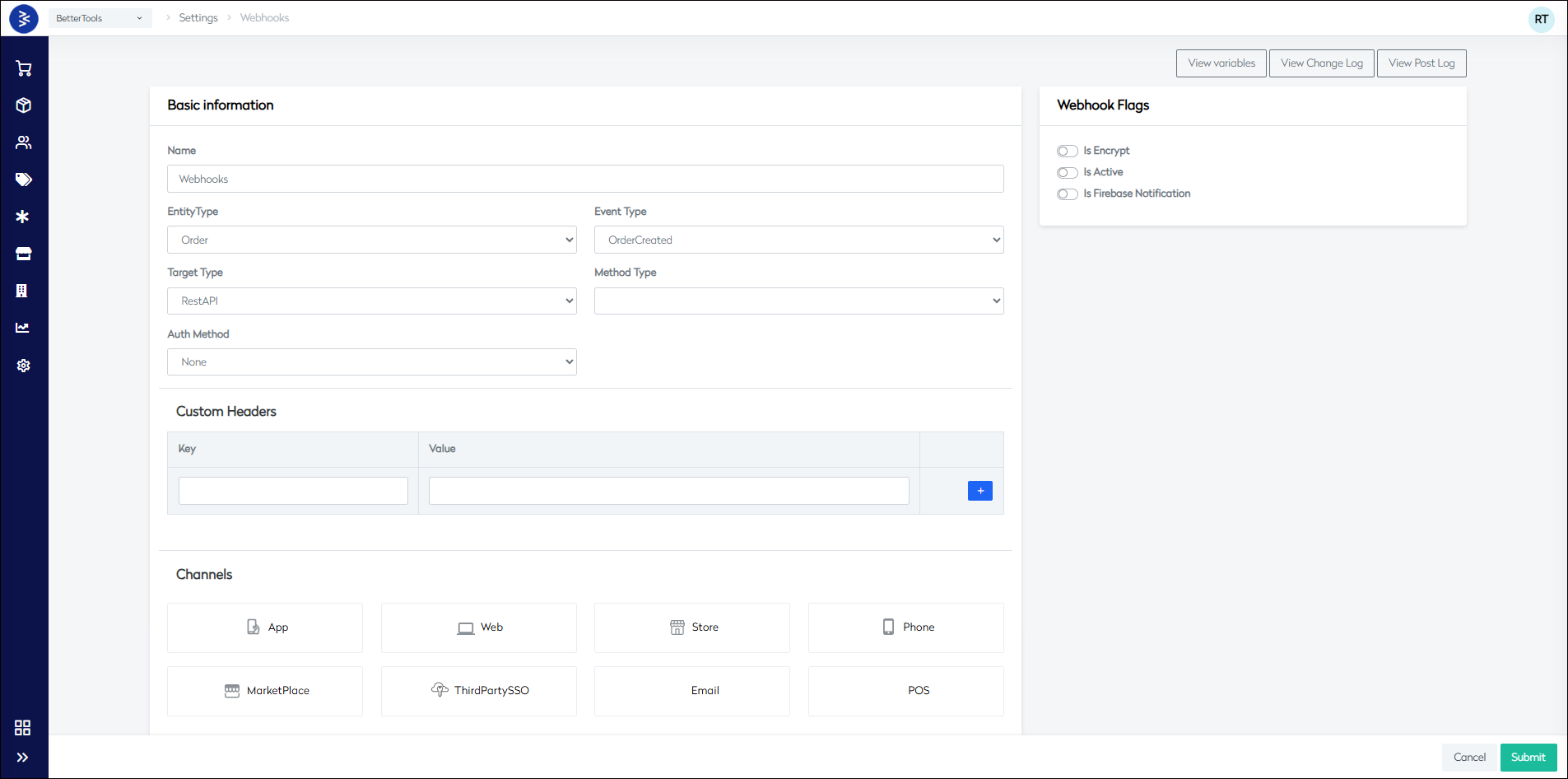
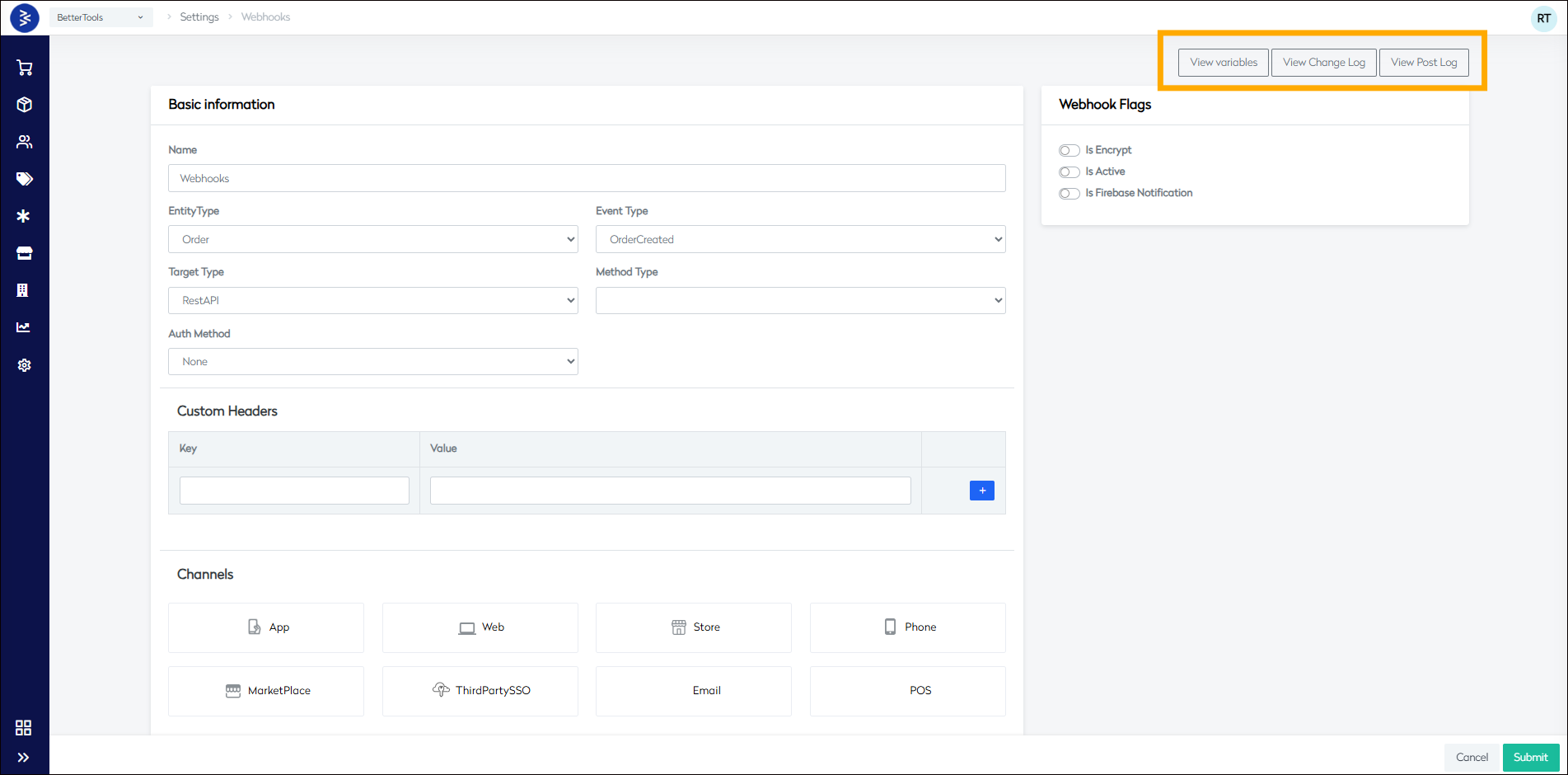
Basic Information
This section allows you to define the core configuration of your webhook. You'll specify what event triggers the webhook, the target destination, and other communication parameters.
| Field | Description | Field Type |
|---|---|---|
| Name | Enter the name of the webhook. | Free Text |
| Entity Type | Select the type of entity to track (e.g., Order, Product, Customer). | Dropdown List |
| Event Type | Choose the event that will trigger the webhook (e.g., Created, Updated). | Dropdown List |
| Target Type | Specify how the data will be shared (e.g., REST API, Azure Queue). | Dropdown List |
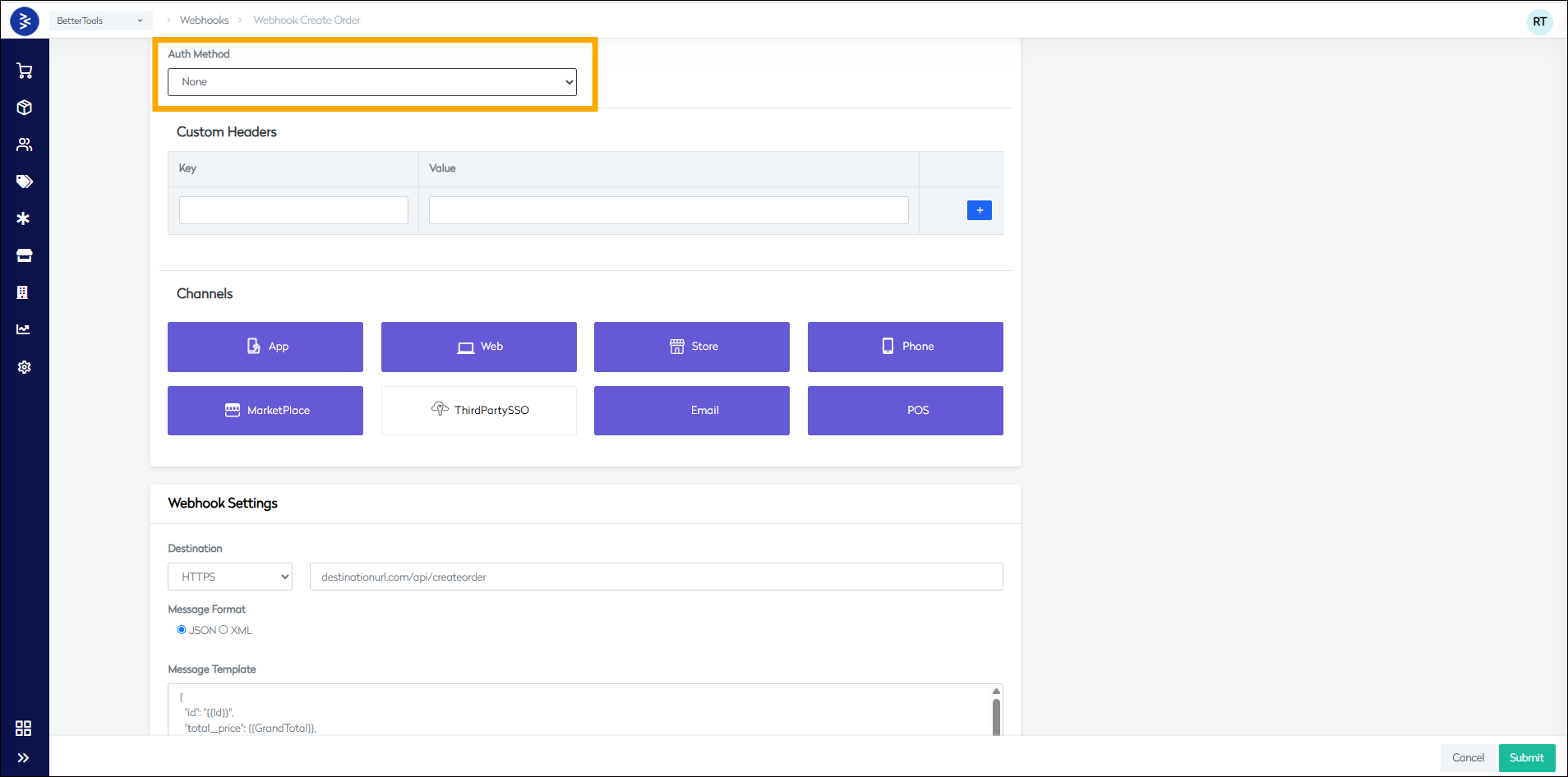
| Auth Method | Choose the authentication method (e.g., Basic Auth, OAuth). | Dropdown List |
| Custom Headers | Define custom key-value pairs to be sent in the webhook request headers. | Free Text |
| Channels | Select one or more channels to receive data (e.g., App, Web, Store, Marketplace). | Multi-Select |
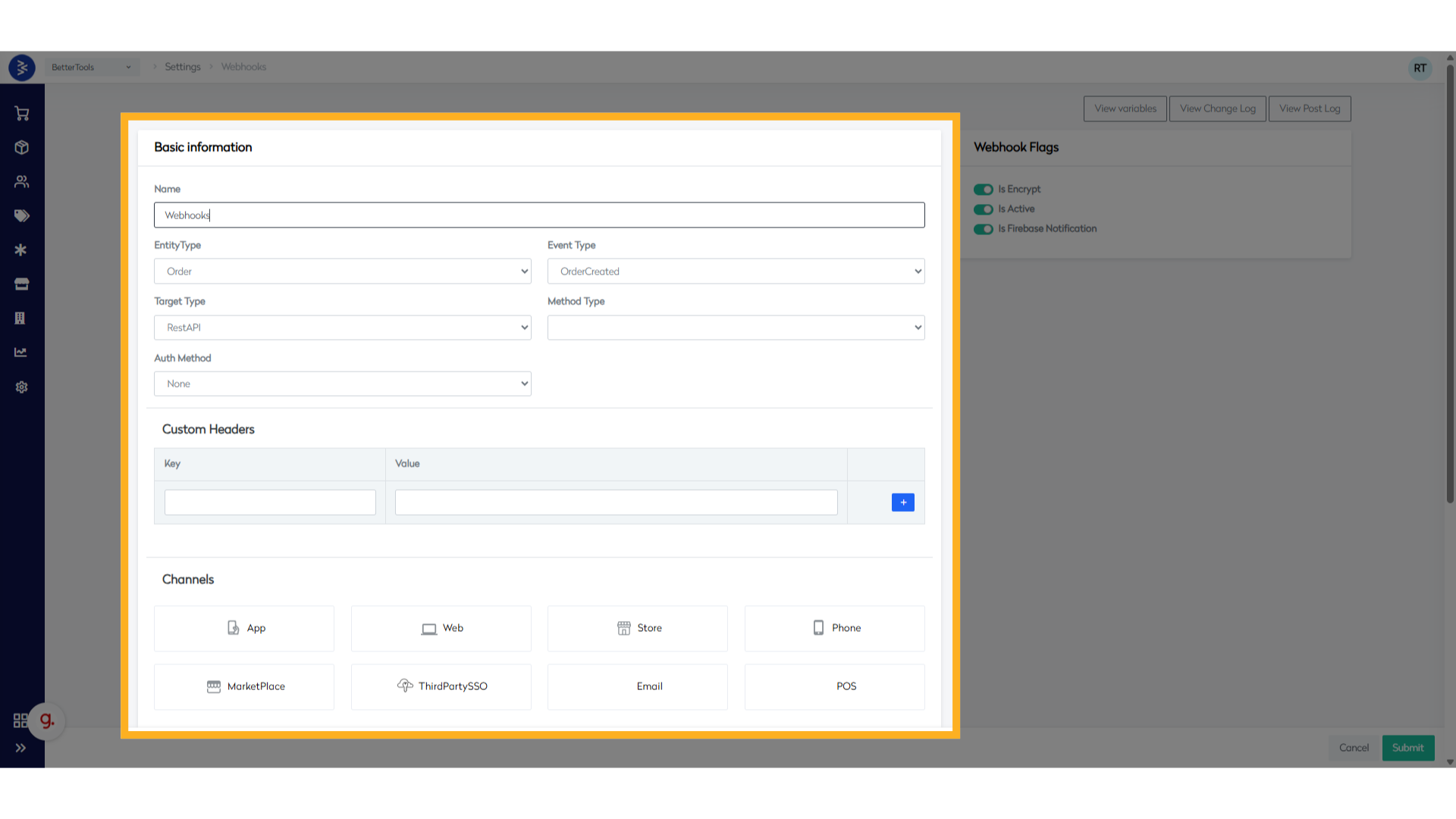
Webhook Settings
Configure the message content and structure to be delivered when the webhook is triggered.
| Field | Description | Field Type |
|---|---|---|
| Destination URL | Specify the target endpoint (must be HTTP or HTTPS). | Free Text |
| Message Format | Choose the format for the payload: JSON or XML. | Radio Button |
| Message Template | Define the message body based on the entity and event. | Free Text |
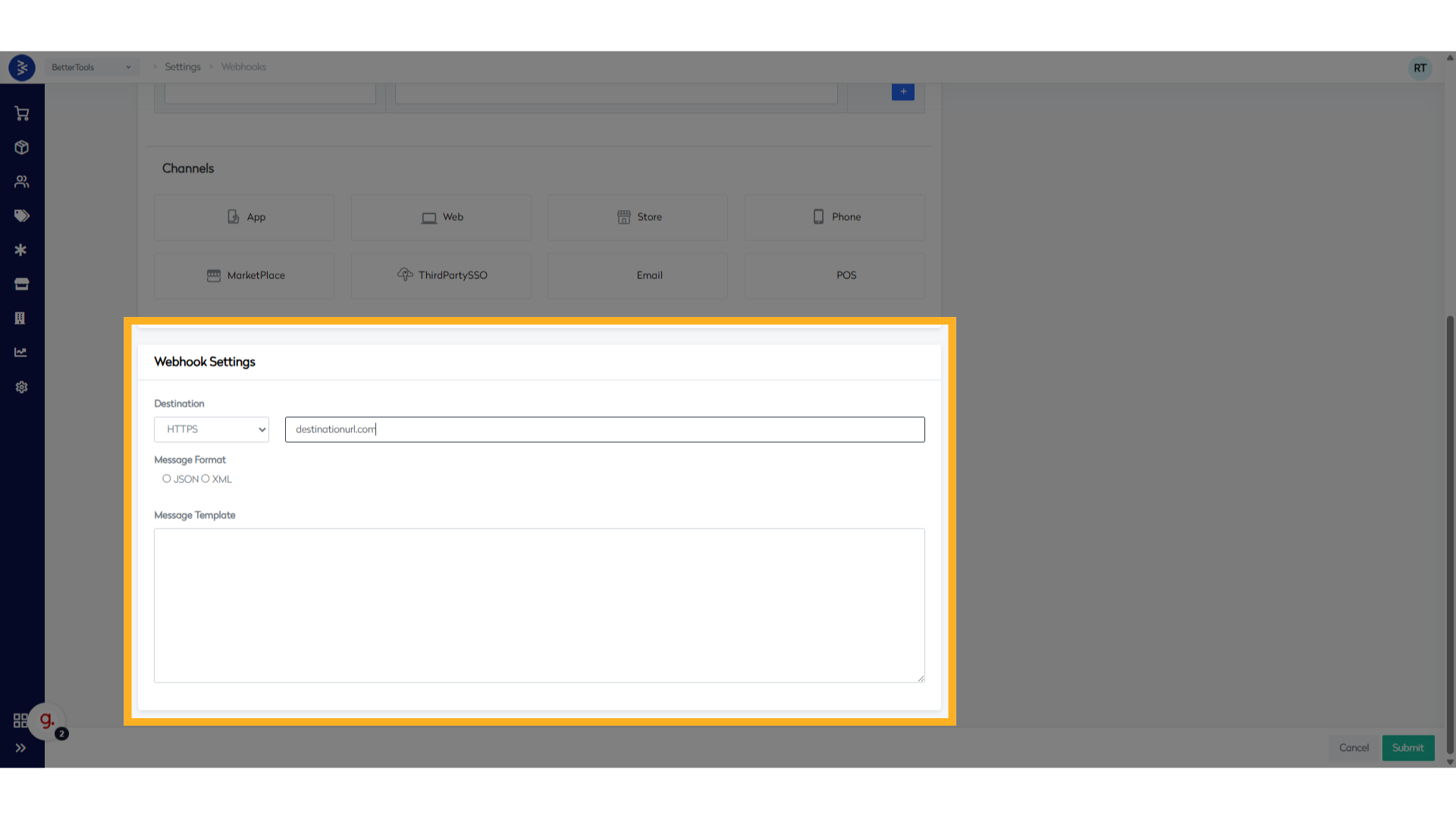
Webhook Flags
Flags provide additional control over webhook functionality.
| Field | Description | Field Type |
|---|---|---|
| Is Encrypt | Enable encryption for the webhook payload. | Checkbox |
| Is Active | Activate or deactivate the webhook. | Checkbox |
| Is Firebase Notification | Trigger a Firebase notification alongside the webhook. | Checkbox |
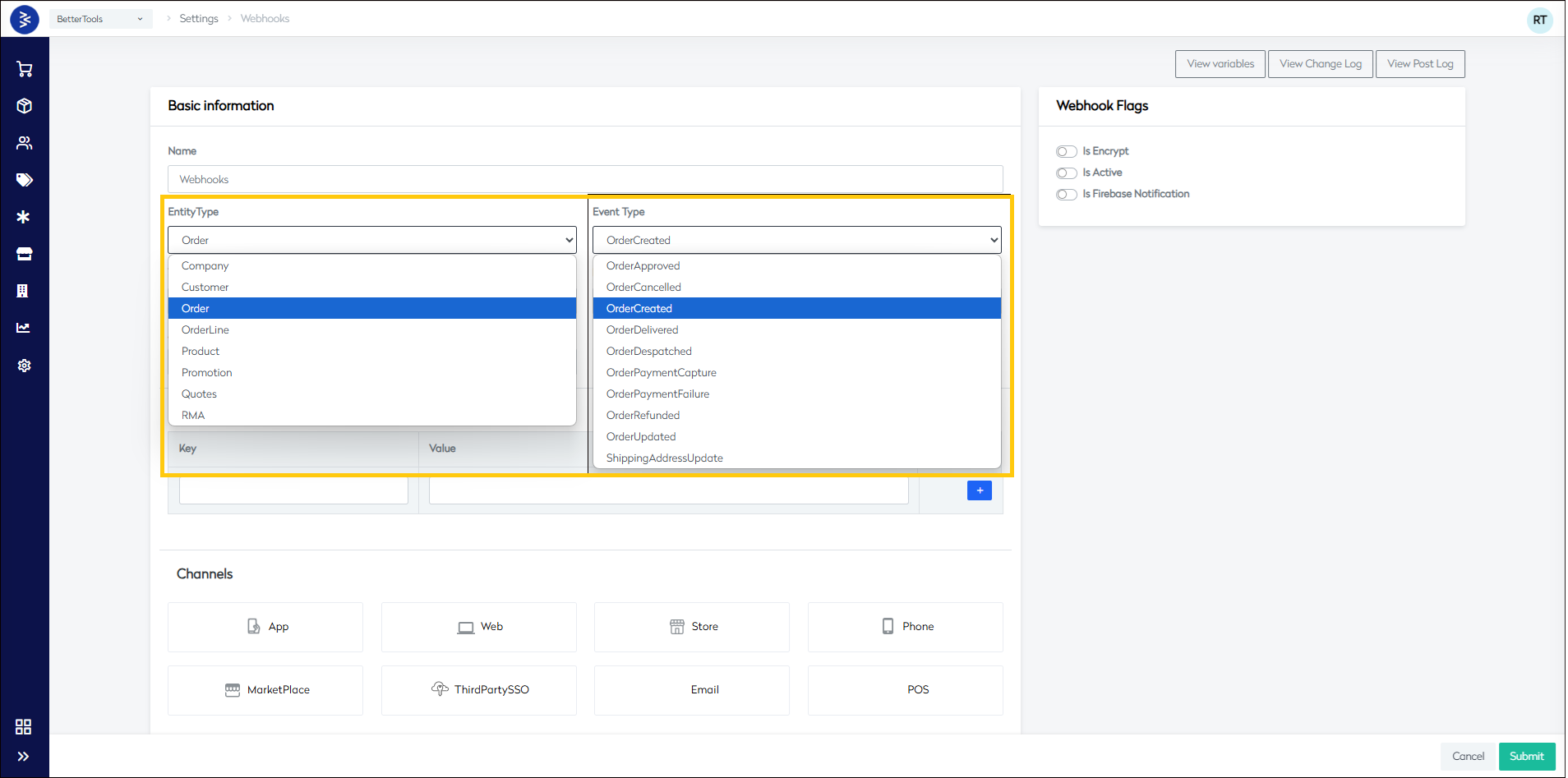
Entity & Event Types
Each webhook is tied to a specific Entity Type and Event Type combination. These define the context and condition that trigger the webhook.
| Entity Type | Event Types | Description |
|---|---|---|
| Company | CompanyCreated, CompanyUpdated | Triggered when a company is created or updated in the B2B module. |
| Customer | CustomerCreated, CustomerUpdated, CustomerDeleted, CustomerNewsletterSubscribe, CustomerNewsletterUnsubscribe | Events related to customer account lifecycle and newsletter preferences. |
| Orders | OrderCreated, OrderApproved, OrderCancelled, OrderDelivered, OrderUpdated | Triggered when an order is created, approved, cancelled, delivered, or updated. |
| OrderLines | OrderLineCreated, OrderLineUpdated, OrderLineDeleted | Tracks creation, update, or deletion of individual order line items. |
| Product | ProductCreated, ProductUpdated, ProductPriceUpdated | Triggered on product creation, updates, or price changes. |
| Promotion | PromotionCreated, PromotionUpdated | Events related to promotion lifecycle. |
| Quotes | QuoteCreated, QuoteUpdated | Triggered when a quote is created or updated. |
| RMA | RMACreate, RMAReceived | Tracks creation and receipt of return merchandise authorizations (RMAs). |
| Store | StoreCreated, StoreUpdated | Triggered when a store is created or updated in the system. |
Target Types
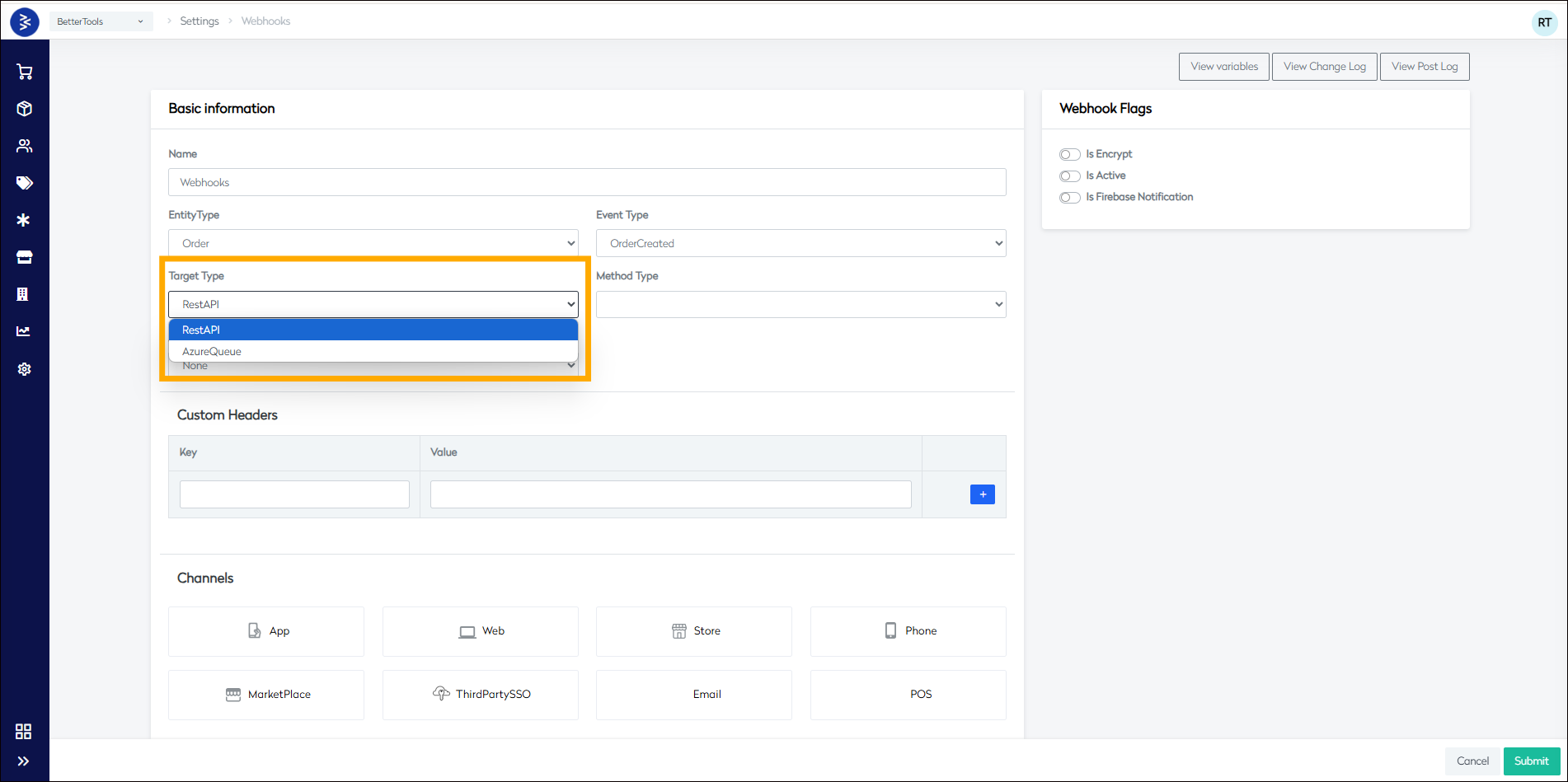
Defines where the webhook data will be delivered.
| Target Type | Description |
|---|---|
| REST API | Sends data to a RESTful endpoint using supported HTTP methods like GET, POST, etc. |
| Azure Queue | Delivers the payload to an Azure Queue for asynchronous processing. |
Authentication Types
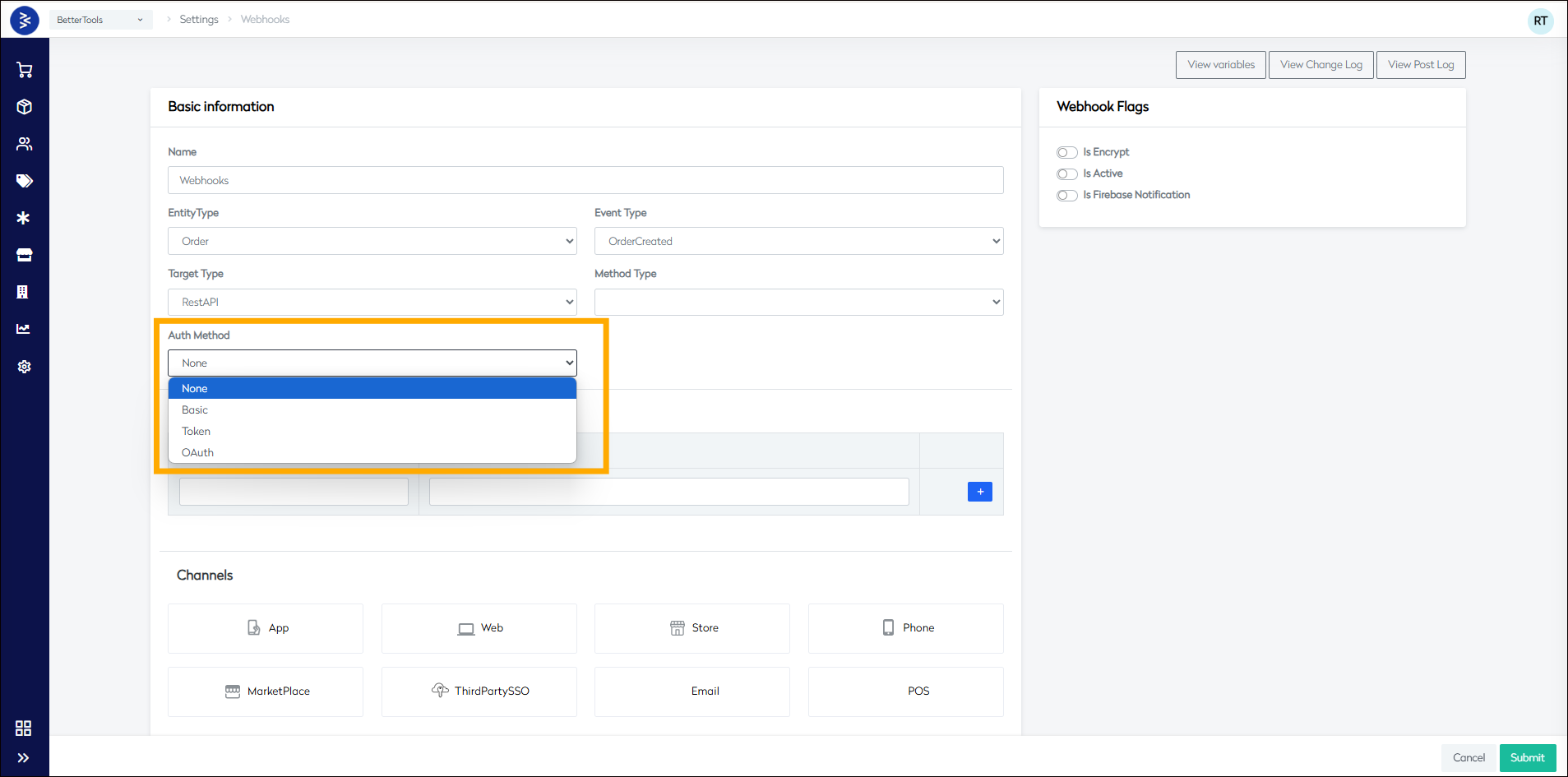
Secure webhook transmissions using one of the supported authentication methods.
| Authentication Type | Description |
|---|---|
| None | No authentication required. |
| Basic | Uses username and password credentials. |
| Token | Authenticates with a static token. |
| OAuth | Uses OAuth protocol for secure access. |
Custom Headers
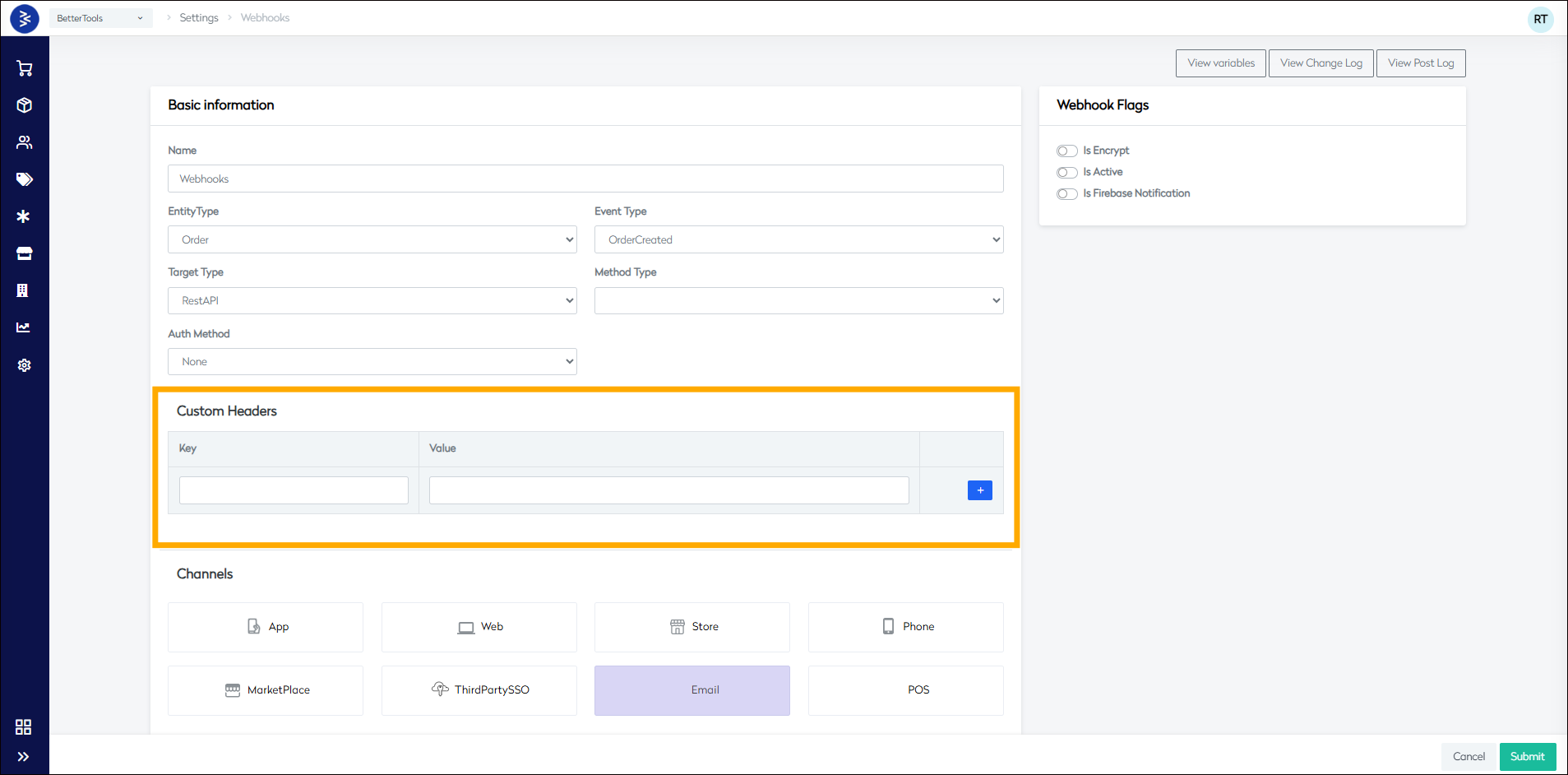
Custom headers are used to pass additional data, such as tokens or content types, in the webhook request.
| Header Field | Description |
|---|---|
| Key | The header name (e.g., X-Api-Key). |
| Value | The corresponding value for the header. |
Additional Options
These utilities assist in managing and troubleshooting your webhook setup:
- View Variables: Displays all available variables usable in message templates.
- View Changelog: Tracks configuration changes to the webhook.
- Post Webhook Logs: Shows execution logs for monitoring webhook activities.
Webhooks Management
Set up and manage webhook endpoints and event subscriptions to enable real-time data synchronization with external systems.
How to Set Up a Webhook
Follow these steps to configure a webhook in CommerceHub for real-time communication between systems.
-
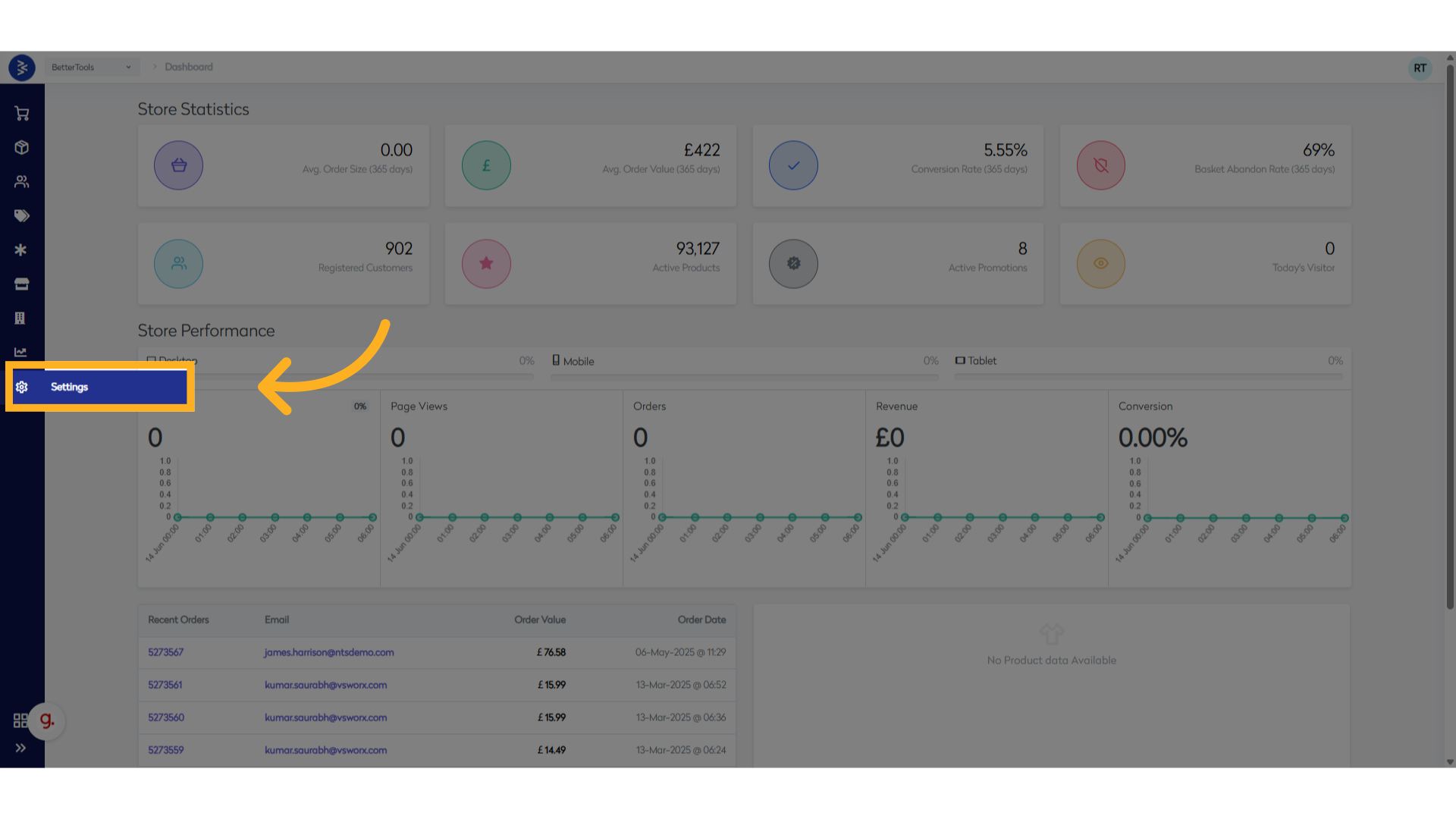
Navigate to CommerceHub Settings Go to the CommerceHub > Settings section from the main dashboard.
-
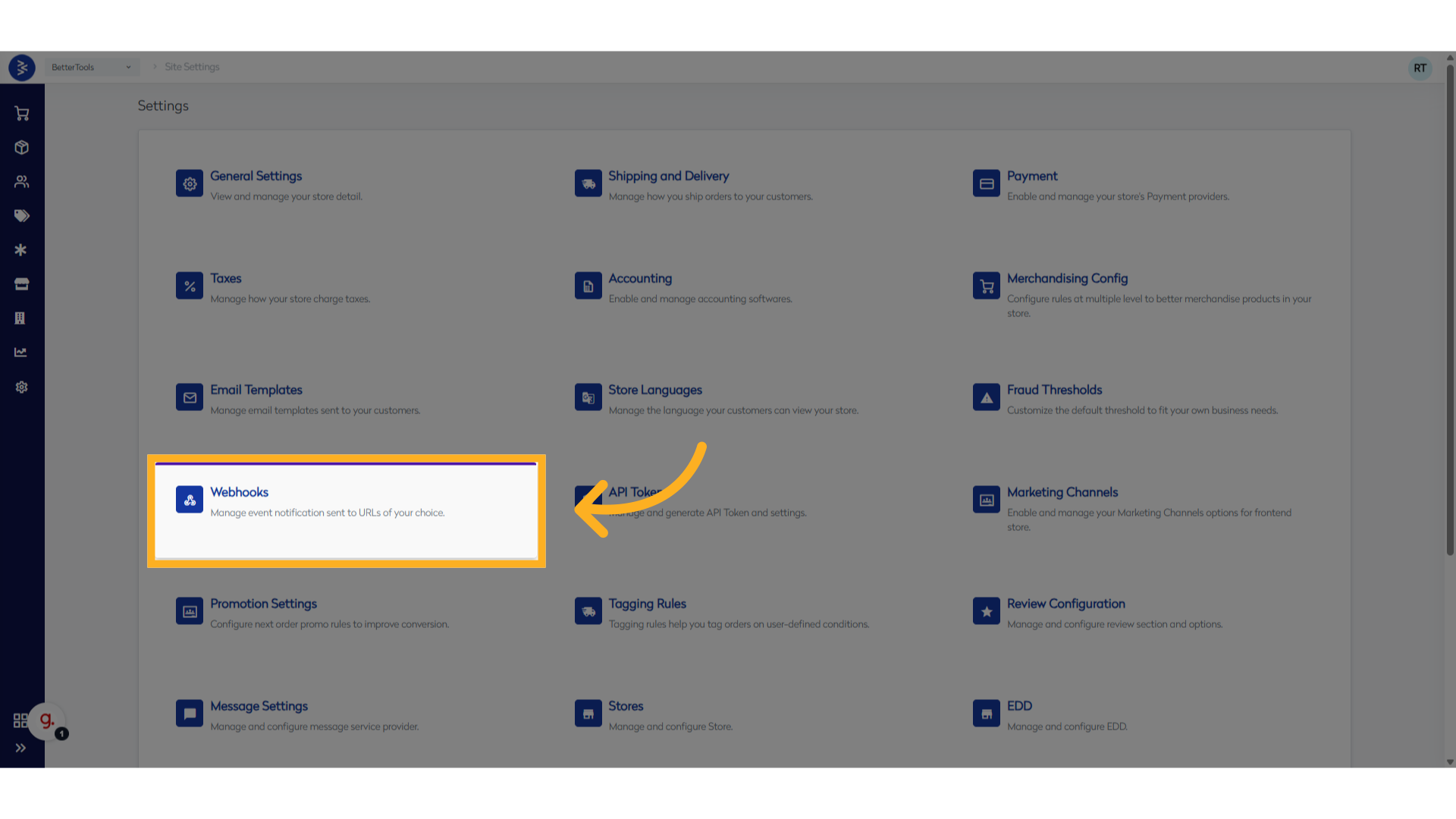
Click on Webhooks from settings screen.
-
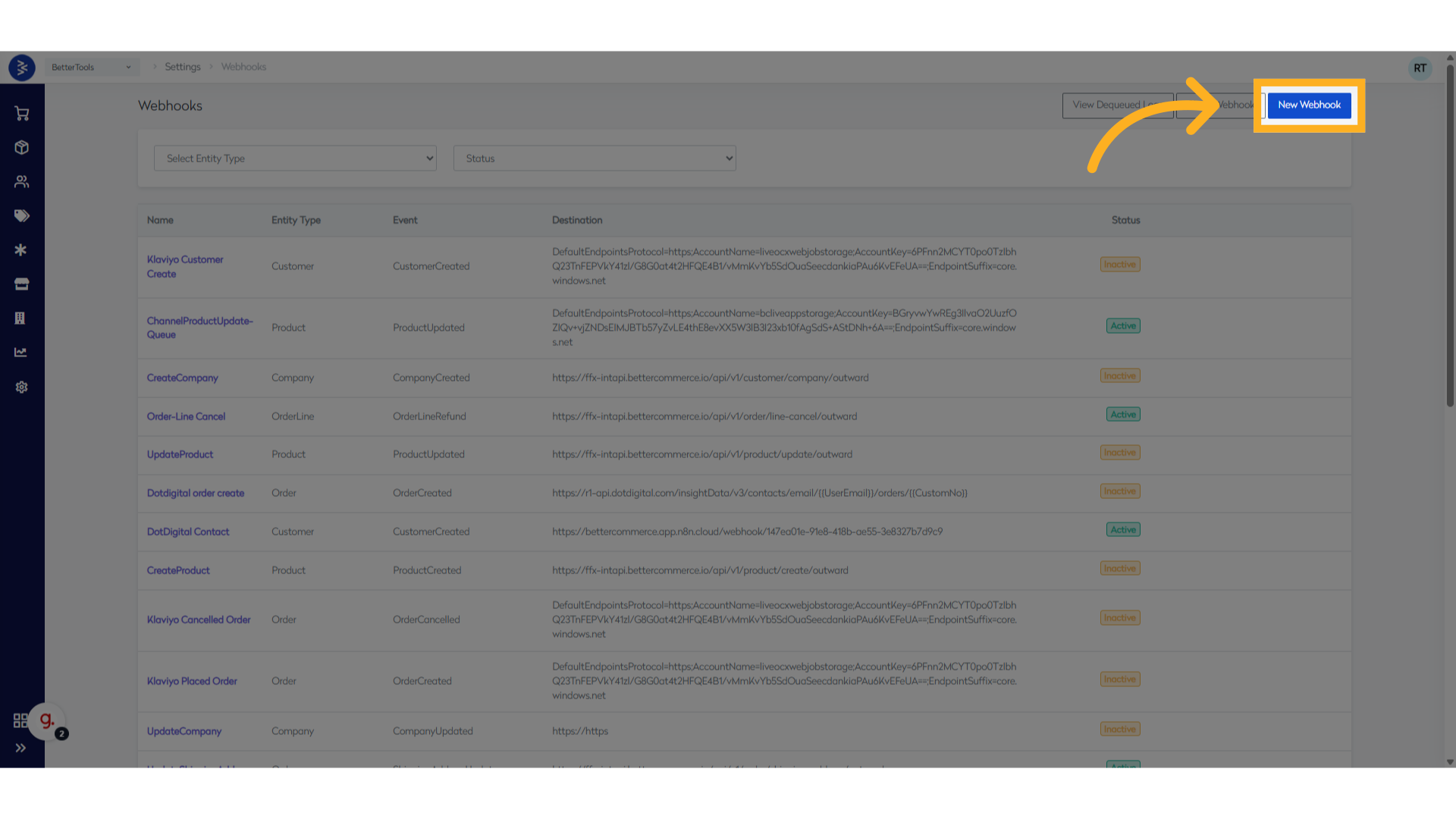
Click New Webhook to begin creating a new webhook.
📝 Note: There's also a Clone Webhook option that allows you to duplicate an existing webhook. This is helpful if you want similar payload but a different destination URL.
-
Enter Webhook Name provide a unique and descriptive name for your webhook.
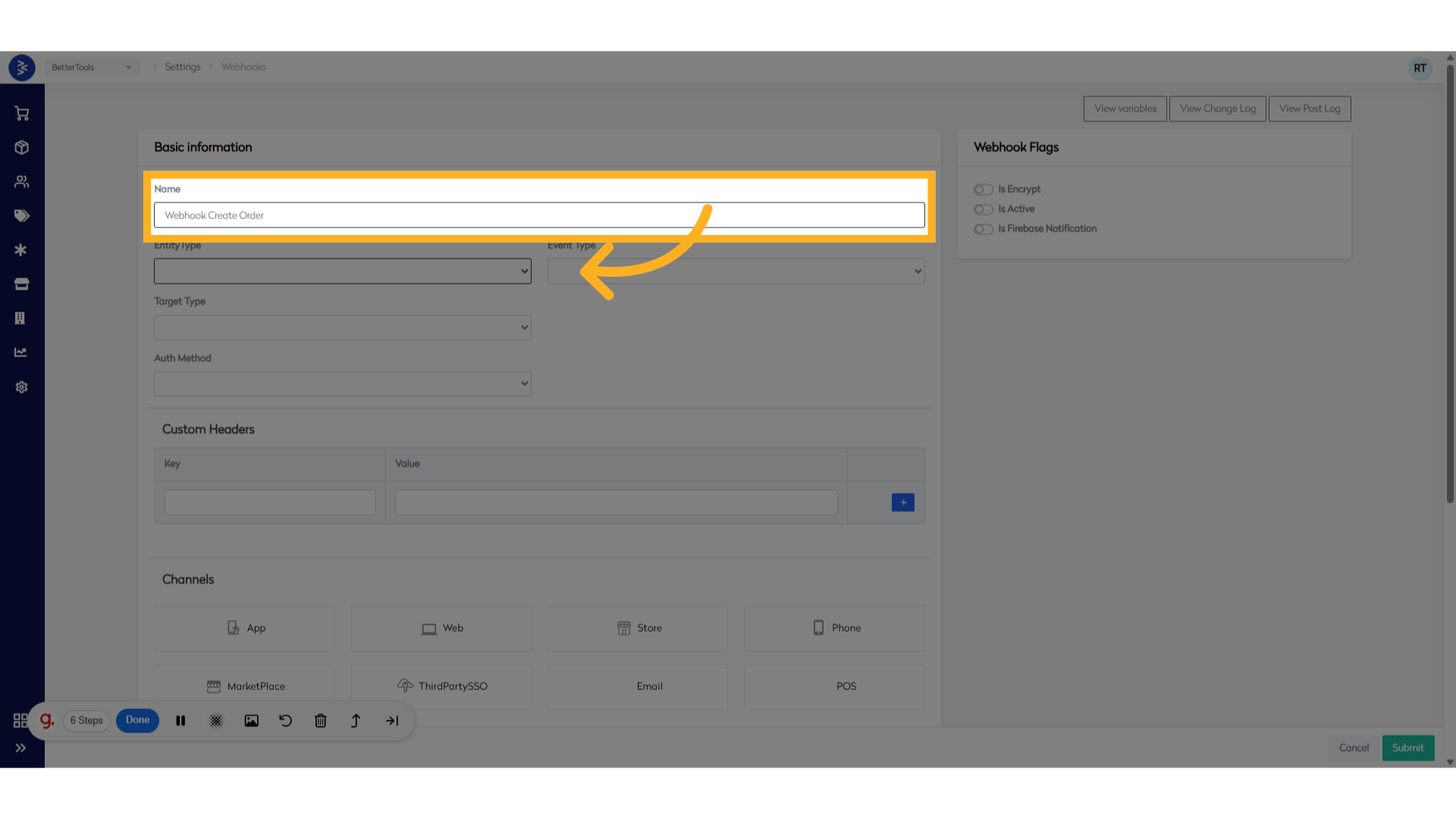
-
Select Entity Type & Event Type based on the event required to trigger webhook.
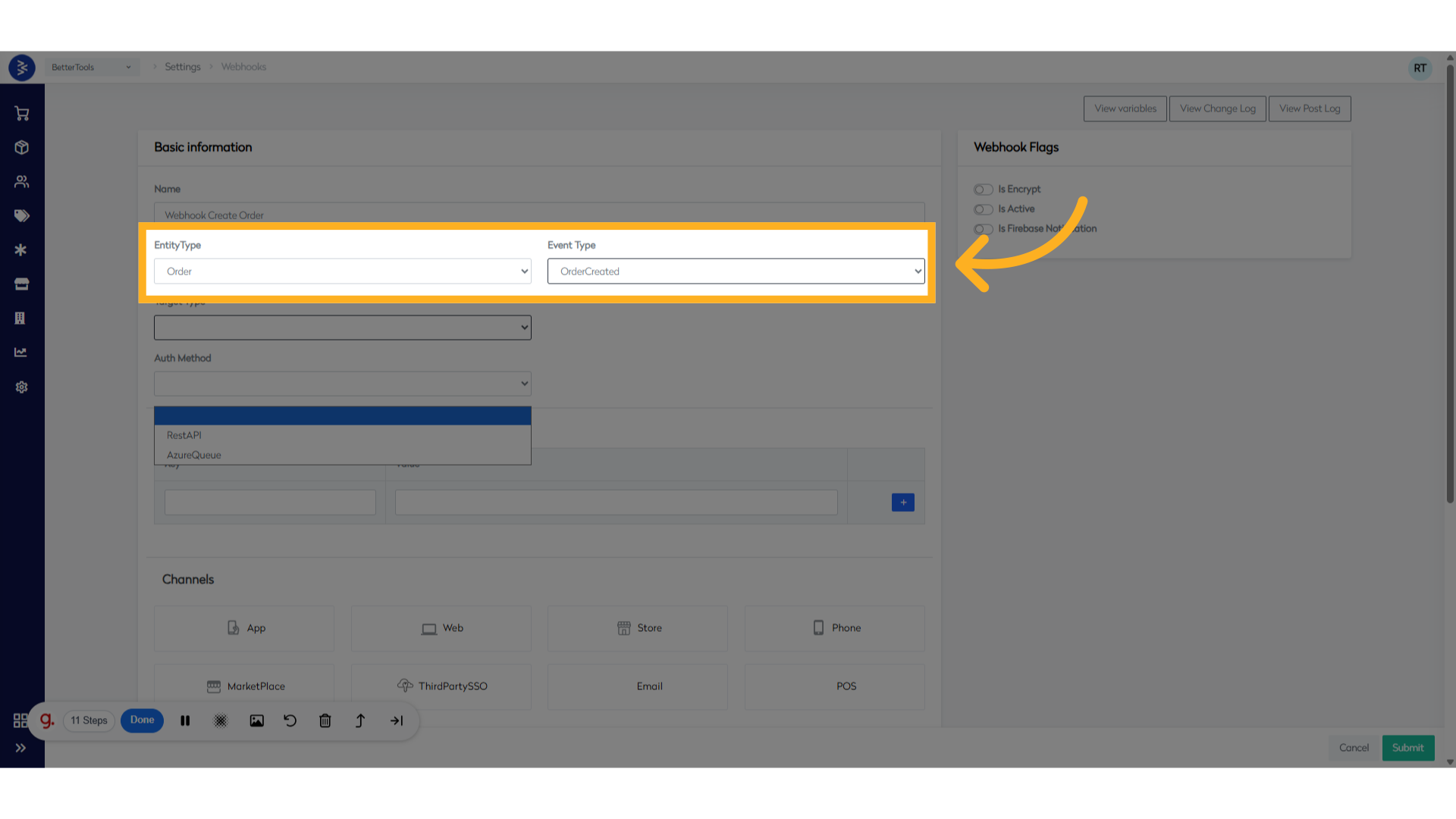
-
Choose Target Type it's the destination type for the webhook:
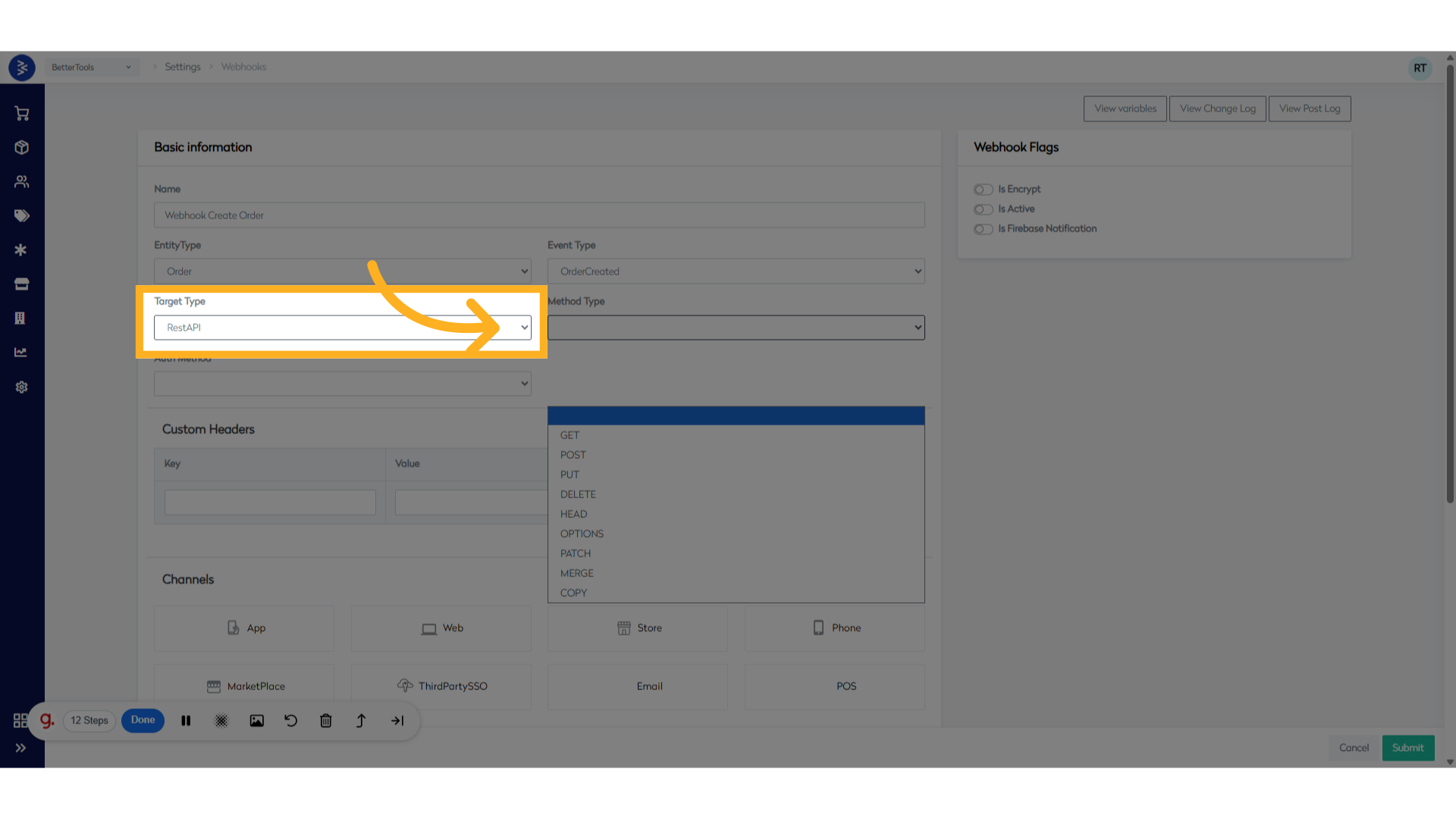
-
Select HTTP Method (
POST,PUT, etc.) that matches the target endpoint’s requirements.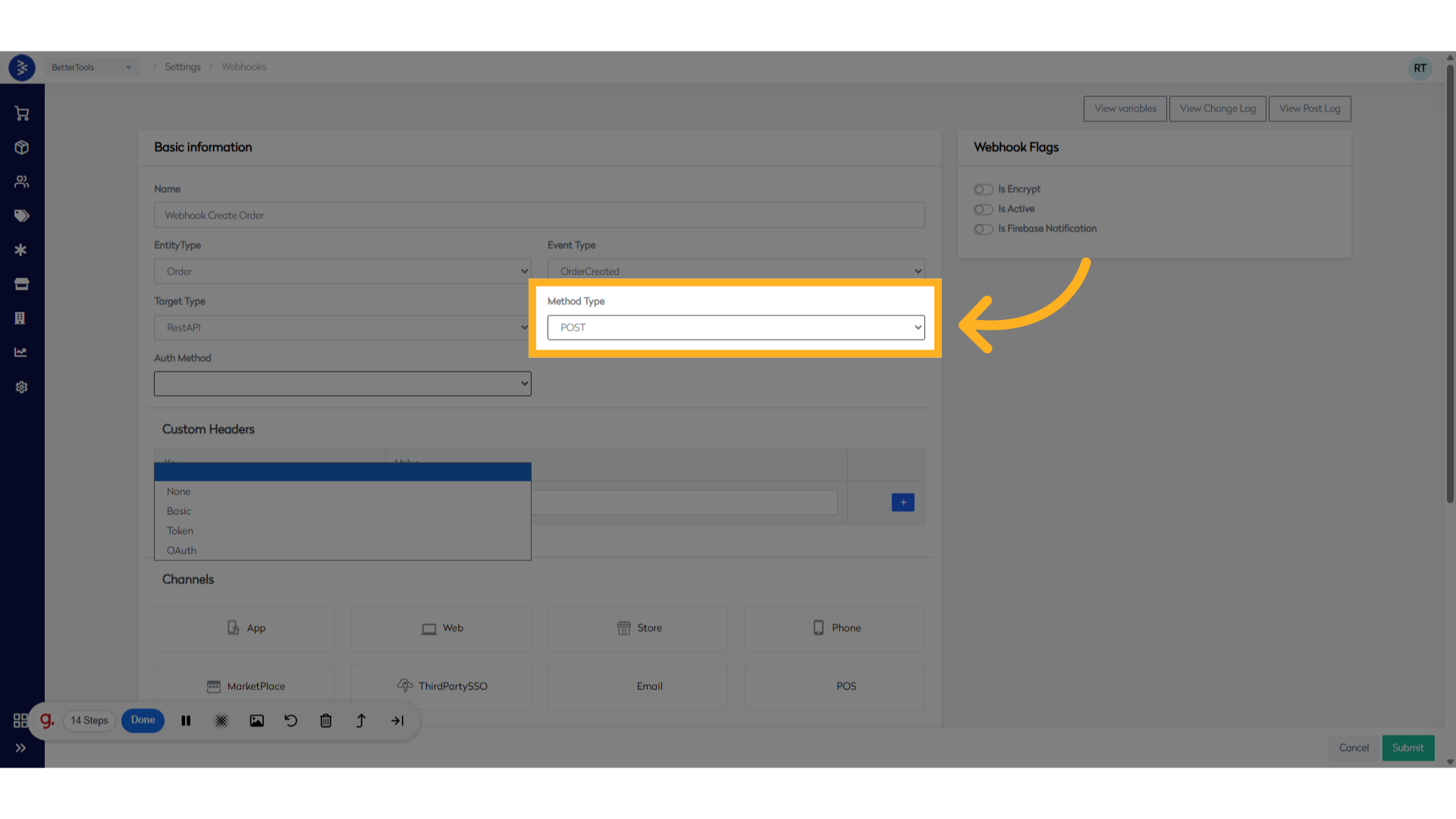
-
Choose Auth Method authentication method that the target endpoint supports:
-
Add Custom Headers (Optional) to add key-value pairs if the receiving server requires additional headers (e.g.,
Authorization,Content-Type).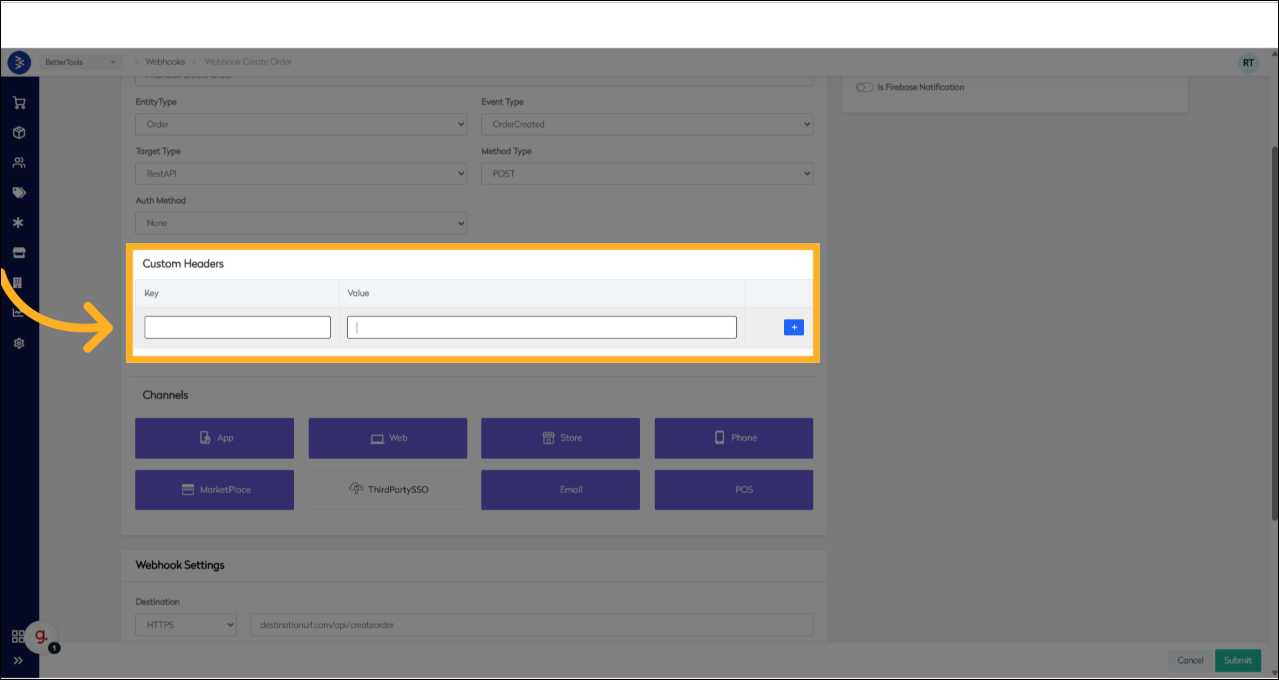
-
Select Channels one or more Channels (e.g.,
App,Web,Store,Marketplace) where the webhook should be active.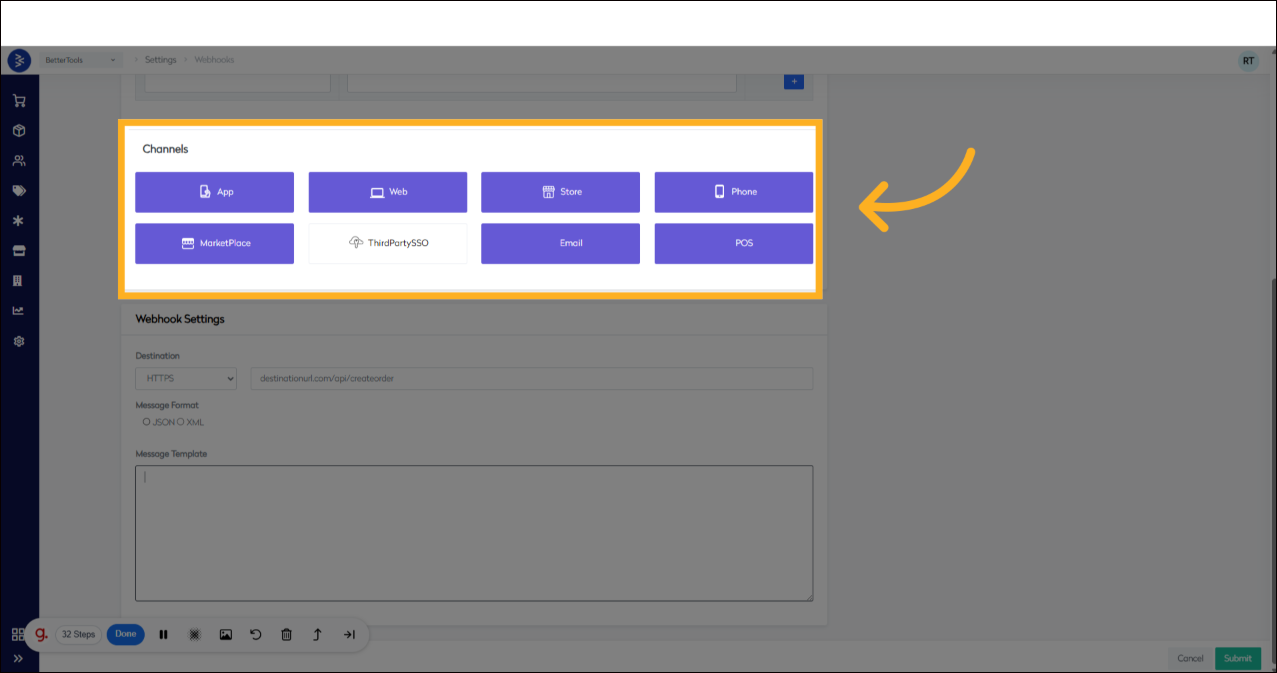
-
Enter Destination URL and the protocol (
HTTPorHTTPS) and enter the destination URL where the webhook payload will be posted.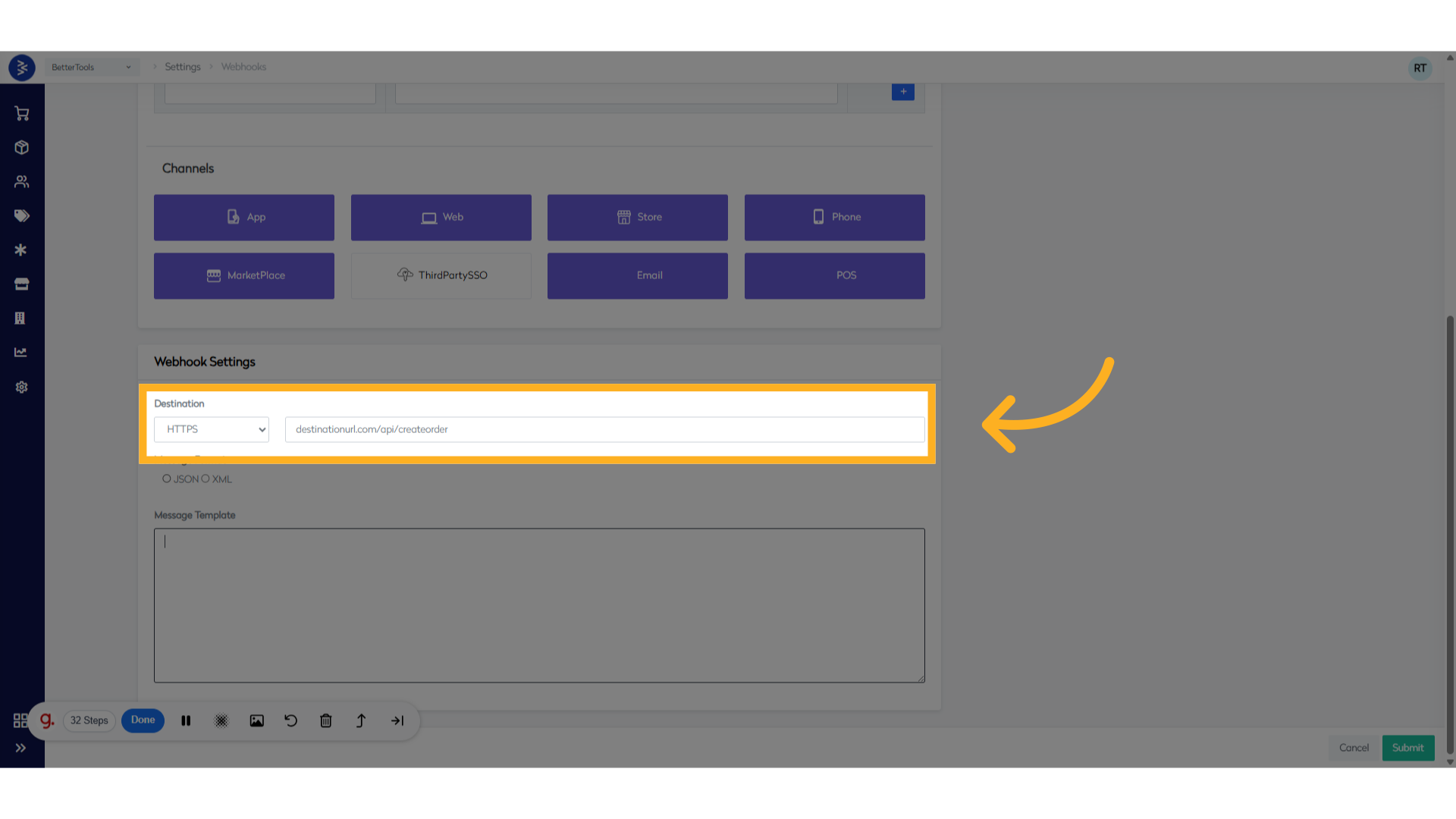
-
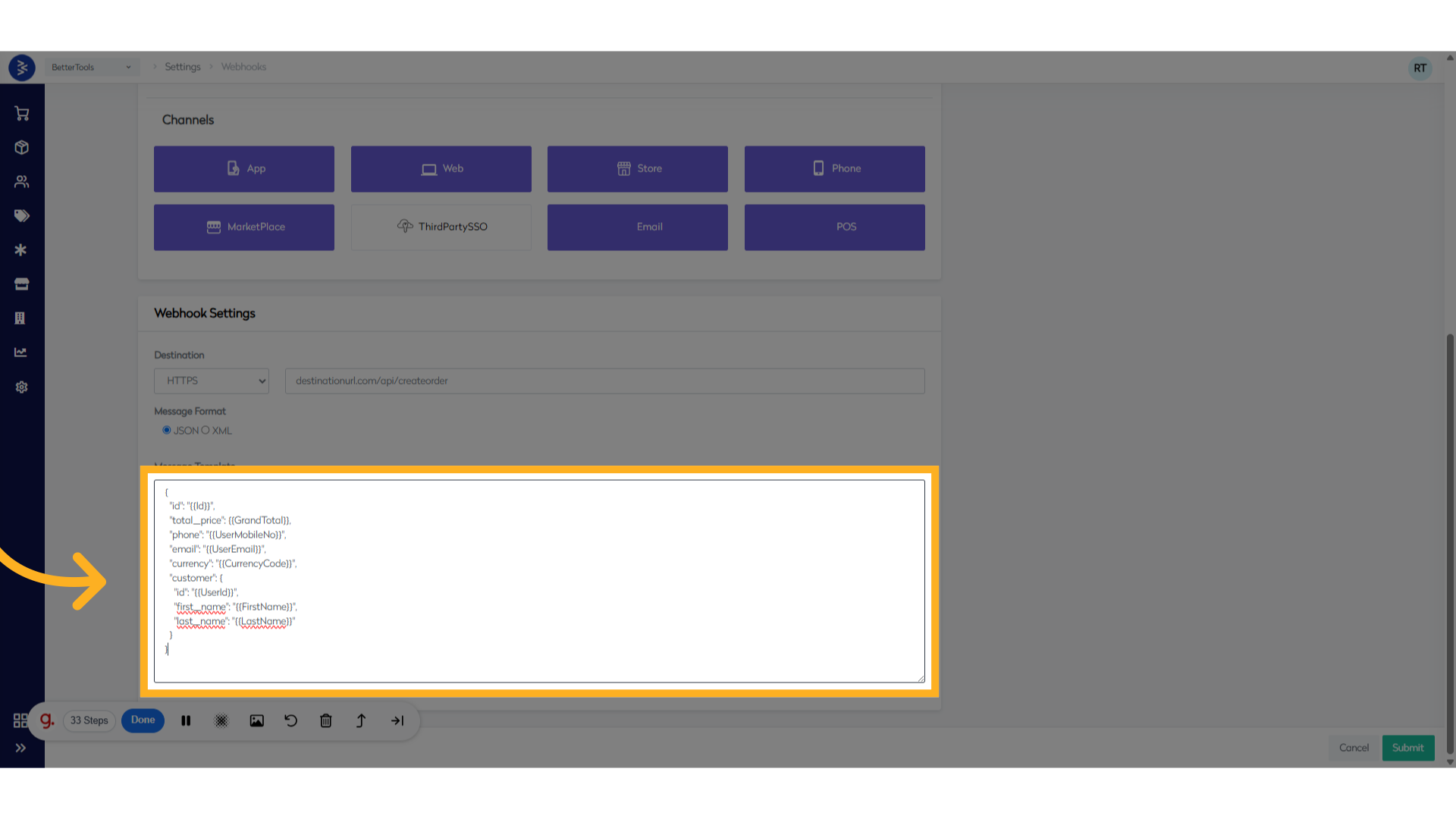
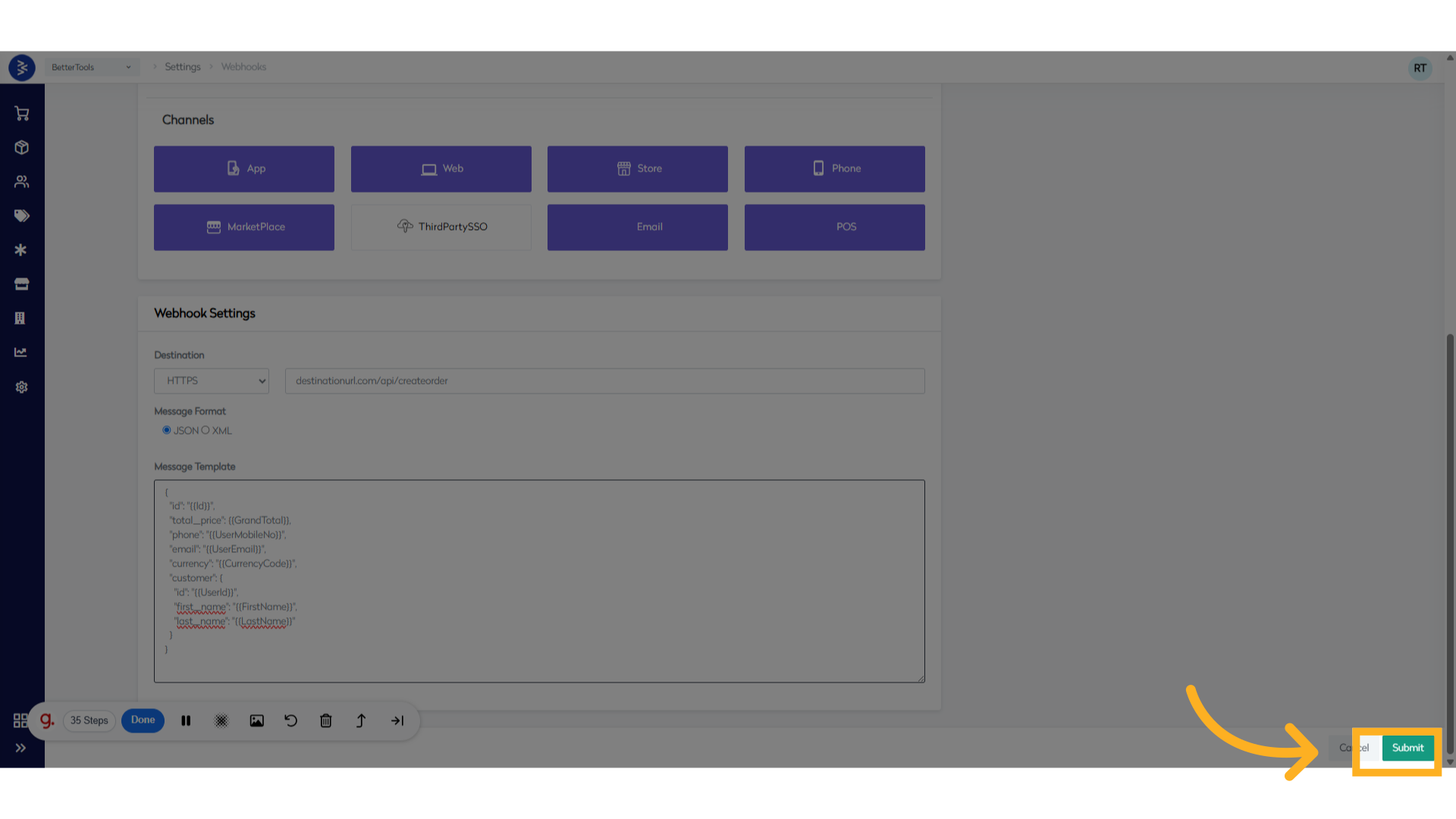
Define Message Format and Template
For JSON format, use DotLiquid syntax for dynamic placeholders.
Sample Webhook Body
{
  "id": "{{Id}}",
  "total_price": {{GrandTotal}},
  "phone": "{{UserMobileNo}}",
  "email": "{{UserEmail}}",
  "currency": "{{CurrencyCode}}",
  "customer": {
    "id": "{{UserId}}",
    "first_name": "{{FirstName}}",
    "last_name": "{{LastName}}"
  }
}
Note: Click here to view the list predefined variables. If you need a variable that isn’t included in the list, please contact us at
support@bettercommerce.io.
API Token Management
Overview
API tokens in CommerceHub are authentication credentials that allow secure access to the platform's APIs. Each token consists of two key components:
- App ID: A unique identifier for the application
- Shared Secret: A secure key used for authentication
Current Token Structure
Based on the current interface, tokens include these key fields:
| Field | Description | Details |
|---|---|---|
| App Id | Unique identifier for the API key | GUID that uniquely identifies the application. |
| Name | Token name | A user-defined label to easily identify the token in the system. |
| Description | Purpose of the token | Brief explanation of the intended use or function of the token. |
| Status | Indicates if the token is active or inactive | Determines whether the token is valid for use or has been disabled. |
| Domain Name | Associated domain or business area | Represents the specific business module or domain this token is tied to. |
| Channel | Main service category | Specifies the platform type such as App, Web, or other service channels. |
| Sub Channel | Specific sub-service classification | Provides further detail like Email, POS, or Mobile within the main channel. |
| Allow User Token | Permission for user-level token generation | Indicates whether users are allowed to generate their own access tokens. |
Channel Types Available
The system supports these channel types:
- App, Web, Store, Phone, MarketPlace, ThirdPartySSO, Email, POS
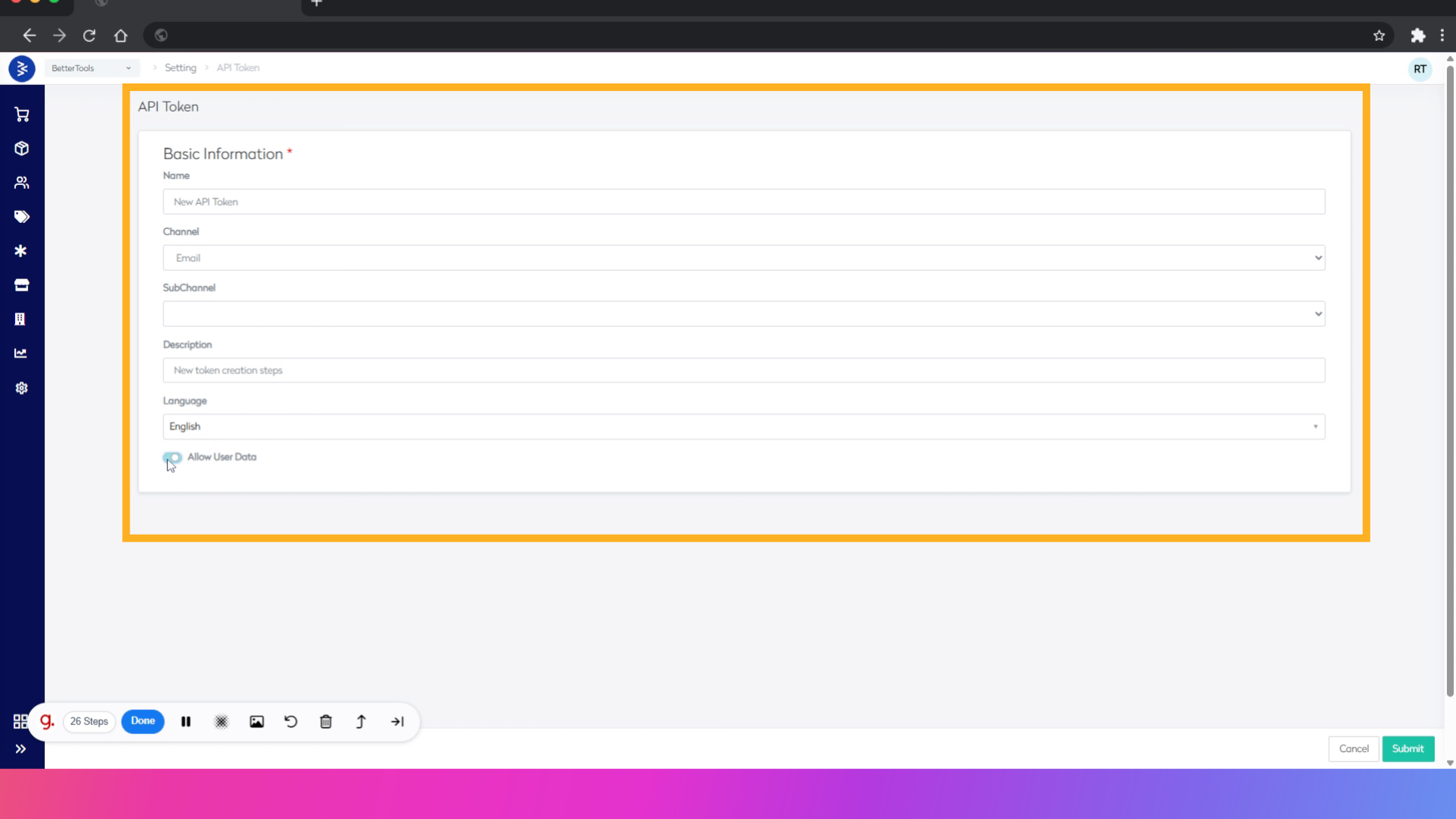
How to Set Up a new API token:
-
From CommerceHub dashboard navigate to
Settings > API Token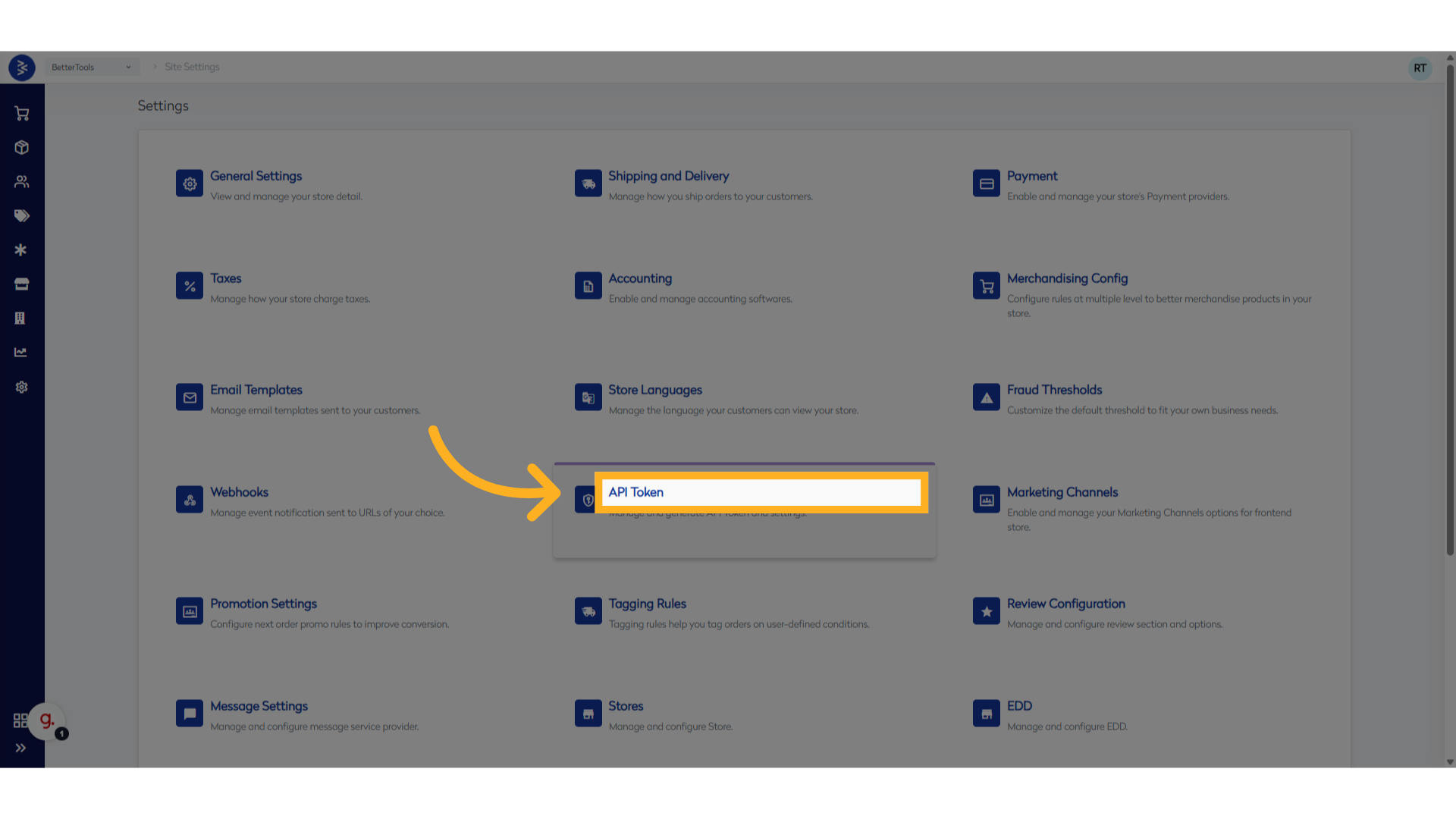
-
Click Add New button
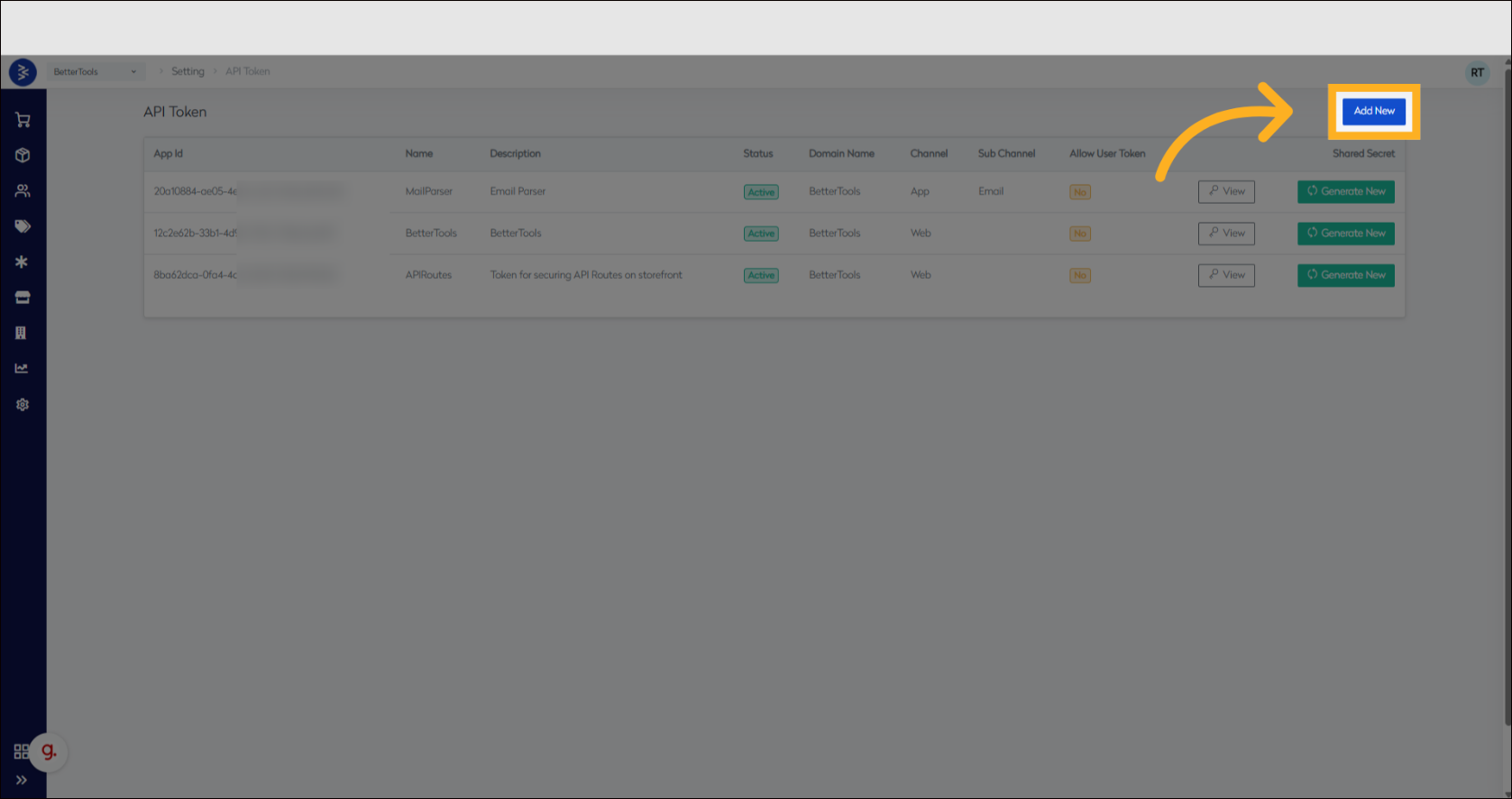
-
Fill in the required fields:
- Name
- Channel (App/Web/Store/Phone/MarketPlace/ThirdPartySSO/Email/POS)
- SubChannel
- Description
- Language
- Allow User Data
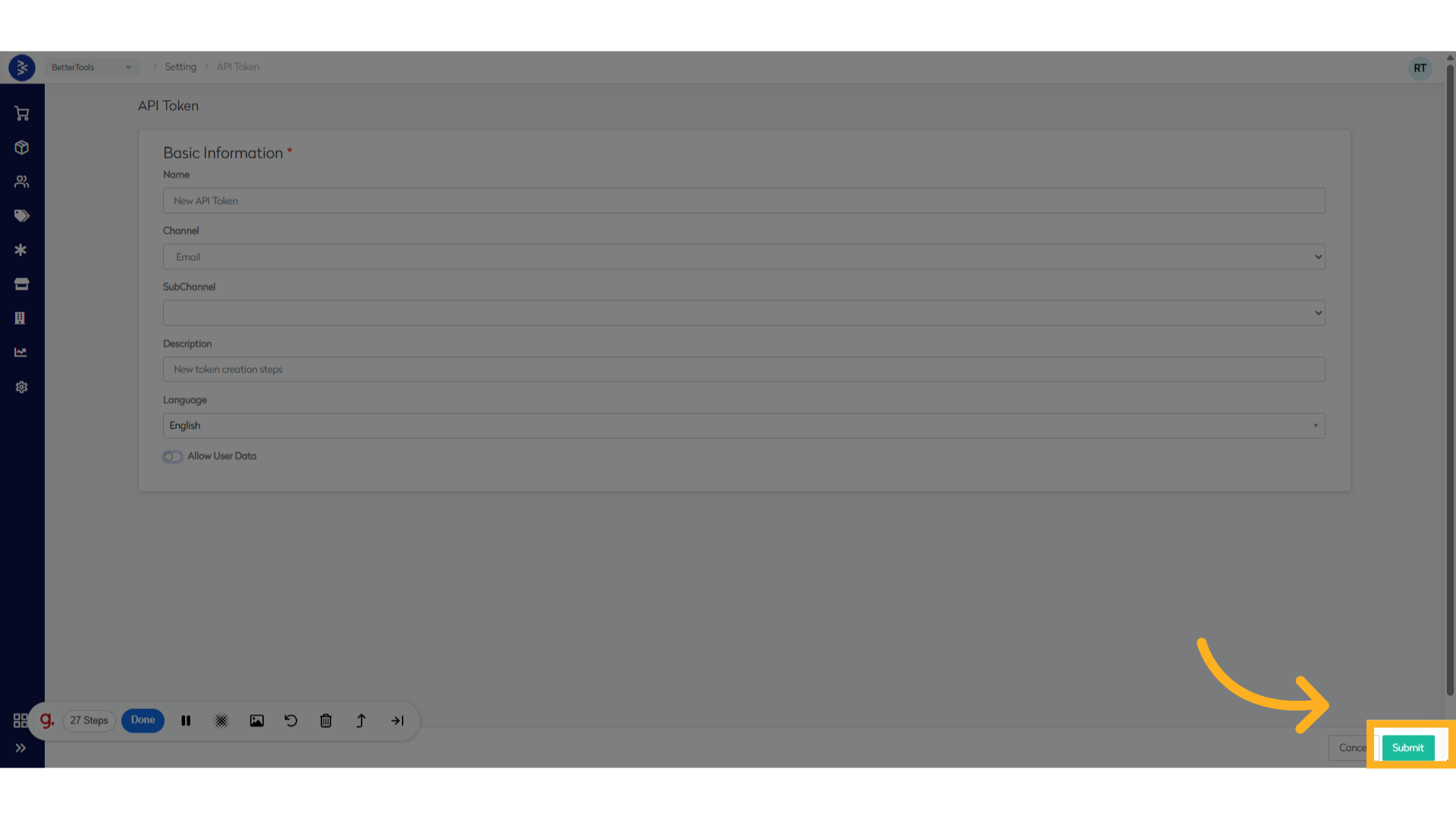
- Click Submit
Viewing Existing Tokens
To integrate with external systems securely, each application is assigned a unique App ID and a Shared Secret Key. These credentials are used to authenticate API requests. In below steps learn how to access and view API Token details.
-
Navigate to
Settings > APITOKEN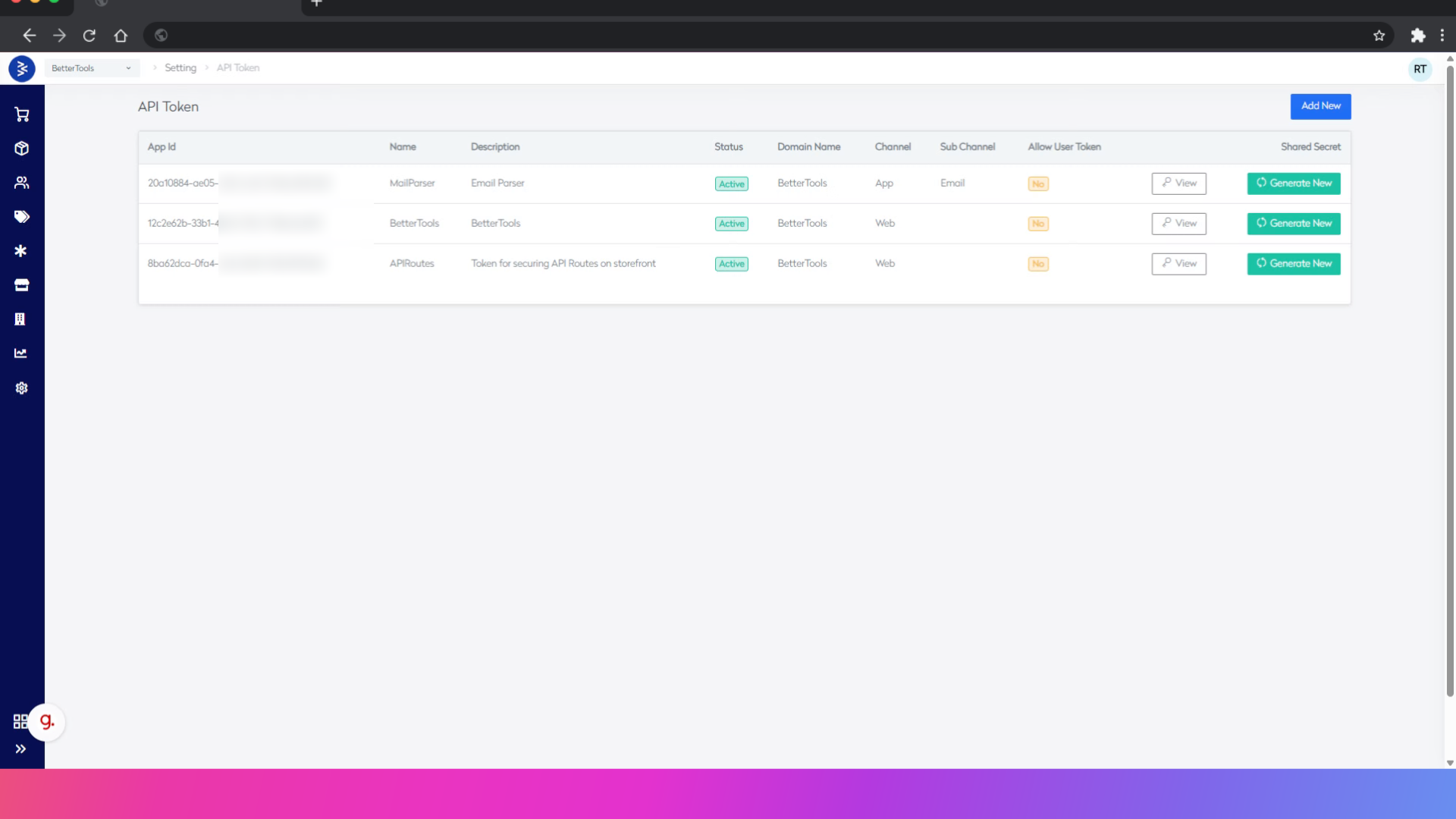
-
Click on View
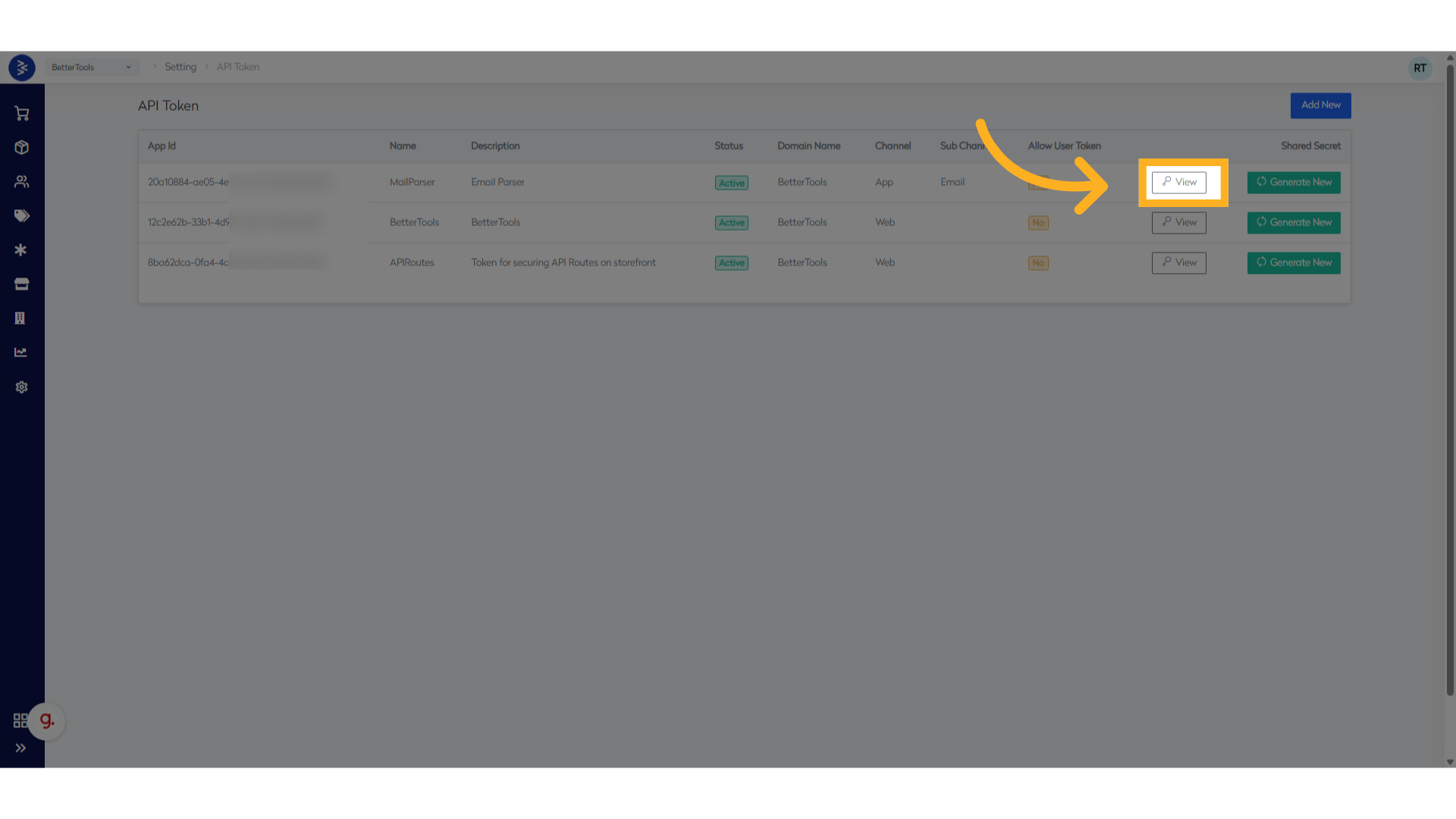
-
Access the AppID and Shared Secret.
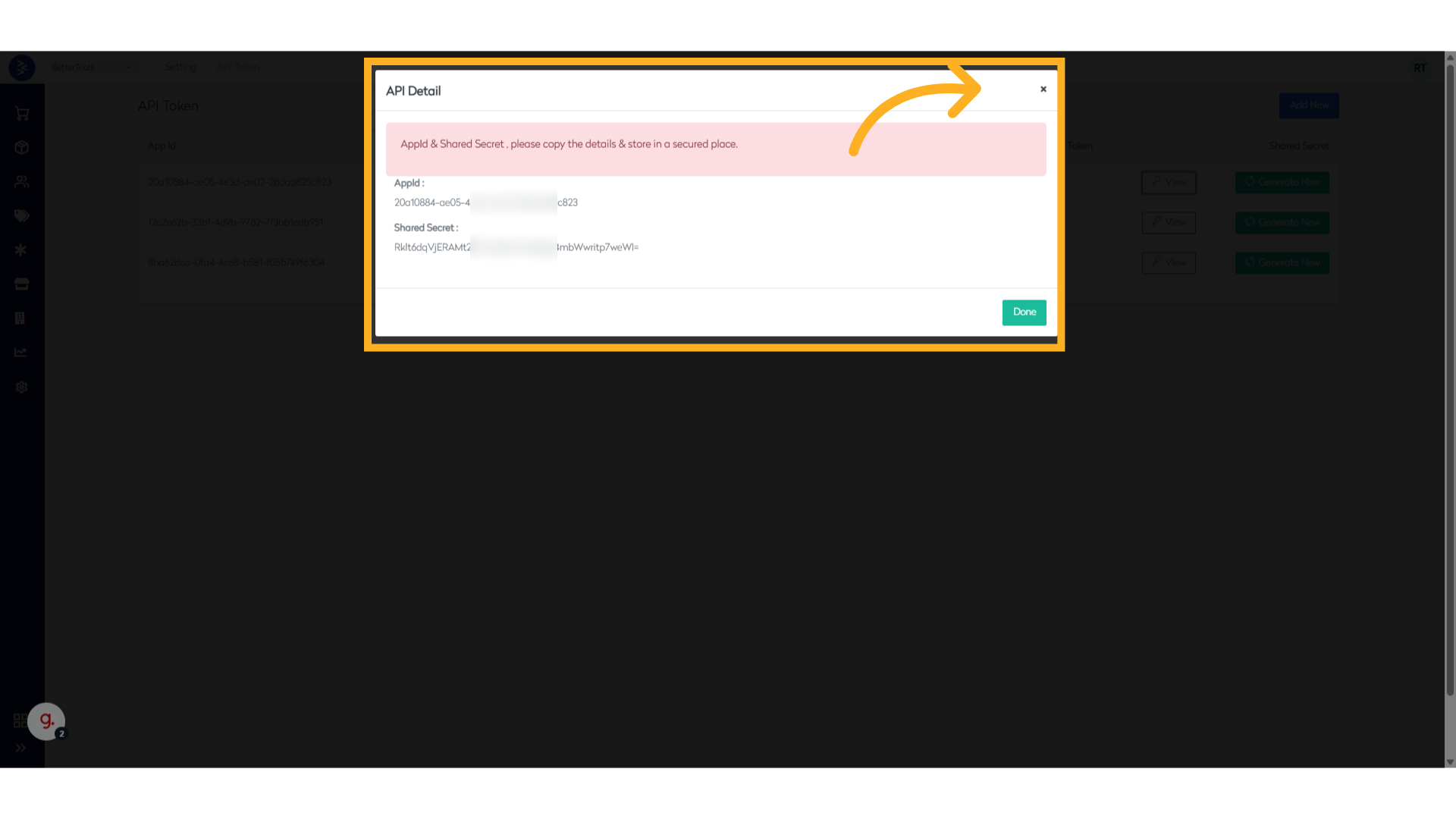
Generating New Shared Secret
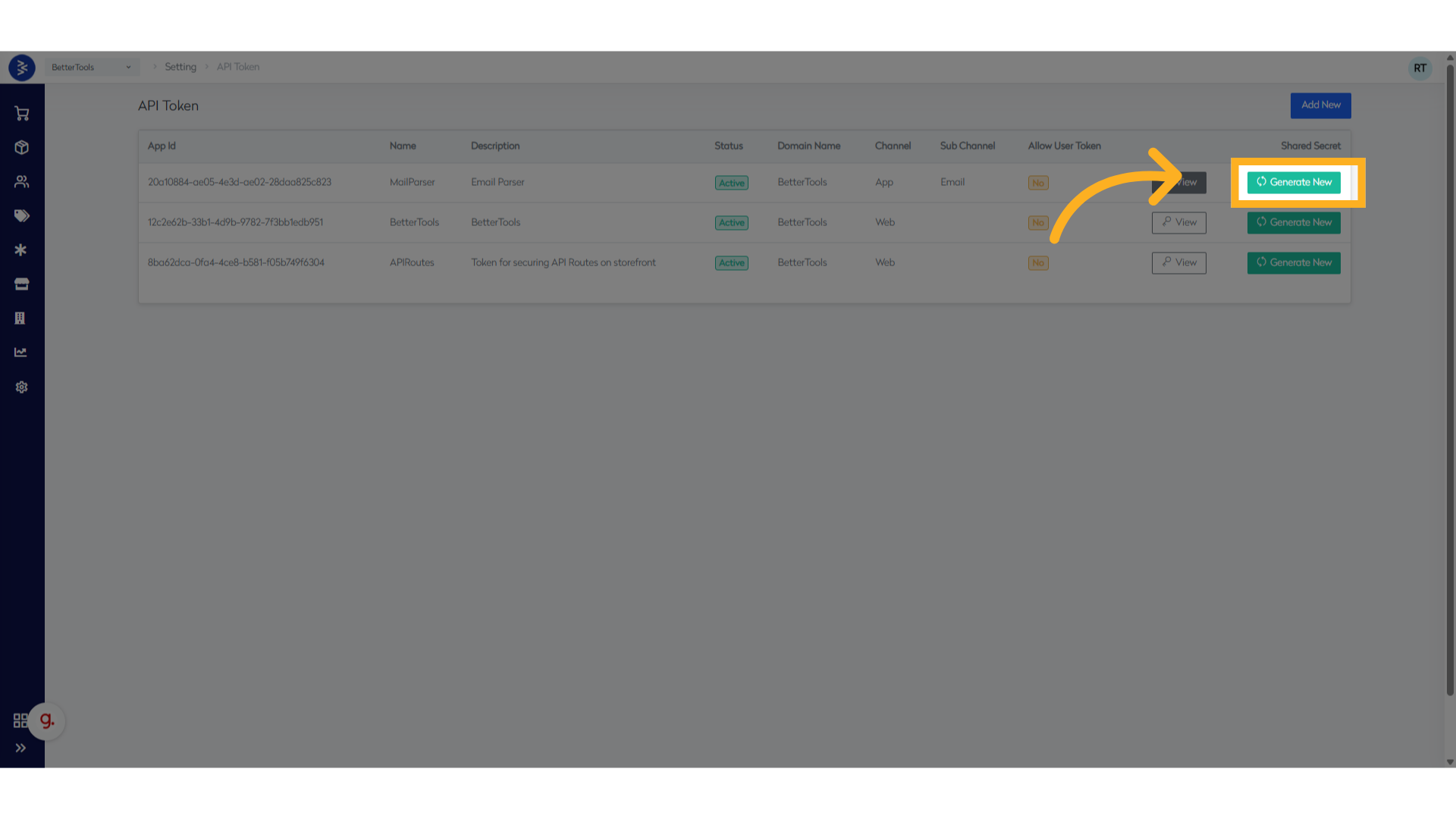
This is typically done when rotating credentials, revoking compromised access, or establishing secure communication with a new integration. It ensures that only authorized systems can access the API using the updated credentials.
- Navigate to
Settings > API Token - Locate the token in the list
- Click "Generate New" button
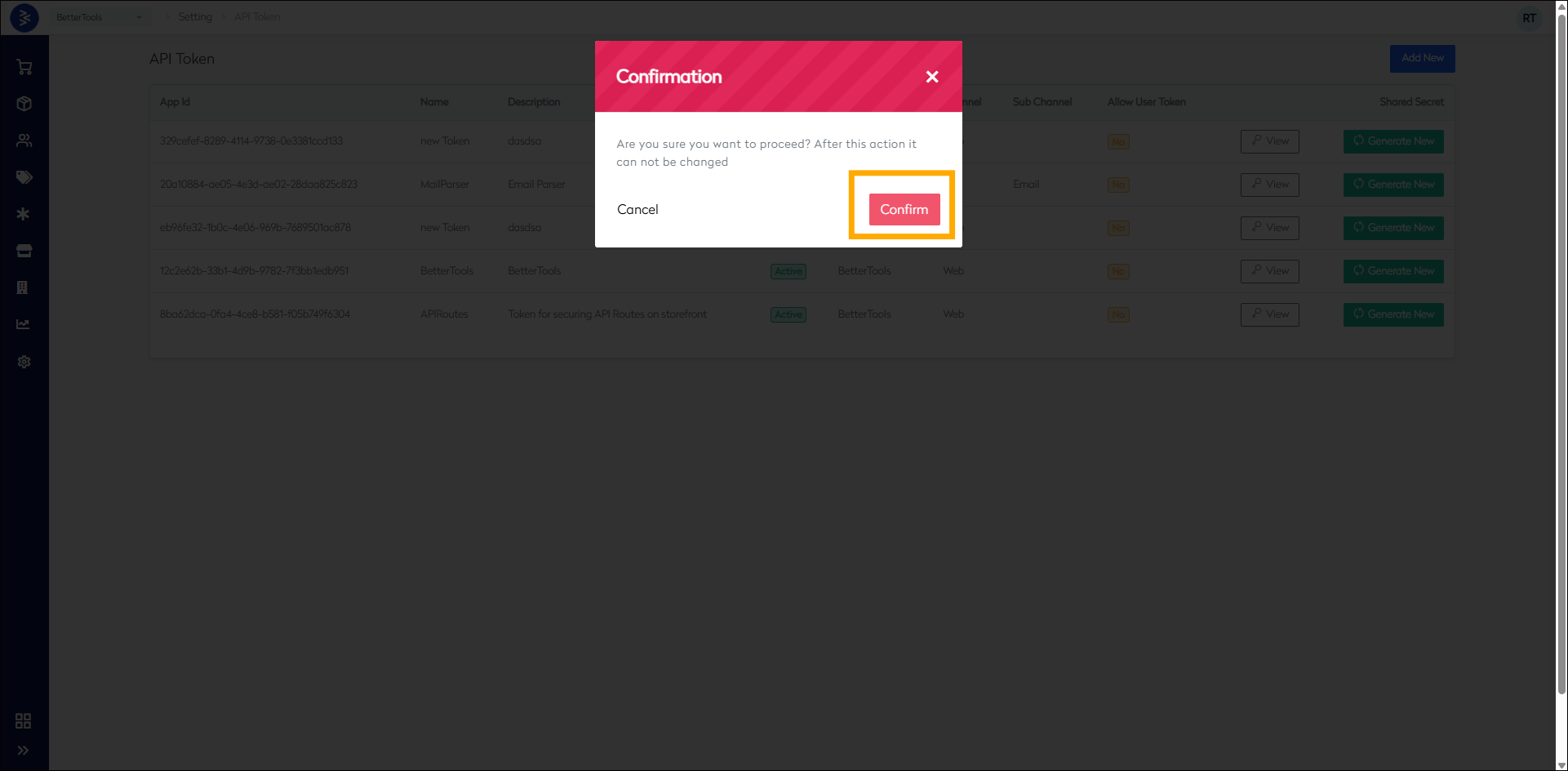
- Click "Confirm" to generate new shared secret.
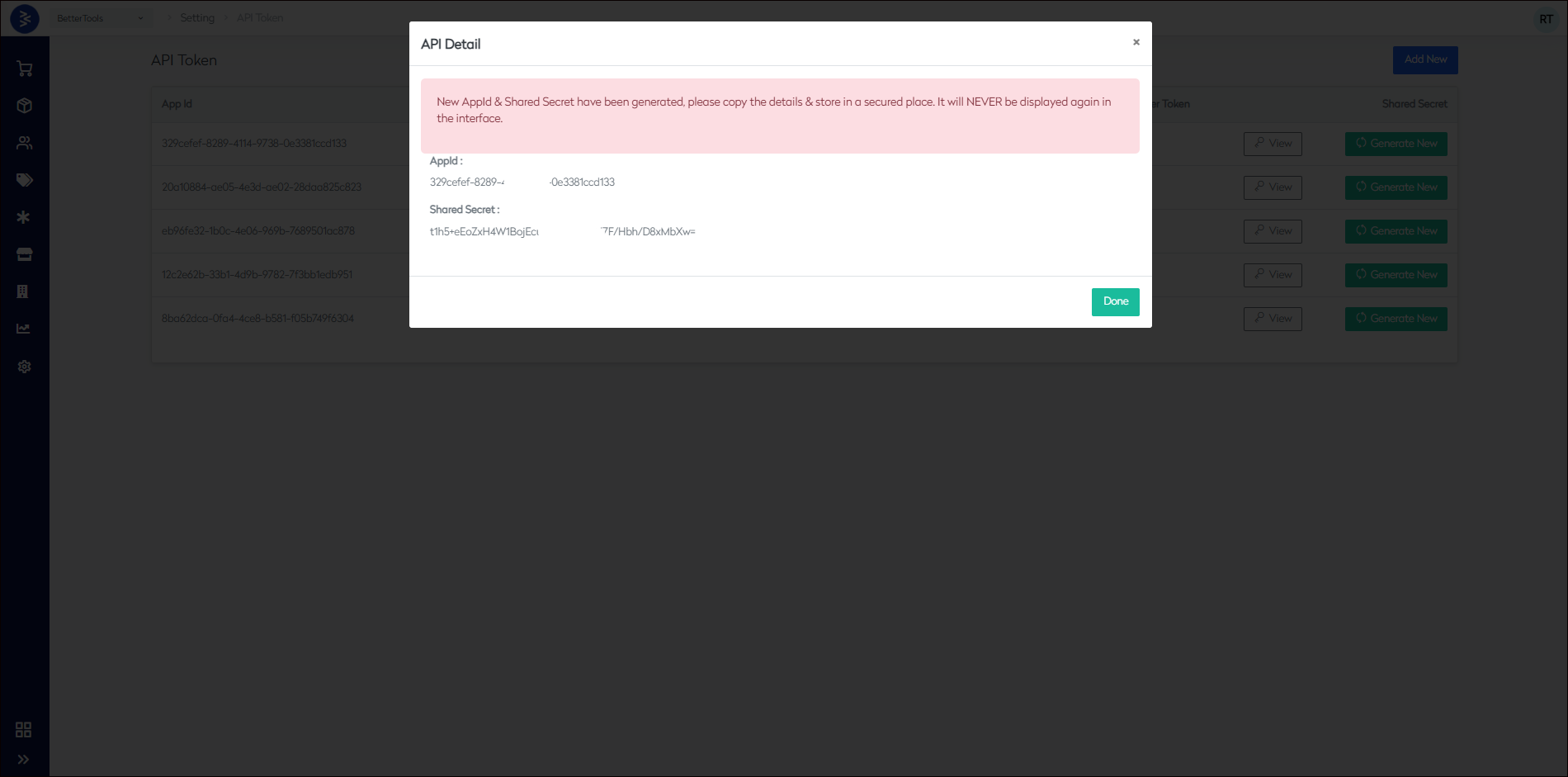
- AppId and new shared secret will appear on the screen
Note: The App ID cannot be changed. To obtain a new App ID, you must create a new set of authentication credentials.
Marketing Channels Configuration
The Marketing Channels section in BetterCommerce allows administrators to integrate and manage third-party marketing platforms for the storefront. These integrations enable automated and targeted customer engagement through email, SMS, and analytics tools.
This interface provides a centralized view and control panel for all available marketing channel integrations. Each channel can be configured independently to align with the store’s marketing strategy.
Current Integration
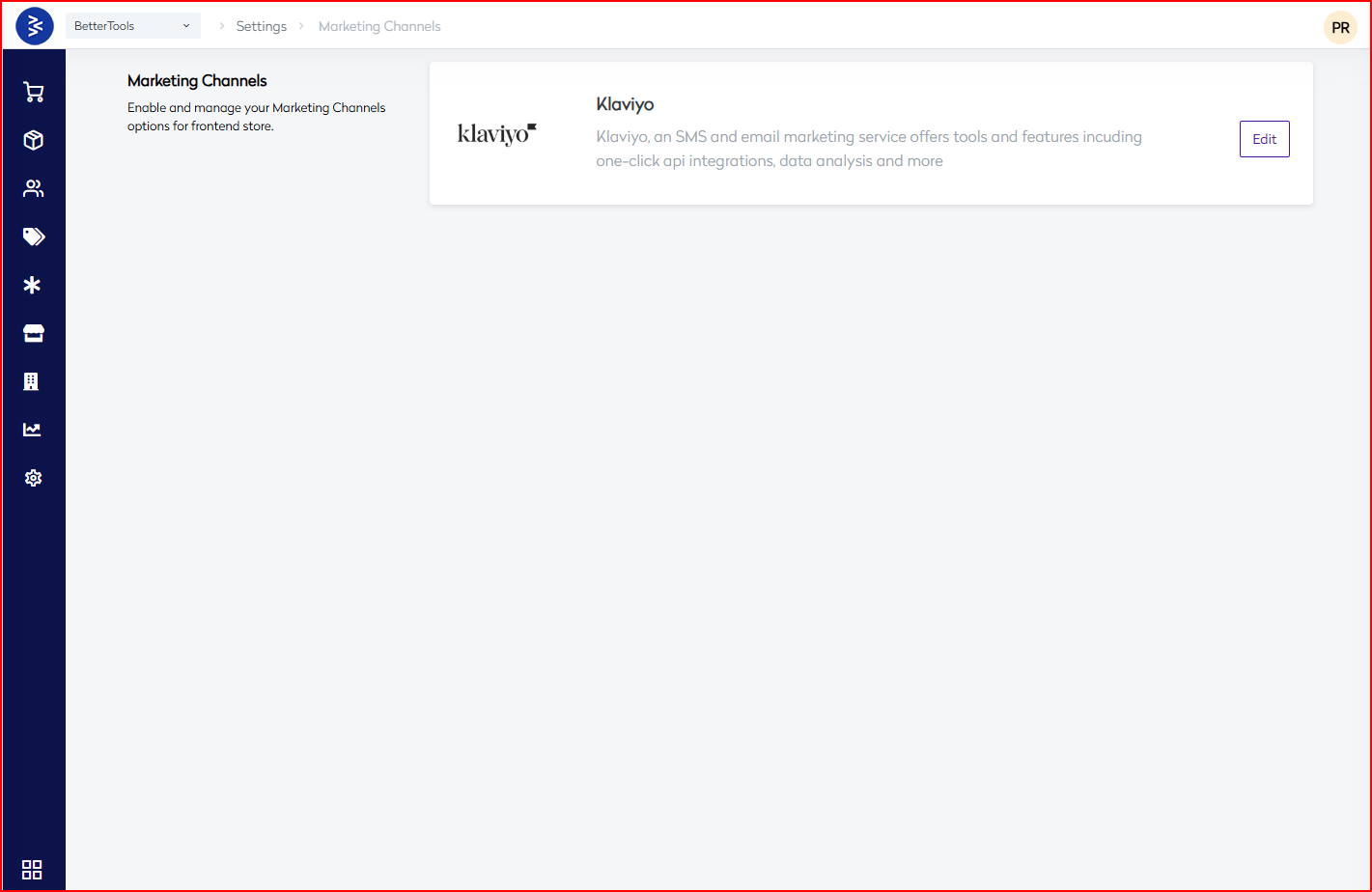
Klaviyo
Klaviyo is a powerful SMS and email marketing service that provides tools and features including:
- One-click API integrations
- Customer segmentation
- Campaign automation
- Real-time performance tracking
- Data analysis and insights
Edit Button:
Use the Edit button to configure API credentials, data sync settings, audience rules, and campaign triggers for Klaviyo.
Navigation Path
- Main Menu:
Settings→Marketing Channels - Breadcrumb Path:
Settings > Marketing Channels
Use Cases
- Send personalized emails and SMS campaigns
- Automate post-purchase follow-ups
- Trigger abandoned cart messages
- Synchronize customer segments with Klaviyo lists
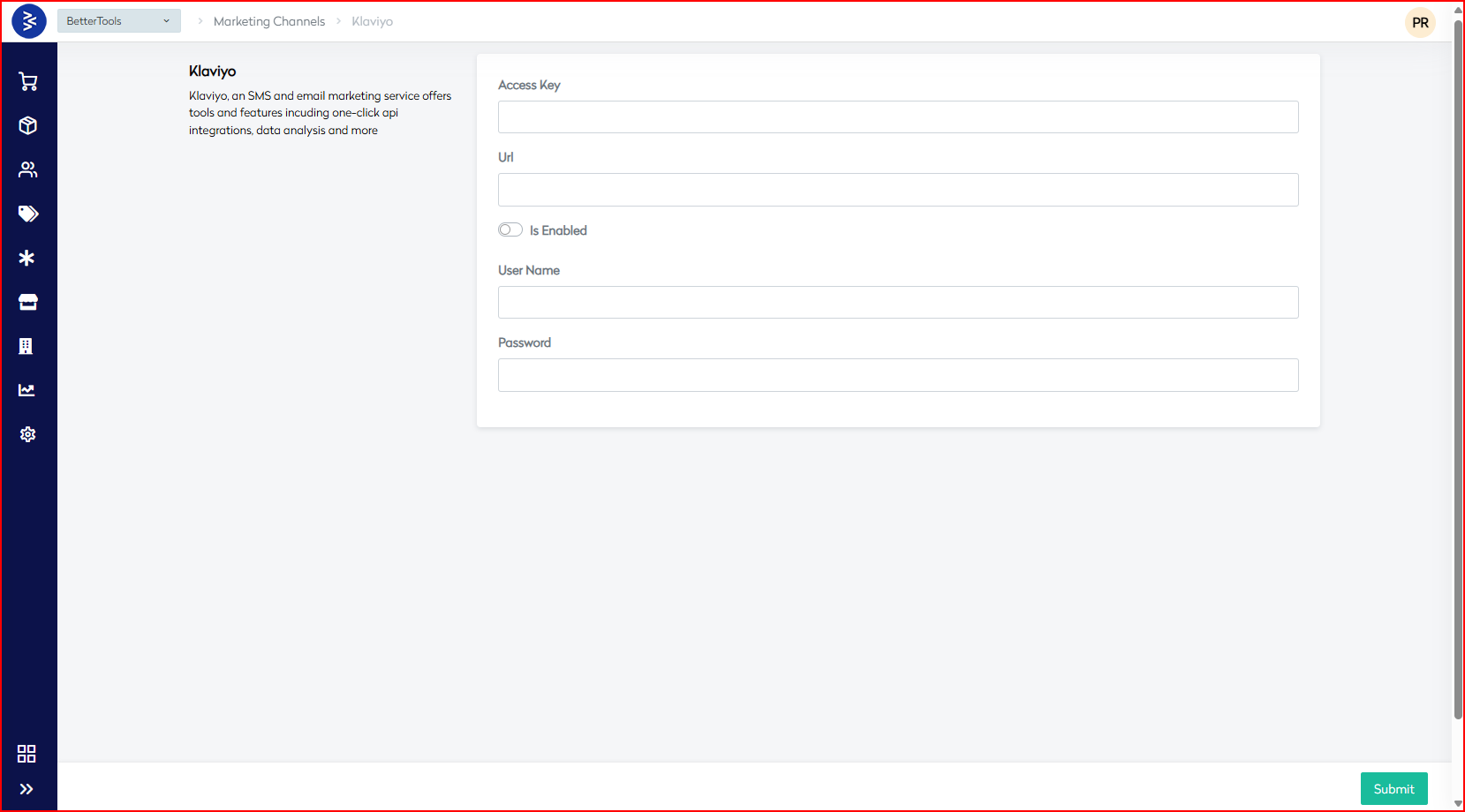
By Clicking on the edit buttom we can edit the configuration Klaviyo Integration Settings
Configuration Fields
| Field Name | Type | Description |
|---|---|---|
| Access Key | Text Field | API key for authenticating requests to Klaviyo’s platform. |
| URL | Text Field | API endpoint URL provided by Klaviyo. |
| Is Enabled | Toggle Switch | Enables or disables the Klaviyo integration for the storefront. |
| User Name | Text Field | Username for Klaviyo account authentication (if required). |
| Password | Password Field | Password for the associated username. Stored securely on submission. |
Actions
| Action | Description |
|---|---|
| Submit | Saves the configuration and activates the Klaviyo integration (if enabled). |
| (No Cancel) | To discard, simply navigate away or disable manually before submission. |
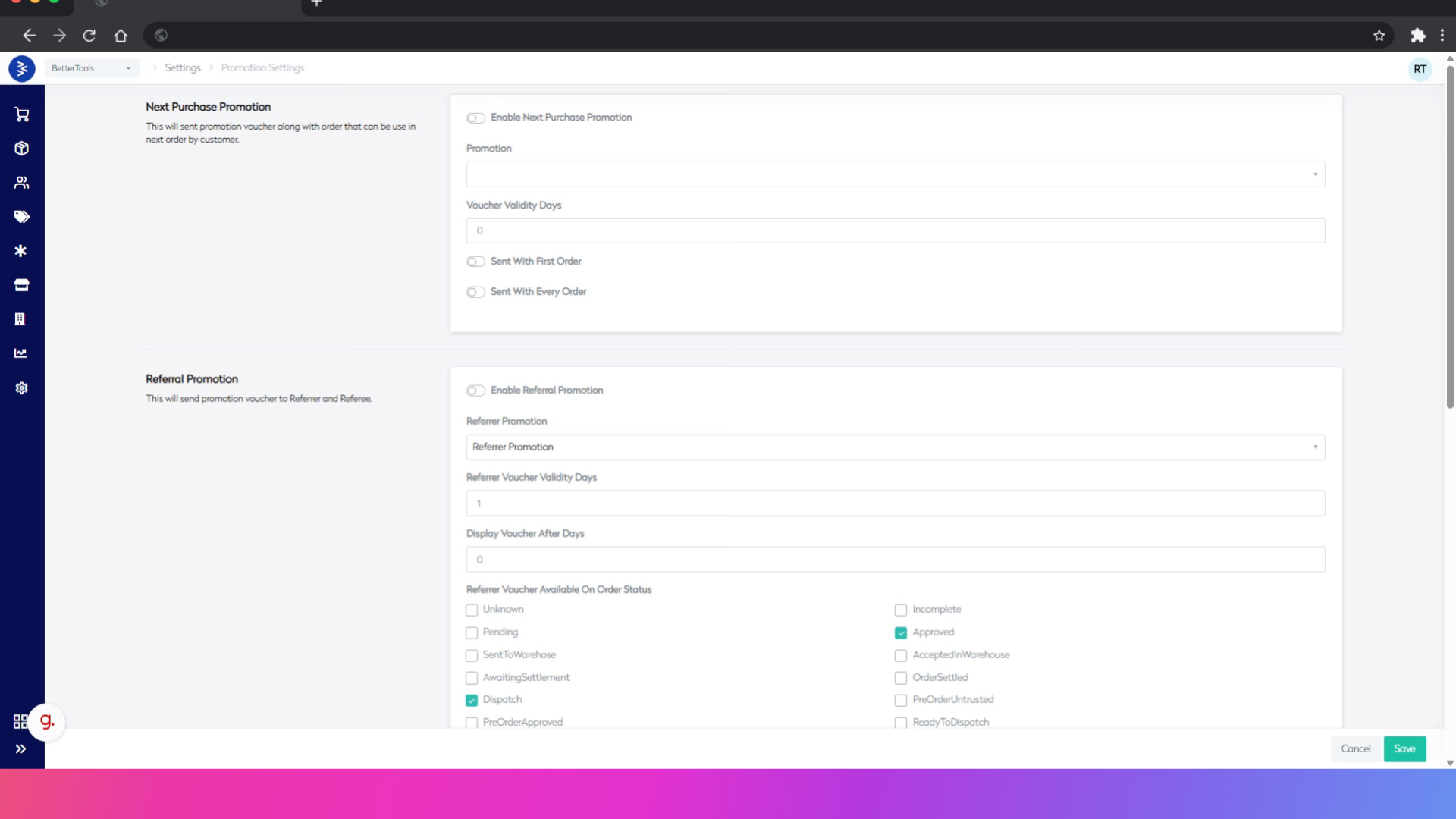
Promotion Settings
Promotion Settings allow configuration of reward-based campaigns to boost customer acquisition and retention. Key options include:
- Next Purchase Promotion: Triggers a reward (e.g., discount or coupon) to be applied on a customer’s future order after a qualifying purchase is completed.
- Referral Promotion: Rewards both the referrer and referee when a new customer places an order using a referral code, encouraging word-of-mouth growth.
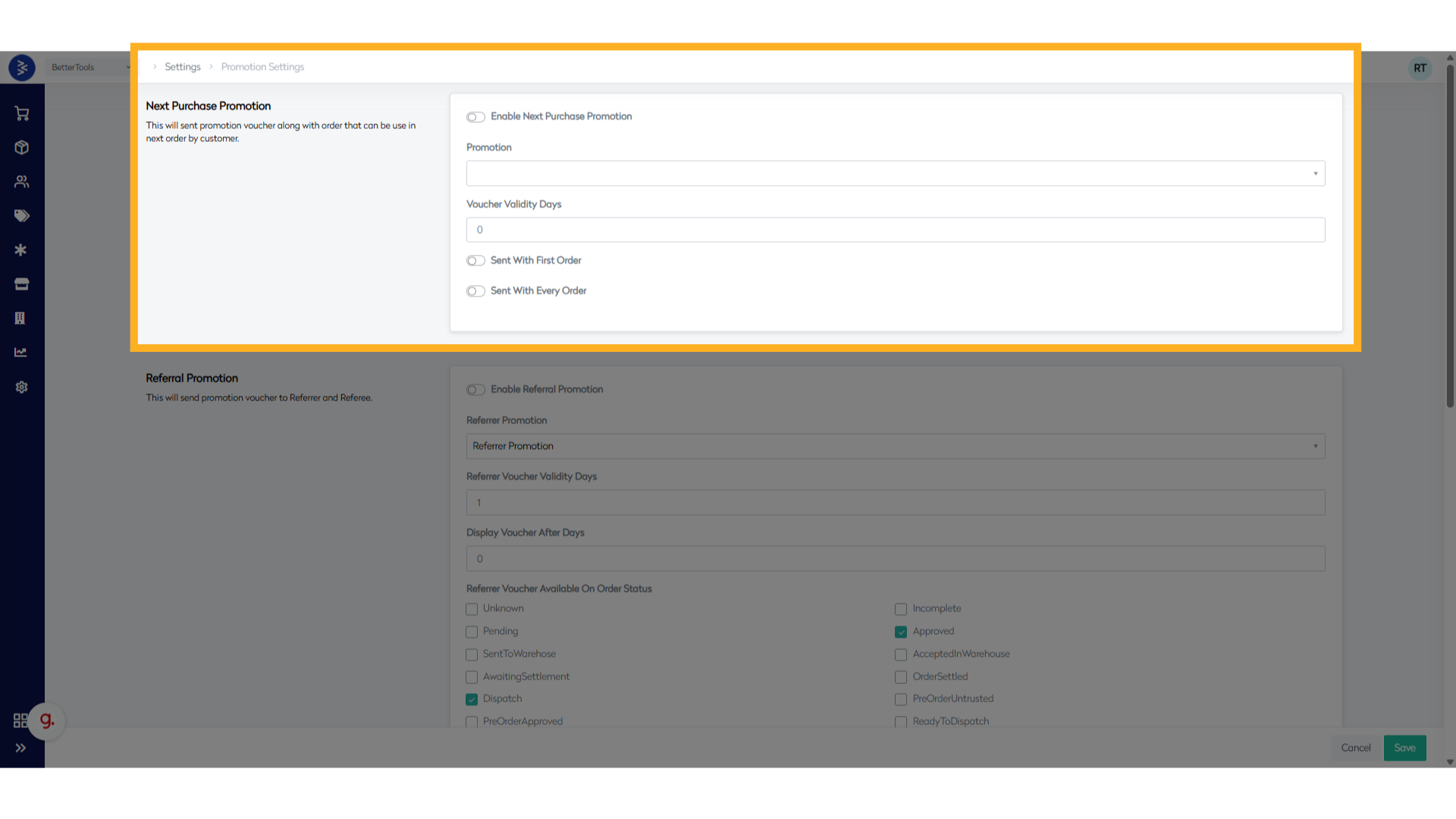
Next Purchase Promotion
Overview
Next Purchase Promotions are designed to encourage repeat purchases by offering incentives redeemable on a customer's future order. These promotions help boost customer retention and lifetime value.
Key Features
- Triggered by a Purchase: The reward is issued only after a qualifying order is completed.
- Future Redemption: The reward (e.g., coupon or discount) is applied on the customer's next eligible order.
- Custom Validity: Set expiration period for reward usage.
How It Works
- A customer places a qualifying order.
- Upon order completion (e.g., after payment or delivery), the system generates a reward.
- The reward is sent to the customer (via email or wallet) for use in the next purchase.
- On their next order, the customer applies the reward if the redemption conditions are met.
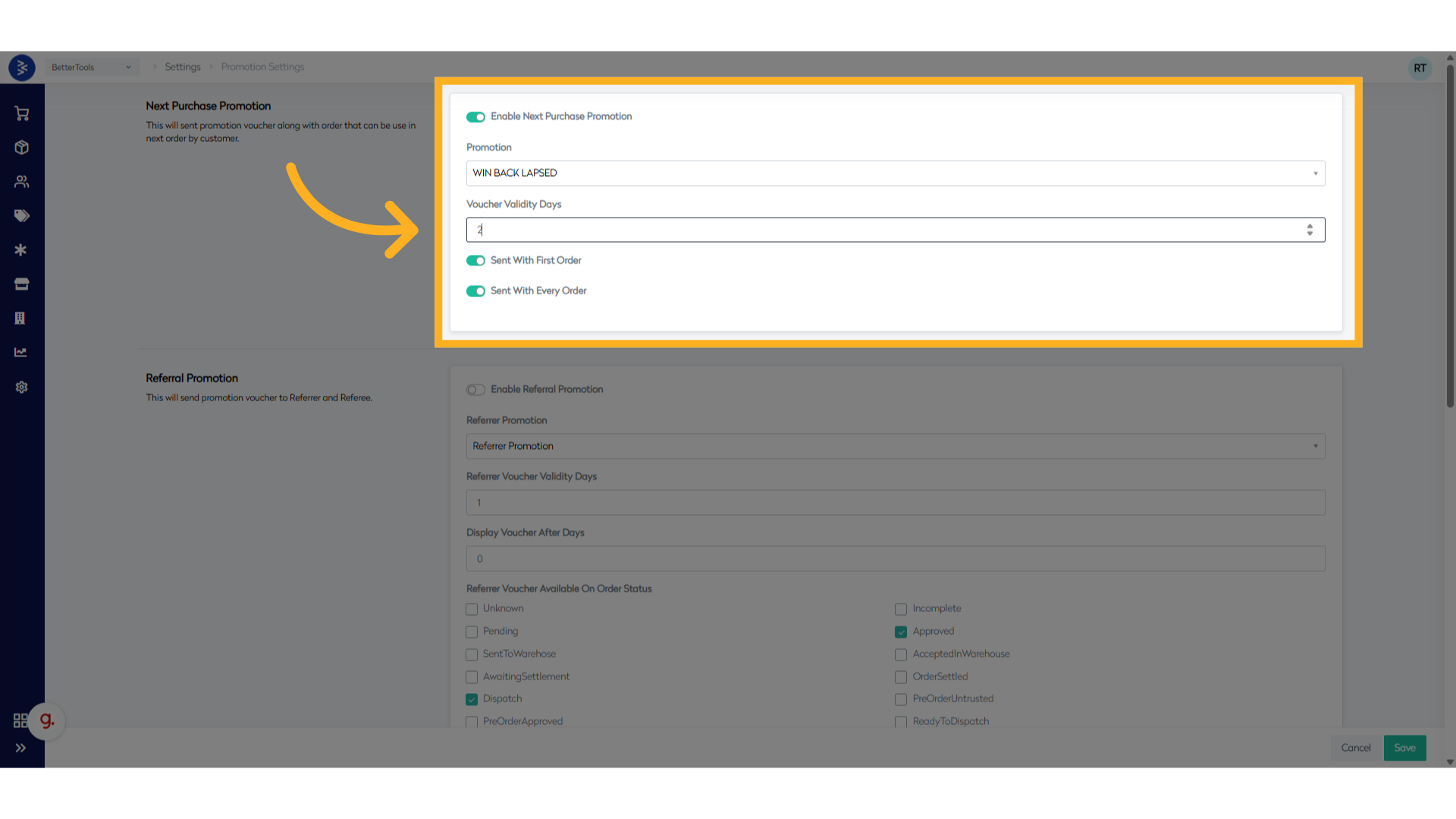
Refer to the description of each field in the Next Purchase Promotion below:
| Field Name | Description |
|---|---|
| Enable Next Purchase Promotion | Toggle switch to activate/deactivate the automatic voucher generation system for second orders |
| Promotion | Dropdown to select which promotion under which voucher will be generated and sent to users |
| Voucher Validity Days | Number of days the issued voucher will remain valid |
| Sent With First Order | When enabled, voucher is sent with customer's first order |
| Sent With Every Order | When enabled, voucher is sent with all orders to customer |
To set up the Next Purchase Promotion, follow the steps below:
- Navigate to Promotion Settings
- Go to Settings > Promotion Settings
- Enable the Enable Next Purchase Promotion toggle.

- Fill up below details:
-
Promocode:
Enter the existing promotion code. (Ensure the promotion is already created in the system.) -
Voucher Validity Days:
Specify the number of days the voucher should be valid after issuance. -
Voucher Delivery Option:
Choose when the voucher should be sent:- Sent With First Order
- Sent With Every Order
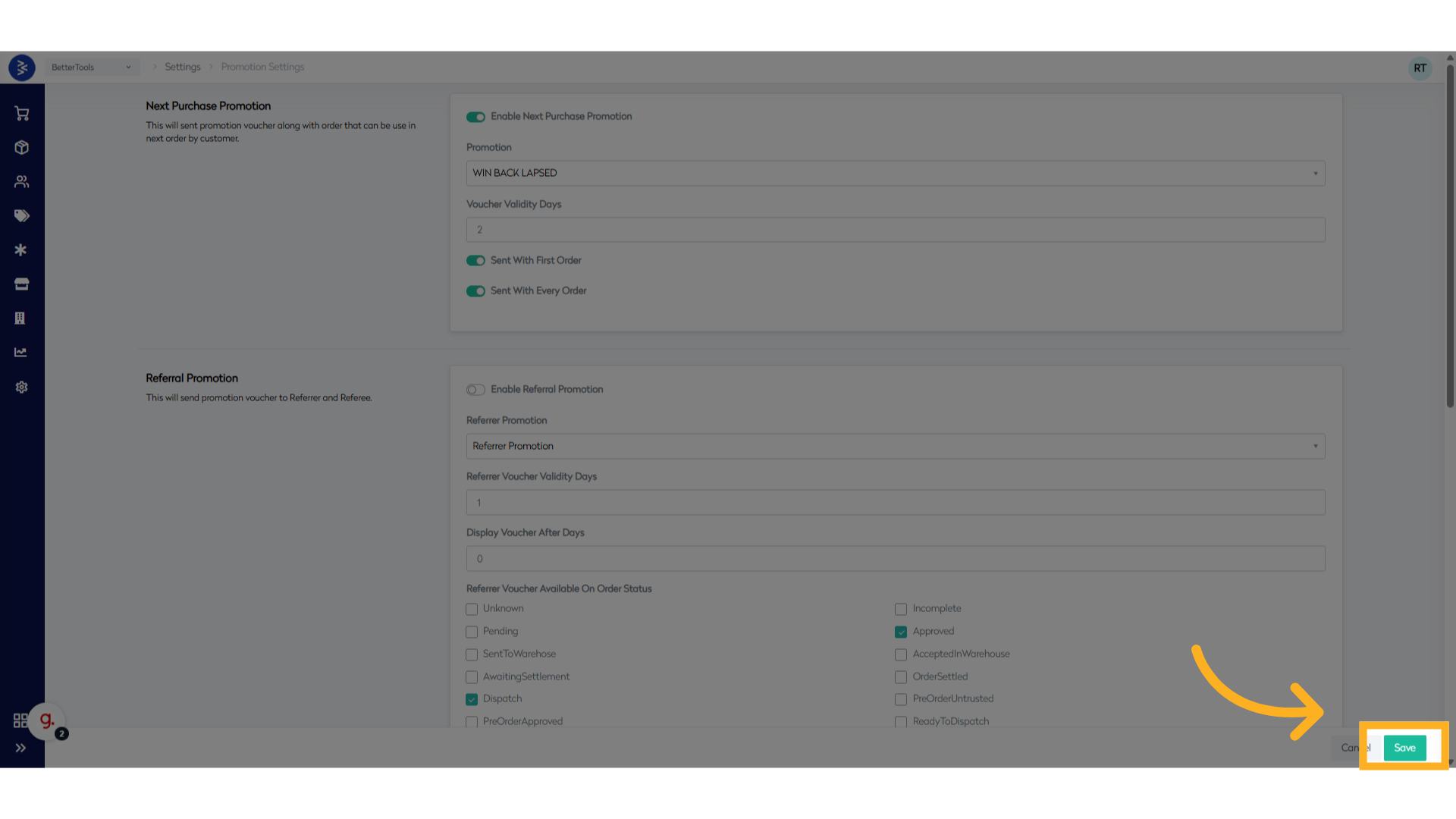
- Click Save to apply the promotion settings and enable the feature.
Referral Promotion
Overview
Referral Promotions allow existing users to invite new users to the platform and receive rewards when certain conditions are met. This incentivizes organic user growth while offering value to both the referrer and the referred user.
Key Features
- Unique Referral Codes: Each user receives a personalized code to share.
- Automatic Tracking: The system tracks referrals through codes.
- Configurable Rewards: Set rewards for both referrer and referee.
- Eligibility Rules: Define when a reward is granted (e.g., after the order is placed/dispacthed/delivered etc.).
How It Works
- A registered user shares their referral code.
- A new user places an order up using the referral code.
- When the new user completes the defined action (e.g., makes a purchase), the system rewards both users.
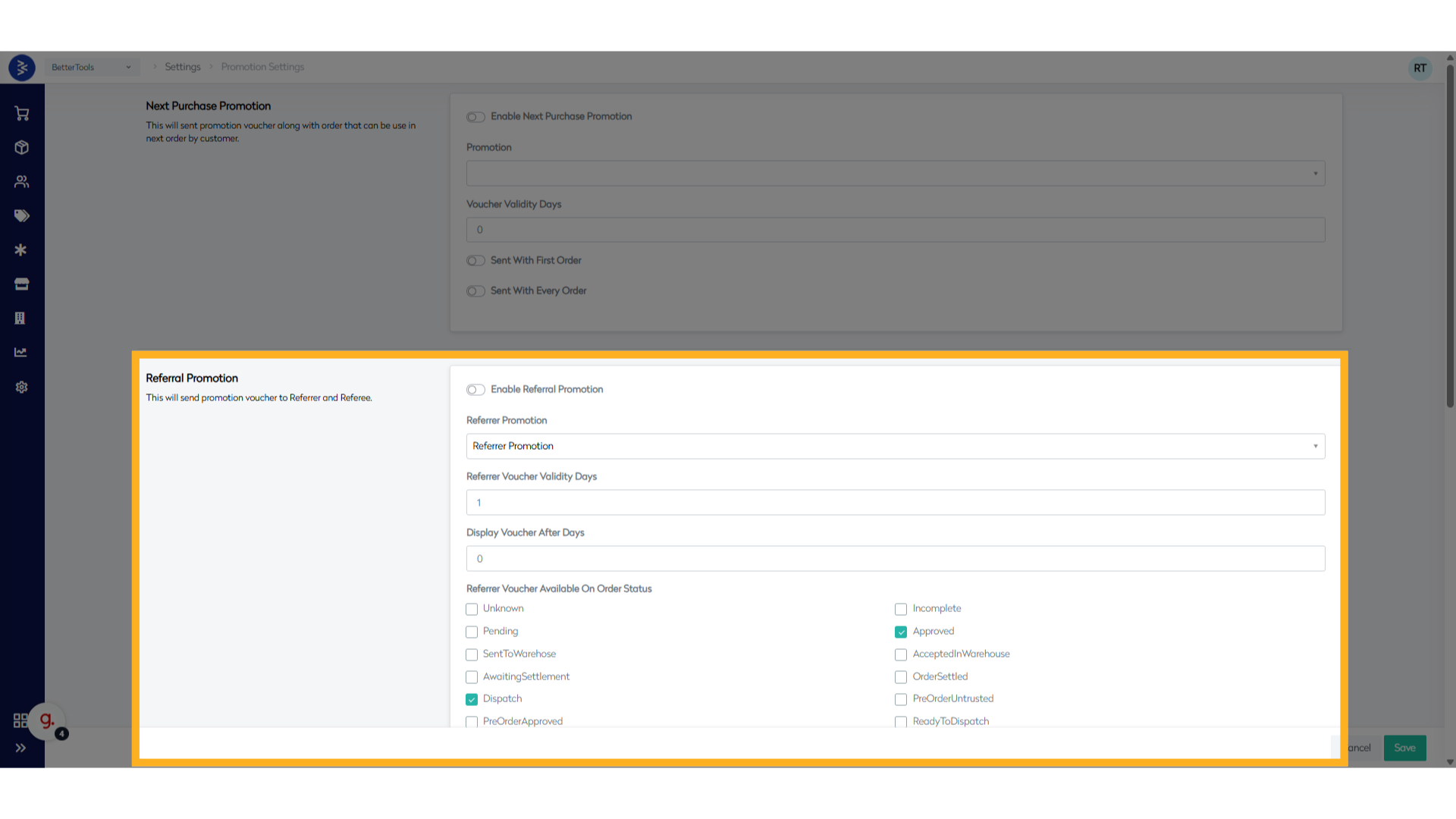
Description of each field in the Referral Promotion provided below:
| Field Name | Description |
|---|---|
| Enable Referral Promotion | Master toggle to activate/deactivate the referral promotion system |
| Referrer Promotion | Select the promotion that will be given to the referring customer |
| Referrer Voucher Validity Days | Number of days the referrer's voucher remains valid |
| Display Voucher After Days | Delay period before showing the voucher to the referrer |
| Referrer Voucher Available On Order Status | Select order statuses like dispatched, delivered etc. that trigger voucher availability |
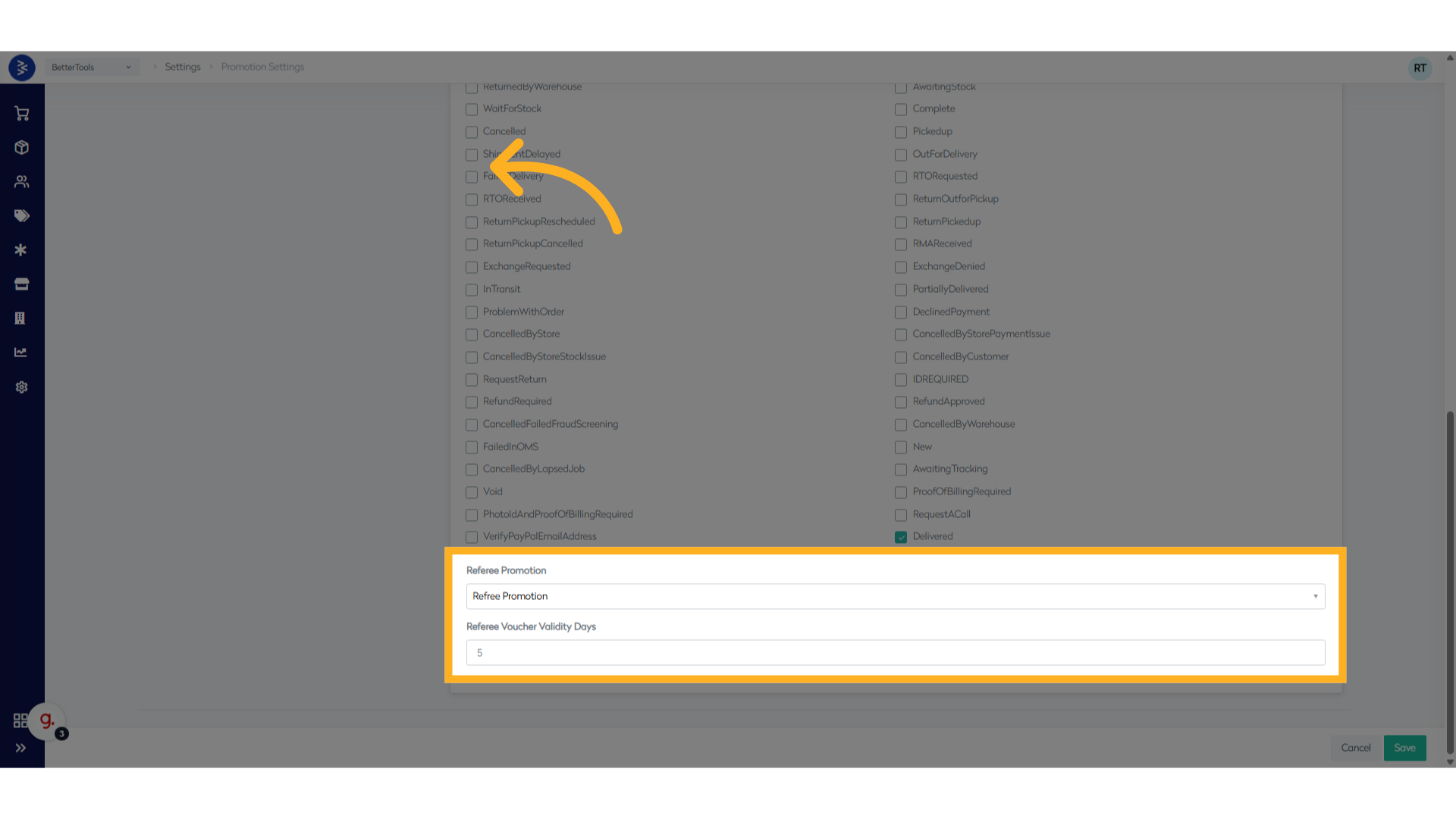
| Referee Promotion | Select the promotion that will be given to the new customer |
| Referee Voucher Validity Days | Number of days the new customer's voucher remains valid |
How to setup Refferal Reward Promotion in CommerceHub:
-
Navigate to Settings > Promotion Settings and enable “Enable Referral Promotion”
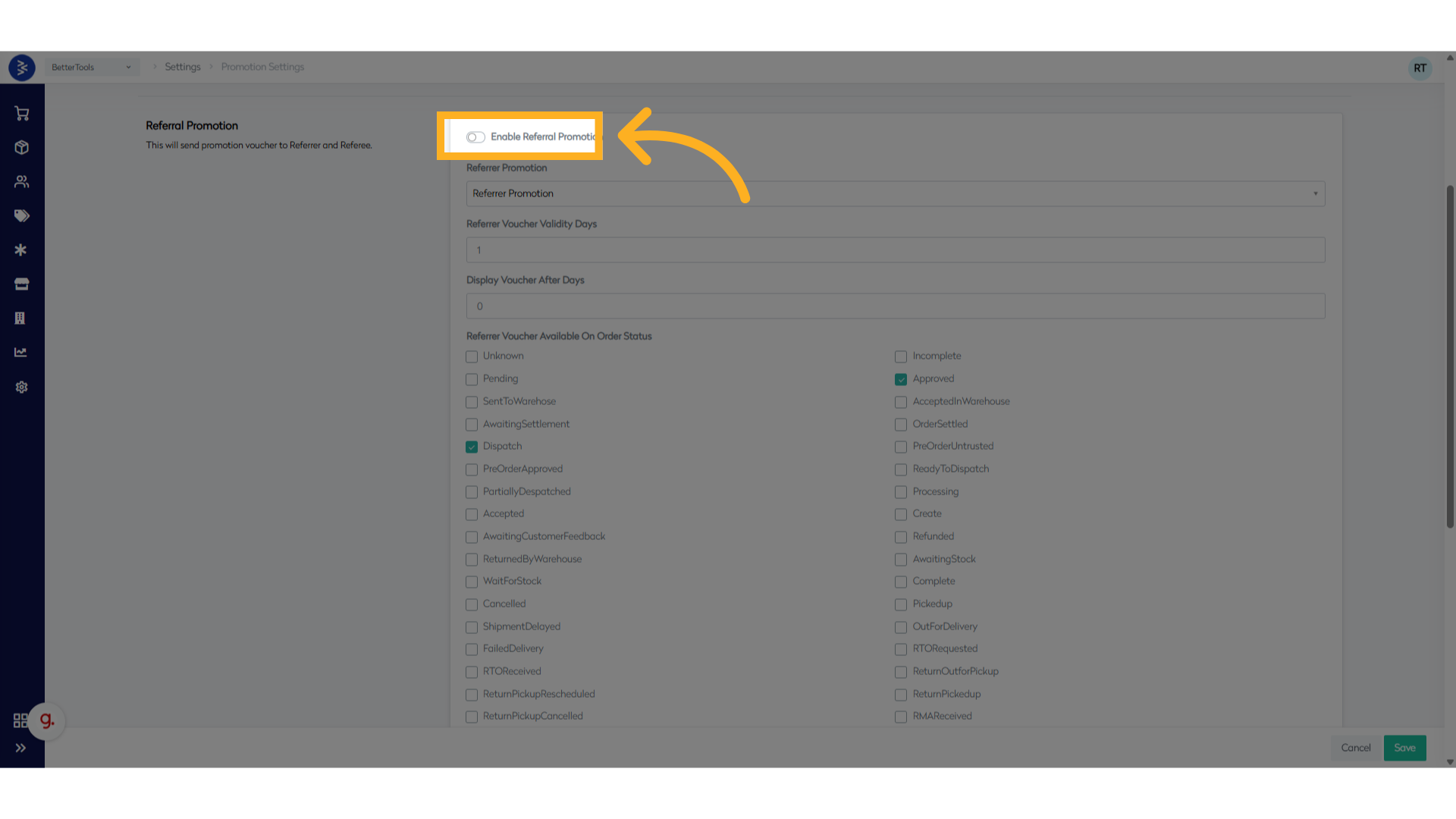
-
Fill the below fields:
- Select promotion in “Referrer Promotion” field.
- Note: Promotion must be created before setting up the referral reward in the system.
- Enter number of days in “Referrer voucher Validity days”
- Enter number of days in “Display voucher after days”

- Select promotion in “Referrer Promotion” field.
-
Select the order status/statuses for referrer voucher visibility

-
Choose the Referee Promotion
Note: Promotion must be created before setting up the referee reward in the system
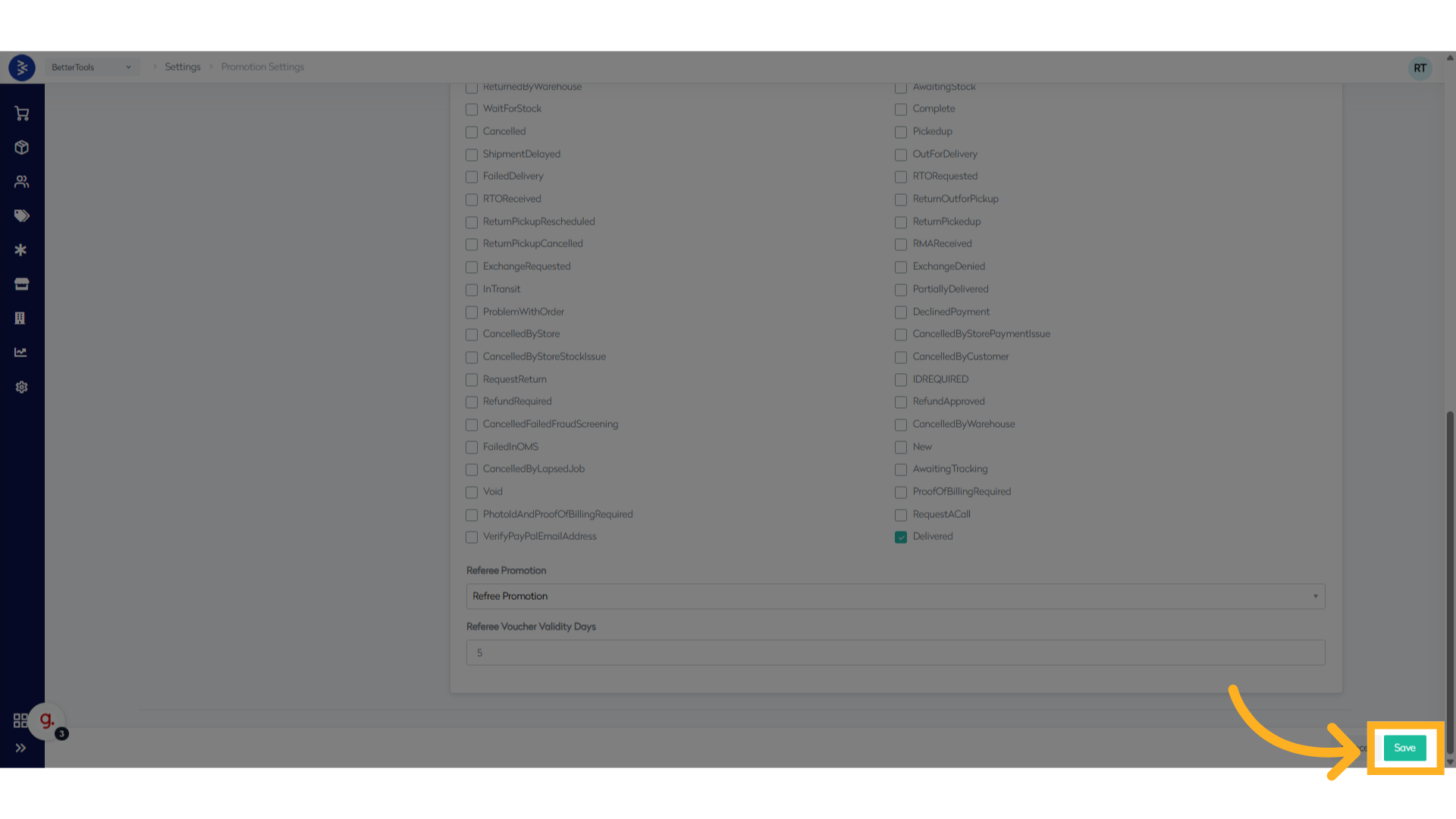
- Click "Save"
Tagging Rules Configuration
Overview
Tagging Rules in CommerceHub allow automatic tagging of orders based on defined conditions. This helps in categorizing, filtering, and managing orders efficiently based on business-specific criteria.
Below are the Field and their Descriptions displayed on the Tagging Rules Screen in CommerceHub:
| Field Name | Description |
|---|---|
| Name | Unique identifier for the tagging rule (e.g., "High Value Order") |
| Field name | The order attribute to evaluate (e.g., "OrderValue") |
| Operator | Comparison operator for the condition (e.g., "GreaterThan", "LessThan") |
| Field value | The value to compare against (e.g., "200", "4999") |
| Status | Current state of the rule (Active/Inactive) |
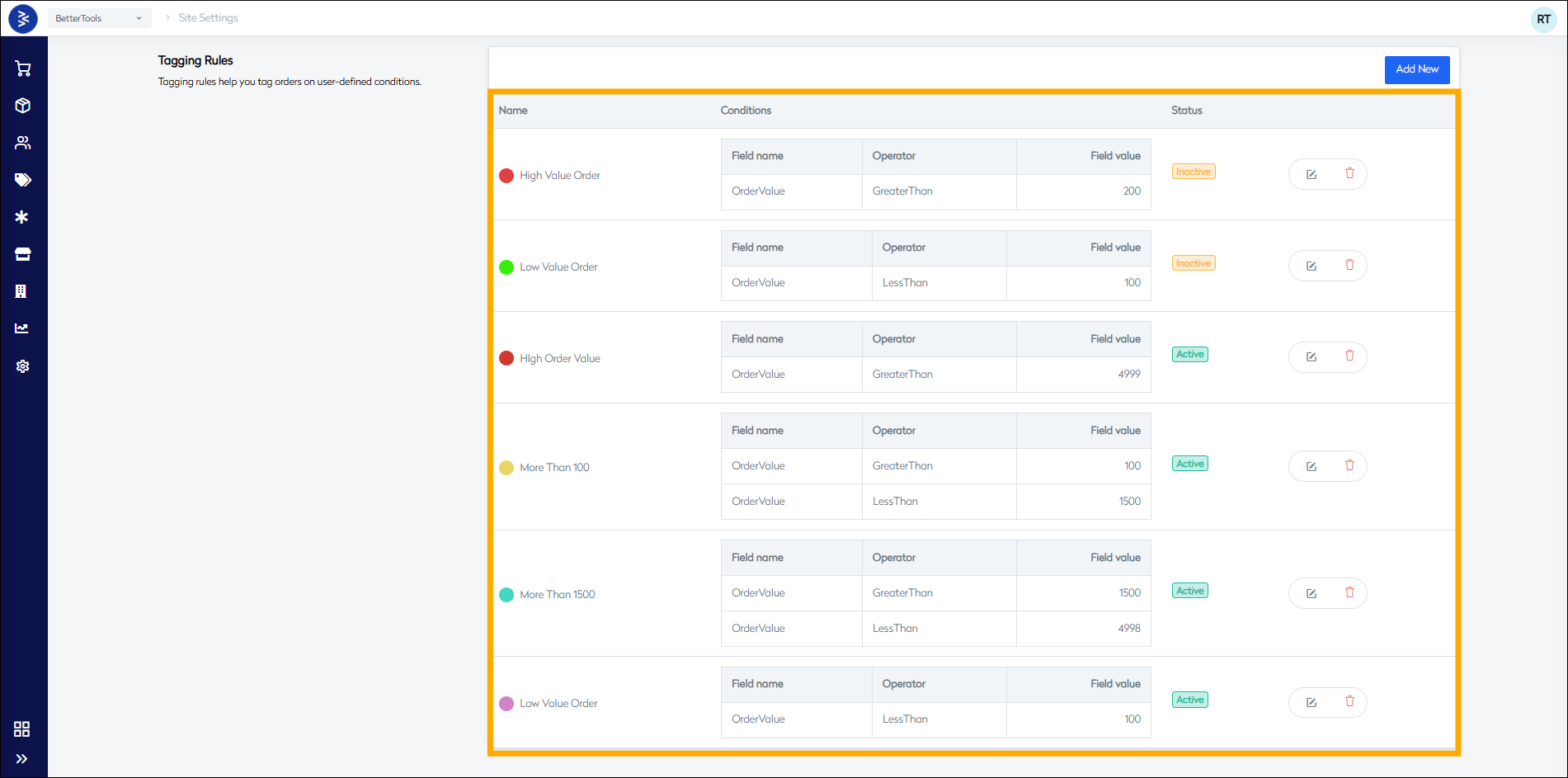
Condition Types
The system supports multiple condition types for tagging:
| Condition Type | Description | Example Use Case |
|---|---|---|
| PostCode | Filter orders by postal code | Tag orders from specific regions |
| Date | Tag based on order date | Identify seasonal orders |
| Product | Filter by product attributes | Tag orders with specific items |
| Customer | Tag based on customer data | Identify VIP customer orders |
| OrderValue | Filter by order amount | Tag high-value purchases |
| Zone | Tag based on delivery zone | Regional order identification |
| Country | Filter by country | International order tagging |
| ShippingType | Tag by shipping method | Express delivery identification |
| OrderDiscountPercentage | Filter by discount level | Promotional order tracking |
| ProductSellPrice | Tag by product price | Premium product orders |
| OrderDuplicacyHour | Identify duplicate orders | Fraud prevention |
| PriceDifferencePercentage | Tag price variations | Margin analysis |
Rule Configuration Options
Basic Settings
| Field | Description |
|---|---|
| Rule Name | Unique identifier for the tagging rule. |
| Tag Color | Color assigned to the tag for easy visual identification in the UI. |
| Domain Selection | Select the applicable domain, e.g., BetterTools or BetterFixings. |
| Active Status Toggle | Enables or disables the tagging rule. |
Operator Types
| Operator | Description |
|---|---|
| In | Checks if the specified value exists within a given set. |
| NotIn | Checks if the specified value does not exist in the given set. |
Value-Based rules example:
High Value Orders:
- Condition: OrderValue > 4999
- Purpose: Premium order identification
Medium Value Orders:
- Condition: OrderValue > 100 AND < 1500
- Purpose: Standard order tracking
Low Value Orders:
- Condition: OrderValue < 100
- Purpose: Small order monitoring
How to setup tagging rules in CommerceHub
-
Navigate to
Settings > Tagging Rules.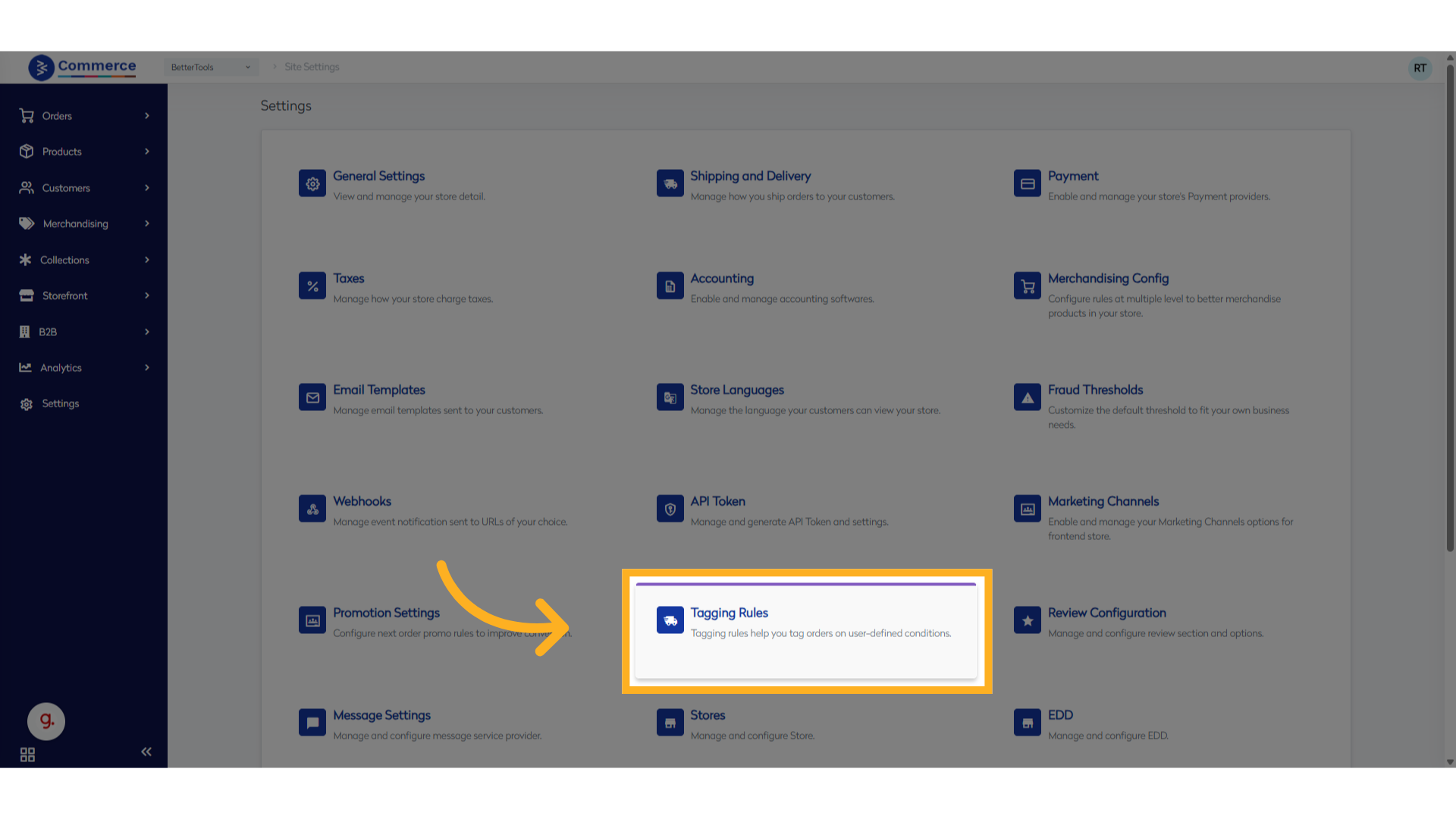
-
Click Add New to create a new tagging rule.
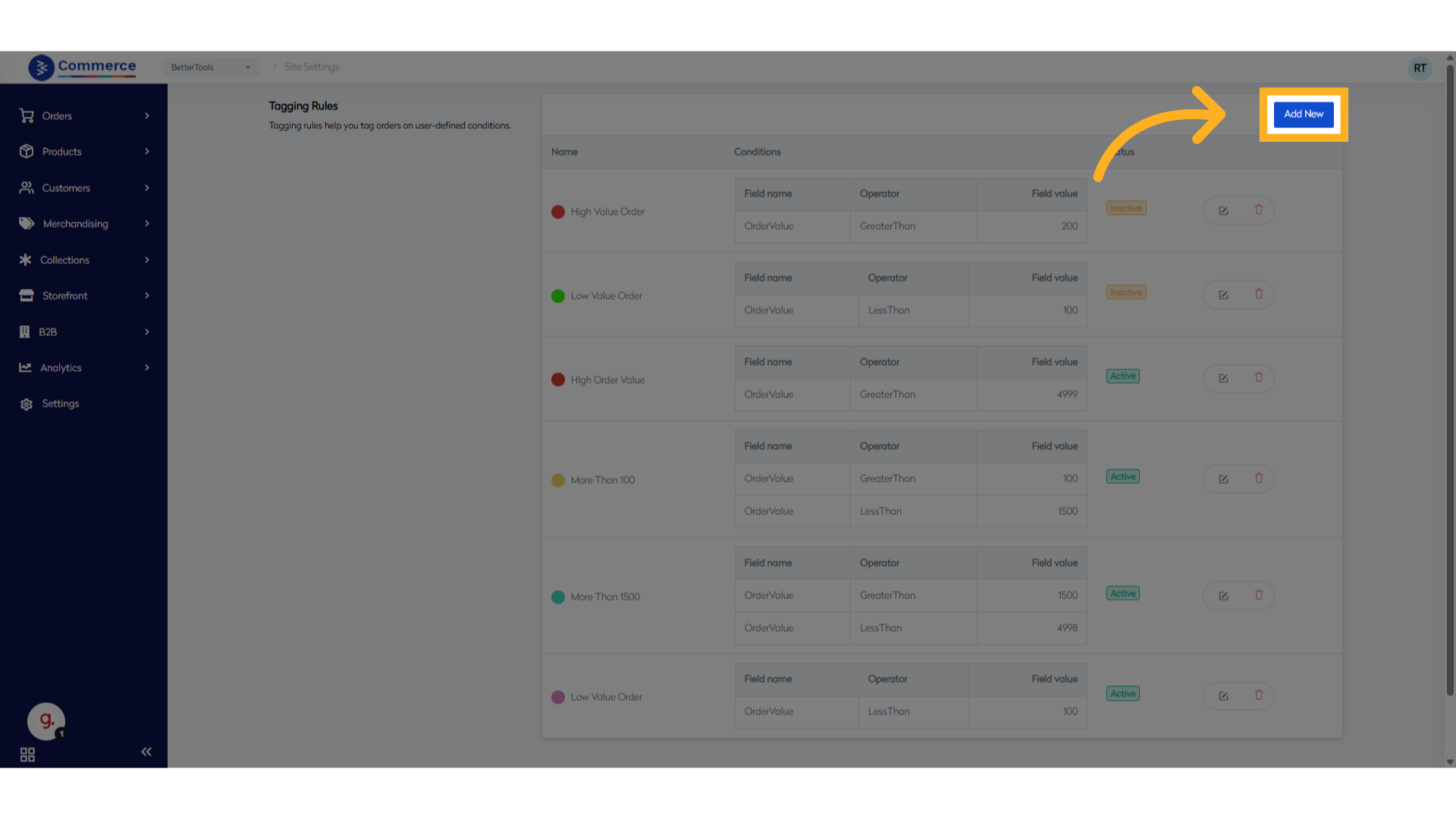
-
Fill in Basic Details
- Name: Enter a name for the tagging rule.
- Color: Choose a color to visually identify the tag .
- Domain: Select the applicable domain (if multiple domains are configured).
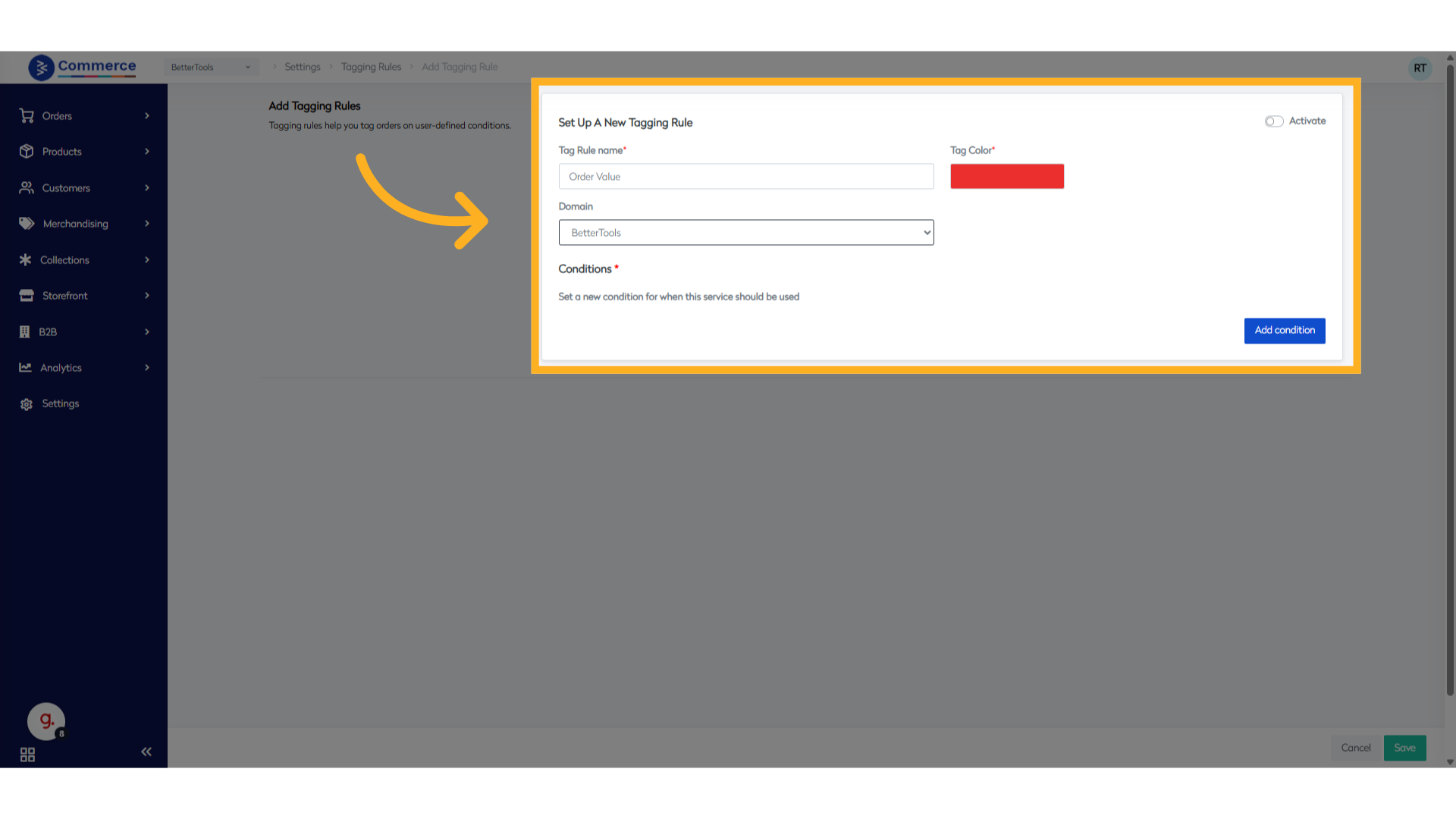
-
Click Add Condition and define the logic based on which the orders should be tagged. You can combine multiple conditions using AND logic.
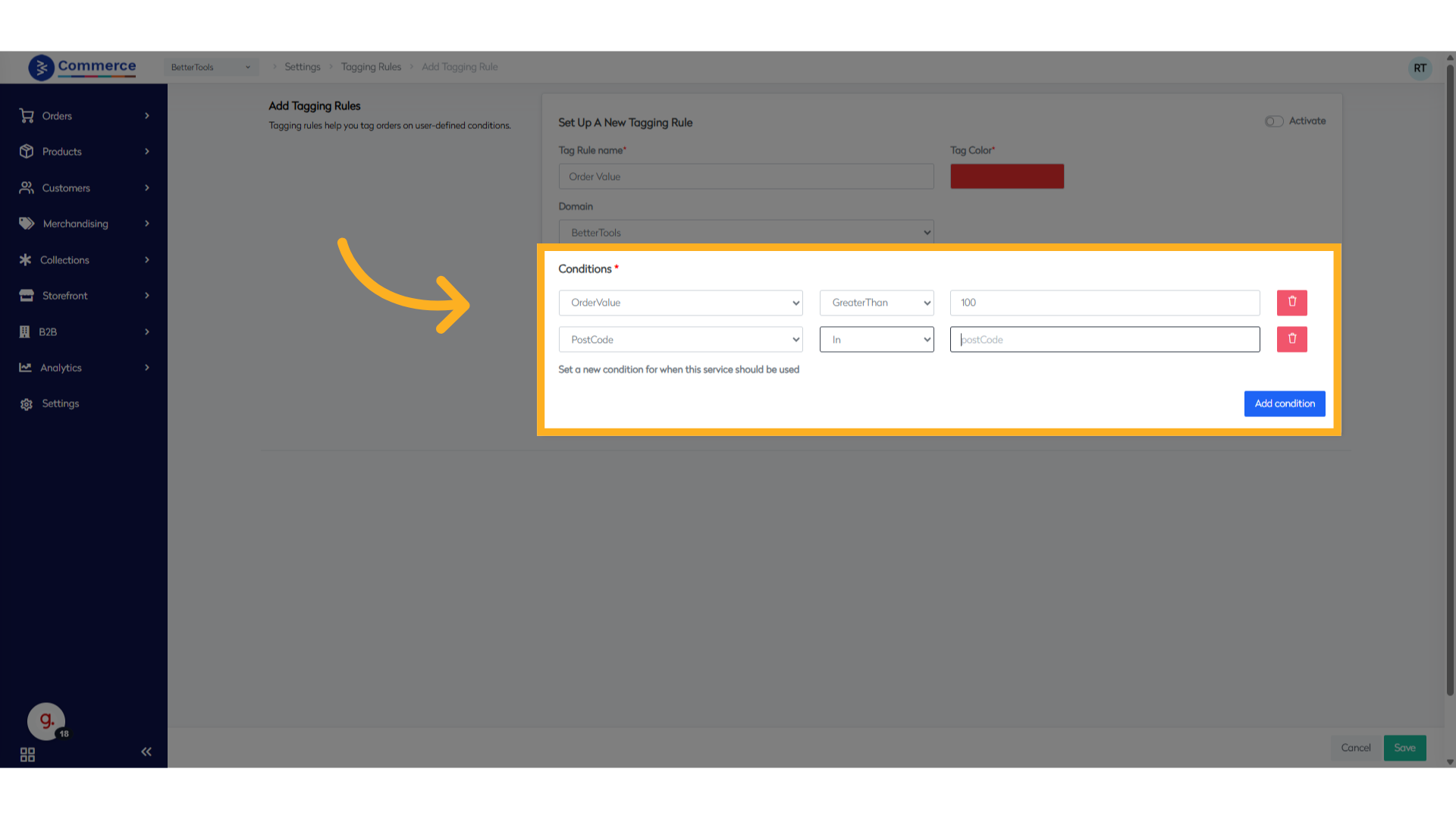
-
Save and Activate
- Click Save to store the rule.
- Toggle the Activate switch to enable the tagging rule and start applying tags to matching orders.
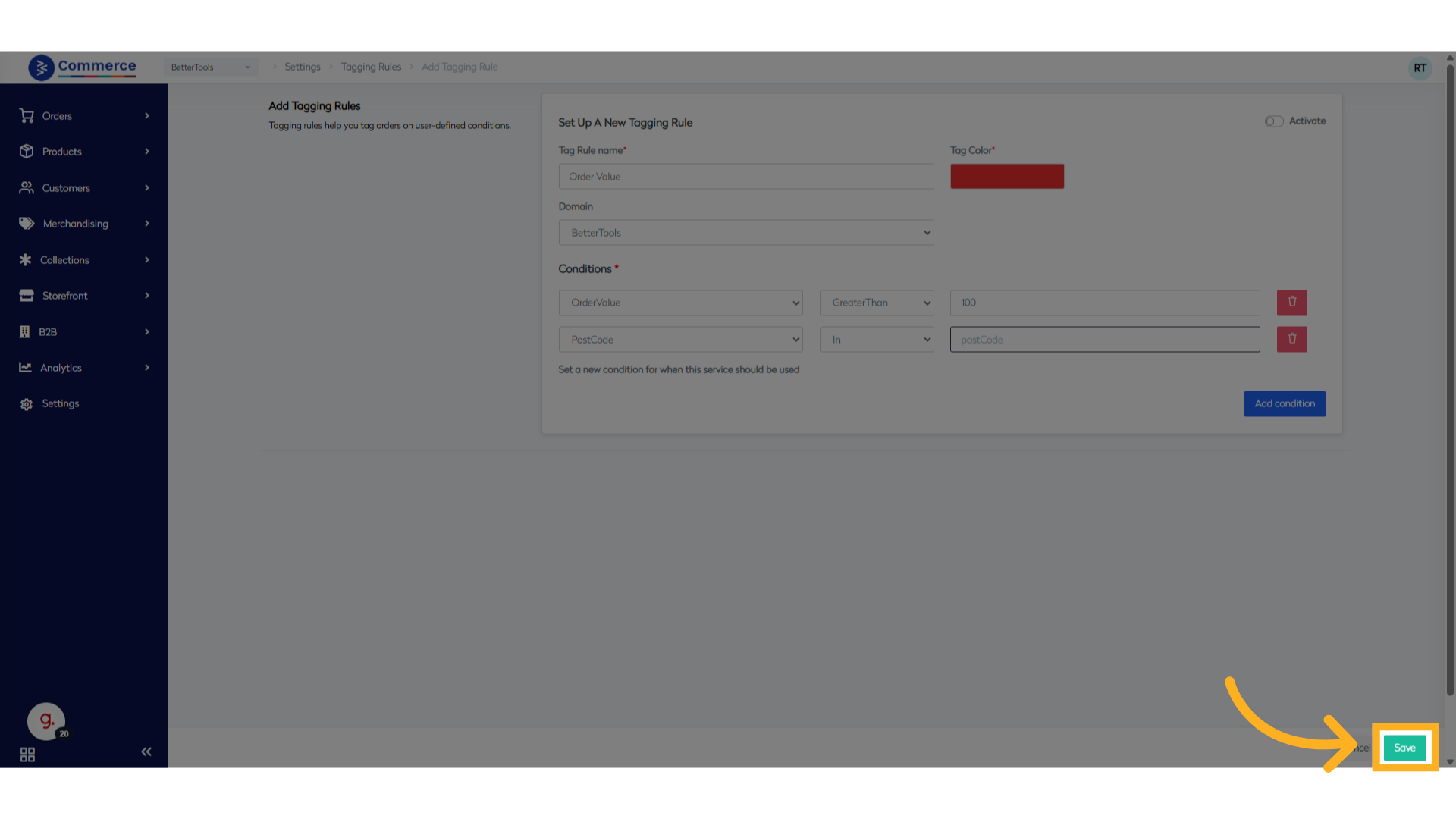
Once activated, the system will automatically evaluate and tag orders that meet the rule criteria.
Review Moderation & Settings
Set up review criteria, moderation workflows, and display rules to manage user-generated product reviews.
The Review Configuration module enables administrators to set up, manage, and optimize product or service reviews. This system supports structured feedback collection, flexible display layouts, and robust integration with analytics and moderation engines. It is designed to support enterprise-grade review operations across multiple markets and customer touchpoints.
1. Basic Information
Summary: Establish foundational review settings including administrative permissions, core configuration properties, and access controls.
Purpose
To define and manage customer review modules across the platform.
Core Components
| Element | Description |
|---|---|
| Review Block Title | Custom label displayed above the review section |
| Review Options Management | Set of configurations for rating scales and options |
| Display Controls | Controls for rendering UI components |
| Configuration Settings | General system behaviors and toggles |
Access Control
| Access Type | Description |
|---|---|
| Admin Level Access | Full system rights for review configuration |
| Role-Based Permissions | Granular access control for review module management |
| Configuration Rights | Ability to manage or restrict review settings |
2. Review Block Management
Summary: Configure the visual structure and frontend placement of review blocks.
Block Configuration
| Configuration Task | Details |
|---|---|
| Add Review Block | Create new block instances across pages/modules |
| Block Title Customization | Modify headers for each block |
| Block Positioning | Define frontend location (top, bottom, tabbed view) |
| Display Settings | Toggle visibility and display rules |
Block Features
- Customizable Headers and Subtitles
- Multi-block Support
- Section Segmentation
- Responsive and mobile-optimized layout
3. Review Options
Summary: Define rating scale values and user input options used during reviews.
Rating Levels
- Excellent
- Very Good
- Good
- Average
Option Management
| Operation | Description |
|---|---|
| Add New Option | Introduce new rating label or score |
| Edit Existing Option | Modify display name or order of options |
| Delete Option | Remove option from selection list |
| Reorder Options | Change sequence of display via drag/drop |
Configuration Parameters
| Setting | Description |
|---|---|
| Option Text Customization | Edit how options appear in frontend |
| Display Order | Order in which options are listed |
| Active/Inactive Status | Enable/disable options from being selected |
| Default Value | Set pre-selected default option |
4. Display Configuration
Summary: Manage how reviews are rendered visually across different channels.
Visual Elements
- Star Rating Widgets
- Written Review Fields
- Aggregate Rating Score
- Review Breakdown Summary
Layout Configuration
| View Type | Description |
|---|---|
| Grid View | Tiled card layout for multiple reviews |
| List View | Stacked vertical display for streamlined reading |
| Mobile Responsiveness | Adaptive design for various screen sizes |
| Custom CSS Support | Inject styling per site/brand guideline |
Interaction Controls
| Feature | Description |
|---|---|
| Add Option Button | Enables new input field dynamically |
| Edit/Delete Option | UI for managing options in real time |
| Save/Cancel Controls | Review-specific save logic and undo flow |
5. Integration Settings
Summary: Integrate the review system with internal databases and external feedback engines.
System Integration Points
- Product Reviews (SKU-specific)
- Service Feedback (Support/SLA)
- Customer Experience Ratings
- Ratings Analytics Dashboard
Data Management
| Capability | Description |
|---|---|
| Review Storage | Save feedback into centralized DB or DWH |
| Export/Import Support | Data portability via CSV/Excel or API endpoints |
| Backup Options | Scheduled or ad-hoc exports for rollback |
API & Webhook Integration
| Integration Type | Description |
|---|---|
| REST API Support | CRUD operations for review objects |
| Webhook Configuration | Trigger external events on submission/moderation |
| Data Synchronization | Bi-directional sync with external platforms |
6. Advanced Features
Summary: Enhance operational control with moderation, analytics, and security configurations.
Moderation Tools
- Manual Approval Queue
- Automated Spam Filtering
- Keyword-Based Filtering Rules
- Real-Time Moderation Logs
Analytics & Reporting
| Metric | Description |
|---|---|
| Review Volume | Count of reviews per product/service |
| User Engagement | Interaction rate (likes, replies) |
| Rating Trends | Sentiment trend over time |
| Performance Reports | Response time, conversion rate, and more |
Security & Compliance
- CAPTCHA for bot protection
- IP rate limiting for abuse mitigation
- Role-based access control for moderation
- GDPR-compliant review anonymization
Customization Options
- Multi-language Label Support
- Brand-aligned Templates
- Site-specific CSS Injection
- Custom Fields for Extra Metadata
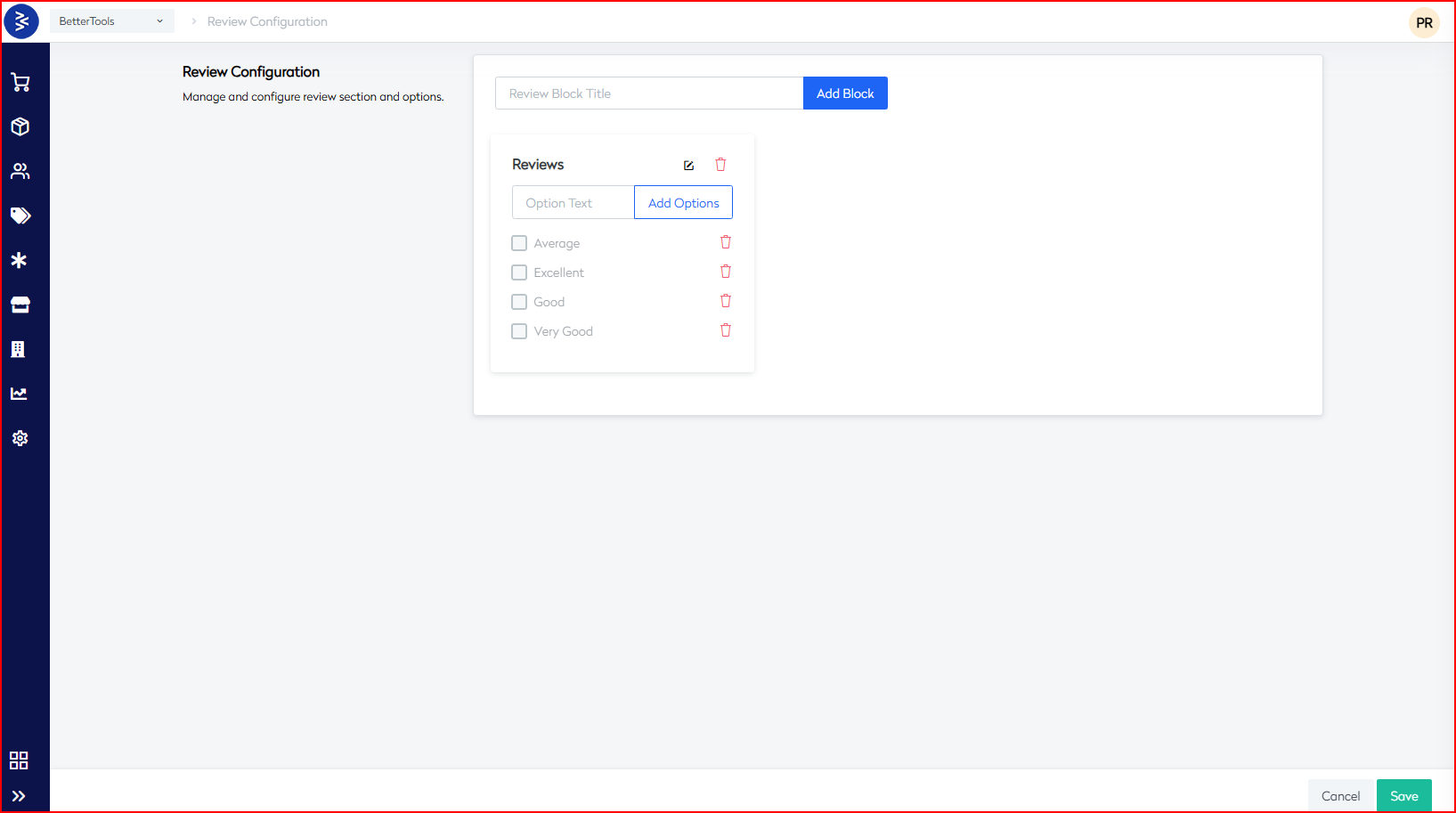
Key Implementation Notes
- All changes must be saved explicitly via the Save button
- Some settings require cache invalidation for real-time reflection
- Multi-language, multi-brand, and multi-market support is built-in
- It is recommended to regularly back up configuration settings
- Always validate updates in staging before pushing to production
Email Templates and configuration
Connect support mailboxes, configure routing rules, and automate ticket creation based on incoming customer emails. To configure email templates, navigate to Settings and select Email Templates.
Alternatively, you can access the email templates directly via this URL: https://commerce.bettercommerce.io/email/Emailtemplates
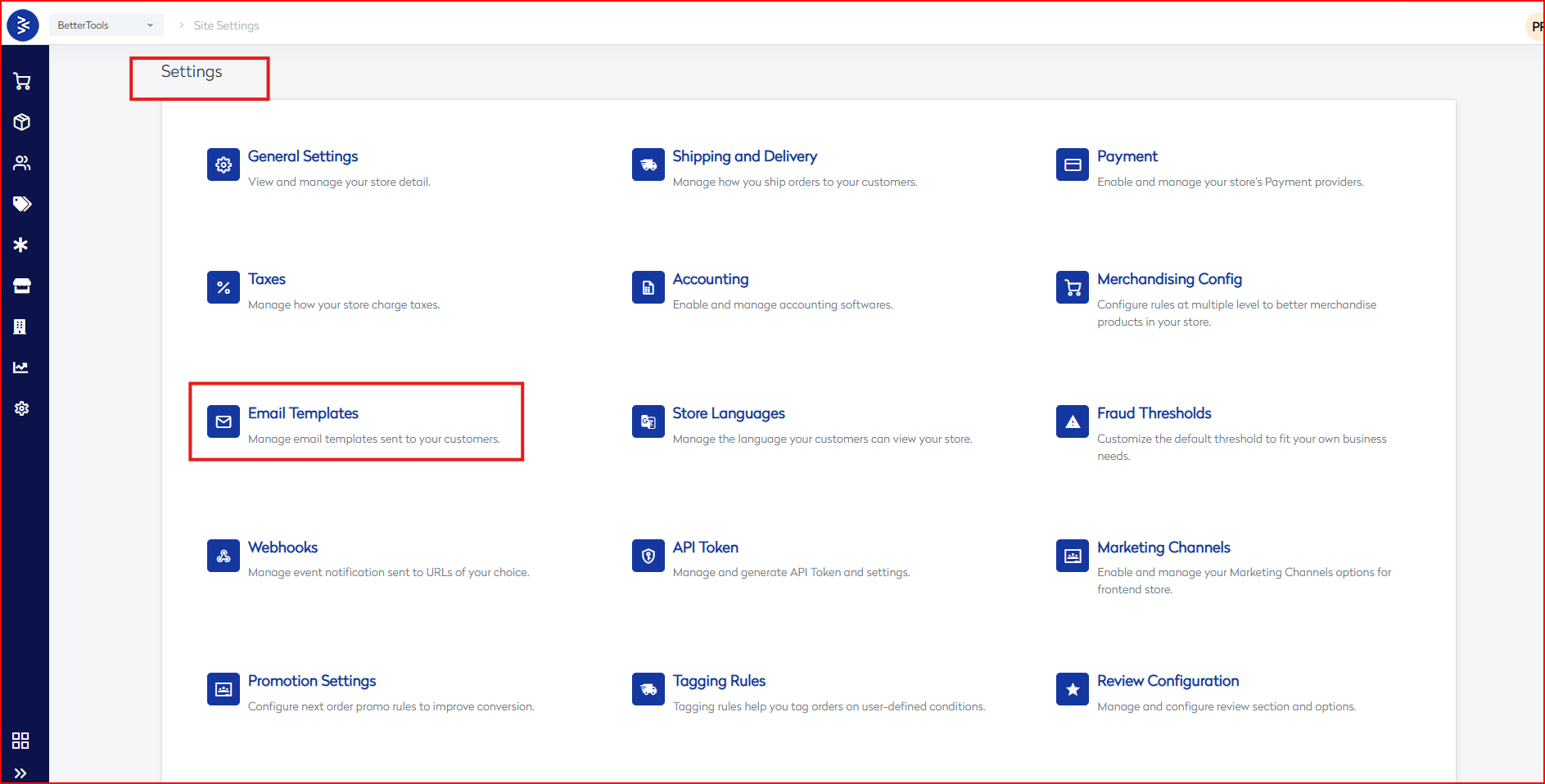
This document provides a detailed guide to configuring and managing the mailbox (SMTP) setup used for automated, secure, and scalable email communication within enterprise applications.
1. Basic Information
| Item | Description |
|---|---|
| Purpose | Configure and manage the enterprise email communication system. |
| Access Control | Admin-level access and role-based permissions are required. |
| Supported Roles | IT Administrator, DevOps Engineer, Compliance Officer. or more |
2. Core Components
| Component | Description |
|---|---|
| SMTP Server Configuration | Manages sending server credentials and delivery protocols. |
| Email Account Settings | Controls sender address, reply-to email, and display name. |
| Security Protocols | SSL/TLS encryption and secure communication enforcement. |
| Authentication Methods | Includes username/password, OAuth2, or API key-based authentication. |
| Access Control | Ensures role-level restriction and configuration authorization. |
3. Server Configuration
SMTP Settings
| Setting | Details |
|---|---|
| Server Host/IP | SMTP provider domain or IP address |
| Ports | 25, 587 (standard), 465 (SSL) |
| Security Options | None, SSL/TLS, STARTTLS |
Authentication
| Method | Details |
|---|---|
| Username/Password | Standard credentials-based login |
| OAuth2 Support | Token-based secure login |
| API Key | For systems requiring header-based security |
4. Email Settings
| Setting | Description |
|---|---|
| From Email Address | Default address used for outgoing messages |
| Reply-To Address | Email address where user replies should go |
| Display Name | Friendly name shown in recipient's inbox |
| Signature Settings | Email footer with company contact and branding |
5. Email Properties
| Property | Description |
|---|---|
| Maximum Size Limit | Maximum size of an email (including attachments) |
| Attachment Policies | Rules for file types and sizes allowed in attachments |
| Priority Settings | High, Normal, or Low priority indicators |
| Retention Rules | Define how long emails are stored before deletion or archiving |
| Delivery Options | Immediate Send, Scheduled Send, or Batch Sending |
| Retry Settings | Configurable retry attempts for failed sends |
6. Protocol Security
| Protocol Feature | Description |
|---|---|
| SSL/TLS Configuration | Secure channel establishment for email traffic |
| Certificate Management | Importing, validating, and rotating certificates |
| Encryption Standards | AES, RSA, or custom encryption used for email content and attachments |
| Key Management | Encryption key rotation and secure storage |
7. Monitoring & Maintenance
| Category | Tasks/Details |
|---|---|
| System Health | Monitor SMTP uptime, queue sizes, and performance |
| Error Logging | Real-time error capture (bounce, timeout, malformed address, etc.) |
| Log Maintenance | Regular rotation and archival of logs |
| Backup Procedures | Scheduled backups of configurations and audit logs |
| Delivery Reporting | Email delivery rates, bounce tracking, usage metrics |
8. Advanced Features
| Feature | Description |
|---|---|
| API Integration | REST-based support for external system integration |
| Third-party Services | Integration with providers like SendGrid, SES, Mailgun |
| Webhook Support | Push real-time events to external services |
| HTML Template Support | Support for responsive email templates with dynamic data |
| Multilingual Support | Ability to manage templates in multiple languages |
| Automation Tools | Auto-responses, triggers, workflows, and scheduled delivery |
9. Troubleshooting & Testing
| Scenario | Resolution |
|---|---|
| Emails Not Sending | Check SMTP credentials, port, or server connectivity |
| Formatting Issues | Use inline CSS; test against popular clients (Outlook, Gmail) |
| Authentication Failures | Revalidate username/password or regenerate OAuth2 tokens |
| Delayed Delivery | Check batch size, retry interval, and connection queue |
| Suspicious Order Alerts | Ensure RequiredOrder template is active and properly configured |
10. Implementation Guidelines
| Phase | Checklist Items |
|---|---|
| Setup | SMTP settings, Authentication method, Display configuration |
| Testing | Send test emails, validate delivery, check formatting |
| Production Launch | Enable templates, monitor queue, configure alerts |
11. Best Practices
| Area | Best Practice |
|---|---|
| Security | Use TLS encryption, strong passwords, and IP whitelisting |
| Performance | Enable caching, retry mechanisms, and queue monitoring |
| Monitoring | Enable error logging and real-time performance dashboards |
| Compliance | Add unsubscribe links, legal disclaimers, and GDPR consents |
| Backup | Weekly backup of all template and configuration data |
Let us guide you on how to fill out or create a template for emails or messages.
Creating an Email Template
Document Information
| Attribute | Details |
|---|---|
| Purpose | Guide for creating email templates in BetterCommerce |
| Scope | Email template creation and configuration |
Prerequisites
- Access to BetterCommerce platform
- Basic understanding of HTML/CSS
- Required template content and assets
- Necessary brand guidelines
Step-by-Step Procedure
Phase 1: Basic Template Setup
- Navigate to Settings and select Email Templates.
Alternatively, you can access the email templates directly via this URL: https://commerce.bettercommerce.io/email/Emailtemplates and Select appropriate template type from the list.
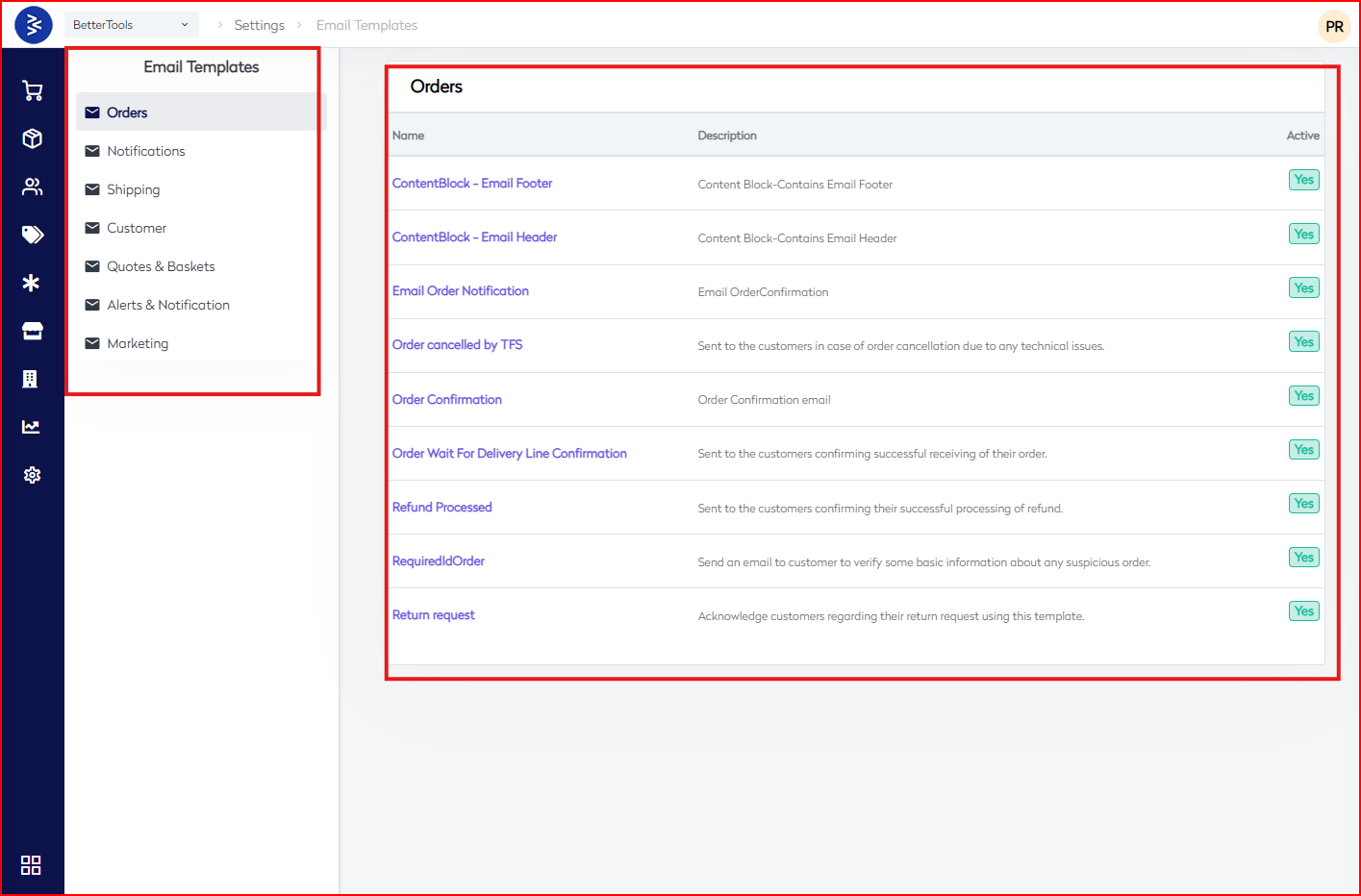
- Configure Basic Information
| Field | Description |
|---|---|
| Template Name | Enter a unique identifier |
| Sender Name | Display name of the sender |
| From Email | Email address used to send emails |
| Language/Culture | Select from: en-GB, fr-FR, de-DE , etc.. |
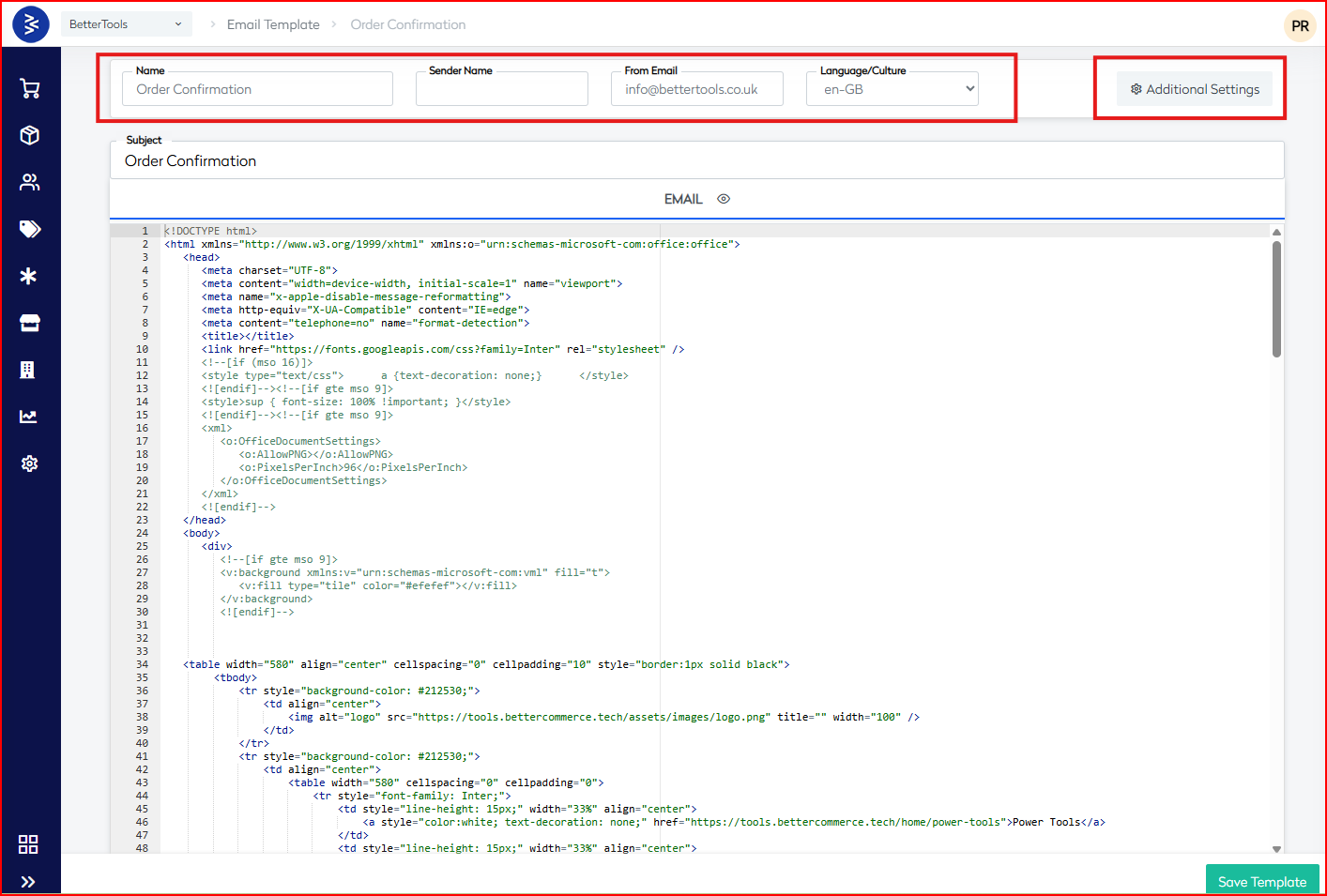
- Set Additional Settings
| Setting | Options |
|---|---|
| Delivery Engine | SMTP, Experian, SendGrid, etc.. |
Phase 2: Communication Channel Setup
- Configure Message Types
| Channel | Toggle Options |
|---|---|
| Text Message | Enable / Disable |
| WhatsApp Message | Enable / Disable |
- Set Delivery Engines
| Engine Type | Available Options |
|---|---|
| Primary Engine | Twilio, Value First, MSG91, WhatsApp, Trust Signal |
| Secondary Engine | Same options as above |
- Enable Channel Settings
| Channels |
|---|
| App |
| Web |
| Store |
| Phone |
| MarketPlace |
| ThirdPartySSO |
| POS |
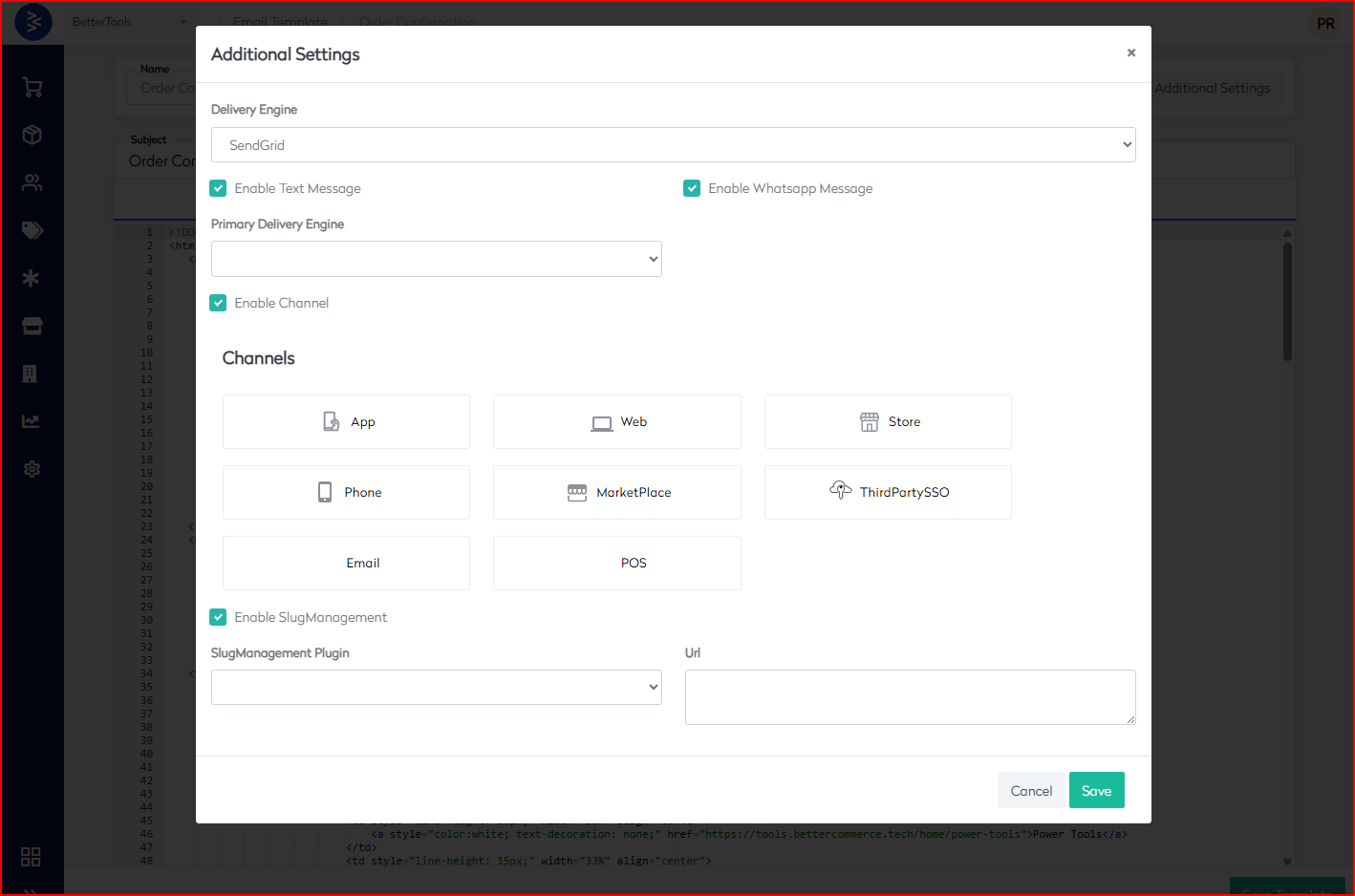
Phase 3: Template Content Creation
- Start HTML Structure
<!DOCTYPE html>
<html xmlns="http://www.w3.org/1999/xhtml">
<head>
    <meta charset="UTF-8">
    <meta content="width=device-width, initial-scale=1" name="viewport">
</head>
- Add Required Meta Tags
<meta name="x-apple-disable-message-reformatting">
<meta http-equiv="X-UA-Compatible" content="IE=edge">
<meta content="telephone=no" name="format-detection">
- Include Font Links
<link href="https://fonts.googleapis.com/css?family=Inter" rel="stylesheet" />
Phase 4: Template Body Structure
- Create Main Table Structure
<table width="580" align="center" cellspacing="0" cellpadding="10">
    <tbody>
        <!-- Content rows go here -->
    </tbody>
</table>
- Add Header Section
<tr style="background-color: #212530;">
    <td align="center">
        <img alt="logo" src="[Your-Logo-URL]" width="100" />
    </td>
</tr>
- Add Navigation Links
<tr style="background-color: #212530;">
    <td align="center">
        <!-- Navigation items -->
    </td>
</tr>
Phase 5: Additional Configurations
- Enable SlugManagement
| Field | Value |
|---|---|
| Toggle SlugManagement | On |
| Plugin | TinyURL |
| URL Settings | Custom rules |
-
Preview and Test
- Click Preview
- Check responsiveness
- Validate across viewports
-
Save and Publish
- Click Save Template
- Confirm all settings
- Click Publish
Quality Control Checklist
| Check | ✅ |
|---|---|
| Template name is correctly set | |
| Sender information is accurate | |
| Language selection is appropriate | |
| Delivery engines are properly configured | |
| All required channels are enabled | |
| HTML structure is valid | |
| Images are properly linked | |
| Links are working correctly | |
| Template is mobile responsive | |
| Preview shows correct formatting |
Troubleshooting Common Issues
| Issue | Resolution |
|---|---|
| Template Not Saving | Ensure all required fields are completed; check HTML syntax |
| Images Not Displaying | Confirm URLs are valid; verify supported file formats |
| Responsive Issues | Review media queries; test across devices |
Notes and Tips
- Always test templates across multiple email clients
- Keep mobile responsiveness in mind
- Use web-safe fonts or provide fallbacks
- Optimize images for fast loading
- Follow brand guidelines for consistency
Bulk Import Logs
Access detailed logs of bulk import operations, track errors and warnings.
The Bulk Import Logs module provides comprehensive visibility and control over all bulk data import operations across the platform. This documentation outlines system capabilities, operational controls, technical requirements, and best practices for managing large-scale data uploads efficiently and securely.
1. Basic Information
Summary: Core purpose and structure of the Bulk Import Logs interface and its scope.
Purpose
To track, audit, and manage bulk import activities across supported data modules.
Access Location
- Navigation Path:
Settings > Bulk Import Logs
Available Import Types
| Import Type | Description |
|---|---|
ArticleStockCode | Imports stock information by product article codes. |
Company | Uploads business entity data such as B2B customer accounts. |
Customer | Bulk import of customer records with personal and contact information. |
CustomerAddress | Imports shipping and billing addresses associated with customers. |
MegaMenu | Uploads hierarchical navigation menu structure for storefront layout. |
OrderHeader | Imports summary-level order details including totals and metadata. |
OrderLine | Line-item level data import linked to corresponding order headers. |
Payment | Bulk processing of order payment records and references. |
ProductAuthorization | Imports rules to control product access by company or user role. |
Redirects | Bulk management of URL redirects for SEO and navigation improvements. |
RMA | Uploads return merchandise authorization requests at header level. |
RMALine | Imports detailed return item lines tied to RMA requests. |
2. Status Management
Summary: Handles real-time and historical tracking of import statuses.
Status Types
| Status | Description |
|---|---|
| Error | Import failed completely |
| PartiallyUpdated | Partial success during import |
| Processing | Currently in progress |
| Success | Import completed successfully |
Status Tracking Features
- Real-time progress updates
- Full historical log retention
- Detailed error reporting
- Verification of completed operations
3. Search and Filtering
Summary: Tools to locate specific imports through filter combinations.
Search Capabilities
- By Email Address
- By Import Type
- By Status
- By Date Range
Filter Components
| Filter Element | Description |
|---|---|
| Type Dropdown | Select import type |
| Status Dropdown | Select status condition |
| Email Search Field | Enter user email for lookup |
| Date Range Picker | Define time window |
| Search Button | Execute filter query |
4. Data Display
Summary: Information and layout for import log visibility and audit.
Log Attributes
| Attribute | Description |
|---|---|
| Import ID | Unique identifier for import session |
| Date & Time | Timestamp of import initiation |
| User Info | User who initiated the import |
| File Details | Name, size, type of uploaded file |
| Processing Status | Current or final state of import |
| Error Messages | Any associated import errors |
Lets us go through now what all data can be imported using this section.
Client Data Import Standard Operating Procedure (SOP)
Purpose
This Standard Operating Procedure establishes the standardized methodology for importing client data into the BetterCommerce platform through the Bulk Import functionality, ensuring data integrity, system performance, and operational compliance.
Scope
This SOP applies to all personnel responsible for:
- Customer data management and migration
- Order processing and fulfillment operations
- System administration and data governance
- Third-party data integration processes
Bulk Import Module Access
- Navigation Path: Settings → Bulk Import Logs
- System URL:
https://commerce.bettercommerce.io/Setting/BulkImportLog - Required Permissions: Data Import Administrator role
Supported Data Types
The BetterCommerce platform supports the following import categories:
| Data Type | Description | Primary Use Case |
|---|---|---|
| OrderHeader | Order summary information | Order management and fulfillment |
| OrderLine | Individual order item details | Product-level order tracking |
| RMA | Return Merchandise Authorization | Returns processing |
| RMALine | Individual return item details | Item-level return management |
| Customer | Customer profile information | Customer relationship management |
| CustomerAddress | Customer address records | Shipping and billing management |
| Payment | Payment transaction data | Financial reconciliation |
| ArticleStockCode | Product inventory codes | Inventory management |
| Company | B2B company information | Corporate account management |
Pre-Import Requirements
Data Preparation Standards
Before initiating any import process:
Data Quality Validation
- Verify data completeness and accuracy
- Ensure compliance with data format specifications
- Validate required field populations
- Confirm data type consistency
File Format Requirements
- Supported Format: Microsoft Excel (.xlsx, .xls) or CSV
- Character Encoding: UTF-8 recommended
- File Size Limit: Maximum 50MB per import file
- Row Limit: Maximum 10,000 records per import batch
System Prerequisites
- Active BetterCommerce platform access
- Appropriate user permissions for data import operations
- Network connectivity for file upload and processing
- Backup verification of existing data before import
Import Process Workflow
Phase 1: Import Initiation
Data Type Selection
- Navigate to Settings → Bulk Import Logs
- Click Upload File to initiate import process
- Select appropriate data type from available options:
- OrderHeader, OrderLine, RMA, RMALine
- Customer, CustomerAddress, Payment
- ArticleStockCode, Company
Template Download and Preparation
- Download the system-generated sample file template
- Populate template with client data following field specifications
- Validate data against business rules and constraints
- Save file in compatible format for upload
File Upload and Validation
File Upload Process
- Method 1: Drag and drop file into designated upload area
- Method 2: Click "Choose File" to browse and select file
- Verify file name and size before proceeding
- Click Next to advance to mapping phase
Data Field Mapping
- Review system-generated field mapping suggestions
- Map Excel/CSV columns to corresponding system fields
- Validate mapping accuracy for all required fields
- Configure optional field mappings as needed
- Click Next to proceed to preview phase
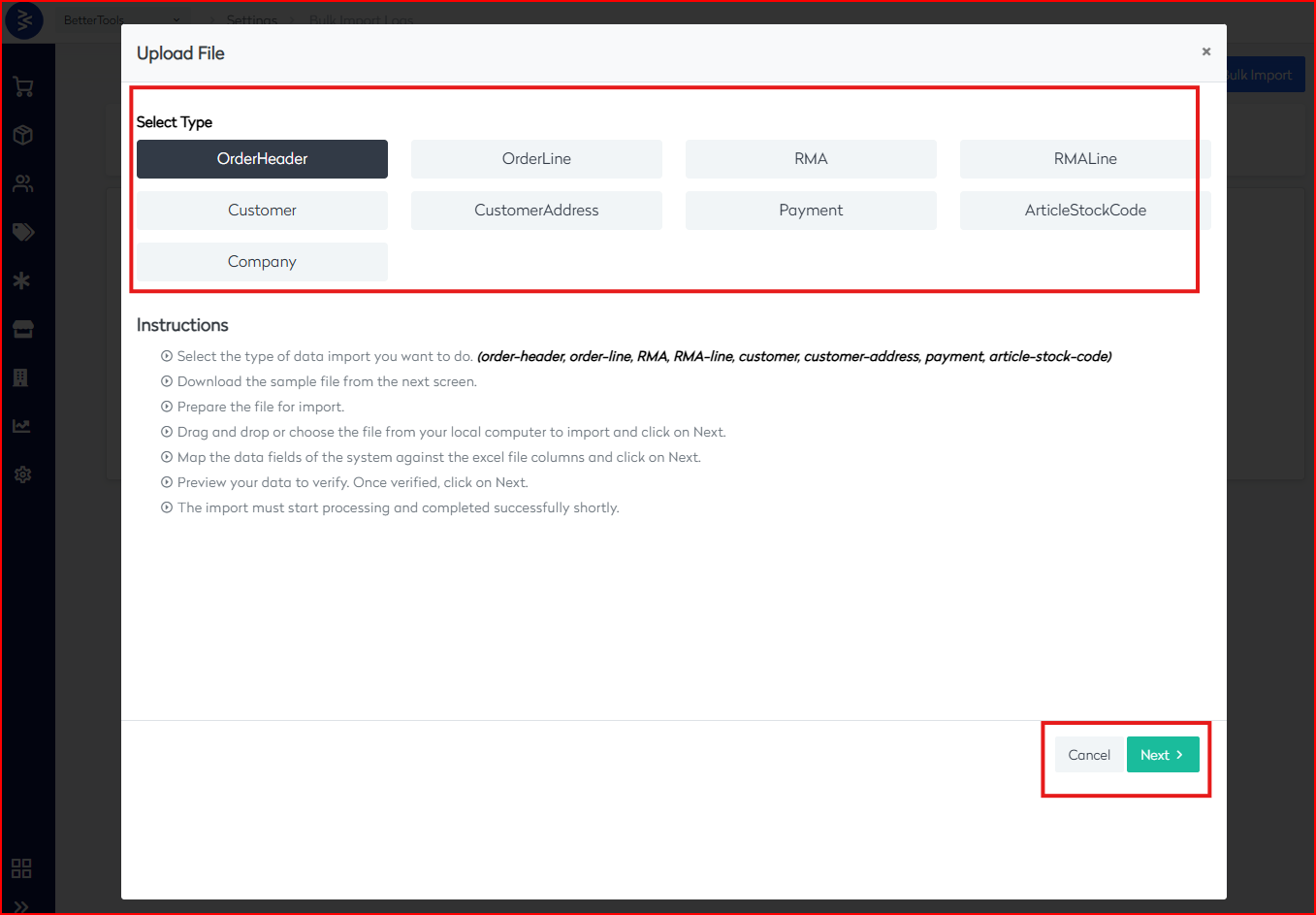
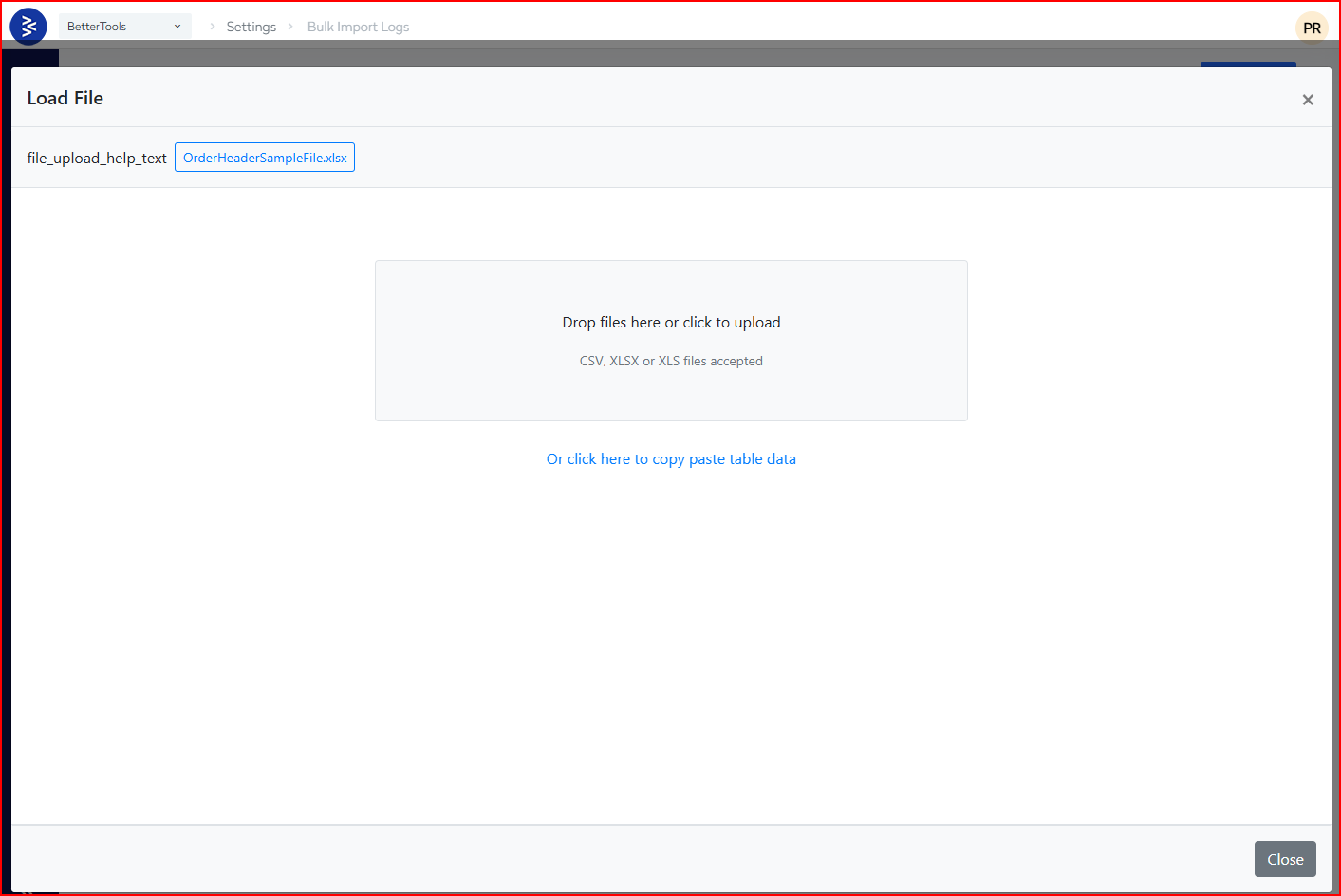
Data Preview and Validation
Data Preview Review
- Examine sample records for accuracy and completeness
- Verify data formatting and field population
- Identify and resolve any data quality issues
- Confirm mapping accuracy across all fields
Final Validation
- Review import summary statistics
- Verify record count matches source file
- Confirm data type consistency
- Click Next to initiate import processing
Import Execution and Monitoring
Processing Initiation
- System begins automated import processing
- Real-time status updates displayed in interface
- Processing time varies based on file size and complexity
- System generates unique import job identifier
Status Monitoring
Monitor import progress through status indicators:
- Processing: Import currently in progress
- Success: Import completed successfully
- Error: Import failed with system errors
- PartiallyUpdated: Import completed with some record failures
Import Status Management
Status Filtering and Monitoring
The system provides comprehensive status tracking:
Available Status Filters
- Error: Failed imports requiring attention
- PartiallyUpdated: Imports with partial success
- Processing: Currently active imports
- Success: Completed successful imports
Import Log Analysis
- Review detailed import logs for each batch
- Identify specific error records and failure reasons
- Generate reports for audit and compliance purposes
- Track import performance metrics and trends
Error Resolution Procedures
Error Classification
| Error Type | Description | Resolution Action |
|---|---|---|
| Data Format Error | Invalid data type or format | Correct source data and re-import |
| Missing Required Field | Mandatory field not populated | Update source file with required data |
| Duplicate Record | Record already exists in system | Review duplicate handling rules |
| System Constraint Violation | Data violates business rules | Modify data to comply with constraints |
Error Resolution Workflow
- Download error report from import log
- Analyze specific error messages and affected records
- Correct source data based on error analysis
- Re-initiate import process for corrected records
- Validate successful resolution and update documentation
Best Practices for Large Data Sets
- Split large files into smaller batches (recommended: 5,000 records)
- Schedule imports during off-peak hours
- Monitor system performance during import operations
- Implement progressive import strategies for massive datasets
Troubleshooting and Support
Common Issues and Resolutions
| Issue | Symptoms | Resolution |
|---|---|---|
| File Upload Failure | Upload process fails or times out | Check file size, format, and network connectivity |
| Mapping Errors | Incorrect field associations | Review field definitions and mapping requirements |
| Processing Delays | Extended processing times | Monitor system load and contact technical support |
| Partial Import Success | Some records fail during import | Review error logs and correct failed records |
Mailbox Configuration and Email Ordering
Email Ordering
The Email Ordering feature in BetterCommerce allows B2B customers to place orders by simply sending an email with PDF or CSV attachments. Leveraging built-in Gen AI capabilities, the system automates data extraction and order creation, significantly reducing manual effort and streamlining the ordering process.
Basic Information
| Field | Value |
|---|---|
| Feature Name | Email Ordering |
| Target Users | B2B Customers, Sales Teams, Operations Managers |
| Supported File Types | PDF, CSV |
| Primary Benefits | Automation, Reduced Manual Effort, AI-Driven Validation |
Setup & Configuration
1. Mailbox Configuration
Navigate to: Settings > Mailbox Configuration
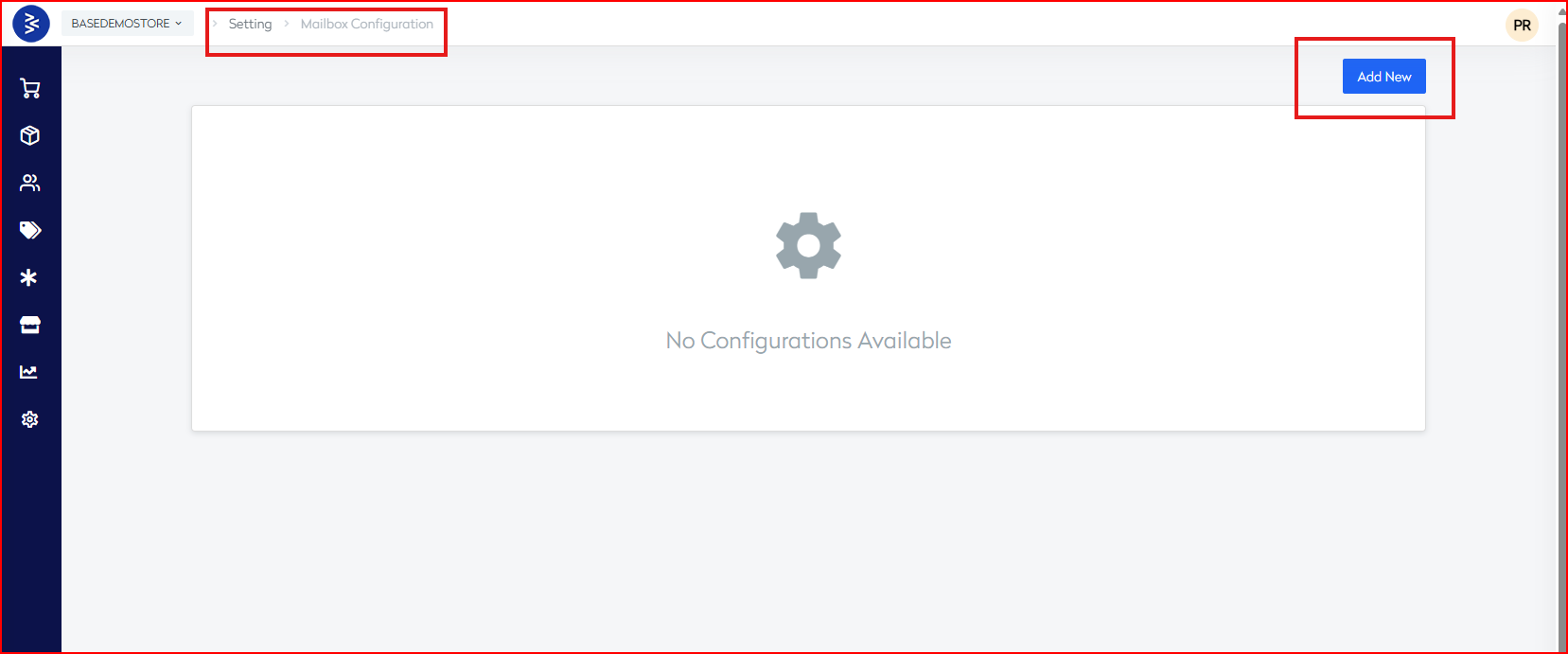
| Field | Description |
|---|---|
| Email Address | Mailbox address used to receive customer orders (e.g., orders@yourdomain.com) |
| Password | Mailbox account password |
| Folder Name | Email folder to monitor (e.g., "Inbox/Orders") |
| Notification Email | Optional. Alerts sent on order processing success/failure |
| Mandatory Order Fields | Fields required to process an order (e.g., Grand Total, Stock Codes, Quantities, Customer Email) |
⚠️ Orders without all required fields will be flagged as incomplete.
Email Submission
2. Customer Sends Email
| Action | Description |
|---|---|
| Who Sends | B2B customers |
| To | The configured mailbox |
| With | PDF or CSV order attachment |
AI-Based Order Processing
3. Intelligent Automation Flow
| Step | Description |
|---|---|
| Email Received | System monitors the configured mailbox folder |
| AI Parsing | Gen AI reads and extracts order data from attachment |
| Validation | Checks for completeness based on mandatory fields |
| Order Creation | Triggers BetterCommerce API to create order |
Payment Handling Logic
| Condition | Outcome |
|---|---|
| Credit Facility Available | Order is automatically placed and amount deducted |
| No Credit | Order marked as “Pending Payment” based on B2B terms |
Tracking & Monitoring
4. Order Monitoring Dashboard
Navigate to: Orders > Email Orders
| Dashboard Components | Description |
|---|---|
| Total Requests | Count of all incoming order emails |
| In-Process Orders | Orders currently being processed |
| Successful Orders | Orders successfully created |
| Failed Attempts | Failed or incomplete orders with reasons |
Order Details & Logs
5. Request & Order Data
| Data | Description |
|---|---|
| Order Number | Auto-generated upon successful creation |
| Sender Email | Email address from which the order was sent |
| Order Status | Created, Incomplete, or Failed |
| Request Status | Email parsing and validation result |
| Order Value | Grand total of the order |
| Completeness Score | % of required fields correctly extracted |
| Missing Fields | Visual cue for what was not extracted |
| Original Attachment | Stored for audit (CSV or PDF) |
| Extracted Fields | Customer Email, Addresses, Line Items, Delivery Instructions |
| Activity Log | Complete audit trail with original email |
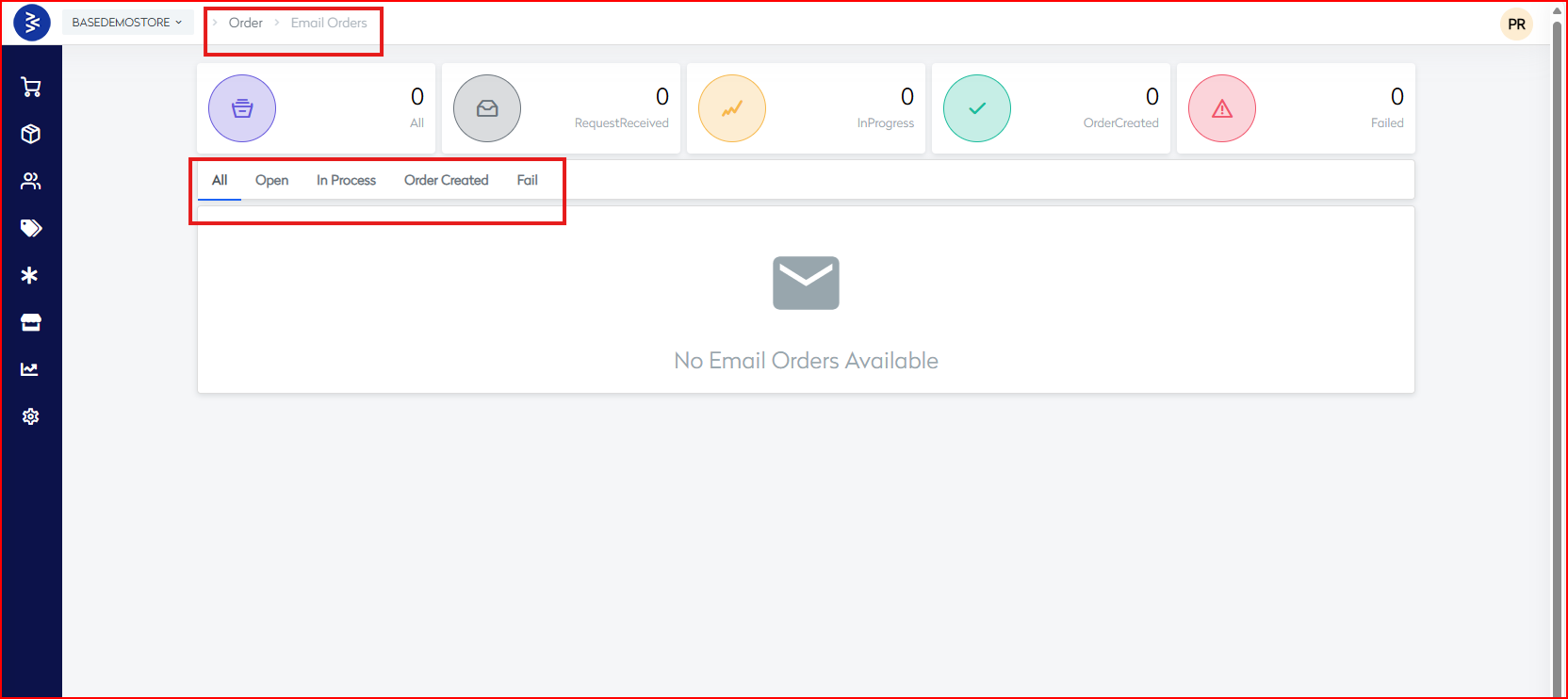
Use Cases
| Scenario | Description |
|---|---|
| Recurring CSV/PDF Orders | Ideal for B2B clients sending repeated format-based orders |
| ERP Integrations | Works well with trade customers using ERPs for order exports |
| Low-Tech Clients | Enables onboarding clients who prefer email over technical platforms |
Best Practices
- Ensure a dedicated mailbox is used for order processing.
- Validate the format and consistency of order files (PDF/CSV).
- Train clients to include all mandatory fields.
- Regularly monitor the dashboard for failed or incomplete submissions.
- Use notification emails to stay informed about errors or order creation status.
Technical Implementation Guidelines
- Monitor mailboxes using IMAP/POP3 protocols securely.
- Use Gen AI pipelines for structured parsing of PDF/CSV formats.
- Maintain audit logs for every email transaction.
- Leverage internal BetterCommerce APIs for order creation.
- Handle fallbacks for incomplete data scenarios with clear error reporting.